
A DID Group is a collection of DID numbers you can assign to the Auto Dialer so calls rotate automatically across numbers for better connectivity and local presence.
By grouping multiple numbers together, your outbound campaigns can auto-switch between them during calls, which helps you avoid call blocking and keep answer rates high.
How to Create and Use a DID Group
Step 1: Create a DID Group
- Log in to the CallHippo dashboard.
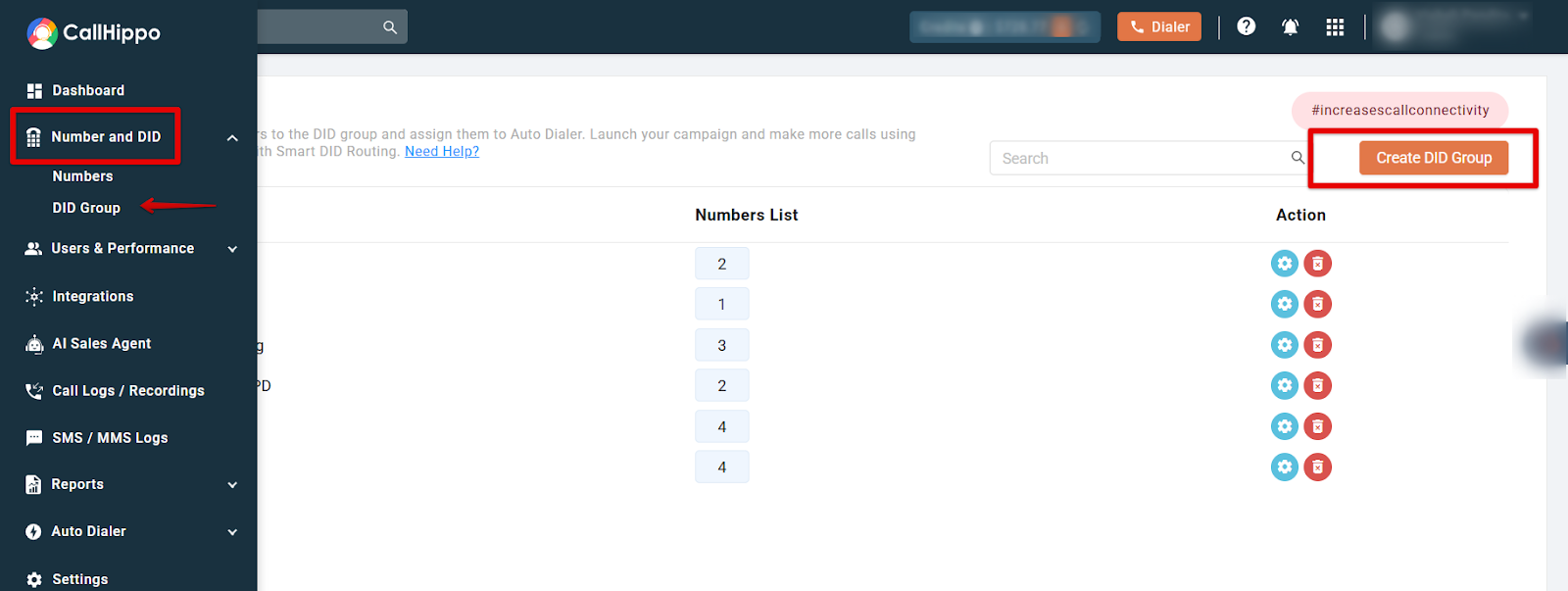
- Go to Number & DID > DID Group.
- Click Create DID Group.
Step 2: Assign Numbers to the Group
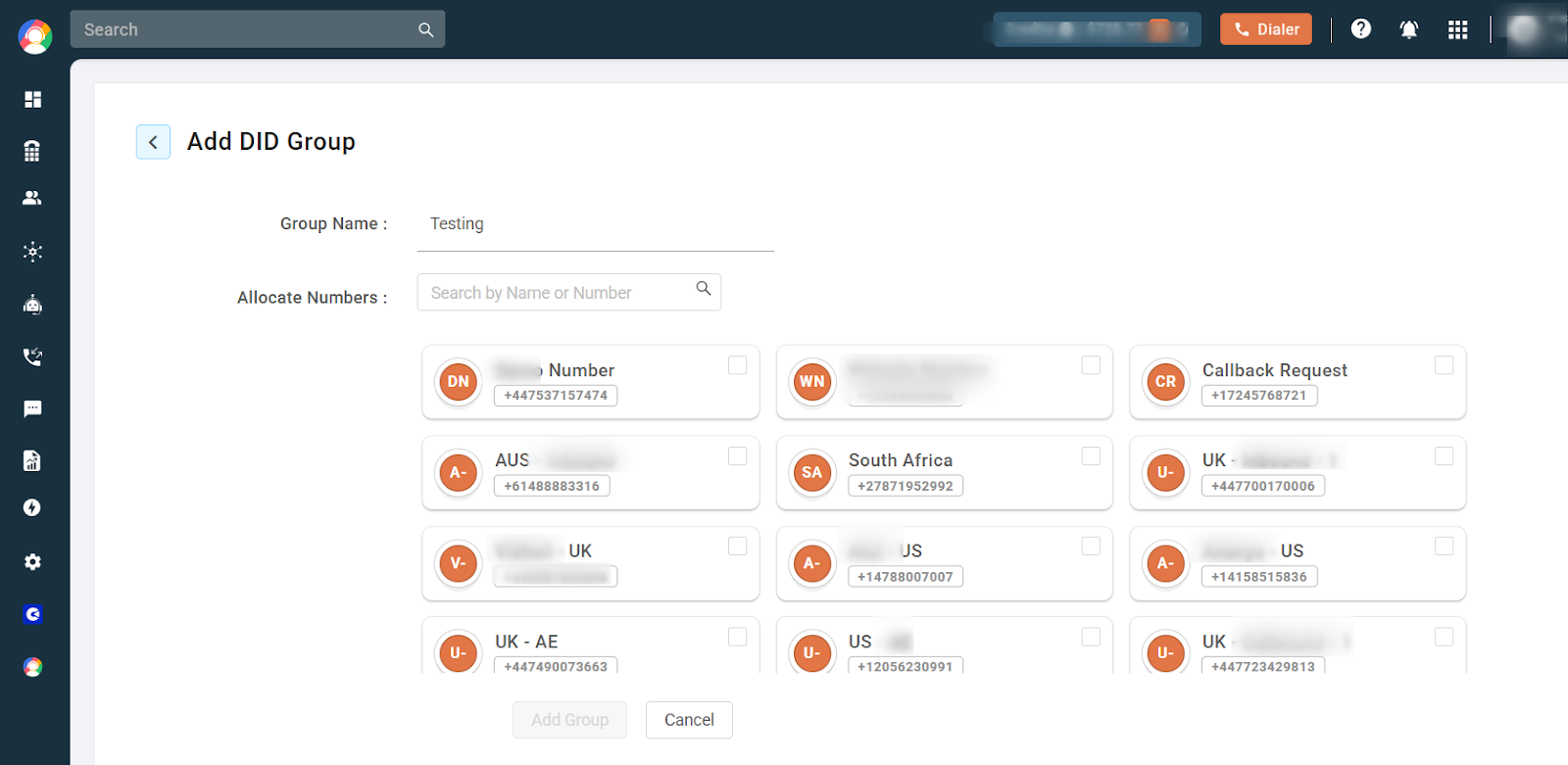
- Enter a name for the DID Group.
- Select the numbers you want to assign to the group.
- Click Add Group to save it. You can create and manage as many DID Groups as you need.
Step 3: Use the DID Group in Power/Predictive Dialer
This step requires the Platinum plan.
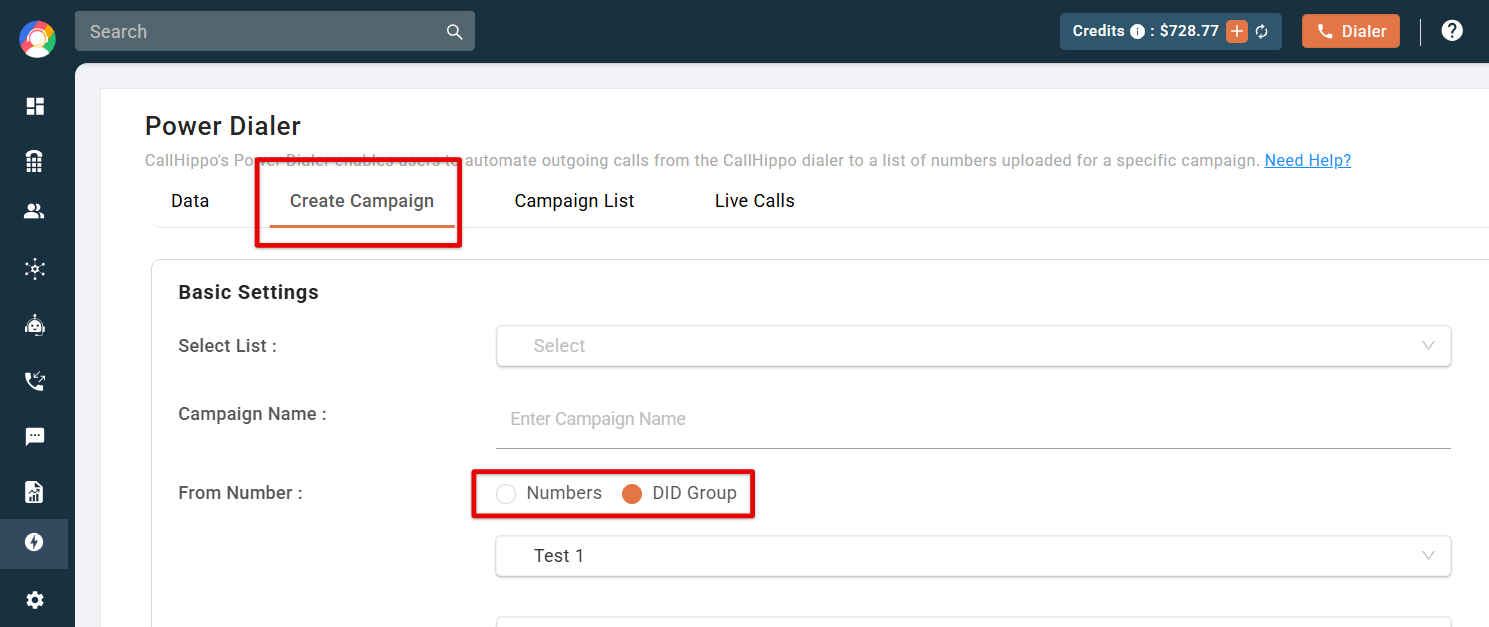
- Go to Dashboard > Power/Predictive Dialer > Create Campaign.
- Under From Number, choose whether calls should be made from a single number or a DID Group.
- When a DID Group is selected, calls automatically rotate through all the assigned numbers in that group.
Business Use Cases for DID Groups
- Sales and telemarketing: Distributes calls across numbers to avoid spam detection and boost answer rates.
- Lead generation: Uses local DID numbers so calls look more familiar and trustworthy to leads.
- Customer support and follow-ups: Assigns region-specific DID Groups to personalize interactions.
- Market research and surveys: Reduces the likelihood of call blocking for better participation.
- Political campaigns and fundraising: Reaches a broad audience while keeping local credibility.
Frequently Asked Questions
Why should I use a DID Group in my auto dialer?
A DID Group improves call connectivity, enhances local presence, and reduces the risk of calls being blocked or flagged by telecom providers.
How many numbers can I add to a DID Group?
You can add multiple DID numbers depending on your plan. More numbers help distribute outbound calls more evenly.
Can I use a DID Group in both Power Dialer and Predictive Dialer?
Yes, though full functionality typically requires the Platinum plan.
How does the auto dialer switch between DID numbers?
While a campaign runs, the dialer automatically rotates through the assigned numbers in the DID Group to spread call volume evenly.
Can I create multiple DID Groups?
Yes. You can create different DID Groups for different campaigns, regions, or departments.
Troubleshooting DID Group Issues
- DID Group not available in dialer settings: Ensure the Platinum plan is enabled and that the group is properly created and assigned to the campaign.
- Calls not rotating through numbers: Verify that multiple DID numbers are assigned and that none are disabled or out of service.
- Calls being flagged or blocked: Rotate numbers regularly, use local area codes, and avoid spammy call behavior such as excessive calls in a short period.
- Some calls not connecting: Check for inactive or expired numbers, and run a test campaign to identify and remove failing numbers.
- Unable to add numbers: Confirm the numbers are purchased and active, and check whether your account has reached its DID limit.