
Exporting your SMS logs lets you review message history and see exactly what you have spent, all in a few clicks from the dashboard.
Steps to download your SMS logs
- Log in to your CallHippo dashboard.
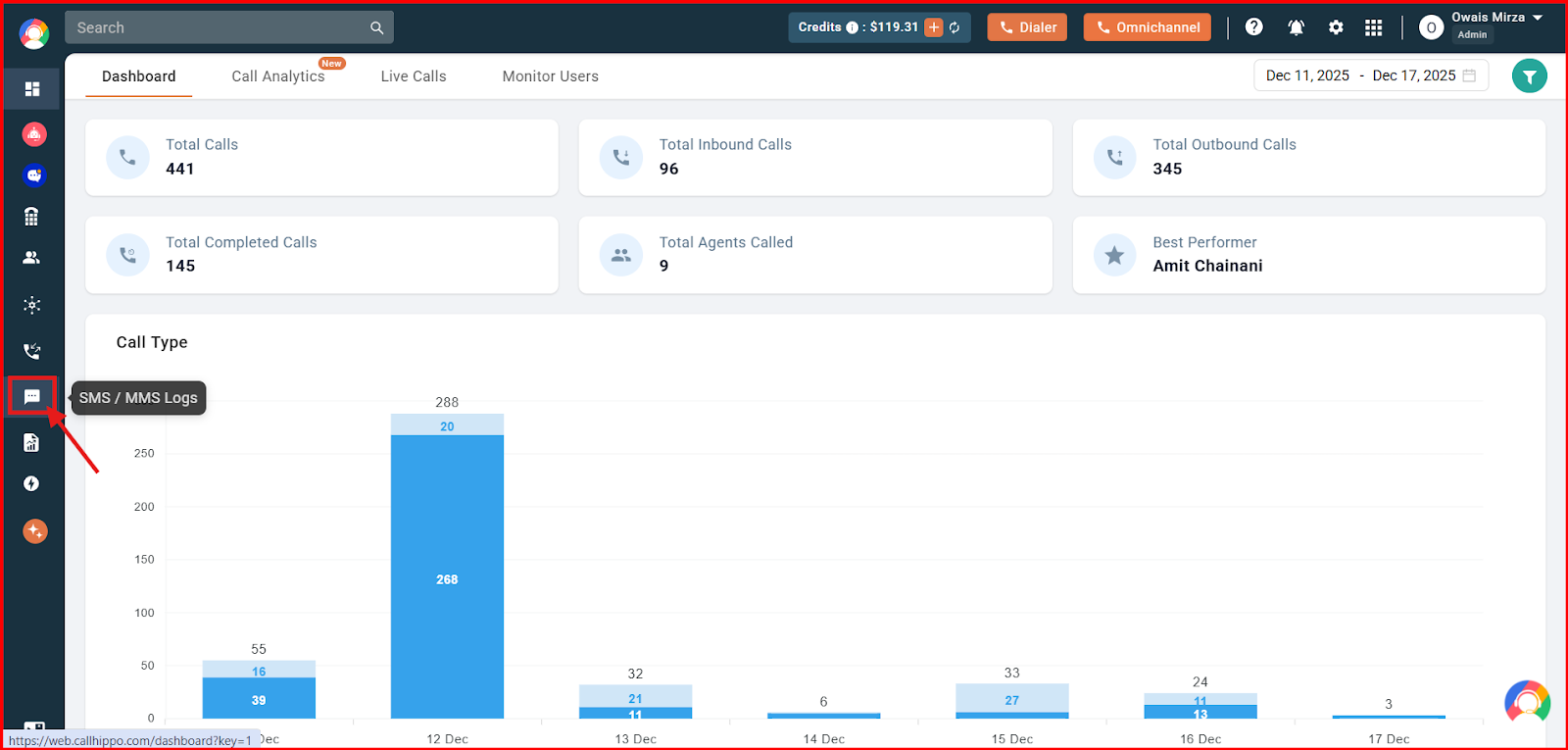
- Open SMS / MMS Logs from the left of the dashboard.
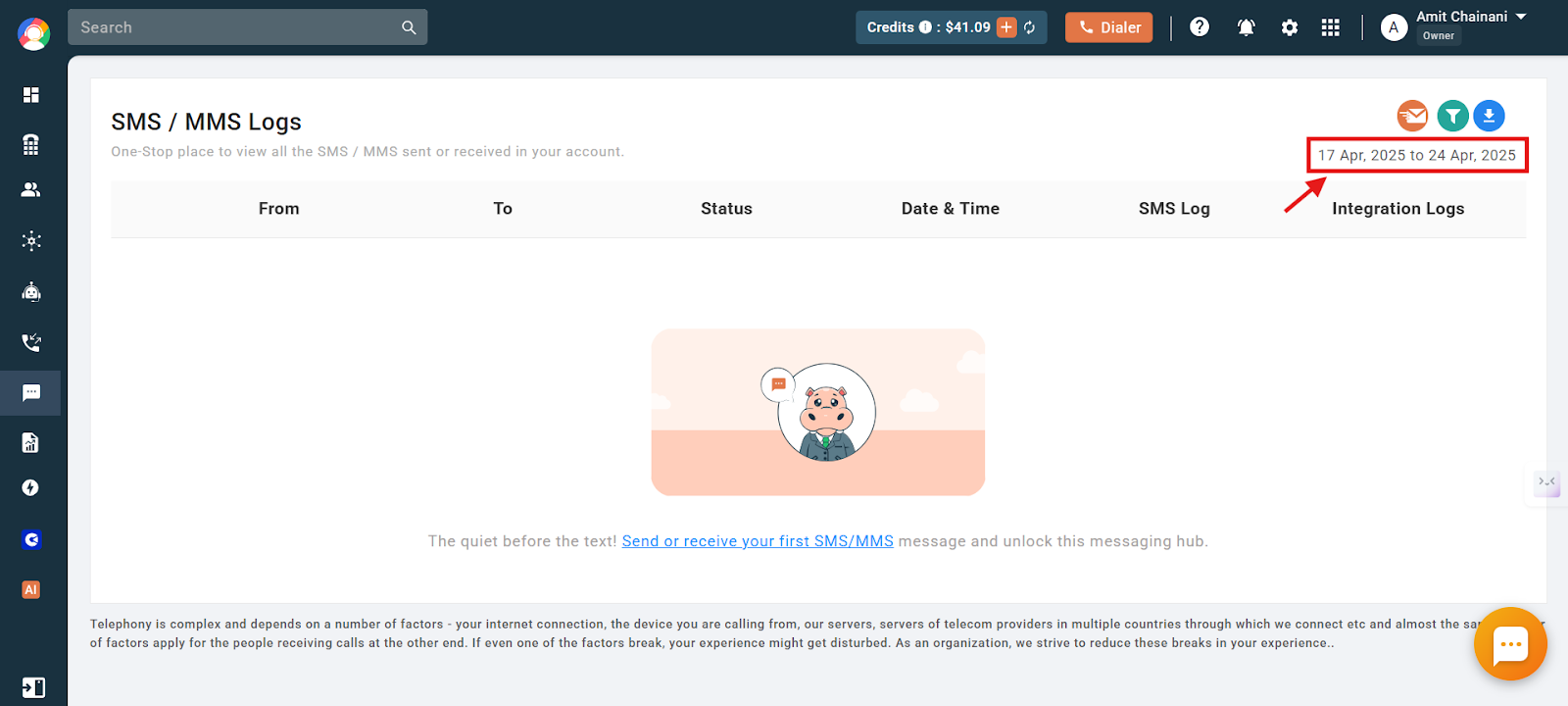
- Click the green Filter icon to choose the date range and other criteria for the logs you want. By default, the range is set to the last 7 days.
Filter options
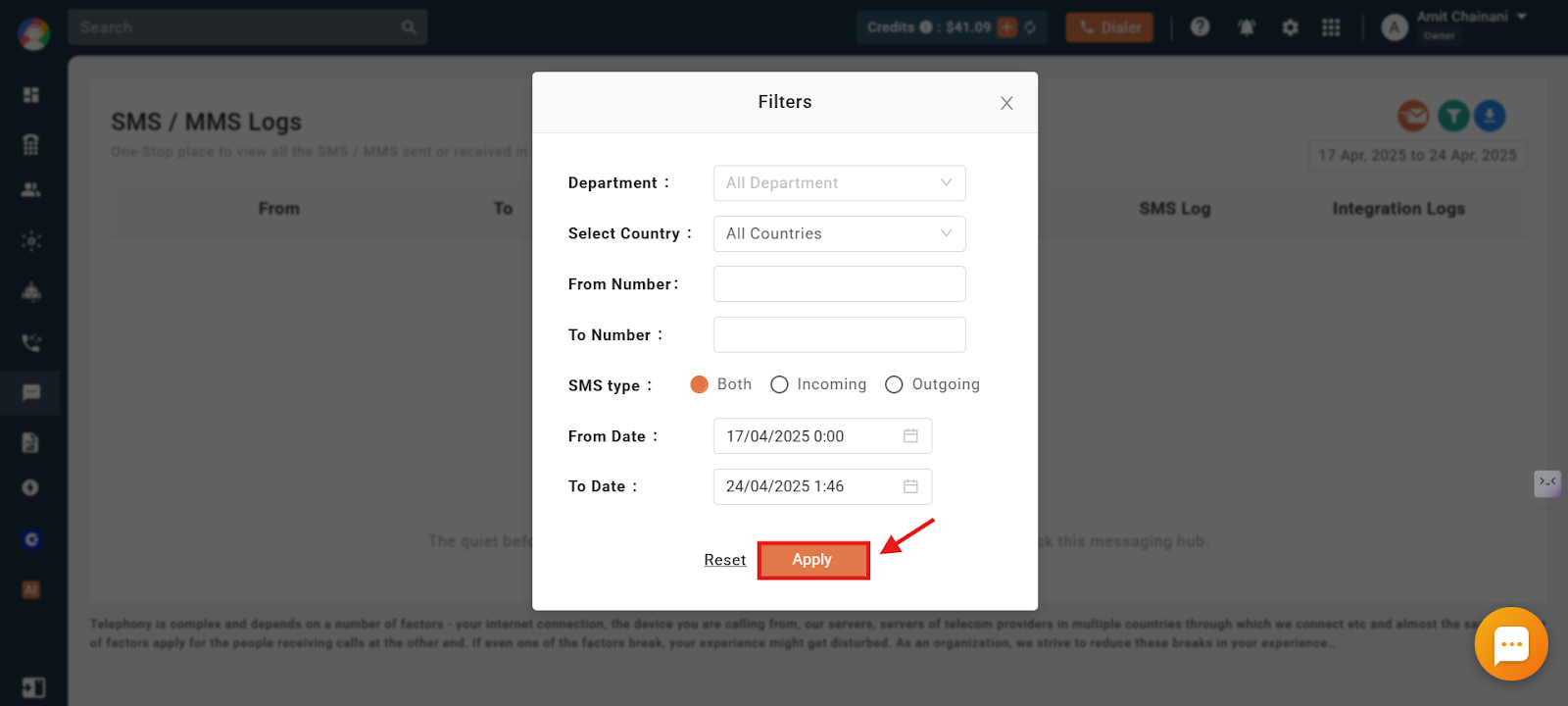
In the filter panel you can narrow the logs by several criteria:
- Department: Select a specific number to view its SMS logs, whether incoming or outgoing.
- Select Country: Choose the country you want logs for.
- From Number: Enter the sender’s number.
- To Number: Enter the recipient’s number.
- SMS Type: Filter by incoming, outgoing, or both.
- From Date / To Date: Limit logs to a specific date range.
Important: You can view logs on the dashboard for a maximum range of 90 days (3 months). If you select a range beyond 90 days, the logs are sent to your registered email address instead.
Download the logs
- Click Apply once your filters are set.
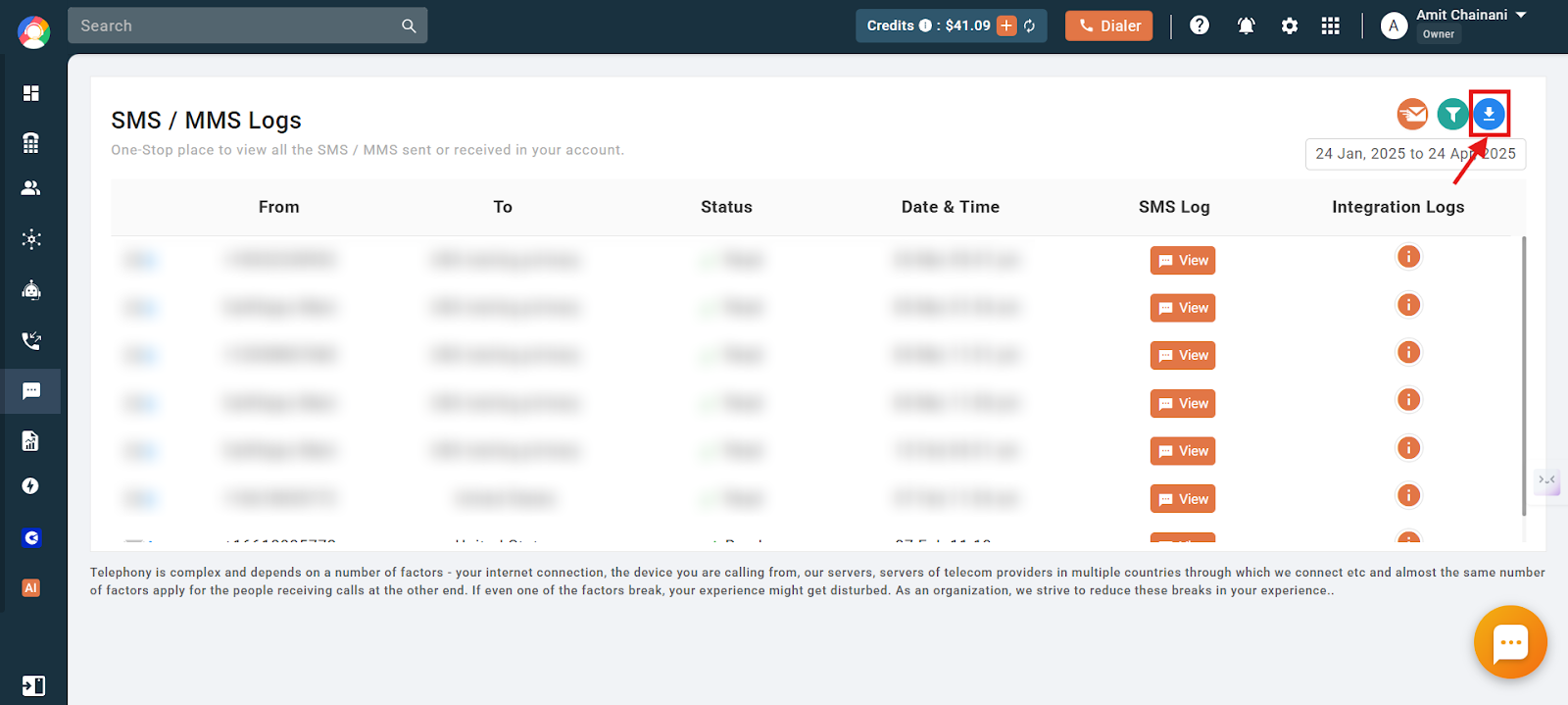
- Click the blue download icon at the top right of the logs.
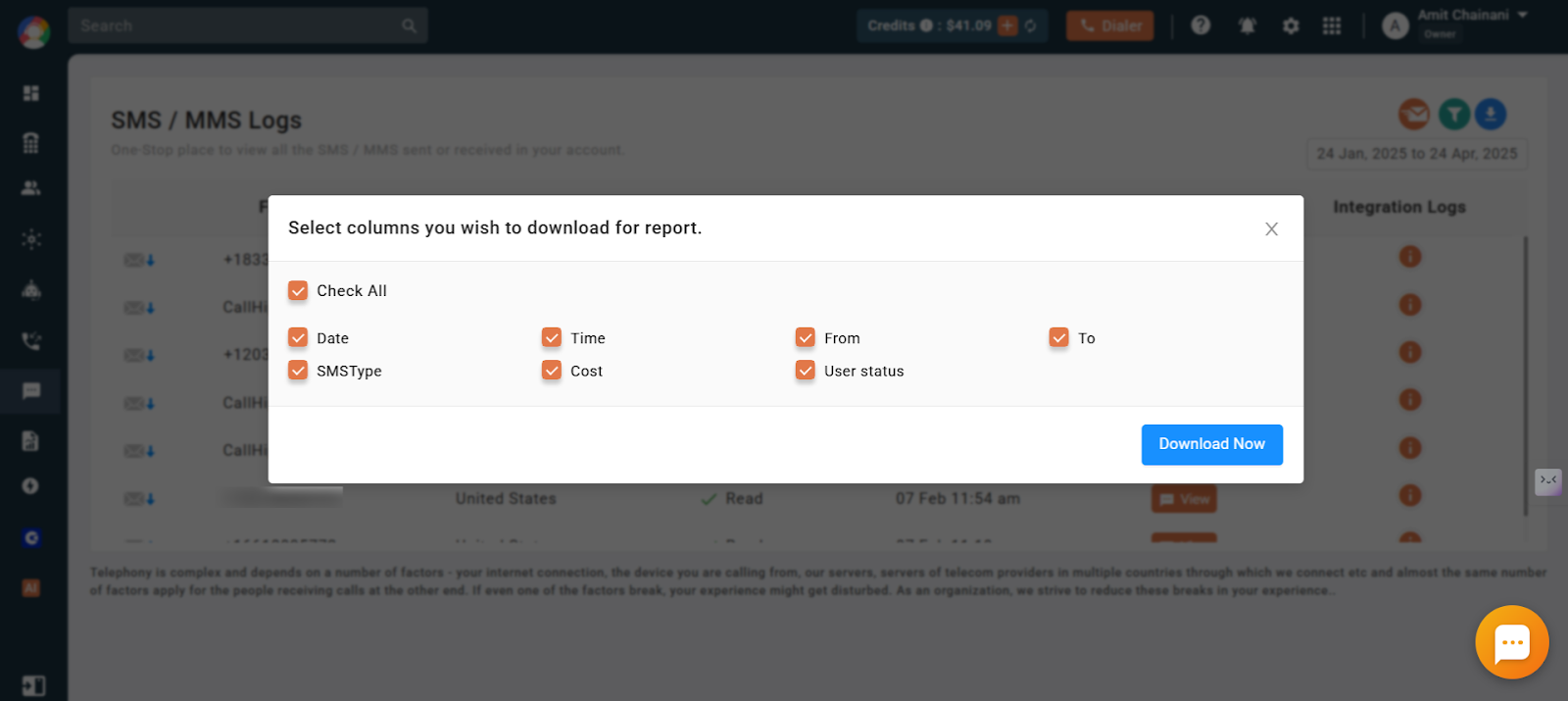
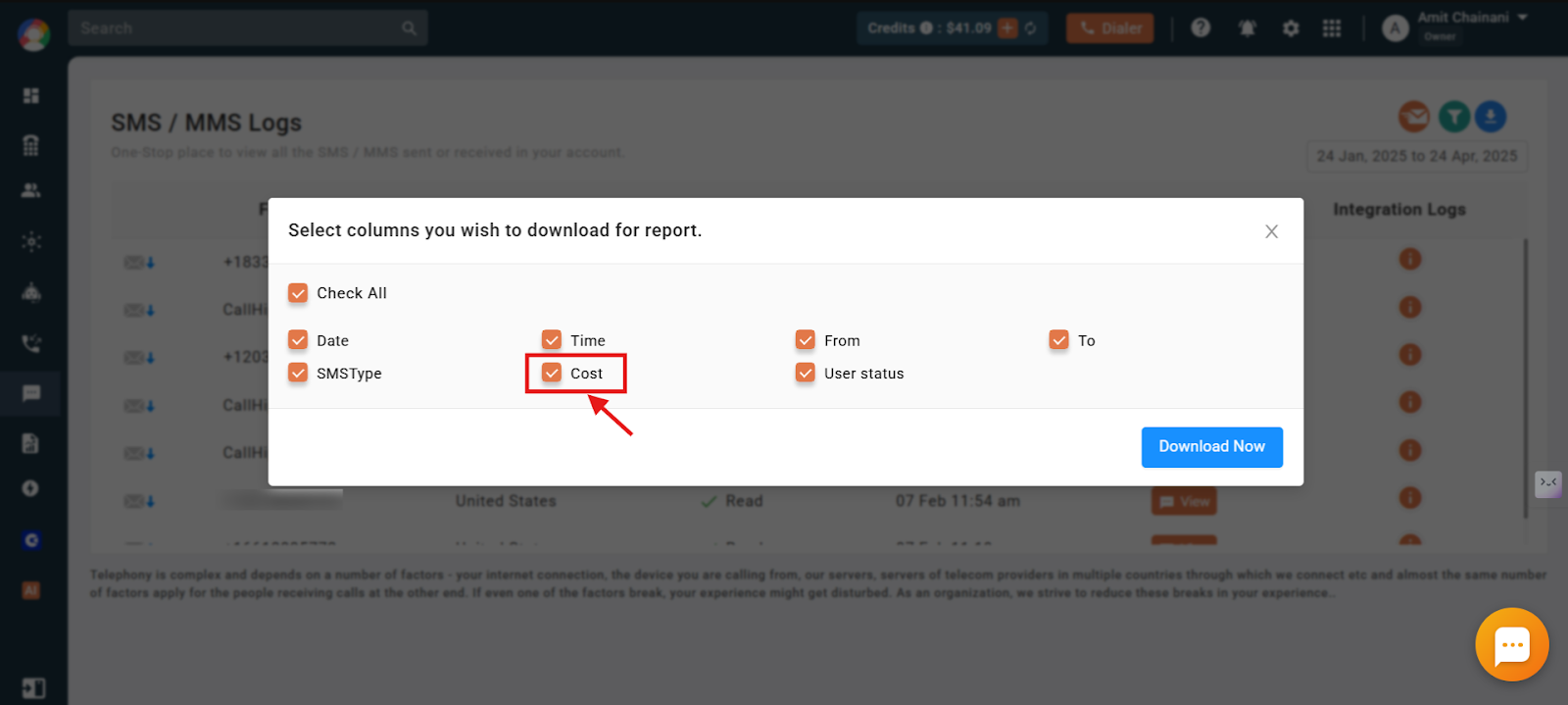
- Select the columns you want in the export. To include costs, make sure the Cost option is checked.
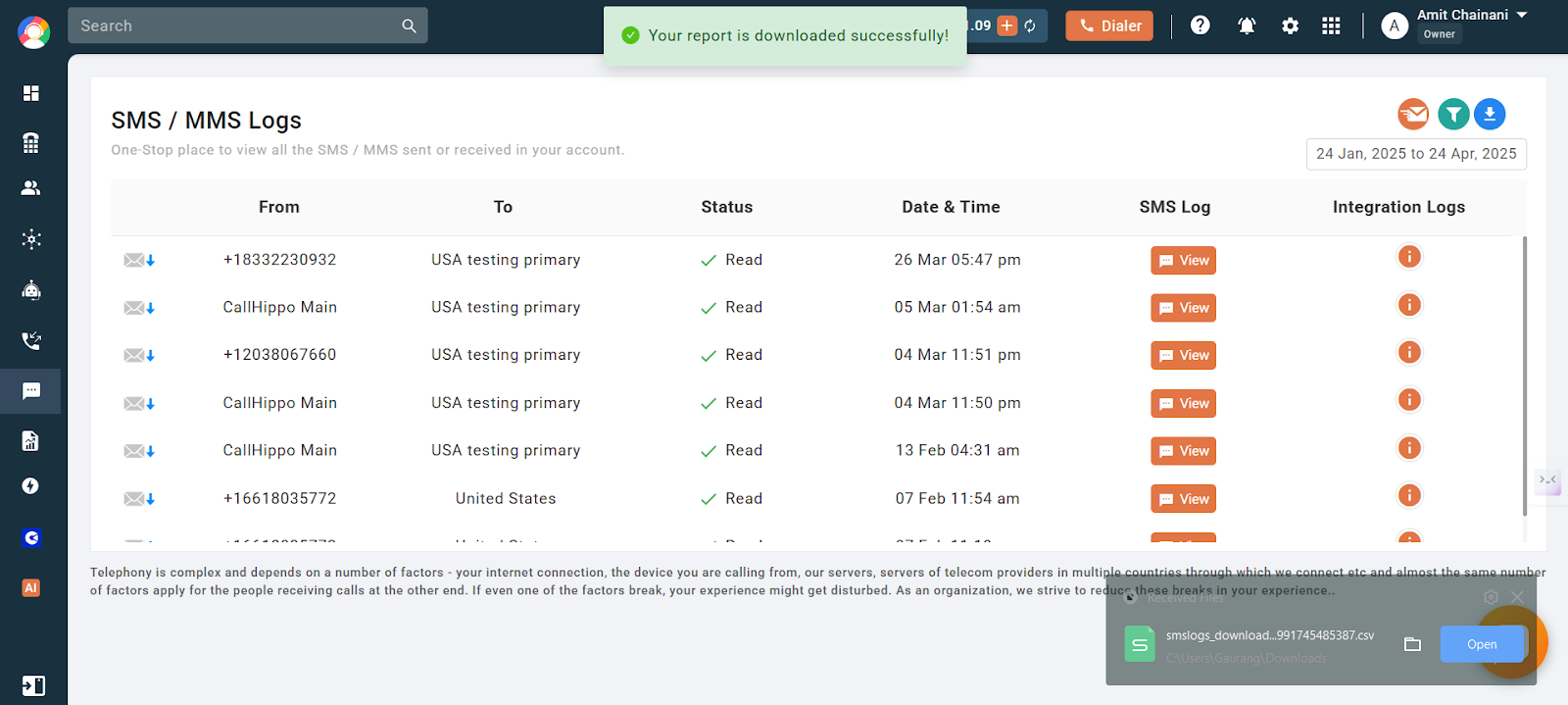
- Click Download Now. Your SMS logs are saved as an XLS file.
Check the SMS cost
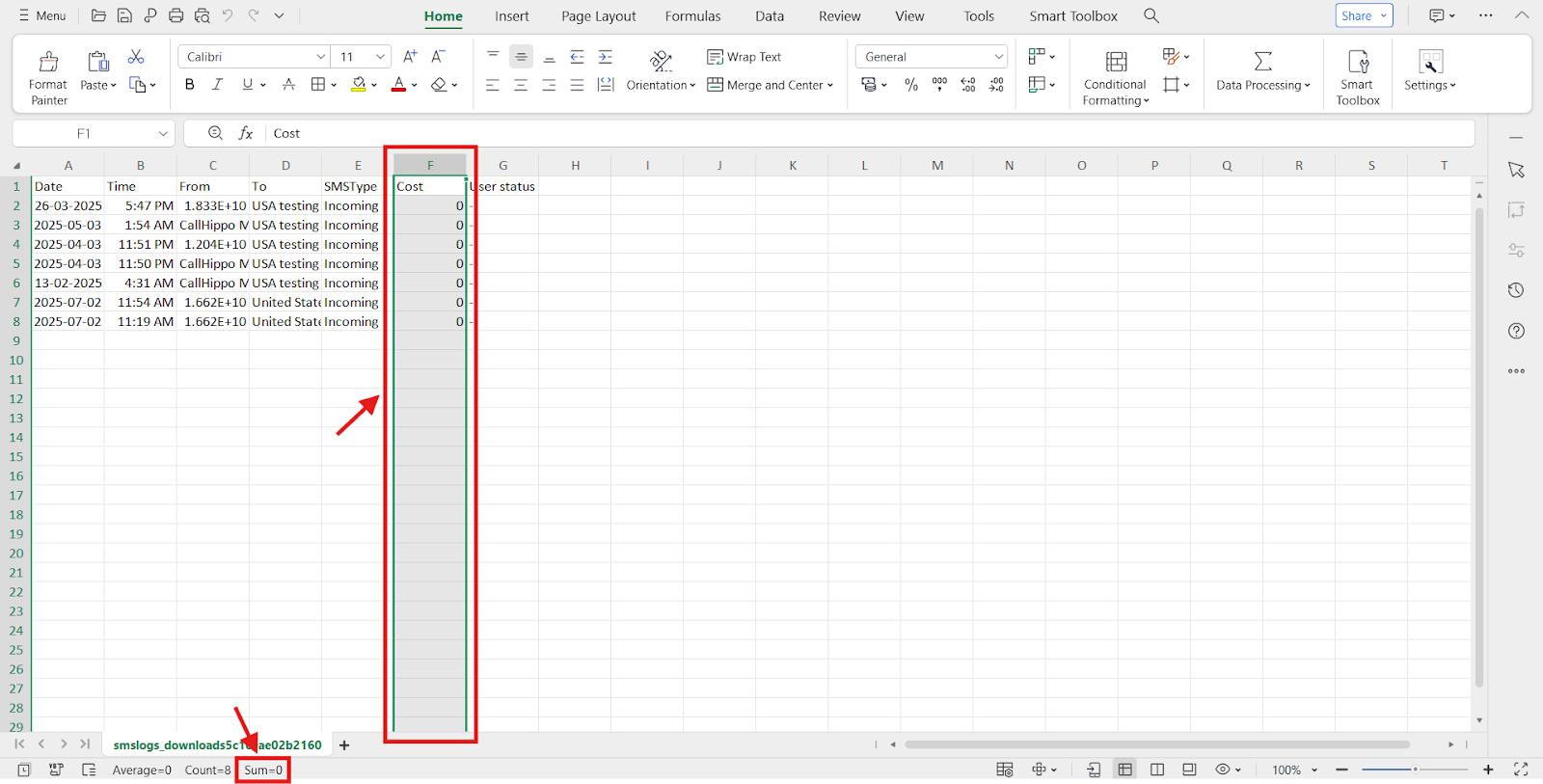
Open the downloaded file and look at the column named Cost. Select the column to see its total (sum) and know exactly how much you spent for the filtered period.
Frequently asked questions
How can I check how much I’ve spent on SMS messages?
While downloading the logs, select the Cost column before exporting. Then open the XLS file and review the Cost column, summing it to get your total.
What should I do if I don’t see logs for a specific number or date range?
Confirm the correct filters are applied, especially the number, date range, and SMS type. Also ensure the range does not exceed 90 days, otherwise the logs are emailed to your registered address.
How can I schedule an automated message?
CallHippo does not currently support scheduling automated SMS messages.
How do I see how many text messages I have sent today?
Go to SMS / MMS Logs, apply today’s date in the filter, and select Outgoing under SMS Type to see the messages sent today.
Where can I check how many free SMS messages I have used?
Log in to your CallHippo web dashboard and open the Plan & Billing section from the top right. Under the Plan tab you will find your current plan details, including the number of free SMS messages used.