
CallHippo’s user role system lets you build a clear team hierarchy, control who can see what, and manage multiple teams under one account.
By assigning roles and setting up reporting relationships, you keep each team’s data separate. As a rule, one team cannot view another team’s data. Access and visibility depend entirely on roles and reporting relationships.
How to Assign Roles When Inviting Users
Go to Users → Invite User. While inviting a new user, choose their role from the available options, and use the “Reports To” setting to define who they report to.
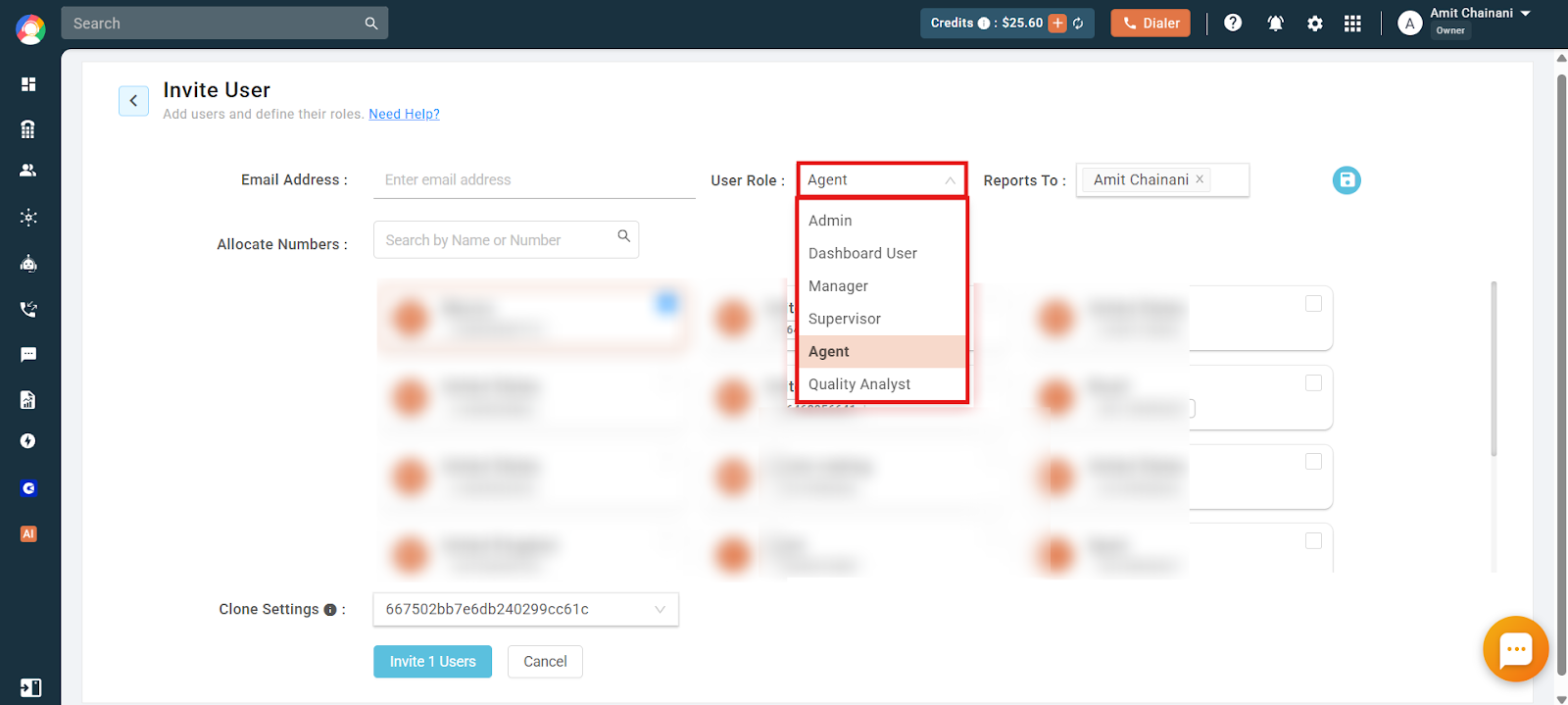
User Role Hierarchy
Roles are arranged from highest to lowest as follows:
- Owner
- Admin
- Dashboard User
- Manager
- Supervisor
- Agent
Users can only see the data of users who are below them in the hierarchy and are assigned as reporting to them. For example, a Manager can view the data of Agents who report to that Manager, but Agents cannot view the data of Managers.
How to Change the Role of an Existing User
Go to Users → Settings → Roles. You can upgrade or downgrade a user’s role as long as they are under your hierarchy. You cannot change the role of a user who has the same or a higher role than you.
For example, an Admin can change the roles of Managers or Agents, but cannot change the role of another Admin or the Owner.
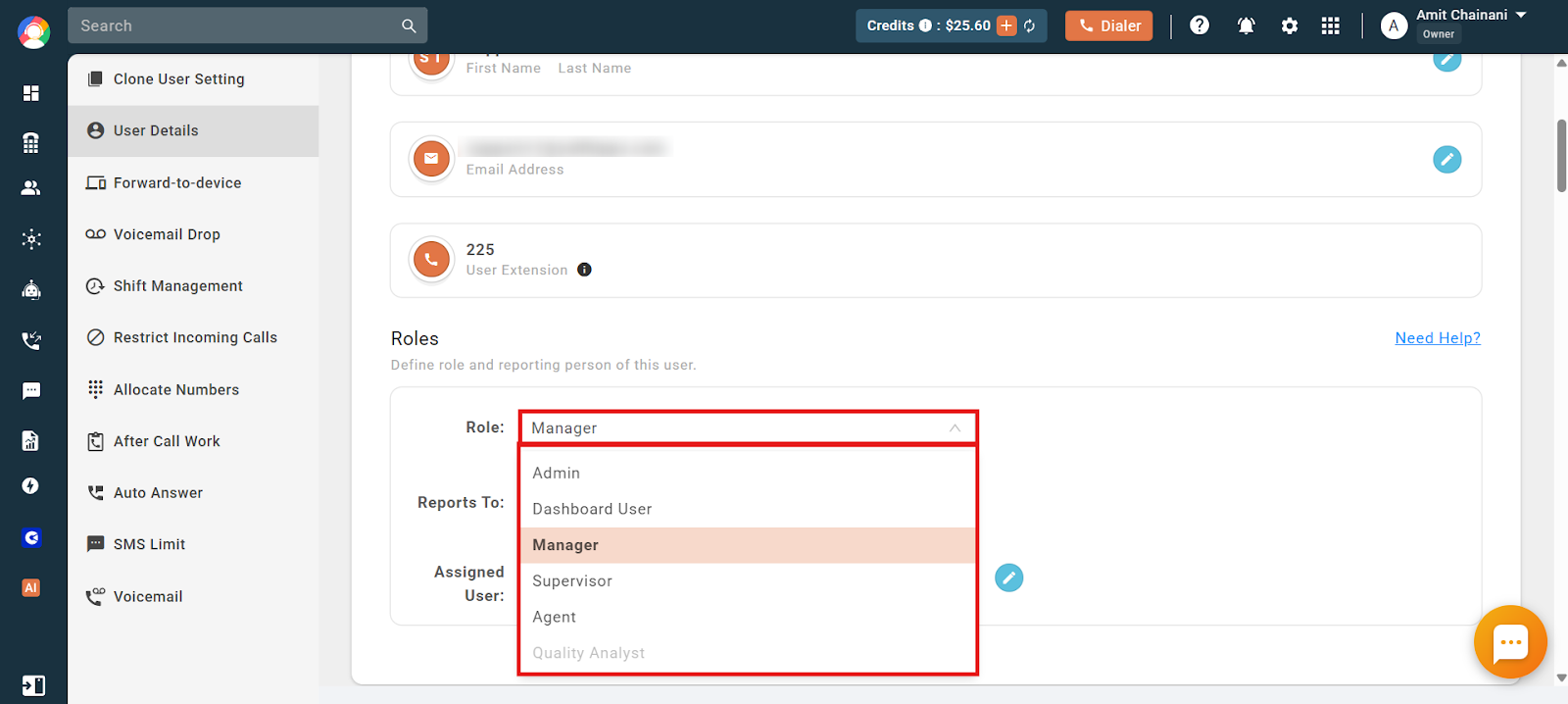
What happens if you downgrade a user’s role?
When a user is downgraded, their direct reports are reassigned to the next upper-level user in the hierarchy. Example: John is an Admin, Adam is a Manager reporting to John, and five users report to Adam. If Adam is changed to Agent, those five users now report to John.
How “Reports To” Works and How to Set It
You can define a reporting person for any user under “Reports To”. The reporting person gains access to that user’s data. For example, if Adam reports to John, John can view Adam’s data.
To set or change a reporting person, go to the user’s profile in settings and choose a user from a higher role in the hierarchy. You can also select multiple users in the “Reports To” field, and all of them will be able to see the reporting user’s data.
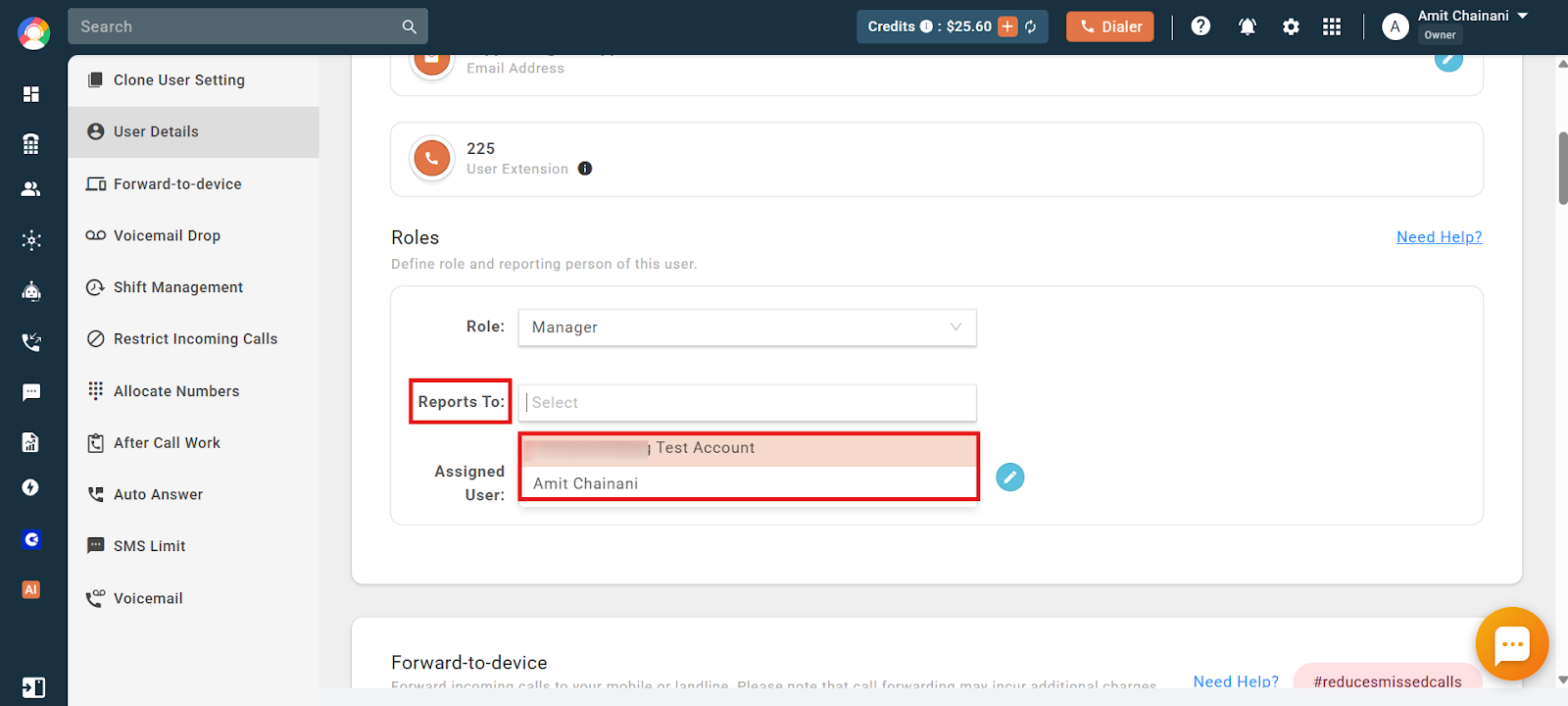
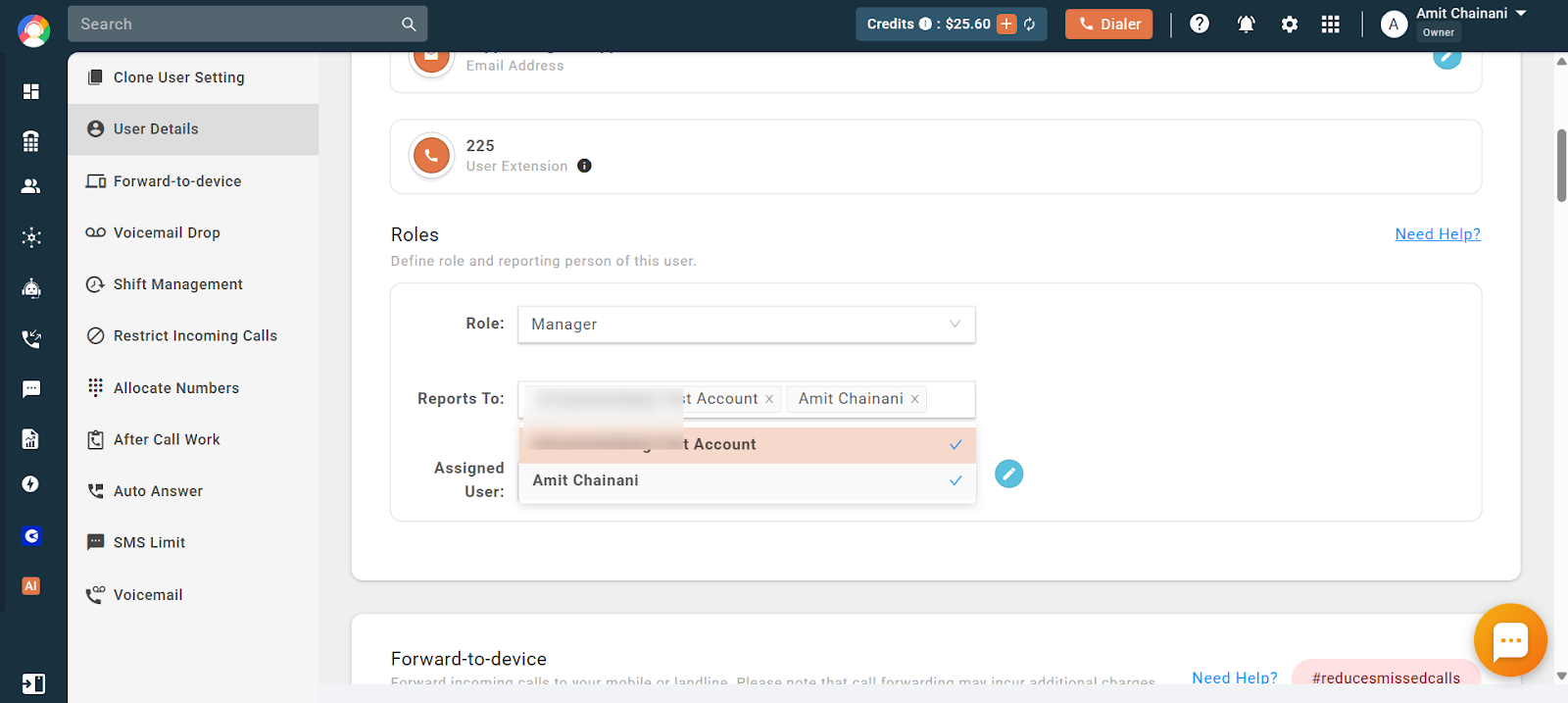
Note: Only usernames appear in the dropdown; roles are not shown.
What is the importance of “Reports To”?
It defines who can view a user’s data and helps create team-wise reporting structures, so different managers or admins only access their own team’s data. If you have two teams, you can create two Admins or Managers and set them as the reporting persons for each team’s Agents, letting each team be managed independently.
What Is an “Assigned User”?
This section lets Managers, Supervisors, and Dashboard Users select the users whose data they want to access. When you add users under “Assigned Users”, you become their reporting person.
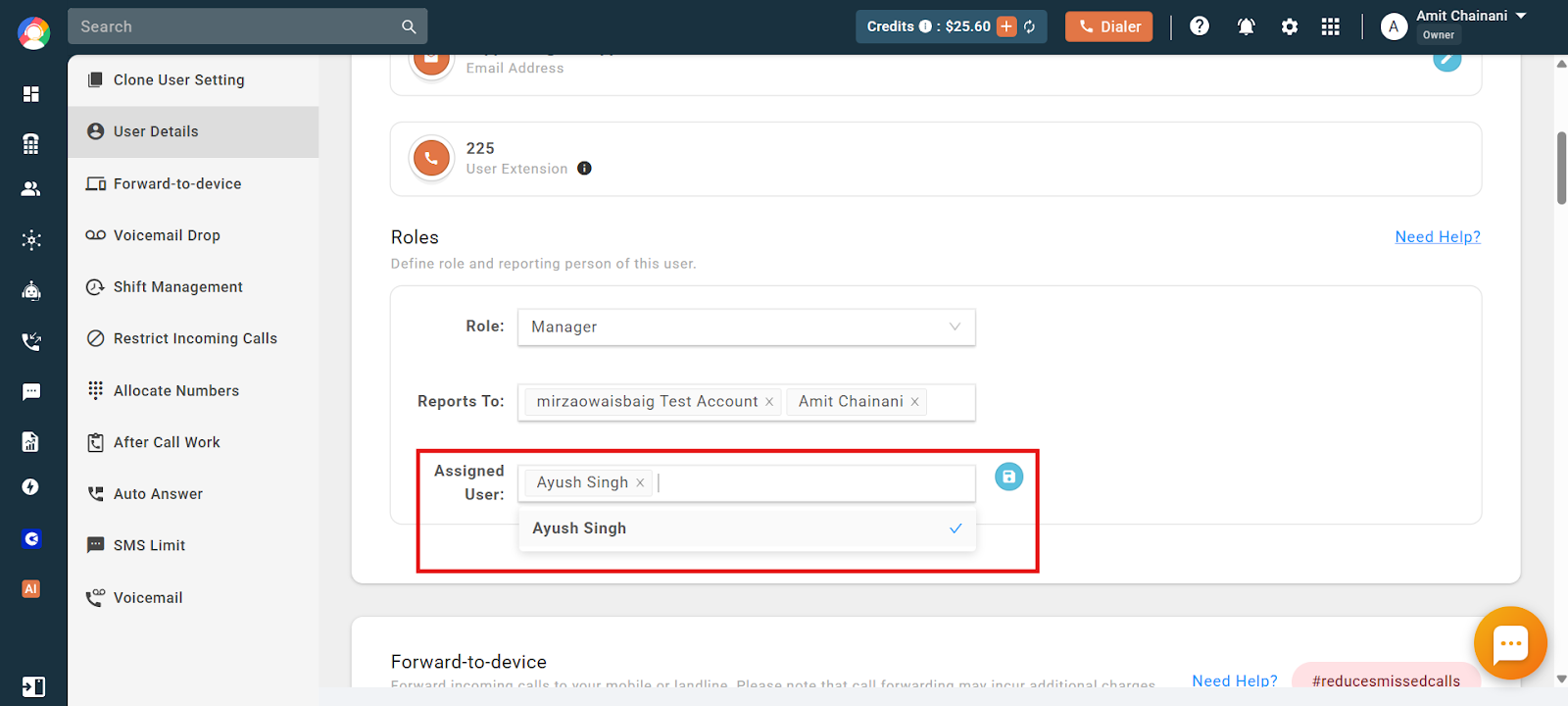
If you deselect a lower-level user from “Assigned Users”, you can no longer view that user’s data, and higher roles in that reporting chain also lose access. Example: if a Supervisor (User B) removes an Agent (User C), then both the Supervisor and the Manager above them (User A) lose access to User C’s data.
Note: Owner and Admin users can always see the data of all users, regardless of assignments.
How User Roles Work: Access by Role
Here is a comparison of access and permissions for each role in CallHippo:
| Role | Dialer Access | View Other Users’ Data | Edit Permissions |
|---|---|---|---|
| Owner | Yes | All users | Full system access |
| Admin | Yes | All users | Full system access |
| Dashboard User | No | Limited (assigned users) | View-only |
| Manager | Yes | Reporting users only | Team settings only |
| Supervisor | No | Reporting users only | View-only |
| Agent | Yes | Own data only | Own settings only |
Role Details
Owner
The person who creates the CallHippo account becomes the Owner, with full access to the dialer and all feature modules. Only the Owner can invite another Admin.
Admin
Admins have the same access as the Owner (except they cannot invite other Admins). They can add, edit, or delete users and numbers; access and modify billing and plan information; use number masking; add and manage tags; set holidays; control call recording rights and compliance settings; download and email reports; set price caps; and configure IP whitelisting. Use case: assign Admin when someone needs to manage everything in the system.
Dashboard User
Meant for users who only need to view reports and dashboards. They cannot access the dialer or make and receive calls, and are charged $15/user. They can access the web app dashboard and view data of users in their “Assigned Users” list, but cannot change any settings or users. Use case: ideal for supervisors, auditors, or team leads who only need to monitor activity.
Manager
Managers lead teams and monitor performance. They can view data of users reporting to them, add and edit users under their hierarchy, add or delete numbers, modify number settings, create or edit Predictive Dialer campaigns, and create or modify teams. Use case: assign Manager when someone needs to manage a group of agents and their settings.
Supervisor
Intended for monitoring and QA. Supervisors can view all data (reports, activity feed, number list) of users who report to them, but cannot make changes to users, numbers, or system settings. Use case: assign Supervisor when someone needs to monitor users for training or quality assurance.
Agent
Agents can make and receive calls using the dialer and view and edit their own data only. They cannot access other users’ data or modify any system settings. Use case: assign Agent to frontline calling staff.
Frequently Asked Questions
I can’t see someone’s data in the dashboard. Why?
You can only view the data of users who are assigned to you through “Reports To” and are lower than you in the hierarchy. If they are not assigned or are in a higher role, you will not have access.
Why can’t I change another user’s role?
You can only change the role of users who are under your reporting hierarchy and have a lower role than yours. Users at the same level or higher cannot be changed.
I downgraded a user’s role, but now I can’t see their team’s data. What happened?
When you downgrade a user, their direct reports are reassigned to the next person above them in the hierarchy. If you are not that person, you lose visibility of those users.
Can I assign more than one reporting person to a user?
Yes. You can select multiple users in the “Reports To” field, and all of them will be able to access the reporting user’s data.
Why don’t I see roles listed in the “Reports To” dropdown?
The field only shows usernames, not roles, so you will need to know a person’s role before selecting them.
What happens if I remove someone from my “Assigned Users” list?
You will no longer be able to view their data, and higher roles above you in that reporting line will lose access too.
Why do some users still have access to a user I removed?
Owner and Admin users always have full access to all users’ data, regardless of the reporting structure.
I’m a Manager. Why can’t I view all users’ data?
Managers can only see the data of users who report to them. Make sure those users are correctly assigned under you using “Reports To”.
My Supervisor can’t make changes to users. Why not?
Supervisors have view-only access. They can monitor user data but cannot change user settings or roles.
How can I view only reports and dashboards without using the dialer?
Use the Dashboard User role, which allows viewing reports and dashboards but not making or receiving calls.
I want to manage a team of agents. What role should I assign myself?
The Manager role, which lets you manage users under your hierarchy, view their data, and adjust team settings.
I accidentally downgraded someone’s role. Can I fix it?
Yes. If the user is still under your hierarchy, go to Users → Settings → Roles and upgrade their role again.
I’m an Agent but need to see another user’s activity. How can I do that?
Agents can only view their own data. You would need to be assigned a higher role (like Supervisor or Manager) and have that user listed under your reporting line.
What should I do if I need someone to monitor calls but not make any changes?
Assign them the Supervisor or Dashboard User role. Both allow monitoring access without permission to make changes.
Can I become an Agent and turn another user into an Owner?
No. The Owner role cannot be transferred to another user. However, the Owner can change their own role to Dashboard User if needed.
Can an Owner account become a Dashboard User?
Yes. The Owner can downgrade to Dashboard User, in which case the system charges $15/user on a pro-rata basis for the role.
Will Agents be able to see each other’s call logs?
No. Agents can only access their own data and call logs, including that of fellow Agents.
My user doesn’t need a number or calling access, just dashboard access. Is that possible?
Yes. Assign them the Dashboard User role, designed for users who only need to view reports and dashboards. It is ideal for supervisors, auditors, or team leads and is charged $15/user.
How can I add an Admin?
Only the Owner can invite a new Admin. Go to Users → Invite User and select the Admin role while inviting, making sure you are logged in as the Owner.