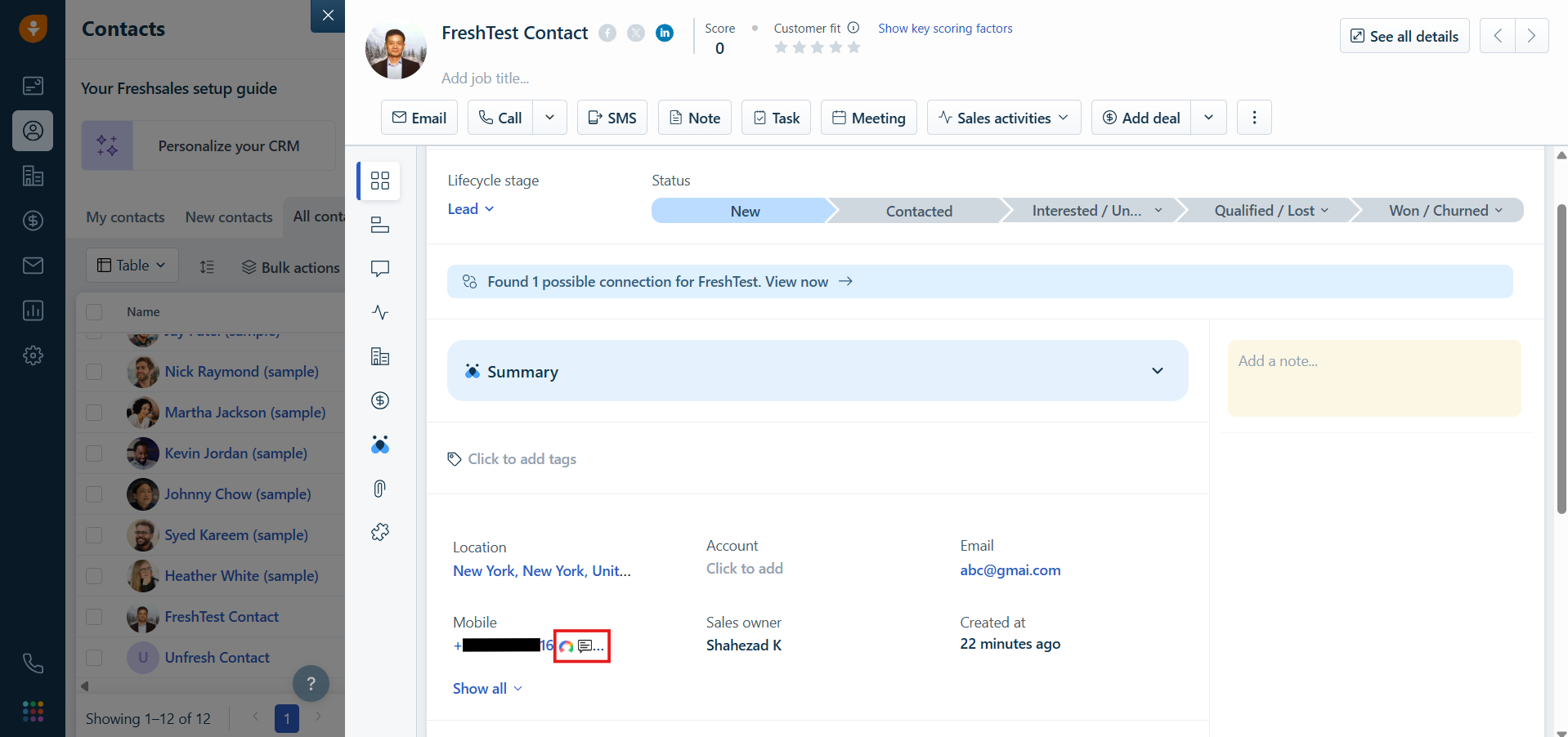
Connecting Freshworks (Freshsales) with CallHippo automatically logs your calls and SMS against the right contacts, keeping your CRM and dialer in sync.
The setup has two parts: first collect your API key and domain from Freshworks, then use them to connect the integration inside CallHippo.
Step 1: Get your API key and domain in Freshworks
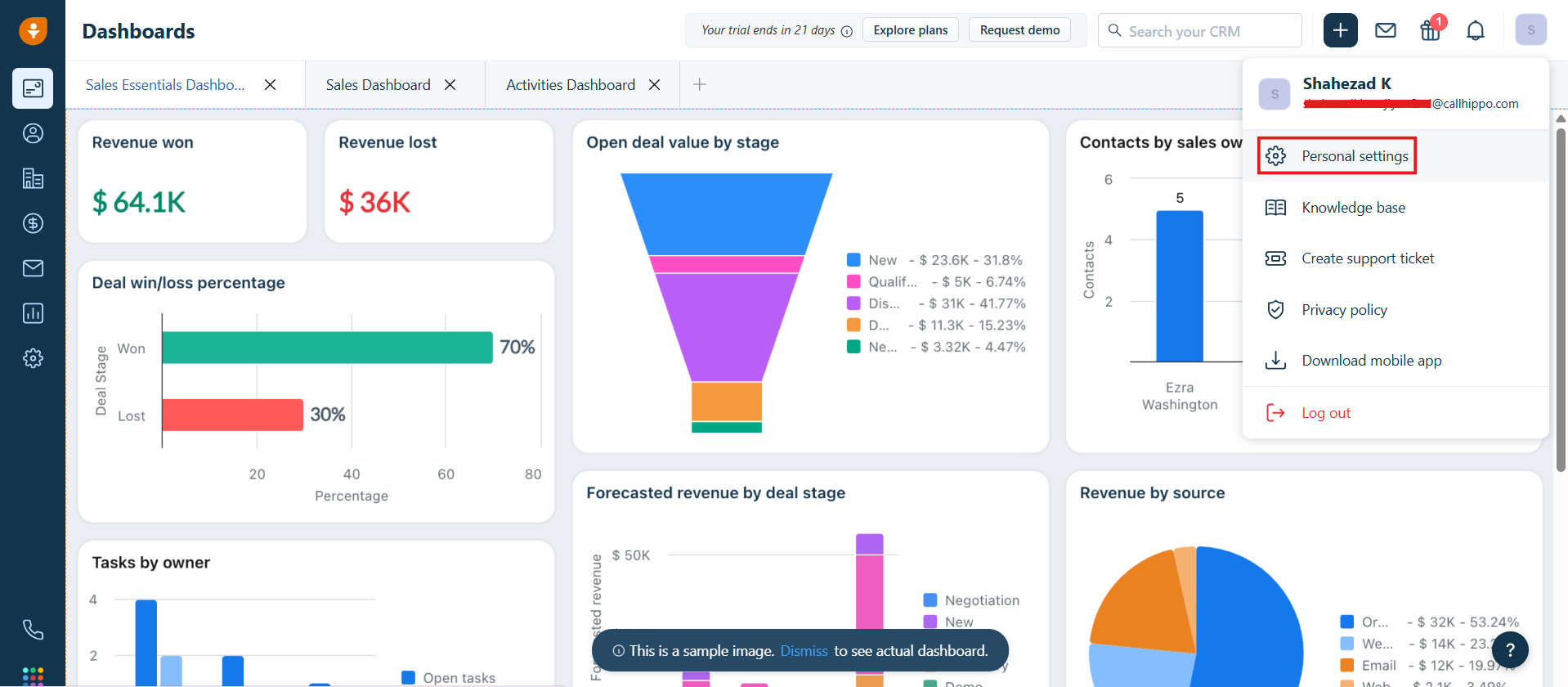
- Log in to your Freshworks account, click the profile icon in the top-right corner, and open Personal settings.
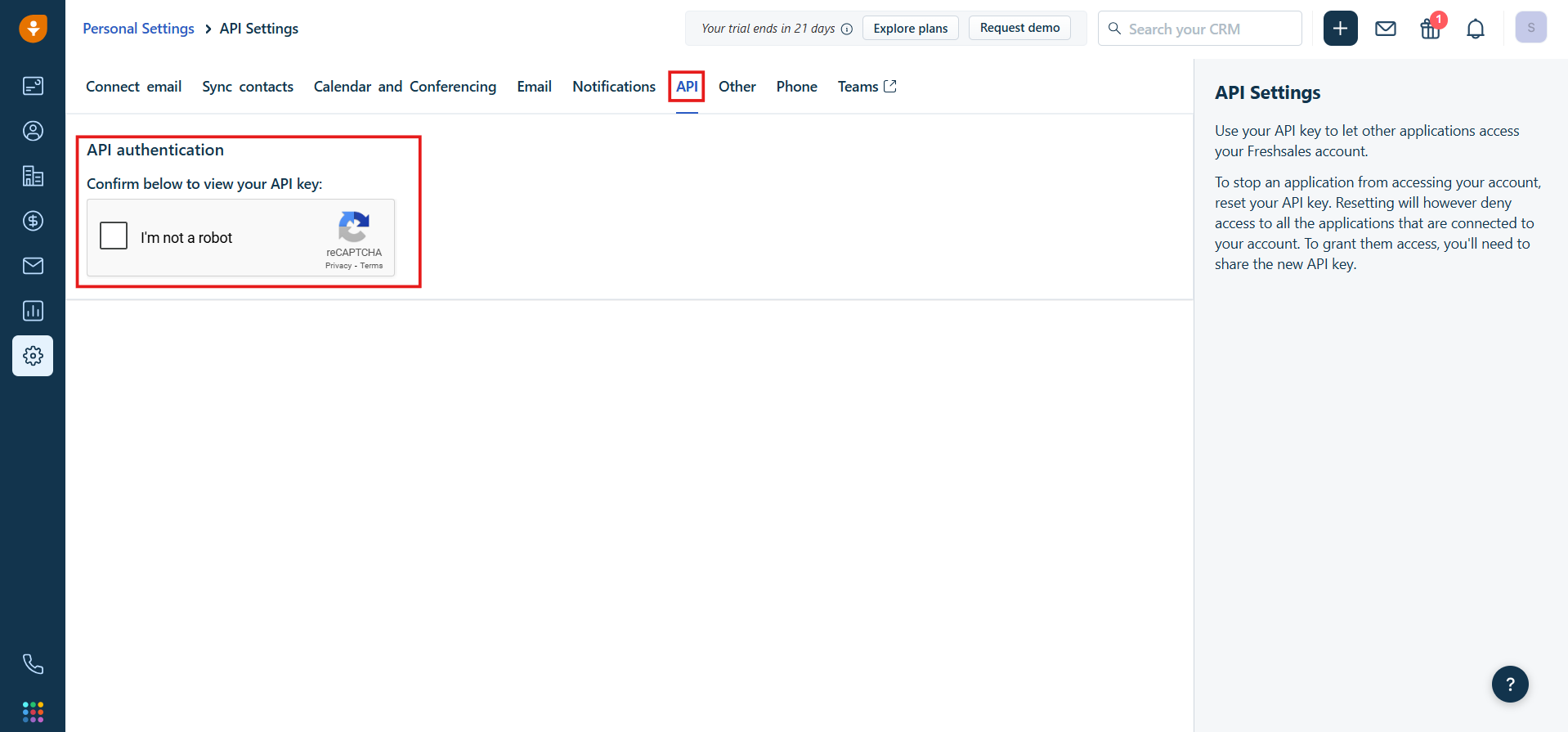
- Open the API settings tab and complete the captcha verification.
- Copy your API key and domain name from this screen and save them somewhere handy. For example, in https://callhippo.freshsales.io, the domain name is callhippo.freshsales.io.
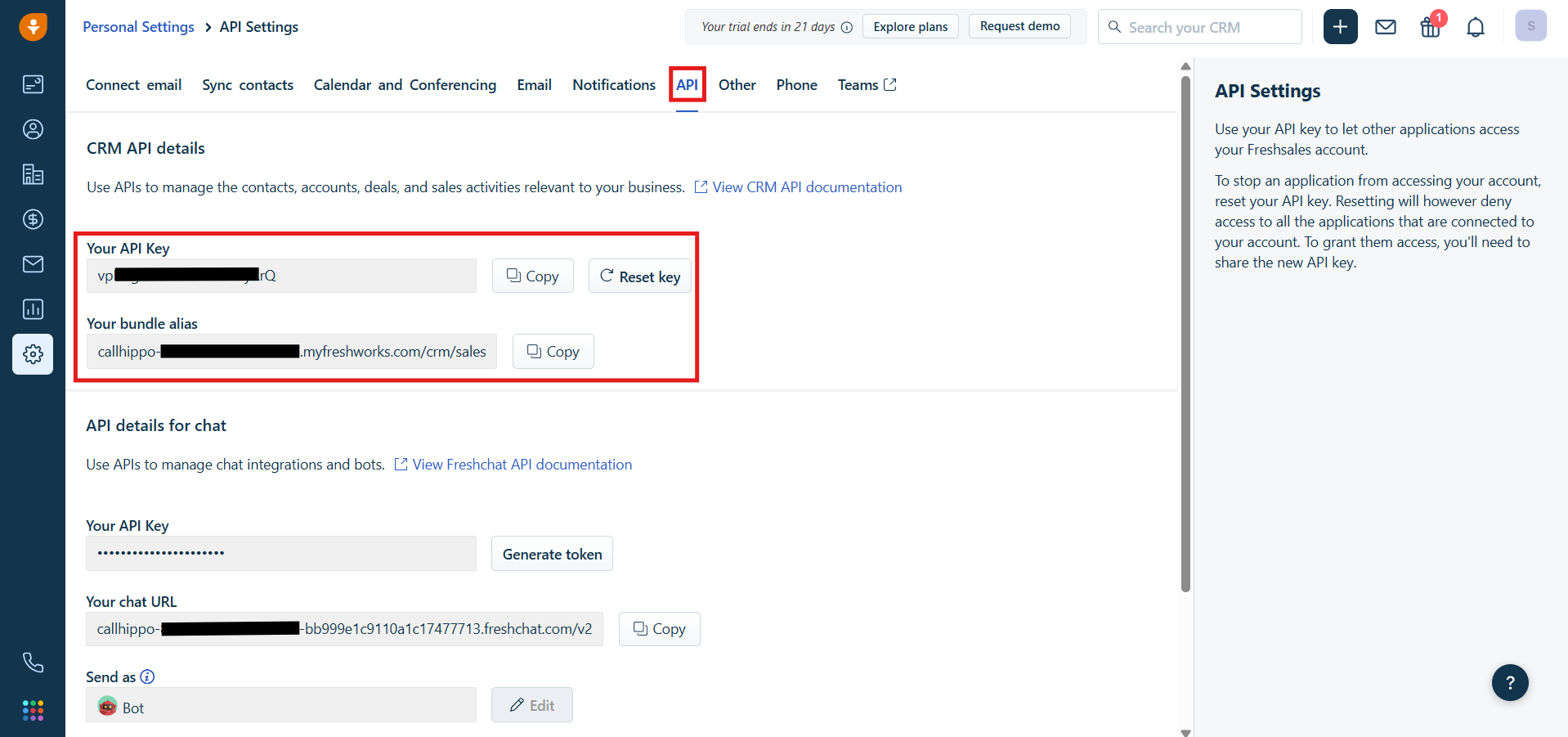
Note: Do not use the API key shown at the bottom of the screen. Use the CRM API key described above.
Step 2: Connect Freshworks in CallHippo
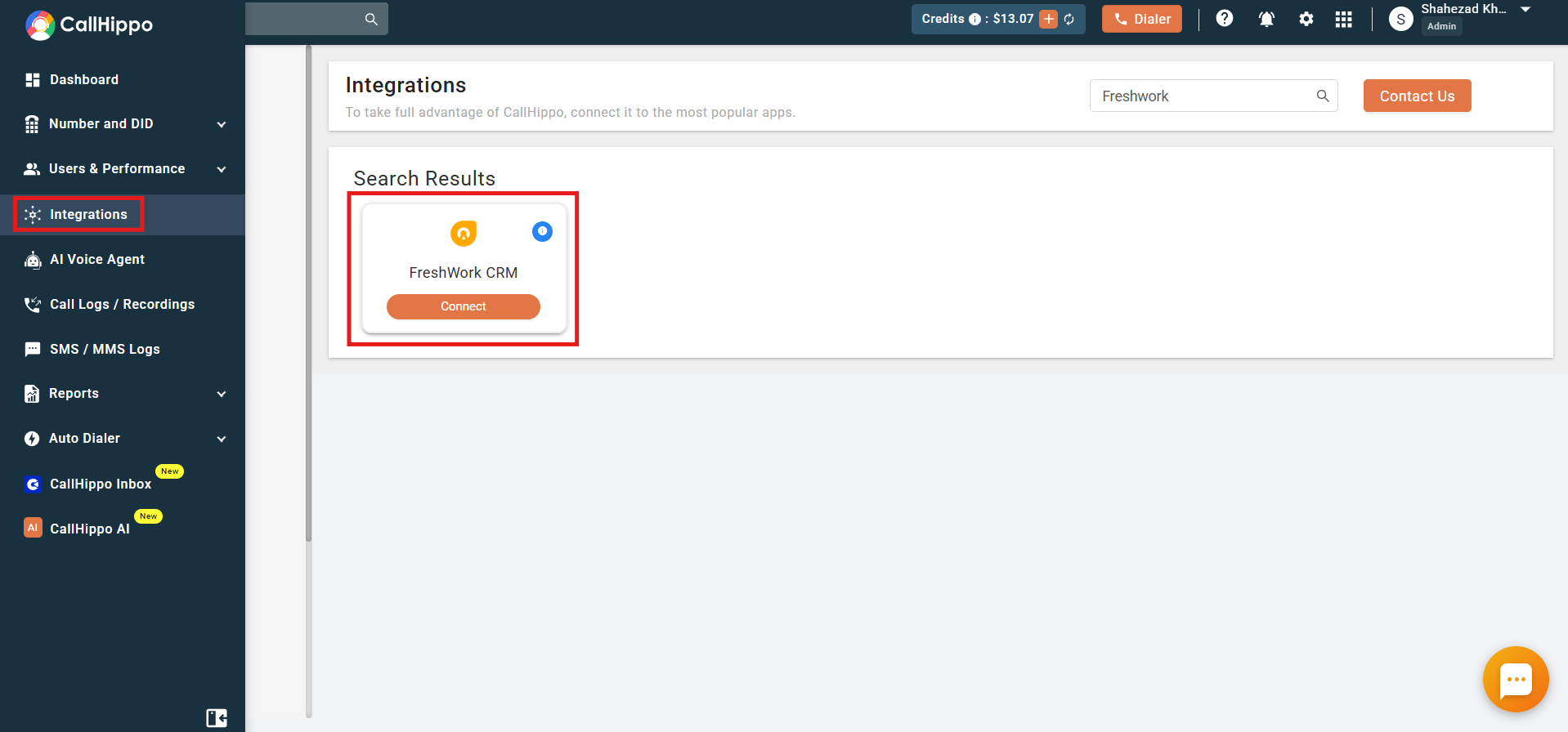
- Log in to your CallHippo account and open the Integrations tab. Search for FreshWork CRM and click Connect.
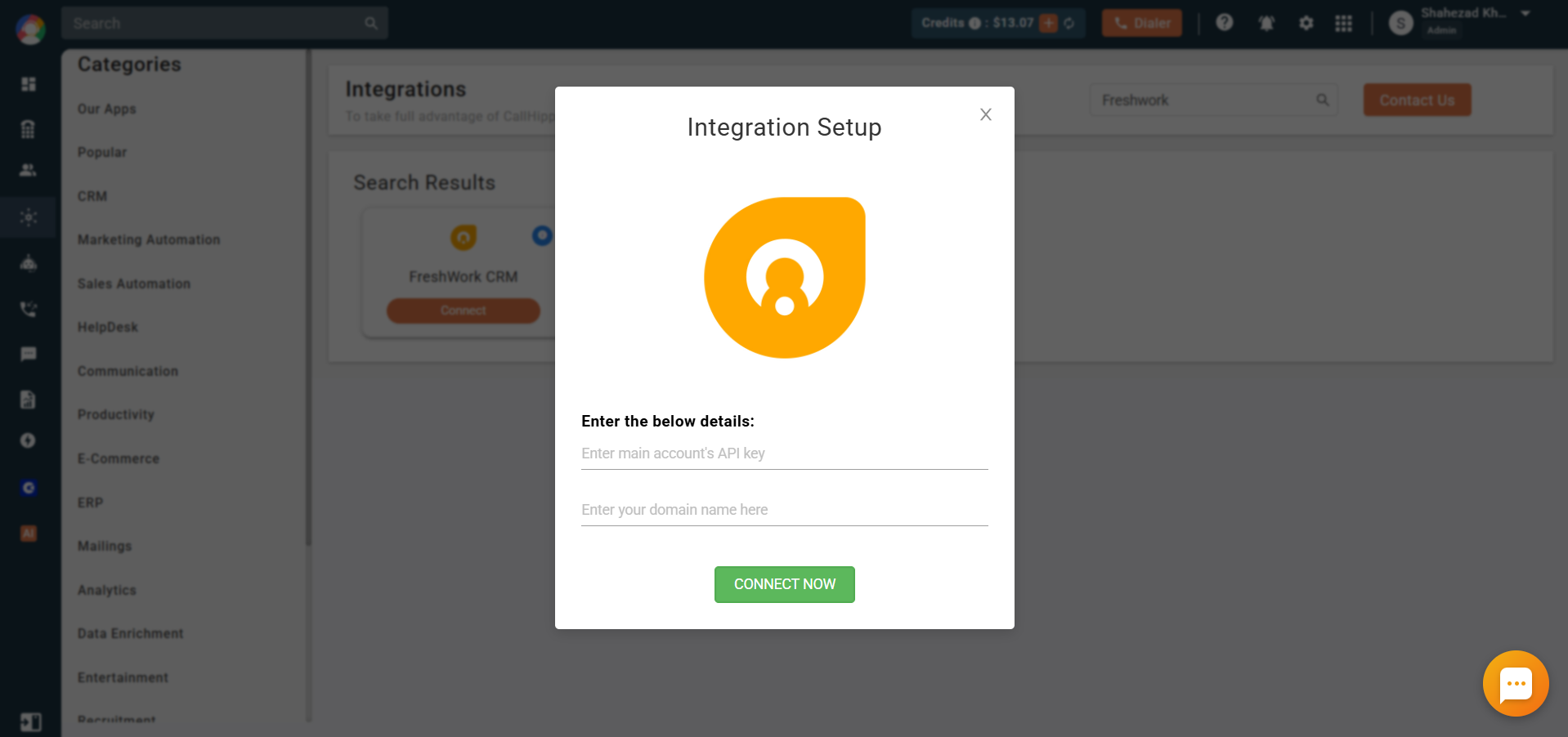
- In the pop-up, enter the API key and domain name you collected from Freshworks, then click Connect Now.
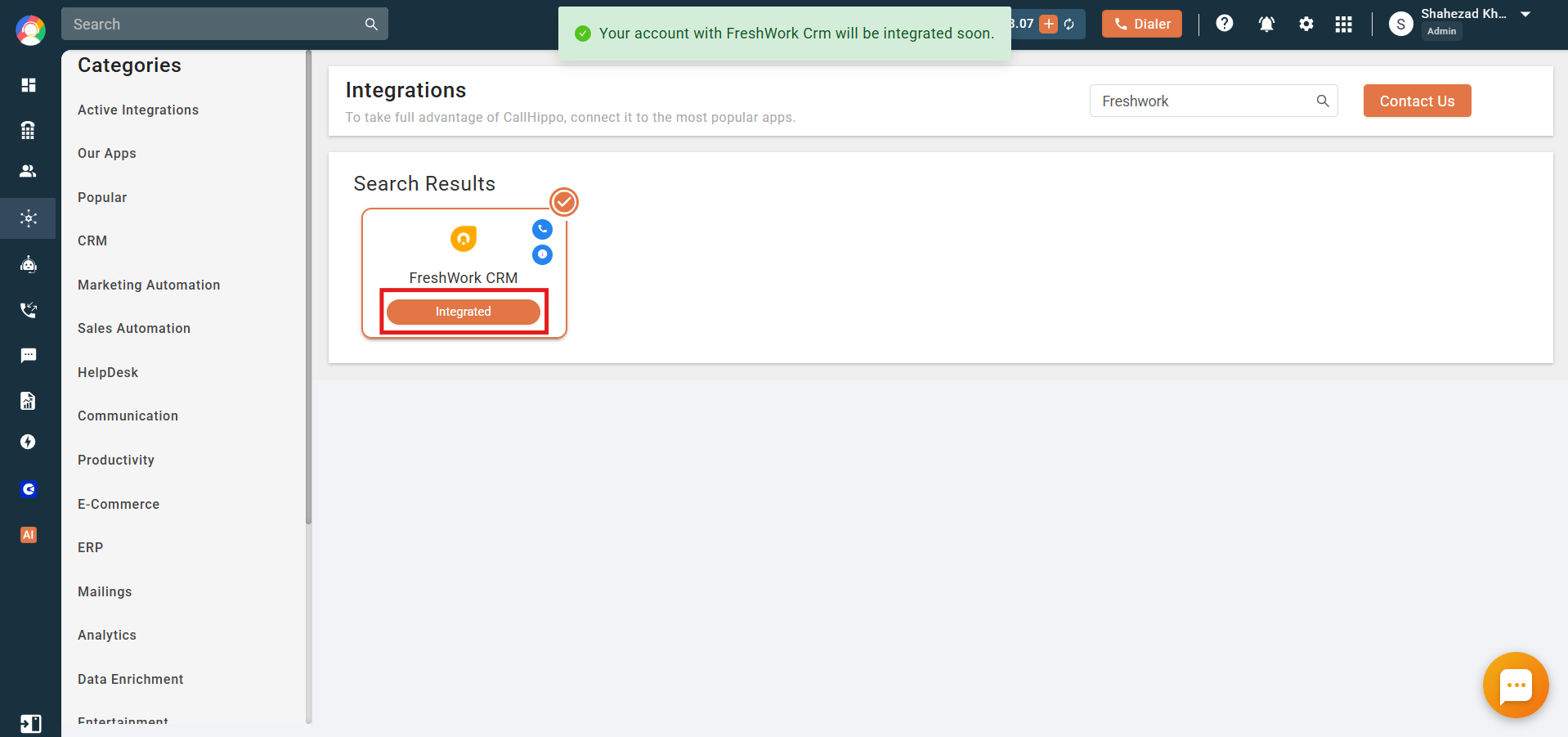
- You are redirected back to CallHippo and the status changes to Integrated. Your Freshworks account is now connected.
Features of the Freshworks integration
- Contact sync: Freshworks contacts are synced to the CallHippo dialer as a contact after a click-to-call or SMS.
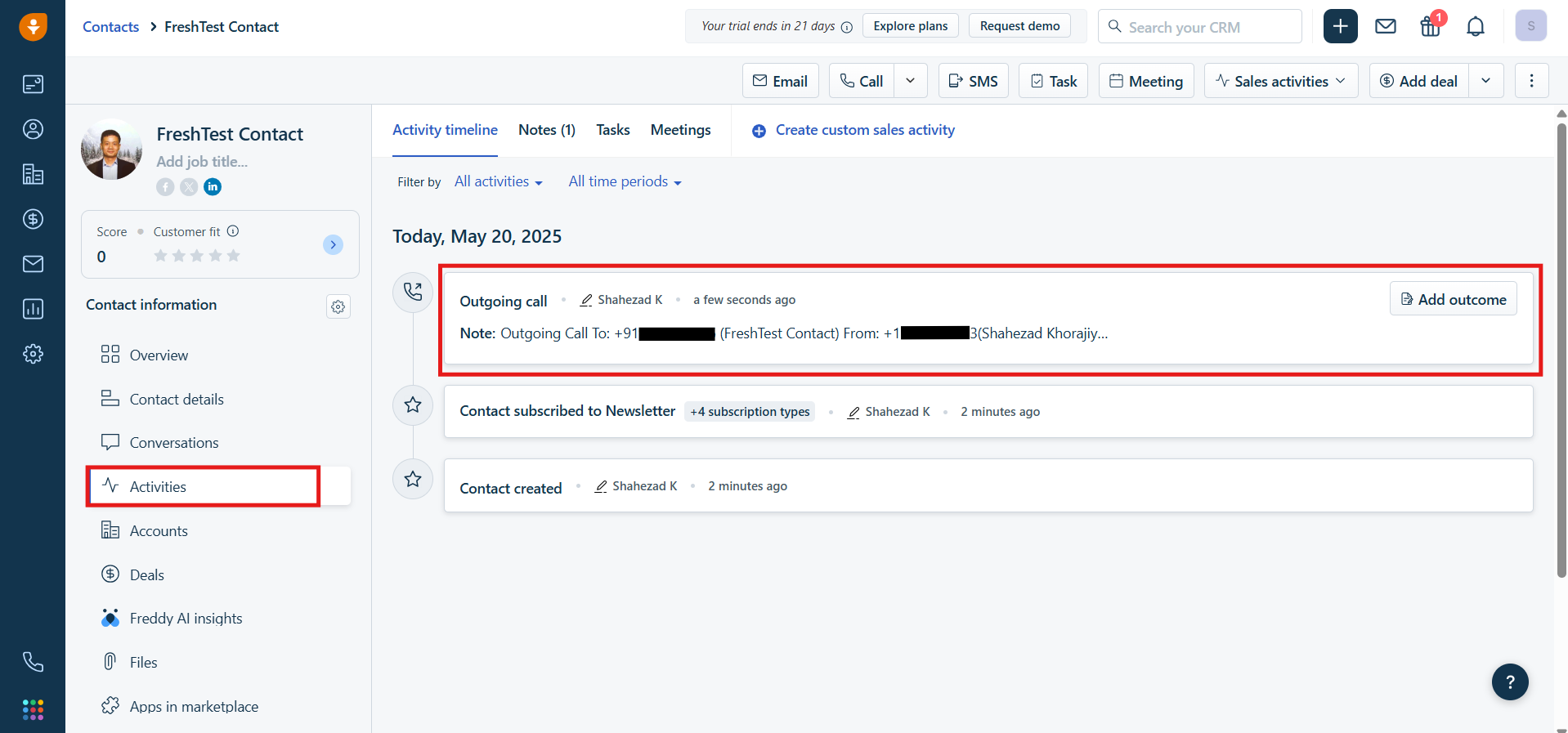
- Call activity logging: Any call made to or received from a Freshworks contact is logged in the CallHippo dialer, and you can click the call log in Freshworks for full details.
- After Call Work sync: If you have CallHippo’s call tags and disposition service enabled, the activity pushed to Freshworks includes the tags and disposition added on the After Call Work (ACW) screen.
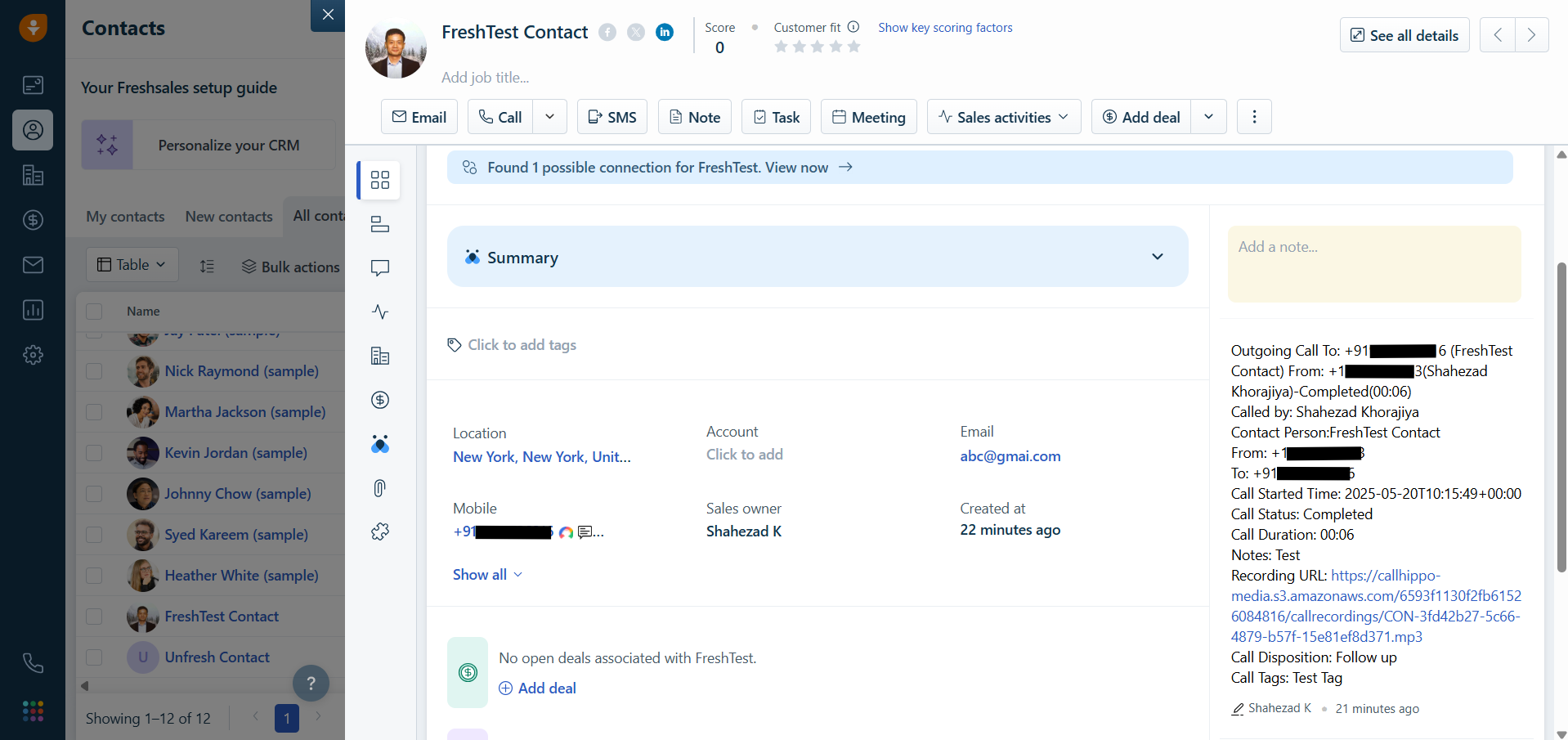
- SMS activity logging: Any SMS sent to or received from a Freshworks contact is logged in the CallHippo dialer.
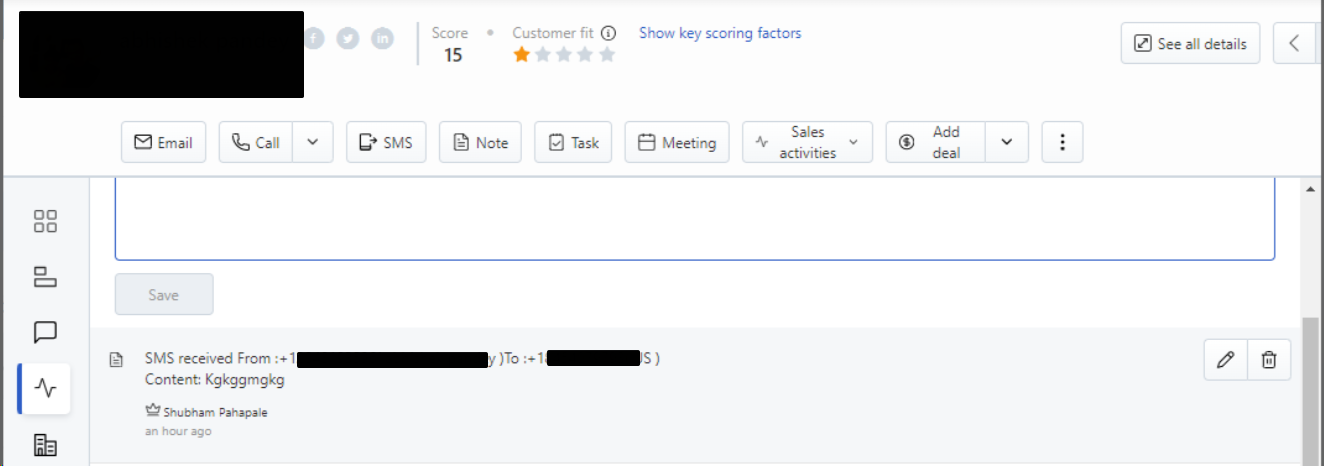
Note on ACW sync: Tags and disposition only sync when they are added on the After Call Work screen. If they are added later using the call logs or another feed, they will not sync to Freshworks.
Limitation
When you delete a contact from Freshsales after integration, it is not automatically deleted from the CallHippo dialer. You must delete it manually from CallHippo.
Enable Click to Call
Install the CallHippo Click-to-Call Chrome extension from the Chrome Web Store. Once installed, a click-to-call icon appears in front of all numbers, and clicking it places the call.