
CallHippo lets you filter your call logs down to auto-dialer calls only, so you can review and export exactly the records you need for a campaign.
How to Download Auto Dialer Call Logs
- Log in to your CallHippo web account at web.callhippo.com.
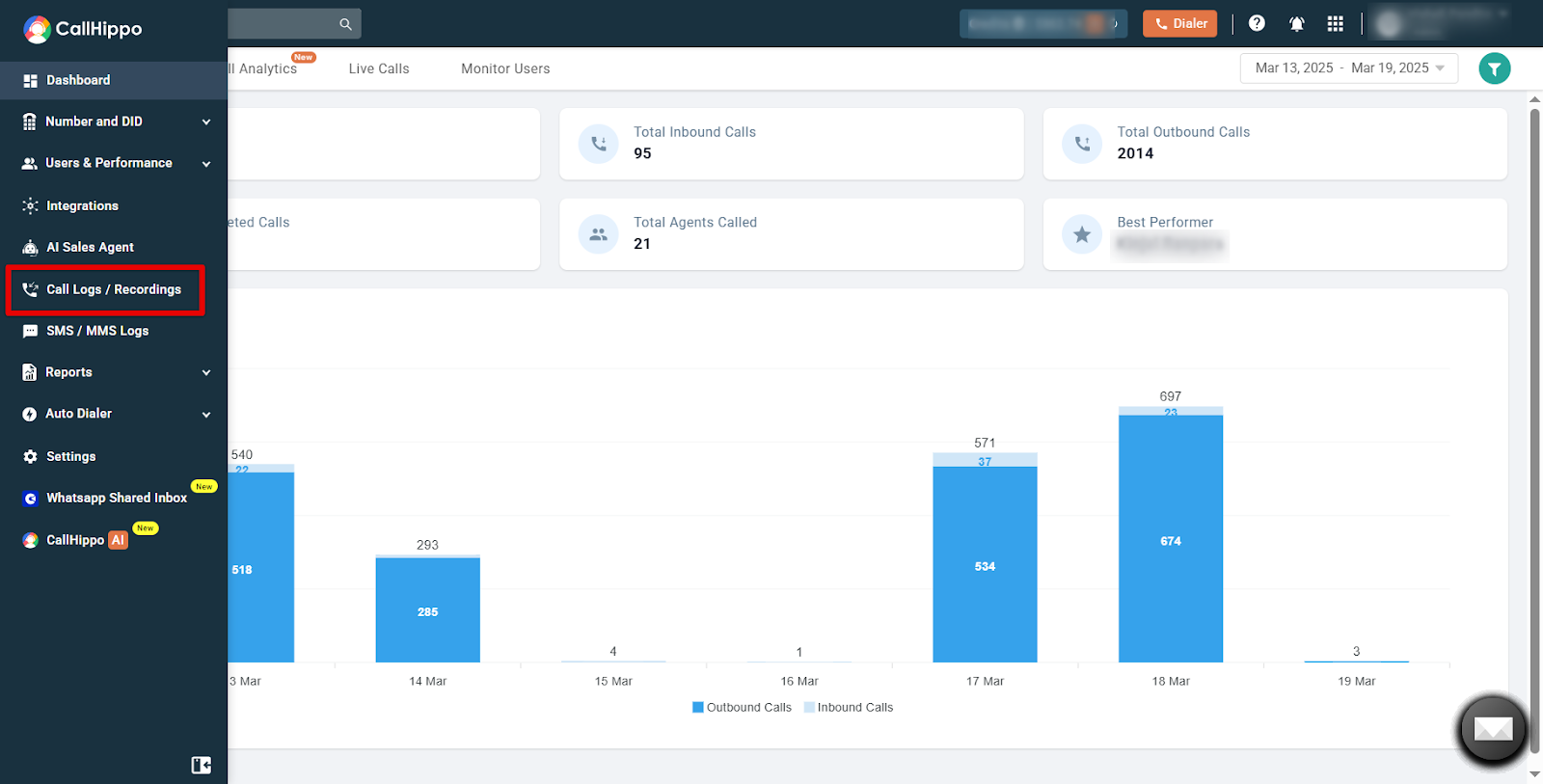
- Go to the Call Logs / Recordings section on the left panel.
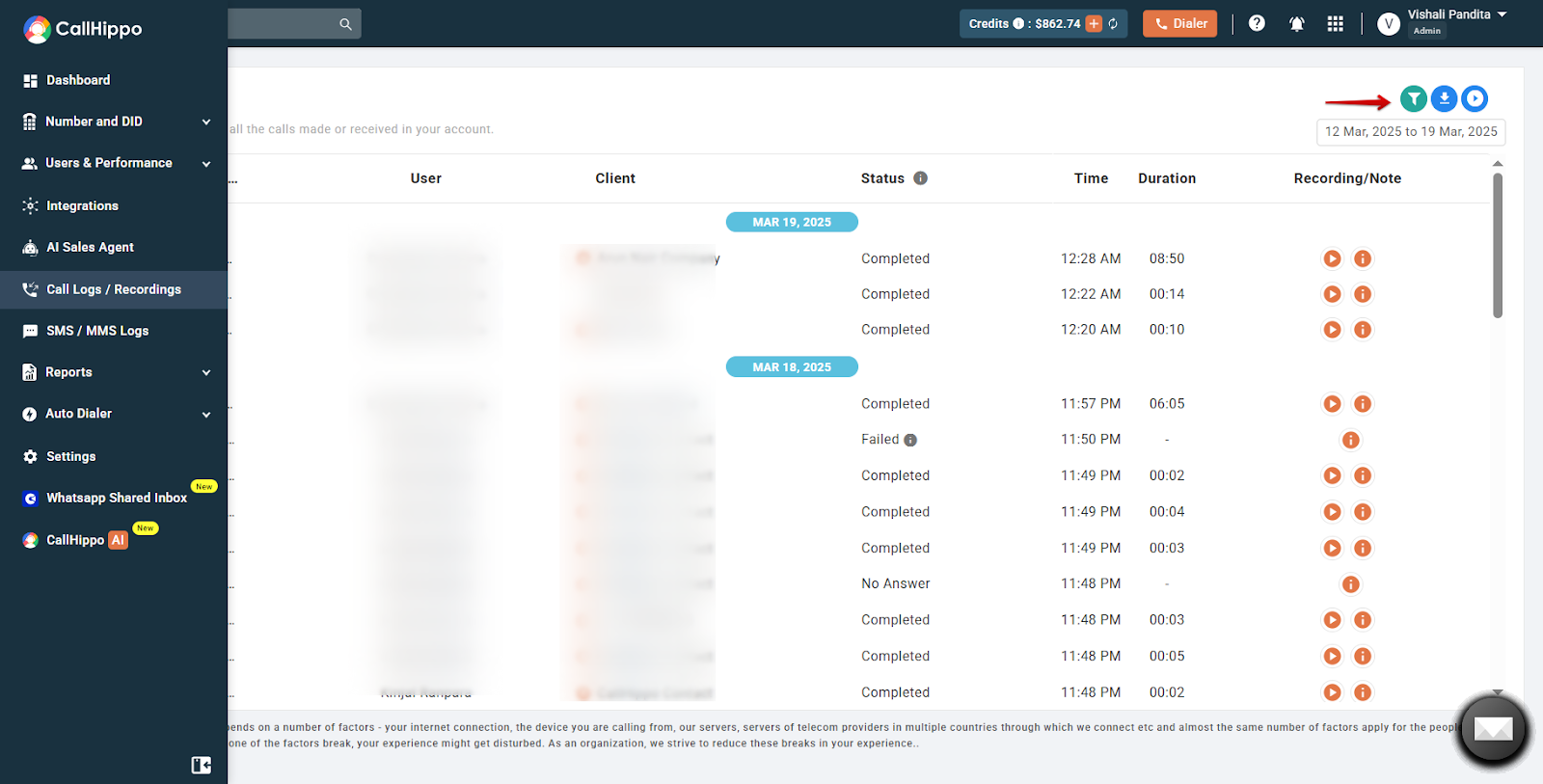
- Click the filter icon at the top right of the page.
- In the Auto Dialer filter, select Only Auto Dialer, then click Apply.
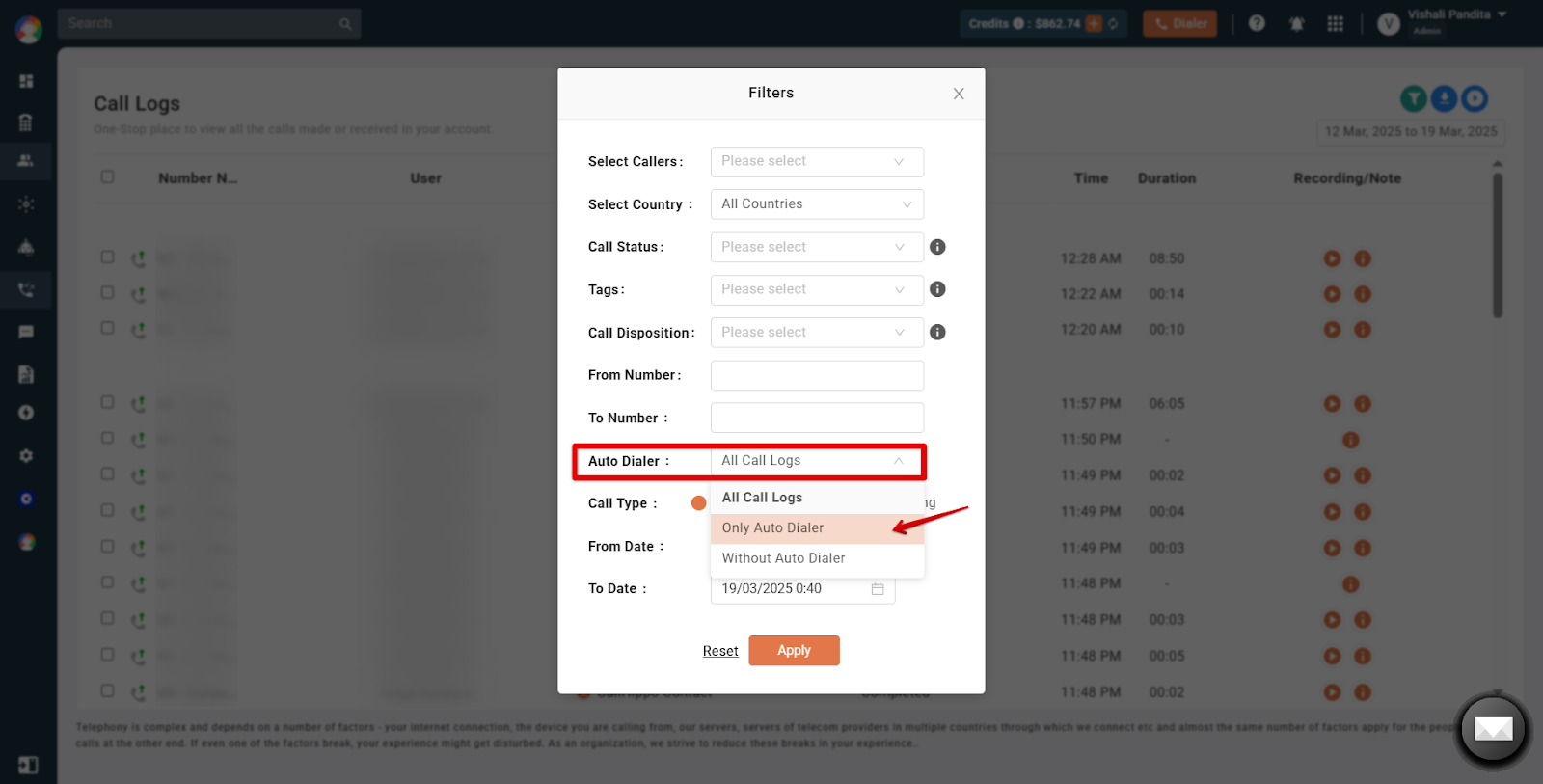
Your records now show logs of calls made exclusively through the Auto Dialer. Use the download button next to the filter icon to export them.
Frequently Asked Questions
Can I download call logs for a specific agent or campaign?
Yes. Filter by agent, campaign, date, or call status before exporting your logs.
What details are included in the call logs?
Call logs typically include call duration, timestamps, call status (answered, missed, or failed), agent details, and disposition status.
Common Use Cases
- Performance analysis – evaluate agent productivity and call success rates.
- Compliance and auditing – maintain call records for regulatory or legal requirements.
- Issue resolution – investigate call failures or dropped calls for troubleshooting.
- Campaign optimization – assess call outcomes to improve future dialing strategies.
Need help exporting your call logs? Reach our team at [email protected].