
If you’ve forgotten your CallHippo password or simply want to update it for security reasons, resetting it is quick and easy. Whether you’re locked out or taking proactive steps to protect your account, you can reset your password in just a few clicks, with no need to contact support.
Reset your CallHippo password from a web browser
- Open the login page: Visit the CallHippo login page at https://web.callhippo.com/.
- Click “Forgot password?”: Select the Forgot password? option as shown in the screenshot below.
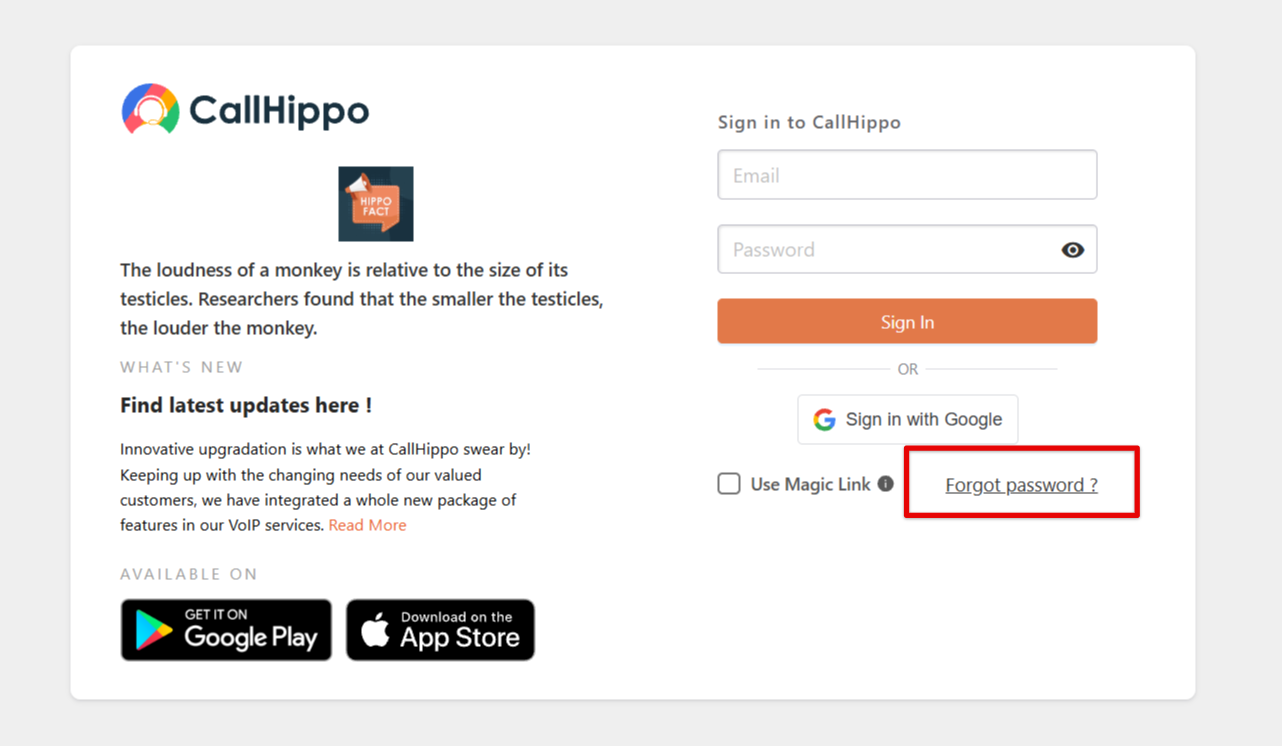
- Enter your email: Type your CallHippo-registered email address, then click the Reset Password button.
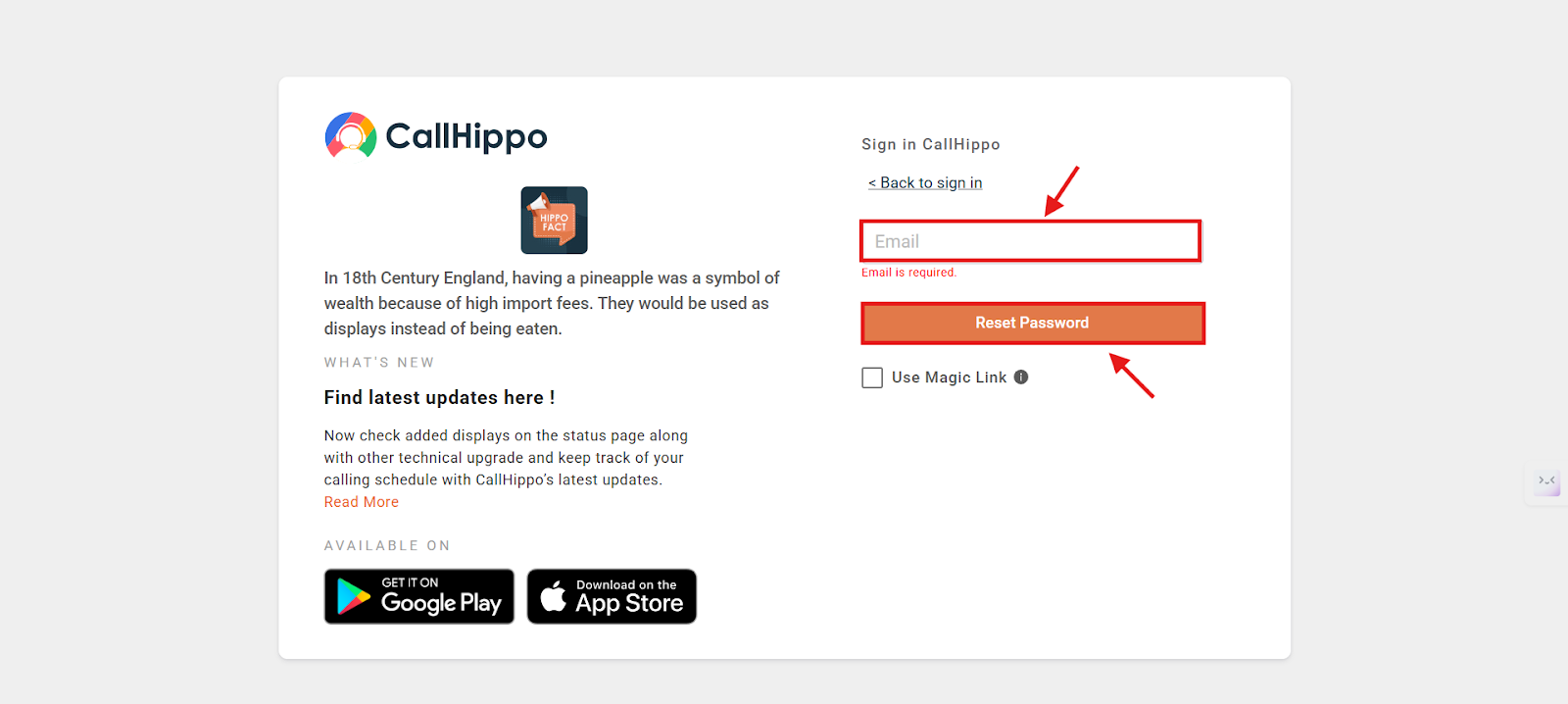
- Check your email: A reset password link will be sent to your email address. Open the email and click the link.
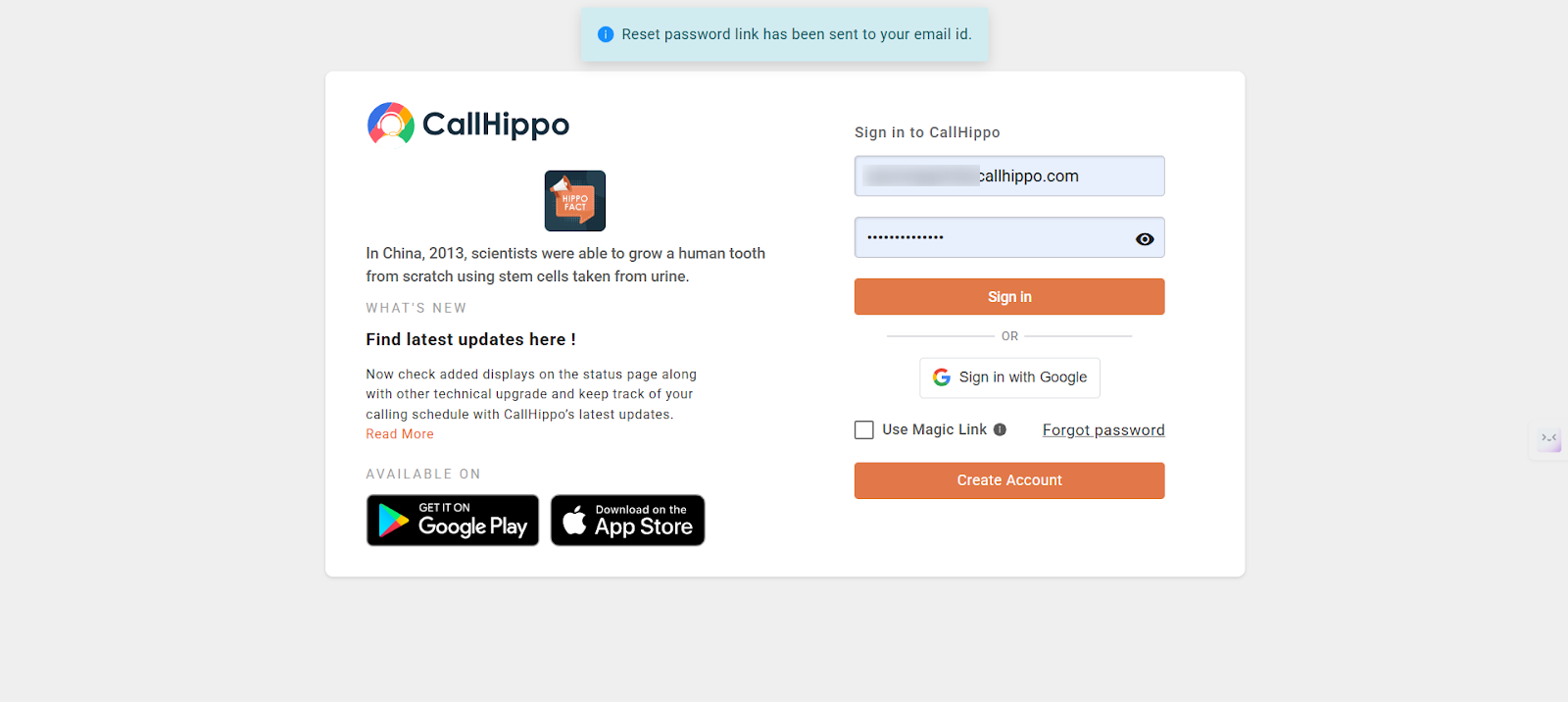
- Set a new password: Enter your new password, then click Reset Password to proceed.
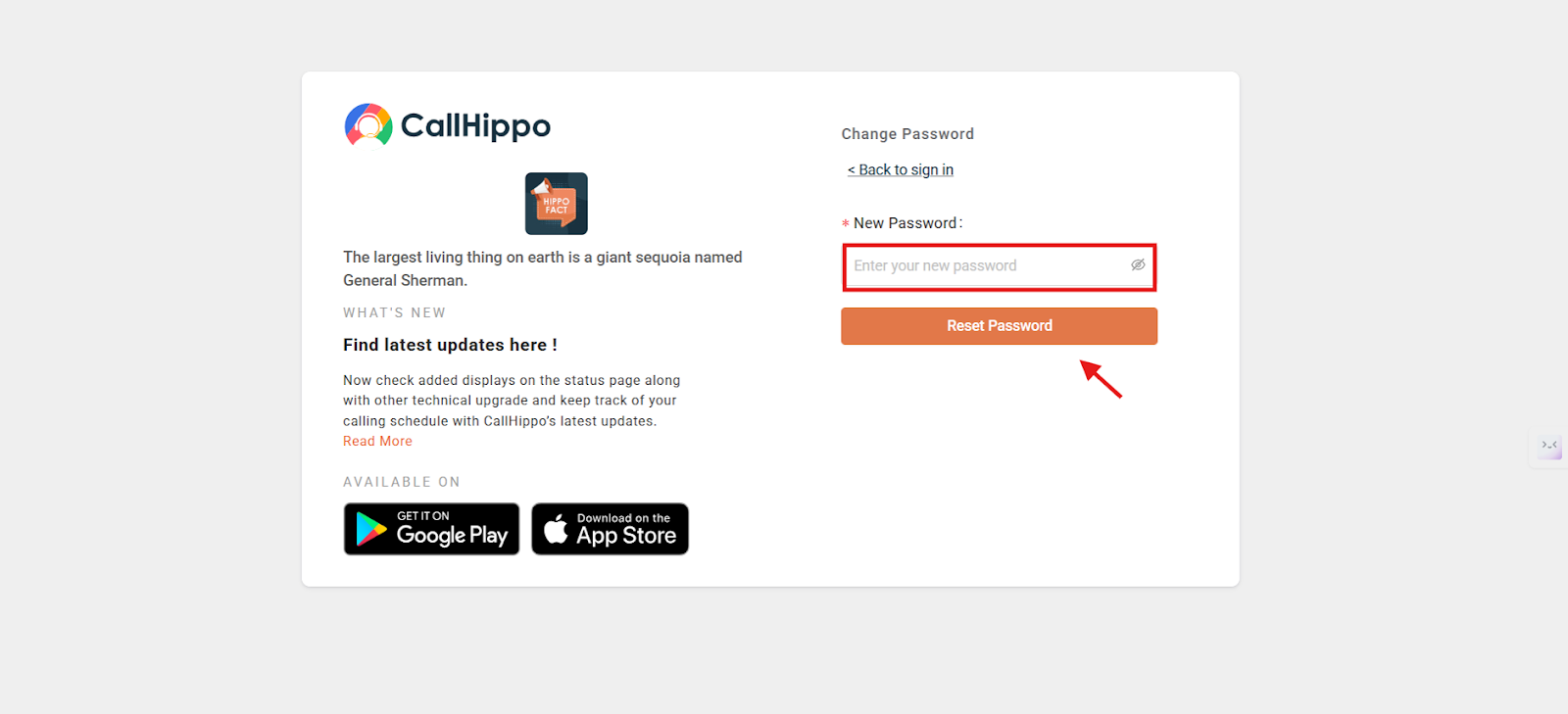
- Done: Your password has been successfully updated. You will be redirected to the login page, where you can sign in with your registered email address and new password.
Reset your password from the CallHippo mobile app
- Open the app: Launch the CallHippo iOS or Android application.
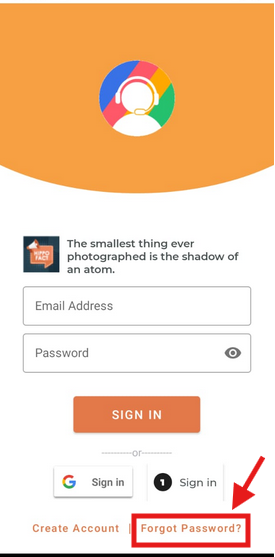
- Tap “Forgot Password?”: On the login screen, tap the Forgot Password? option.
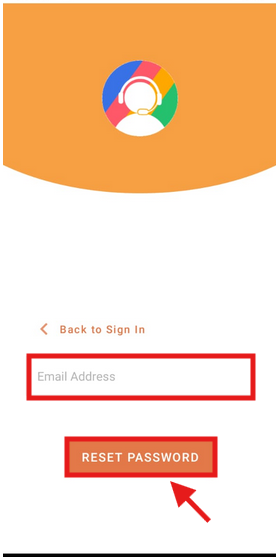
- Enter your email: Type your CallHippo-registered email address, then tap the Reset Password button.
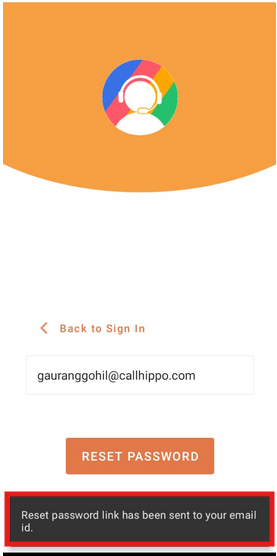
- Check your email: A reset link will be sent to your email address. Open it and enter your new password.
- Log back in: Return to the CallHippo app login page and sign in with your new credentials.
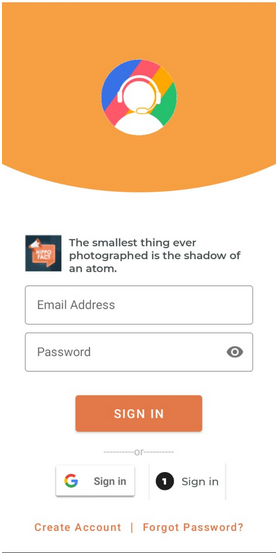
Your password is now reset for your CallHippo account using the mobile application.
Password requirements: avoid using personal information
If you see the error message “Passwords must not include any part of your first name, last name, or email address. Please choose a different password,” it means your password contains personal information, which isn’t allowed for security reasons.
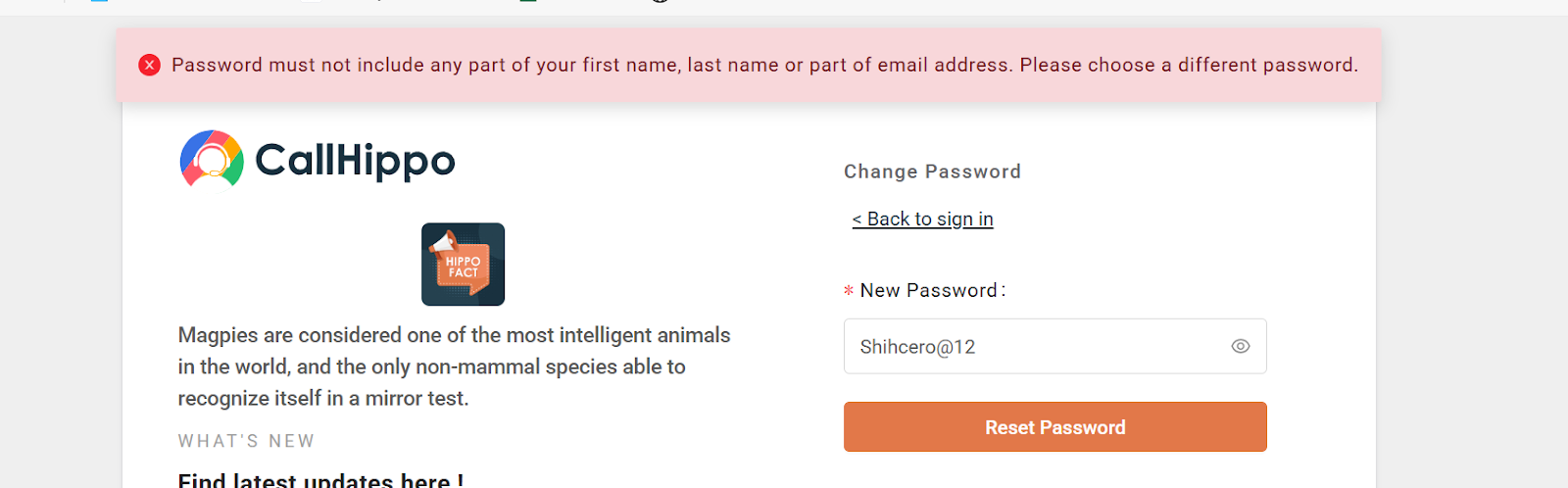
What you can’t use in your password
Your password must not include:
- Your first name
- Your last name
- Any part of your email address (even partial matches)
Example: If your name is Ravi Kumar and your email is [email protected], avoid:
- ravi
- kumar
- ravi.kumar
- ravi.kumar89
- Any other portion of the email address
How to create a valid password
- Avoid personal information completely
- Use unrelated words
- Add numbers and special characters
- Keep it at least 8 characters long
Invalid password examples:
- Ravi@2025 (contains first name)
- Kumar123! (contains last name)
- ravi.kumar89@ (part of email)
Valid password examples:
- Rocky7529!
- GlobeRain88$
- Lemon_Tree91
Frequently asked questions
- What if I don’t receive the password reset email? Check your spam or junk folder. If it’s not there, verify your email address or contact support at [email protected].
- Can I reuse an old password when resetting? No. You can’t reuse your last three passwords, so a new password is required.
- Will resetting my password log me out of other devices? Yes. For security reasons, all other active sessions will be logged out.
- What are the minimum password requirements? At least 8 characters, a mix of letters, numbers, and special characters, and no use of your name or email address.
We hope this helps. If you still have questions, feel free to reach out at [email protected].