
Connecting CallHippo with Microsoft Dynamics lets you sync contacts, log every call and SMS in the Dynamics timeline, and place calls directly from your CRM using click-to-call.
Before you start: get your Dynamics domain
You will need the domain of your Microsoft Dynamics account to complete the connection.
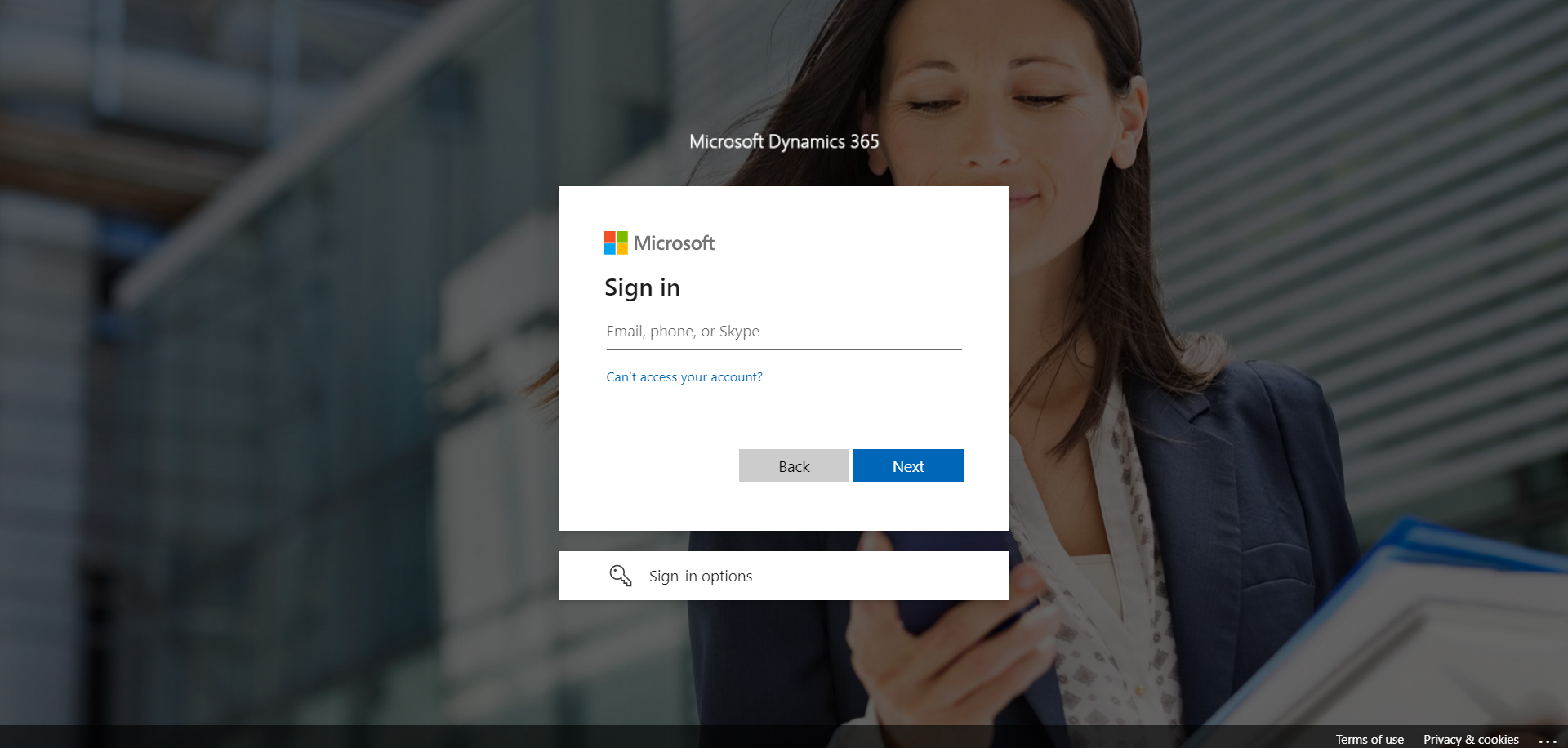
- Log in to Microsoft Dynamics. Sign in to your Microsoft Dynamics 365 account.
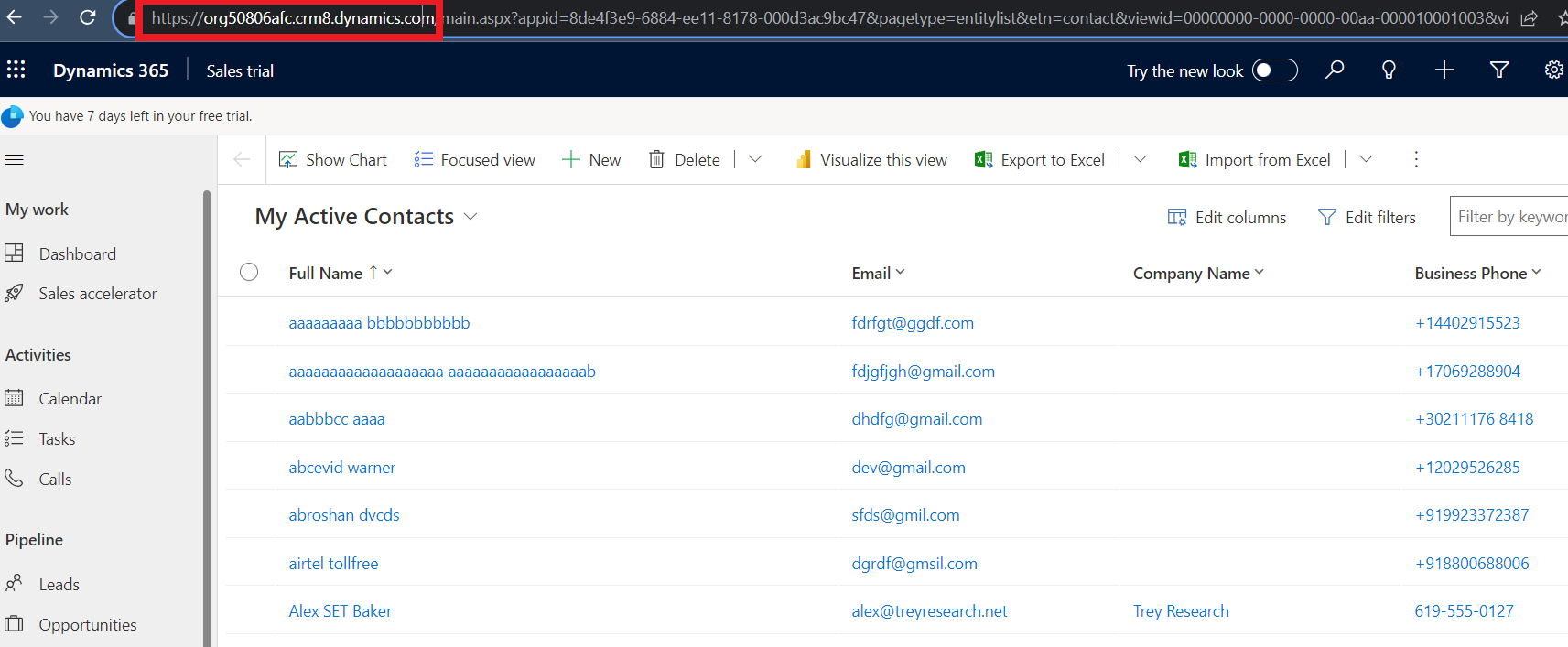
- Copy your domain name. Once you are logged in, copy the domain of your account from the browser address bar (for example, org50806afc.crm8.dynamics.com).
Connect Microsoft Dynamics in CallHippo
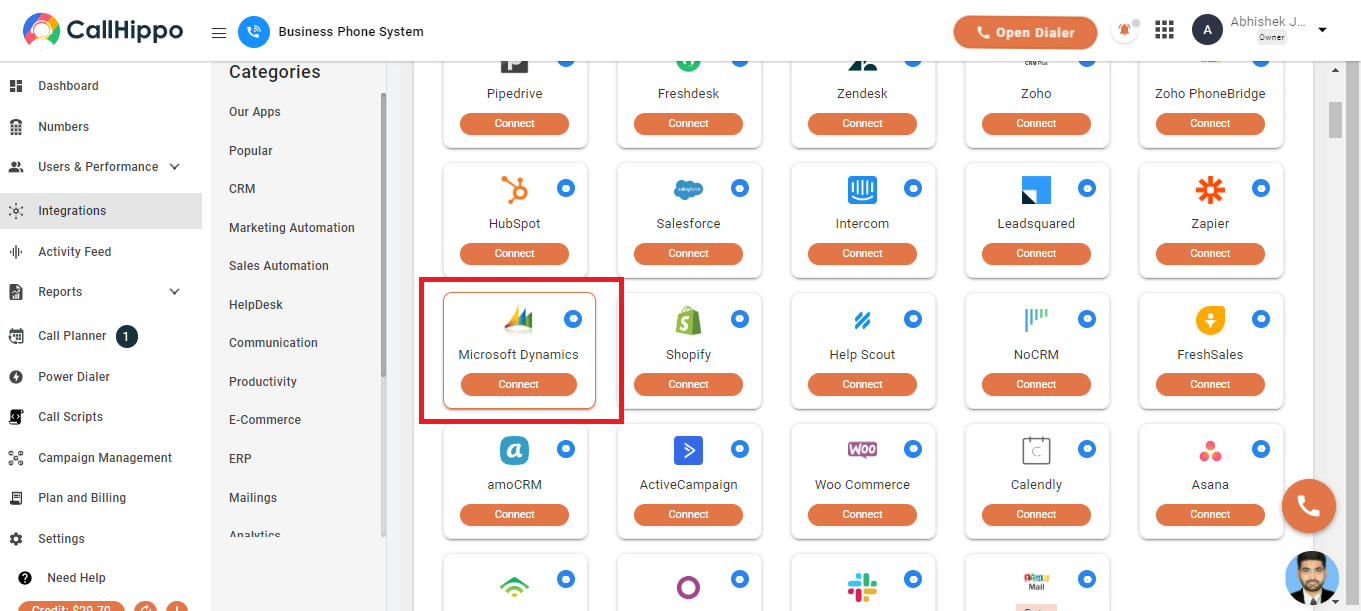
- Open Integrations. Log in to your CallHippo account and click Integrations in the left sidebar of your dashboard.
- Select Microsoft Dynamics. Find the Microsoft Dynamics tile and click Connect.
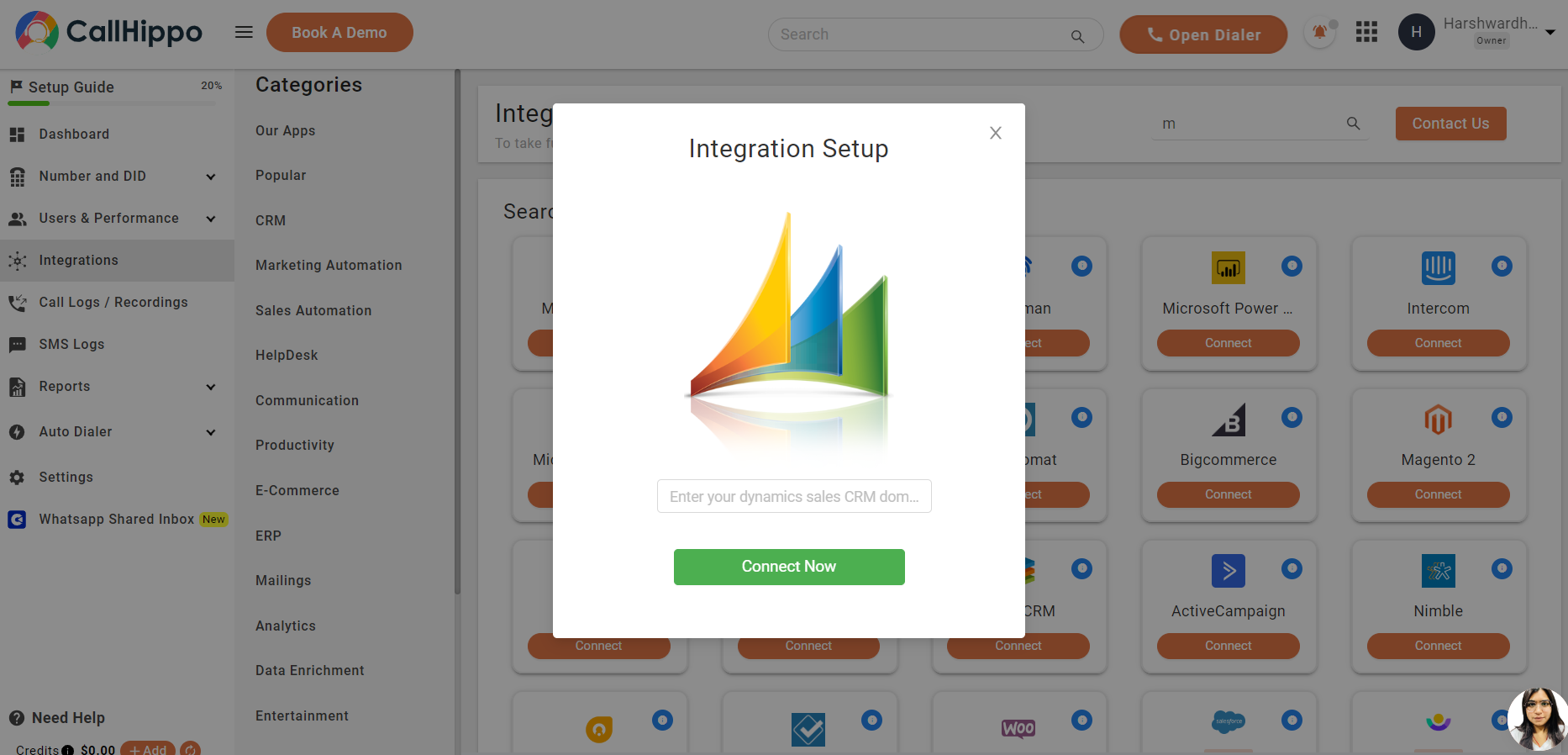
- Enter your domain. In the Integration Setup window, paste the Microsoft Dynamics domain you copied earlier, then click Connect Now.
- Confirm the integration. Microsoft Dynamics now appears under Active Integrations marked as Integrated.
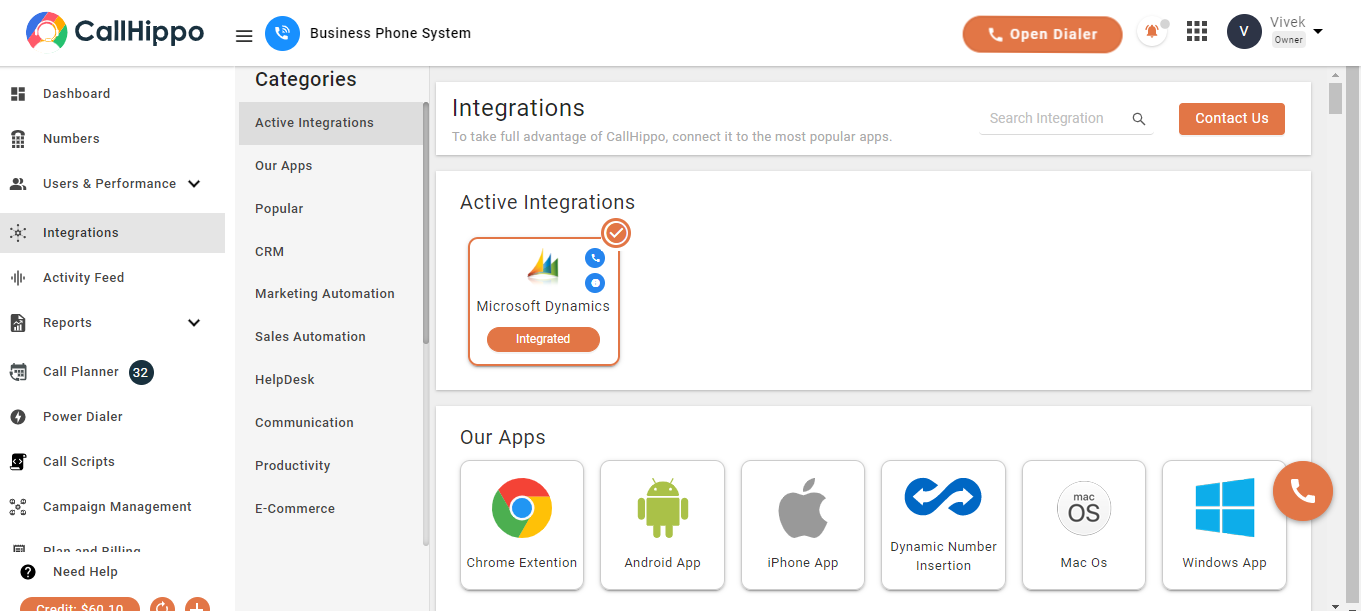
Note: If you delete a contact in Microsoft Dynamics, it will not be deleted in CallHippo automatically — you will need to remove it manually.
What the integration does
- Contact sync: Microsoft Dynamics contacts are synced with your CallHippo contacts on click-to-call.
- Call logging: Calls made to Dynamics contacts through the CallHippo dialer are logged in the Dynamics timeline of the matching lead or contact (Dashboard > Contacts > Summary > Timeline).
- SMS logging: SMS sent or received on Dynamics contacts through the CallHippo dialer is reflected in the same Dynamics timeline.
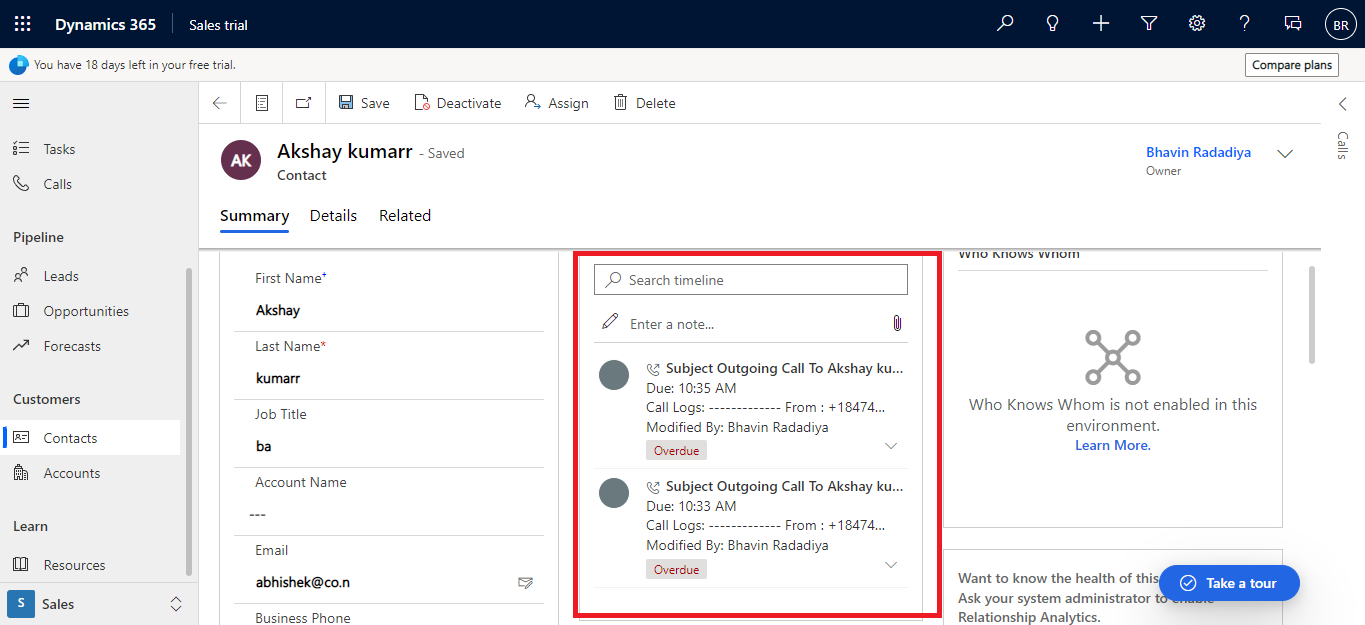
Note: Activity syncs only when the contact is synced with CallHippo.
Enable Click-to-Call
Click-to-call lets you dial or text Microsoft Dynamics numbers directly from the CRM, and every click-to-call is synced back to your CallHippo account.
- Install the extension. Add the CallHippo Click-to-Call Chrome extension from the Chrome Web Store.
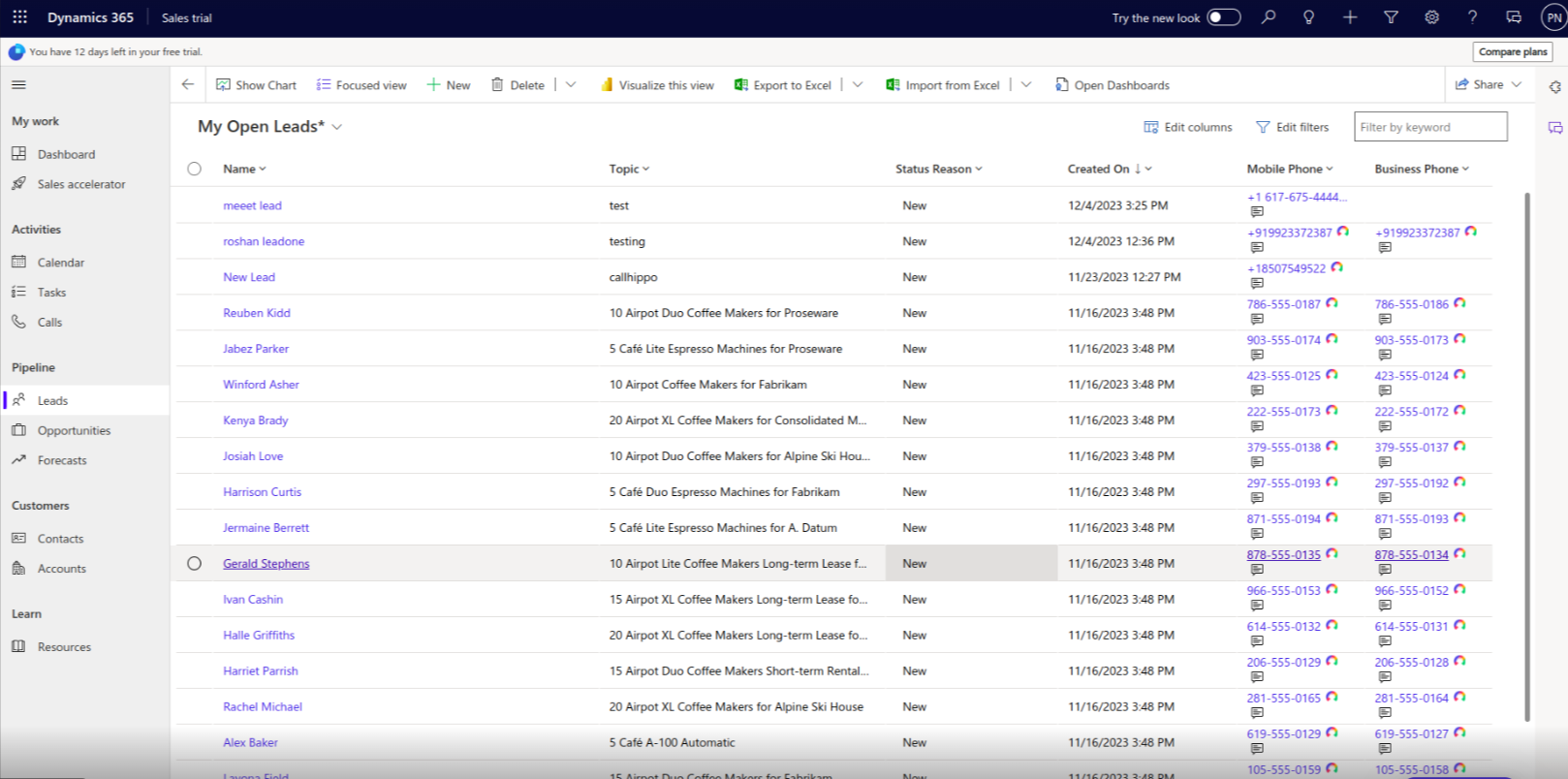
- Call from Leads and Contacts. Click-to-call icons appear next to phone numbers in your Dynamics lead and contact lists, and the activity is displayed in the timeline.
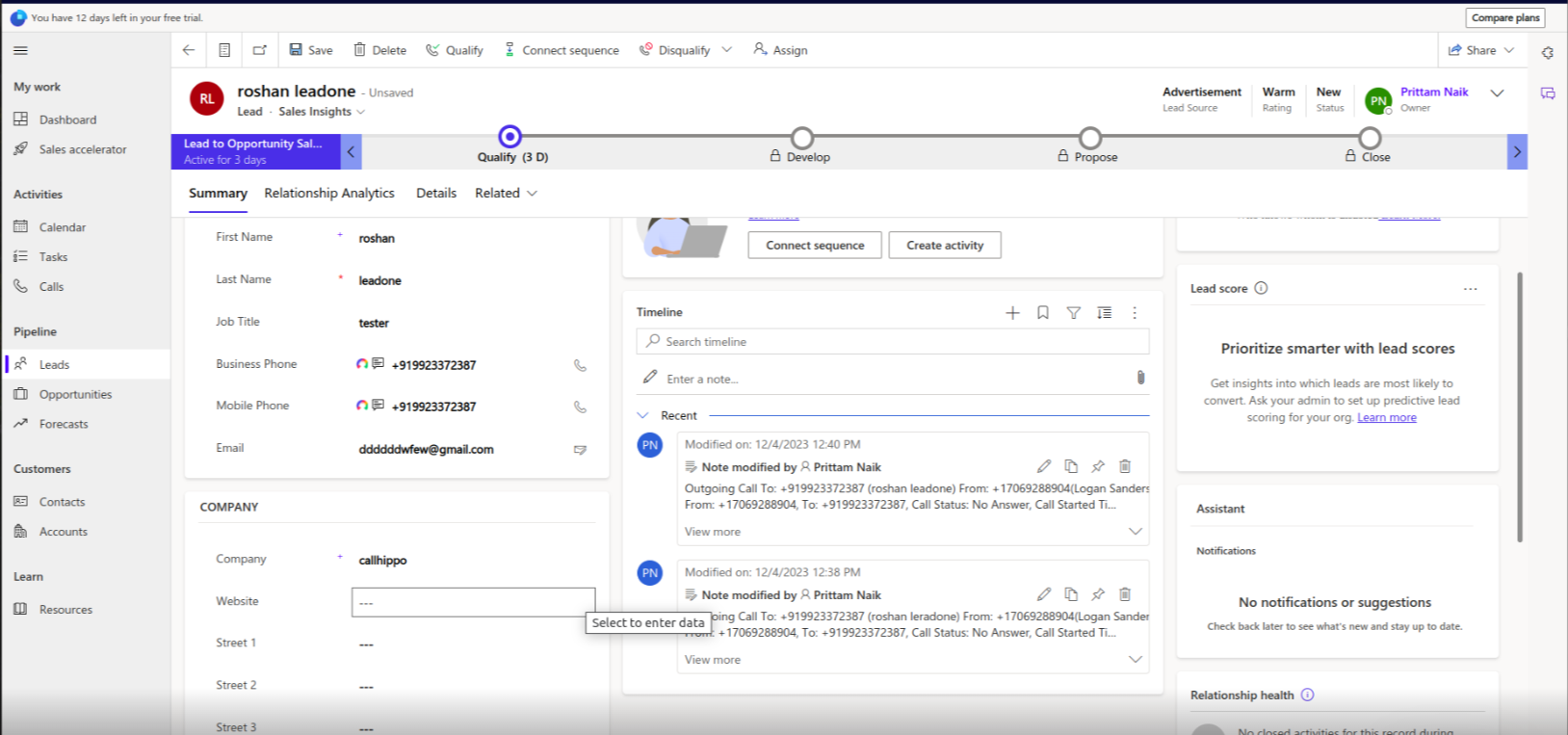
- View activity on a single record. Within an individual lead, you can place a call and see the call activity appear in the record’s timeline.
After Call Work and dispositions
If your plan includes CallHippo’s Call Tags and Disposition service and it is enabled, the activity pushed to Microsoft Dynamics also includes the tags and disposition data added on the After Call Work (ACW) screen.
Note: This syncs only when tags and dispositions are added on the After Call Work screen. If they are added later from the call logs or another feed, they will not sync to Microsoft Dynamics.
Will deleting a Dynamics contact remove it from CallHippo?
No. Deletions are not synced — if you remove a contact in Microsoft Dynamics, you must delete it in CallHippo manually.
Why is my call activity not showing in the Dynamics timeline?
Activity only syncs when the contact is synced with CallHippo. Make sure the contact exists in both systems and that the call was placed through the CallHippo dialer.