
Connecting Kylas CRM with CallHippo lets your team place calls straight from Kylas, sync contacts and deals automatically, and log every call and SMS back to the right record.
Set up your Kylas CRM account
Start inside Kylas to generate the API key CallHippo needs to connect.
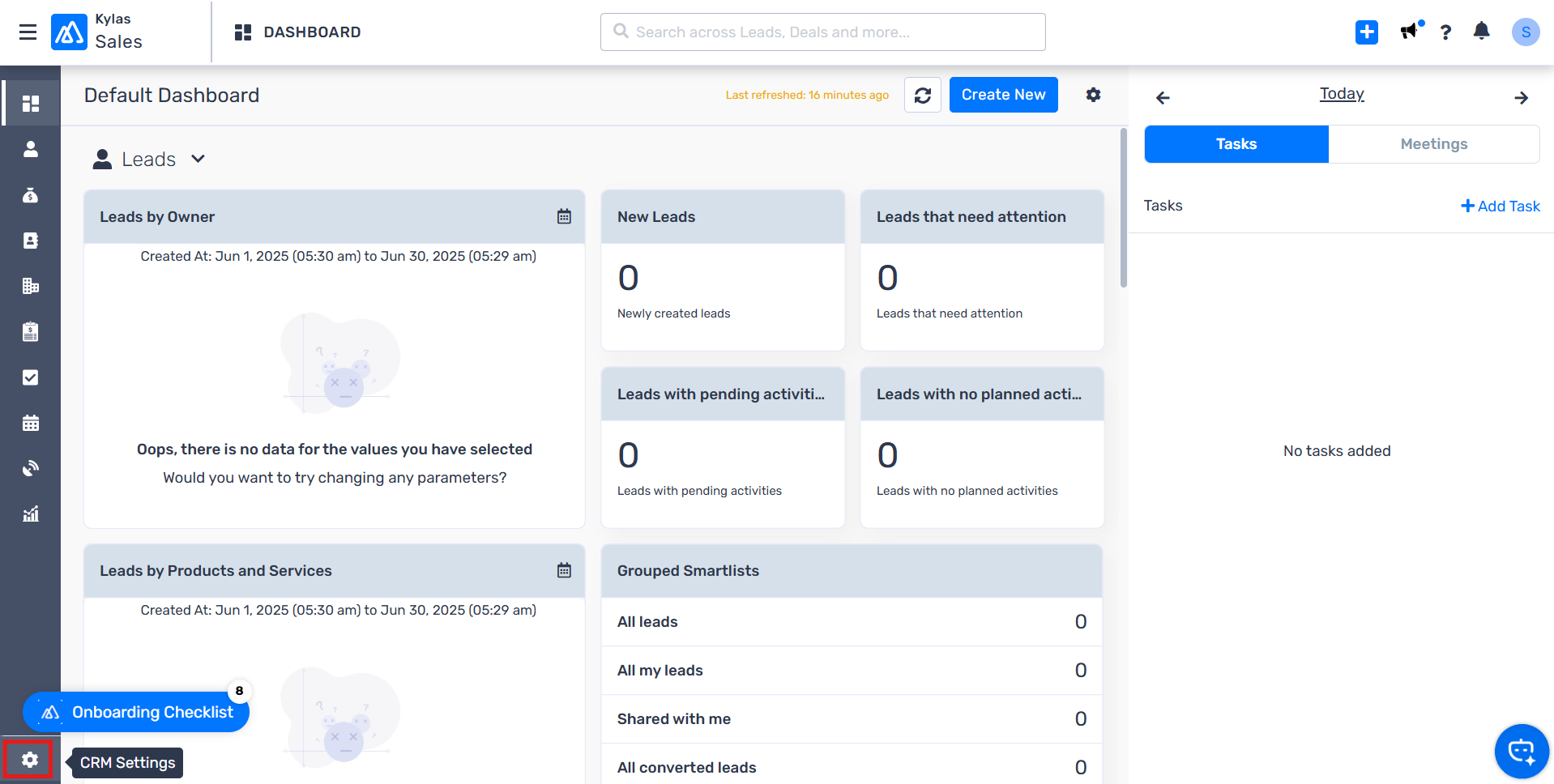
- Log in to your Kylas CRM account.
- Open CRM Settings using the gear icon at the bottom of the left-hand menu.
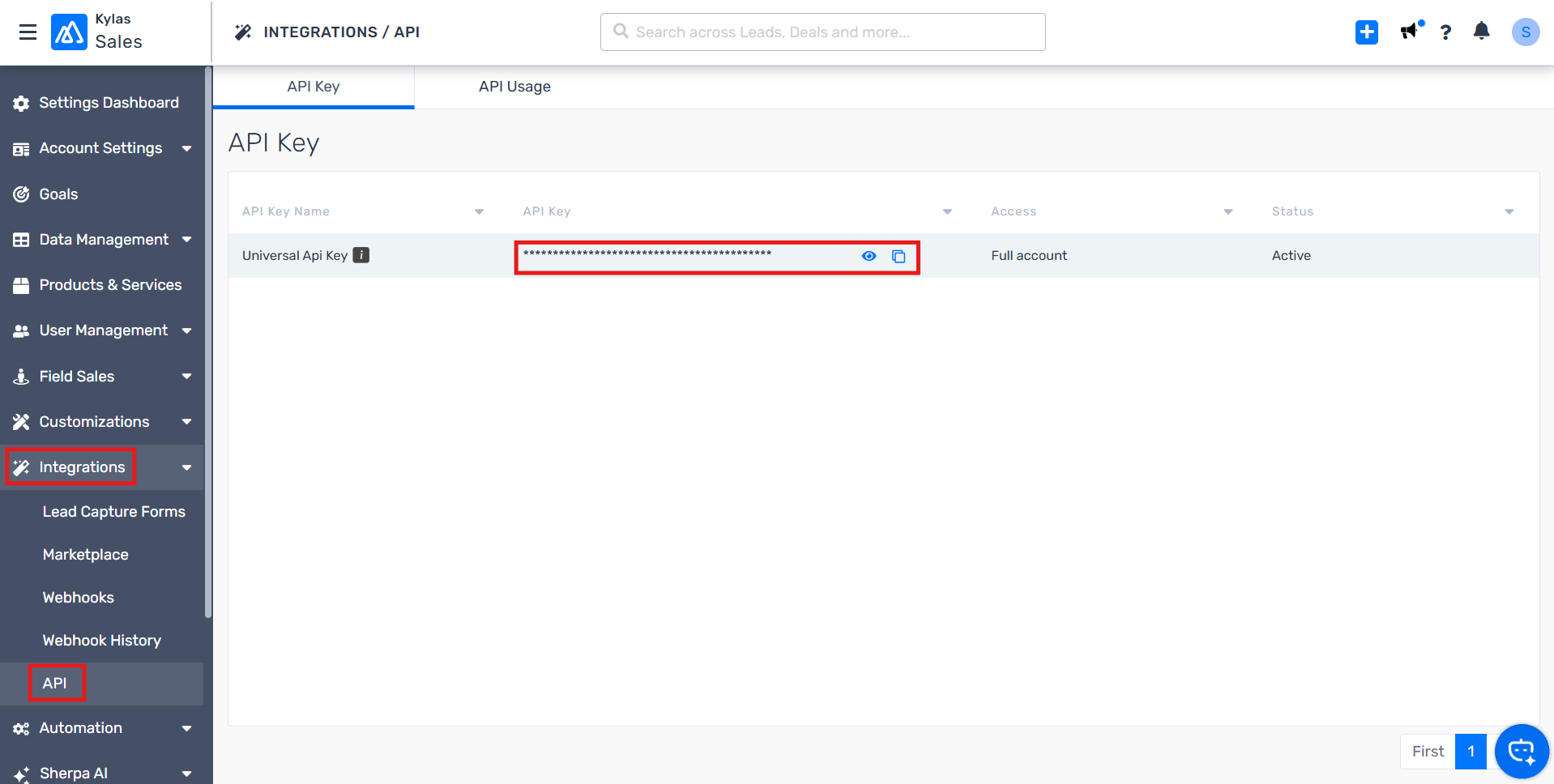
- Go to Integrations > API, then open the API Key tab and copy your API key.
Connect Kylas inside CallHippo
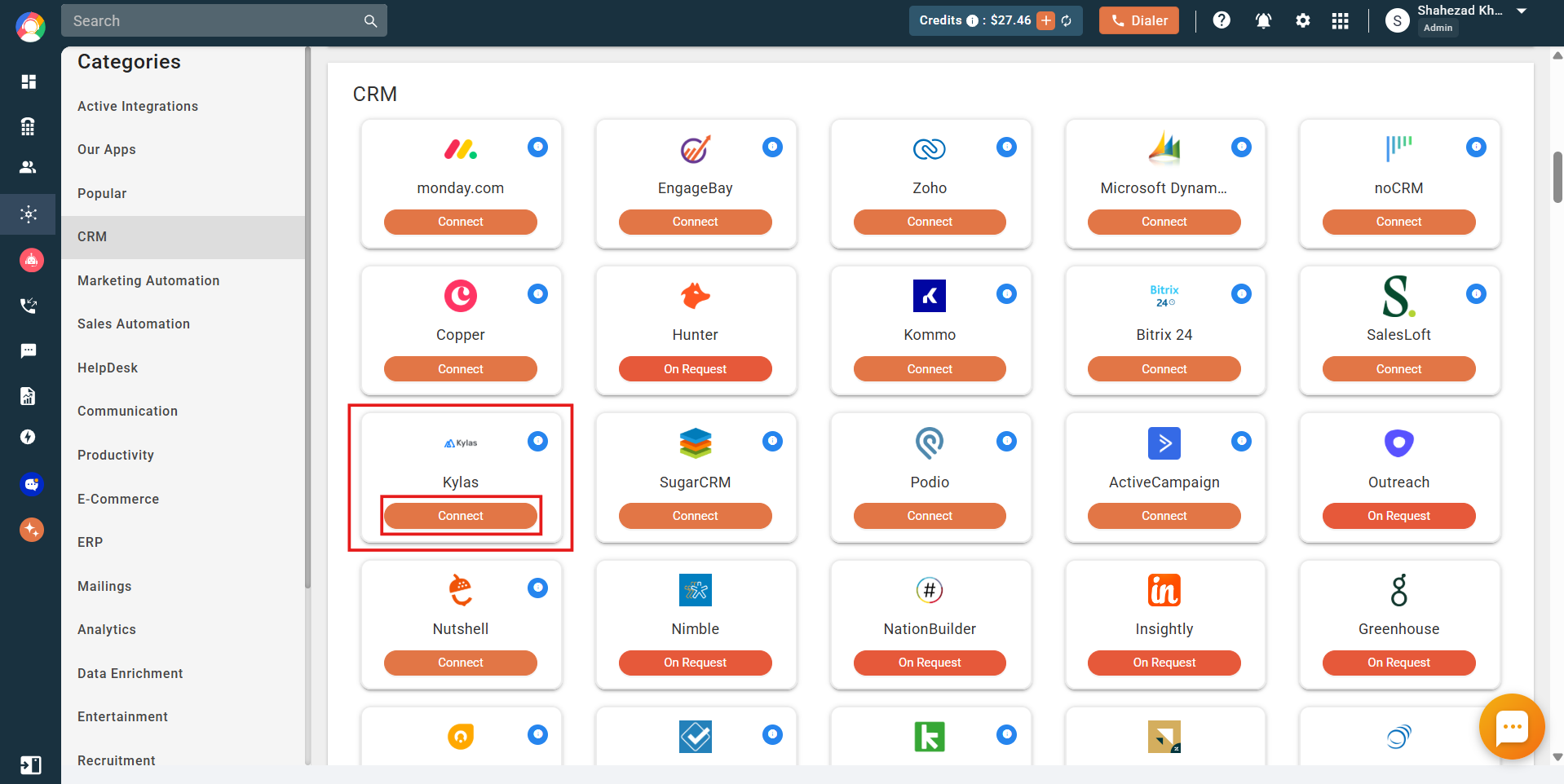
- Log in to your CallHippo account and open the Integrations tab.
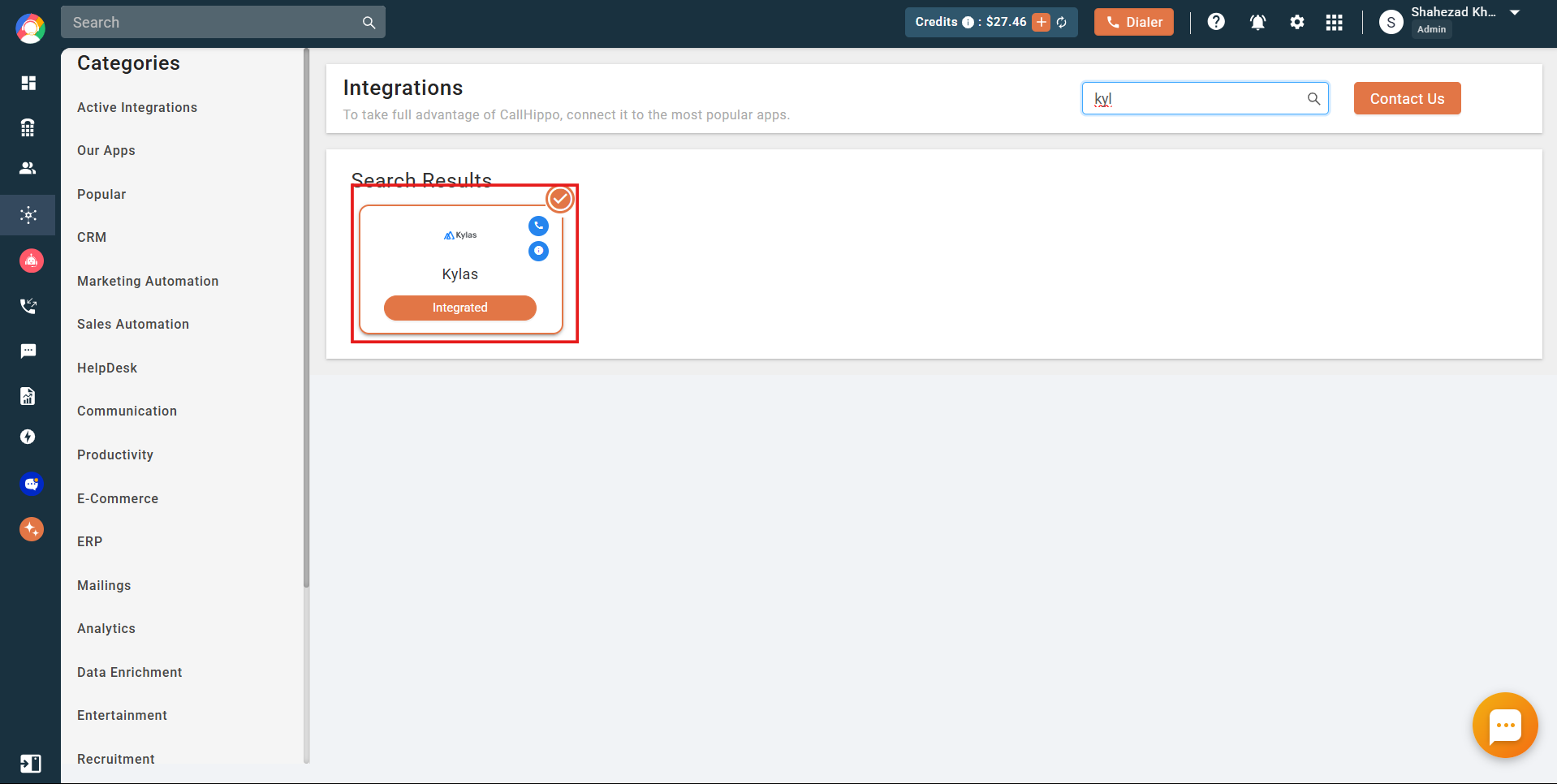
- Find Kylas and click Connect.
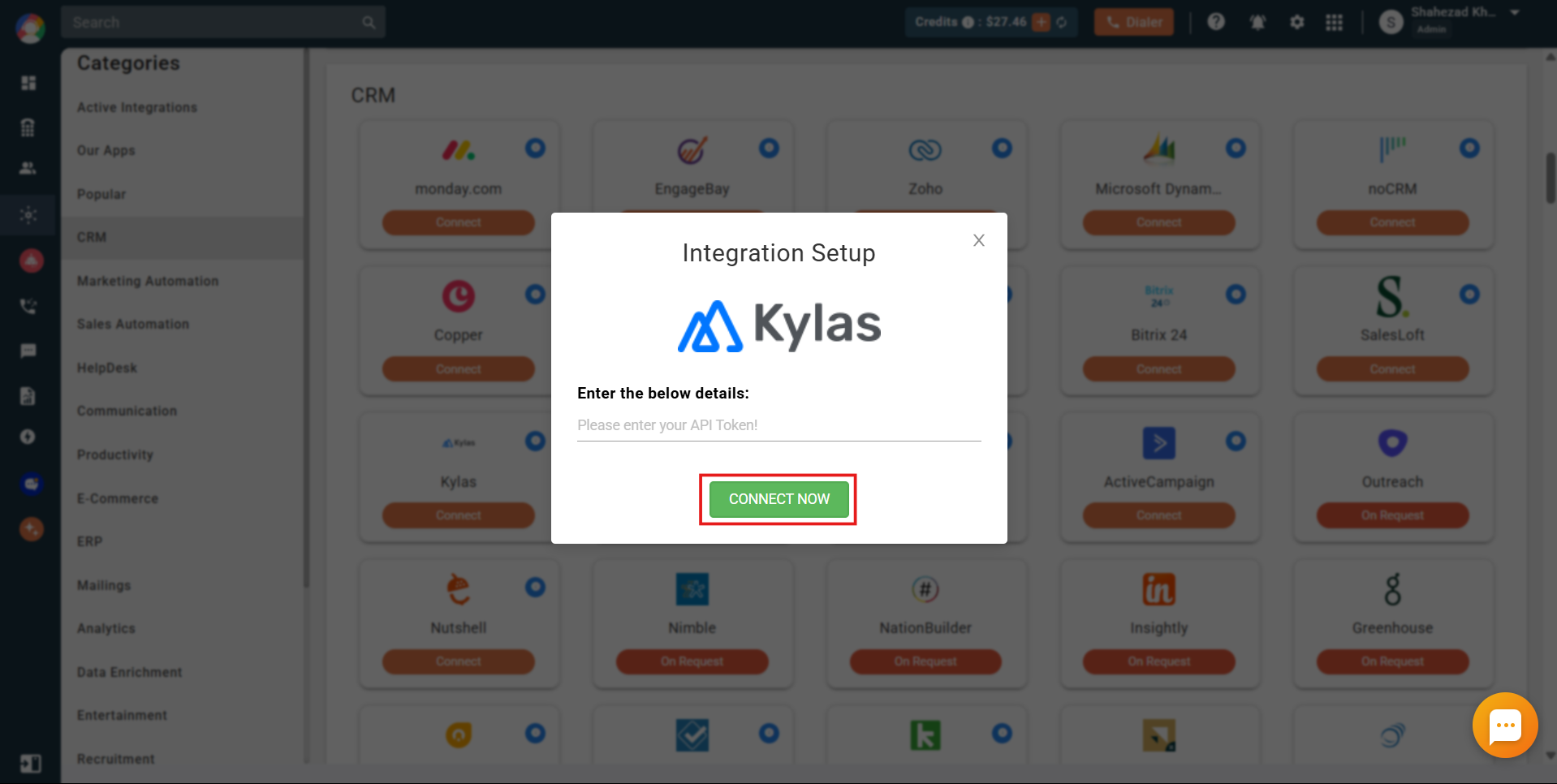
- Paste your API key into the setup popup and click Connect Now.
- Once connected, the status changes to Integrated.
What the Kylas integration does
- Contact and lead sync: existing contacts and leads with at least one phone number sync to CallHippo whenever a click-to-call is placed. New or updated contacts and leads sync the next time you use click-to-call.
- Deal sync: when you create a deal with an associated contact, it syncs to CallHippo on the next click-to-call.
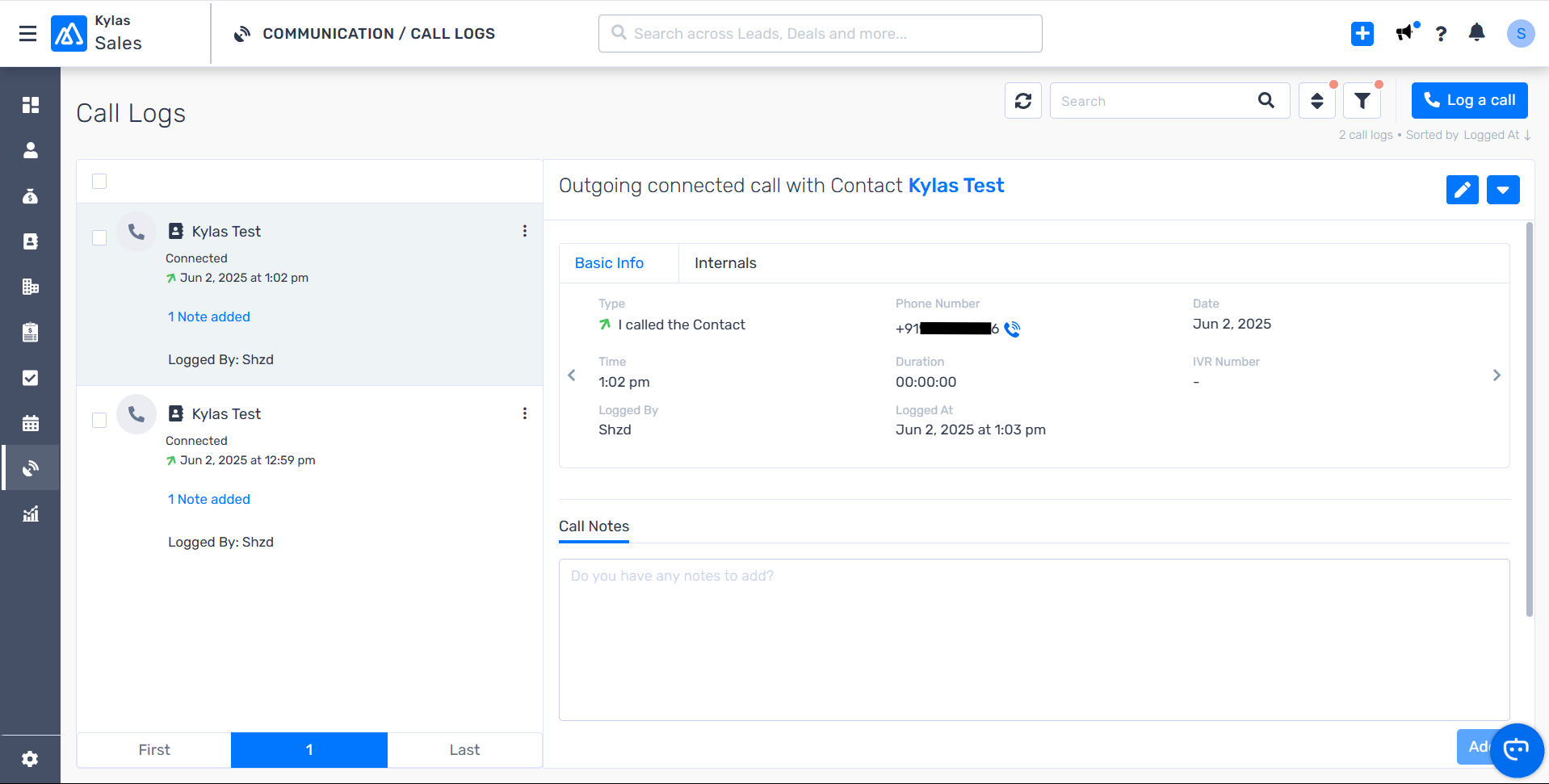
- Call logging: calls made to a Kylas contact through the CallHippo dialer are logged to that contact’s Kylas call log page, and appear on the deal’s detail page when a deal exists.
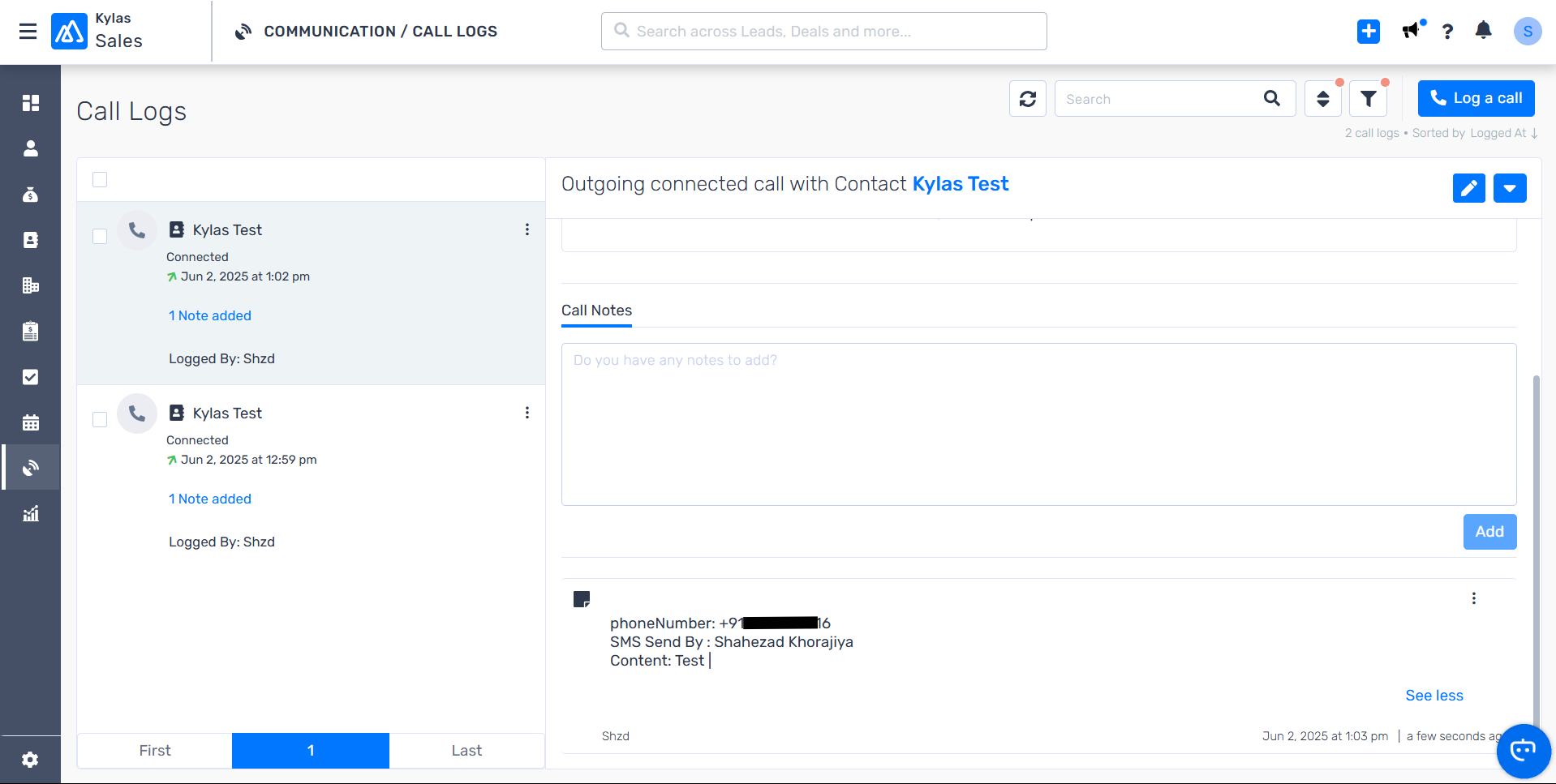
- SMS logging: messages sent to a Kylas contact through CallHippo are logged to the contact’s Kylas call log detail page.
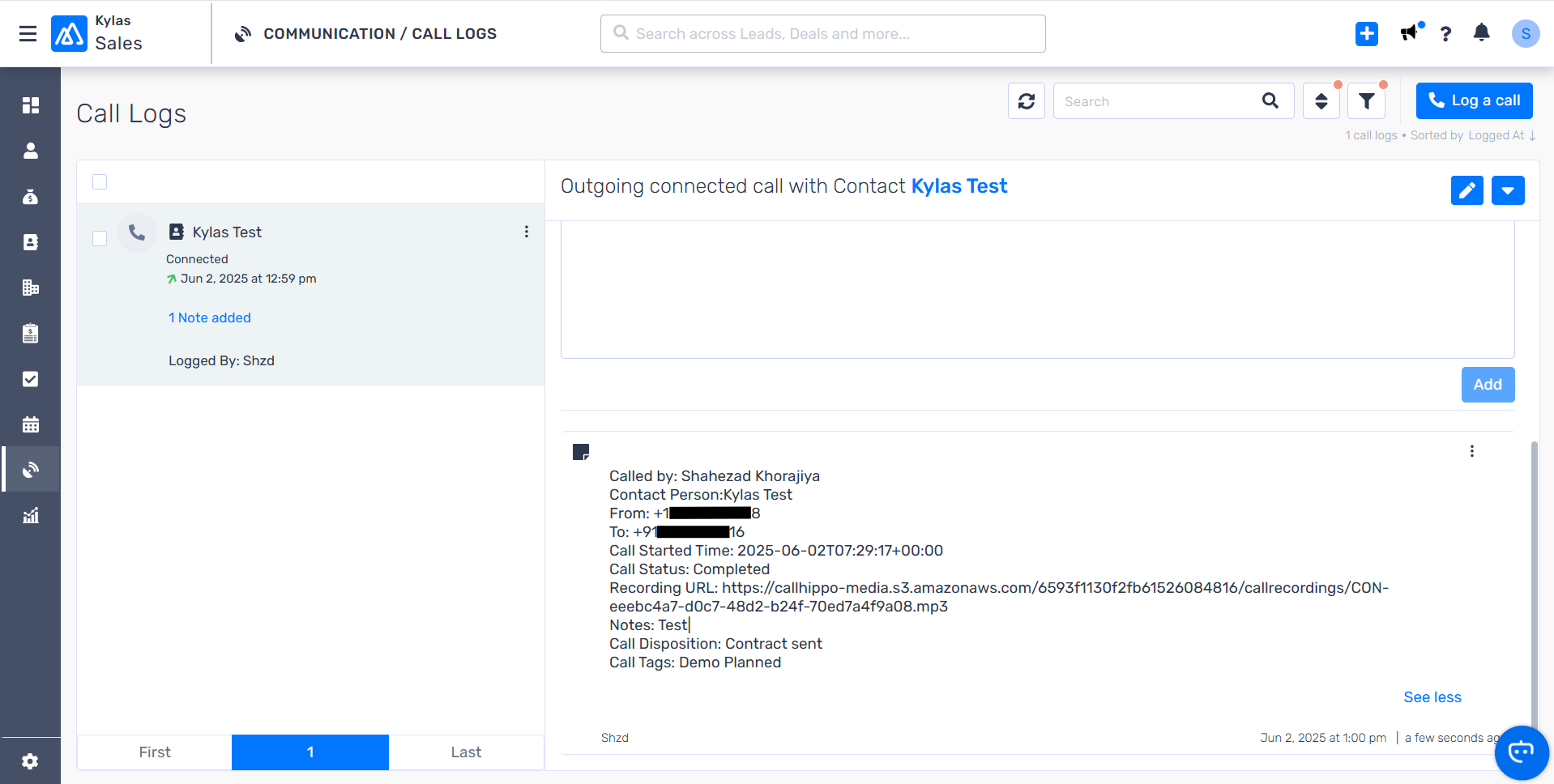
After Call Work activity in Kylas
If your plan includes CallHippo’s call tags and disposition feature and it is enabled, the tags and disposition you add on the After Call Work (ACW) screen are pushed to the matching Kylas record along with the call.
Note: this only syncs when the tags and disposition are added on the ACW screen. If they are added later from the Call Logs or another feed, they will not sync to Kylas.
Enable click-to-call
Install the CallHippo Click-to-Call Chrome extension so you can dial Kylas numbers directly.
- Add the CallHippo Click-to-Call Chrome extension from the Chrome Web Store.
- Once installed, a CallHippo icon appears next to each phone number. Click it and the call connects automatically.
Do my old contacts sync automatically after connecting?
Contacts sync to CallHippo when a click-to-call is performed on them, so existing contacts sync the first time you dial them from Kylas.
Why are my call tags not showing up in Kylas?
Tags and disposition only sync when they are entered on the After Call Work screen. Anything added afterward from the Call Logs or another feed will not be pushed to Kylas.