
Connecting Podio with CallHippo lets you place calls and send texts straight from your Podio contacts, with every call and SMS logged back to the right record automatically.
Connect Podio to CallHippo
The entire setup happens inside your CallHippo dashboard. You only need your Podio login credentials to authorize the connection.
- Log in to your CallHippo account.
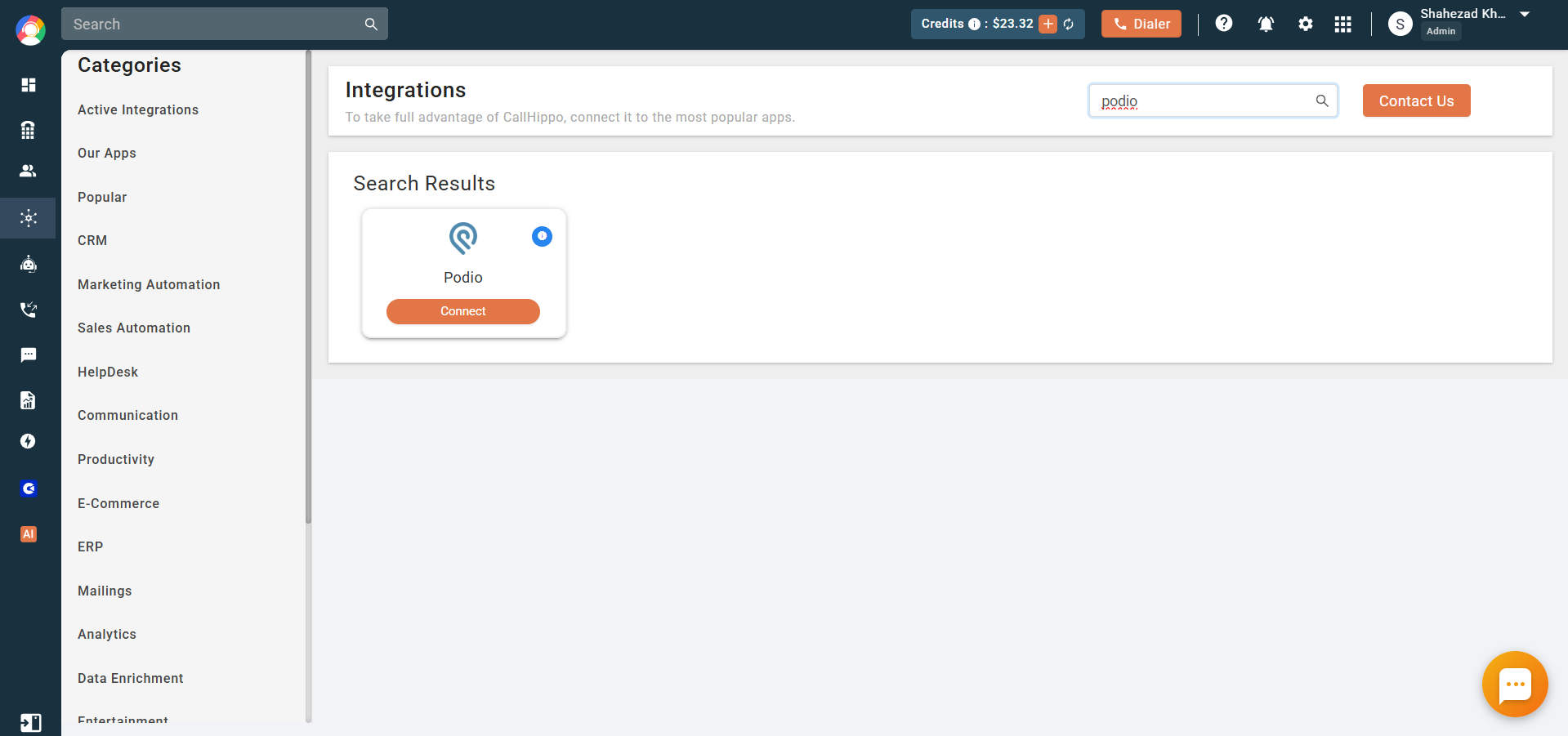
- From the left sidebar of your dashboard, click Integrations.
- Search for Podio and click Connect.
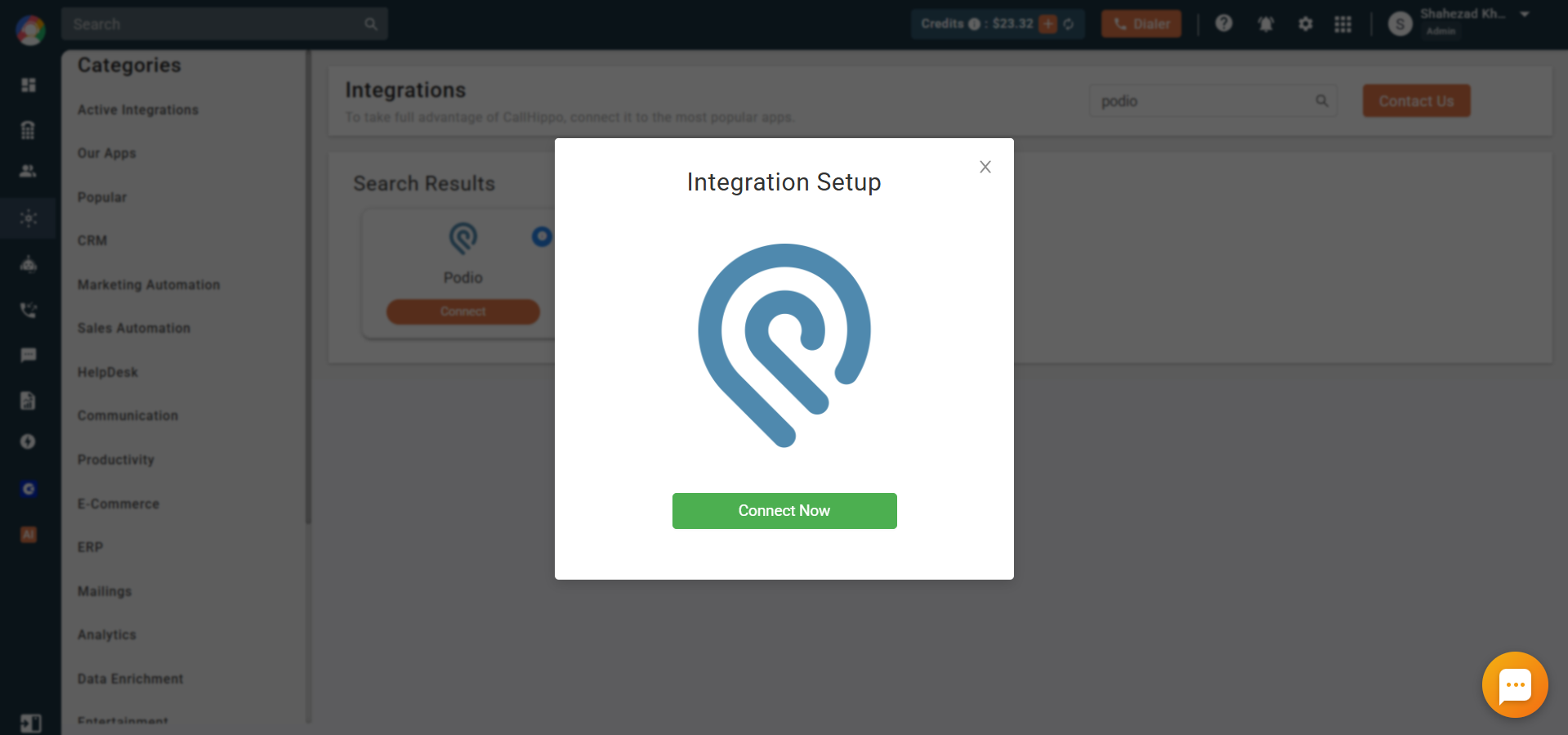
- A pop-up appears. Click Connect Now.
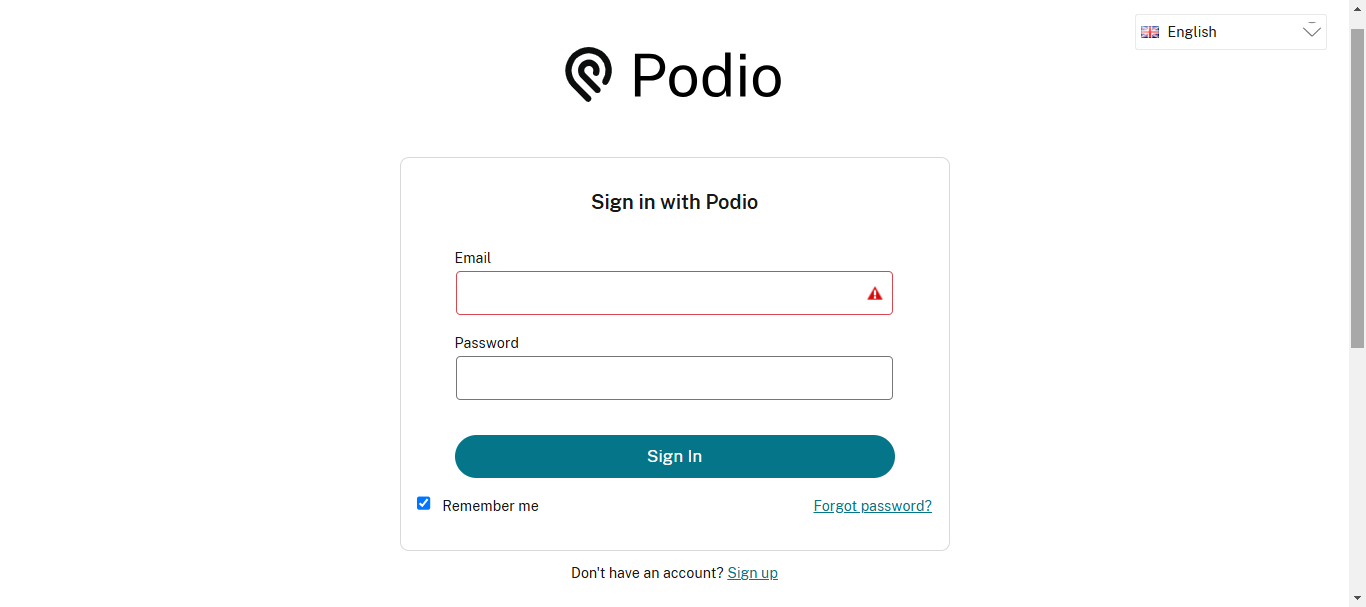
- Sign in with your Podio account credentials.
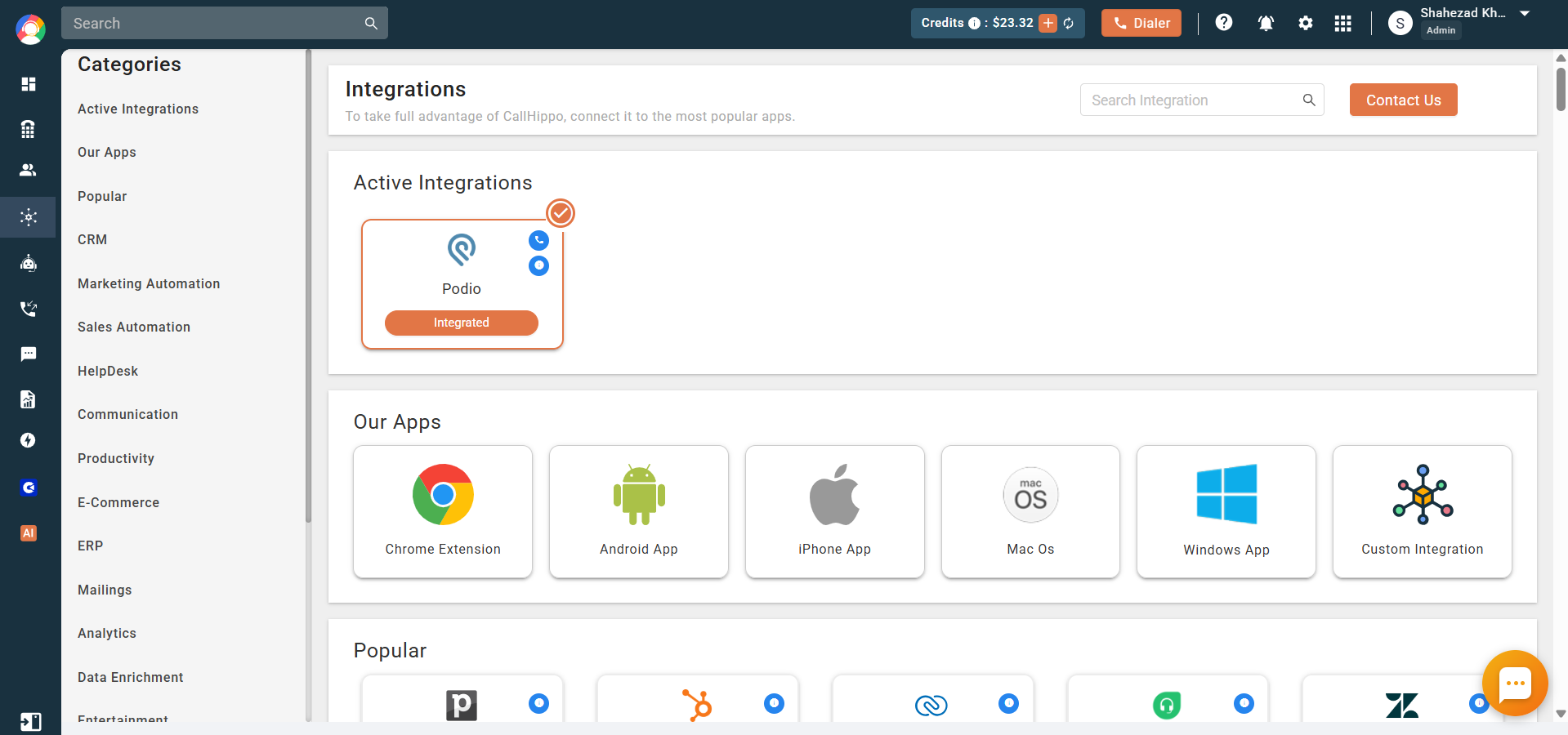
- You are redirected back to the CallHippo integration page, where Podio now shows as Integrated.
What the Podio integration does
- Contact sync: Your Podio contacts sync into the CallHippo dialer as contacts the moment you click-to-call or SMS them.
- Call logging: When you call a Podio contact from the CallHippo dialer, the call activity is logged to that contact’s Podio detail page.
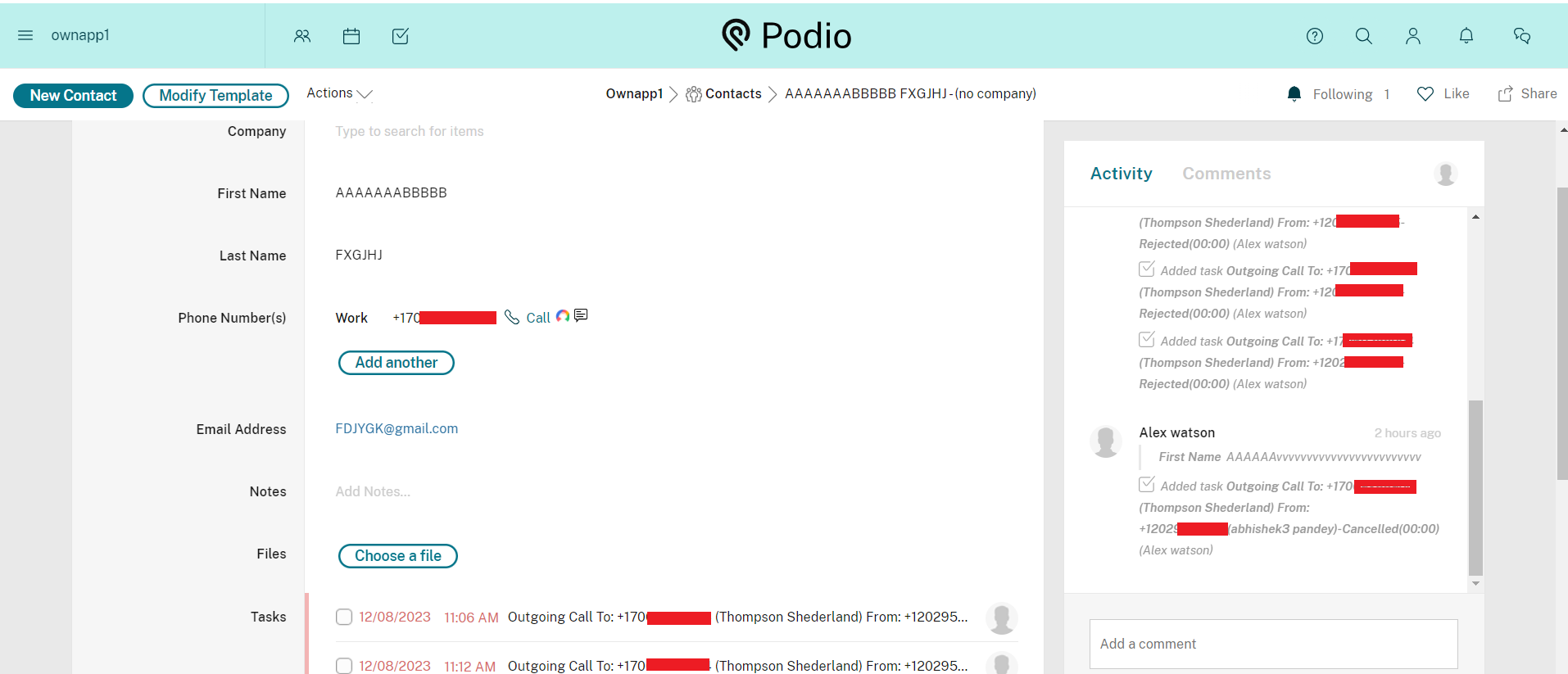
- SMS logging: Any SMS sent to a Podio contact from the CallHippo dialer is logged to that contact’s Podio detail page.
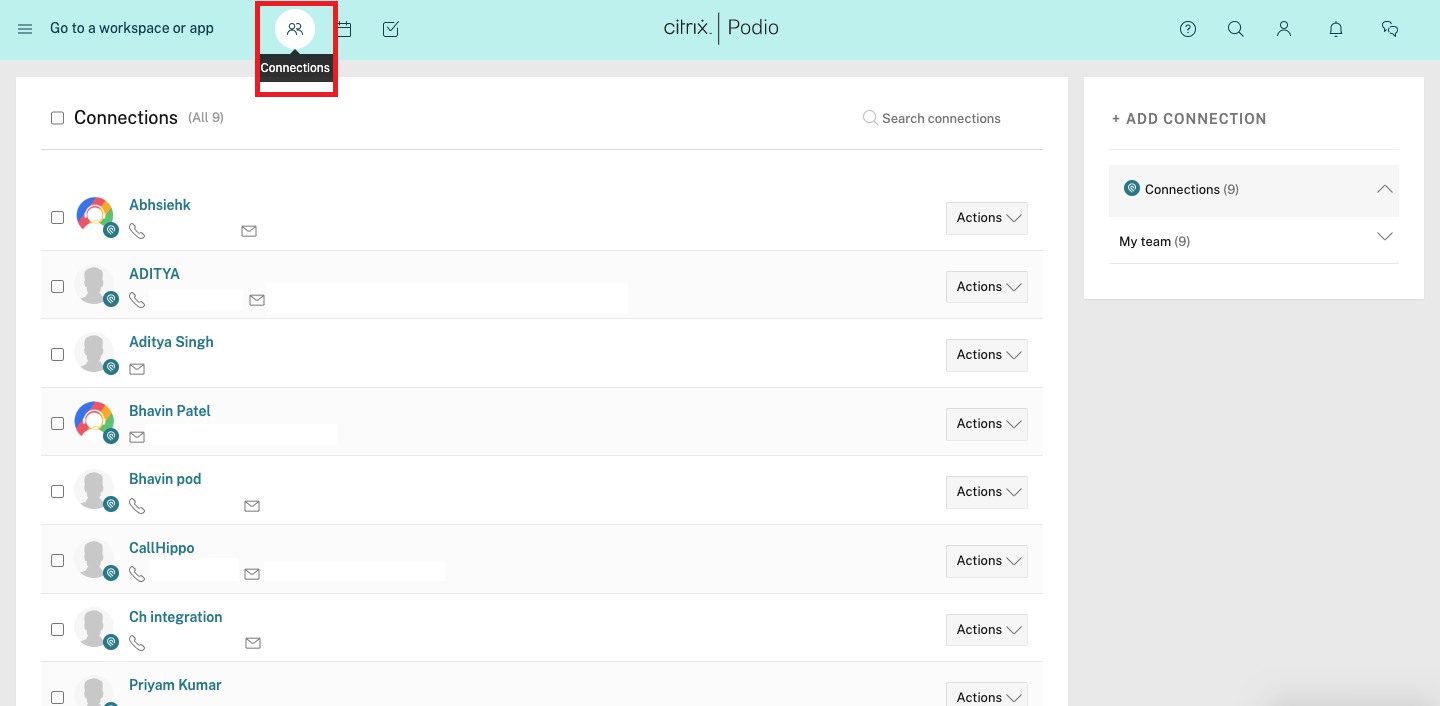
- Connections: Activity is also accessible from the Podio Connections area, inside each connection’s profile.
Enable Click-to-Call
To dial Podio numbers with a single click, install the CallHippo Click-to-Call Chrome extension from the Chrome Web Store. Once installed, a call icon appears next to every phone number, so you can start a call without leaving Podio.
Do I need to configure anything inside Podio?
No. The connection is authorized with your Podio login during setup, and contacts and activity sync automatically once the integration shows as Integrated.
Why aren’t my calls showing up in Podio?
Make sure the integration status is Integrated and that you are placing calls or sending SMS from the CallHippo dialer to a Podio contact. Only activity initiated through CallHippo is synced back to Podio.