
Connecting Sendinblue (now Brevo) with CallHippo lets you tie your calling activity to your email marketing, so you can keep contacts in sync and power outreach from a single workflow.
Get Your Sendinblue V3 API Key
The integration is authenticated with your Sendinblue V3 API key, so grab that first.
- Sign in to Sendinblue using your account credentials.
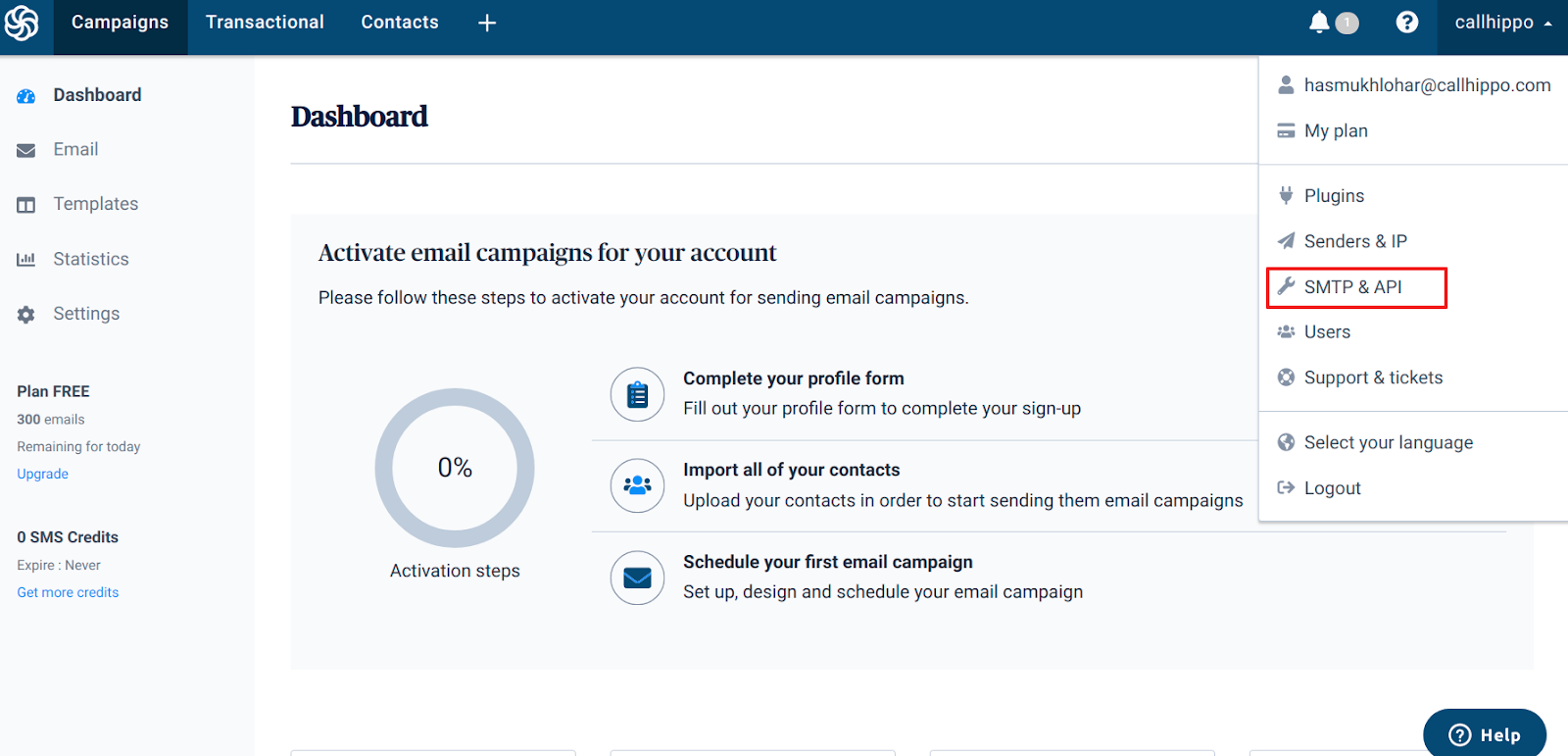
- Open SMTP & API. Click your profile name in the top-right corner and choose SMTP & API from the menu.
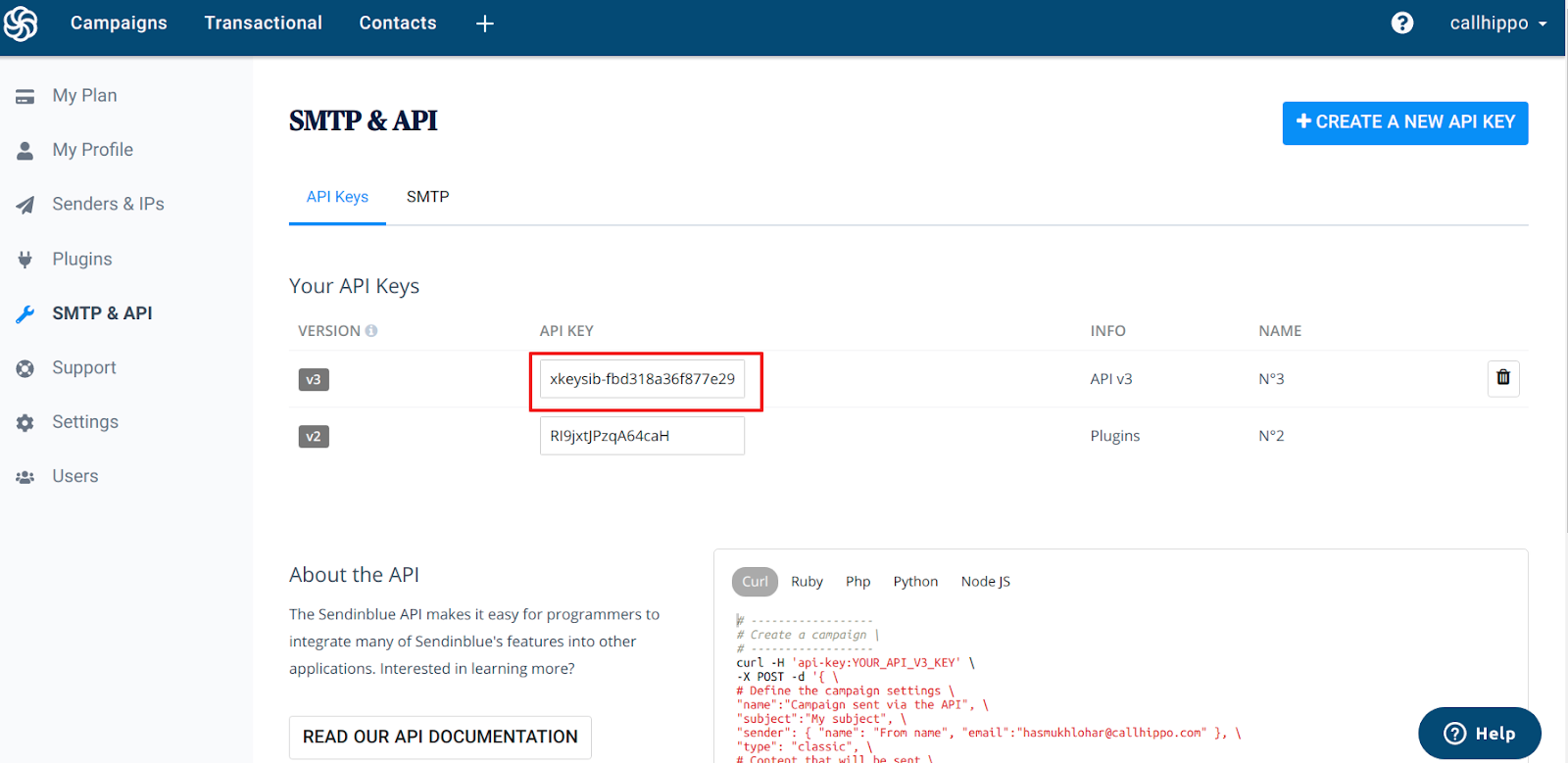
- Copy the V3 API key. On the API Keys tab, locate the row marked v3 and copy that key. Keep it noted for the next steps.
Connect Sendinblue in CallHippo
With the key ready, head over to CallHippo to finish setting up the integration.
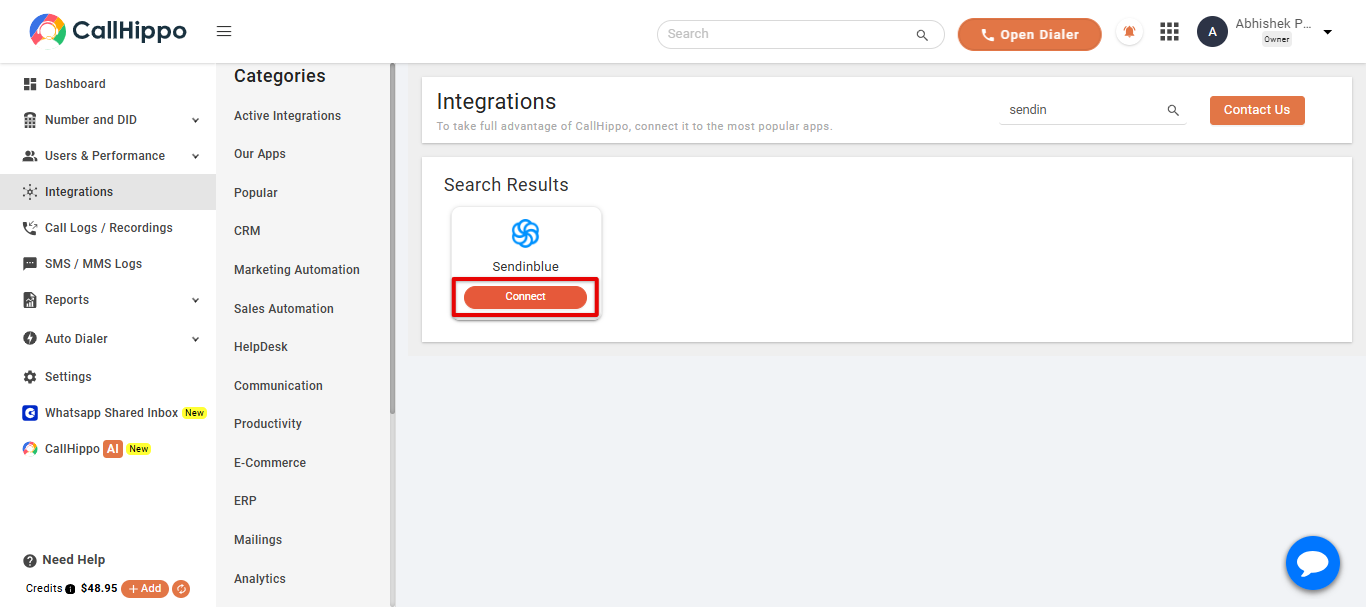
- Open the Integrations tab in your CallHippo account.
- Find Sendinblue and click the Connect button on its card. You’ll be taken to a setup page.
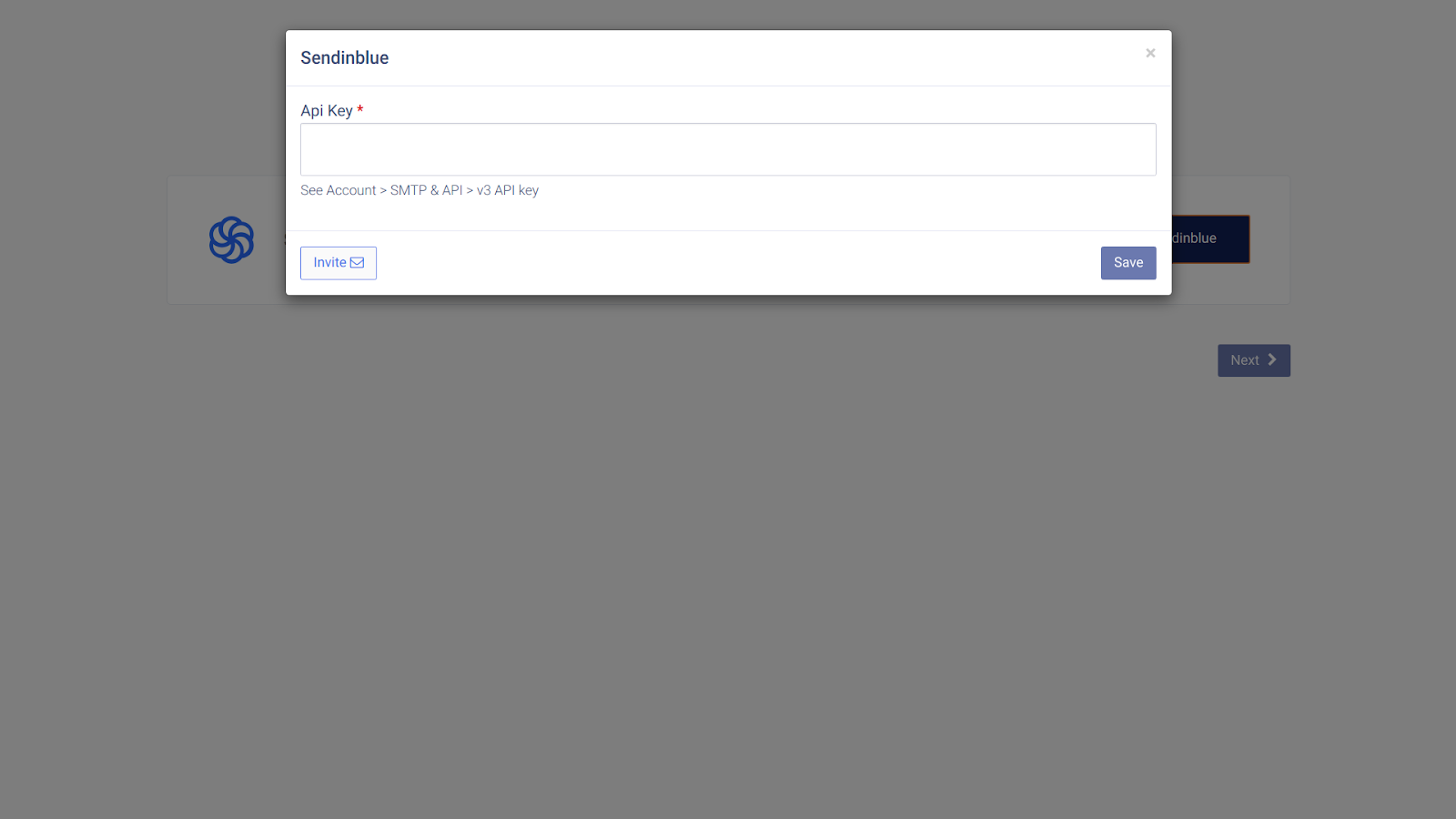
- Enter the API key you copied earlier, then click Save.
- Confirm the link. You should see the message “Datasource is linked.” Click Ok.
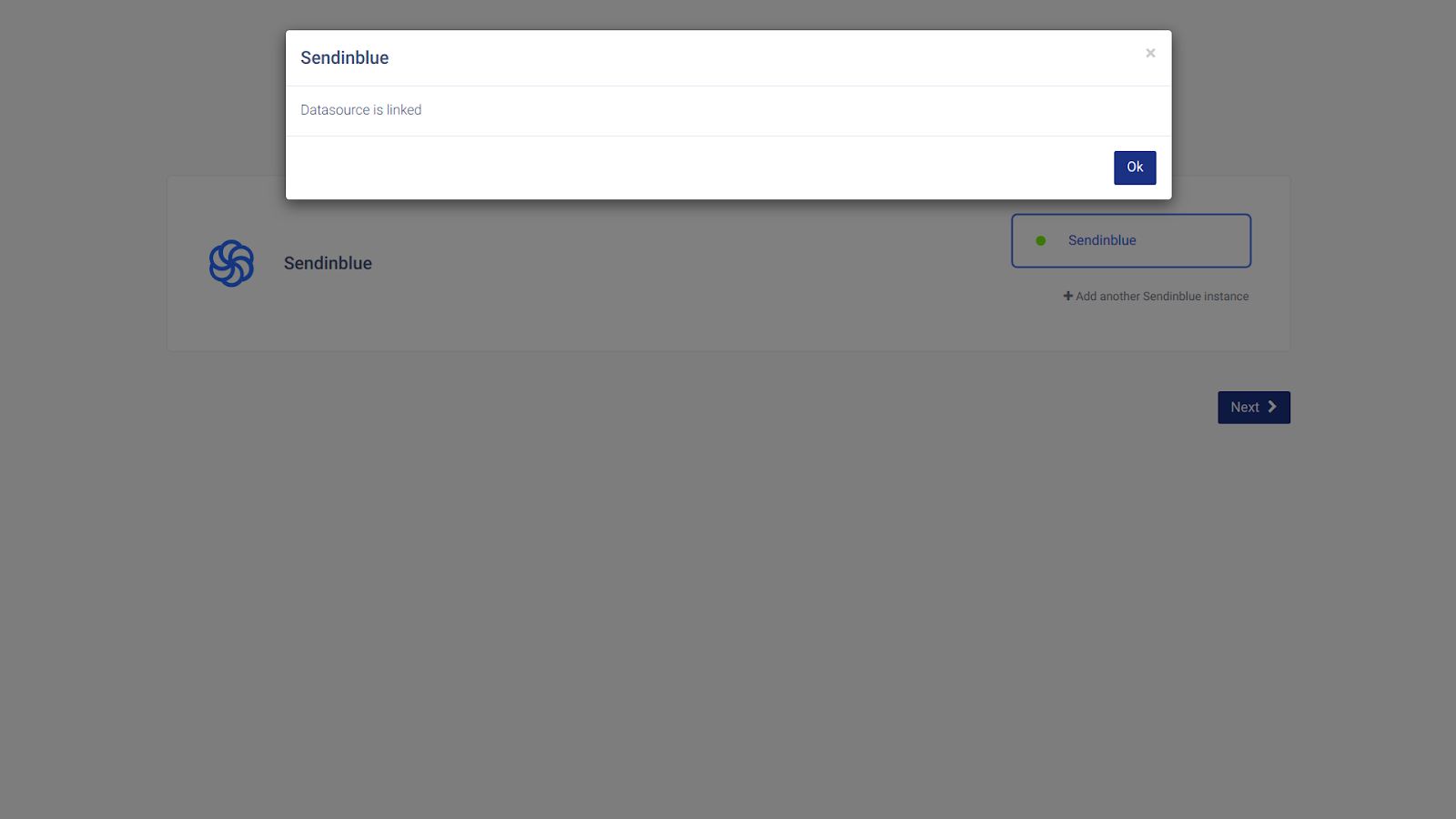
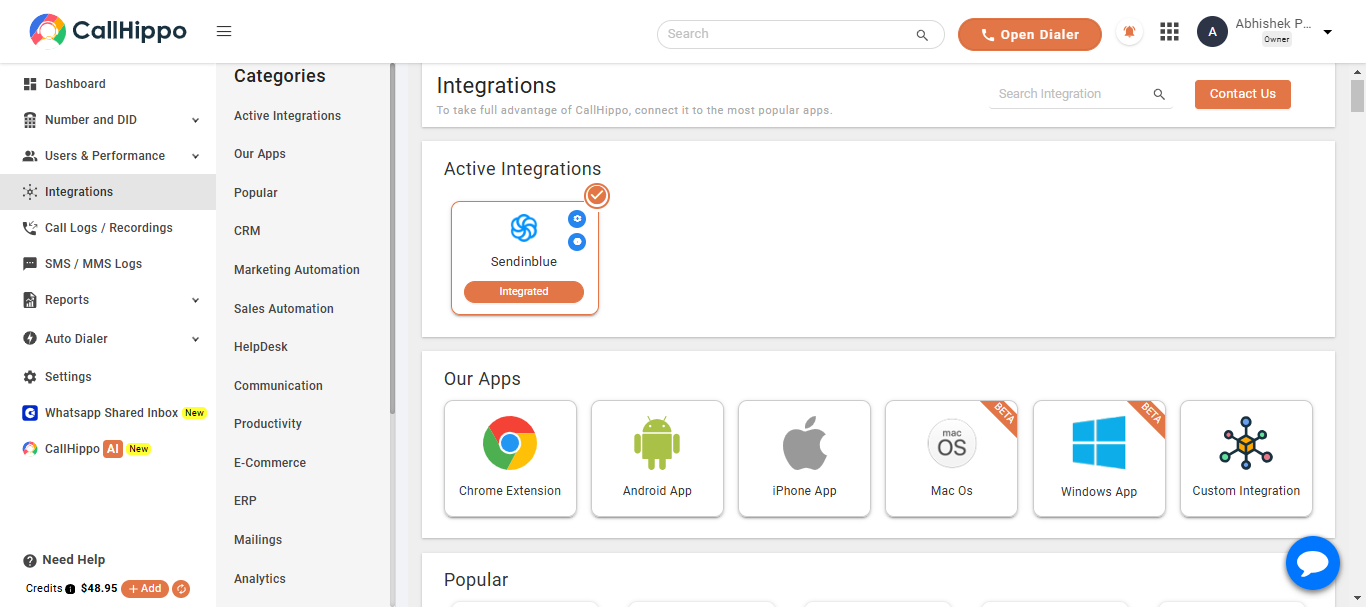
- Finish up. Click Next. CallHippo returns you to your account and the status changes to Integrated — your Sendinblue account is now connected.
Frequently Asked Questions
Which API key does CallHippo need?
Use the V3 API key. In Sendinblue, open SMTP & API, go to the API Keys tab, and copy the key on the row labeled v3.
Is Sendinblue the same as Brevo?
Yes. Sendinblue was rebranded as Brevo, but the API keys and setup steps described here still apply.
Having trouble connecting Sendinblue? Reach out to us at [email protected] and we’ll help you get set up.