
Connecting Groove with CallHippo lets your support team log calls, sync contact data, and place calls directly from Groove, keeping every customer conversation in one place.
Step 1: Get Your API Token from Groove
Start in your Groove account to copy the private API token that CallHippo needs to connect.
- Log in to your Groove account.
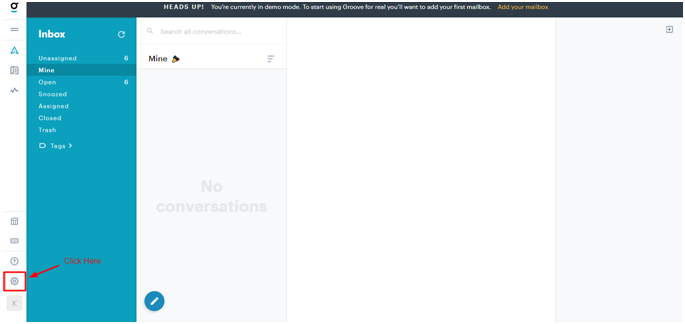
- Open Settings by clicking the gear icon.
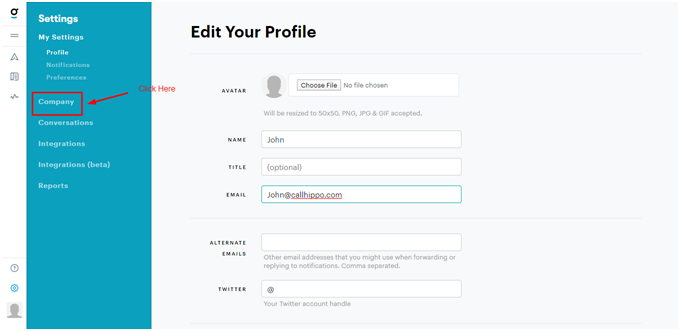
- Click Company in the settings menu.
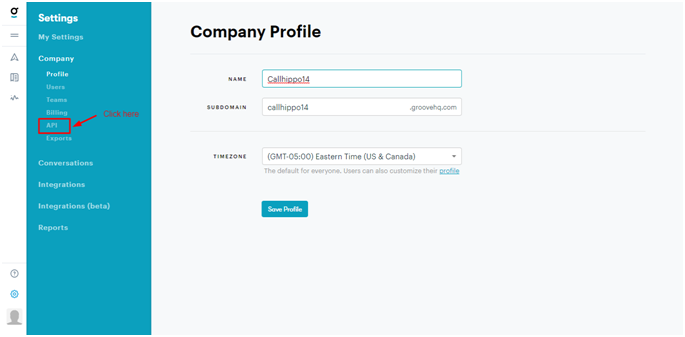
- Click API in the Company section.
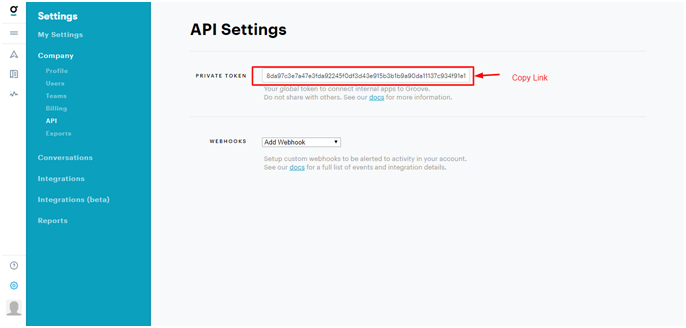
- Copy the Private Token shown under the API Settings section. You’ll paste this into CallHippo in the next step.
Step 2: Connect Groove in CallHippo
Now switch to CallHippo to complete the integration.
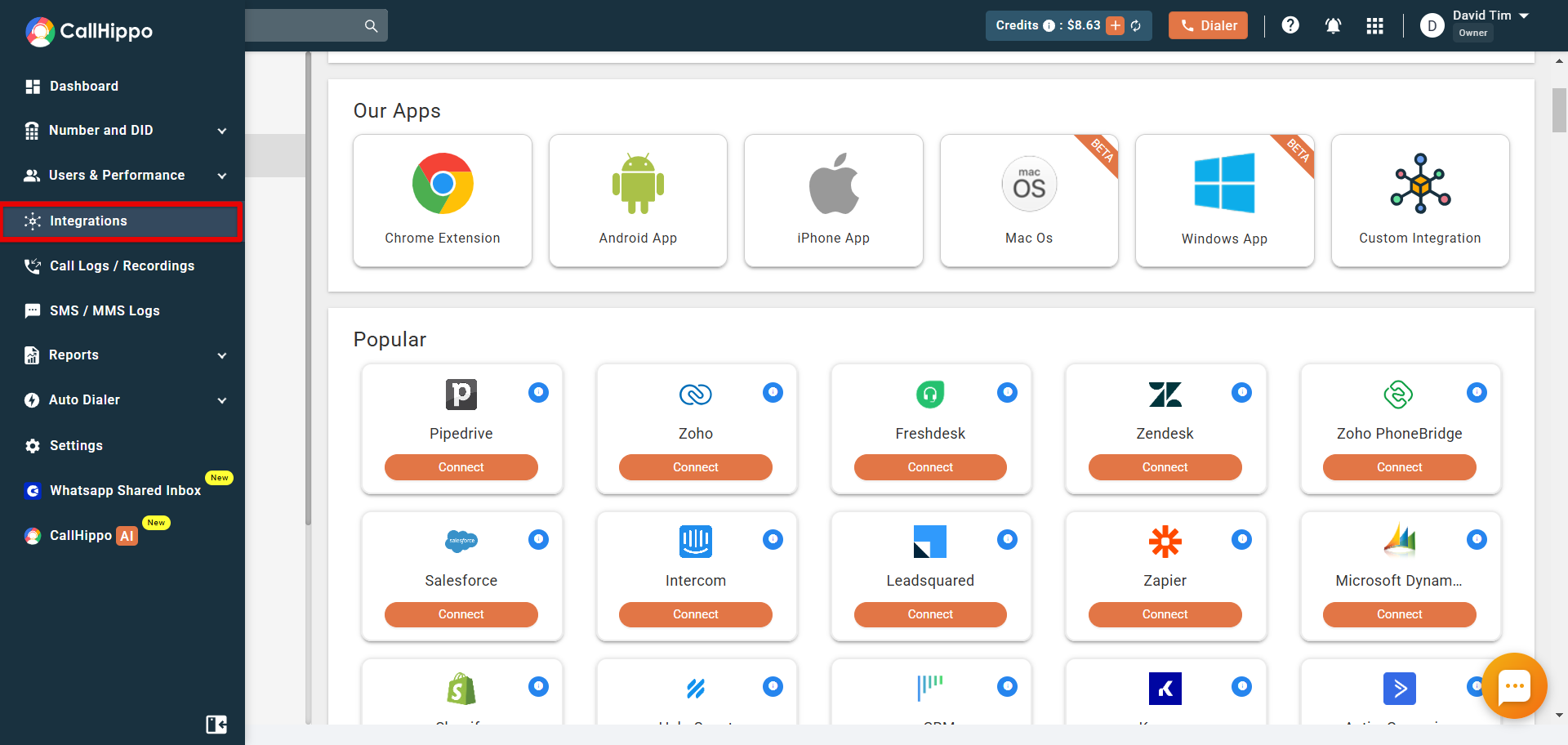
- Log in to your CallHippo account and open the Integrations tab.
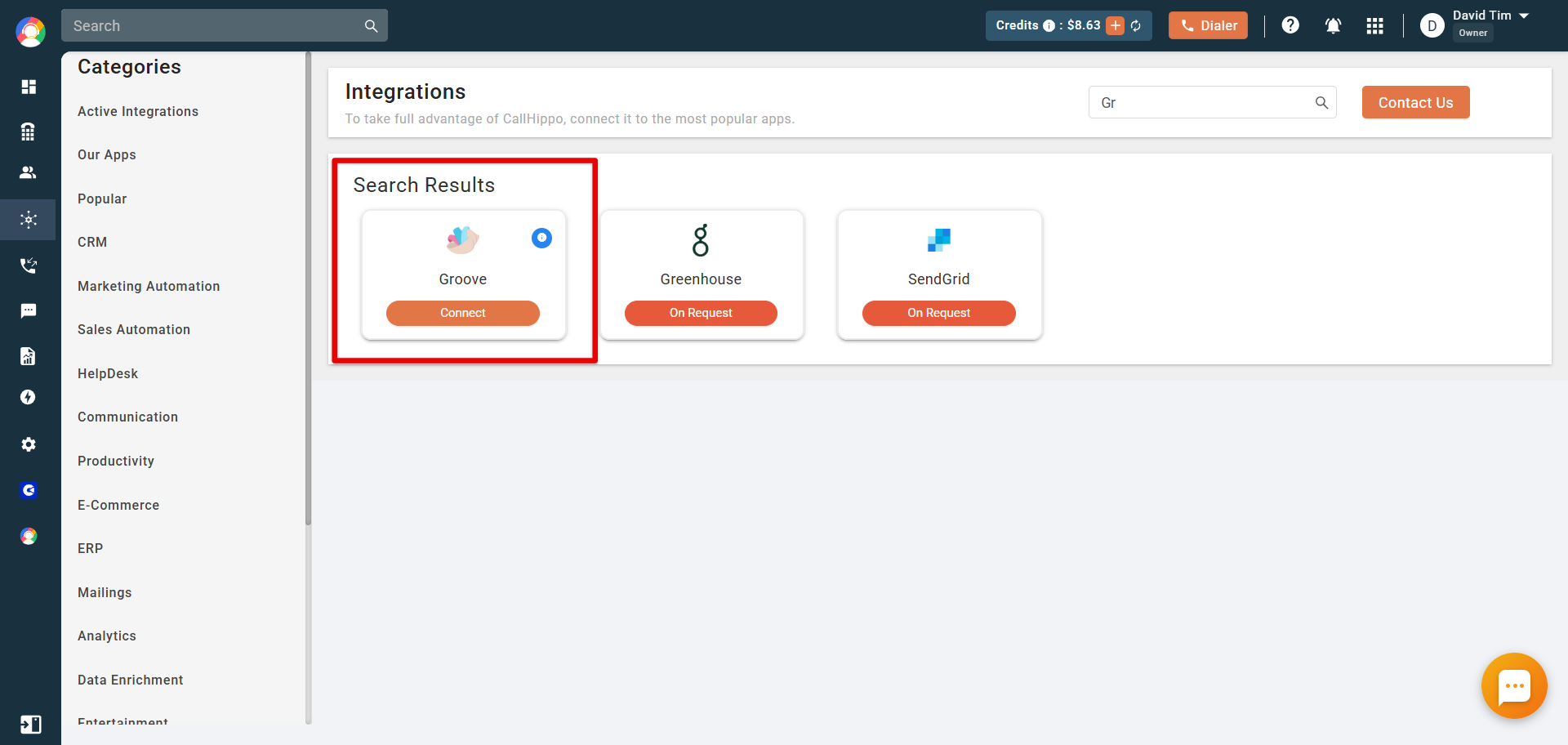
- Find Groove (search for it if needed) and click Connect.
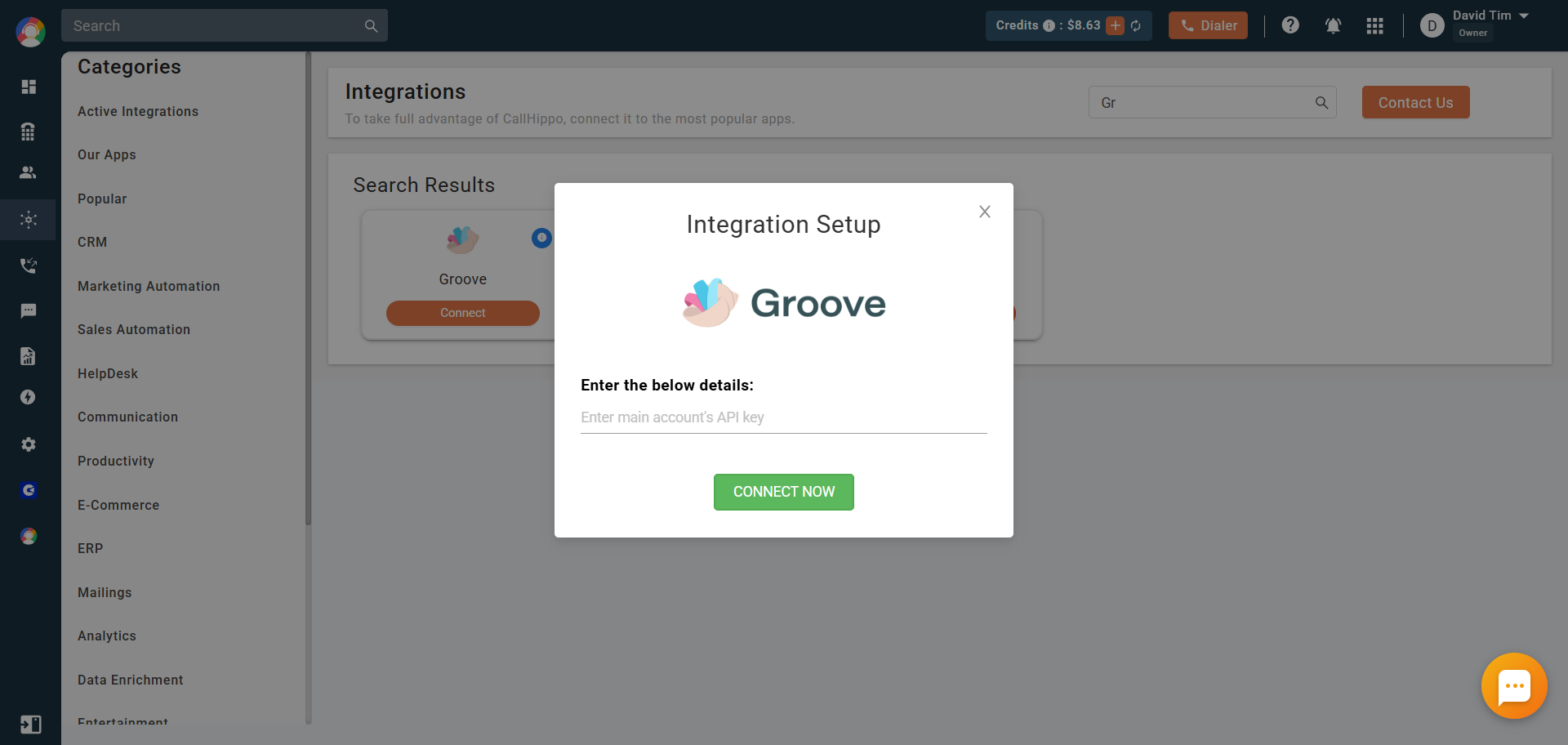
- Paste the API key you copied from Groove into the text box, then click Connect Now.
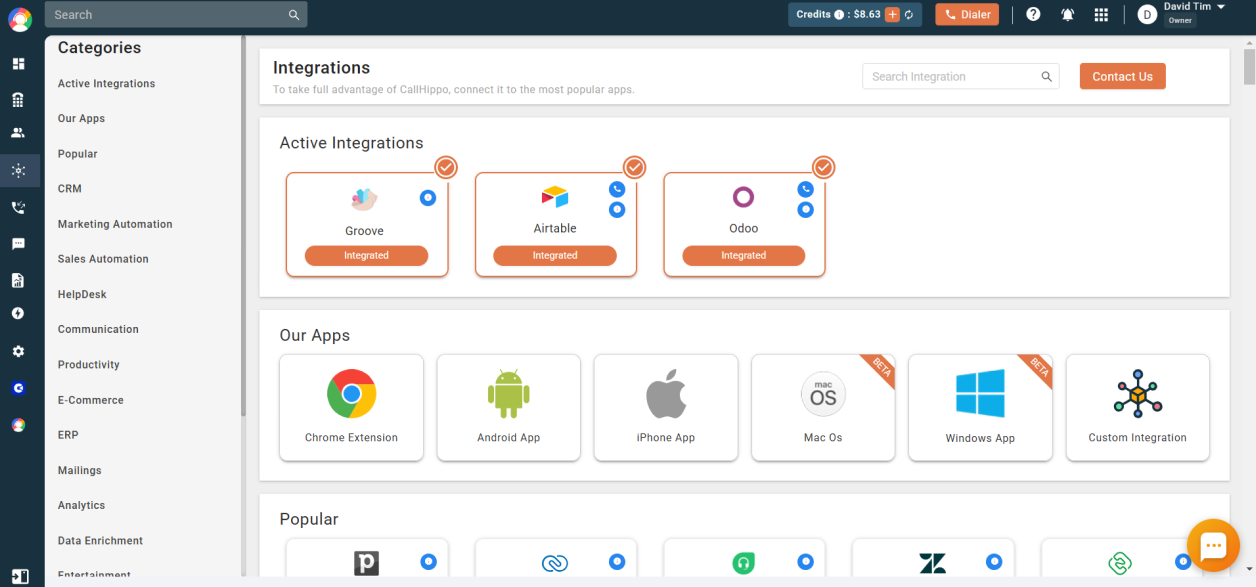
- The popup closes and your Groove integration moves to the in-progress state. Once complete, it shows as Integrated under Active Integrations.
Enable Click-to-Call
To call Groove contacts directly from your browser, install the CallHippo Click-to-Call Chrome extension:
FAQ
Where do I find my Groove API token?
In Groove, go to Settings, then Company, then API. The Private Token is listed under the API Settings section.
How long does the integration take to activate?
After you click Connect Now, the integration briefly shows as in-progress and then switches to Integrated once it completes.
Having trouble connecting Groove? Our team is here to help at [email protected].