
Connecting Copper with CallHippo lets you log calls and texts straight to your Copper contacts and place calls without leaving your pipeline.
The connection uses a quick OAuth authorization, so there’s no API key to copy. Just follow the steps below.
Connect Copper in CallHippo
- Log in to CallHippo and open the Integrations tab from the left menu.
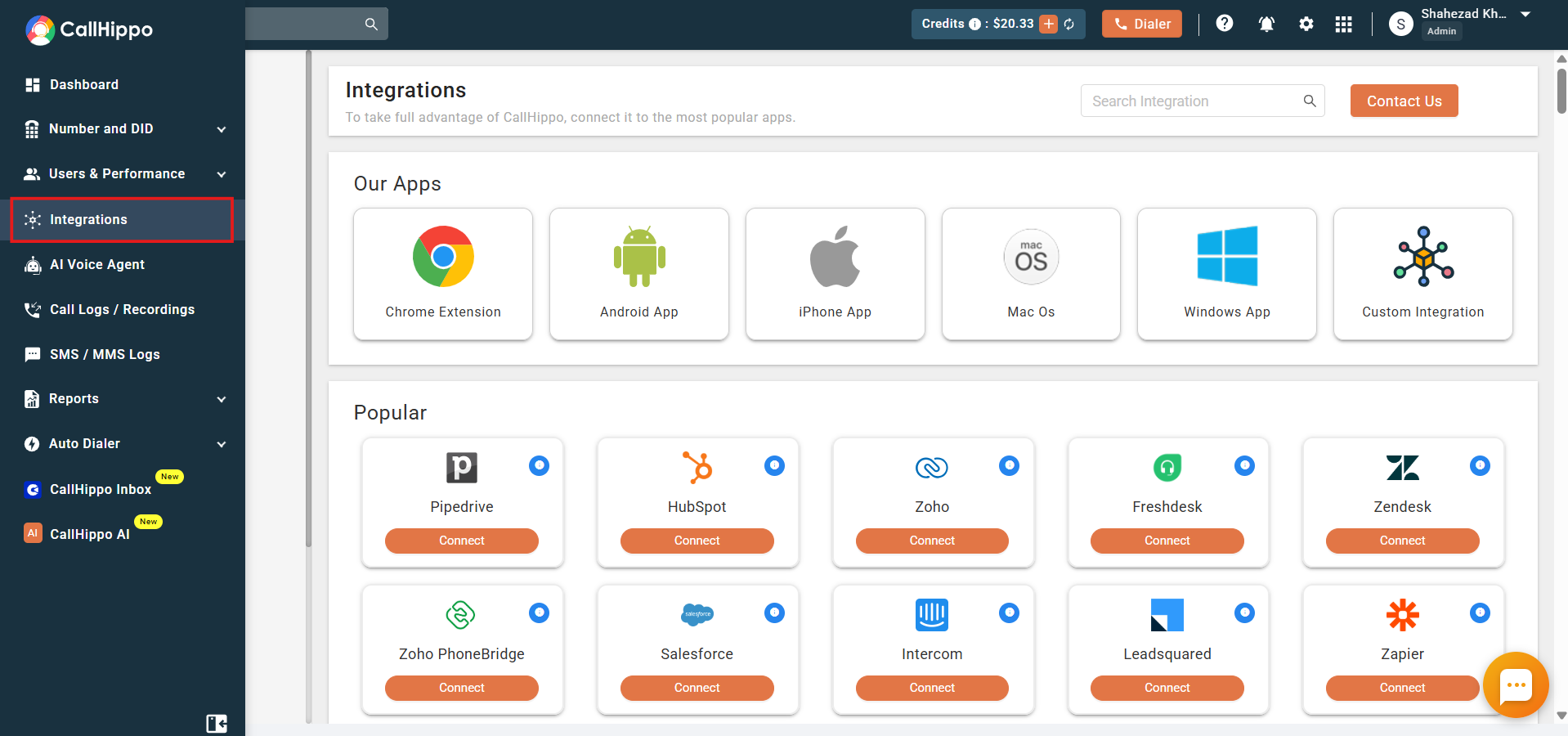
- Find Copper (search for it if needed) and click Connect to start the integration.
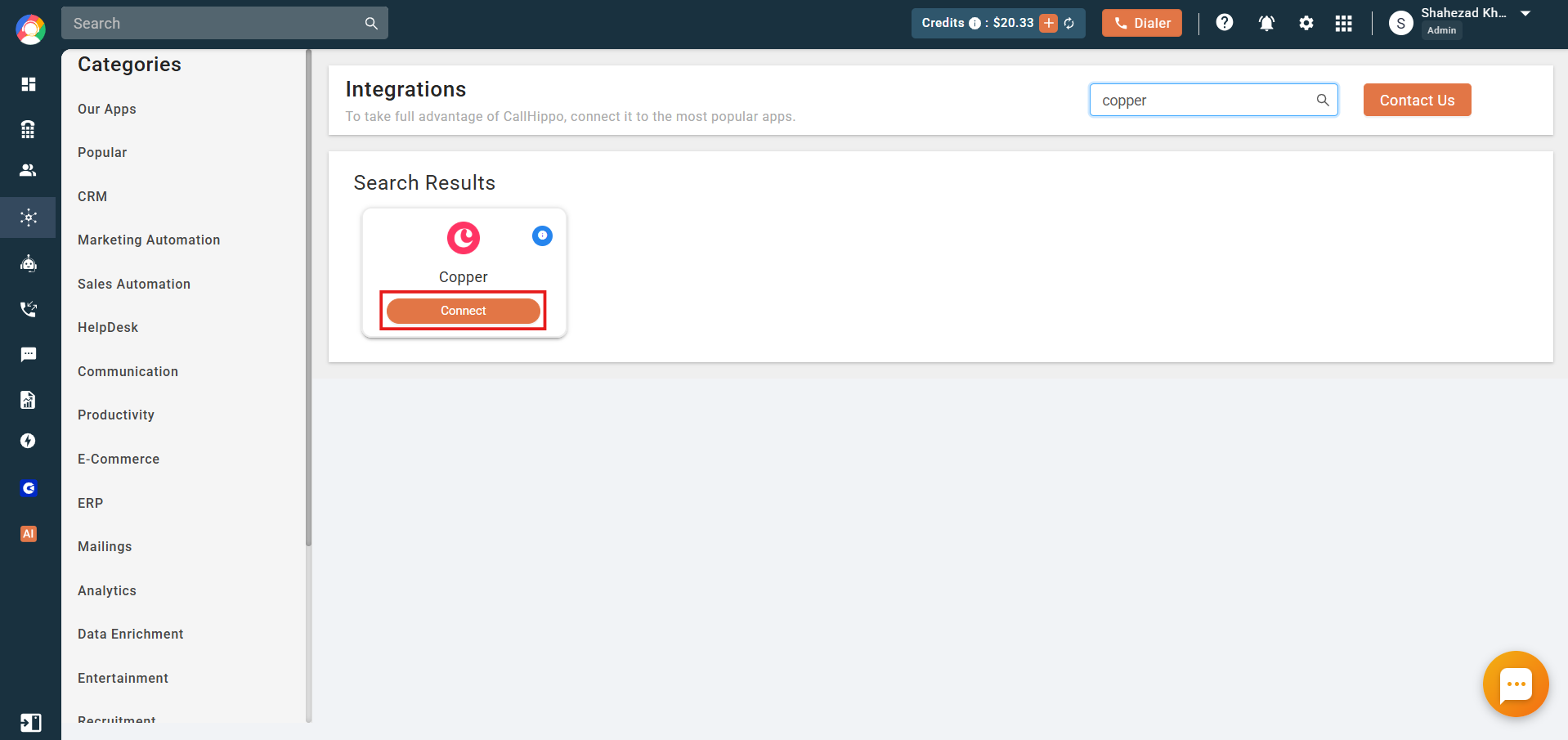
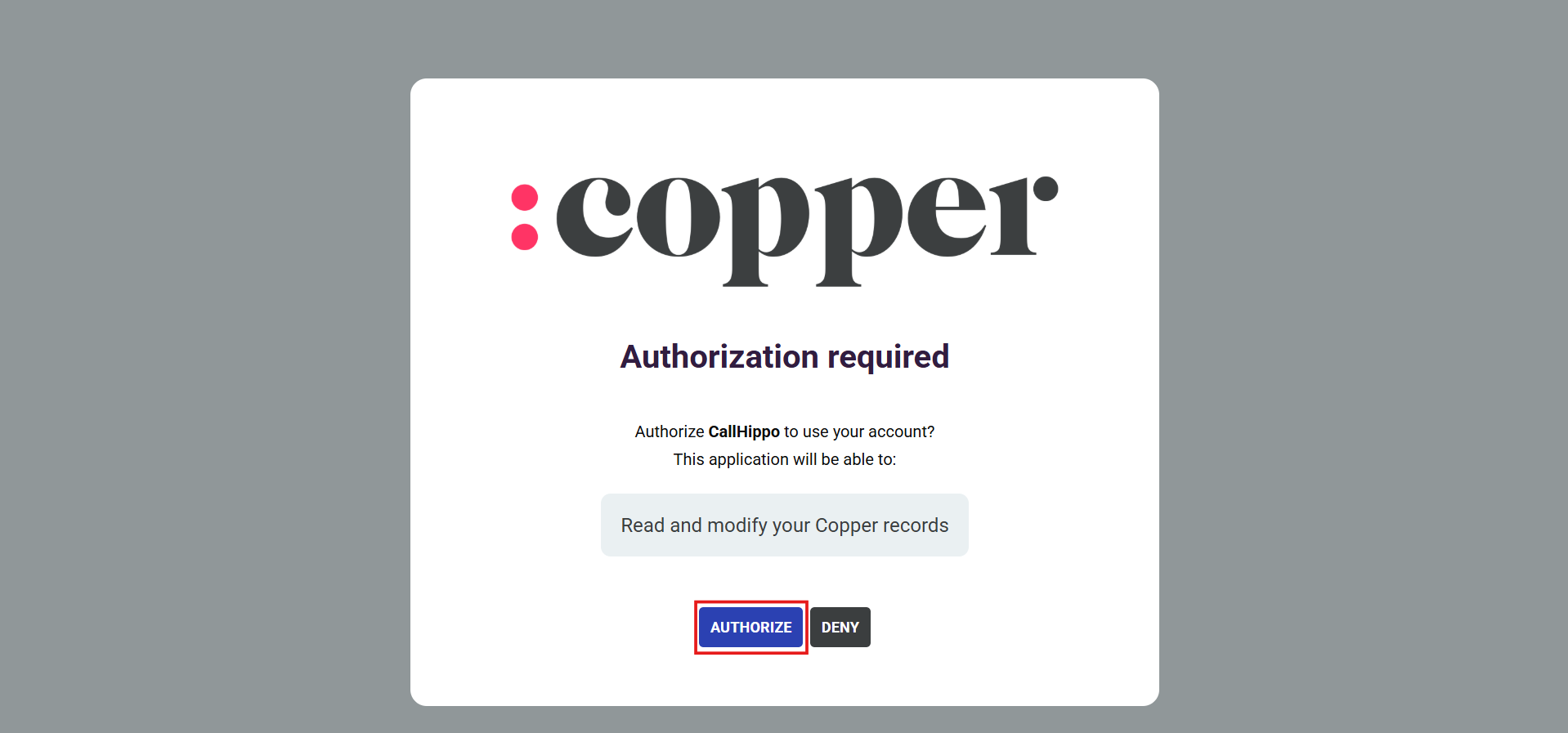
- Sign in to Copper if prompted. If you’re already logged in, you’ll go straight to the authorization step.
- Click Authorize to allow CallHippo to read and modify your Copper records.
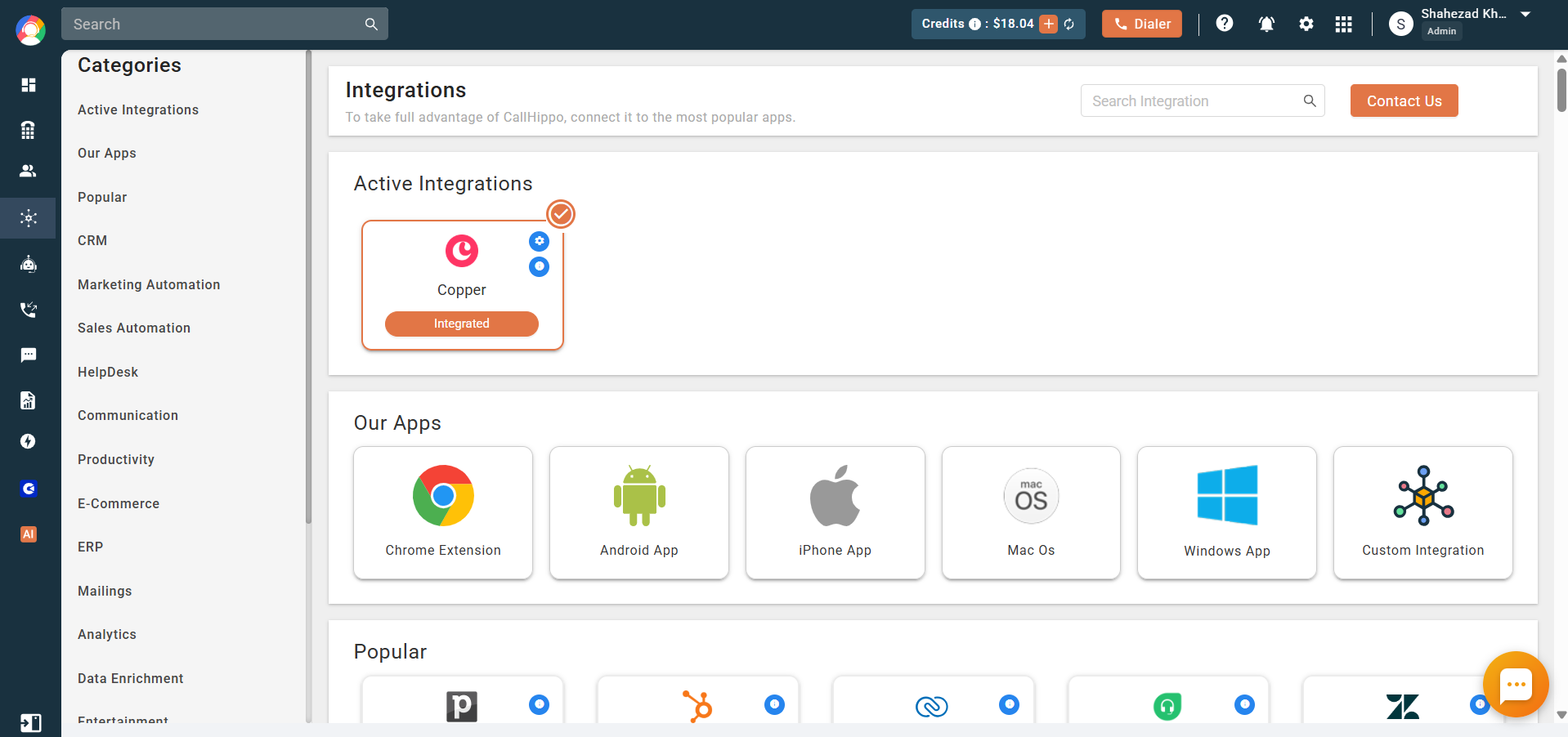
- You’ll be redirected back to CallHippo and your status will change to Integrated. Copper is now connected.
What the Copper integration does
- Contact sync: A Copper contact is added to your CallHippo dialer as a contact after you use click-to-call or SMS with that number.
- Call logging: Whenever you call a Copper contact from the CallHippo dialer, the call log activity is synced to that contact’s detail page in Copper.
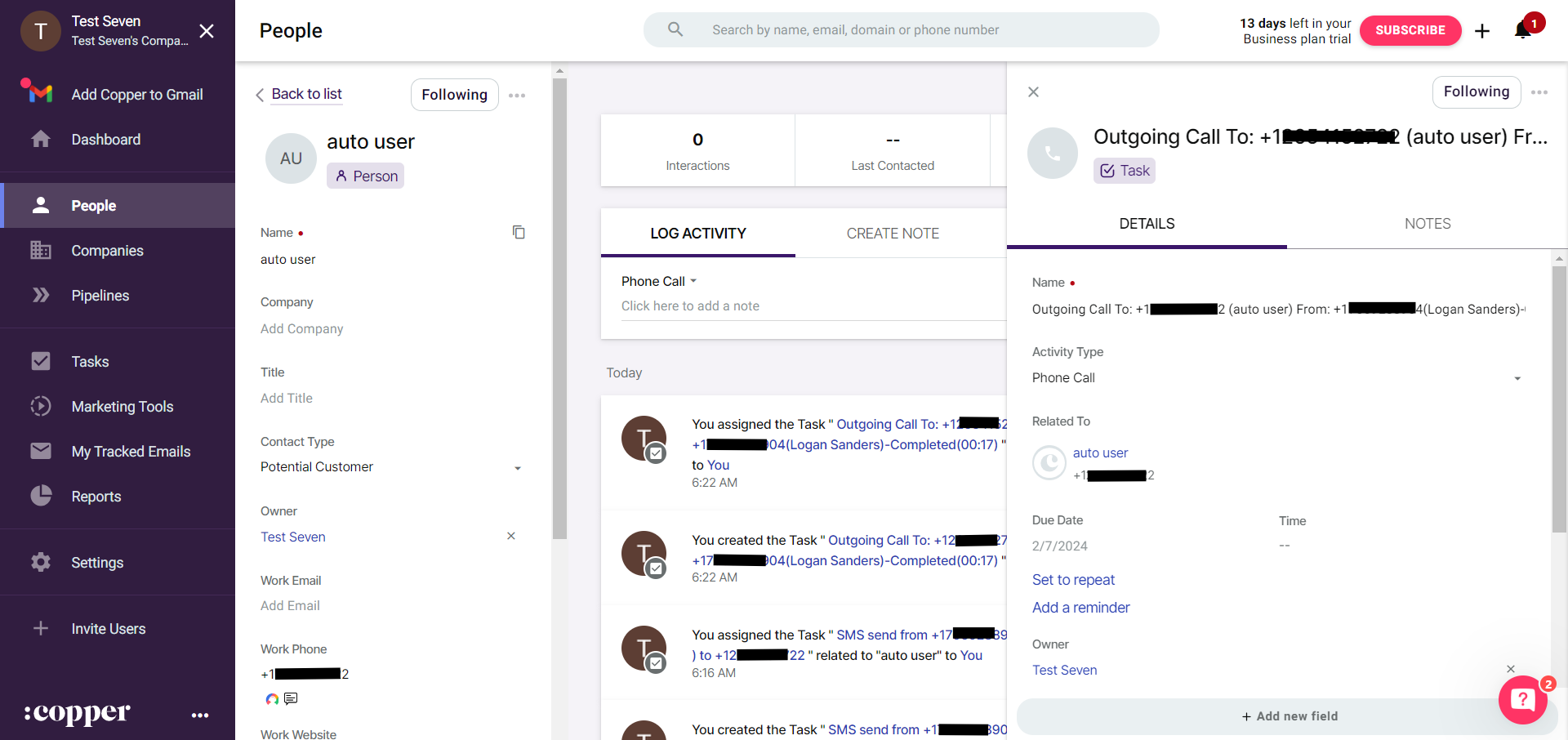
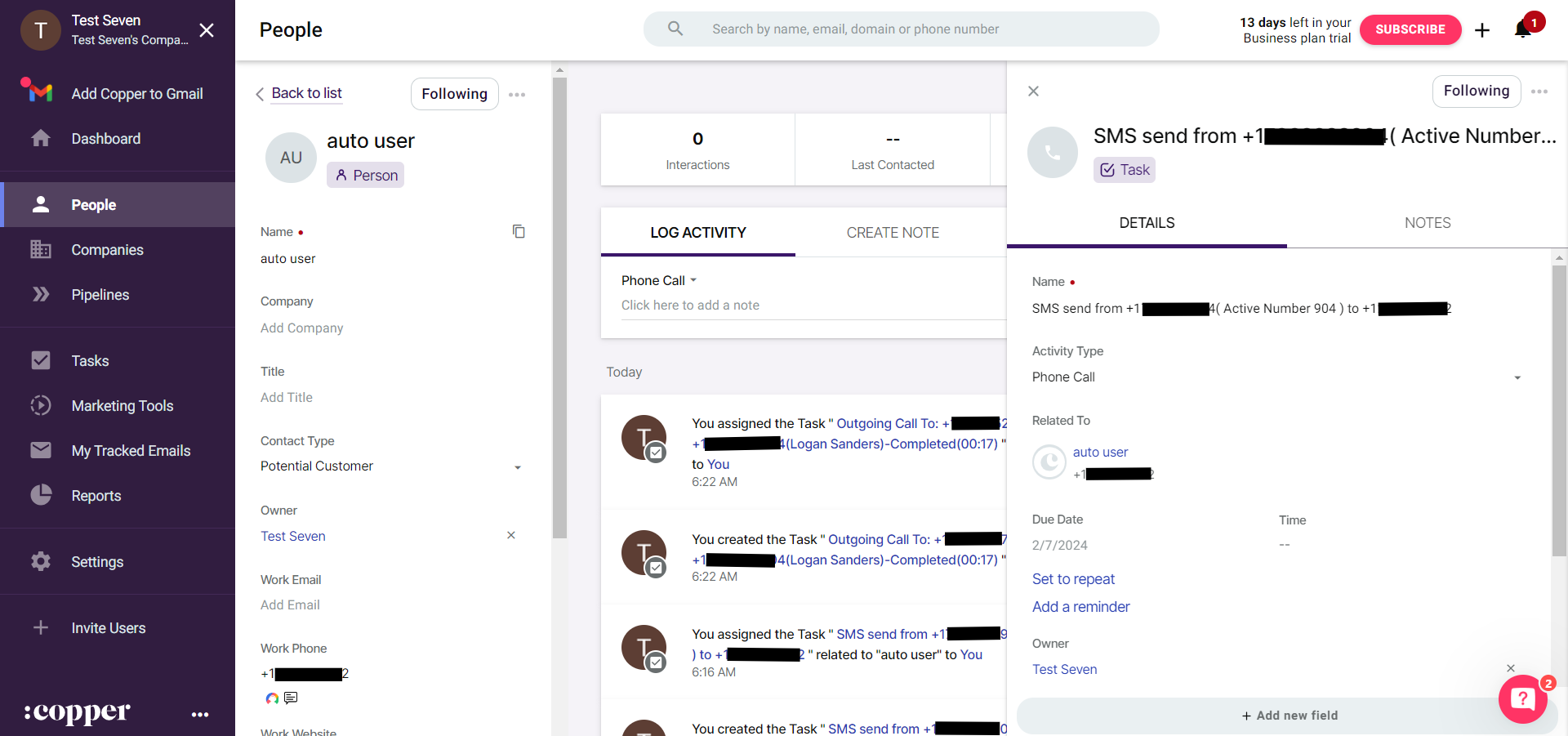
- SMS logging: Whenever you send an SMS to a Copper contact from the CallHippo dialer, the SMS log is synced to that contact’s detail page too.
Enable Click to Call
- Install the CallHippo Click-to-Call Chrome extension from the Chrome Web Store.
- Once installed, a call icon appears next to phone numbers in Copper. Click it to dial instantly.
Do I need an API key to connect Copper?
No. Copper uses OAuth authorization — you simply log in and click Authorize, and there’s no key to copy.
When does a Copper contact appear in CallHippo?
A Copper contact is added to the CallHippo dialer after you first use click-to-call or SMS with that number.
Need help connecting Copper? Reach our team at [email protected] and we’ll walk you through it.