
Integrating WooCommerce with CallHippo syncs your store customers into your dialer and logs call and SMS activity right on their orders, giving your team full context on every conversation.
Before You Begin
Make sure the WooCommerce plugin is installed and active on your WordPress site. You’ll also generate a REST API key inside WooCommerce and note your store URL before switching to CallHippo.
Generate Your WooCommerce API Keys
- Sign in to WordPress and open your admin panel.
- Open your plugins. Go to Plugins → Installed Plugins.
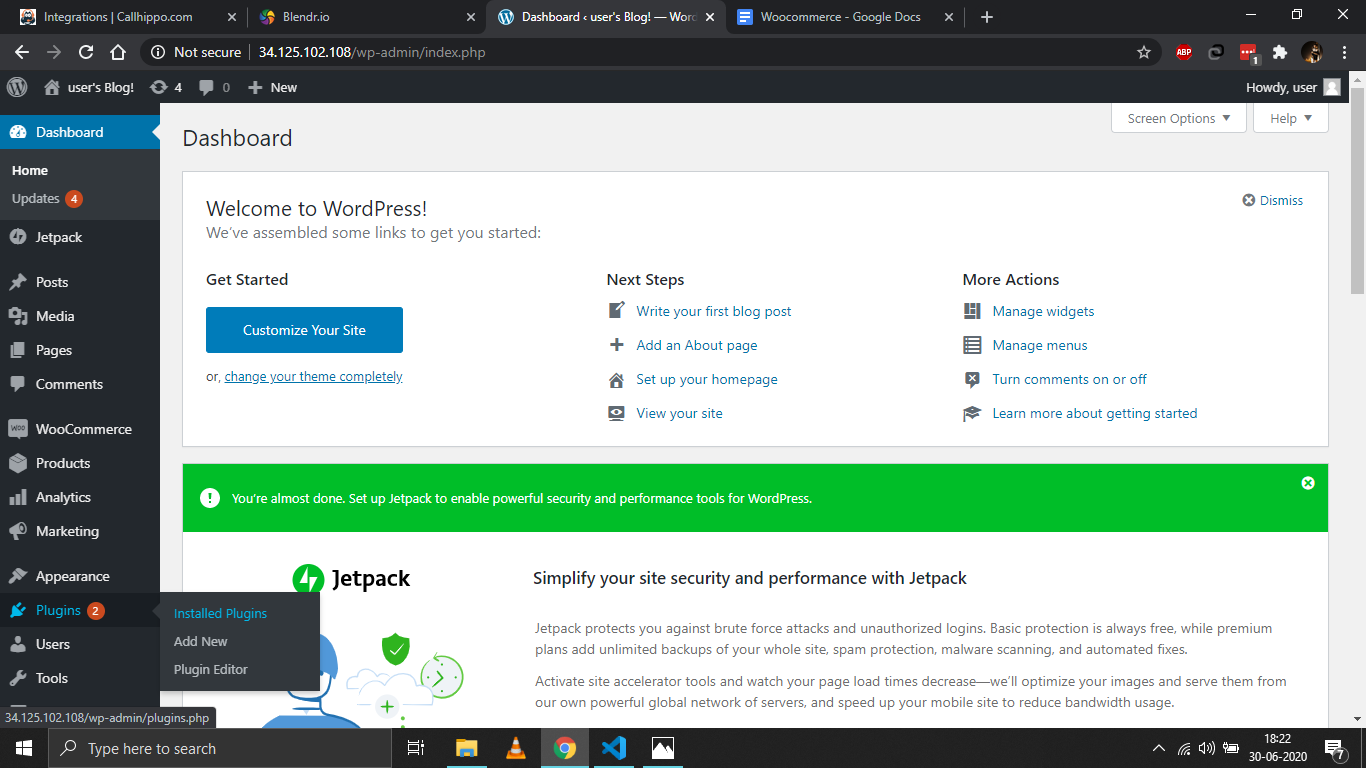
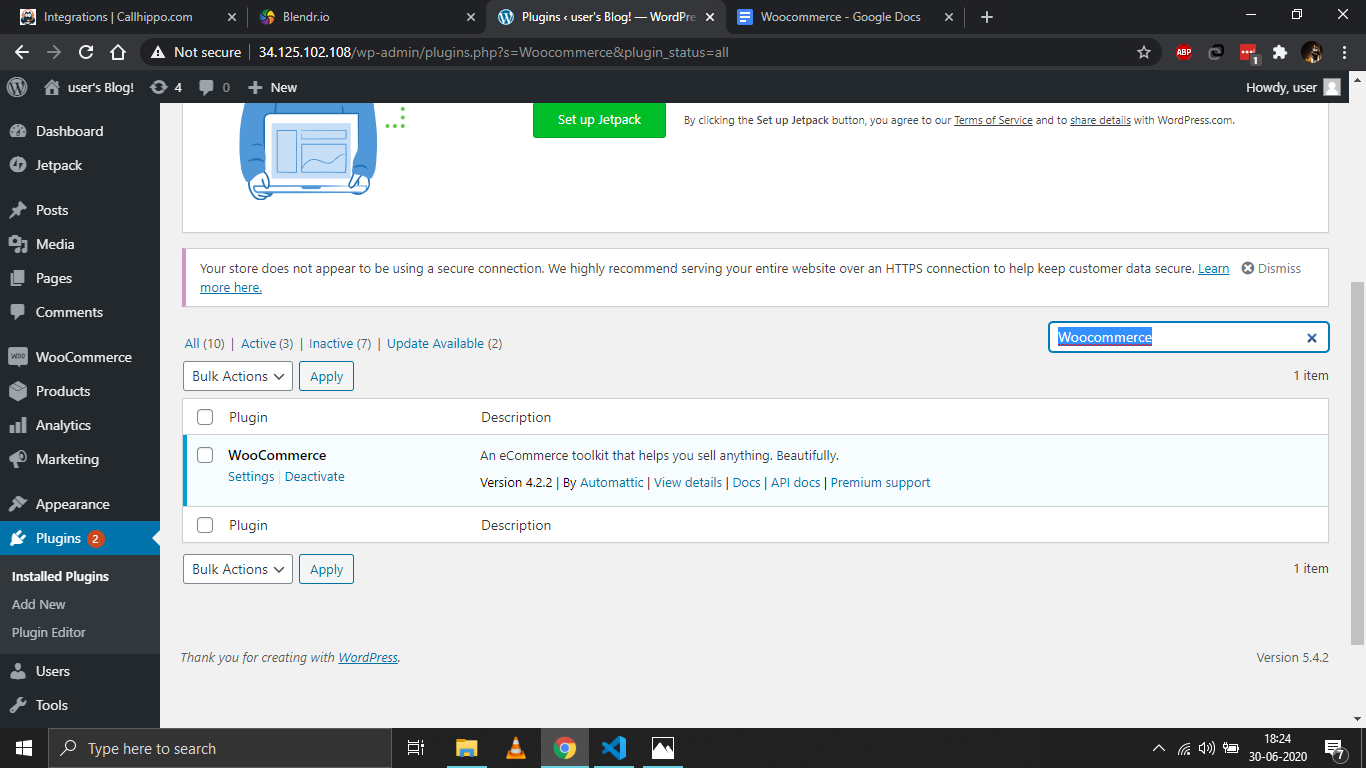
- Find WooCommerce in the list and click Settings beneath it.
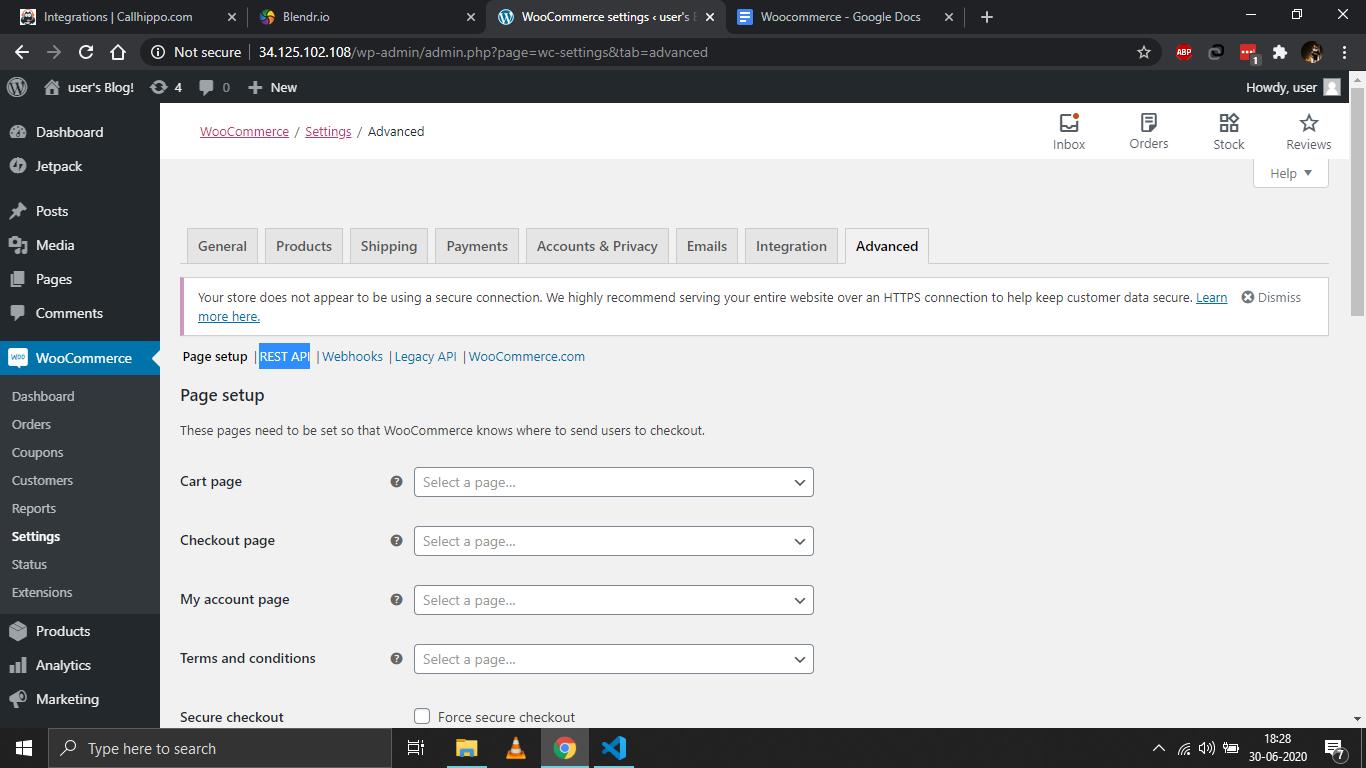
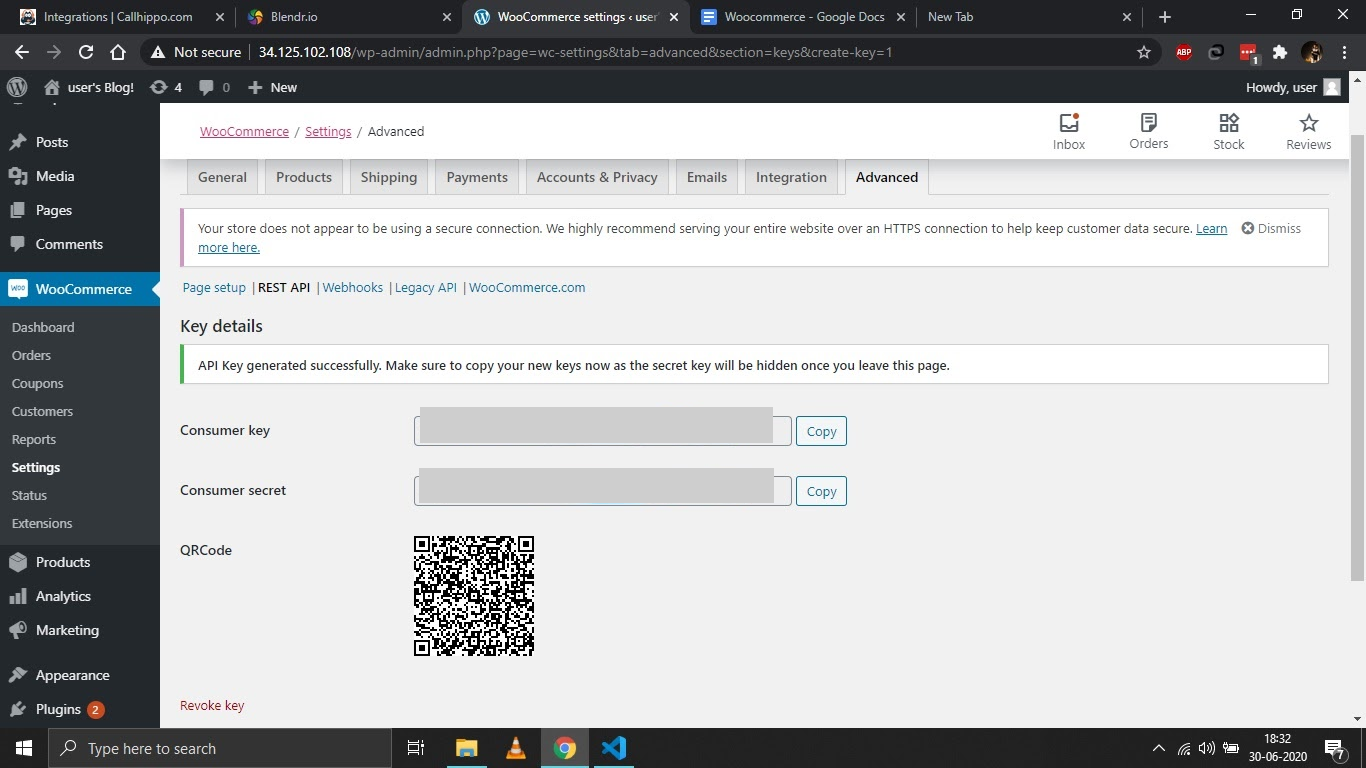
- Open the Advanced tab (the rightmost tab), then click REST API.
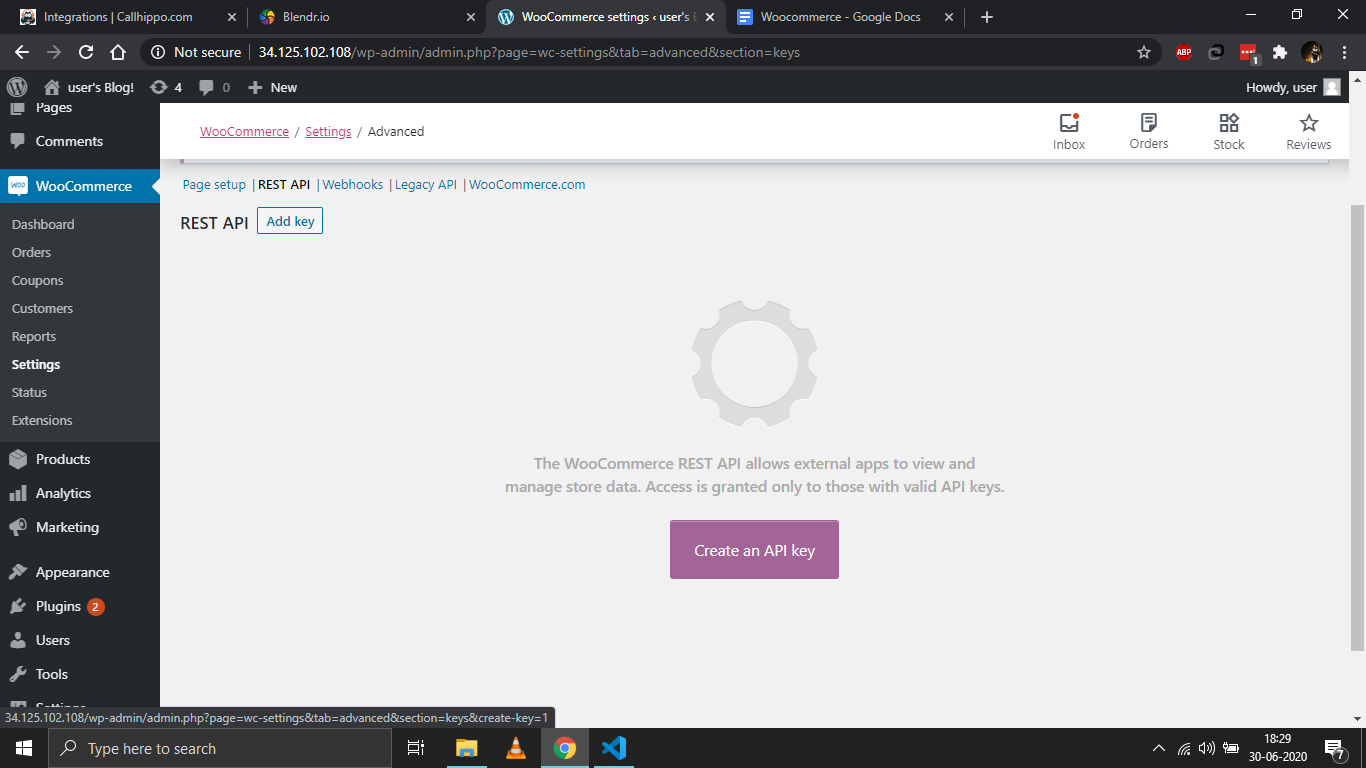
- Create an API key. Click Create an API key, add any description, set Permissions to Read/Write, and click Generate API Key.
- Copy your keys. Copy both the Consumer key and Consumer secret — the secret is hidden once you leave the page.
- Note your store URL in full, for example https://www.yourstore.com.
Connect WooCommerce in CallHippo
- Sign in to CallHippo and open the Integrations tab.
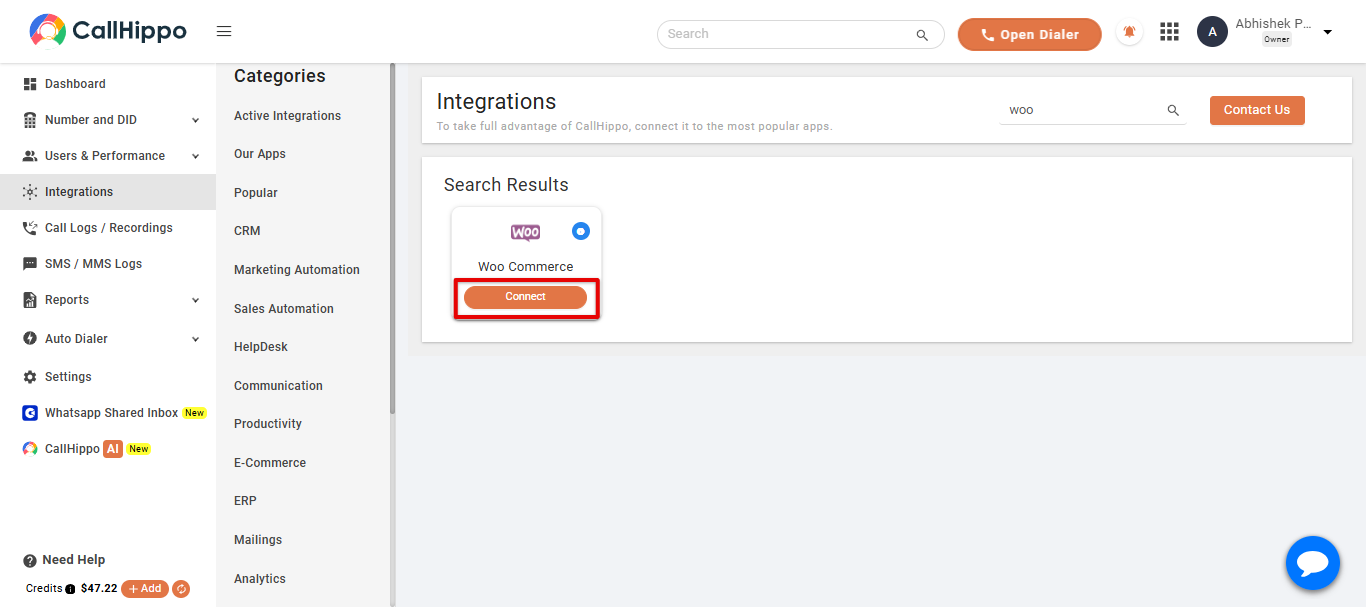
- Find WooCommerce and click the Connect button on its card.
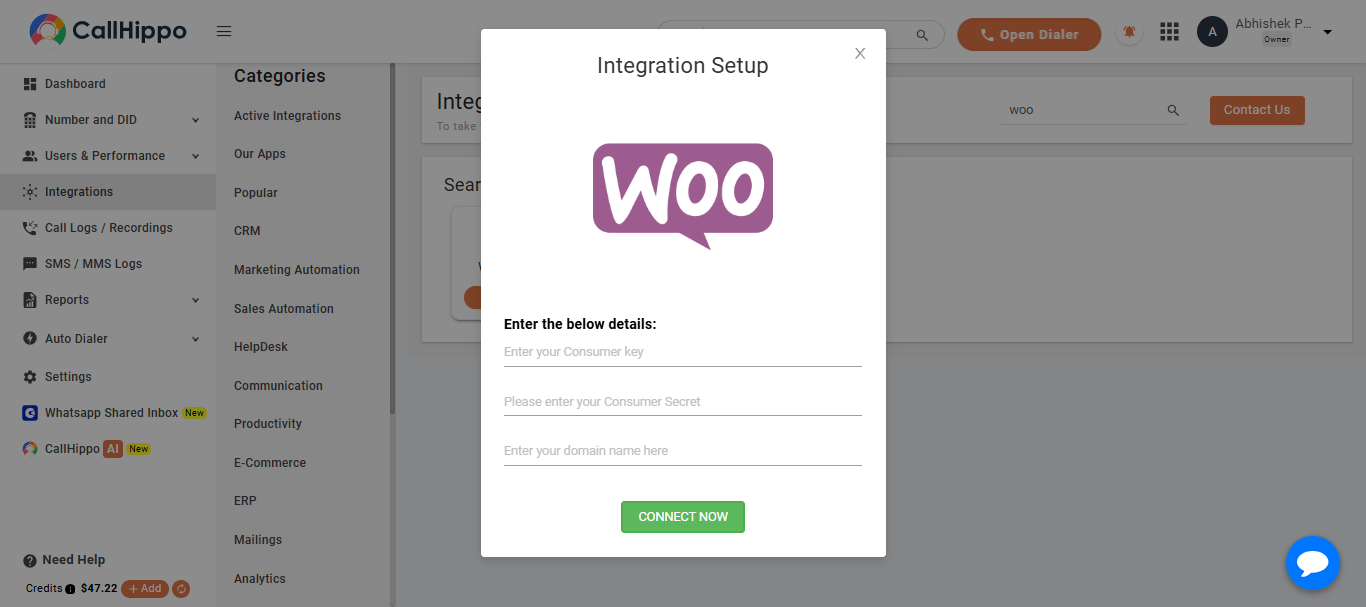
- Enter the details you noted: your Consumer key, Consumer secret, and domain name.
- Click Connect Now.
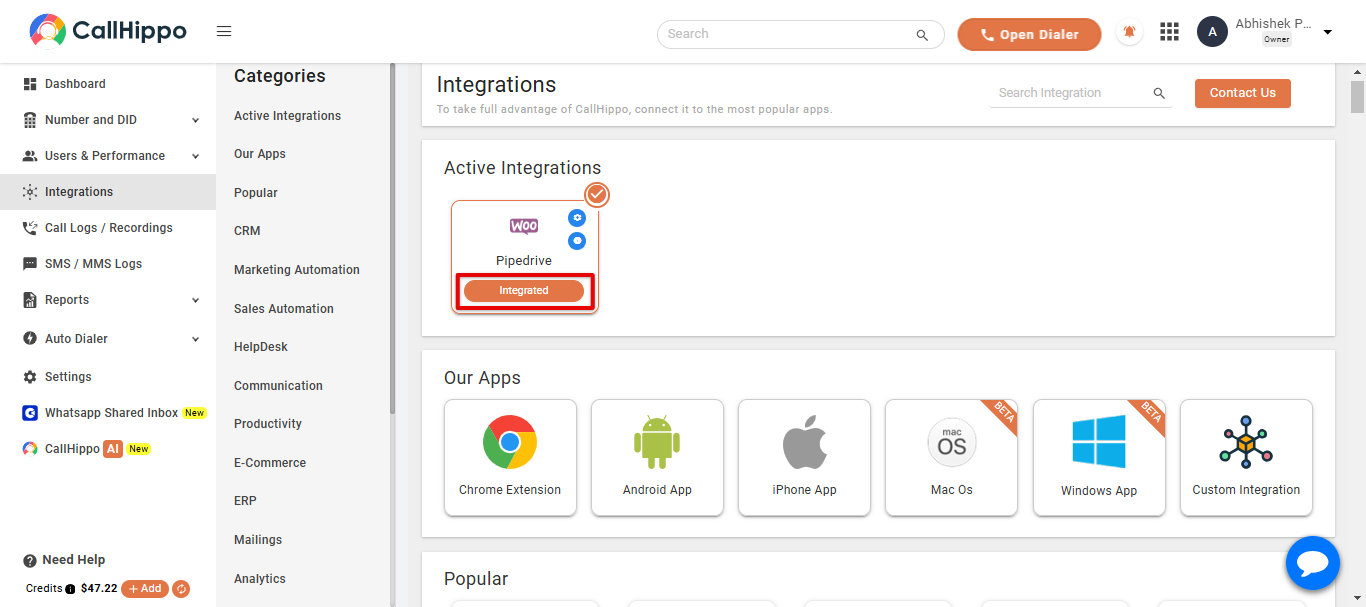
- Confirm the connection. CallHippo redirects you to your account and the status changes to Integrated.
What the Integration Does
- Contact sync: All your WooCommerce customers are synced into the CallHippo dialer as contacts. New or updated customers sync within about 4 hours.
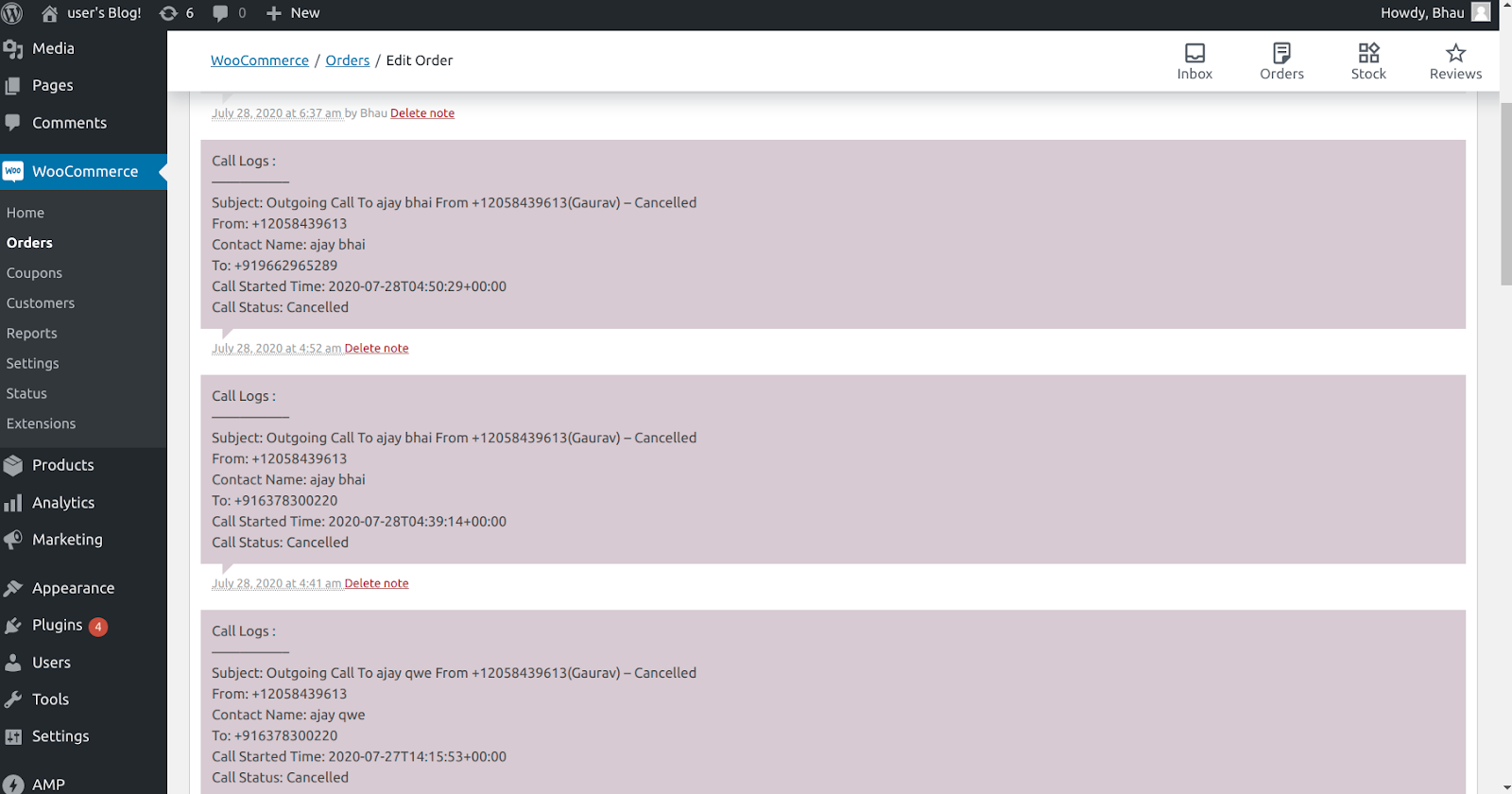
- Call activity: Calls made or received from WooCommerce contacts appear in the CallHippo dialer and are logged on that customer’s WooCommerce order.
- SMS activity: Texts sent or received from WooCommerce contacts are captured in the CallHippo dialer.
- Order sync: New orders placed after integration sync within about 4 hours. Orders marked completed, canceled, failed, or trashed are removed within a day and won’t carry call activity.
Limitations
- Manual contact cleanup: Deleting a customer in WooCommerce does not remove the matching contact in CallHippo — you’ll need to delete it manually.
Frequently Asked Questions
What permission level should the API key have?
Set the key’s Permissions to Read/Write so CallHippo can sync contacts and log activity on your orders.
How long does it take for customers to sync?
New and updated WooCommerce customers and orders sync with CallHippo within about 4 hours.
Need help connecting WooCommerce? Email our team at [email protected] and we’ll walk you through it.