
Connecting Zoho Analytics with CallHippo streams your call and SMS activity straight into a Zoho workspace, so you can build custom dashboards and reports on your telephony performance.
Before you begin
- Who can integrate: any CallHippo user with admin permissions.
- Permissions needed: admin access on both CallHippo and Zoho Analytics.
- Sync time: once set up, data synchronization is real-time.
- Pre-requisite: make sure you already have a workspace created in Zoho Analytics.
Connect Zoho Analytics in CallHippo
- Log in to CallHippo and open your dashboard.
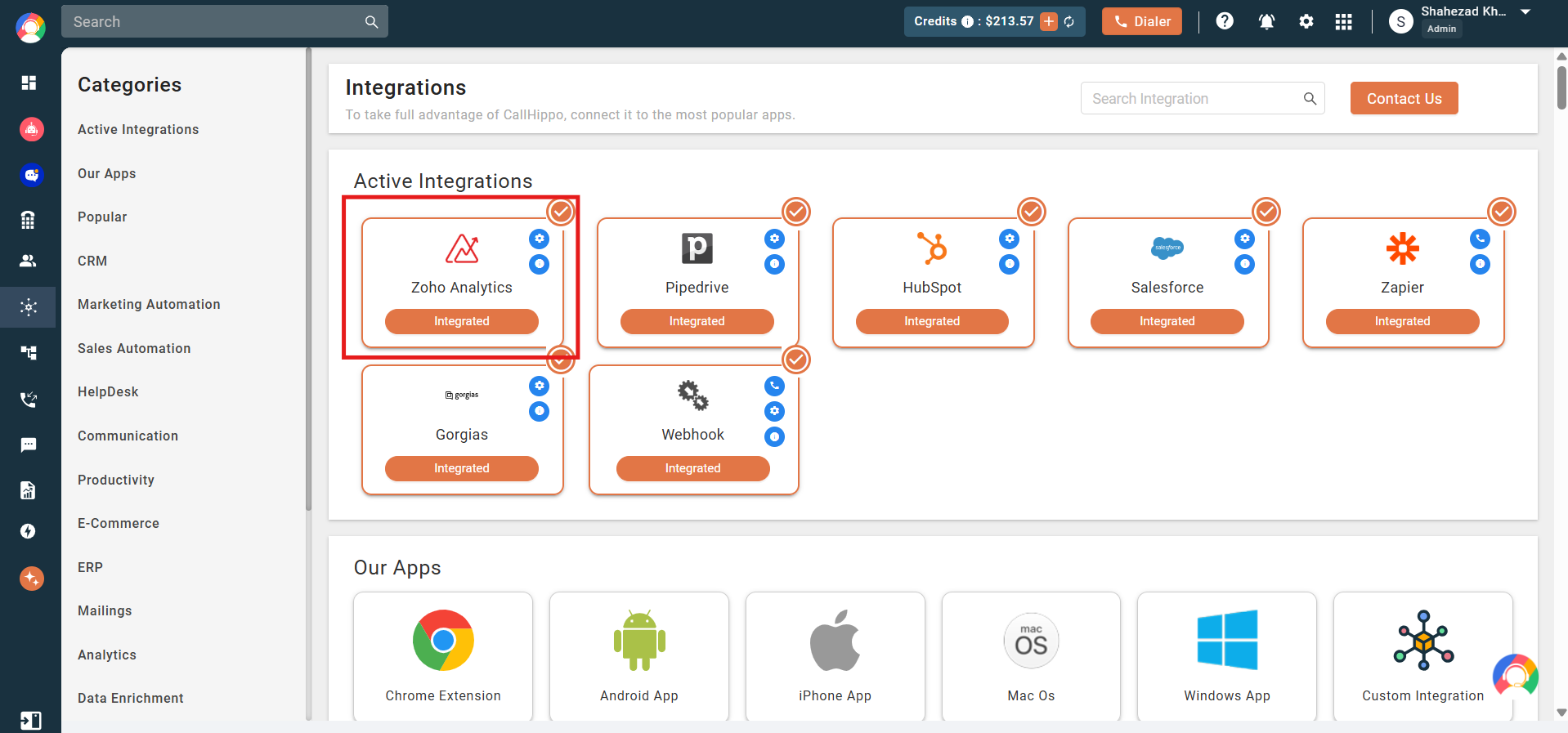
- Open Integrations: click Integrations in the left sidebar.
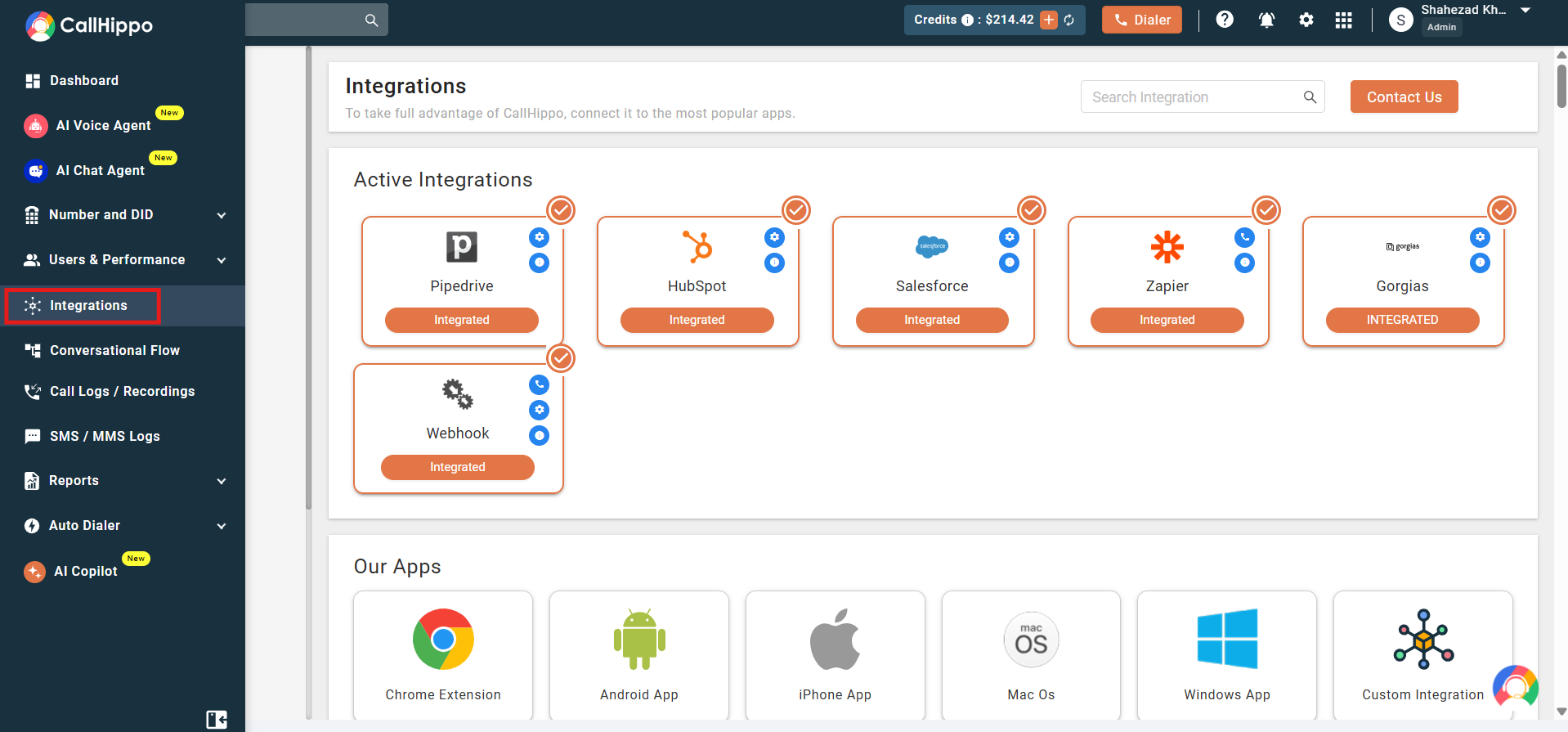
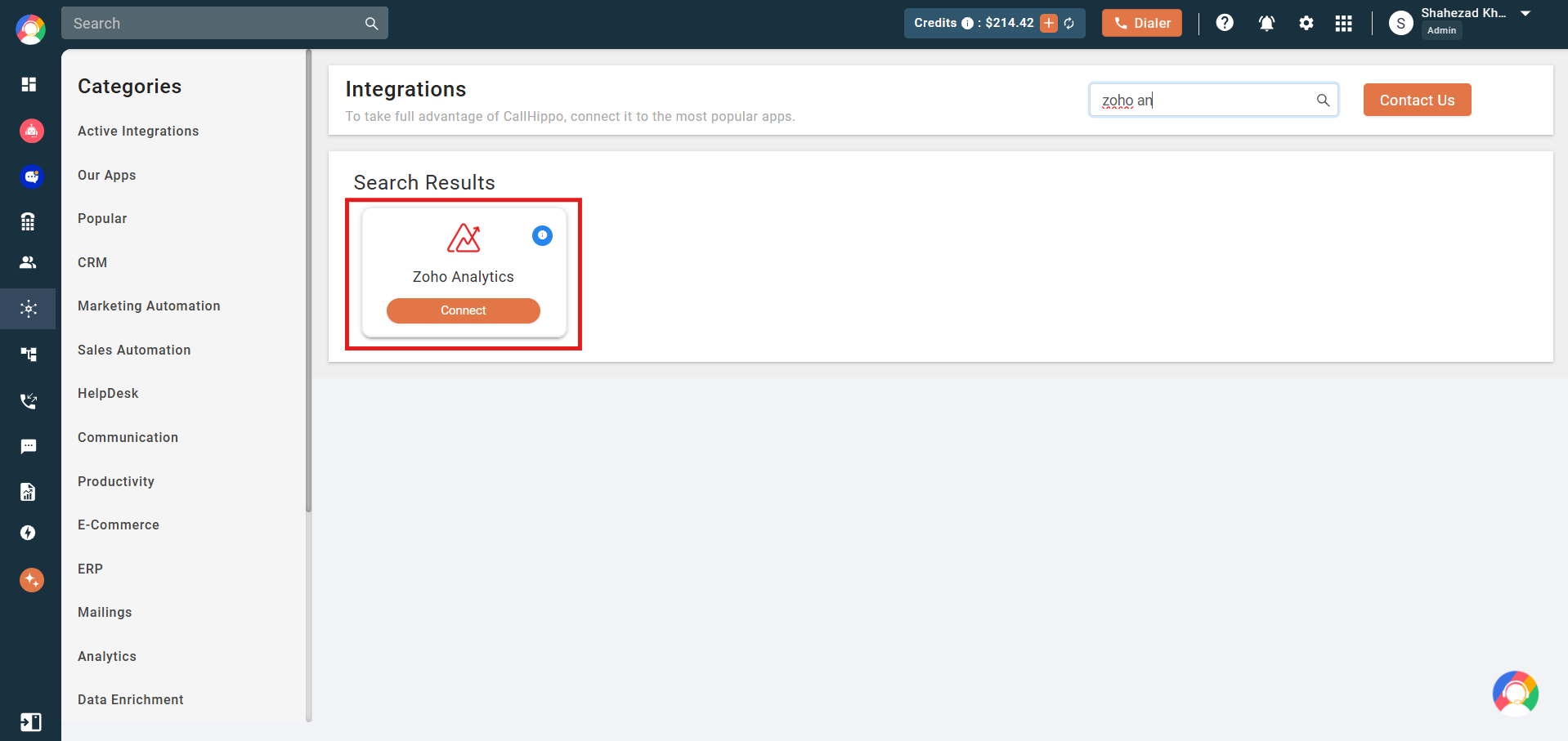
- Find Zoho Analytics: search for Zoho Analytics and click Connect.
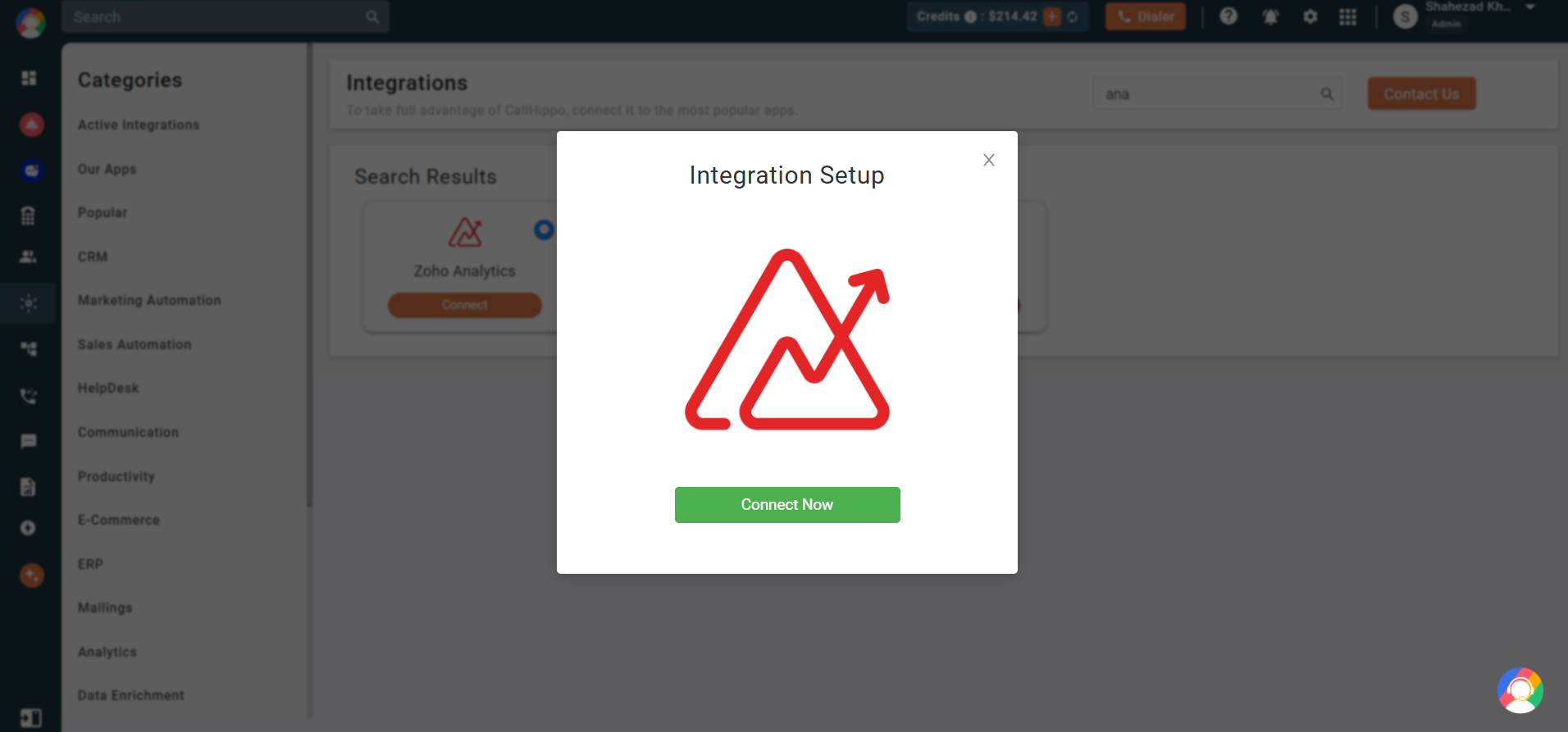
- Start the setup: in the pop-up, click Connect Now. You will be redirected to the Zoho login page.
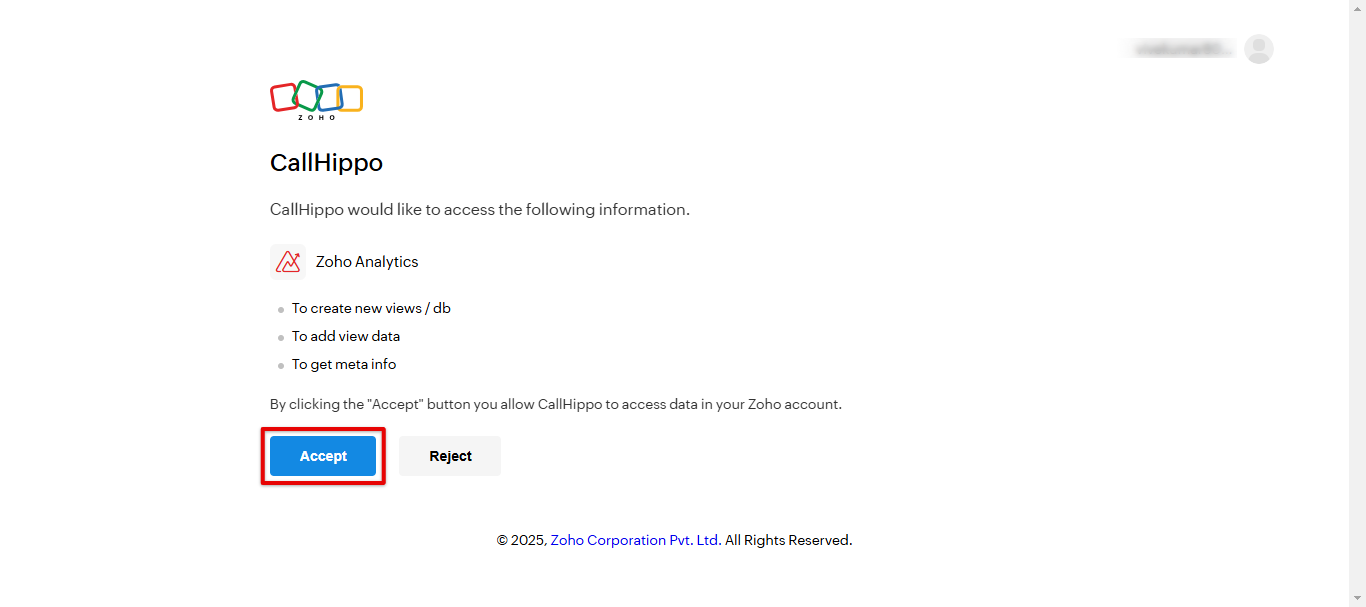
- Grant access: log in to your Zoho account and click Accept to grant CallHippo the necessary permissions.
- Confirm: you will be returned to CallHippo and the status will change to Integrated. A settings pop-up will open where you configure the integration.
Configure the integration
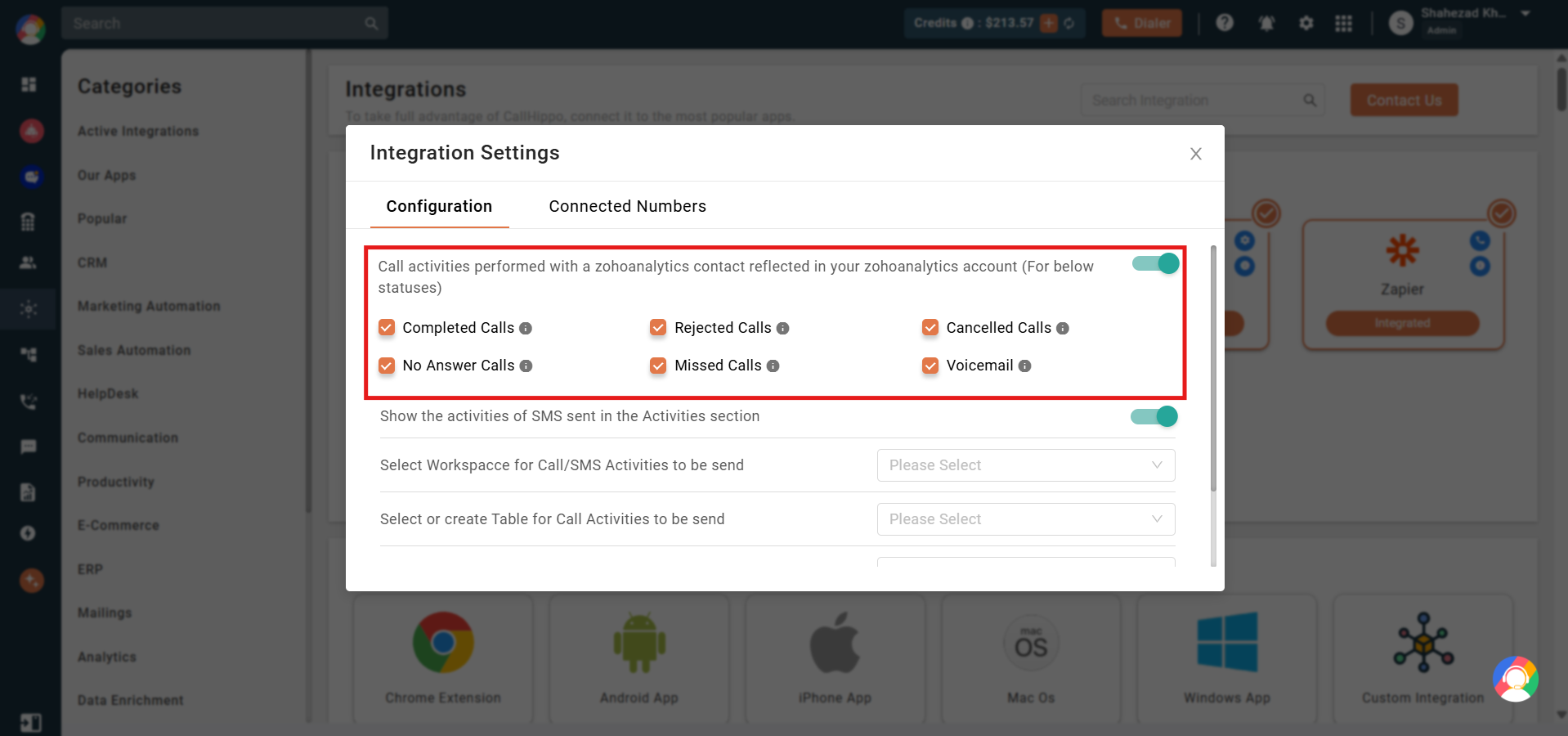
- Choose which calls to sync: select the call statuses (Completed, Rejected, Cancelled, No Answer, Missed, Voicemail) whose activity should be passed to Zoho Analytics. This is enabled by default.
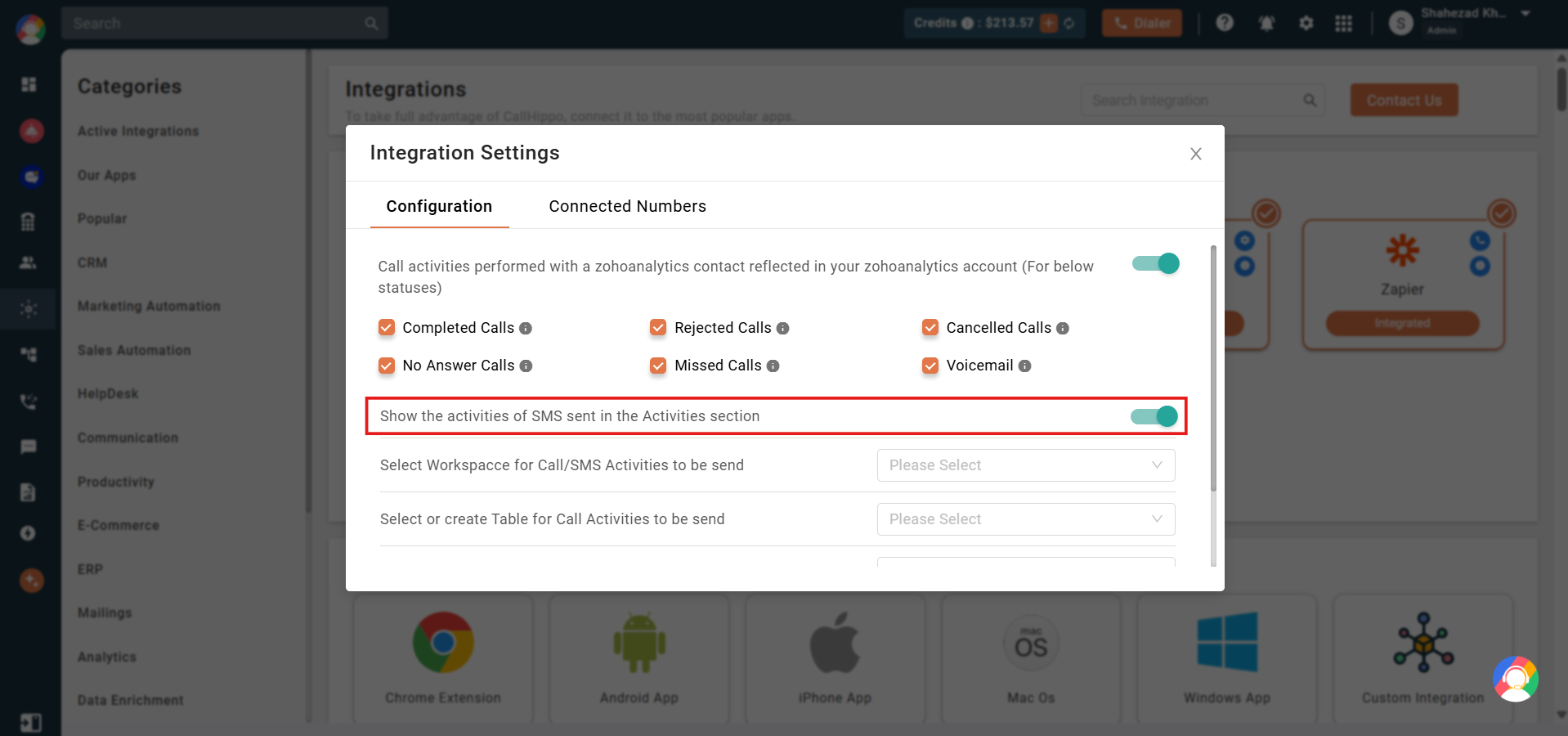
- Show SMS activities: keep this toggle on to record sent SMS in the Activities section. It is enabled by default.
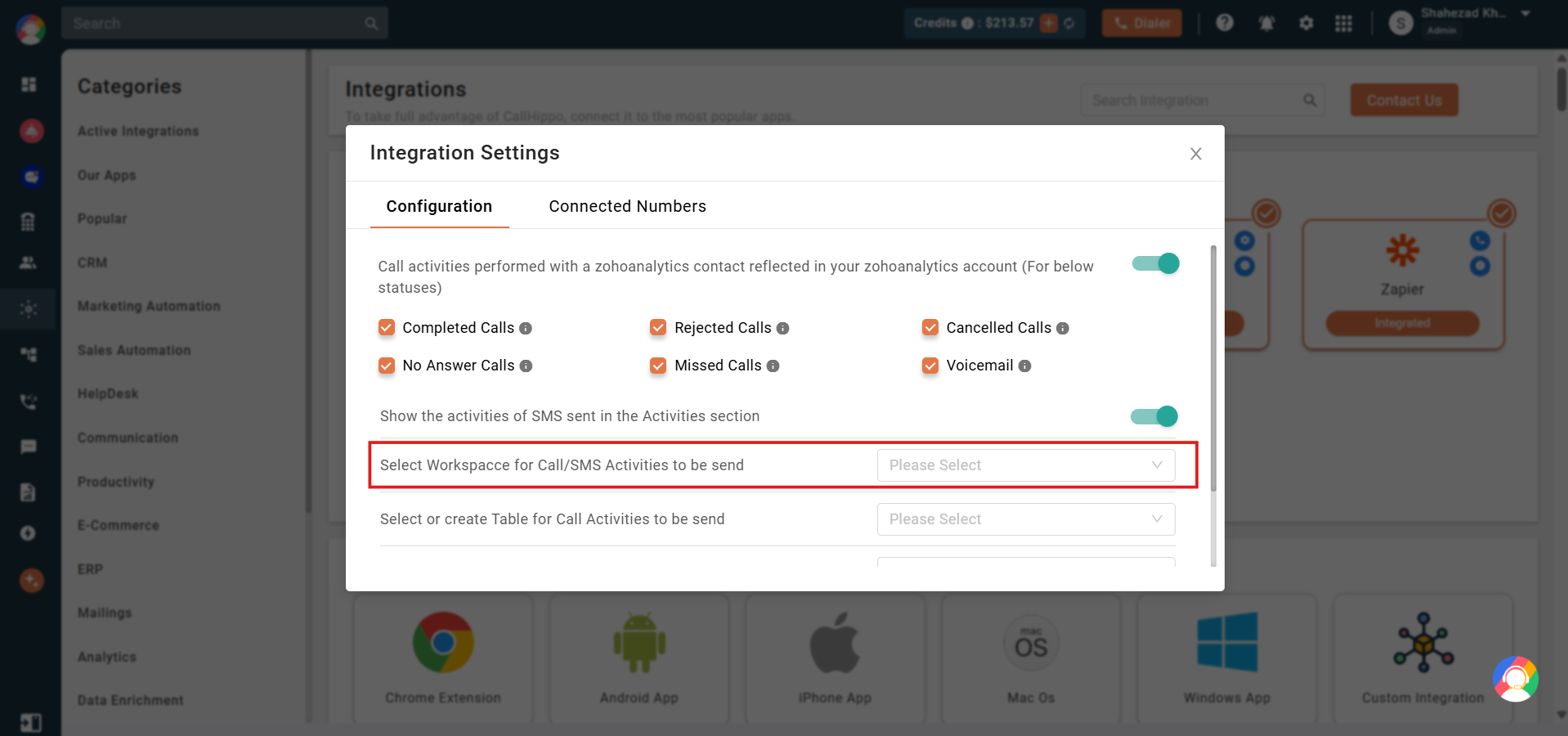
- Select a workspace: choose the Zoho Analytics workspace where call and SMS activity should be synced (the one you created earlier).
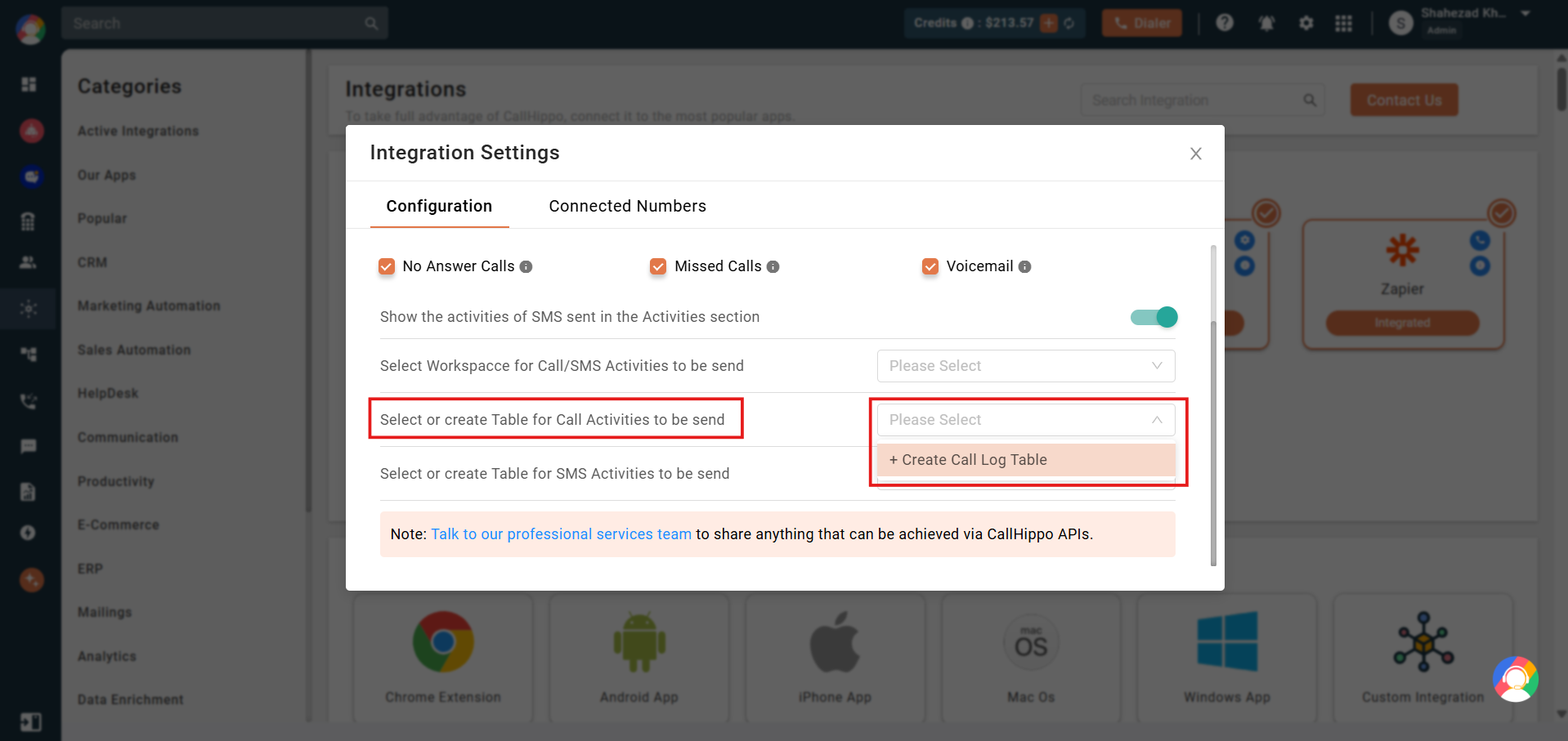
- Set the call table: create a new table for call activities or select an existing one.
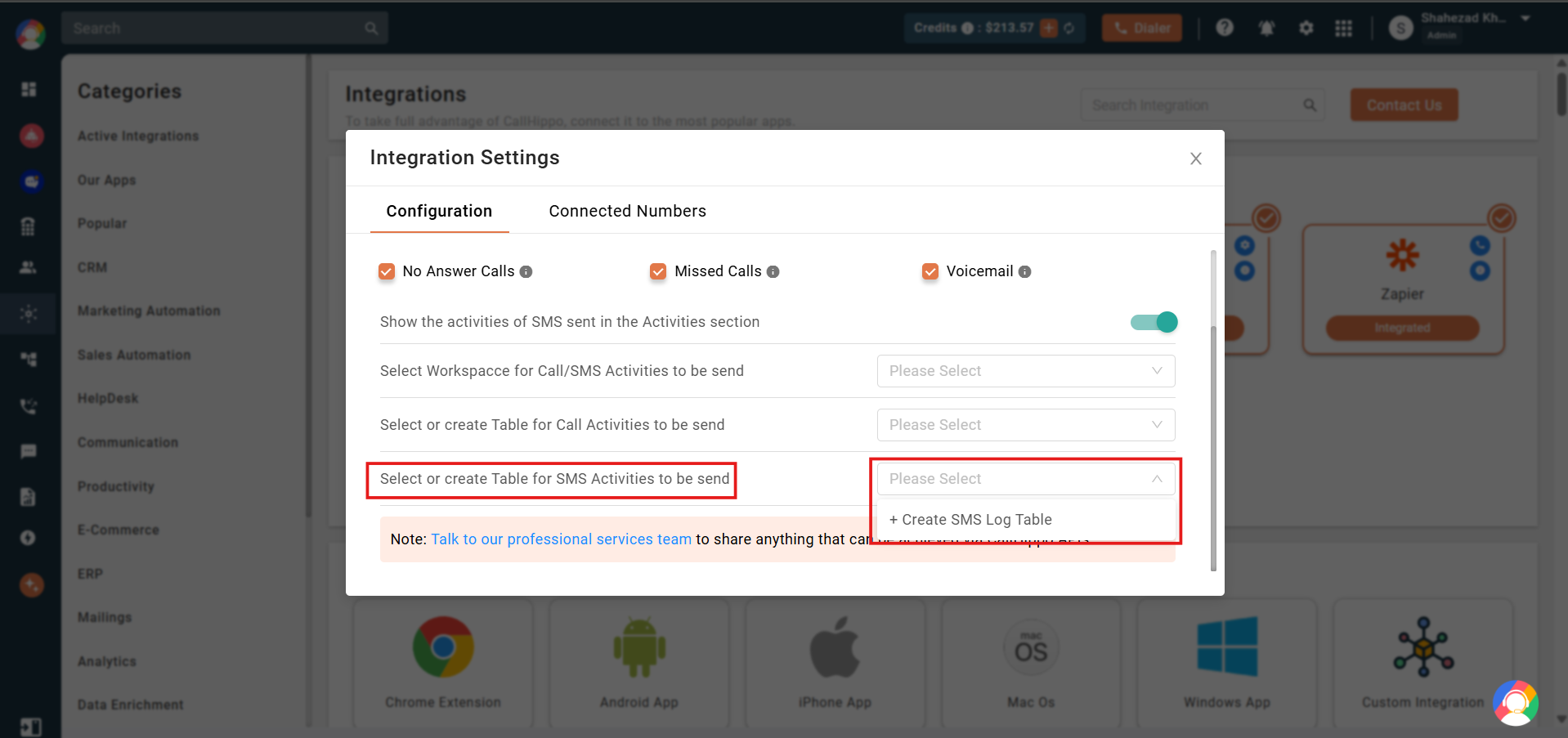
- Set the SMS table: similarly, create a table for SMS activities or select an existing one. Make sure the selected tables are synced so they capture CallHippo activity.
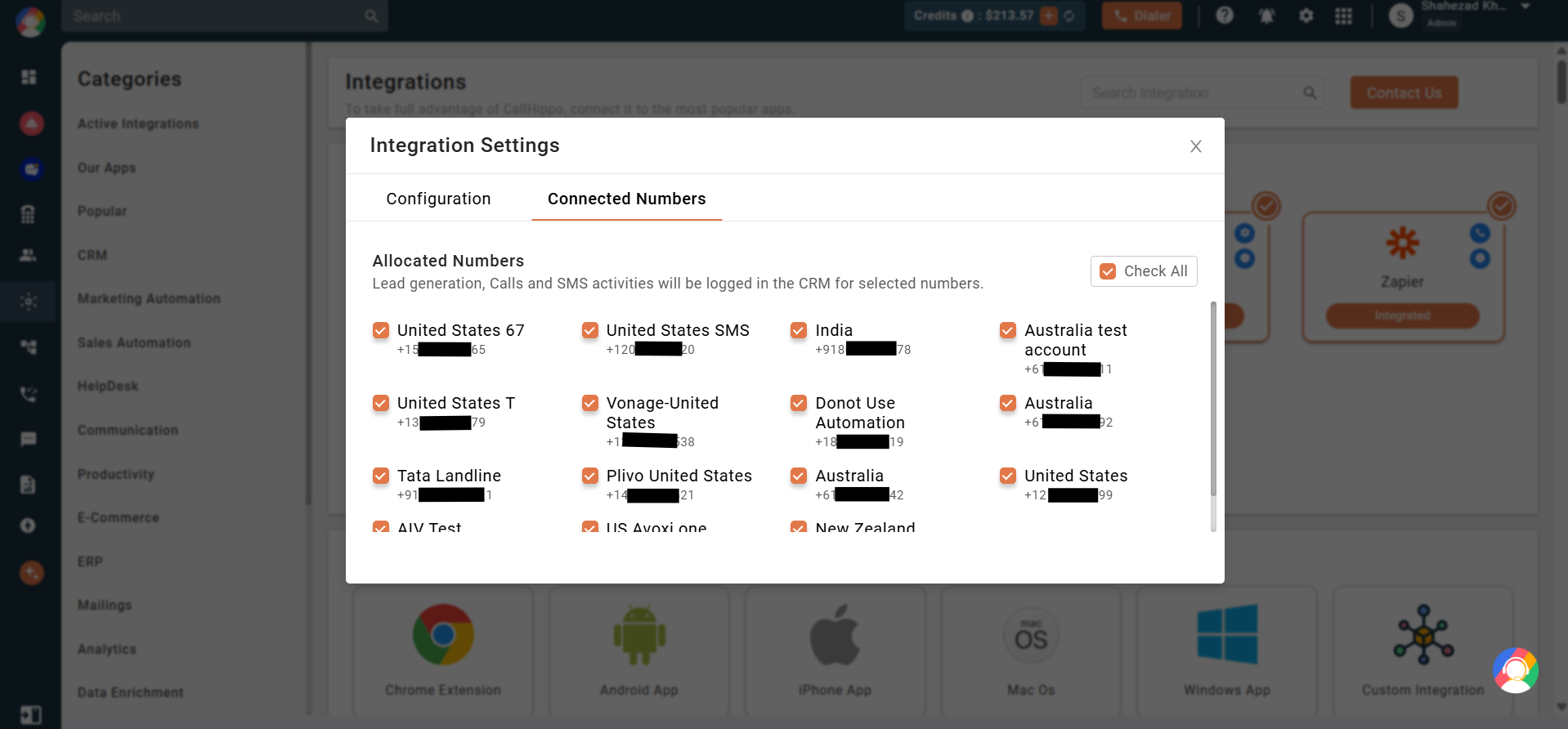
- Choose numbers: under Connected Numbers, select or deselect the numbers whose activity you want passed to Zoho Analytics. All numbers are selected by default.
What gets synced
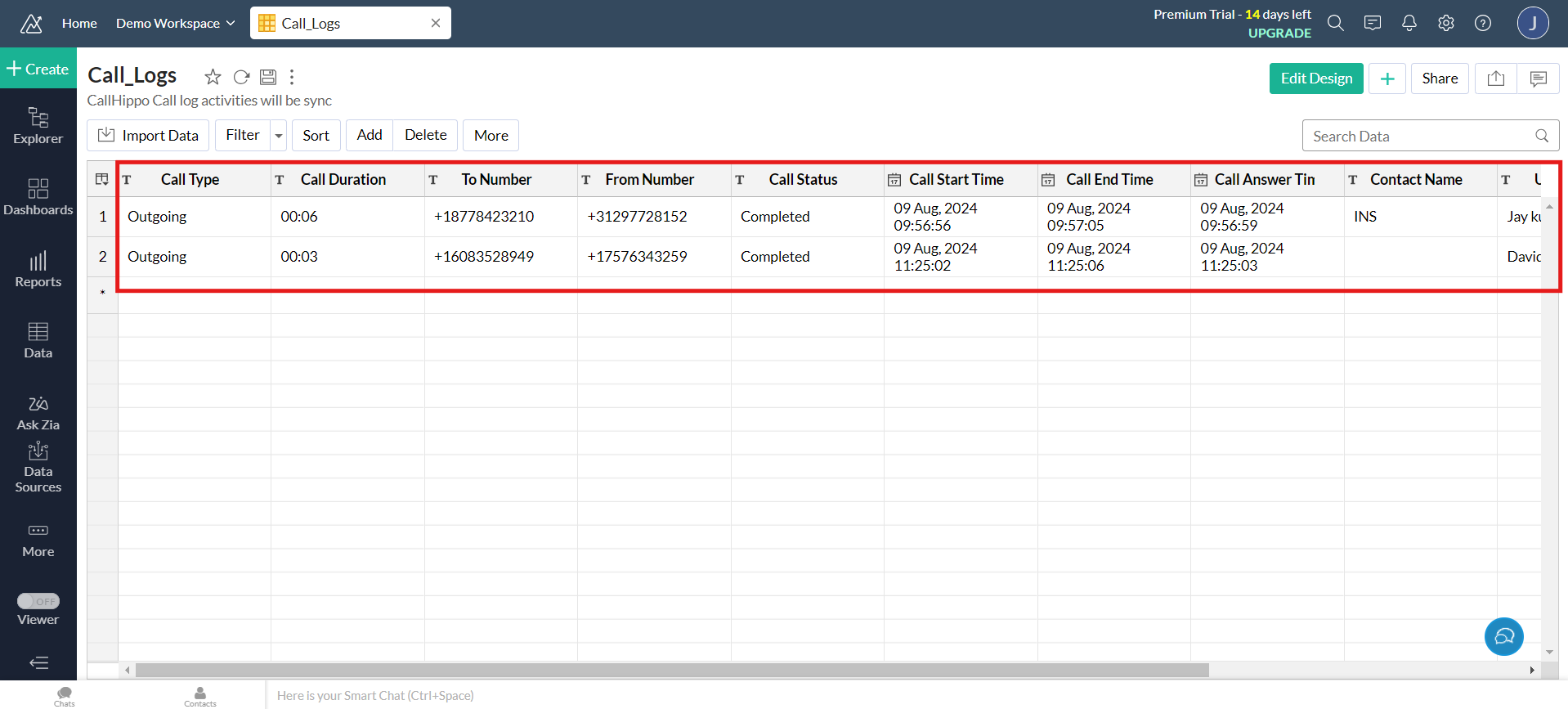
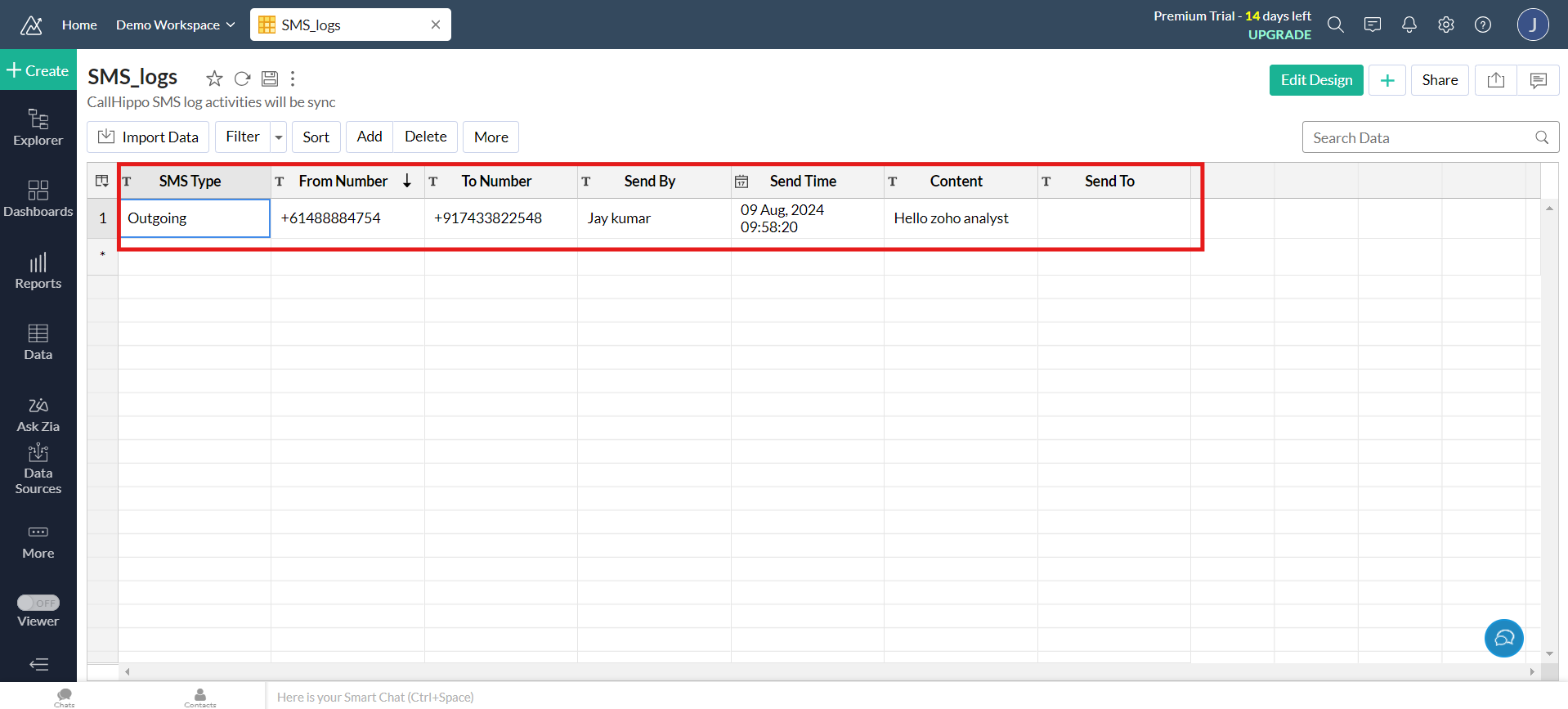
Your chosen tables appear inside the Zoho Analytics workspace and fill with CallHippo activity.
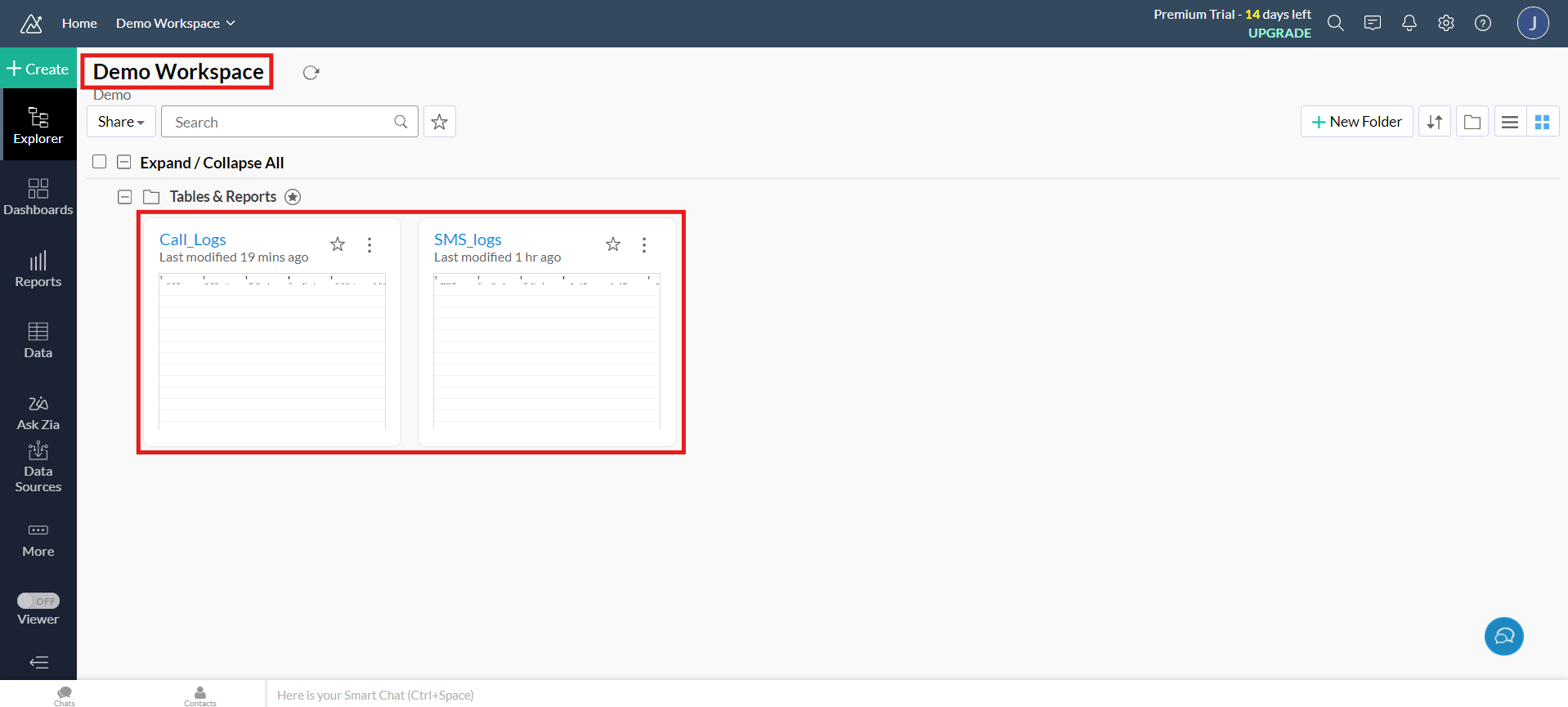
Call activity: every call made or received on the CallHippo dialer is logged with details such as call type, duration, to/from number, status, start, answer and end times, contact name, user name, call notes and recording URL.
SMS activity: every SMS sent or received is logged with type, from/to number, sender, send time, content and recipient.
Is there a character limit on synced messages?
Yes. The character limit for text message sync is 255 characters.
Do I need to create the workspace first?
Yes. Create your workspace in Zoho Analytics before setting up the integration, then select it during configuration.