
Connecting Pipeline Deals with CallHippo lets you sync your pipeline data and keep call activity tied to your deals and contacts.
You’ll first generate an API key inside Pipeline Deals, then paste it into CallHippo to link the two accounts. Follow the steps in order.
Get your API key from Pipeline Deals
- Log in to your Pipeline Deals account.
- Open Account settings. Click your profile icon in the top-right corner and choose Account settings.
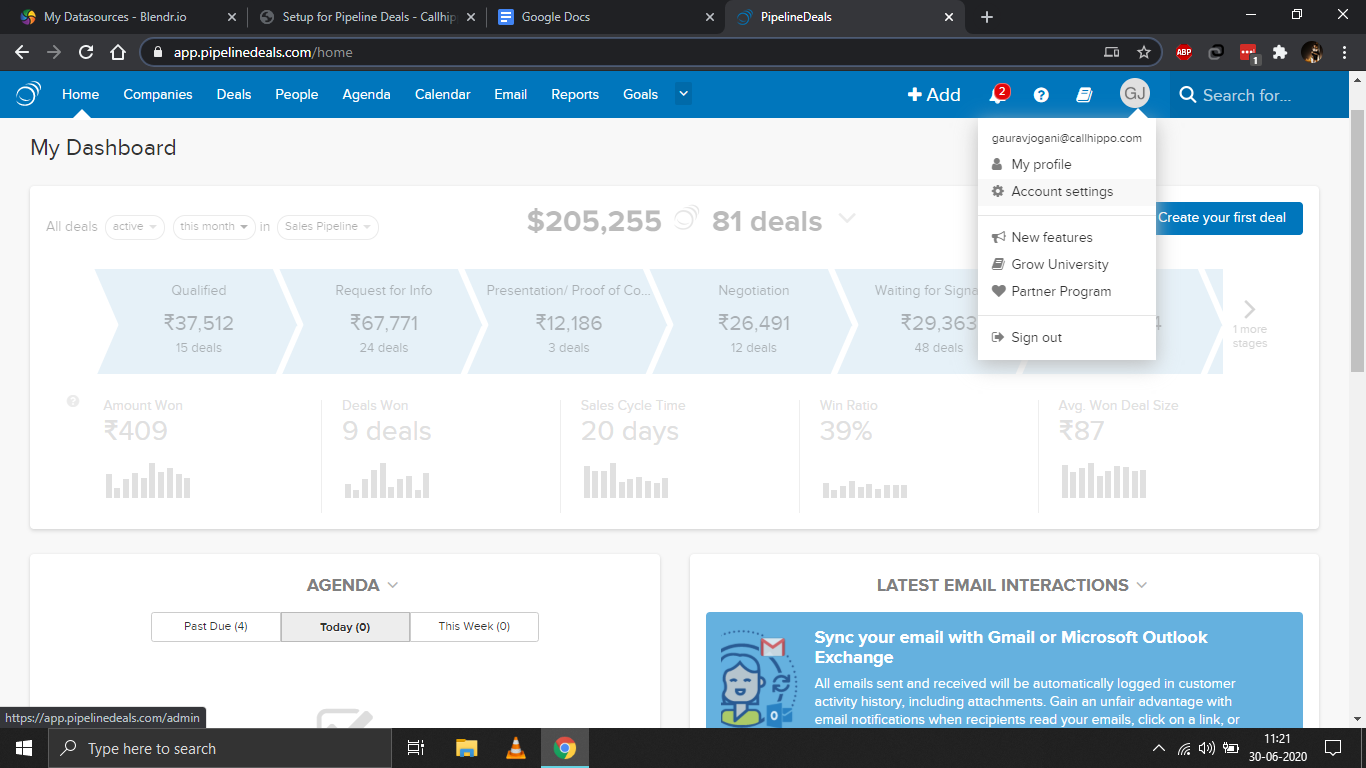
- Scroll down and click the PipelineDeals API tab in the settings sidebar.
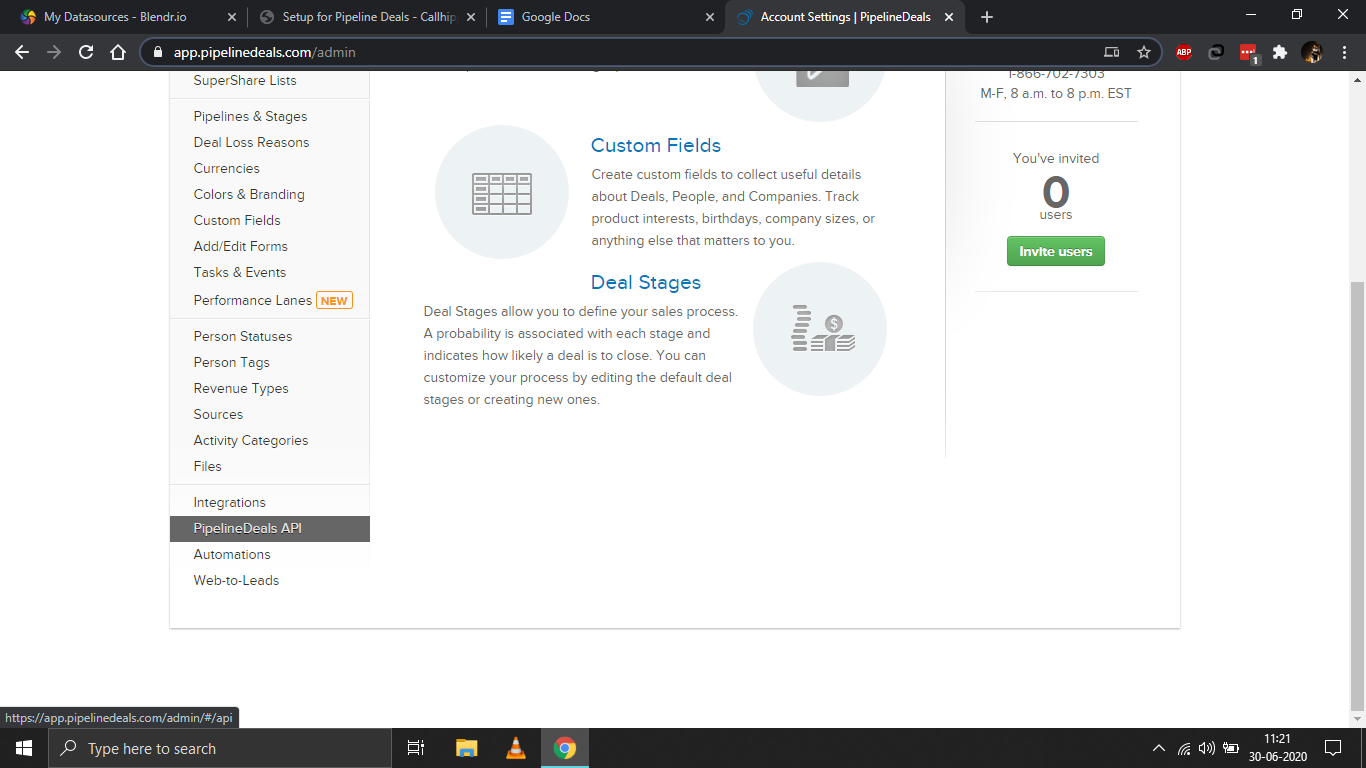
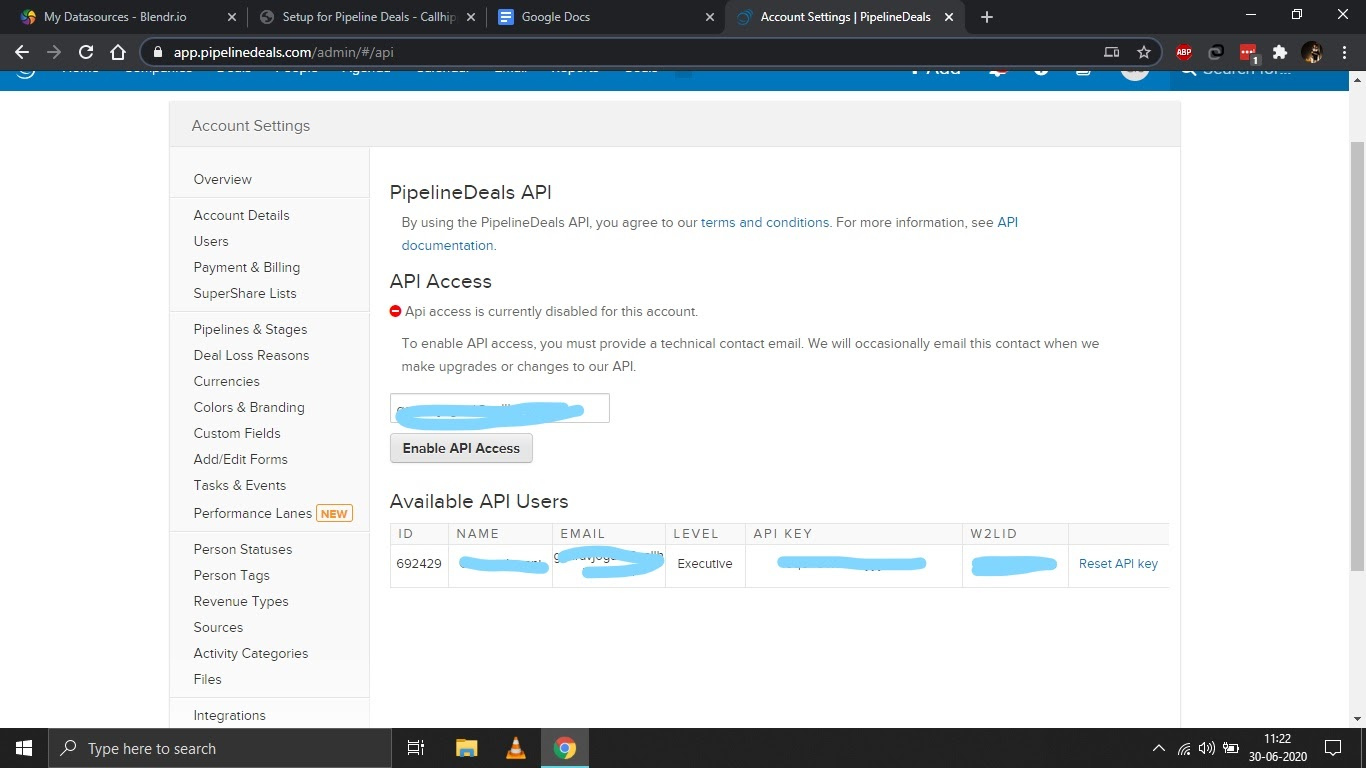
- Enable API access if it’s disabled. Enter your technical contact email and click Enable API Access.
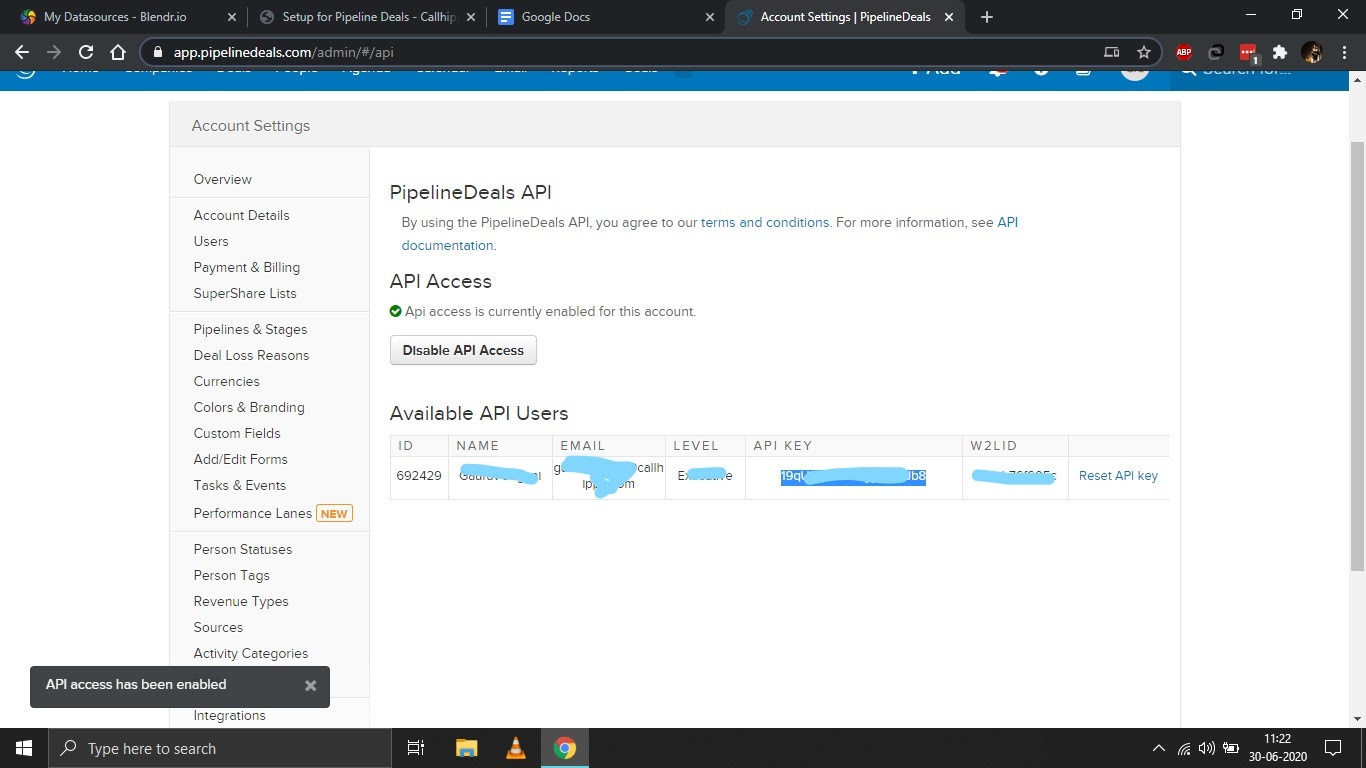
- Copy your API key from the Available API Users table and keep it handy for the next stage.
Connect Pipeline Deals in CallHippo
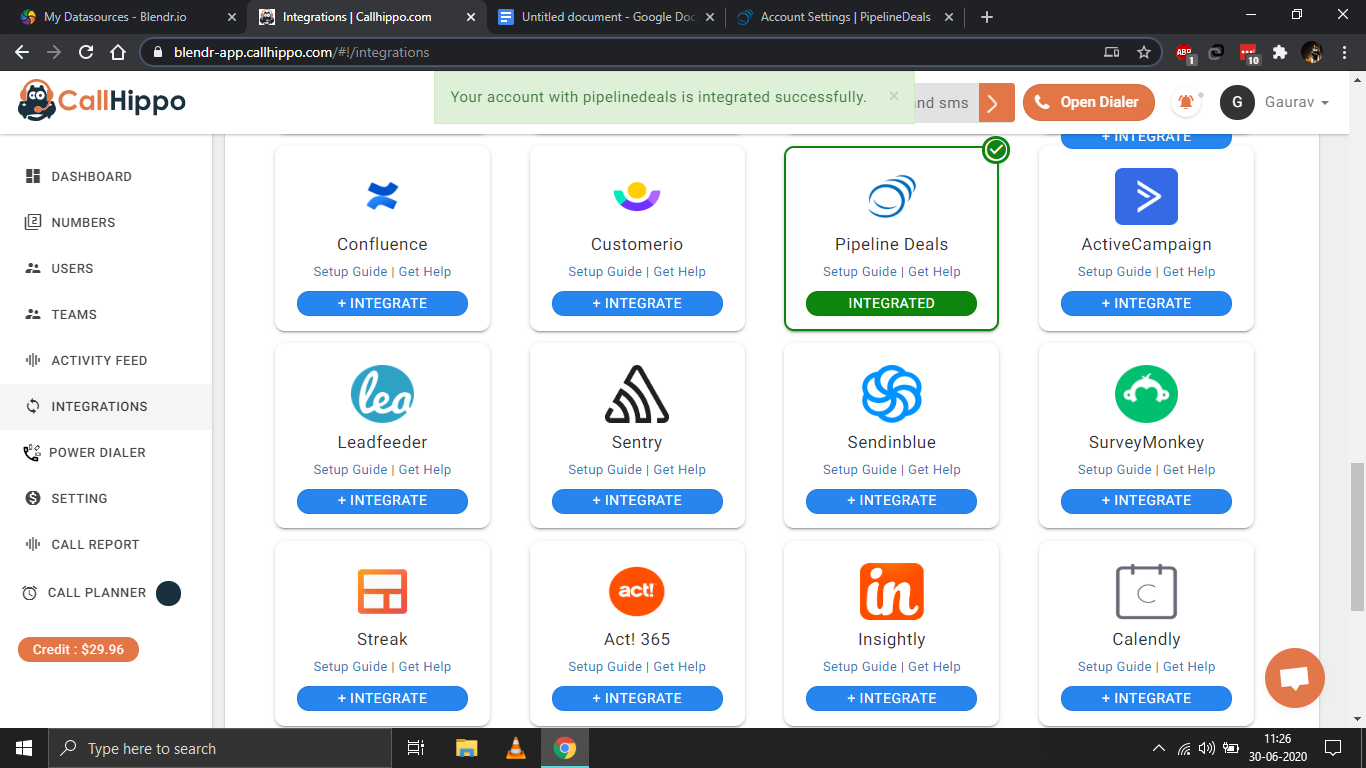
- Log in to CallHippo and open the Integrations tab, then click + Integrate on Pipeline Deals.
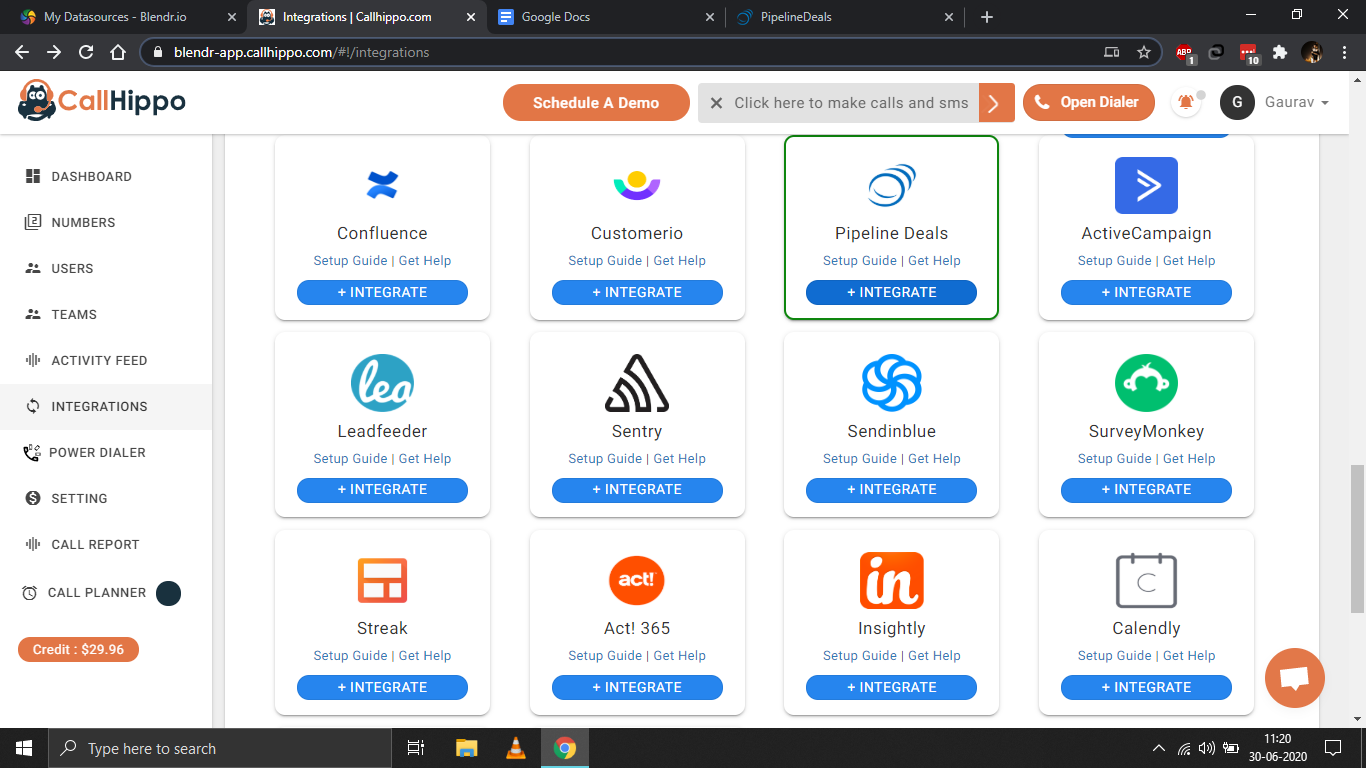
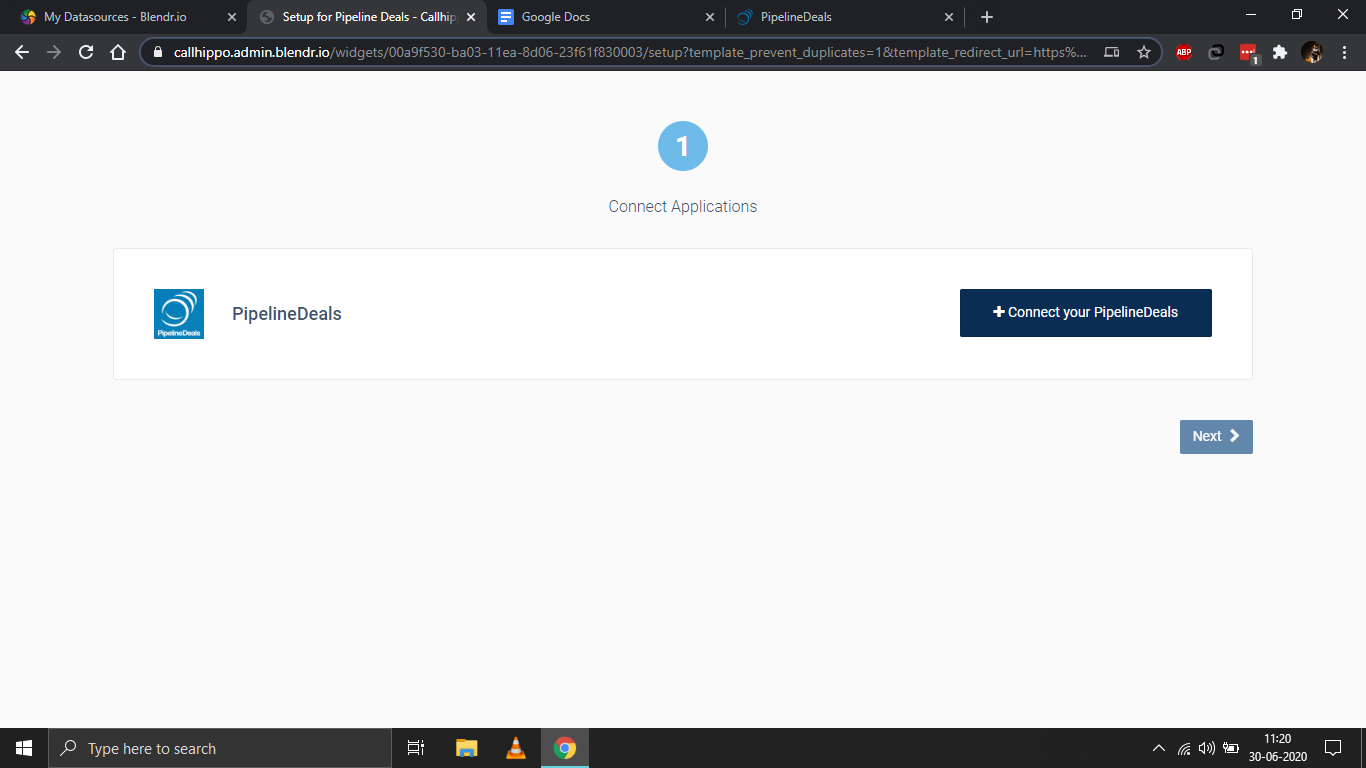
- On the next page, click + Connect your PipelineDeals.
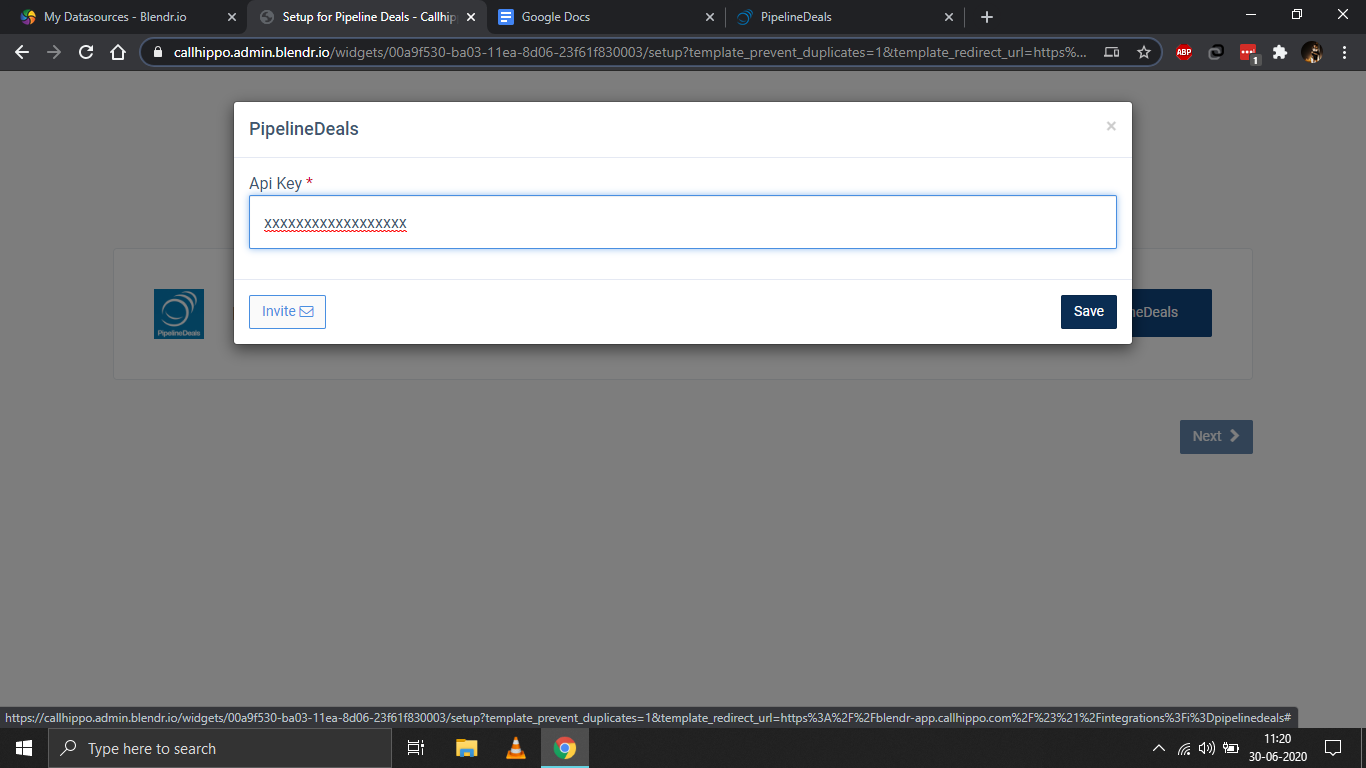
- Enter the API key you copied earlier and click Save.
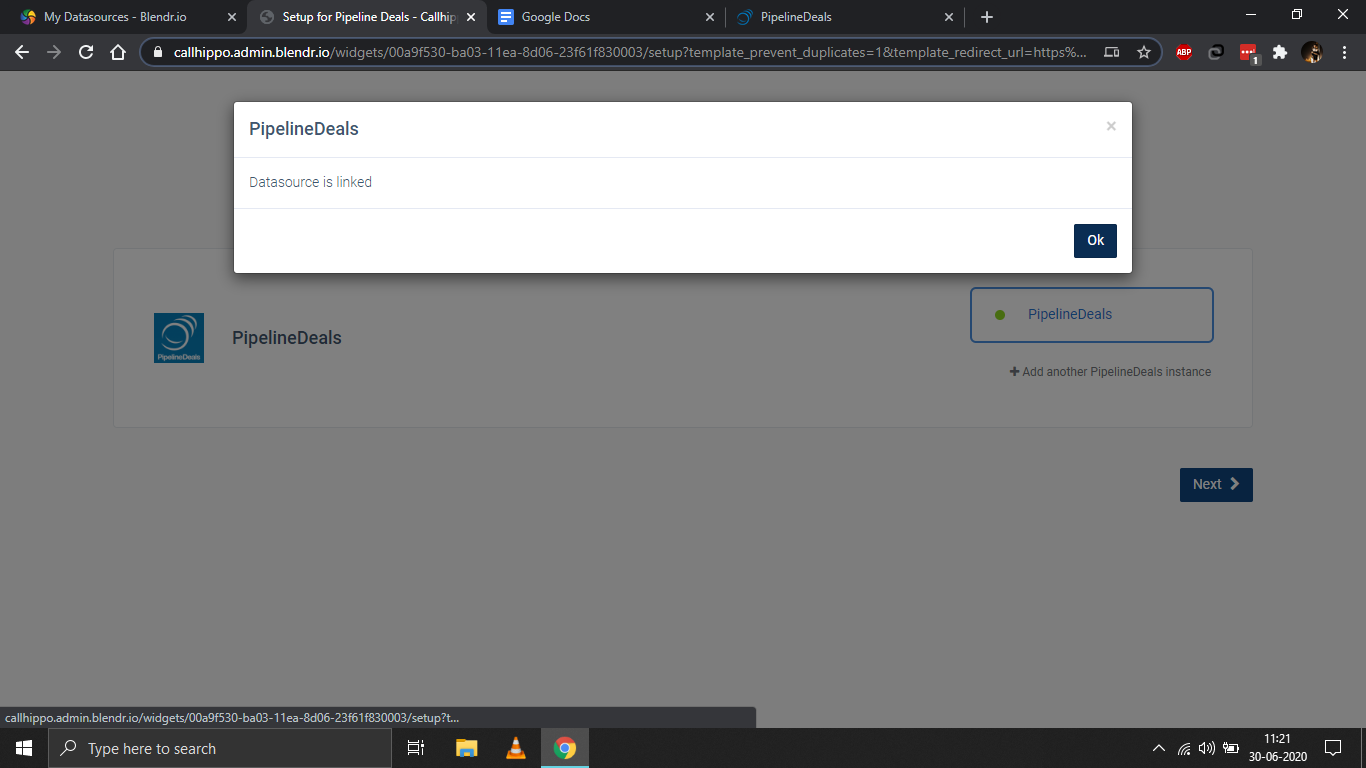
- You should see “Datasource is linked.” Click Ok, then click Next.
- You’ll be redirected back to CallHippo and your status will change to Integrated. Pipeline Deals is now connected.
Good to know
Why can’t I see my API key in Pipeline Deals?
API access may be disabled on your account. Open the PipelineDeals API tab, enter a technical contact email, and click Enable API Access — your key will then appear in the Available API Users table.
Where do I paste the API key in CallHippo?
After clicking + Integrate on Pipeline Deals and then Connect your PipelineDeals, a dialog opens with an API Key field. Paste your key there and click Save.
Need help connecting Pipeline Deals? Reach our team at [email protected] and we’ll help you get set up.