
Integrating SugarCRM with CallHippo lets you dial contacts straight from Sugar, log every call and SMS to the right record, and keep your CRM in sync with your calling activity.
Create an OAuth key in SugarCRM
CallHippo authenticates with SugarCRM using an OAuth key, so set that up first.
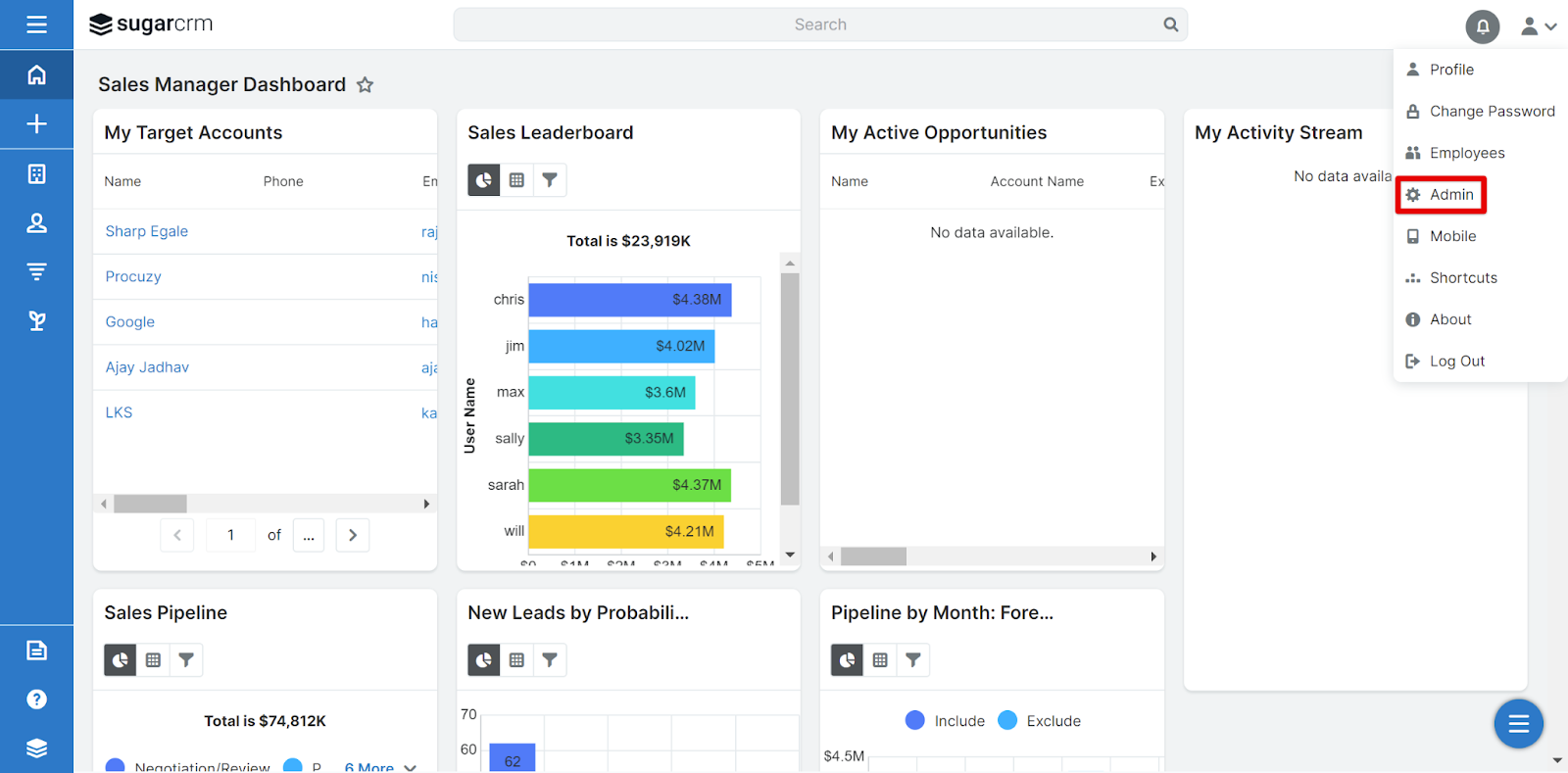
- Log in to your SugarCRM account and click your profile icon in the top-right corner.
- Choose Admin from the drop-down menu.
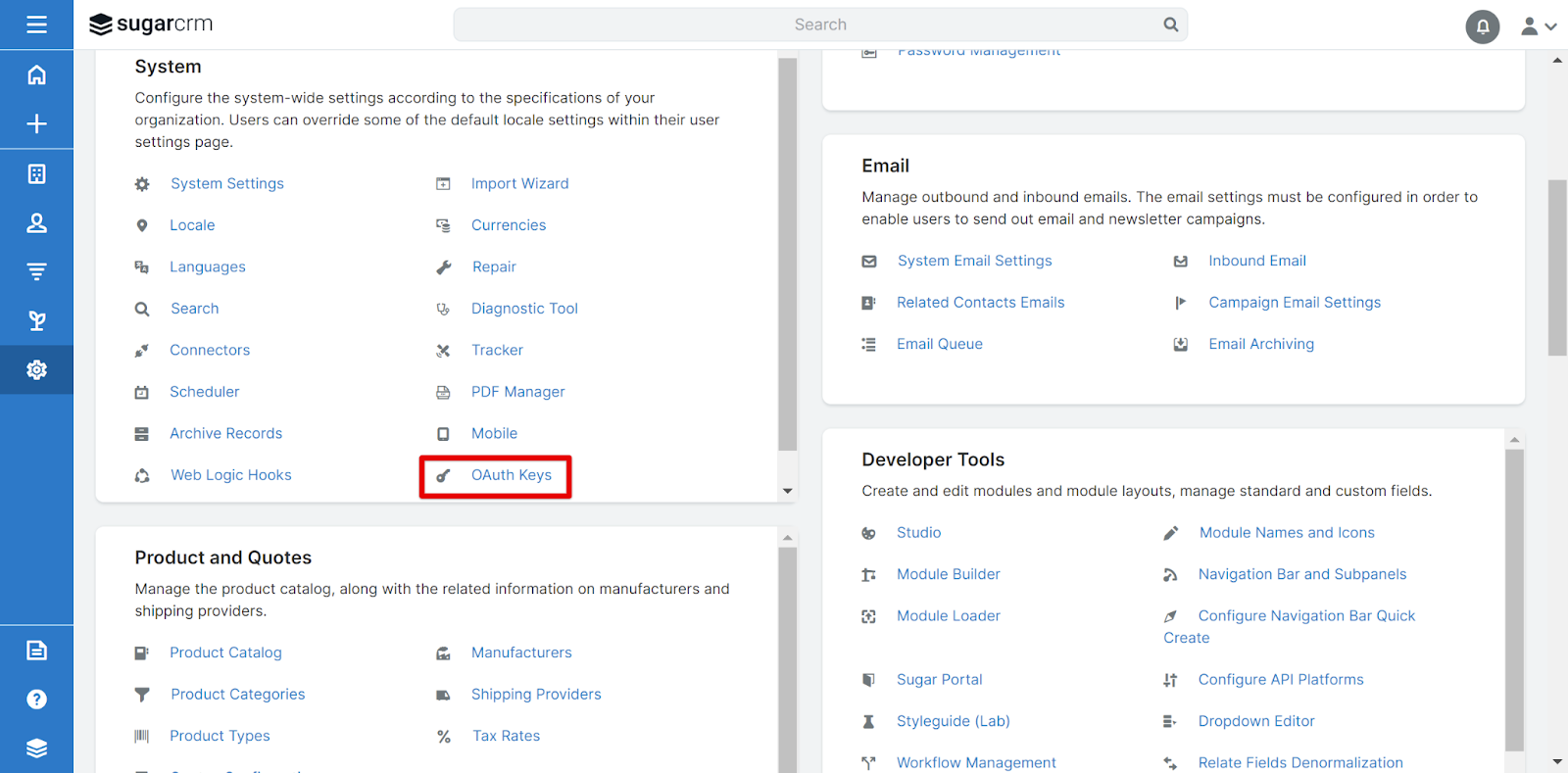
- In the Admin panel, locate and click OAuth Keys.
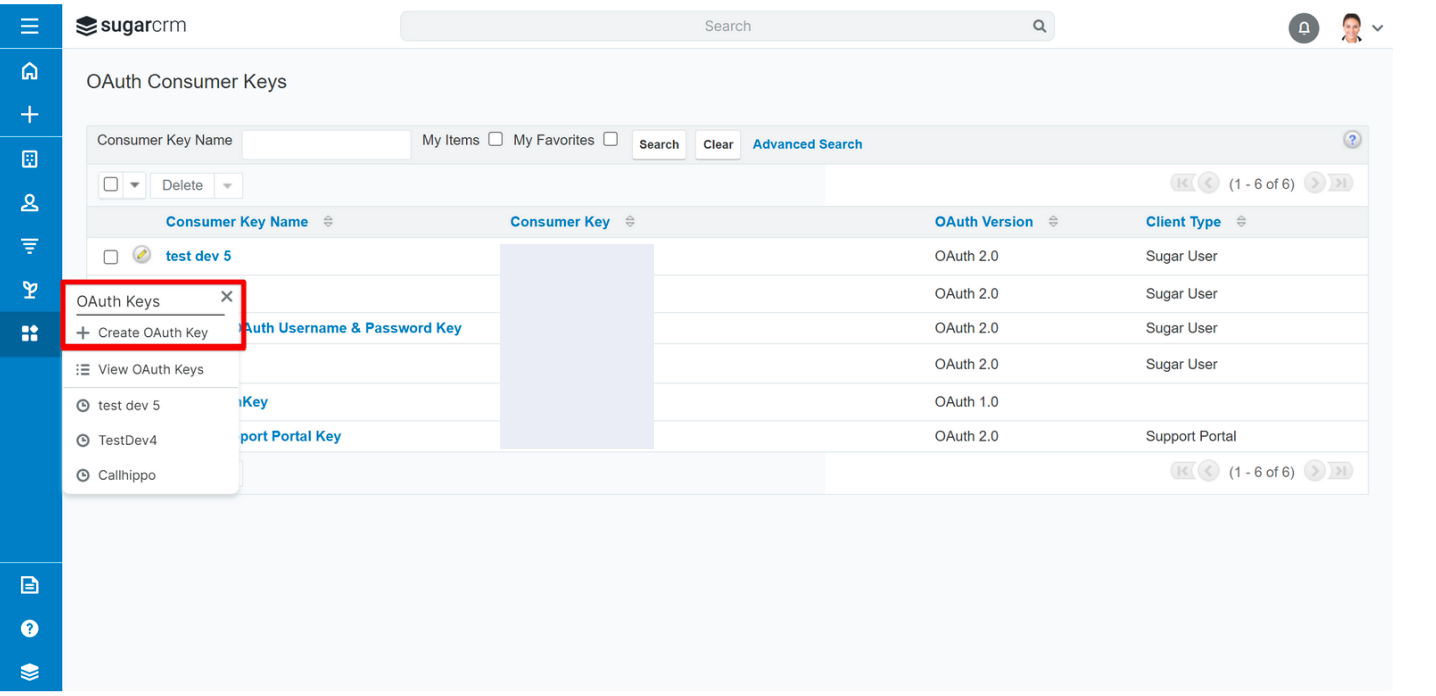
- From the sidebar, open Administration and click Create OAuth Key.
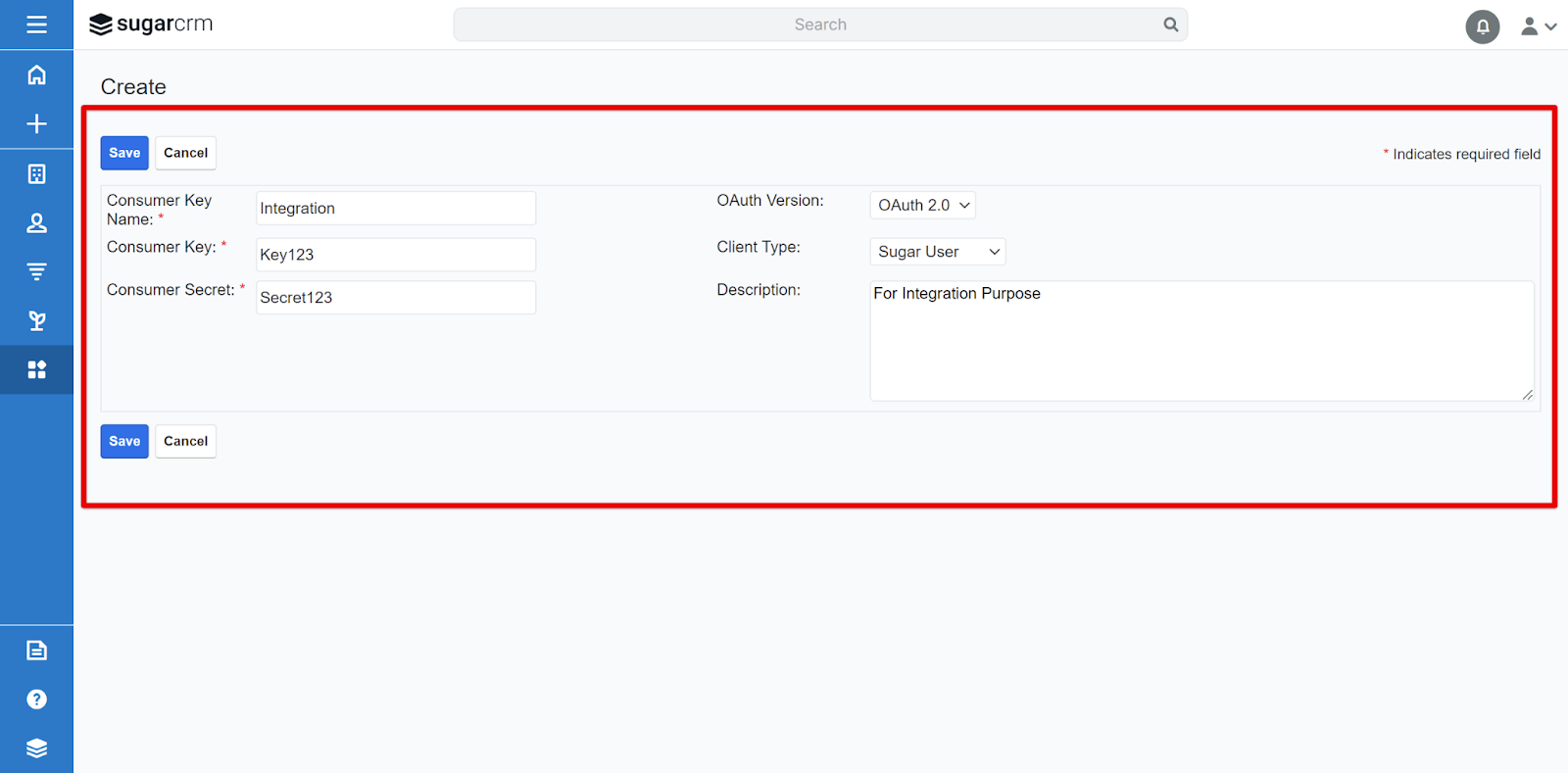
- Fill in the key details:
- Consumer Key Name: a clear, descriptive name (for example, “CallHippo”).
- OAuth Version: select OAuth 2.0.
- Client Type: choose Sugar User.
- Consumer Key: a unique identifier of your choice. Copy and store it securely.
- Consumer Secret: a private value of your choice. Keep it confidential and never share it.
- Once both the Consumer Key and Consumer Secret are entered and copied, click Save.
Connect SugarCRM in CallHippo
- Log in to your CallHippo account.
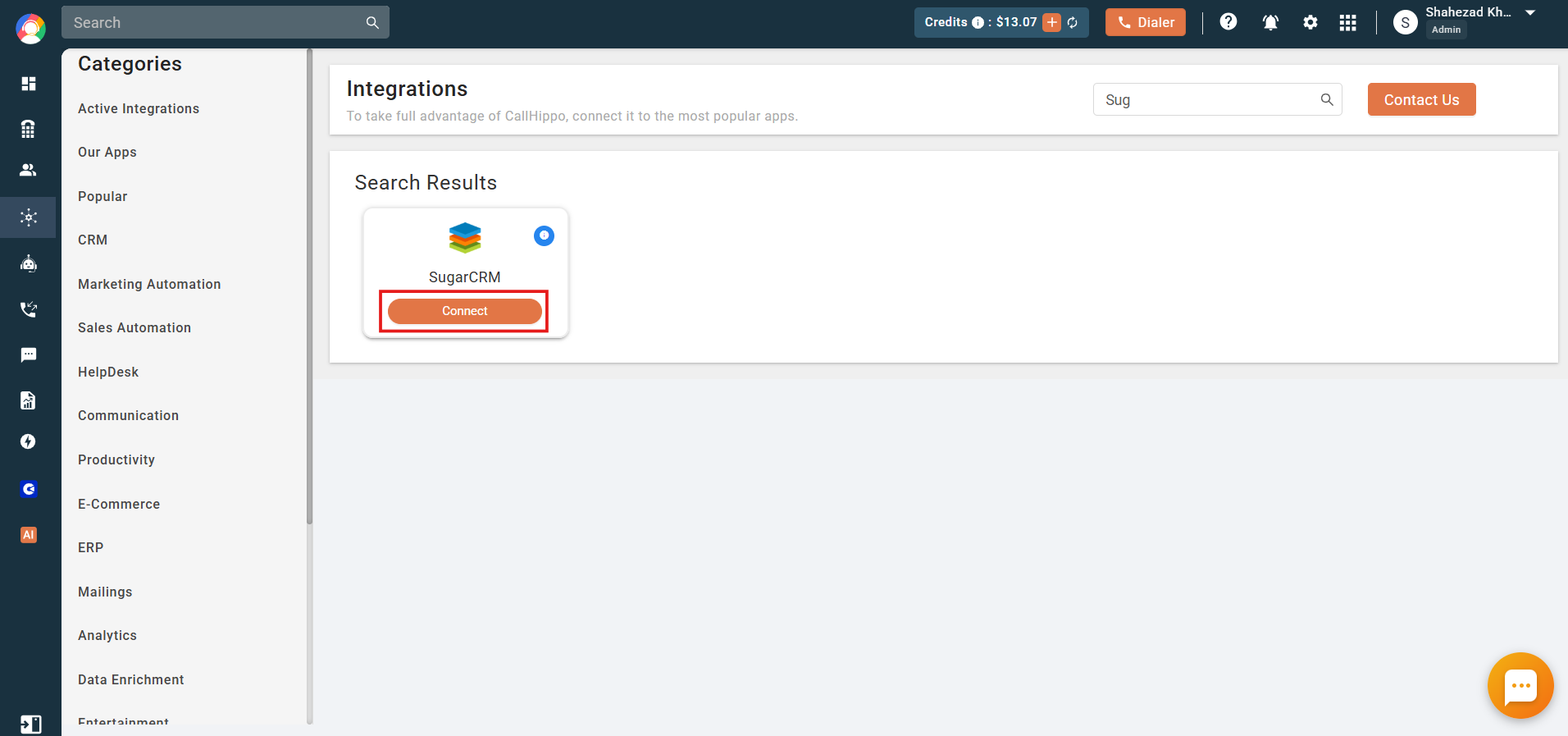
- From the left sidebar, click Integrations, then find and select SugarCRM and click Connect.
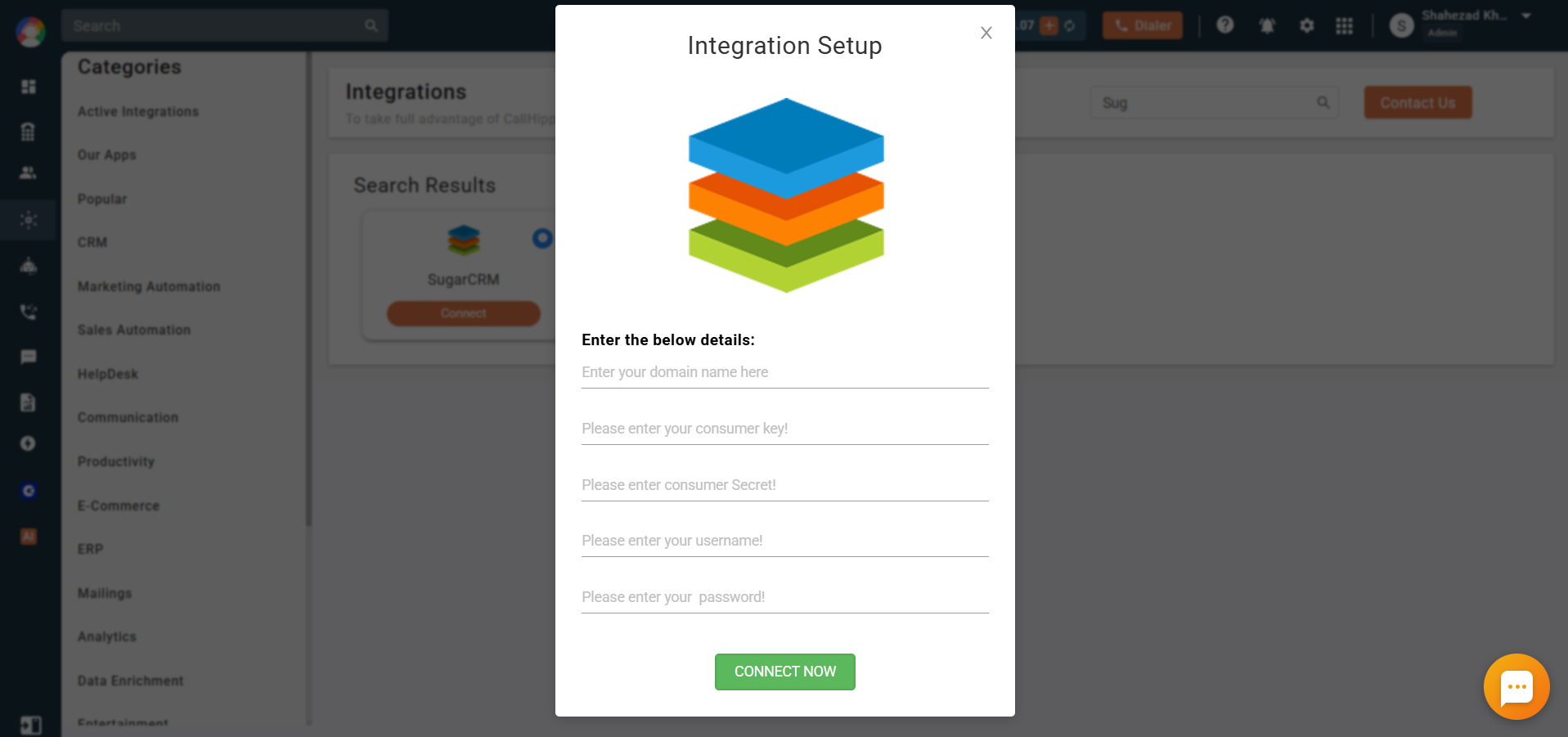
- In the popup, enter the following details:
- Domain name: your SugarCRM domain. Find it under your SugarCRM profile → Advanced → URL, and copy only the text before sugarcrm.com (for example, enter https://sg-tryout.demo.sugarcrm.com).
- Consumer Key: the key you created in SugarCRM.
- Consumer Secret: the secret you created in SugarCRM.
- Username: your SugarCRM admin username.
- Password: your SugarCRM admin password.
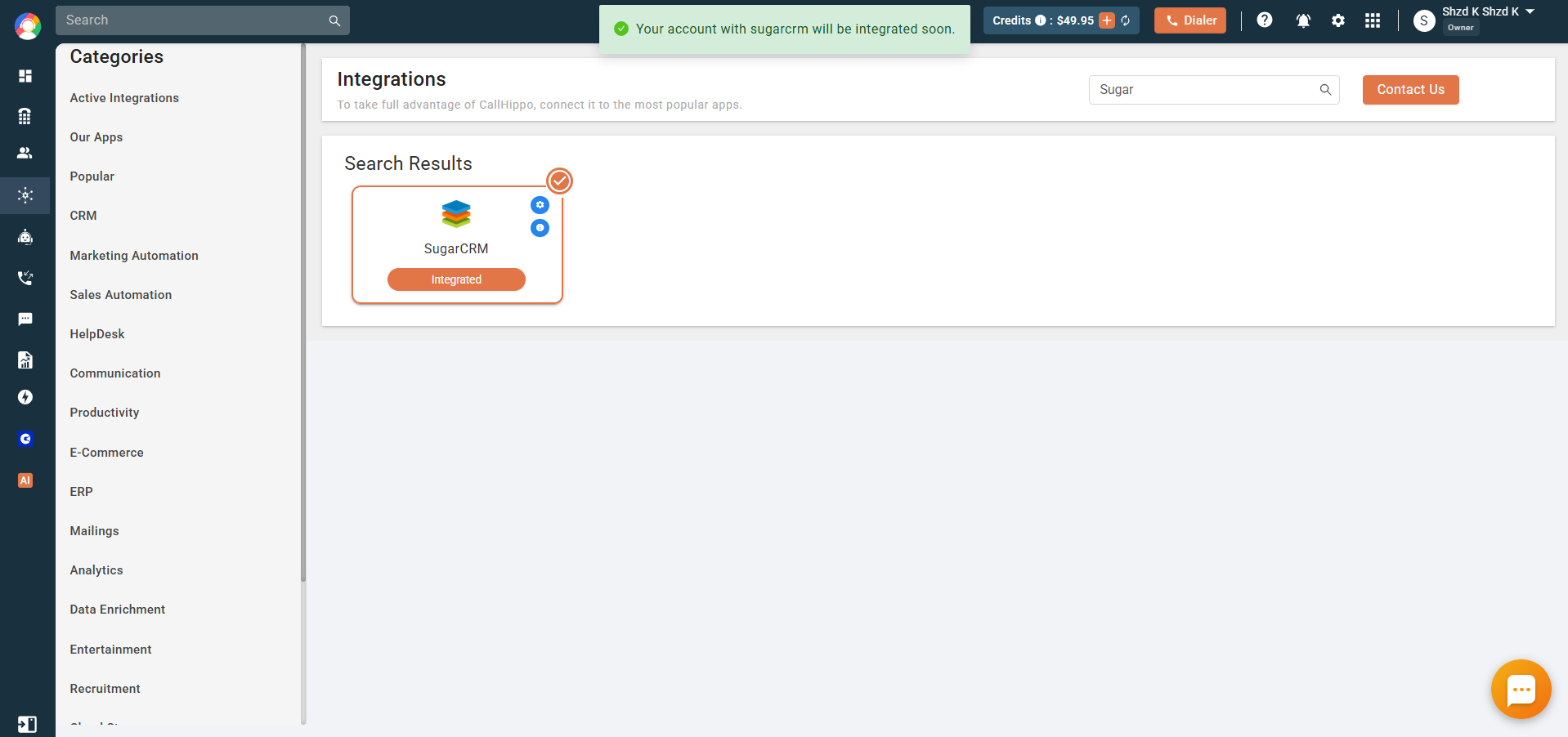
- Click Connect Now. You will see a message that your account with SugarCRM will be integrated soon.
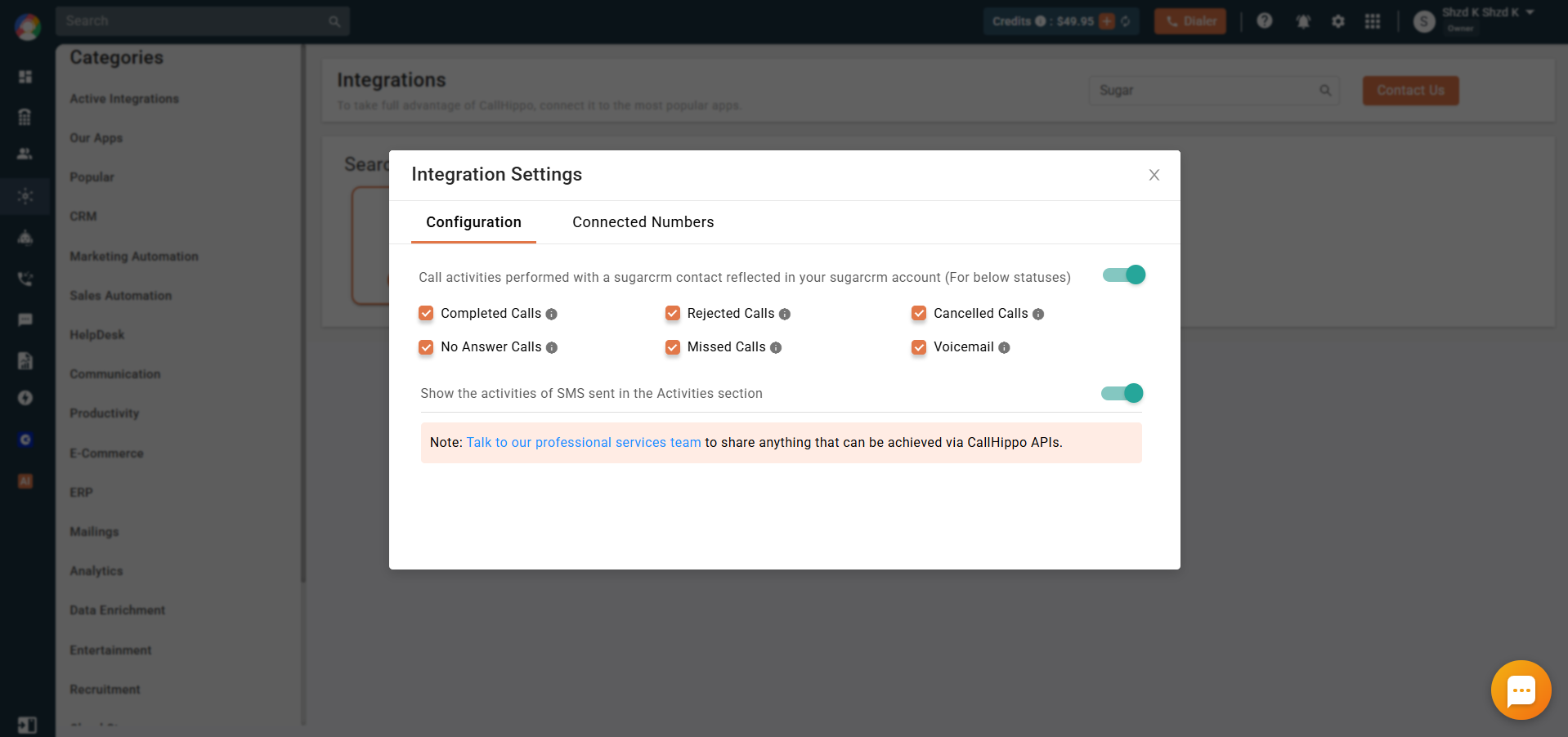
Integration settings
- Configuration: use the toggles to decide which call activities (completed, rejected, cancelled, no answer, missed, voicemail) and SMS activities reflect in your SugarCRM account.
- Connected Numbers: choose which numbers should log call and SMS activity to the CRM.
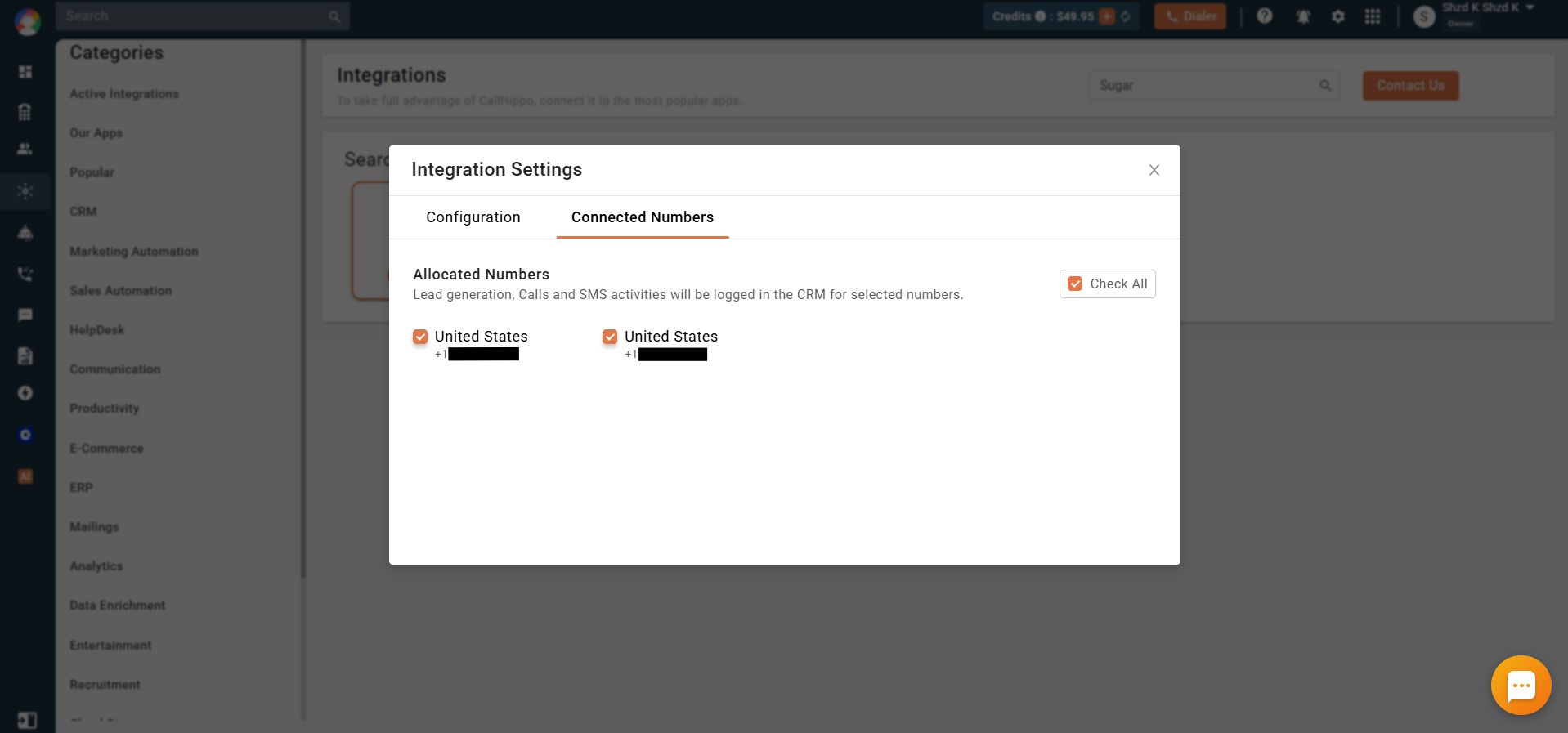
What the SugarCRM integration does
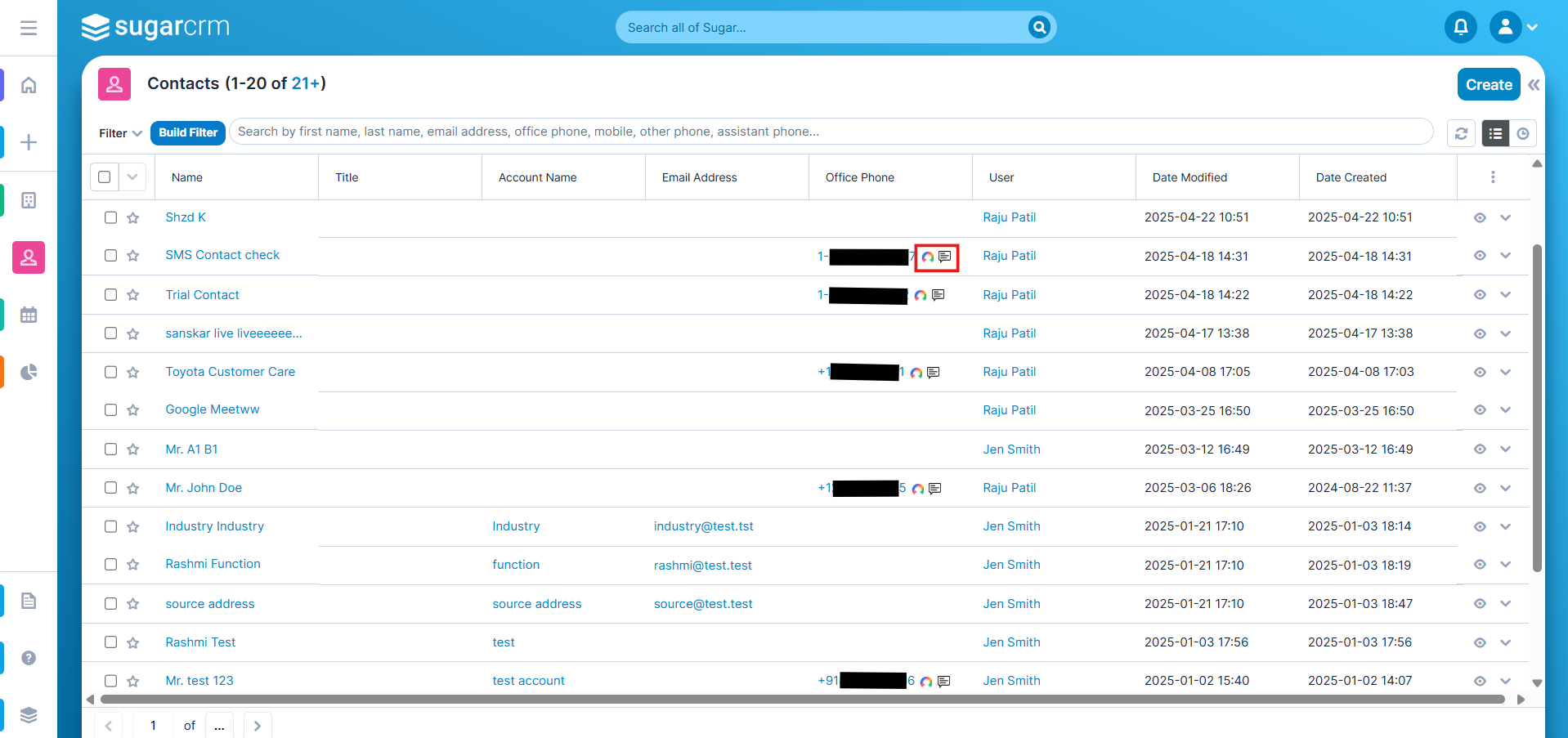
To start dialing inside SugarCRM, click the CallHippo icon next to a phone number in the Contacts list.
Clicking the icon opens the CallHippo dialer right beside your contact.
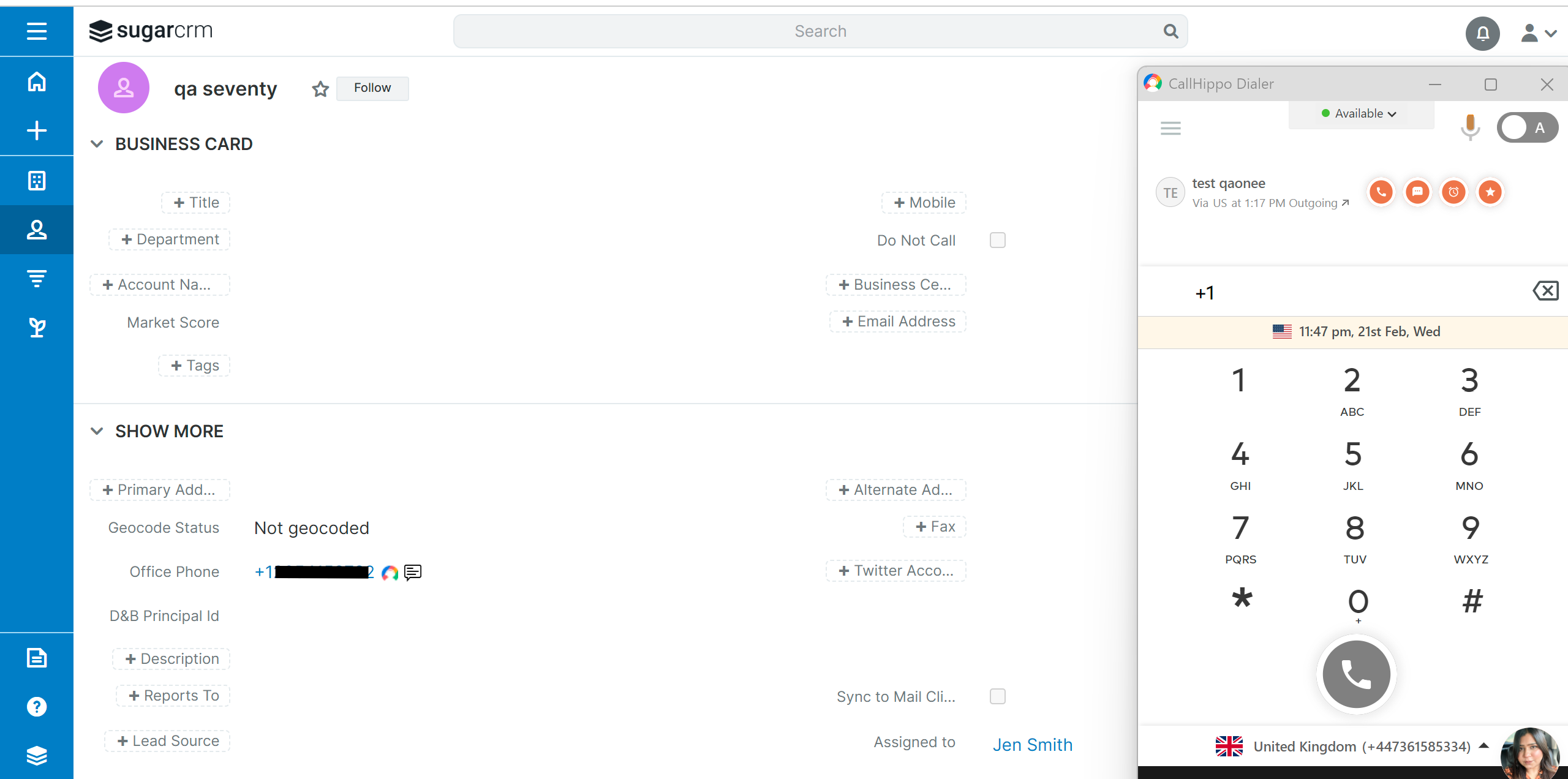
- Contact sync: SugarCRM contacts sync into the CallHippo dialer as contacts after a click-to-call or SMS.
- Call logging: Calls made to a SugarCRM contact from the CallHippo dialer are logged to that contact’s detail page.
- SMS logging: SMS sent to a SugarCRM contact from the CallHippo dialer are logged to that contact’s detail page.
Show call statuses and dispositions in SugarCRM
To have CallHippo call statuses and dispositions appear in SugarCRM, set up the matching dropdown lists in Sugar.
- For call statuses, go to profile → Admin → Module Builder → Dropdown Editor → call_status_dom.
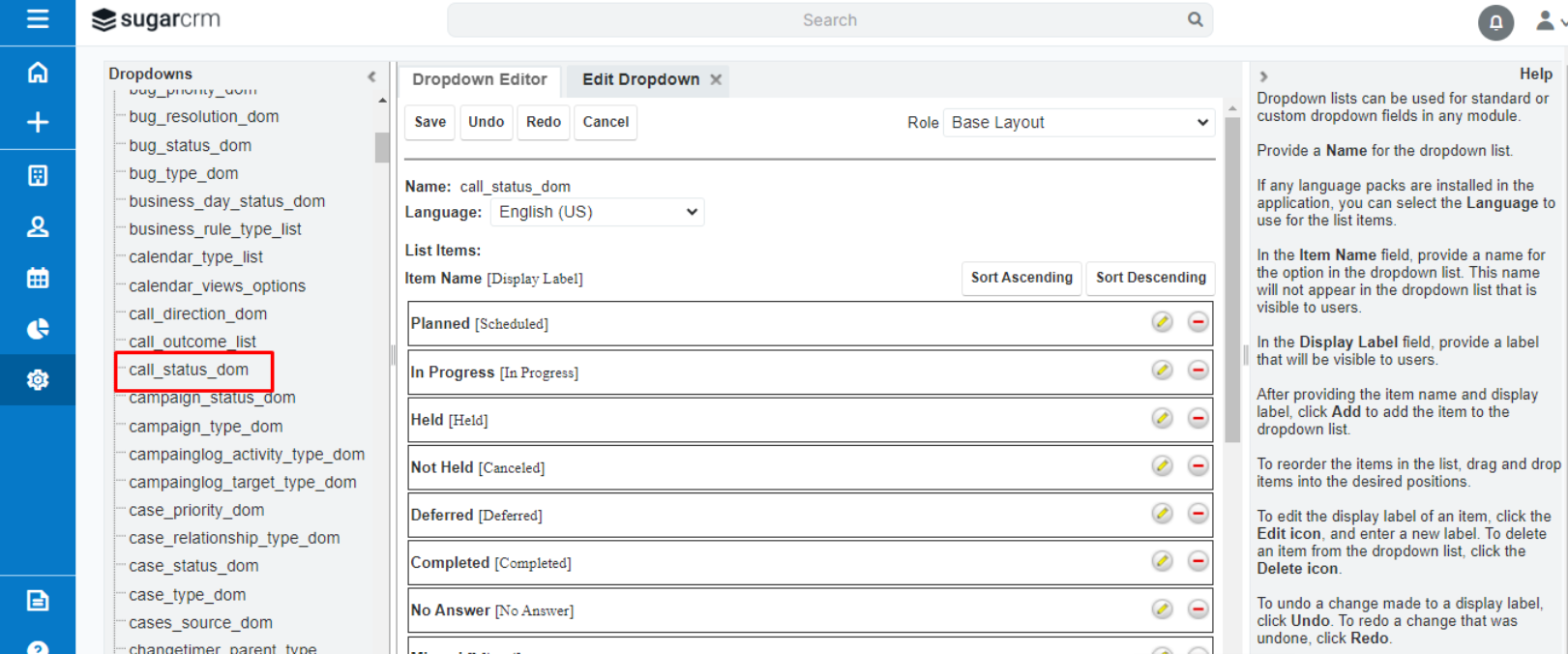
- For call dispositions, go to profile → Admin → Module Builder → Dropdown Editor → call_outcome_list.
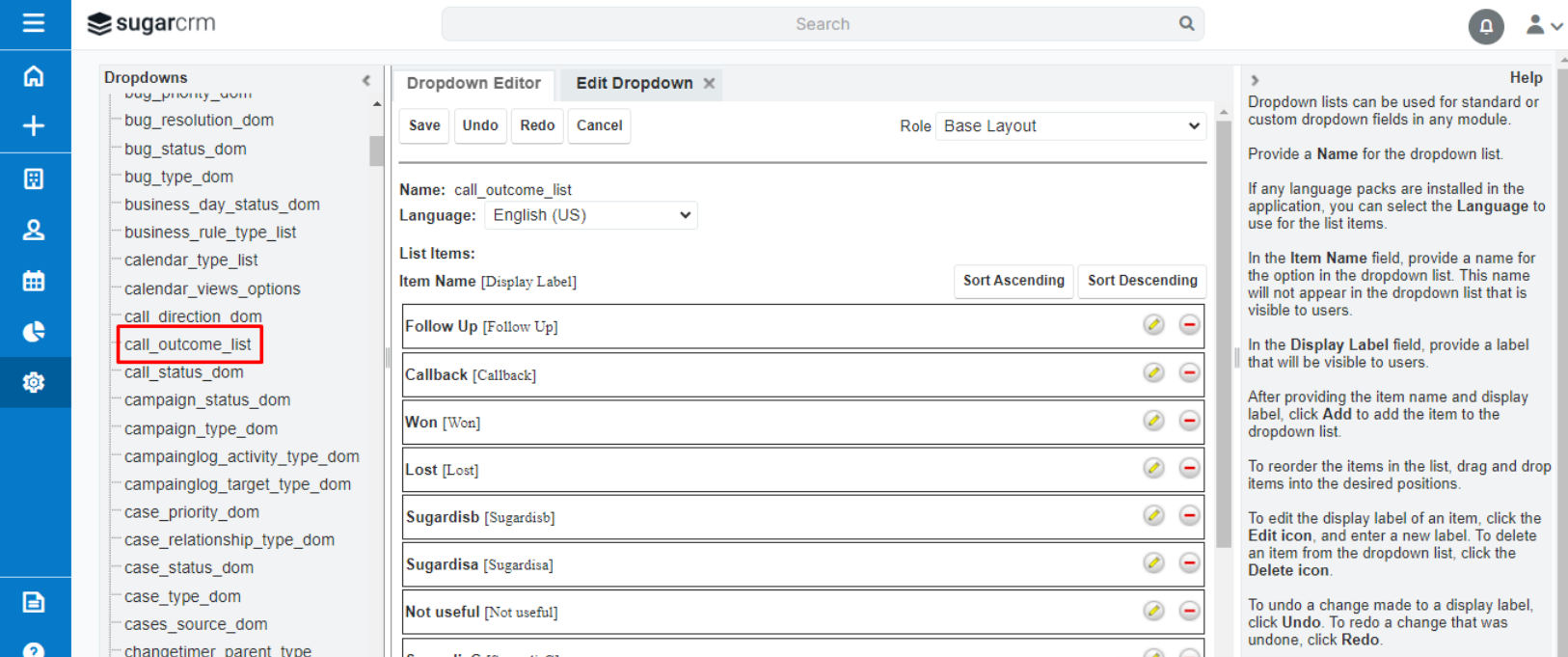
To activate this feature, contact us at [email protected].
After Call Work data in SugarCRM
If your plan includes CallHippo’s call tags and disposition service and it is enabled, the activity pushed to SugarCRM includes the tags and disposition added after the call on the After Call Work (ACW) screen. Call recordings appear as a hyperlink in the Leads and Contacts section.
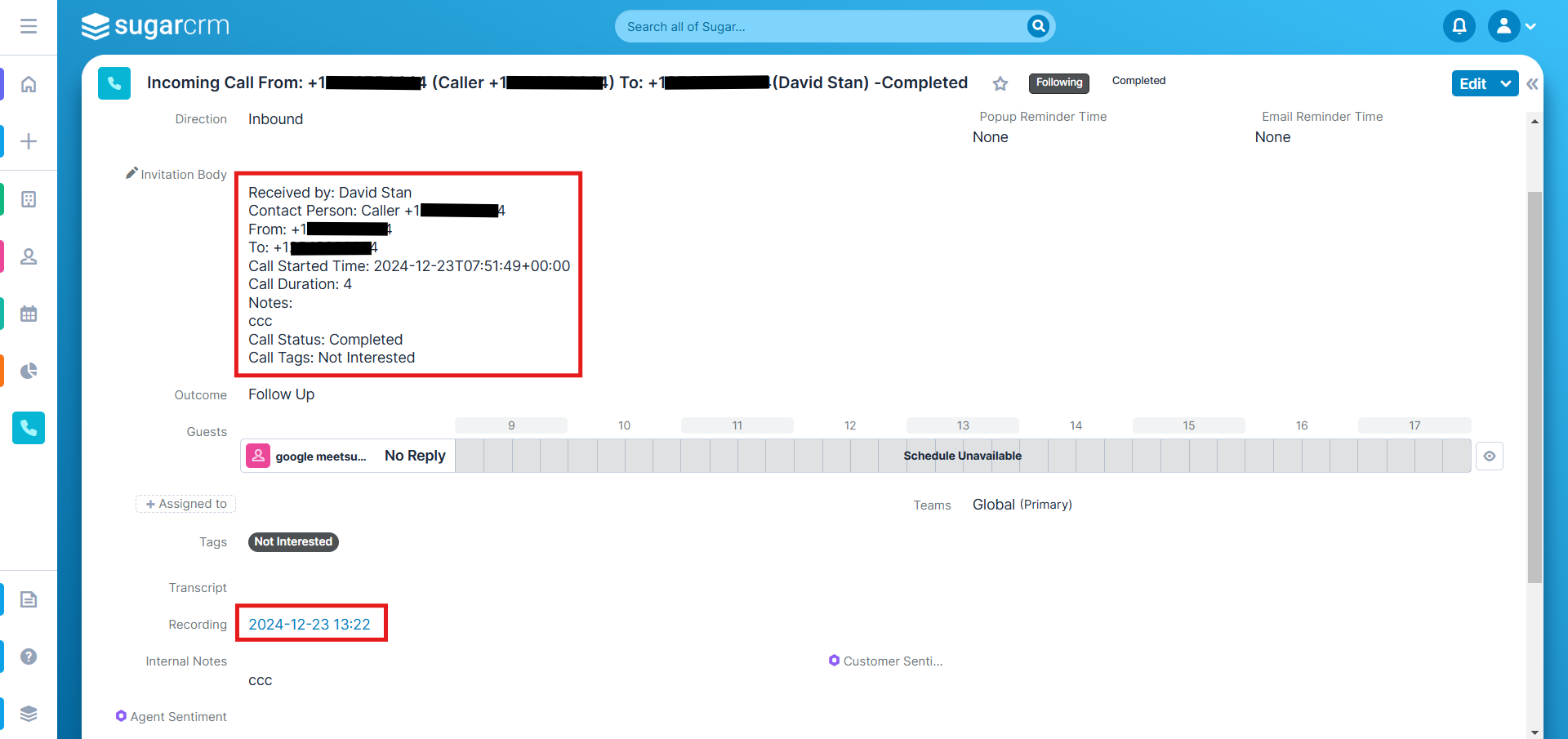
Note: Tags and dispositions sync only when added on the After Call Work screen. If they are added later from the Call Logs or another feed, they will not sync to SugarCRM.
Enable Click-to-Call
Install the CallHippo Click-to-Call Chrome extension from the Chrome Web Store. Once installed, a call icon appears in front of every number, so a single click starts the call.
What OAuth version should I choose in SugarCRM?
Select OAuth 2.0 and set the Client Type to Sugar User. This combination is recommended for security and compatibility with Sugar user accounts.
How do I find my SugarCRM domain for the setup popup?
Go to your SugarCRM profile → Advanced → URL and copy the text before sugarcrm.com. Enter that URL in the CallHippo integration popup.