
Connecting ActiveCampaign with CallHippo lets you sync contacts both ways and log every call and SMS straight onto your ActiveCampaign records, so your marketing automation always reflects the latest conversations.
Get your ActiveCampaign API URL and key
Start inside ActiveCampaign to grab the two credentials CallHippo needs.
- Log in to your ActiveCampaign account.
- In the left menu, click Settings.
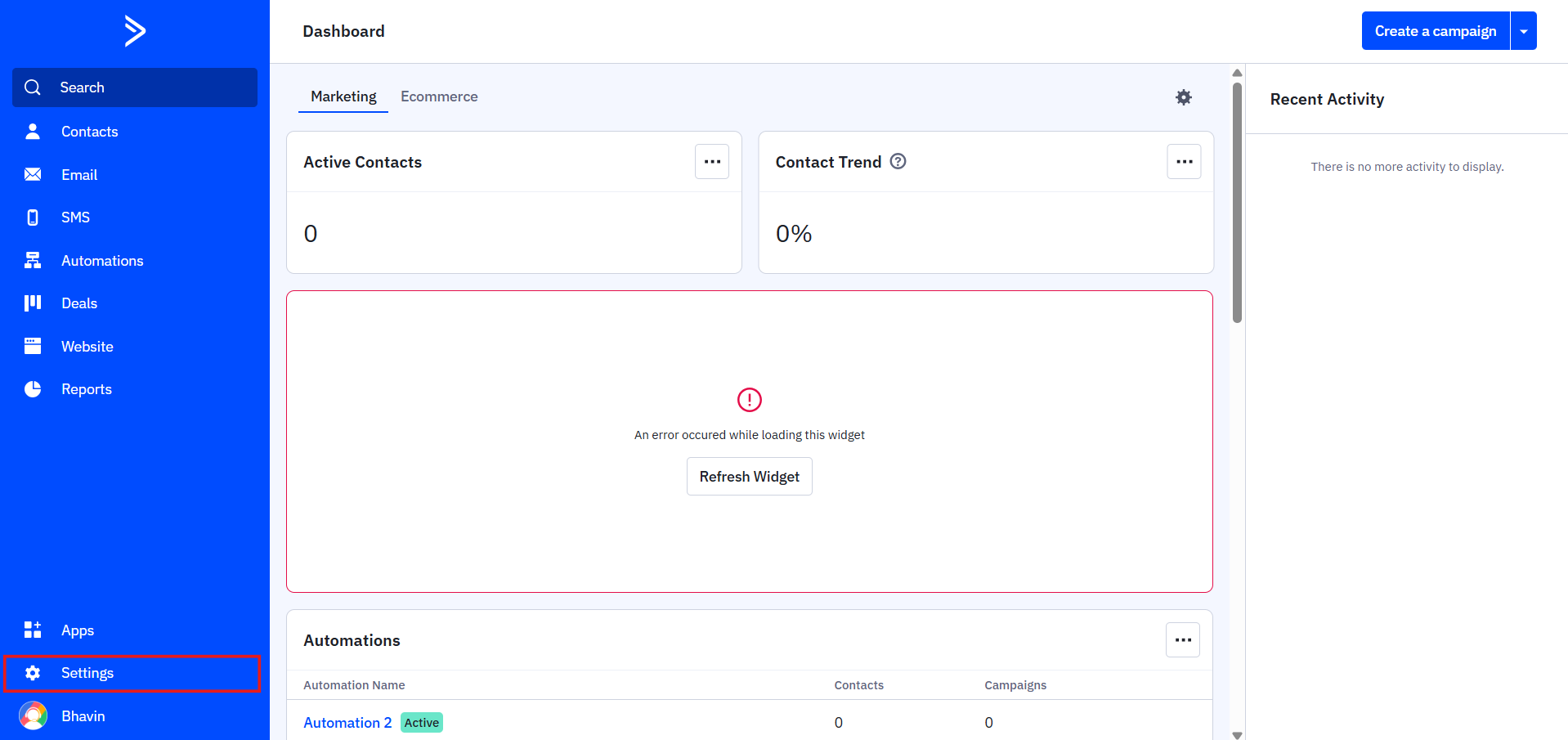
- Open the Developer tab from the settings submenu.
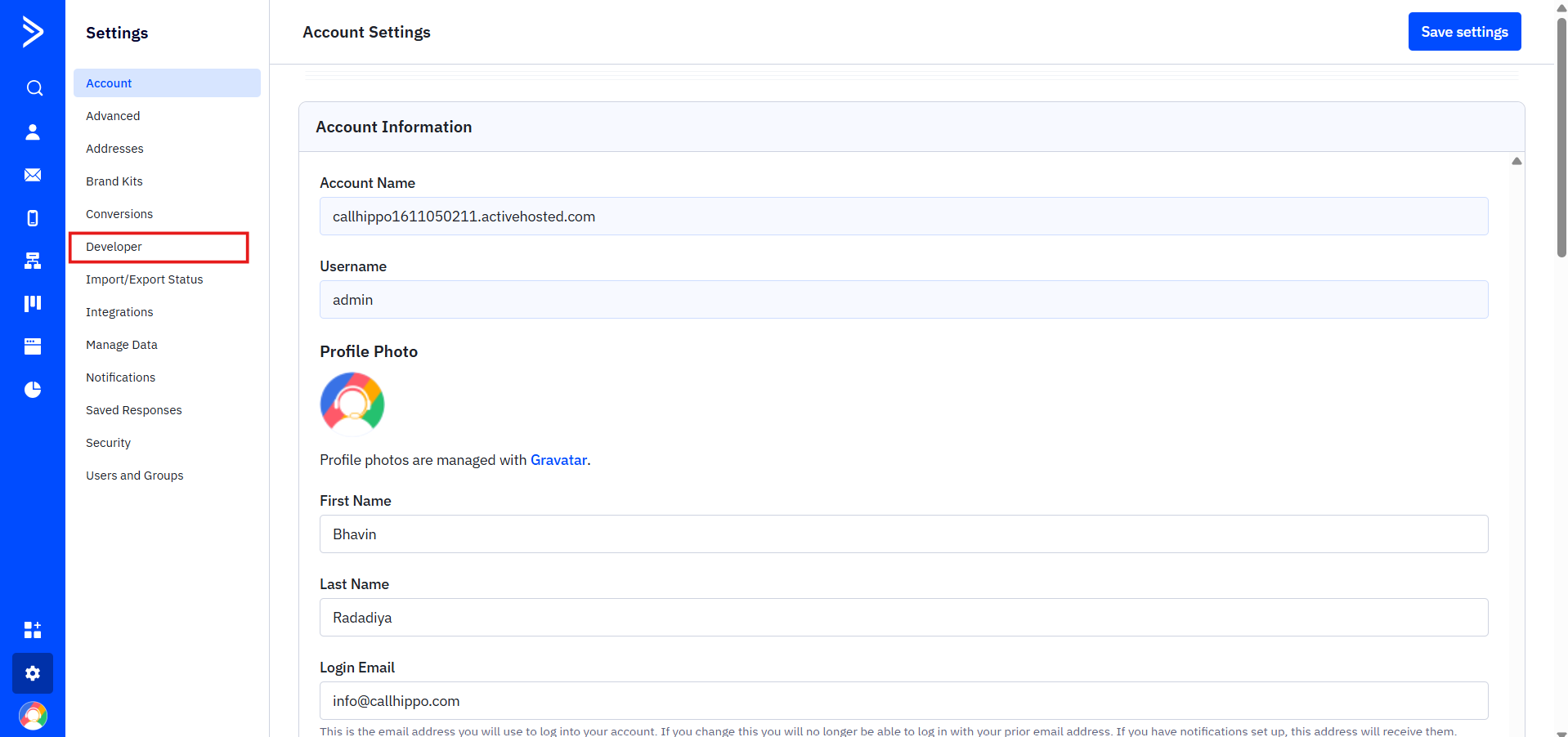
- Under API Access, copy your URL and Key and keep them handy for the next section.
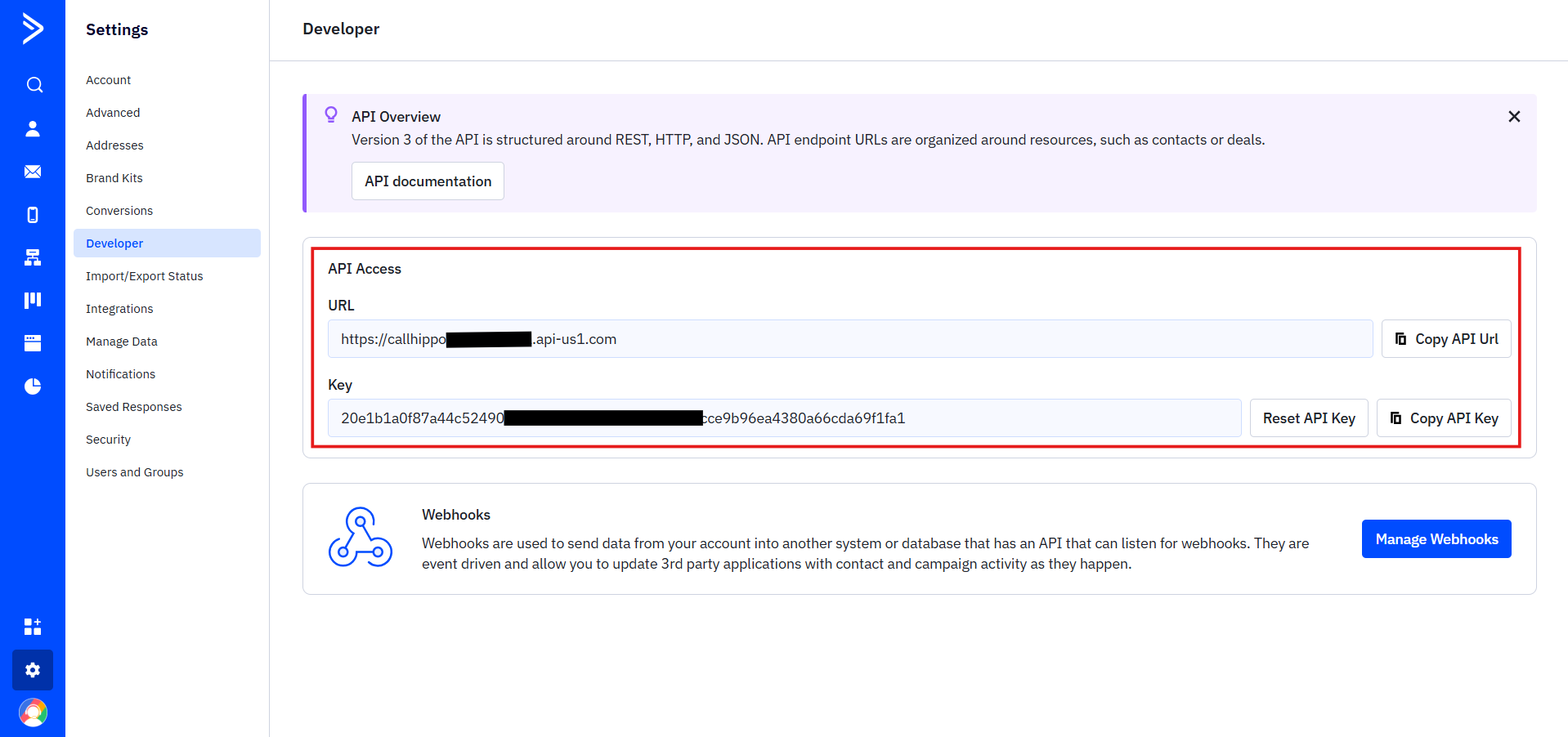
Connect ActiveCampaign in CallHippo
- Log in to your CallHippo account and open the Integrations tab. Search for ActiveCampaign and click Connect.
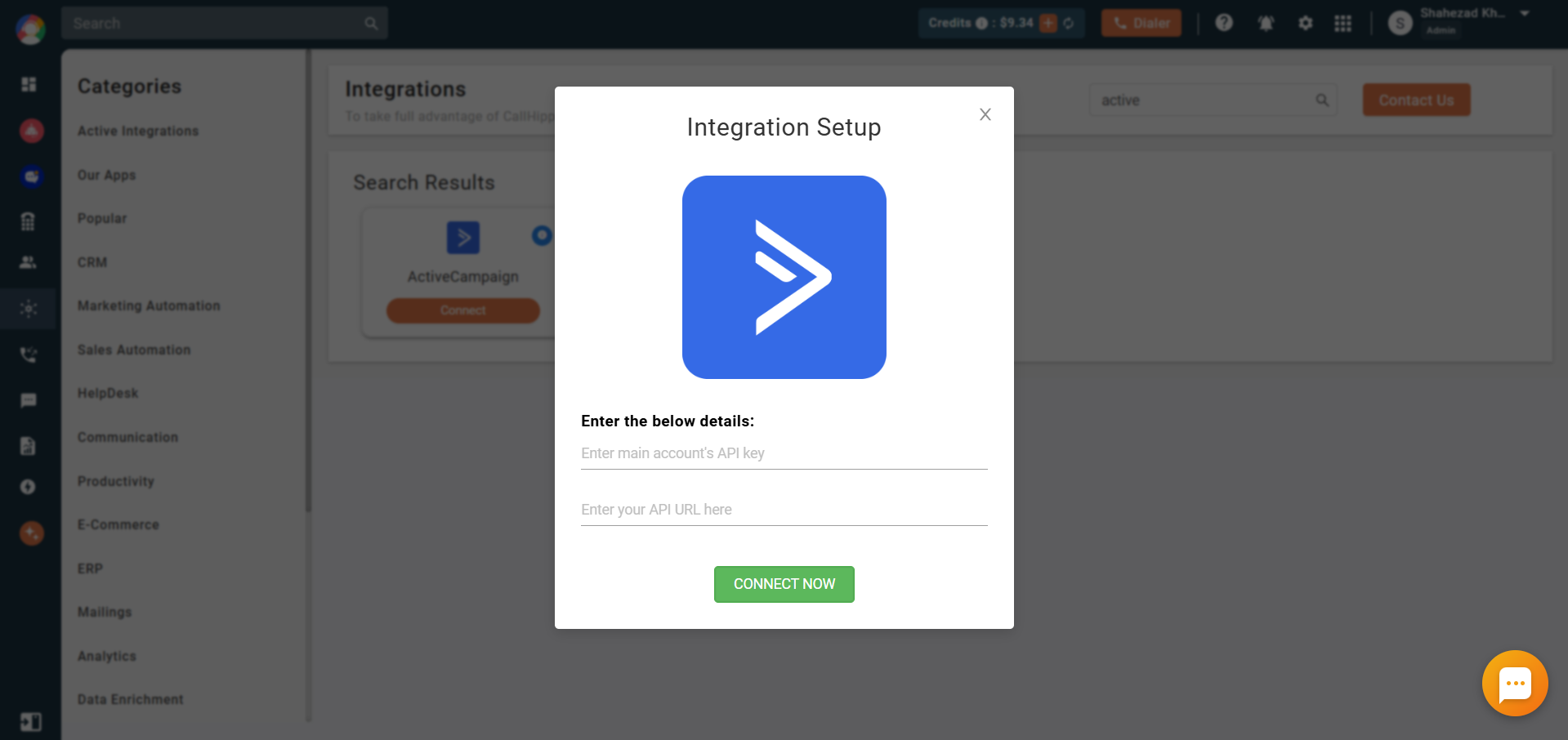
- In the Integration Setup popup, paste the API key and API URL you saved earlier, then click Connect Now.
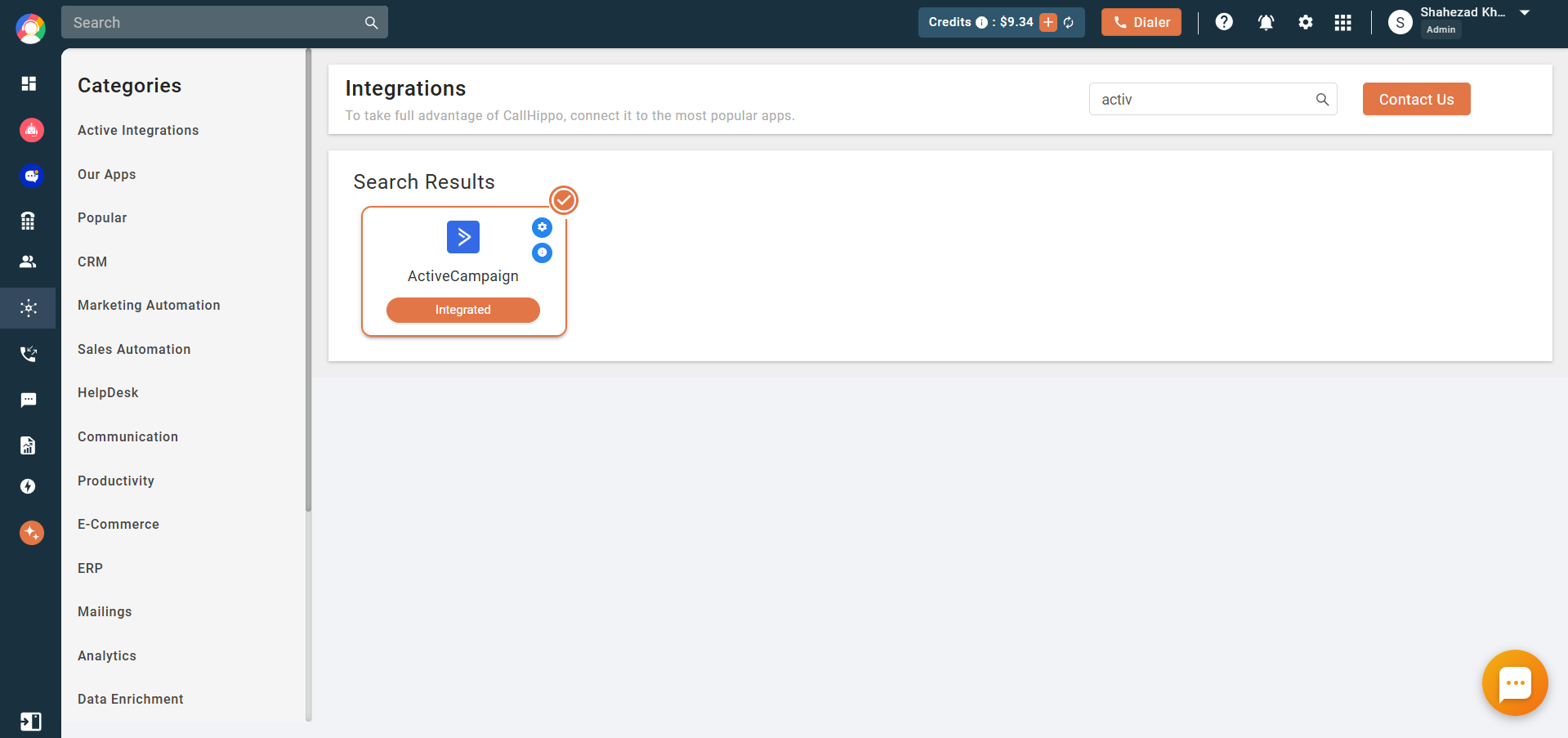
- The integration status now shows Integrated.
Configure the integration settings
Open the integration settings to control exactly what syncs across to ActiveCampaign.
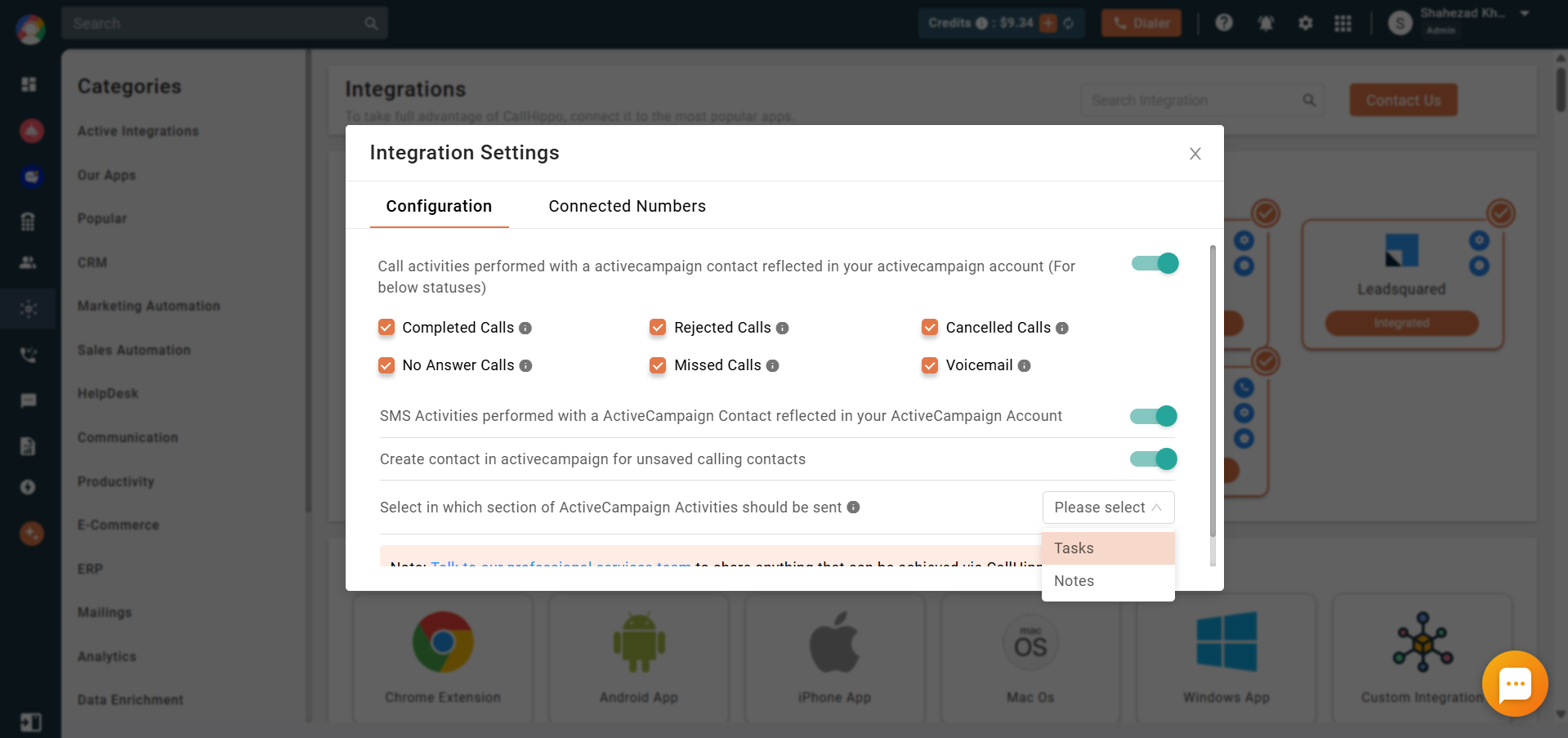
- Call activities reflected in ActiveCampaign — when enabled, every call performed on an ActiveCampaign contact through CallHippo is logged to that contact’s activity (you can pick which call statuses to sync).
- SMS activities reflected in ActiveCampaign — logs all SMS activity to the contact’s activity section.
- Create a contact for unsaved calling contacts — inbound or outbound calls to unsaved numbers create a new contact named “CallHippo Contact” and attach the call log to it.
- Choose where activities are sent — decide whether call/SMS activity is logged as Notes or Tasks (Notes is selected by default).
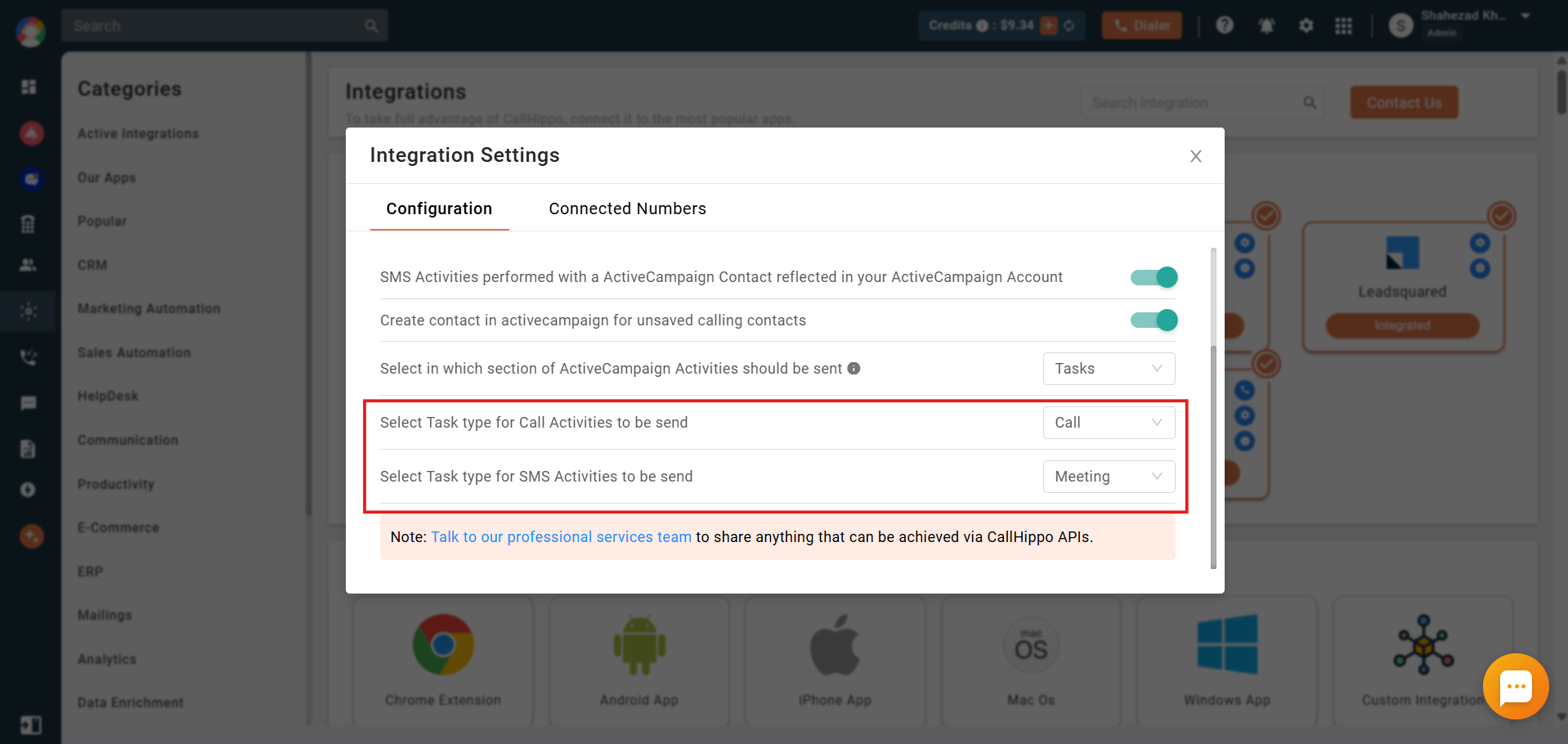
If you choose Tasks, you will also be asked to select a task type for both call and SMS activity.
Once set up, call activity appears directly on the ActiveCampaign contact’s timeline.
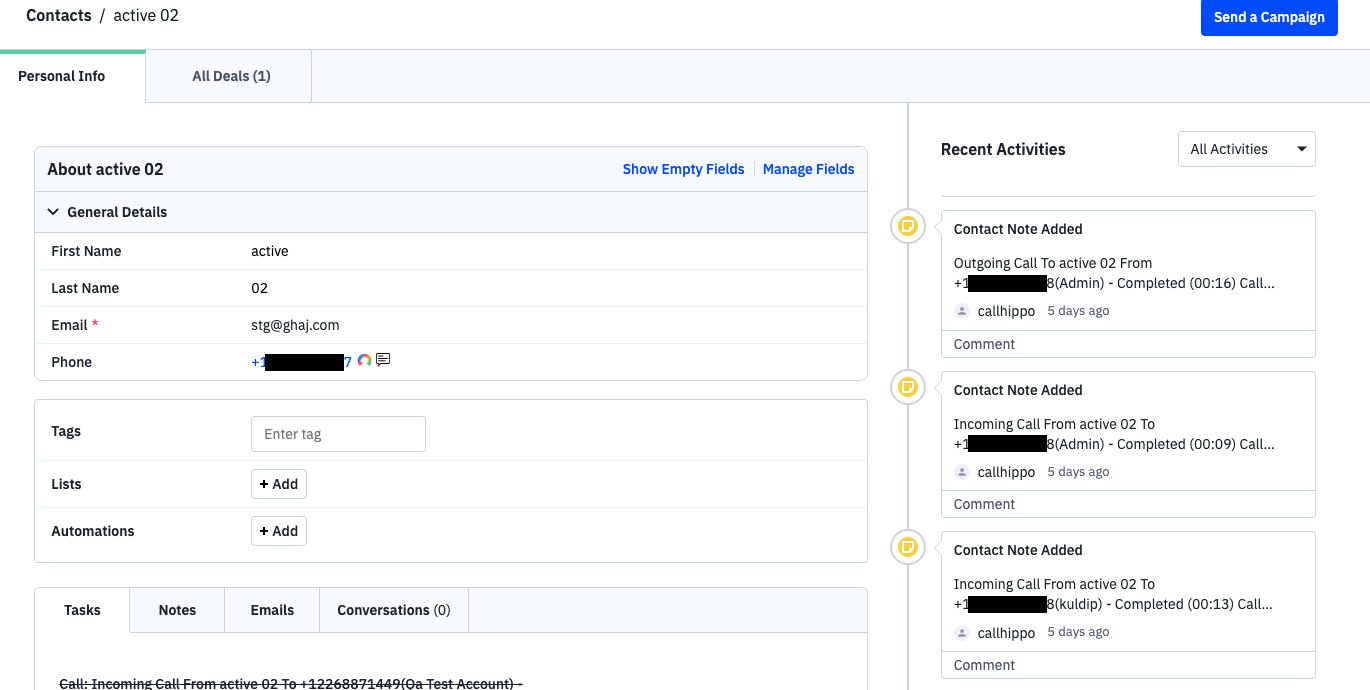
If your plan includes CallHippo’s call tags and disposition service and it is enabled, activity pushed to ActiveCampaign also carries the tags and disposition added on the After Call Work screen. This only syncs when the details are added on the After Call Work screen — tags or dispositions added later from the call logs will not sync.
What the integration does
- All existing contacts with at least one phone number sync to CallHippo after a click-to-call.
- New or updated ActiveCampaign contacts sync to CallHippo after click-to-call is performed.
- Calls made to an ActiveCampaign contact from the CallHippo dialer log to that contact’s activity.
- SMS sent to or received from an ActiveCampaign contact log to that contact’s activity.
- Calls to unsaved numbers create a new ActiveCampaign contact automatically.
Enable click-to-call
Install the CallHippo Click-to-Call Chrome extension to dial directly from ActiveCampaign. Call activity is associated with the deal if the call was started from the deal detail page, and with the contact if it was started from the contact detail page.
FAQ
If I delete a contact in ActiveCampaign, is it removed from CallHippo?
No. Contacts deleted in ActiveCampaign are not deleted from CallHippo automatically — you need to remove them manually. Contacts are only removed automatically when the integration itself is removed.
Where can I log call and SMS activity in ActiveCampaign?
You can send activity to either Notes or Tasks. Notes is selected by default; choosing Tasks lets you assign a specific task type for calls and SMS.