
Integrating Proteria with CallHippo connects your contact data to the dialer using a single API key, so you can start calling with everything in one place.
Get your Proteria API key
First, grab the API key from your Proteria account.
- Log in to your Proteria account.
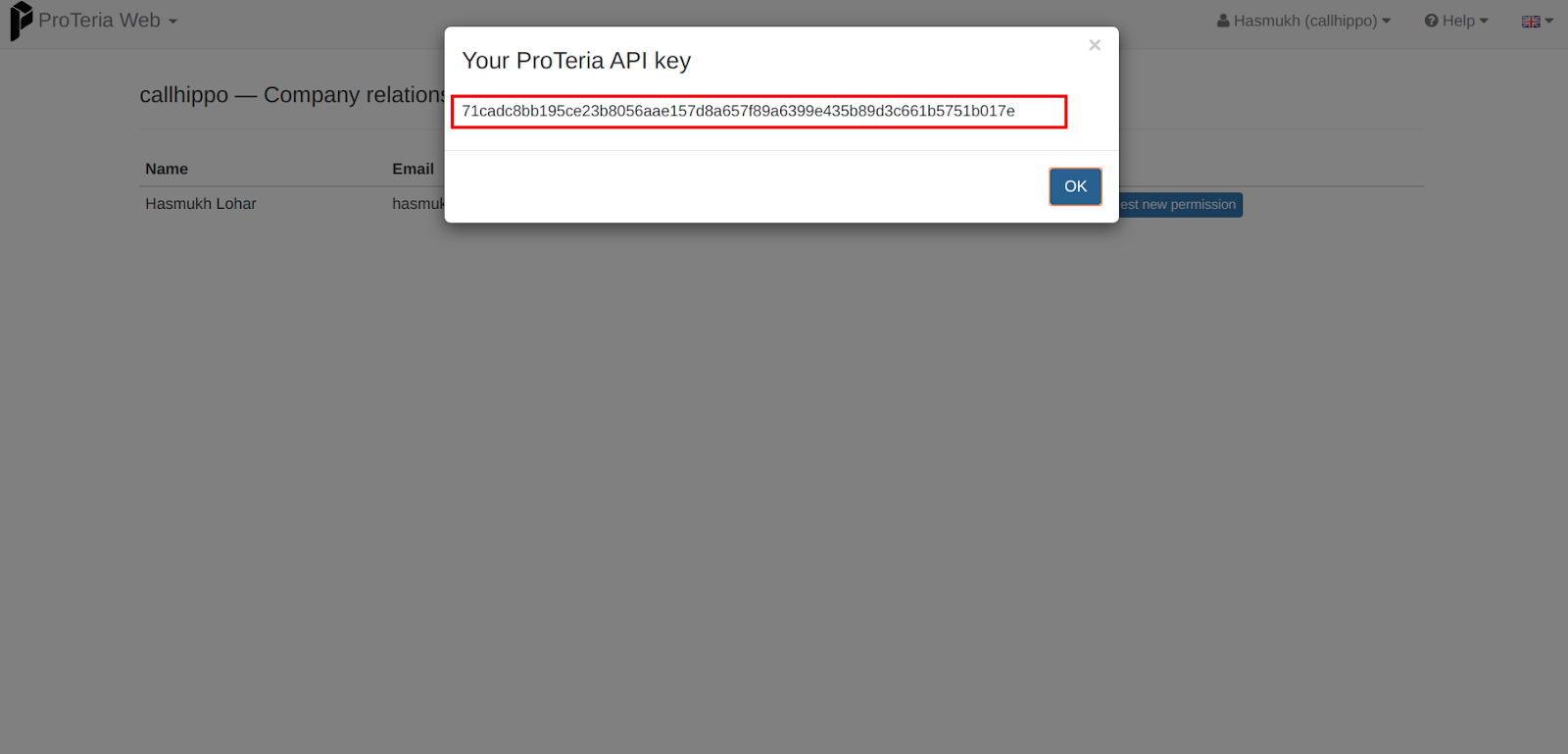
- Click your name in the top-right corner and choose Your ProTeria API key.

- Copy the API key shown in the dialog and keep it handy.
Connect Proteria in CallHippo
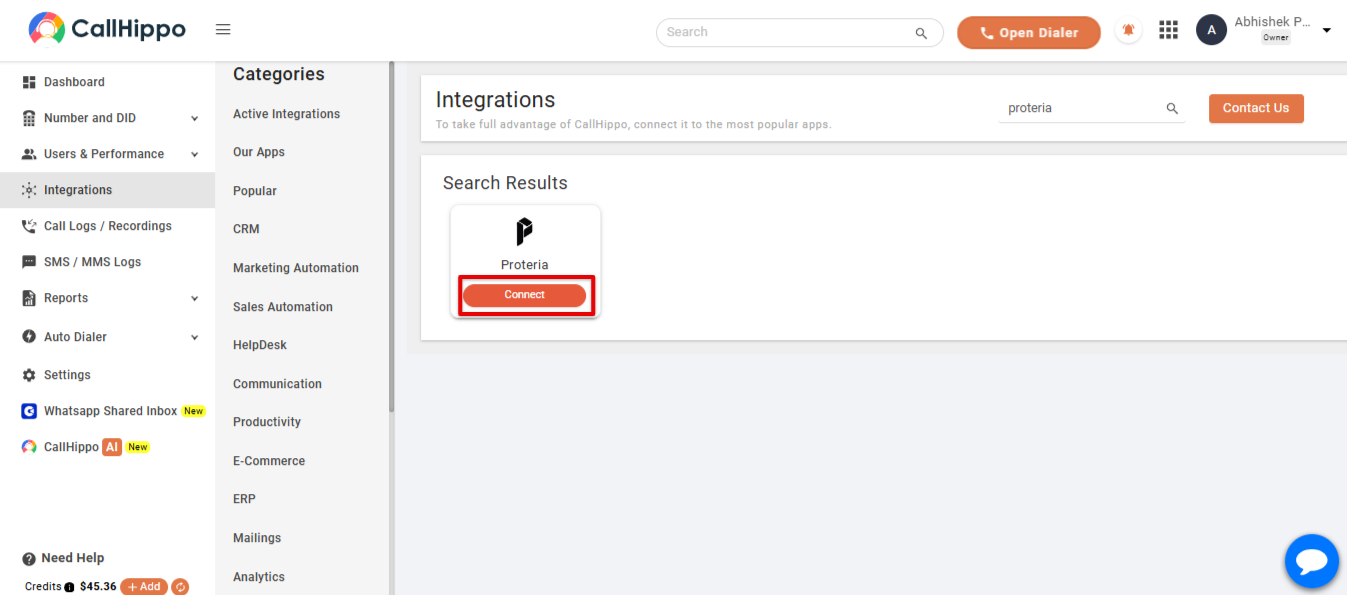
- Log in to your CallHippo account and open the Integrations tab. Search for Proteria and click Connect.
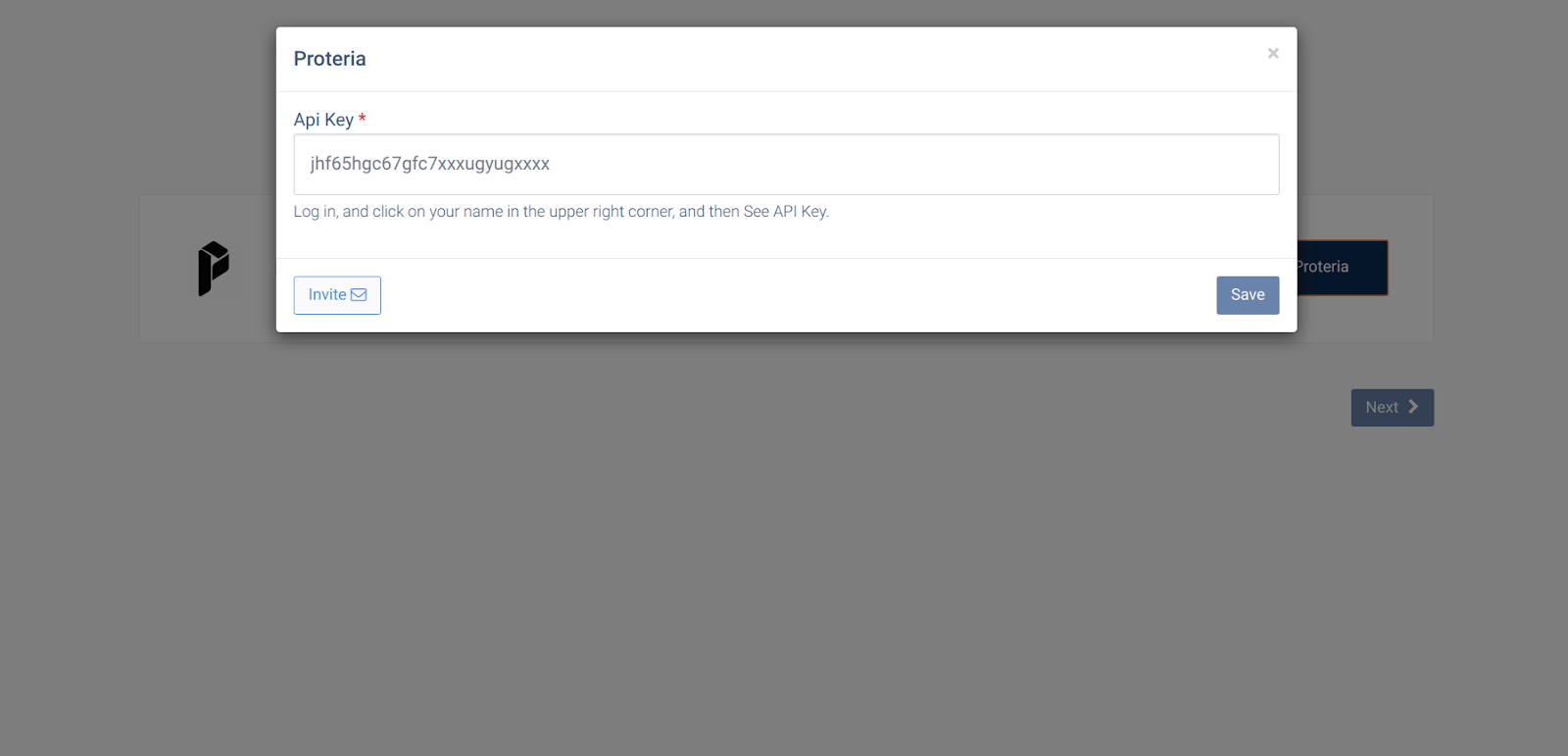
- Paste the API key you copied earlier and click Save.
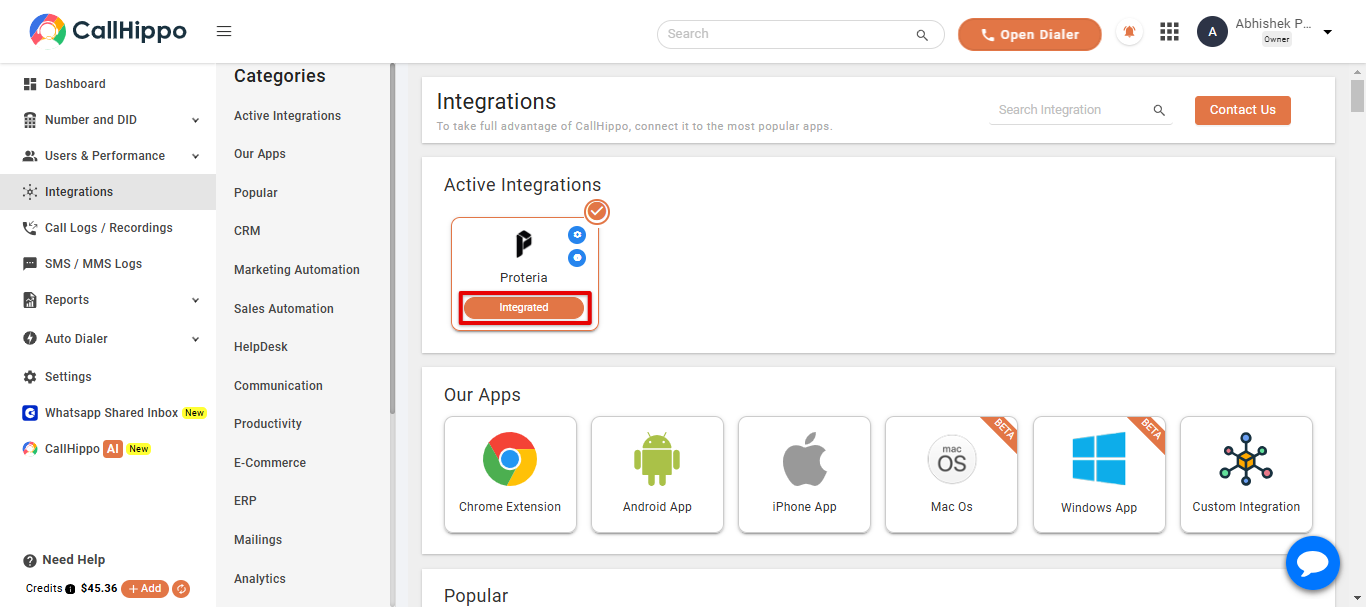
- The status changes to Integrated — Proteria is now connected with CallHippo.
FAQ
Where do I find my Proteria API key?
Log in to Proteria, click your name in the upper-right corner, and select “Your ProTeria API key” to view and copy it.
What if the status does not change to Integrated?
Make sure you pasted the full API key with no extra spaces, then save again. If it still fails, generate a fresh key in Proteria and retry.
Need help with the Proteria integration? Contact our team at [email protected].