
Integrating Sentry with CallHippo bridges your application monitoring and your calling workflow, so your team can act quickly on critical errors.
Step 1: Copy your Auth Token from Sentry
- Log in to Sentry. Sign in to your Sentry account.
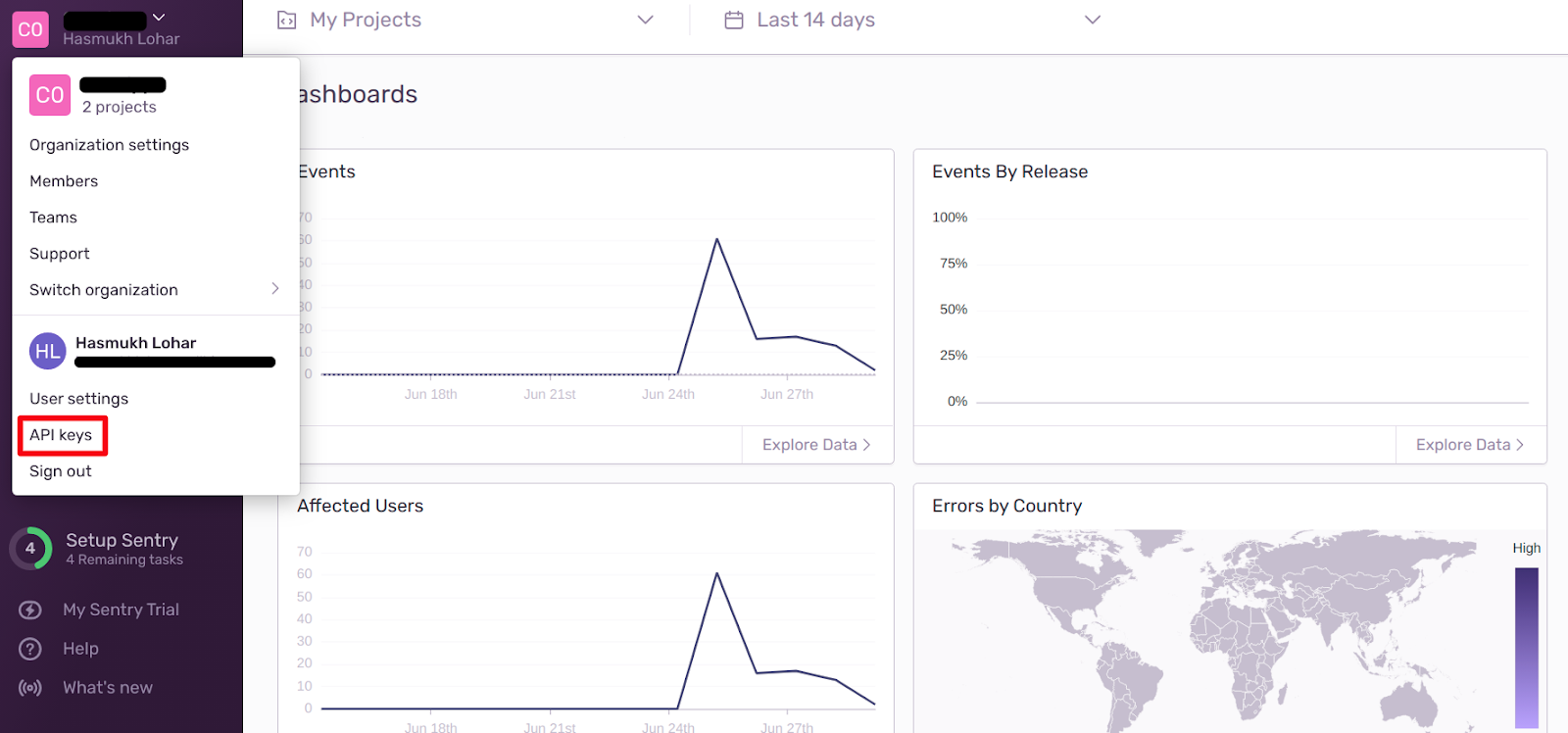
- Open API keys. Click your profile in the top-left corner and choose API keys.
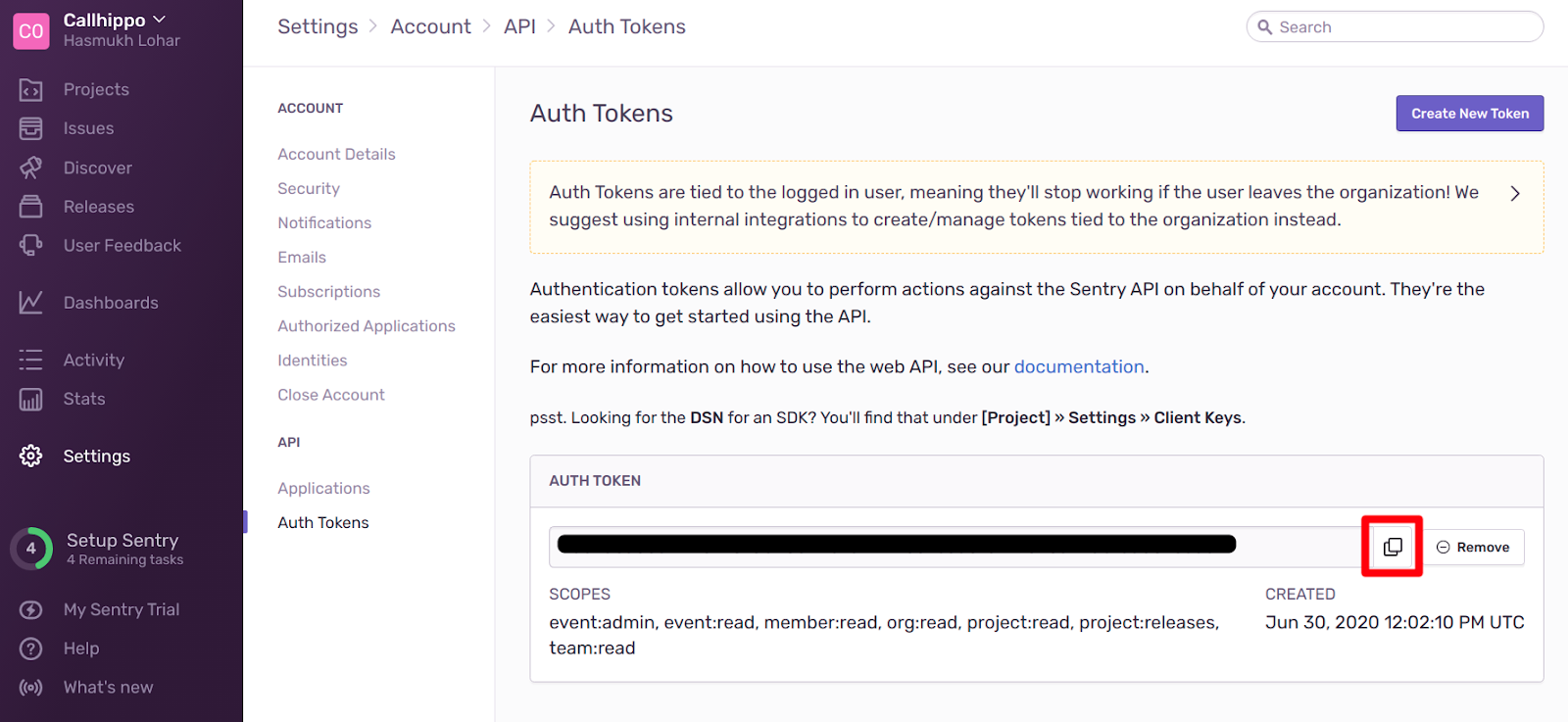
- Copy the Auth Token. On the Auth Tokens page, copy your token and keep it somewhere safe for the next step.
Step 2: Connect Sentry in CallHippo
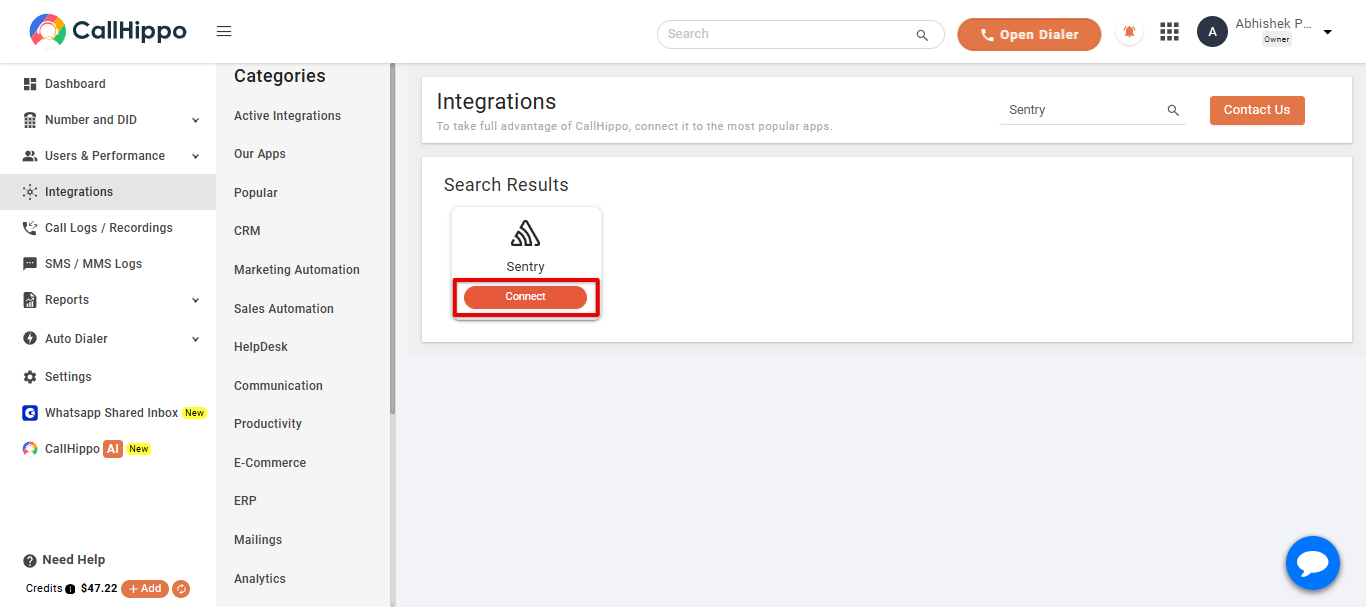
- Open Integrations. Log in to your CallHippo account and go to the Integrations tab, find Sentry, and click Connect.
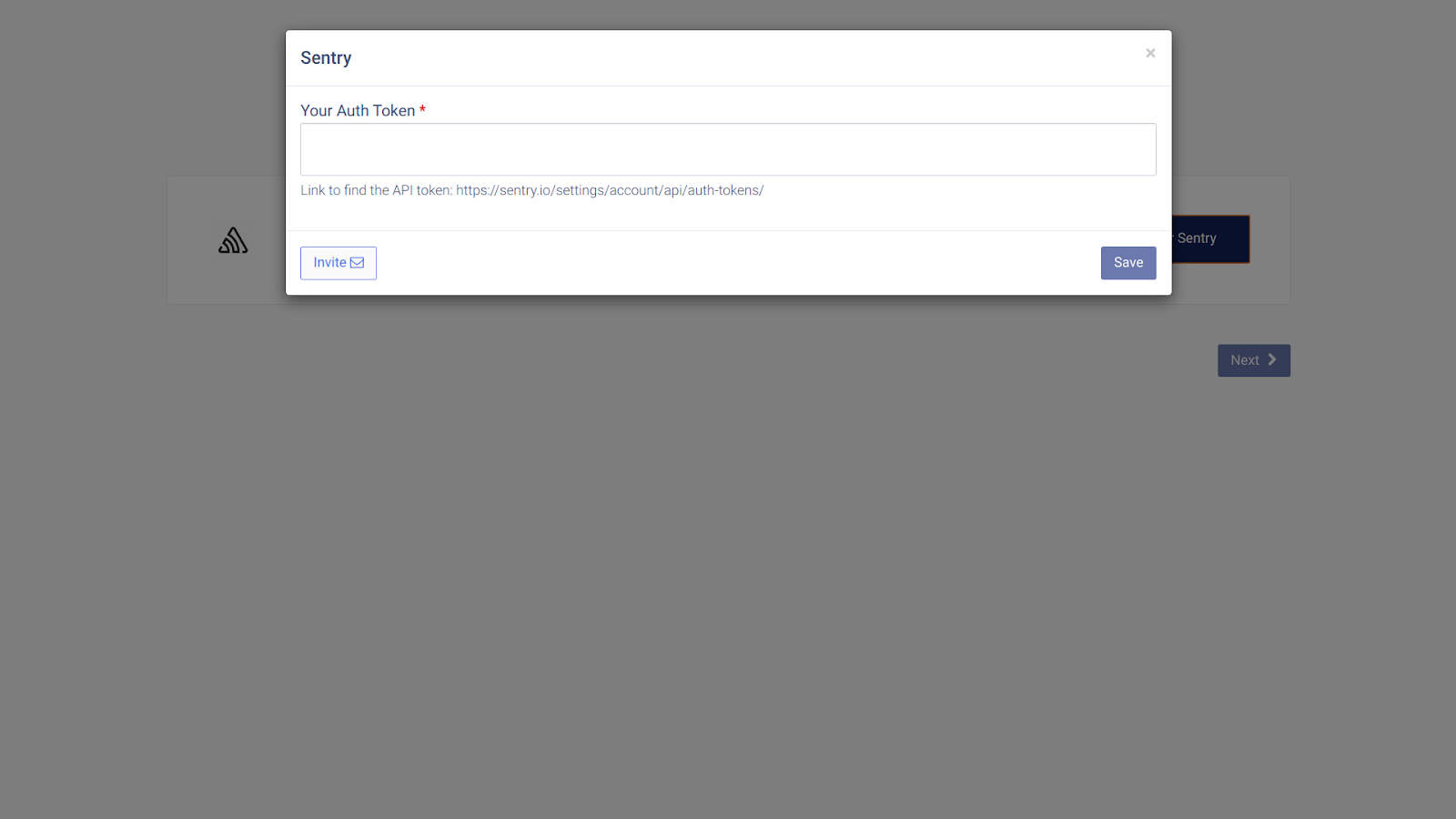
- Enter your Auth Token. Paste the Auth Token you copied earlier into the Your Auth Token field and click Save.
- Finish. After saving, you will be redirected back to your CallHippo account and the status will change to Integrated.
Frequently asked questions
Where do I find my Sentry Auth Token?
In Sentry, open your profile menu and select API keys, then go to the Auth Tokens page and copy the token shown there.
What if my status does not change to Integrated?
Double-check that the Auth Token was copied in full with no extra spaces, then save again. If it still fails, contact our support team.
Have trouble connecting Sentry? Email us at [email protected] and we will be glad to help.