
Linking Sellsy with CallHippo takes just a few clicks and lets you connect your Sellsy datasource so your calling and CRM data work together.
Before you begin
You will need an active CallHippo account and your Sellsy login credentials. The connection is done entirely through CallHippo’s Integrations page — no code required.
Connect Sellsy in CallHippo
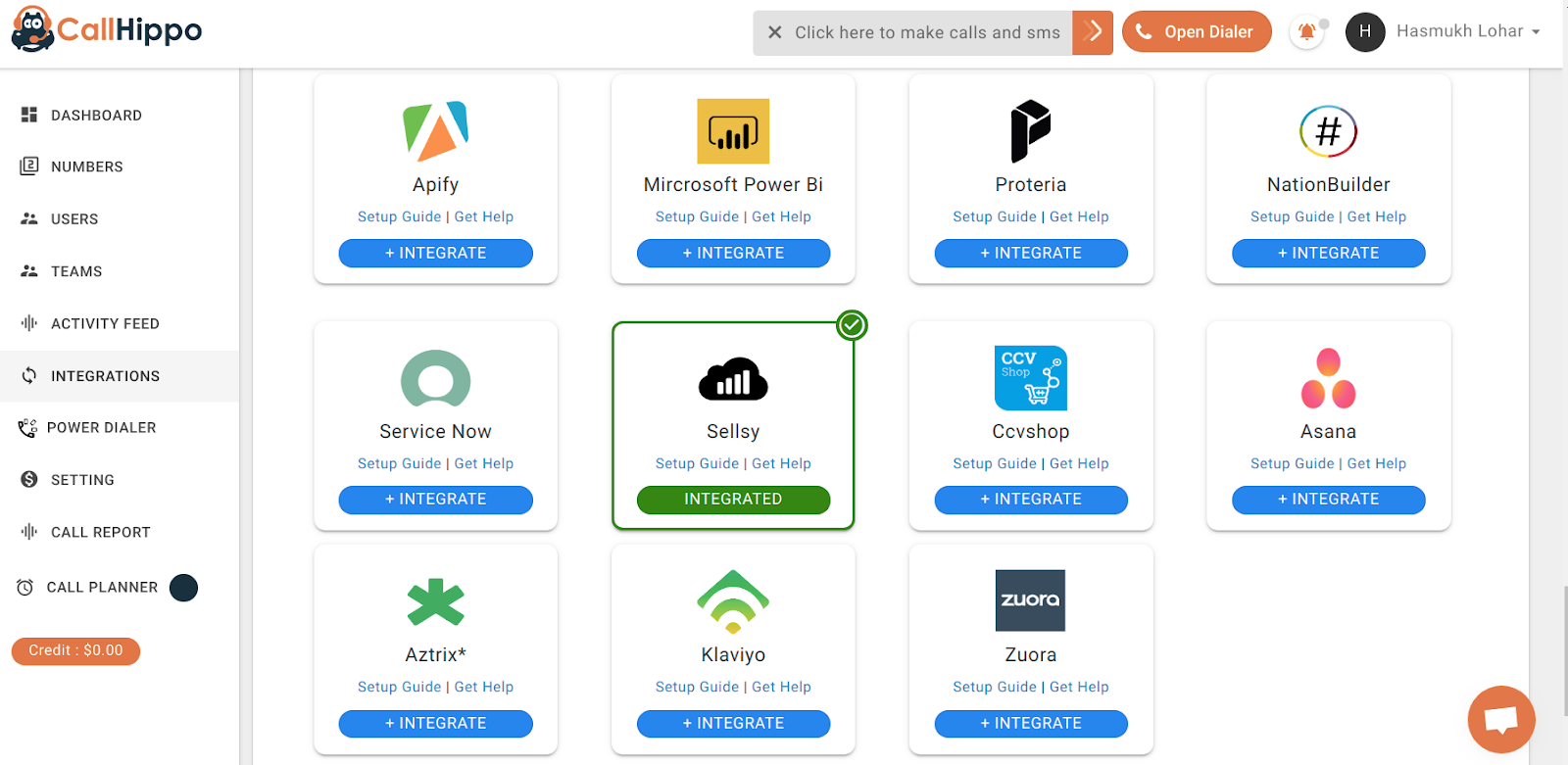
- Open Integrations. Log in to your CallHippo account, click Integrations in the left sidebar, find Sellsy and click Integrate.
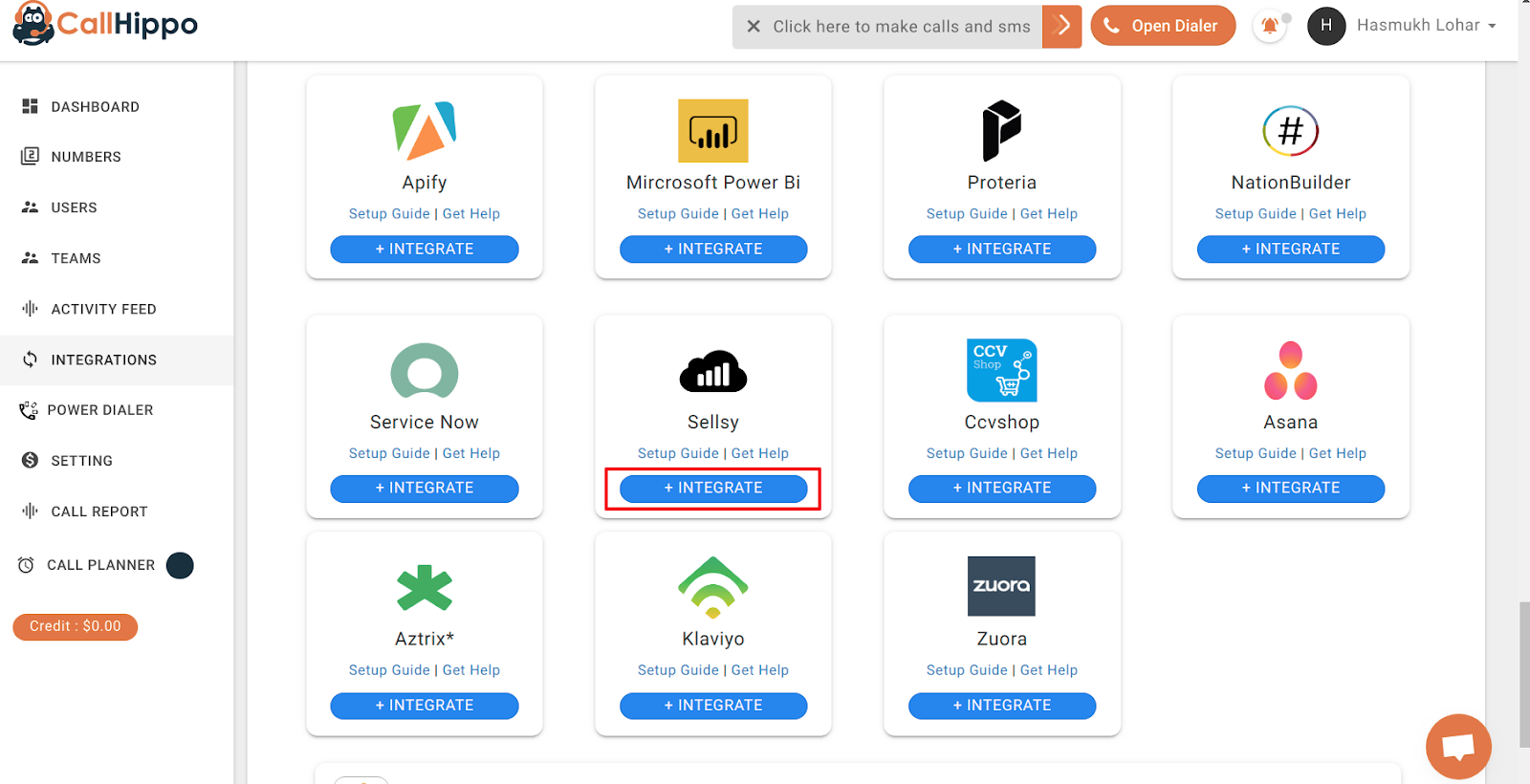
- Start the connection. On the setup page, click Connect your Sellsy.
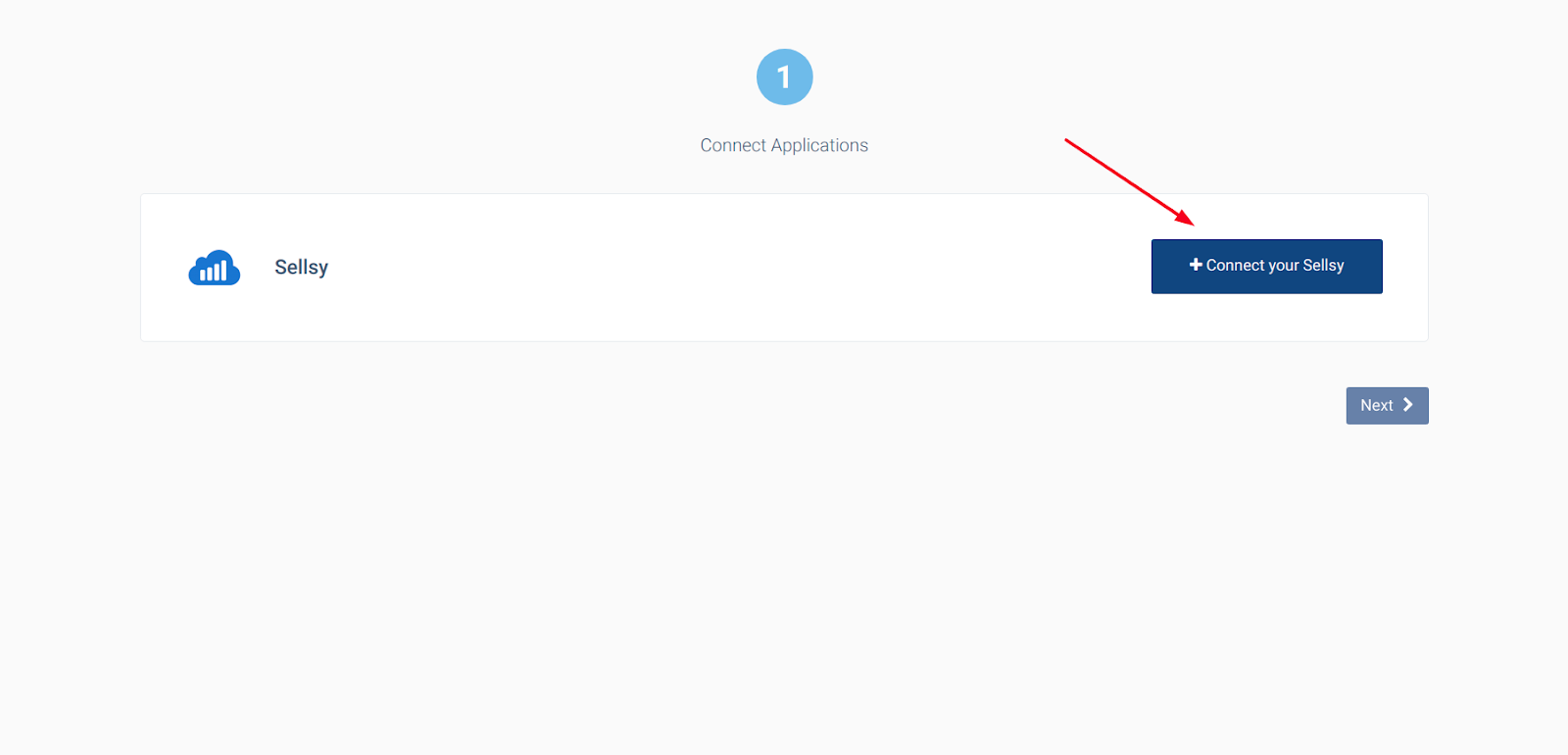
- Link the datasource. Click Link datasource in the popup that appears.
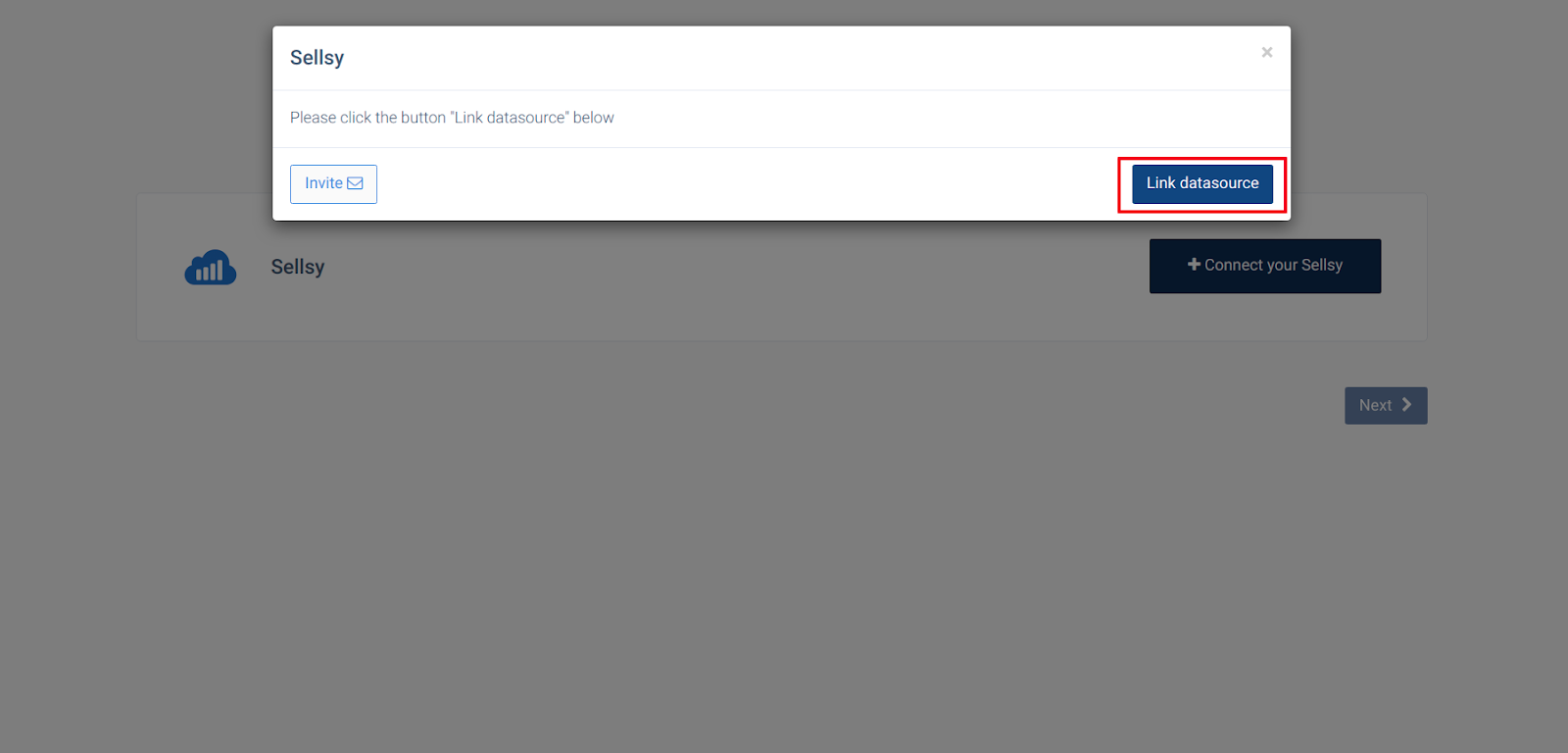
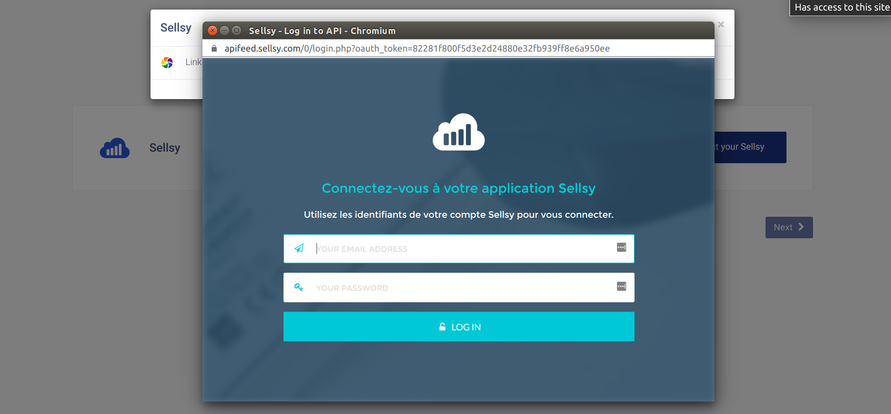
- Sign in to Sellsy. You are redirected to the Sellsy login page. Enter your Sellsy username and password and click Log In.
- Confirm the link. When the popup shows Datasource is linked, click Ok.
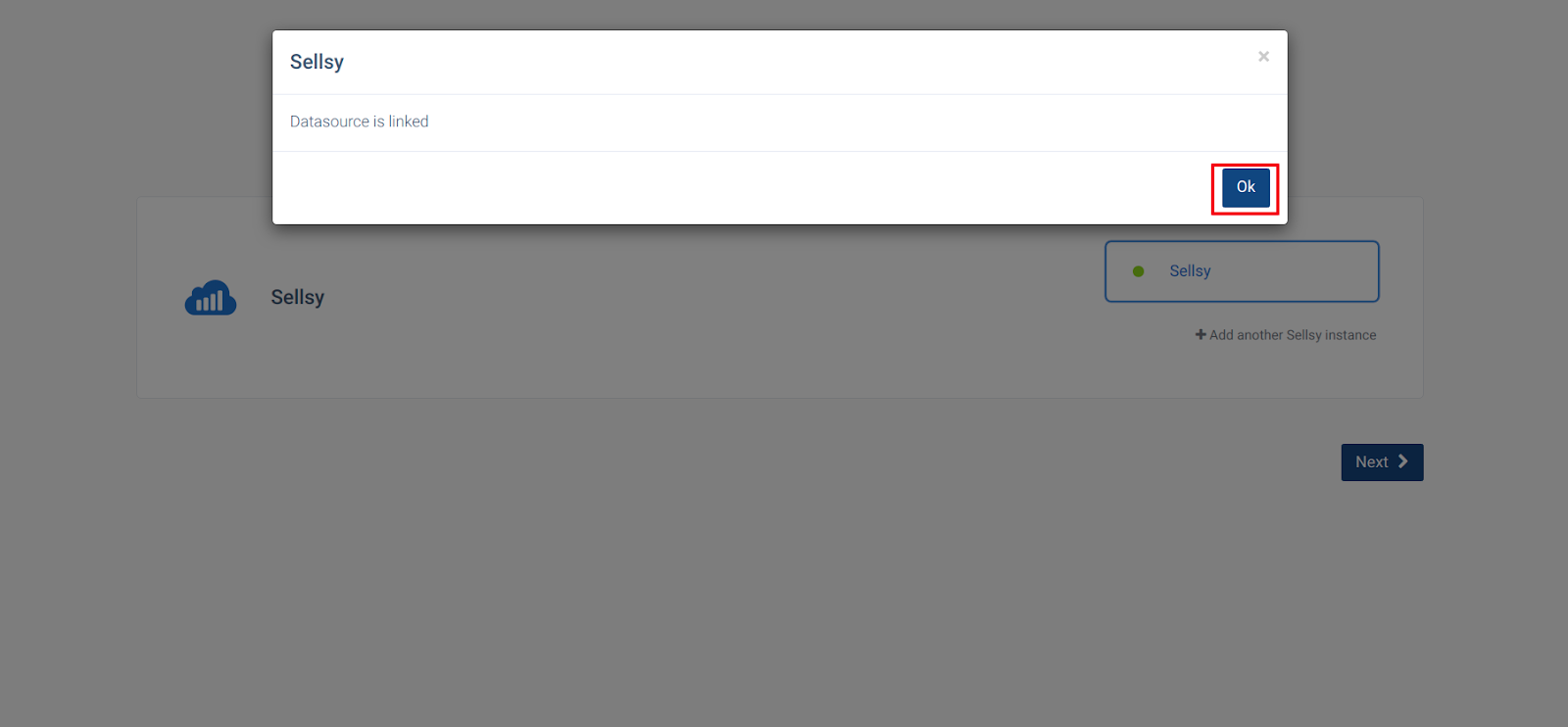
- Finish. Click Next. You are taken back to your CallHippo account and the status changes to Integrated.
Frequently asked questions
Do I need admin access in Sellsy to connect it?
You need to sign in with a Sellsy account that can authorise the datasource link. If you are unsure, use an administrator account.
How do I know the integration is active?
Once connected, Sellsy appears with an Integrated status on the CallHippo Integrations page.
Having trouble linking Sellsy? Our team is happy to help at [email protected].