
Linking Aztrix with CallHippo connects your business contact data to your dialer, so your Aztrix records and calling activity stay in sync.
Connect Aztrix to CallHippo
- Log in to your CallHippo account.
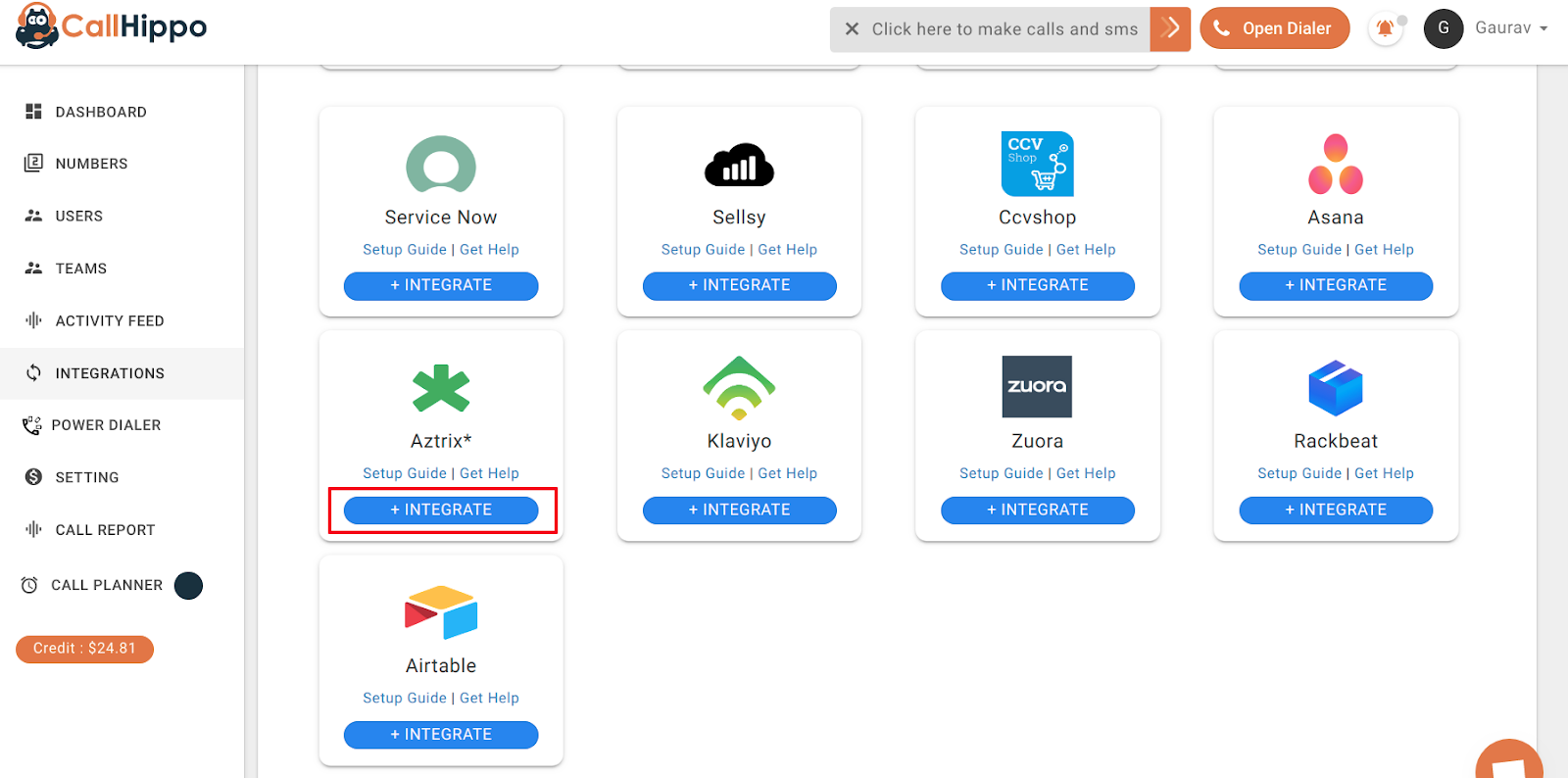
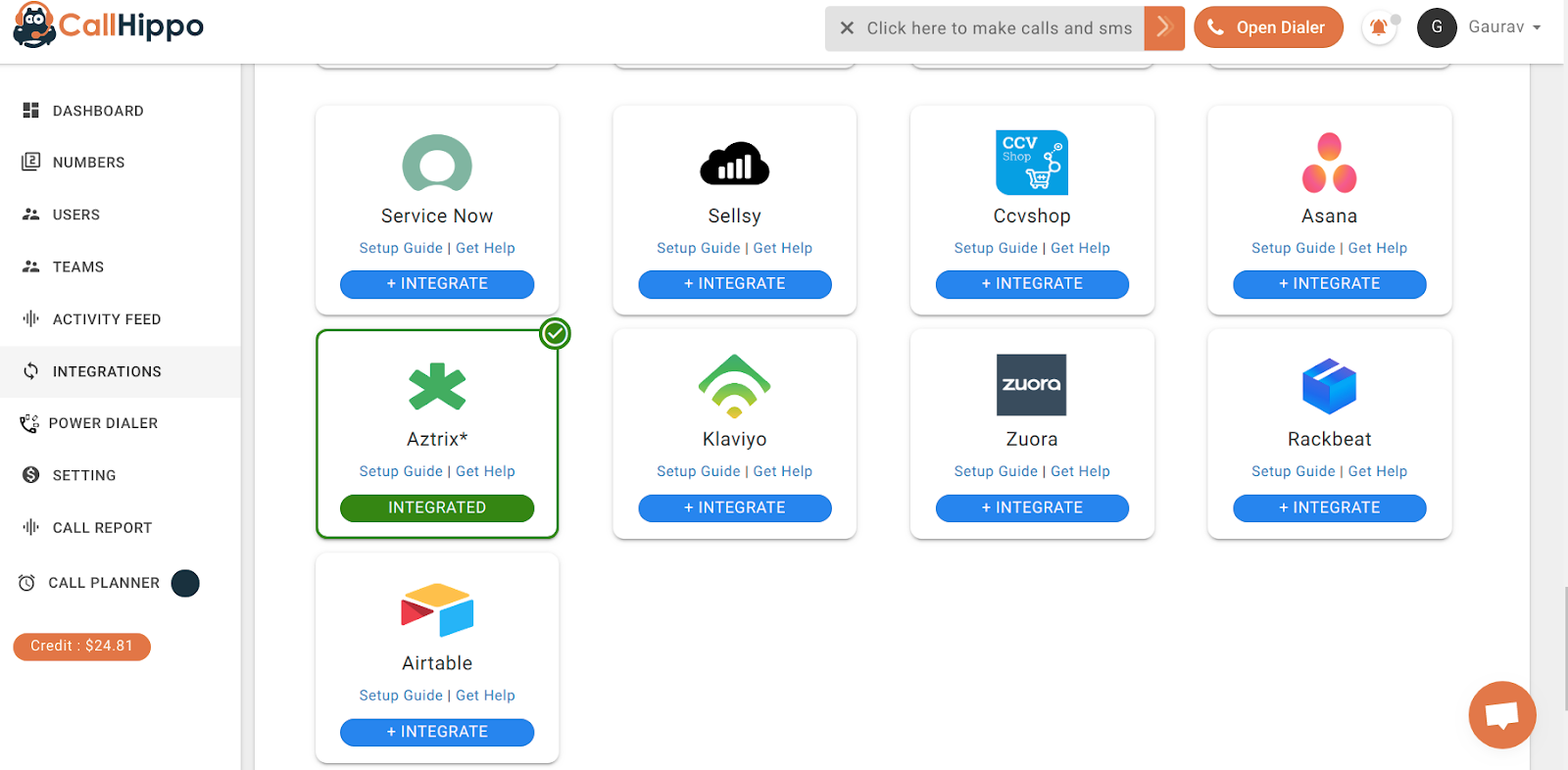
- From the left sidebar of your dashboard, open Integrations.
- Find Aztrix and click Integrate.
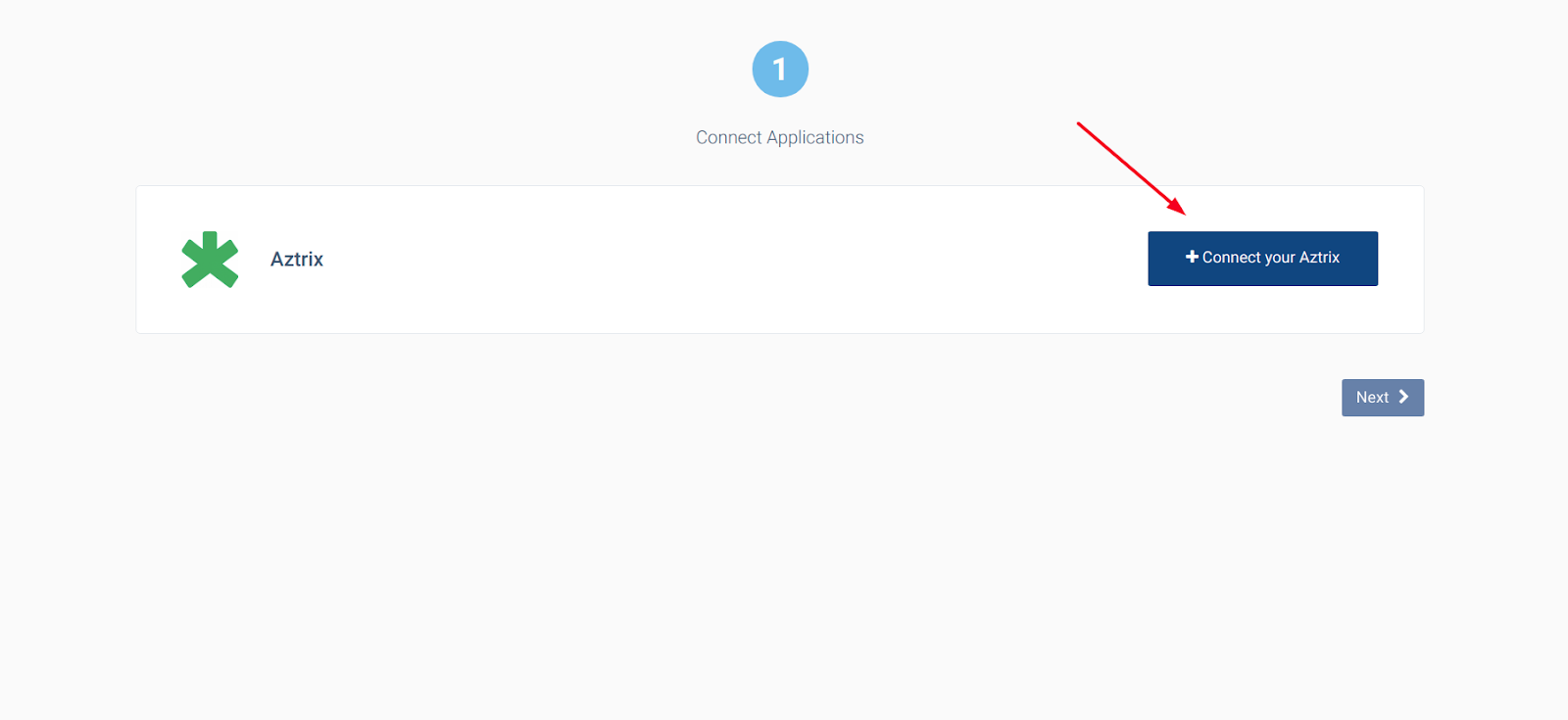
- You are taken to the setup page. Click the Connect your Aztrix button.
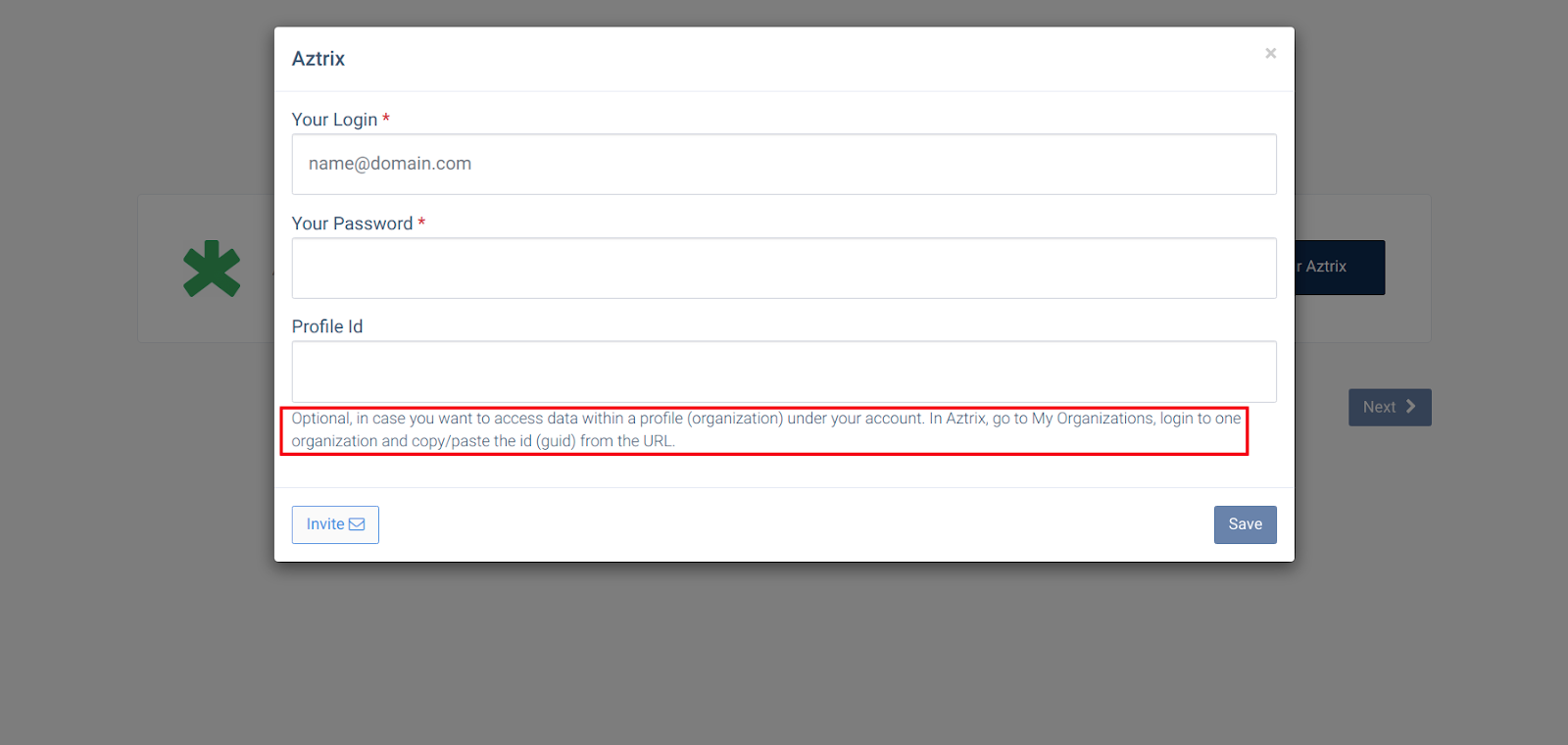
Enter your Aztrix credentials
- Enter your Aztrix email and password.
- Profile ID (optional): only needed if you want to access data within a specific profile (organization) under your account. In Aztrix, go to My Organizations, open one organization, and copy the ID (GUID) from the URL.
- Once your details are accepted, you will see Datasource is linked. Click Ok.
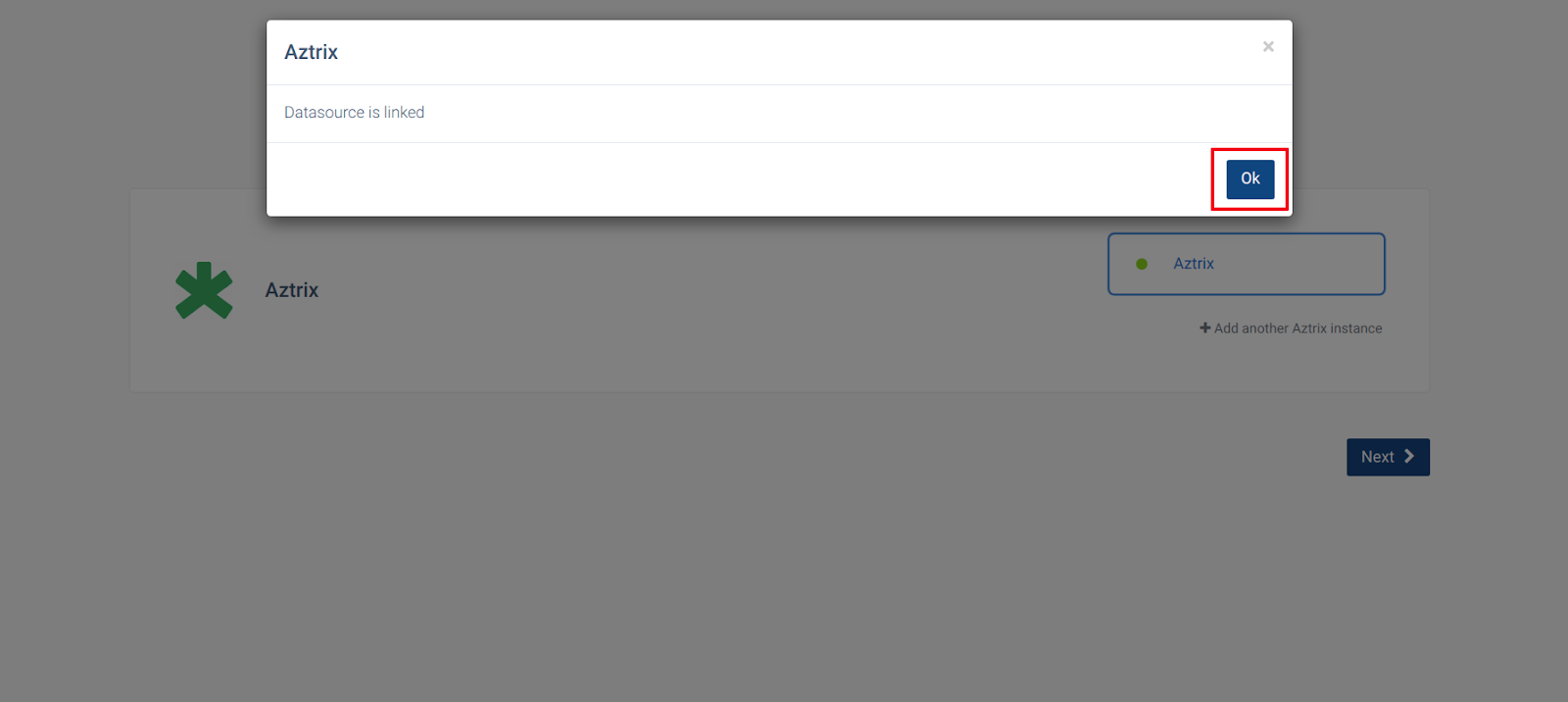
- Click Next. You are redirected back to CallHippo and the status changes to Integrated.
Confirm the integration
Back on the Integrations page, the Aztrix card shows an Integrated badge, confirming the connection is active.
FAQ
Is the Profile ID field required?
No. It is optional and only needed if you want to work with a specific organization profile under your Aztrix account.
Where do I find my Aztrix Profile ID?
In Aztrix, open My Organizations, log in to an organization, and copy the ID (GUID) shown in the URL.
Need help connecting Aztrix? Reach out to us at [email protected] and we will get you set up.