
Connecting Re:amaze with CallHippo lets you place calls to your helpdesk contacts in one click and automatically log every call and SMS as a conversation, so all customer communication stays in one place.
Set up your Re:amaze account
Before you connect the integration, make sure you have at least one contact and a personal API token ready in Re:amaze.
- Log in to your Re:amaze account.
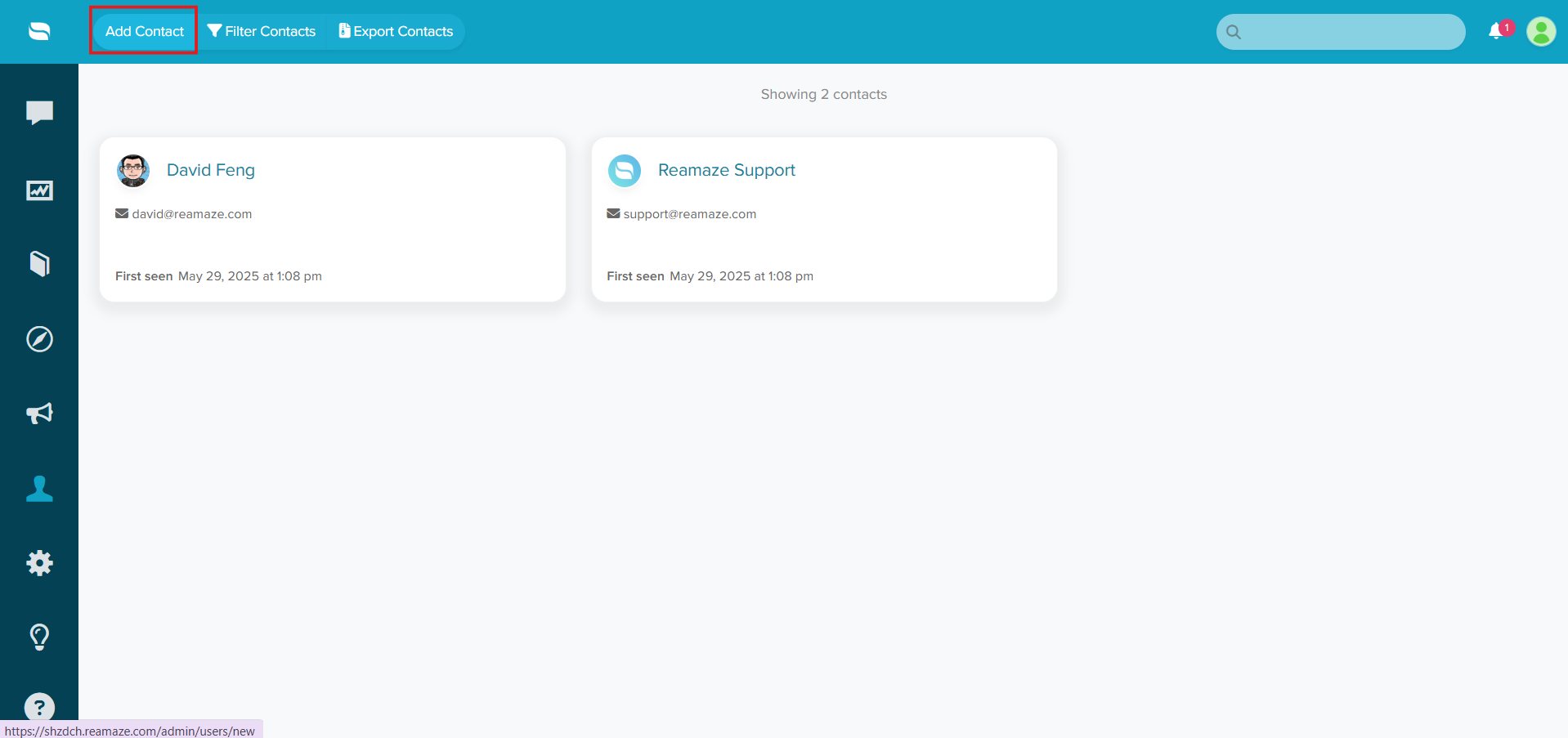
- Open the Contacts section from the left-hand bar.
- Click Add Contact at the top of the page.
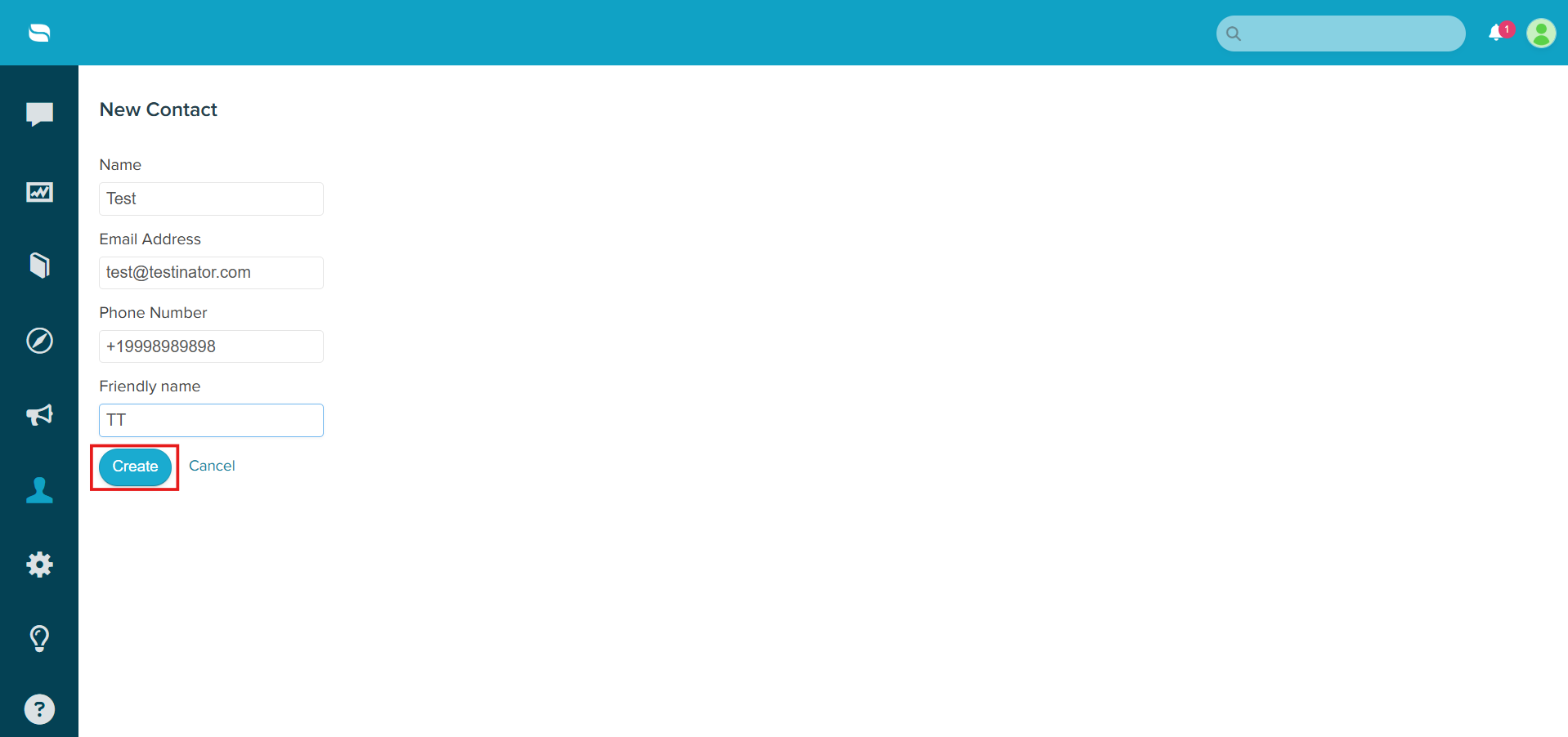
- Enter the contact’s name, mobile number and email address, then click Create. Your contact is now saved.
Generate your Re:amaze access token
CallHippo needs a Re:amaze API token to authenticate the connection.
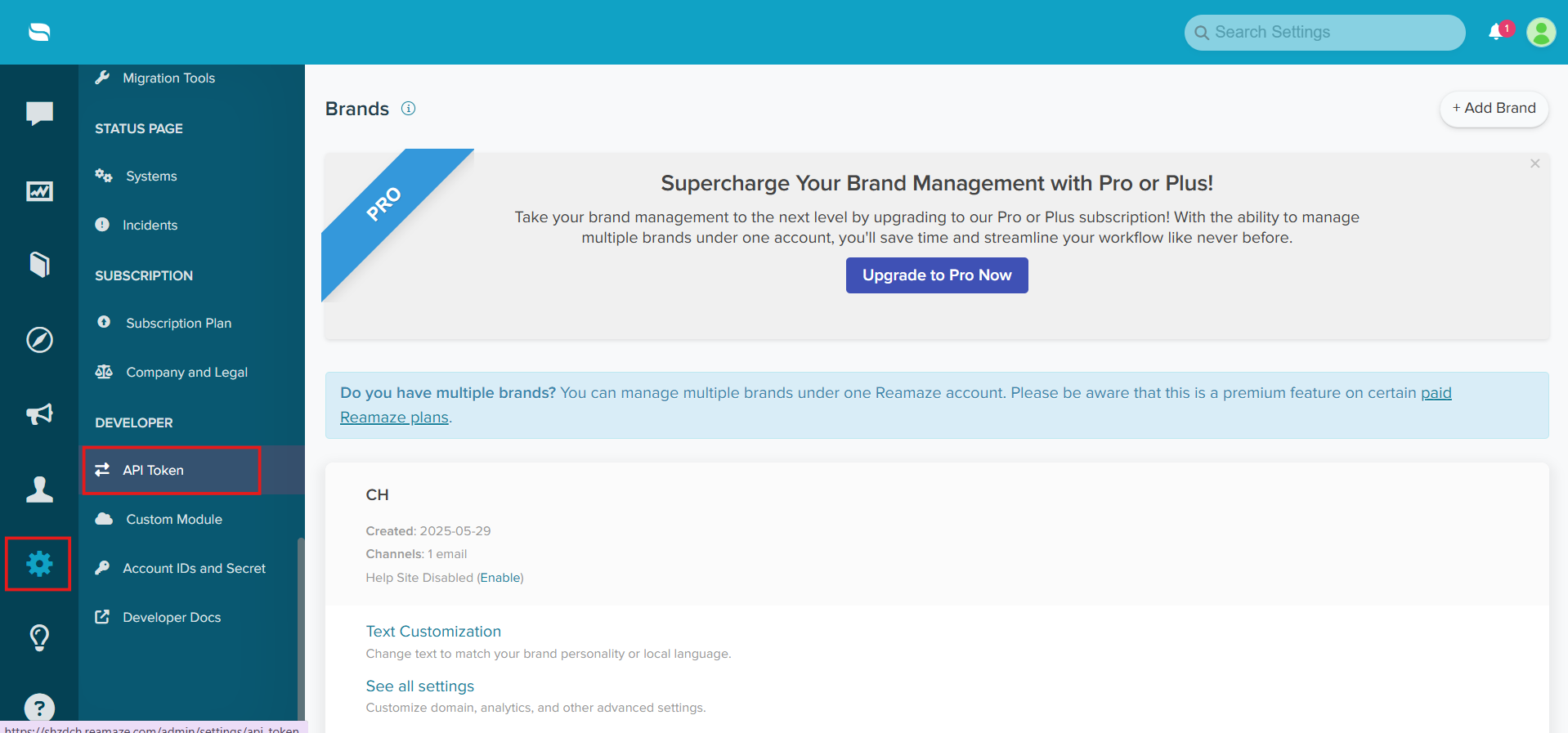
- Click the Settings (gear) icon, then open API Token under the Developer section.
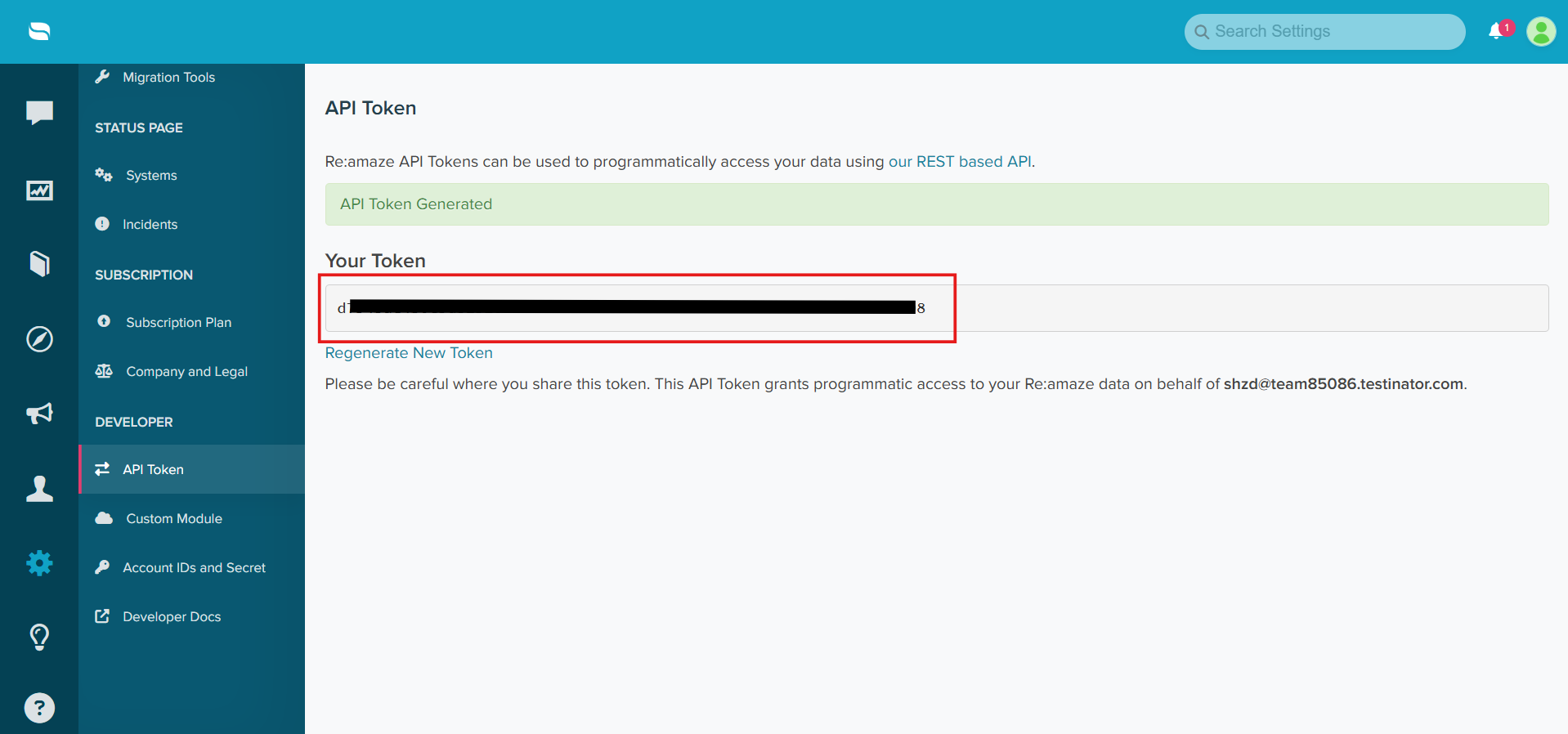
- Click Generate New Token to create a unique token.
- Copy the token and keep it handy. You will paste it into CallHippo in the next section.
Connect Re:amaze in CallHippo
- Log in to your CallHippo account.
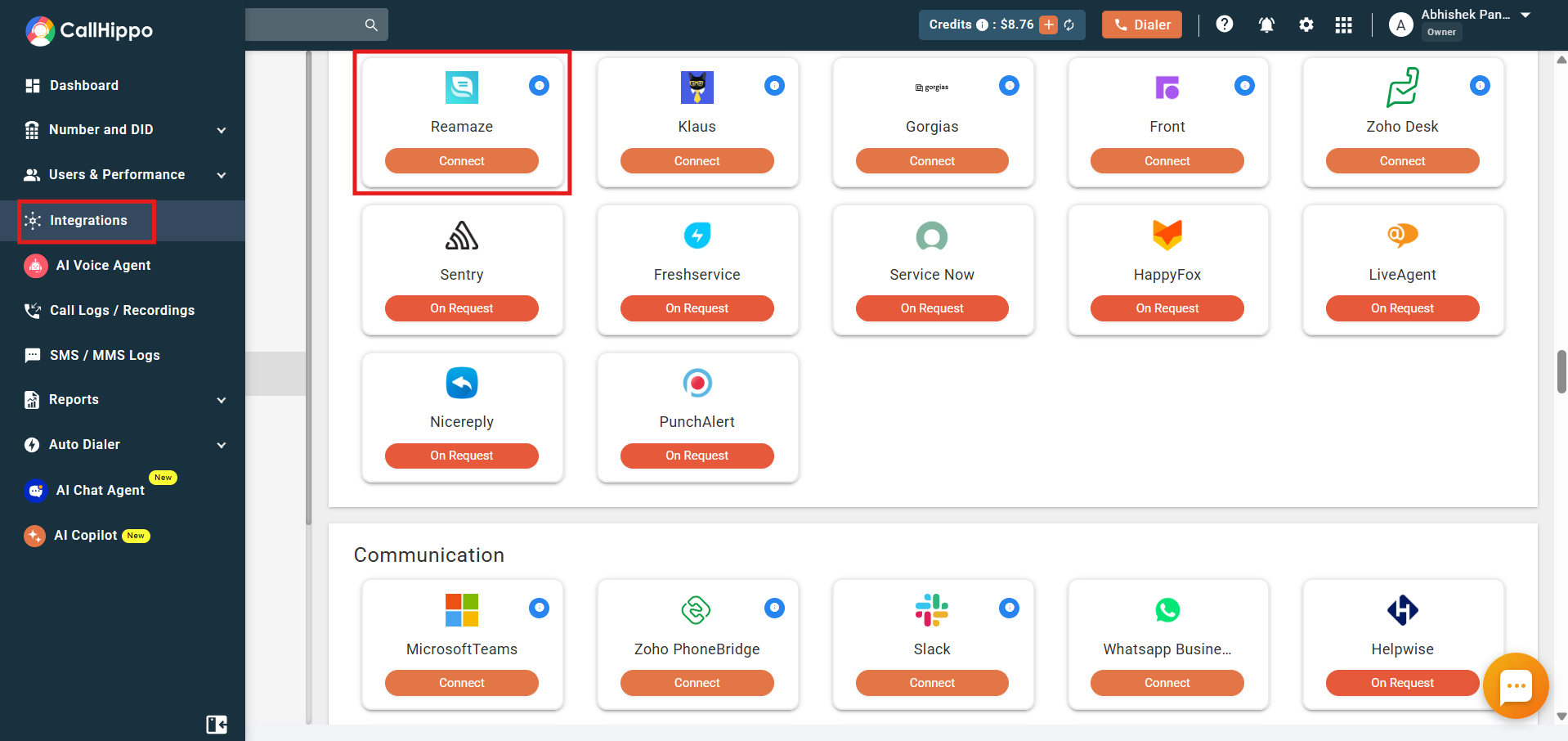
- From the left sidebar of your dashboard, click Integrations.
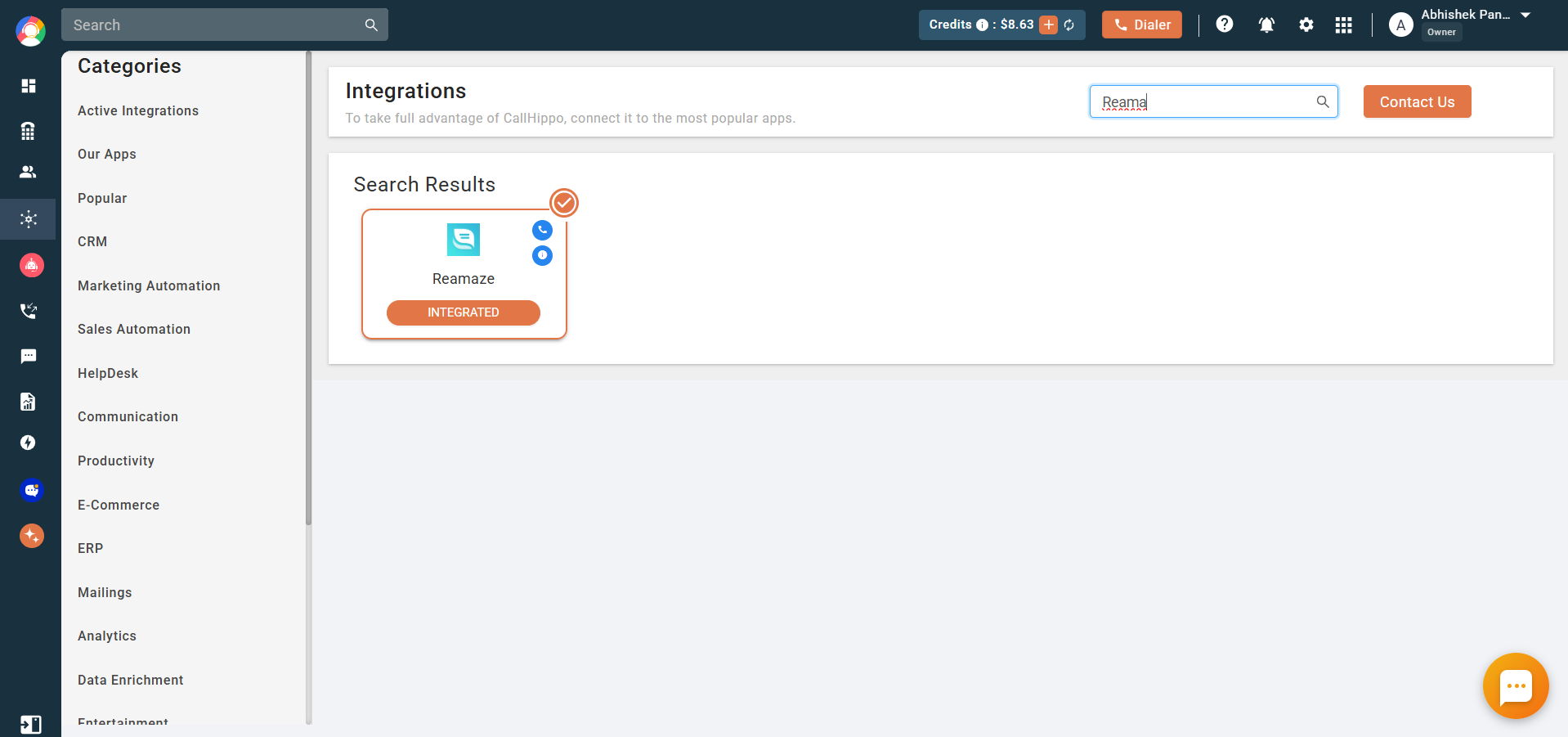
- Find Reamaze and click Connect.
- A setup popup opens asking for your access token, brand name and Re:amaze email.
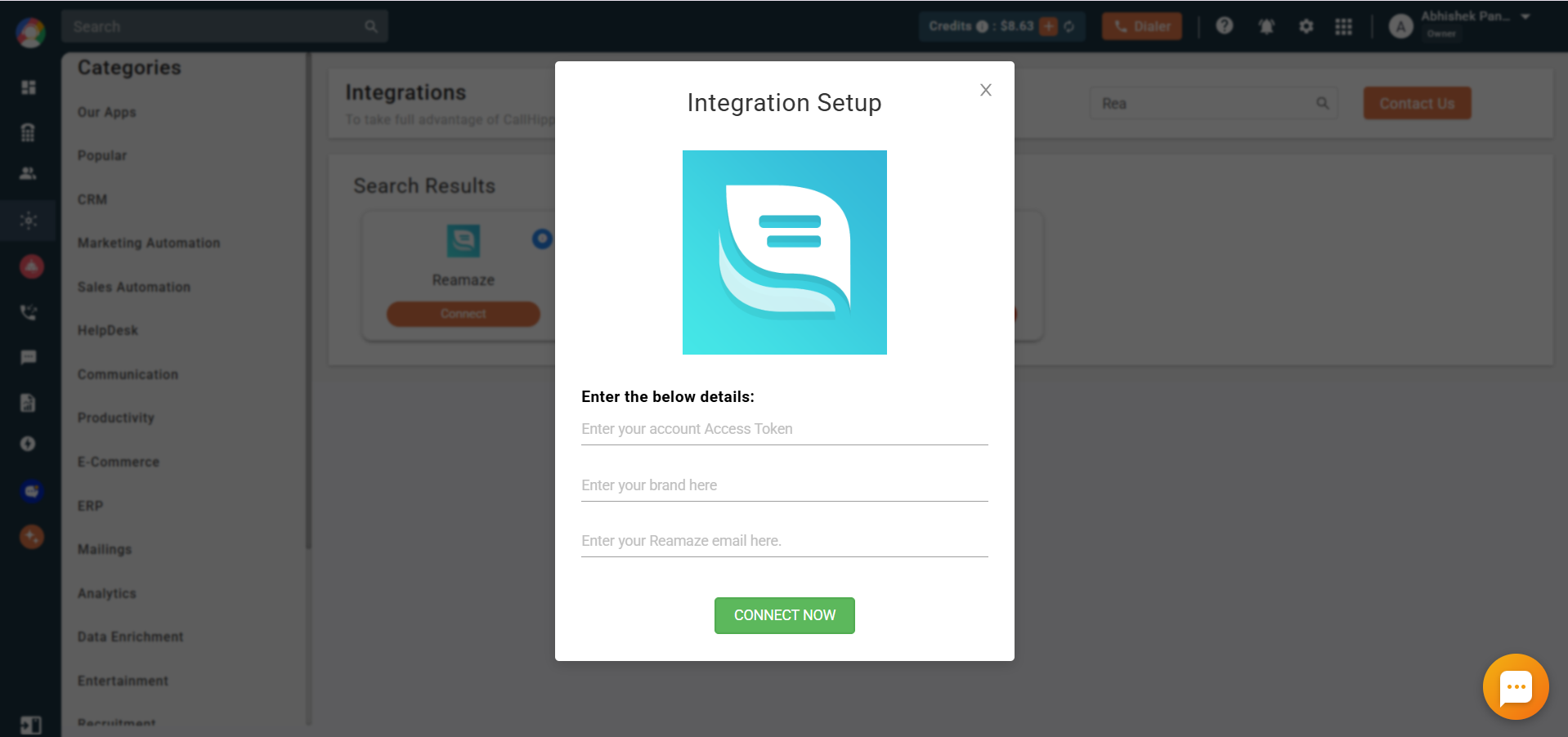
- Paste the access token you copied earlier.
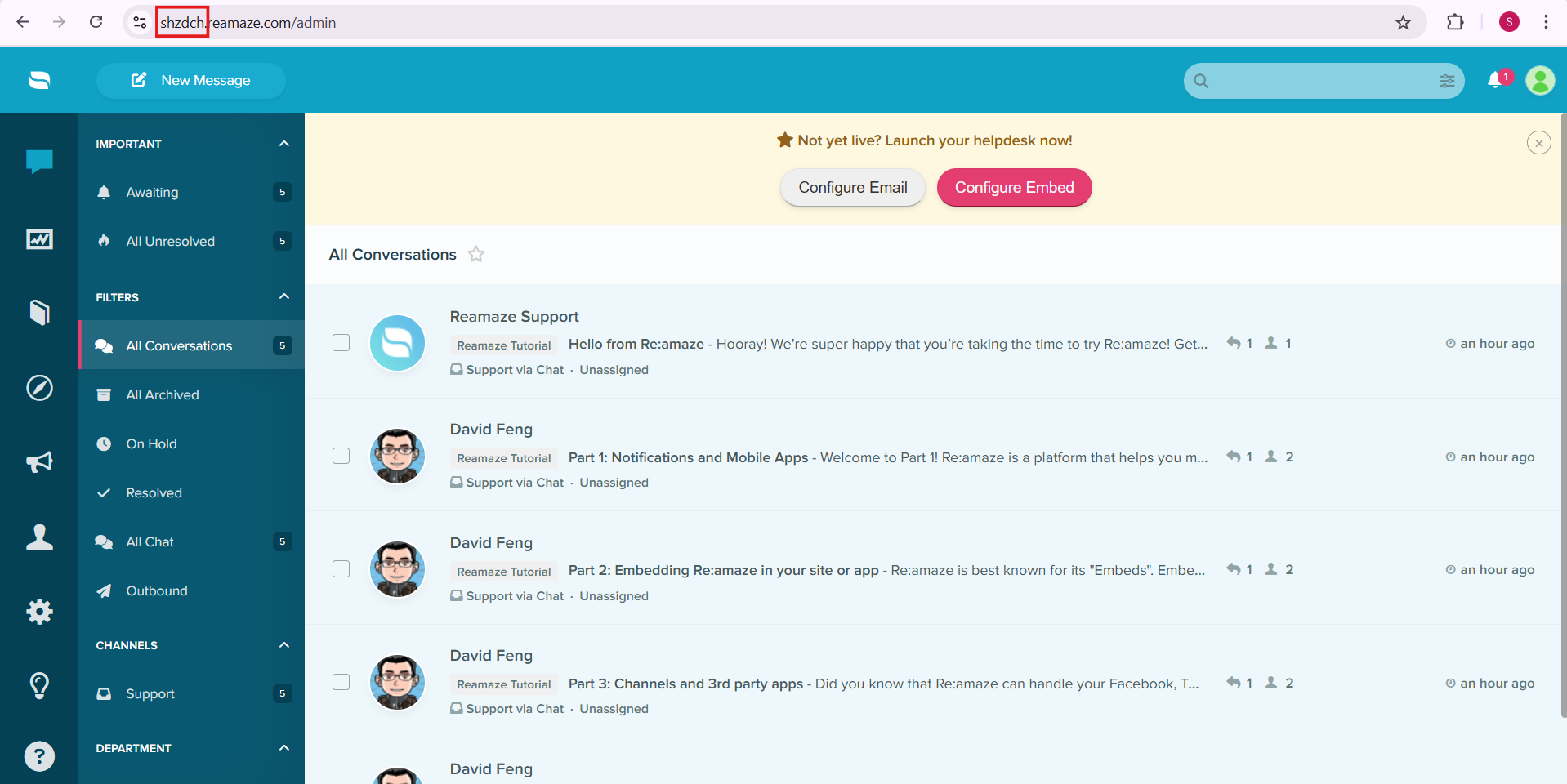
- Open your Re:amaze account and look at the browser URL bar. Your brand name is the value shown before .reamaze.com — copy it.
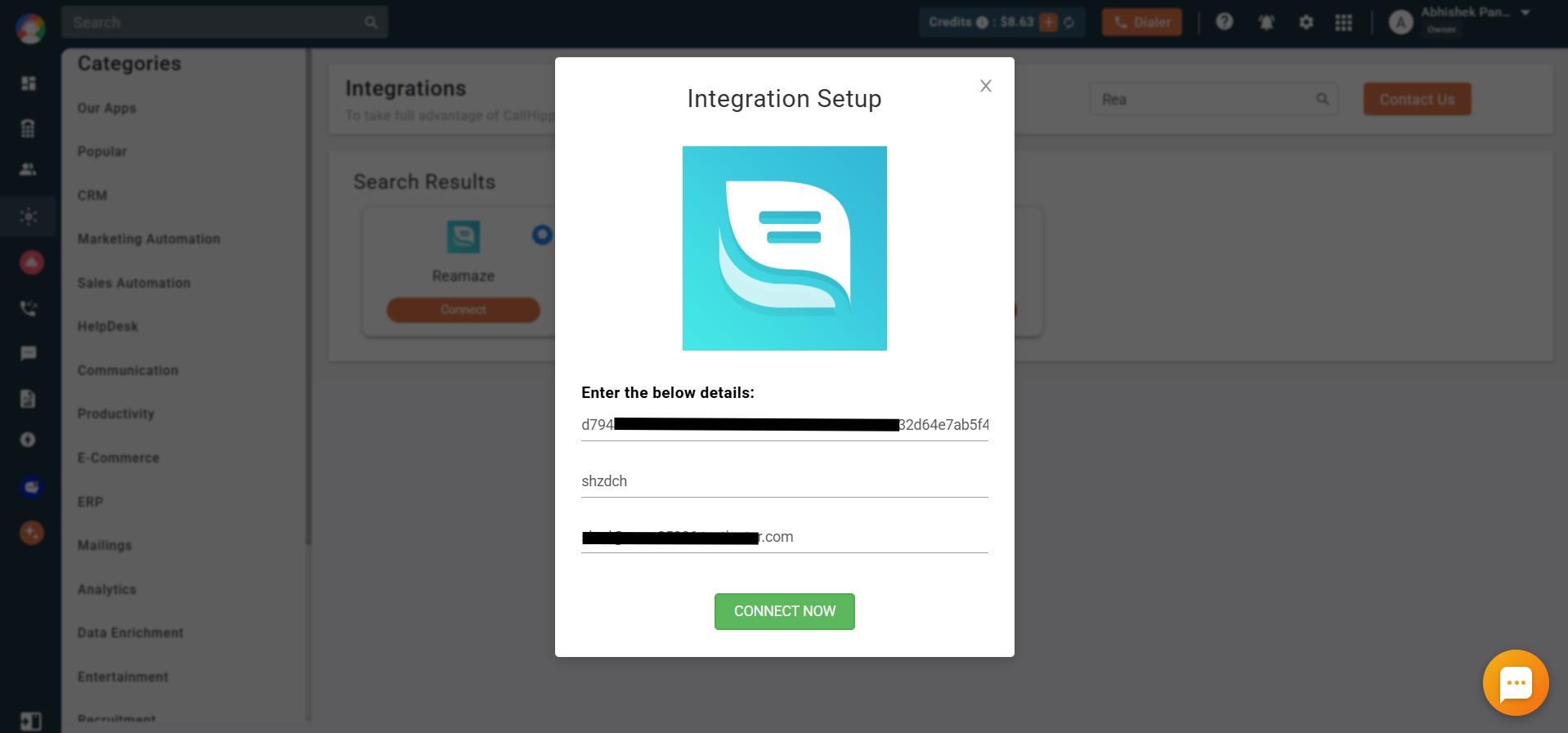
- Paste that value into Enter your brand name, add the email address of your Re:amaze account, and click Connect Now.
- That’s it — the card now shows an Integrated status.
Enable Click-to-Call
To dial Re:amaze contacts directly from your browser, install the CallHippo Click-to-Call Chrome extension from the Chrome Web Store.
What the integration does
- Contact sync: Existing Re:amaze contacts that have a phone number are synced to CallHippo the moment a Click-to-Call action is performed on them.
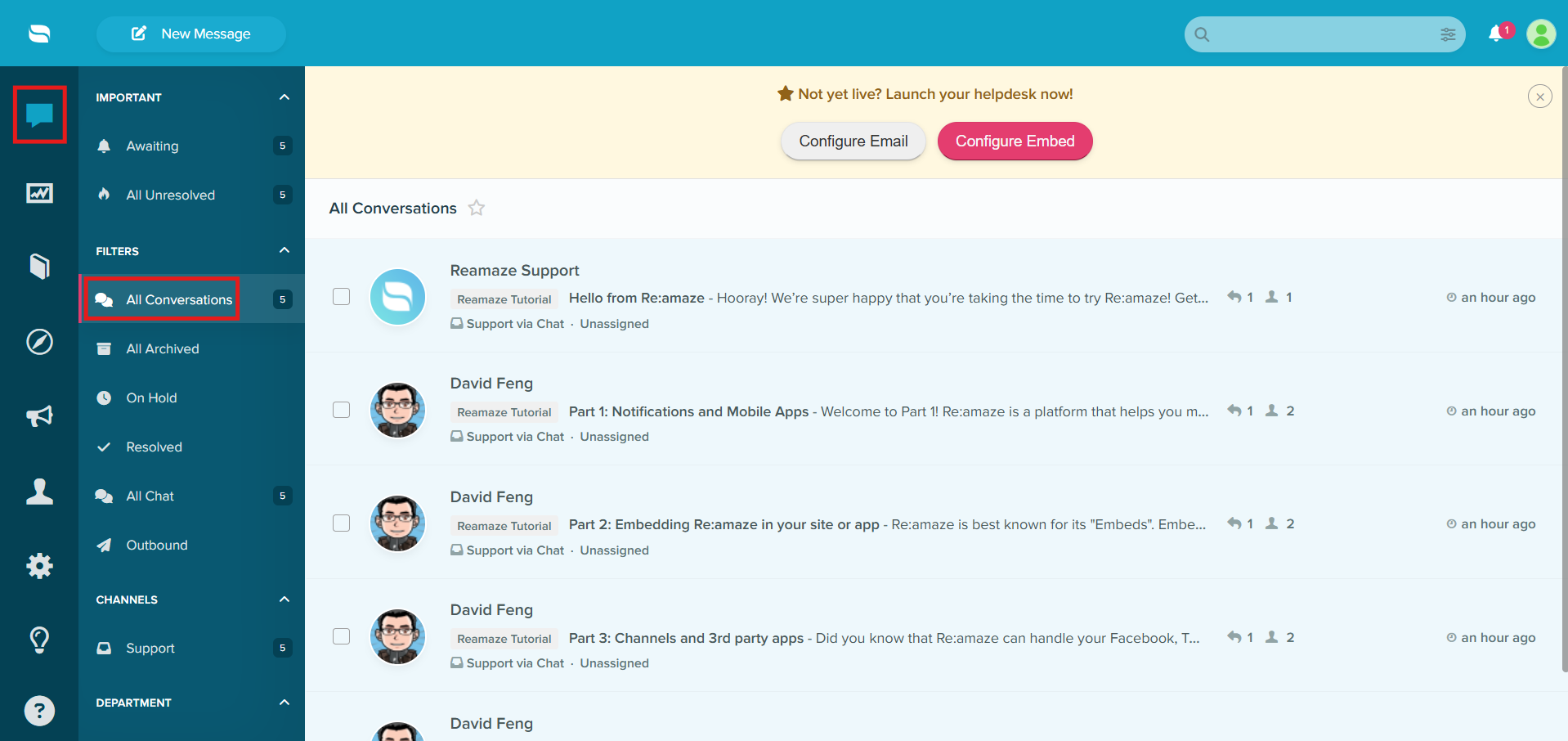
- Call and SMS logging: CallHippo creates a new conversation in your Re:amaze account for every call or SMS made through the CallHippo dialer.
Frequently asked questions
Do my Re:amaze contacts sync automatically?
They sync when you perform a Click-to-Call action on a contact that has a phone number, rather than in a one-time bulk import.
Where can I find my brand name?
It is the subdomain shown before .reamaze.com in your Re:amaze URL — for example, the highlighted value in your browser’s address bar.