
Connecting Confluence with CallHippo lets you tie your call data into your team’s knowledge base so outcomes and notes stay in one place.
You’ll create an API token in your Atlassian account, note a couple of details, then connect it in CallHippo. Follow the steps in order.
Create an API token in Atlassian
- Log in to your Confluence (Atlassian) account.
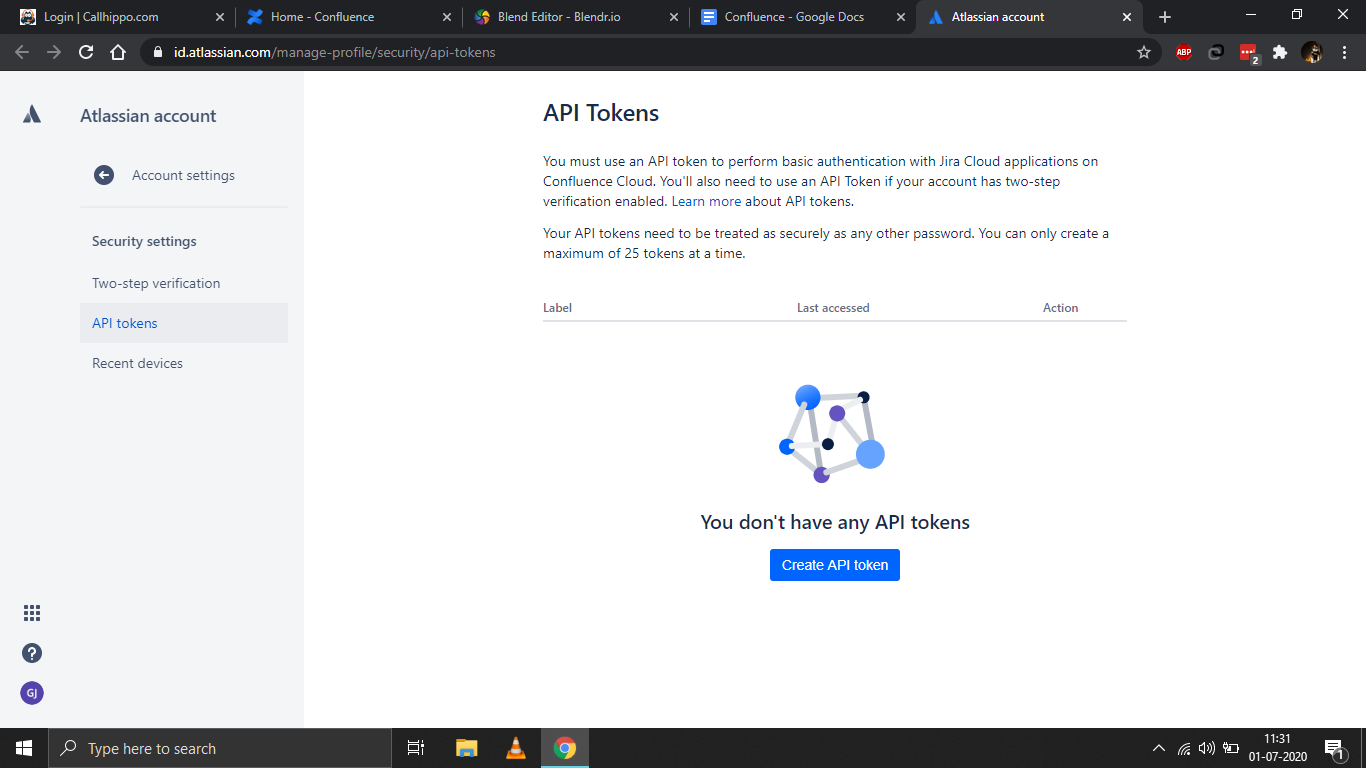
- Open the API tokens page in a new tab: https://id.atlassian.com/manage/api-tokens, then click Create API token.
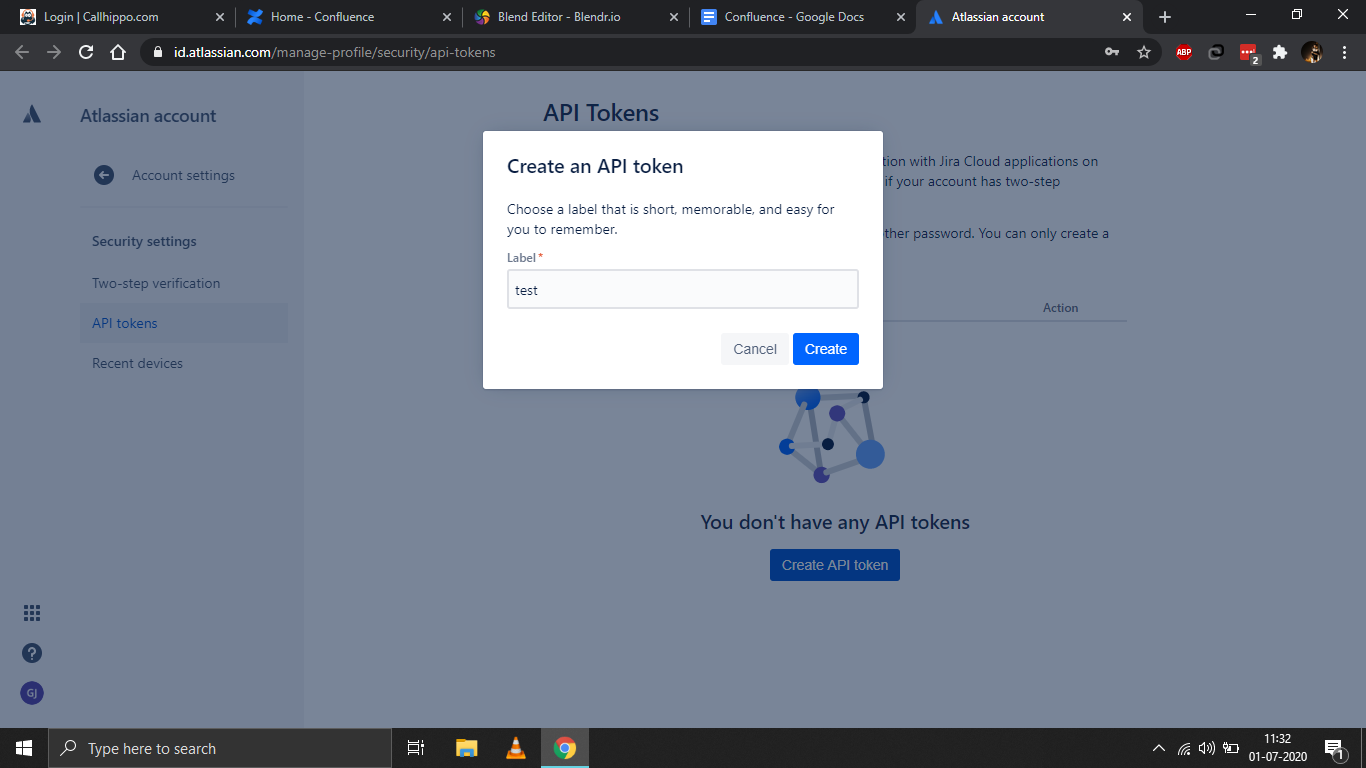
- Enter a label (any name you’ll remember) and click Create.
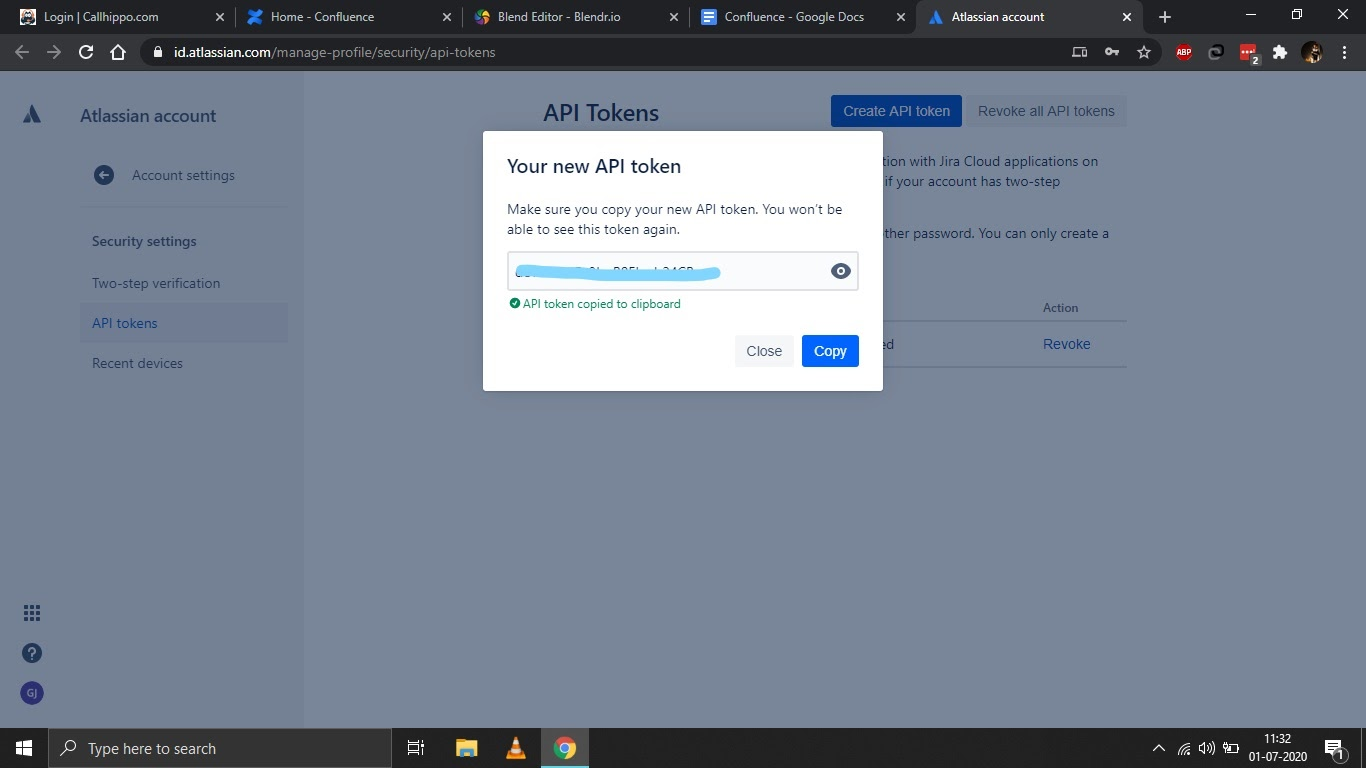
- Copy and save the API token. You won’t be able to see it again after closing the dialog.
- Note your domain and email. Your domain is the part in your Confluence URL — for example, in https://callhippo.atlassian.com the domain is callhippo.atlassian.com. Also note the email address you use for your Confluence account.
Connect Confluence in CallHippo
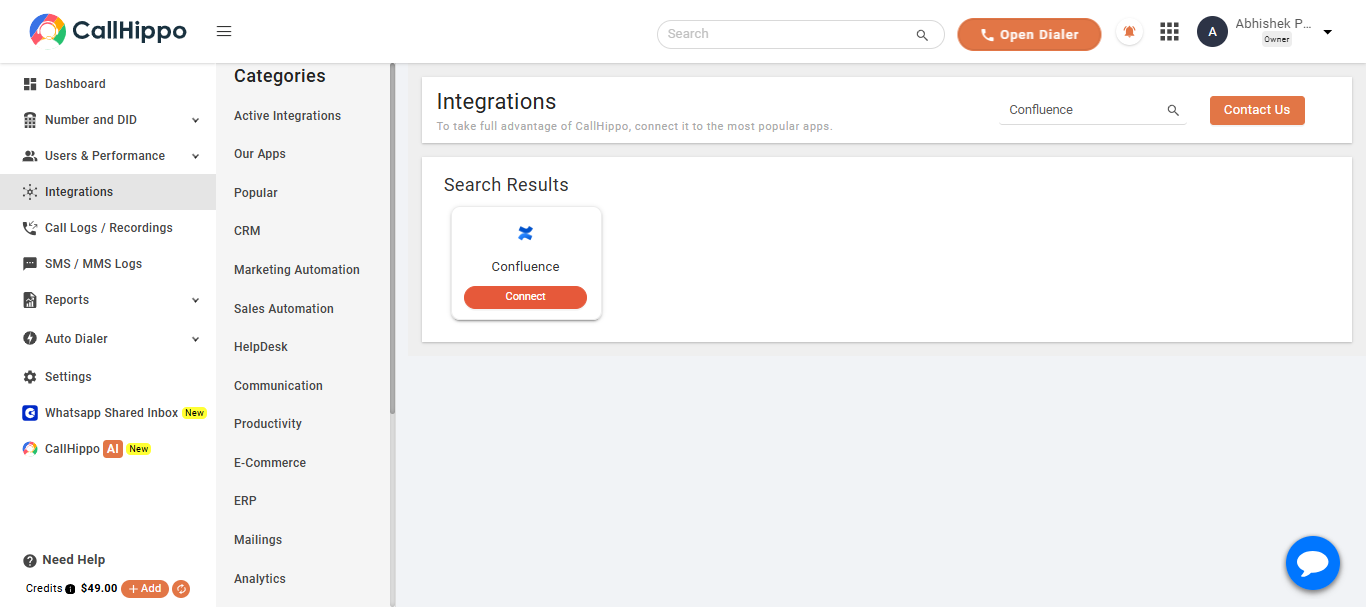
- Log in to CallHippo and open the Integrations tab, then find Confluence and click Connect.
- Enter the details you noted: your Domain, your account email in the User field, and the API Token. Then click Save.
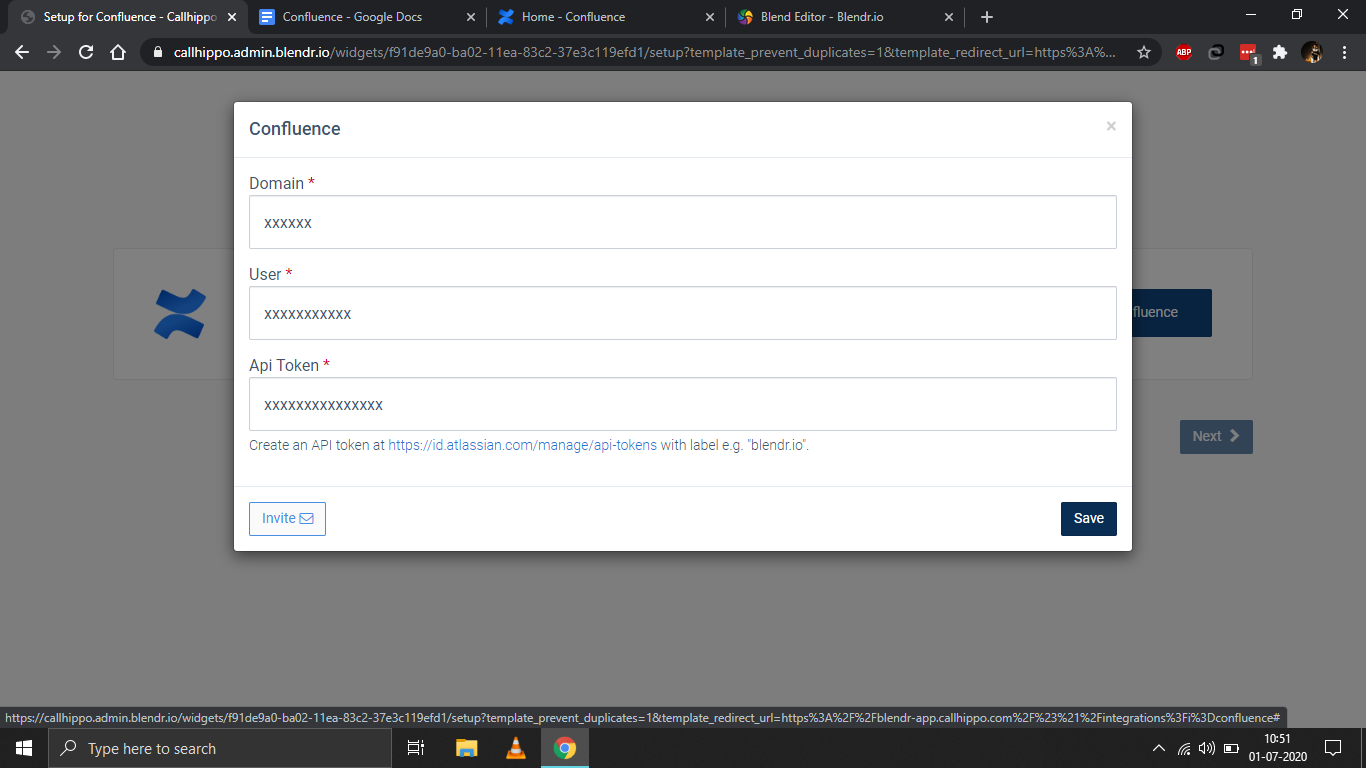
- You should see “Datasource is linked.” Click Ok, then click Next.
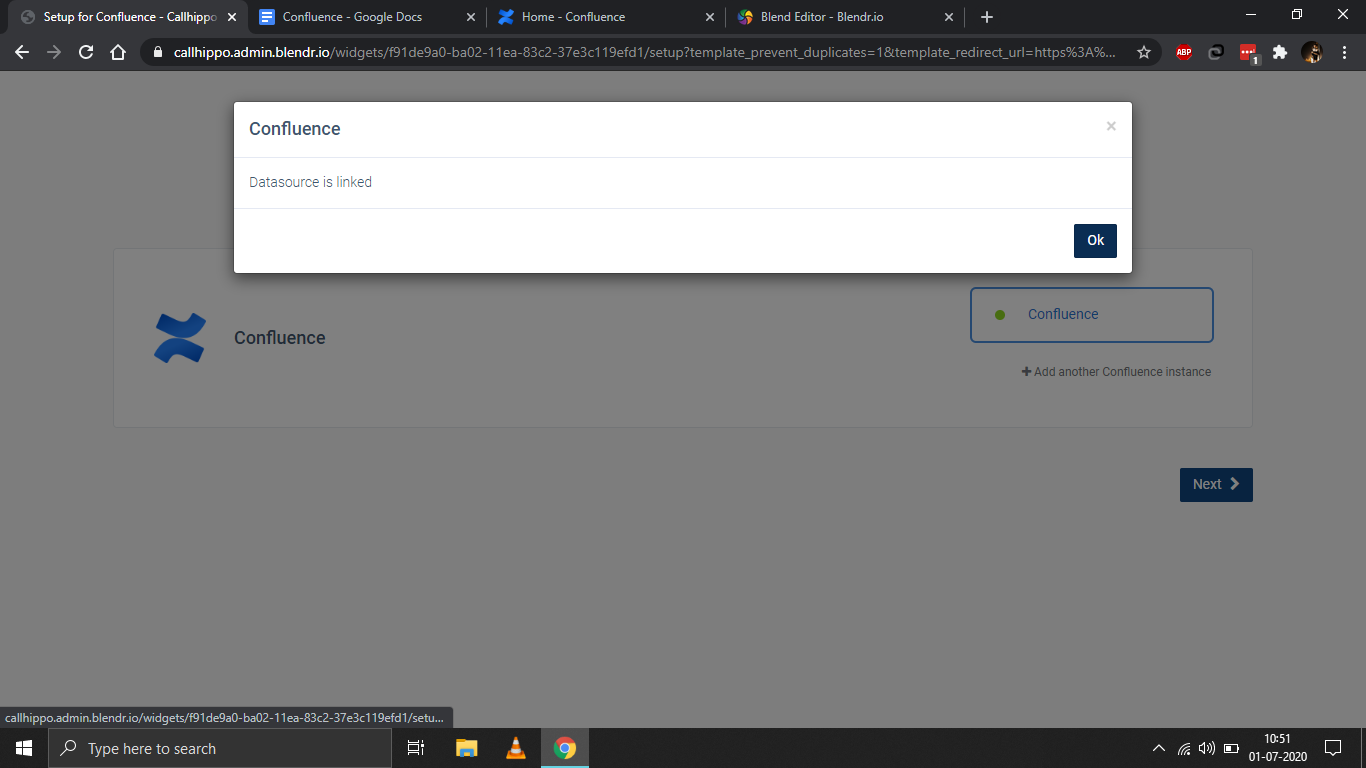
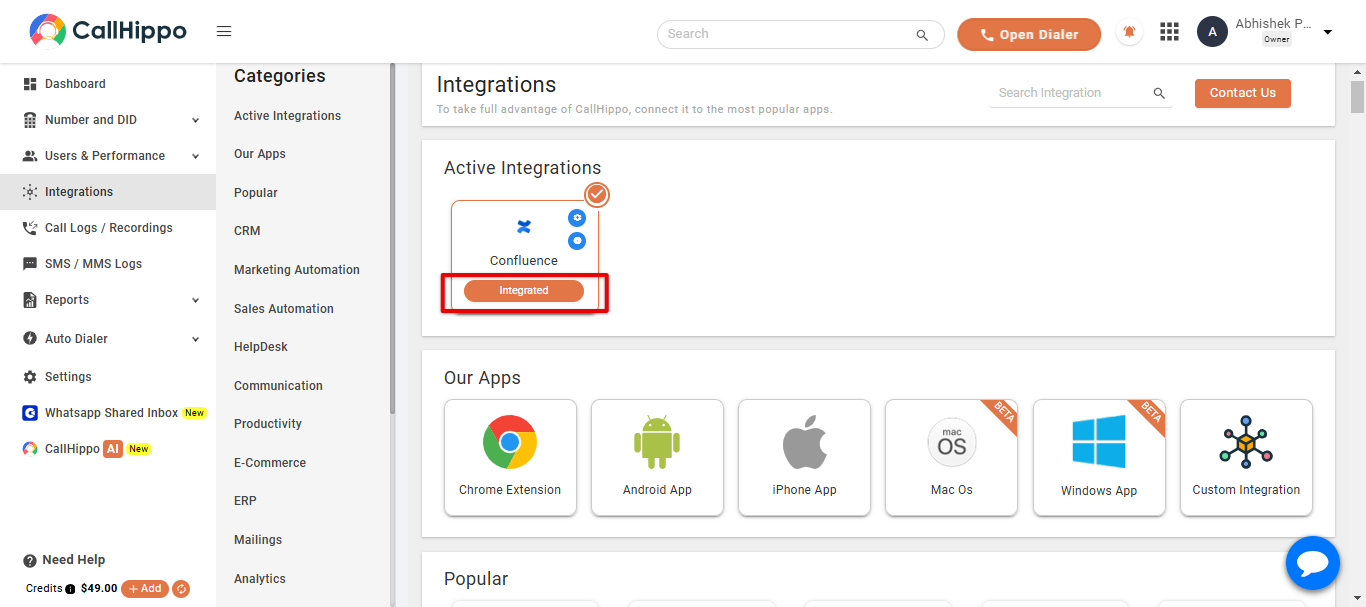
- You’ll be redirected back to CallHippo and your status will change to Integrated. Confluence is now connected.
Good to know
Where do I find my domain and user?
Your domain is the address in your Confluence URL (for example, callhippo.atlassian.com), and the User is the email address you sign in to Confluence with.
I closed the token dialog before copying it. What now?
Atlassian only shows the token once. If you missed it, just create a new API token from the same page and use that one instead.
Need help connecting Confluence? Reach our team at [email protected] and we’ll help you get set up.