
The Zoho PhoneBridge integration lets you dial, receive, and log calls right inside your Zoho apps using CallHippo, so your team never has to leave the CRM to reach a lead.
Before you begin
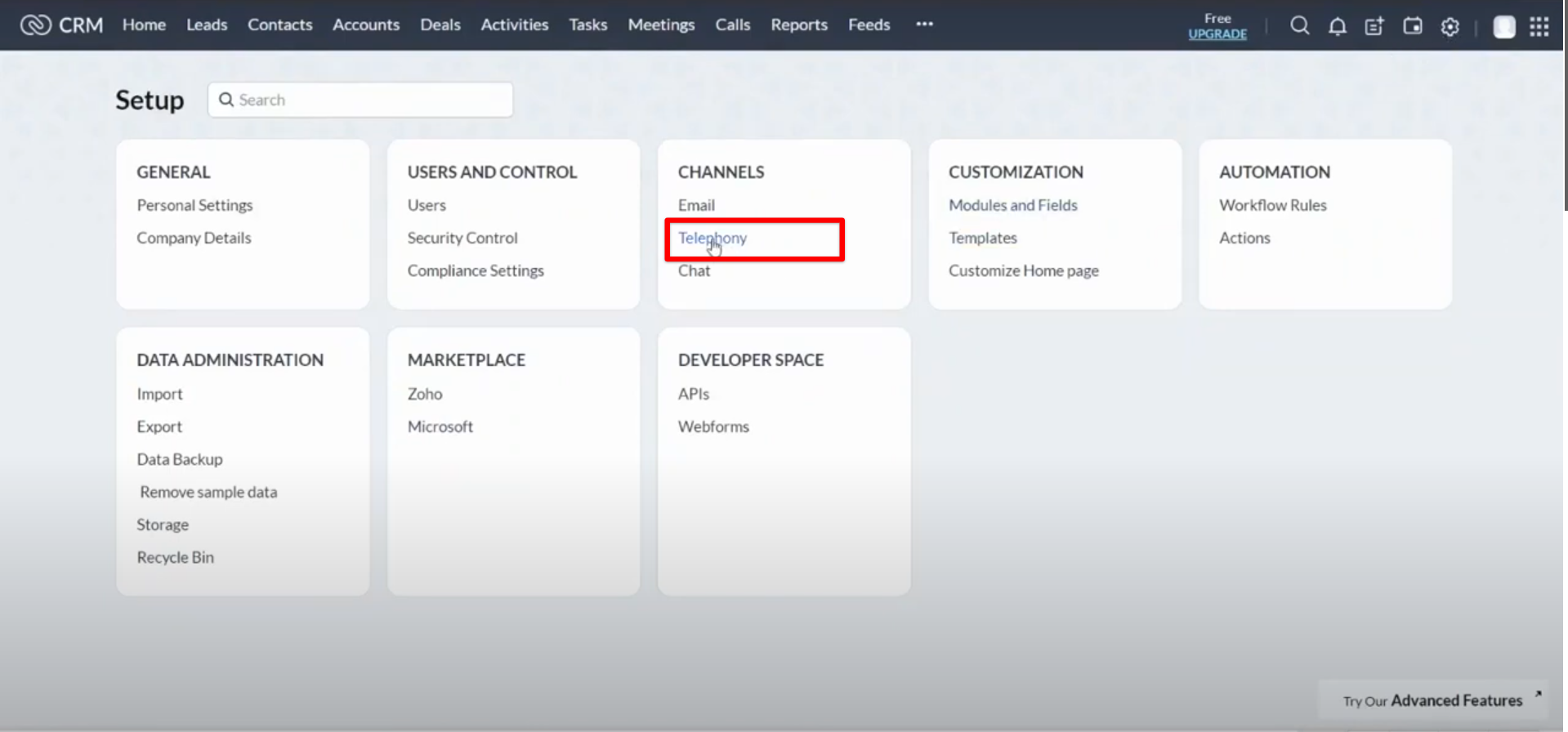
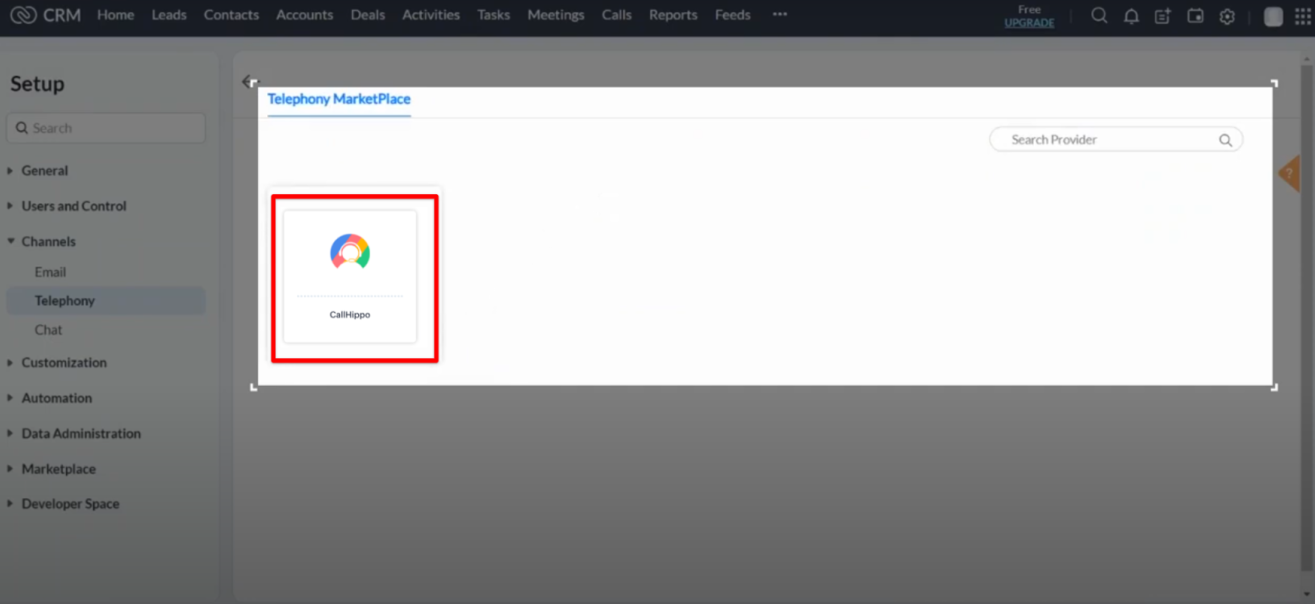
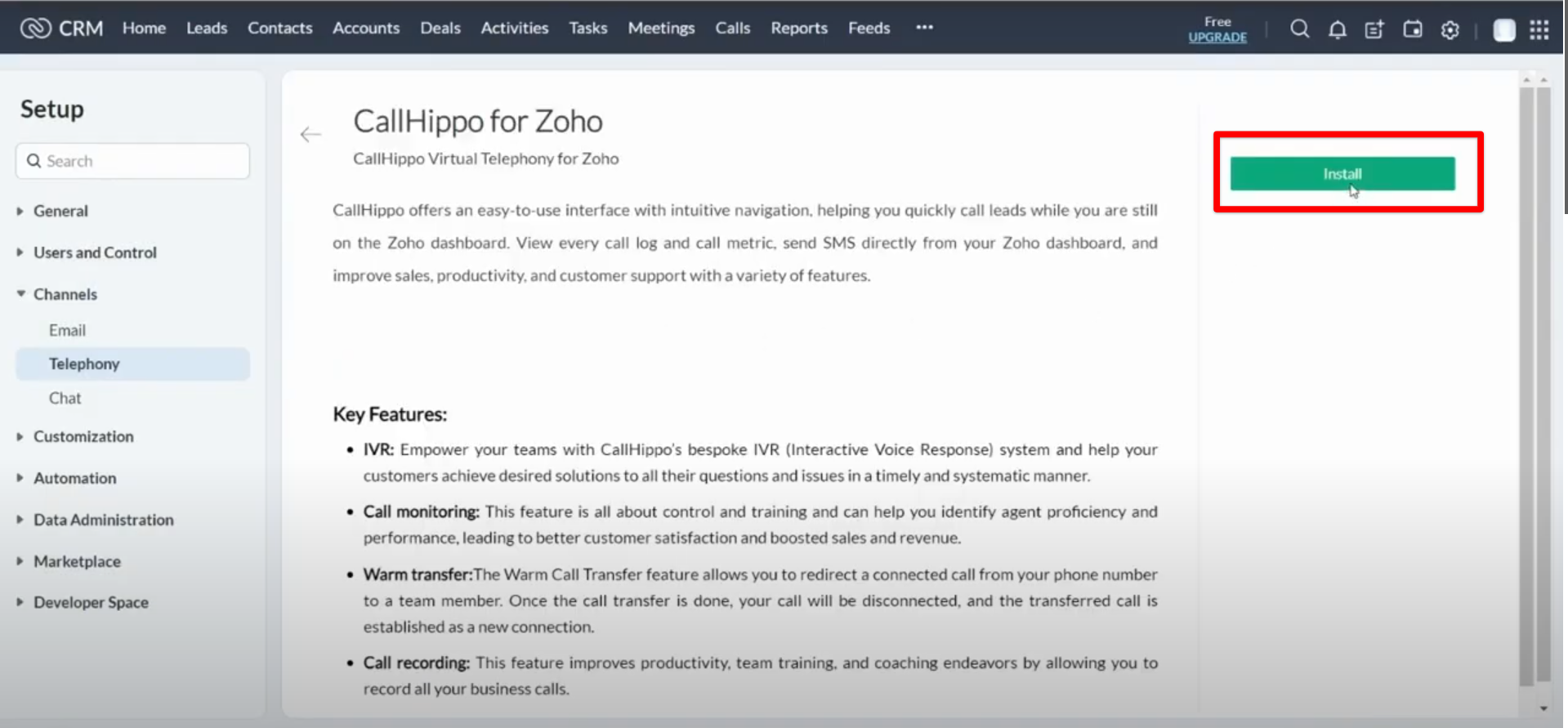
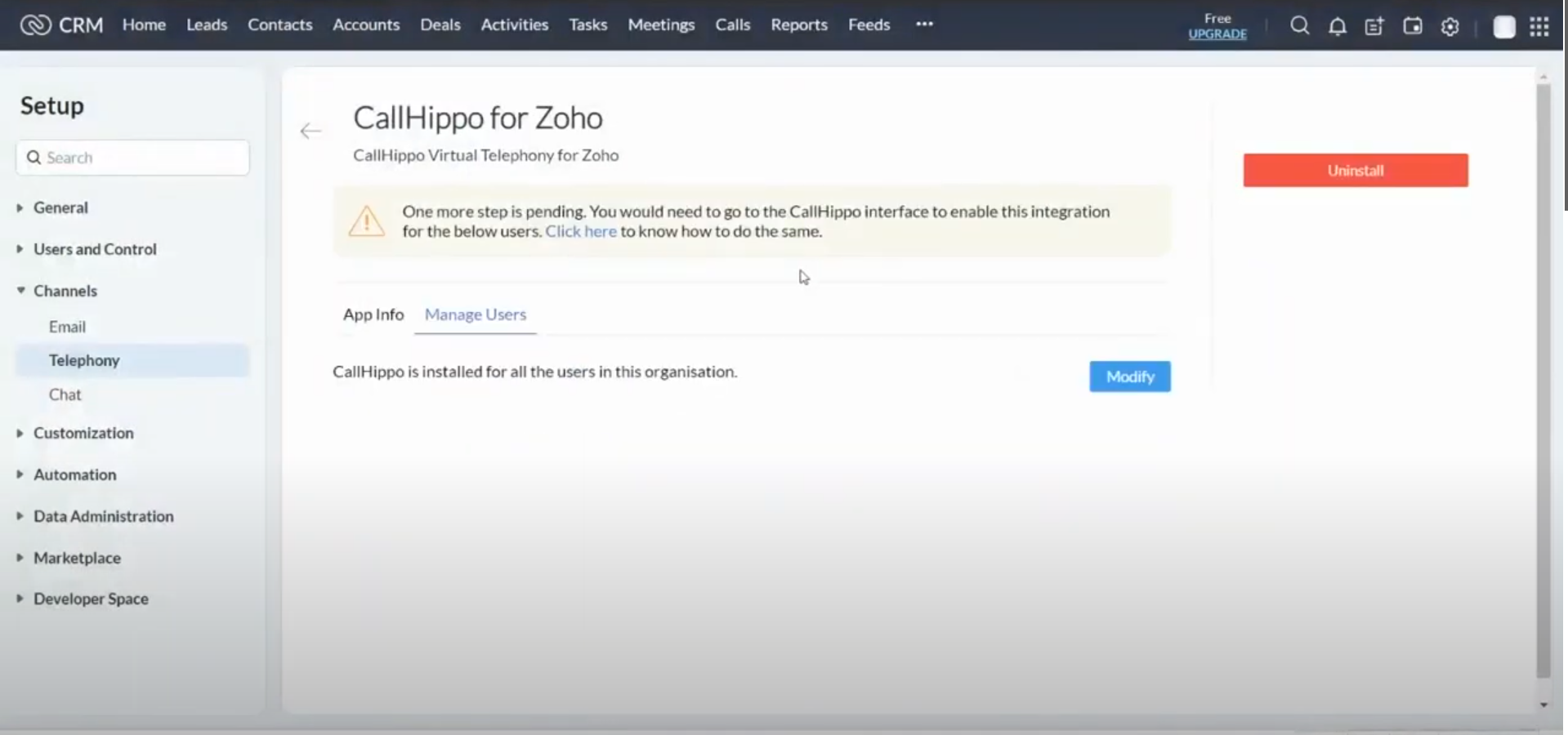
PhoneBridge must be enabled in your Zoho account before you connect it to CallHippo. To turn it on, open Zoho CRM → Settings → Telephony, search the Telephony Marketplace for CallHippo, and install the CallHippo app for Zoho CRM.
- Matching emails: PhoneBridge calling only works for Zoho users who also exist in CallHippo with the same email address.
- Re-installation: If you ever re-install the PhoneBridge integration, you must also re-install the CallHippo application in Zoho CRM.
Setting up the integration
Once CallHippo is installed in Zoho CRM, complete the connection from your CallHippo account:
- Log in to your CallHippo account.
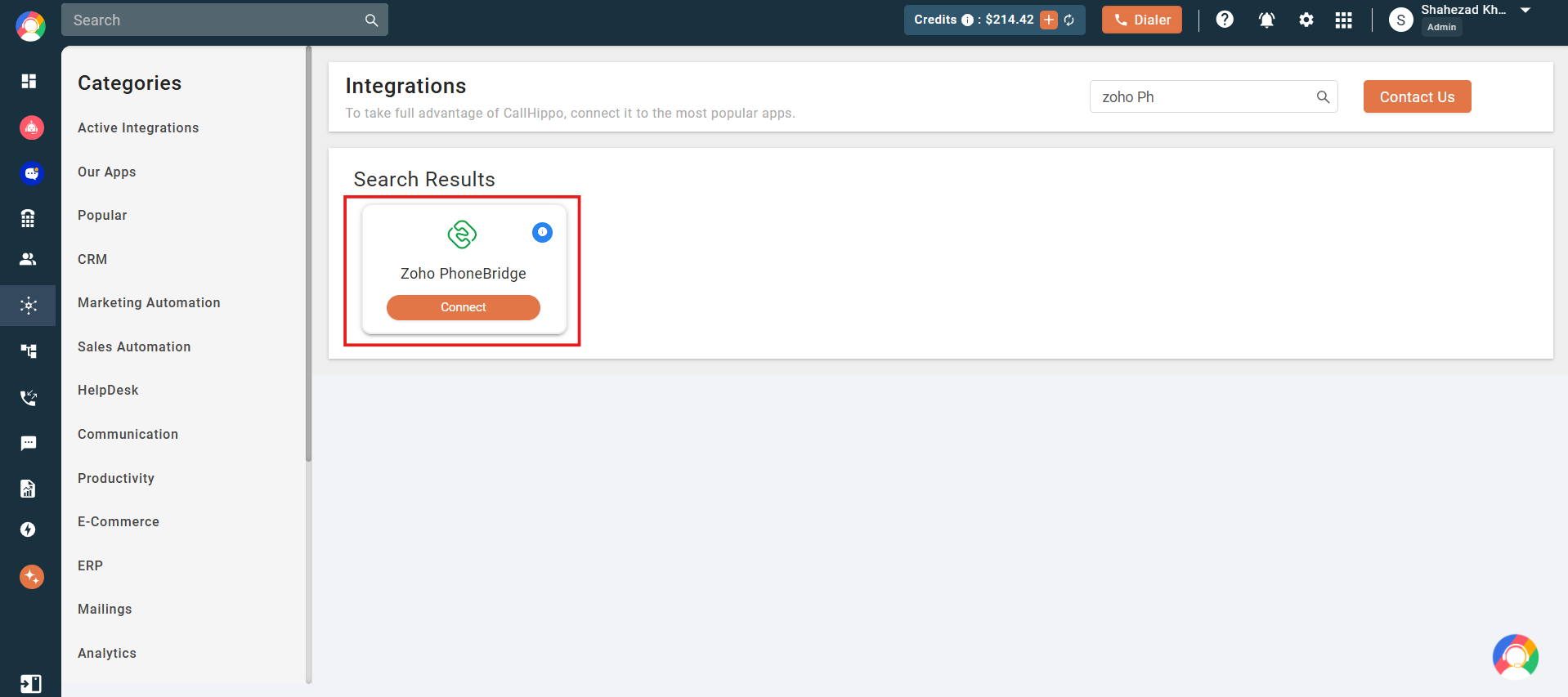
- In the left-hand panel, click Integrations.
- In the list of available apps, find Zoho PhoneBridge and click the Connect button under it.
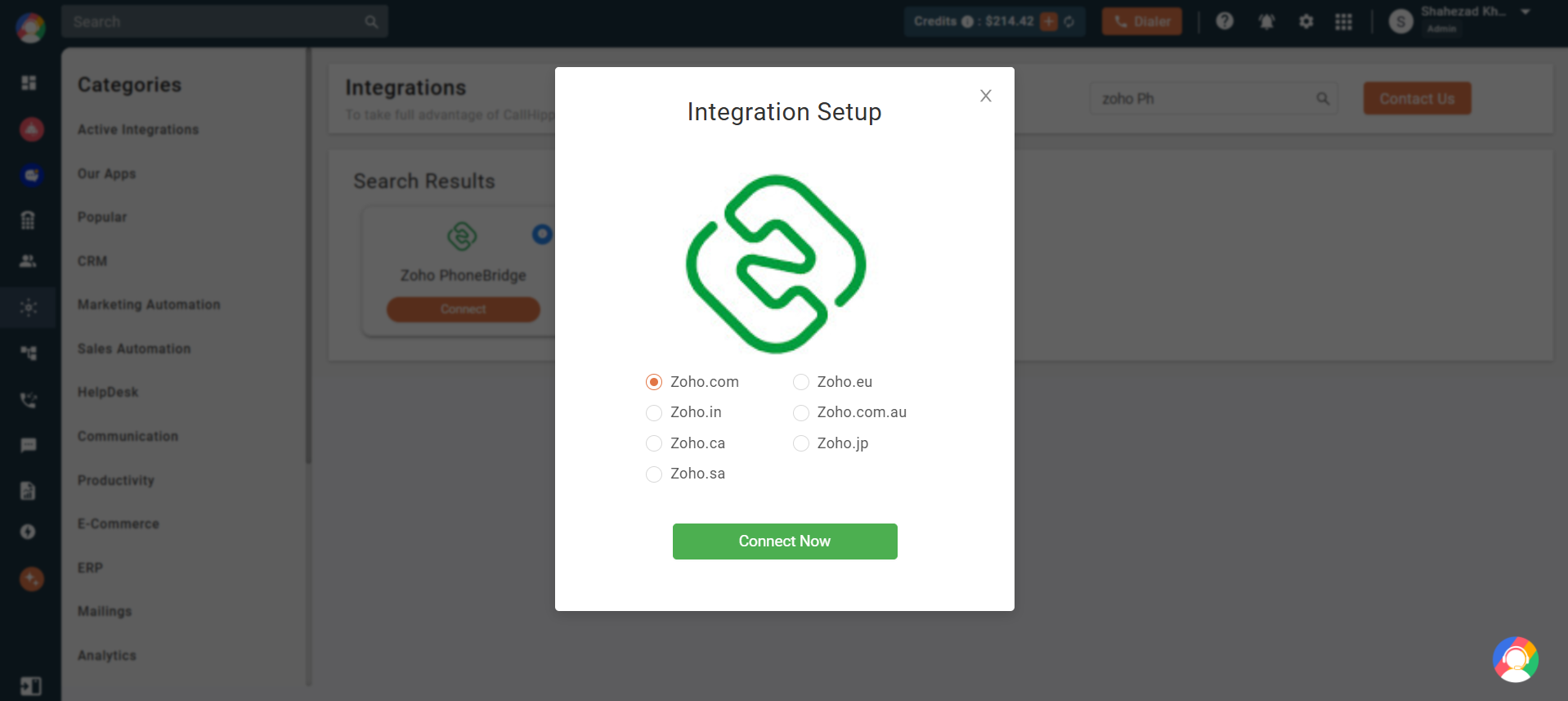
- In the popup that appears, select your Zoho domain and click Connect Now.
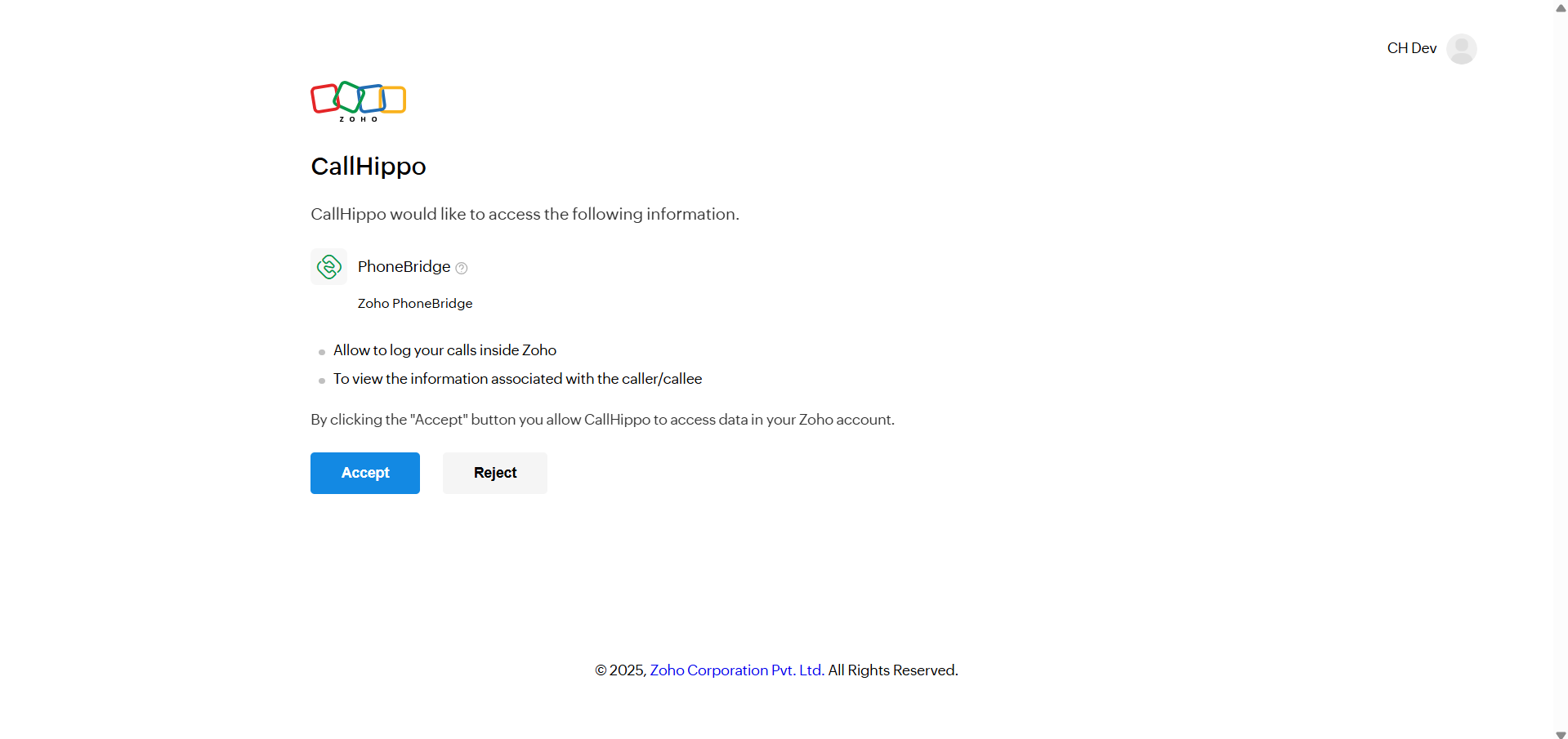
- You are redirected to the Zoho login page. If you are already signed in, you go straight to the permission screen. Click Accept to continue.
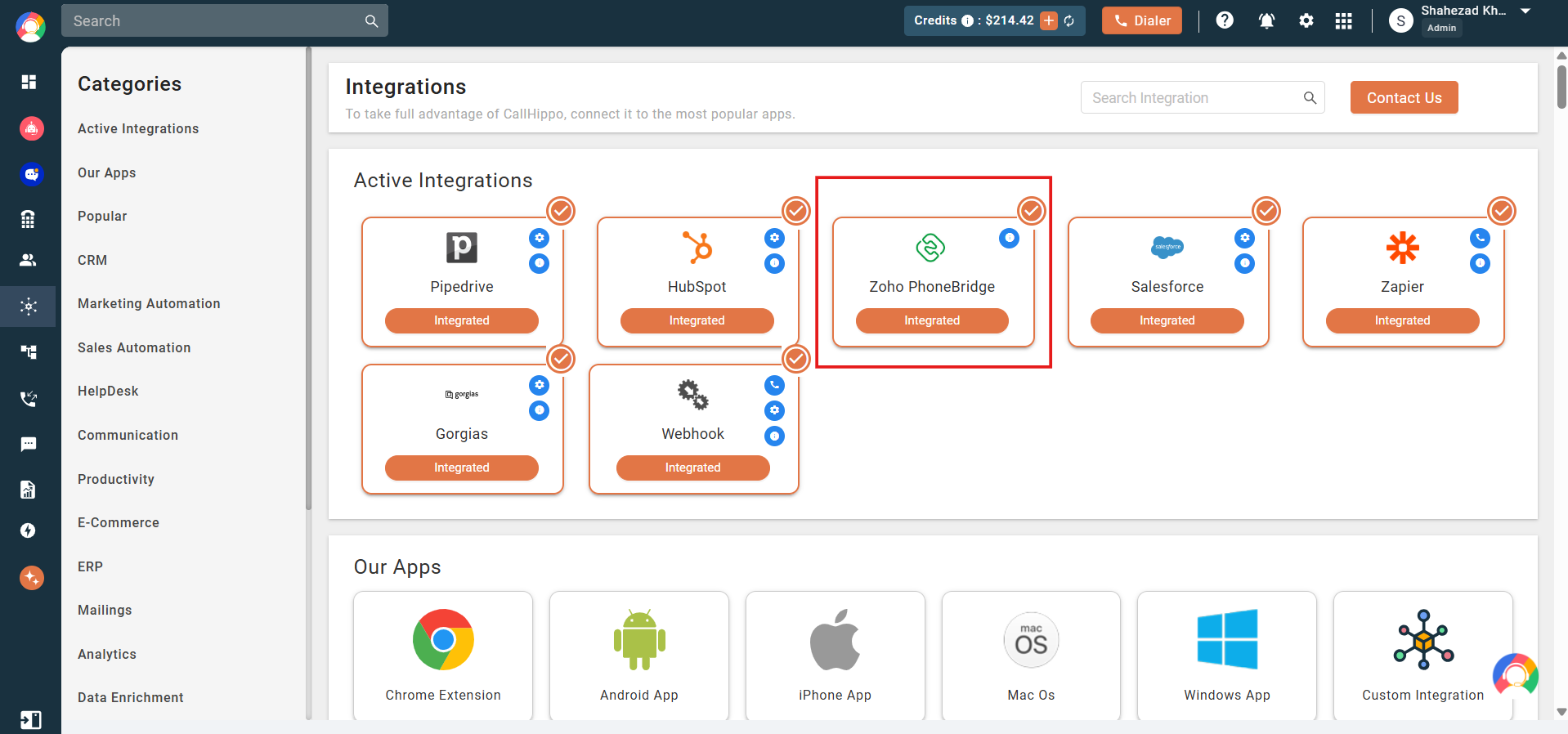
- You are taken back to the CallHippo integrations page with a success message. Your Zoho PhoneBridge integration is now active.
How it works
After the integration is live, you can place calls directly from your Zoho CRM:
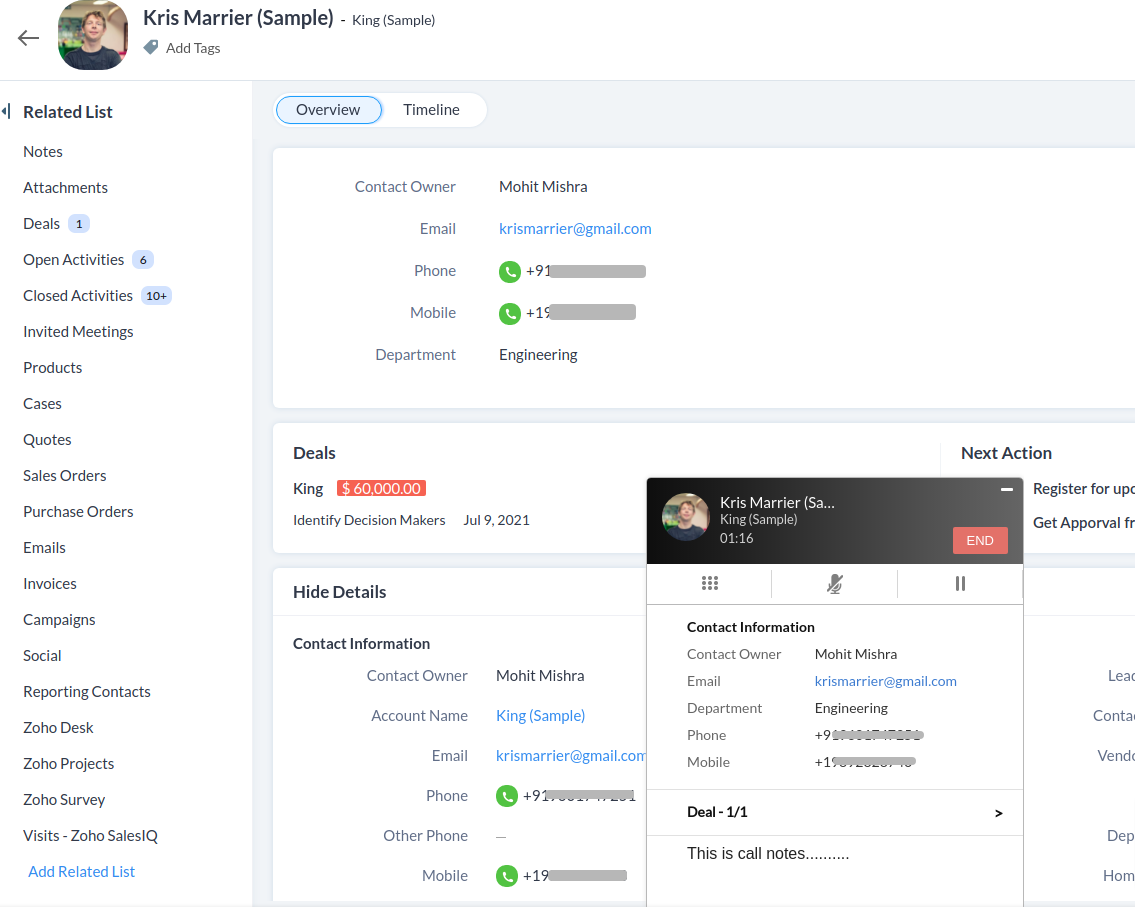
- Open any contact or lead page in Zoho CRM. You will see a green call icon beside each phone number.
- Keep your CallHippo web dialer logged in with the same account you use in Zoho CRM. For example, if you sign in to Zoho with an email address, sign in to the CallHippo dialer with the identical email so calls connect.
- Click the call icon next to any number. The first leg rings your agent dialer; once you answer, CallHippo connects the call to the contact.
- When you hang up, update the call disposition in the same window and it is saved with the call activity.
- Review every call in your CRM’s activity section at any time.
Important notes
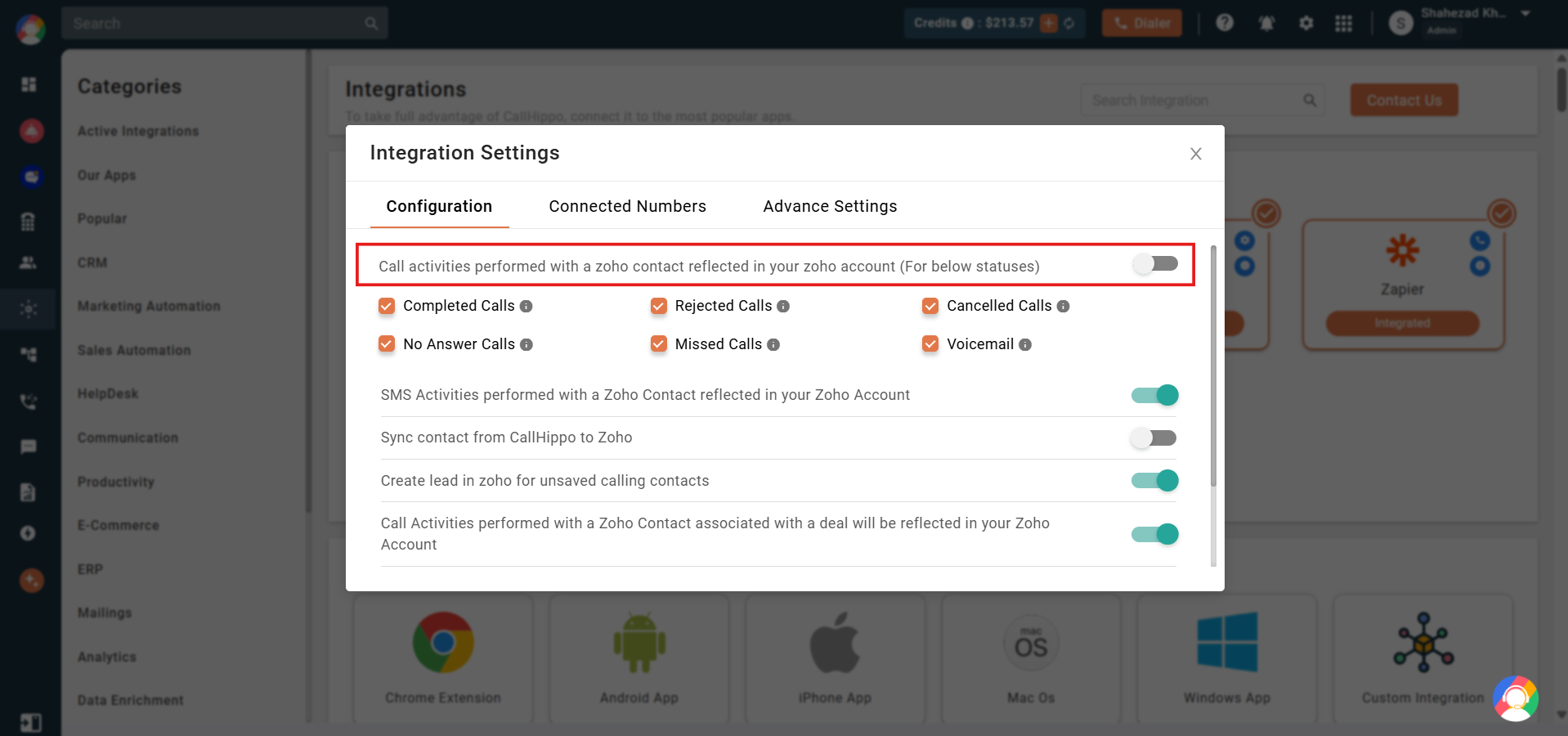
- Avoid duplicate activities: If you use both the Zoho CRM and PhoneBridge integrations, disable call activity for the Zoho CRM integration. In the CallHippo web app, go to Integrations → Active Integration, click the Zoho integration settings (gear) icon, and switch off the call-activity toggles.
- No Chrome extension: Do not install the CallHippo Click-to-Call Chrome extension while using the PhoneBridge integration.
- SMS support: Zoho PhoneBridge does not support SMS activity. If you need SMS logging, integrate Zoho CRM with CallHippo instead and update the CRM integration settings as shown above.
Why can’t a Zoho user make PhoneBridge calls?
PhoneBridge calling is only enabled for Zoho users who also exist in CallHippo under the same email address. Make sure the user’s email matches in both systems.
Does Zoho PhoneBridge support text messaging?
No. PhoneBridge handles calls only. For SMS activity, use the Zoho CRM integration with CallHippo instead.