
Connect Klaus with CallHippo to turn every call and SMS into a reviewable conversation, so your QA team can score interactions and coach agents from one place.
Set up your Klaus account
Start on the Klaus side to generate the credentials CallHippo needs.
- Log in to your Klaus account.
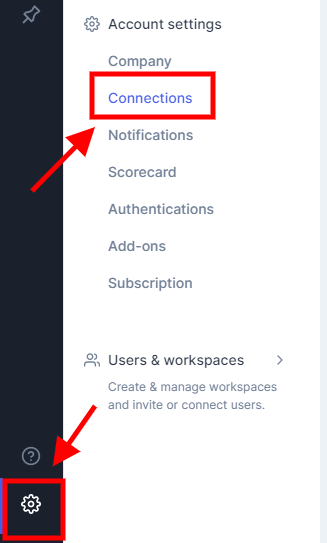
- Open Settings and go to Connections.
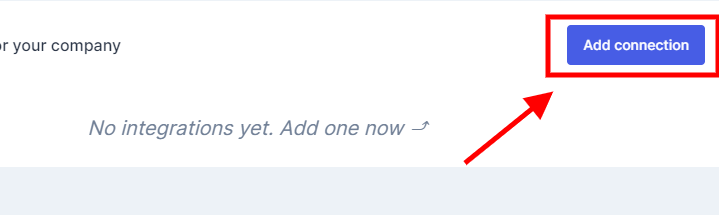
- Click the Add connection button.
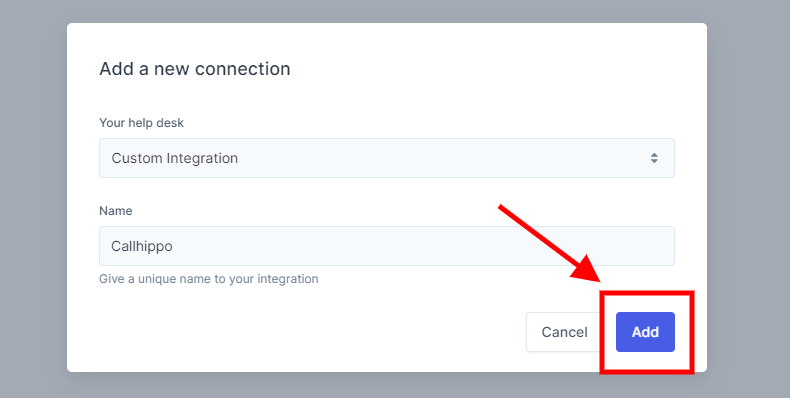
- Under Your help desk, select Custom Integration, give the connection a name, and click Add.
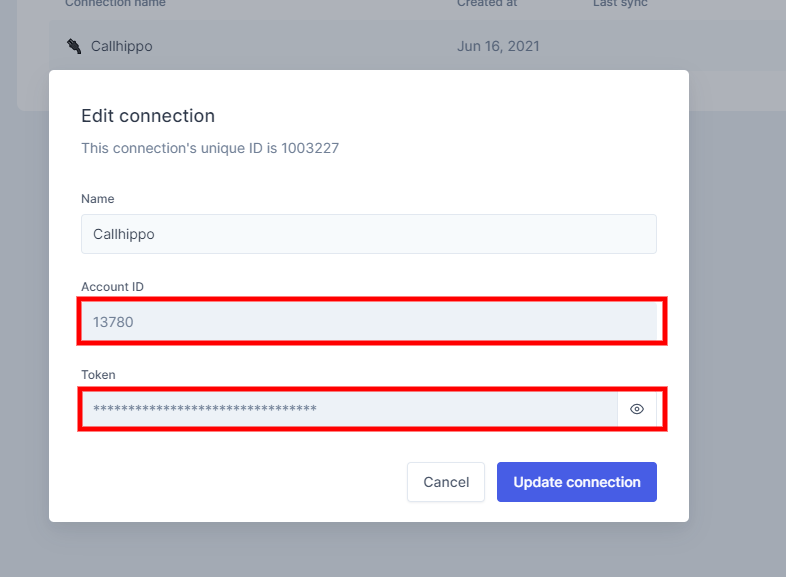
- You will be redirected to your list of connections. Click the settings gear on the right side of your new connection.
- Copy the Token and note the Account ID shown at the top of the panel, then click Cancel.
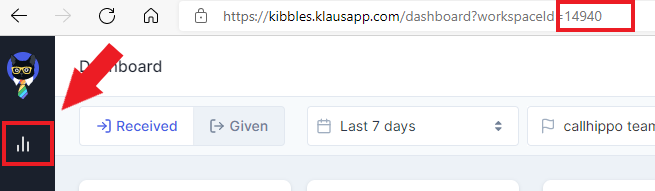
- Go to your dashboard and copy the Workspace ID from the URL. For example, in kribbles.klausapp.com/dashboard?workspaceid=65432 the Workspace ID is 65432.
Connect Klaus in CallHippo
With your token, Workspace ID, and Account ID in hand, finish the setup inside CallHippo.
- Log in to your CallHippo account.
- From the left sidebar of your dashboard, click Integrations.
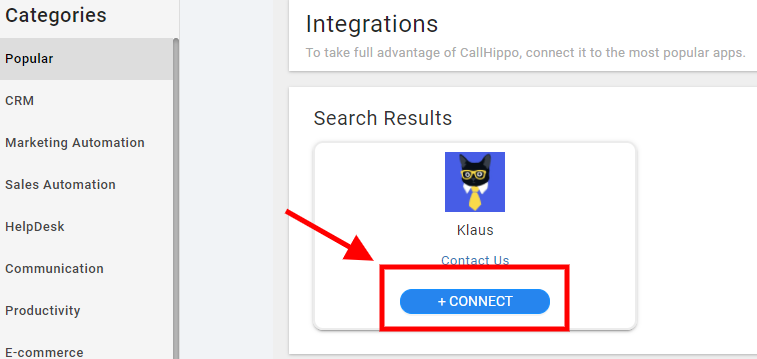
- Find Klaus and click + Connect.
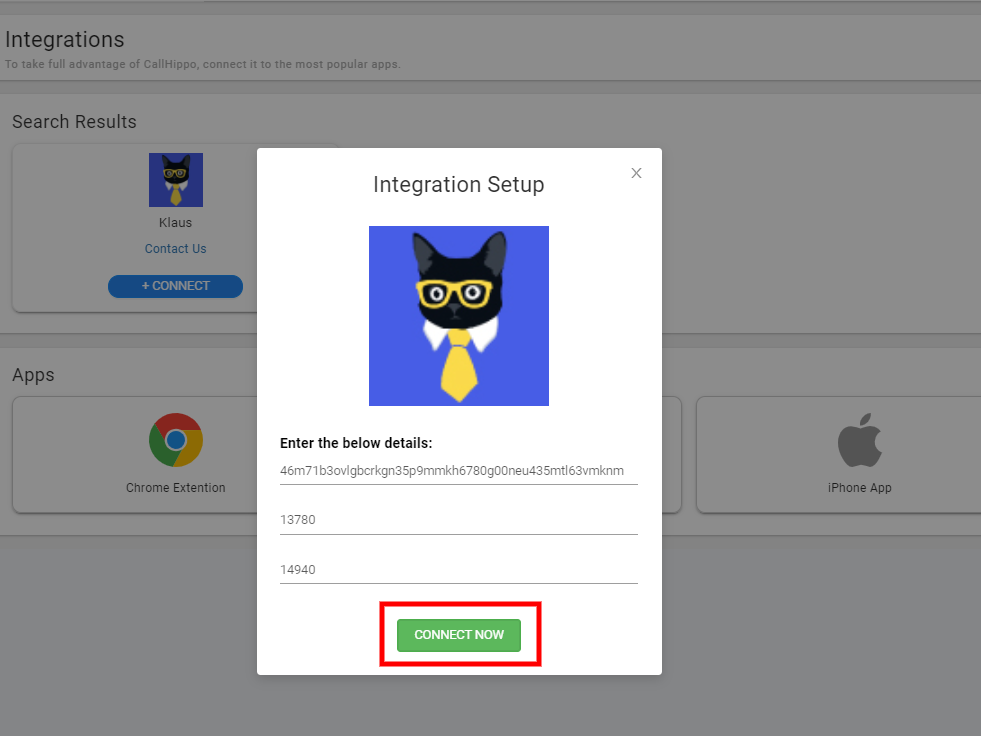
- Enter your API Token, Account ID, and Workspace ID, then click Connect Now.
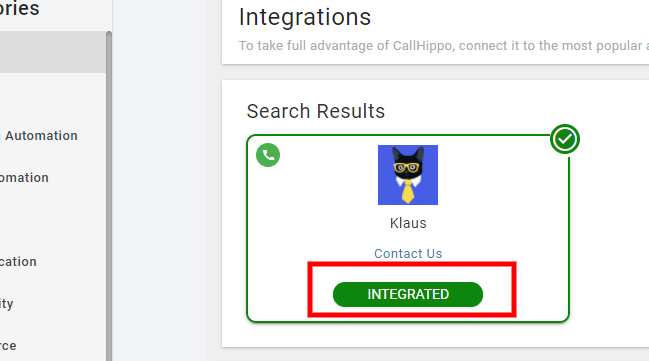
- CallHippo validates your credentials and connects to Klaus. Once done, the integration status shows Integrated.
Features of the Klaus + CallHippo integration
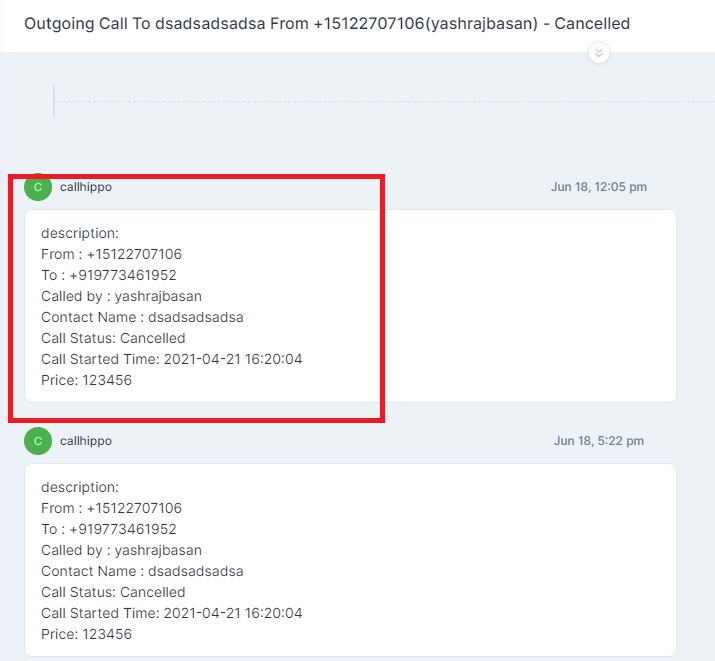
- Call and SMS activity: Every call or SMS made through the CallHippo dialer automatically creates a conversation with the call/SMS activity in Klaus, ready for review and scoring.
Frequently asked questions
Where do I find my Workspace ID?
Open your Klaus dashboard and look at the browser URL. The number after workspaceid= is your Workspace ID.
What credentials does CallHippo need?
Three values from Klaus: the API Token, the Account ID (shown when you edit the connection), and the Workspace ID from your dashboard URL.
Need a hand connecting Klaus? Reach our team at [email protected] and we will help you get set up.