
Connecting Zuora with CallHippo links your subscription and billing data to your calling workflow using an OAuth client you create inside Zuora.
Create an OAuth client in Zuora
- Open Administration. Log in to your Zuora account, click your profile in the top-right corner and choose Administration.
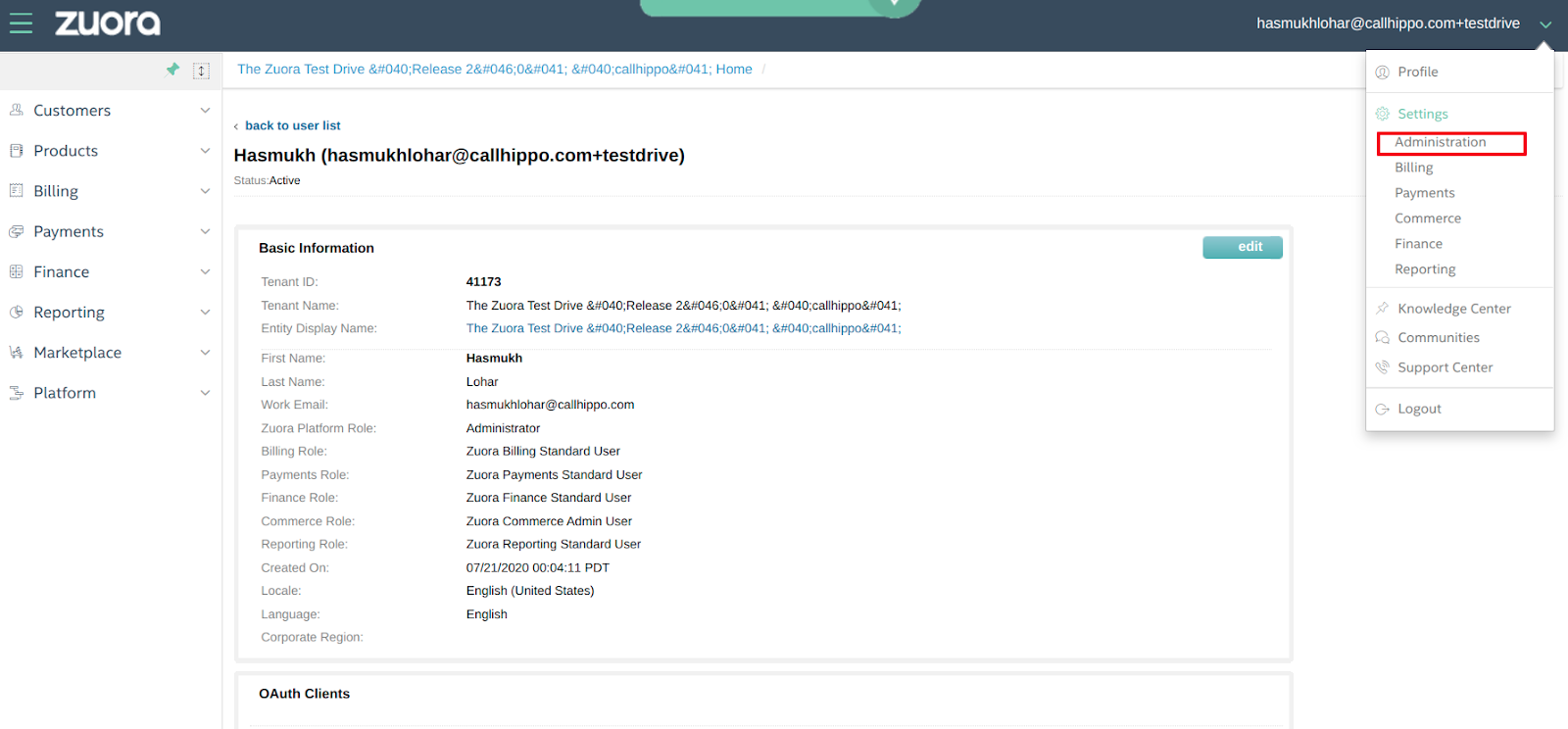
- Manage users. Go to Manage Users and open your admin user.
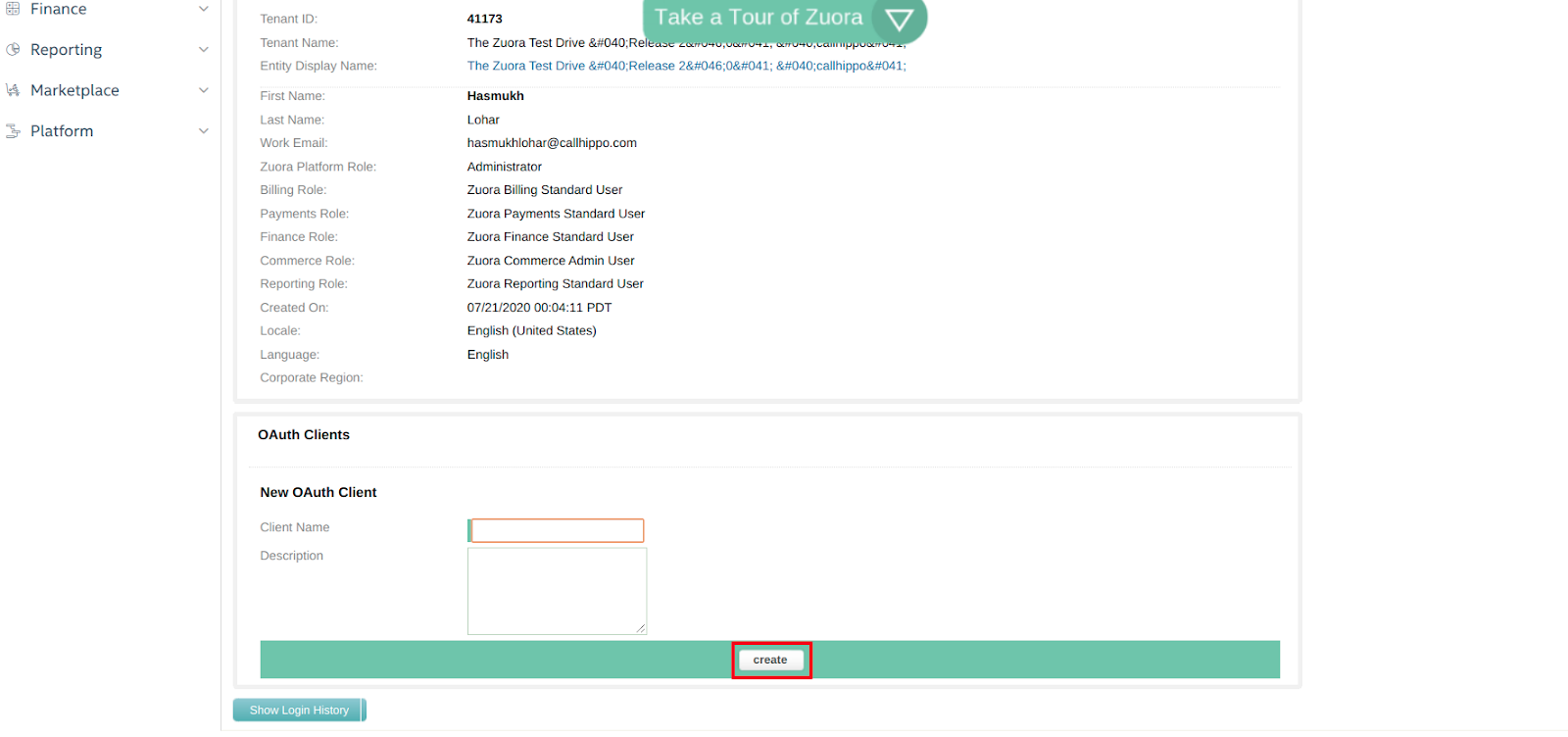
- Create the OAuth client. In the OAuth Clients section, enter a client name and click create. Copy the Client Id and Client Secret that Zuora generates.
Connect Zuora in CallHippo
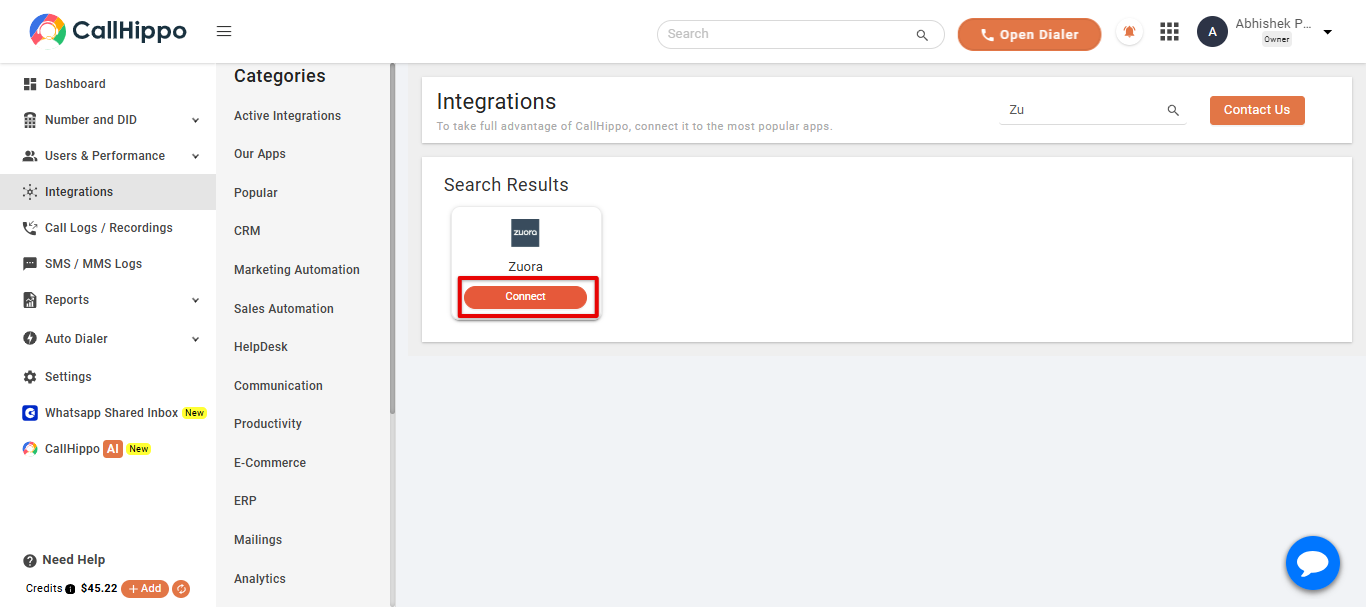
- Open Integrations. Log in to CallHippo, go to the Integrations tab, find Zuora and click Connect.
- Enter your credentials. Paste the Client Id and Client Secret you copied from Zuora, select your API URL, and click Save.
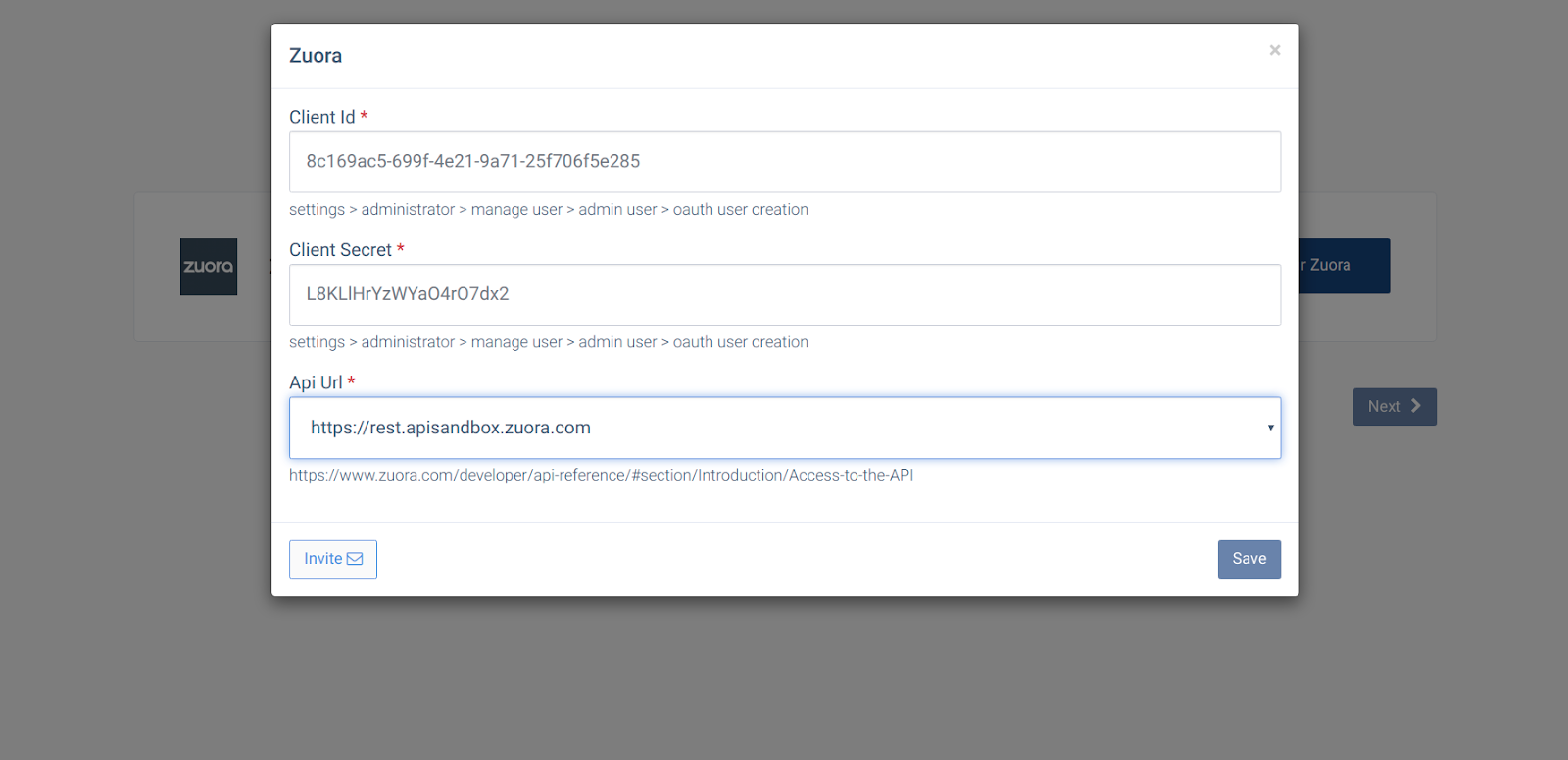
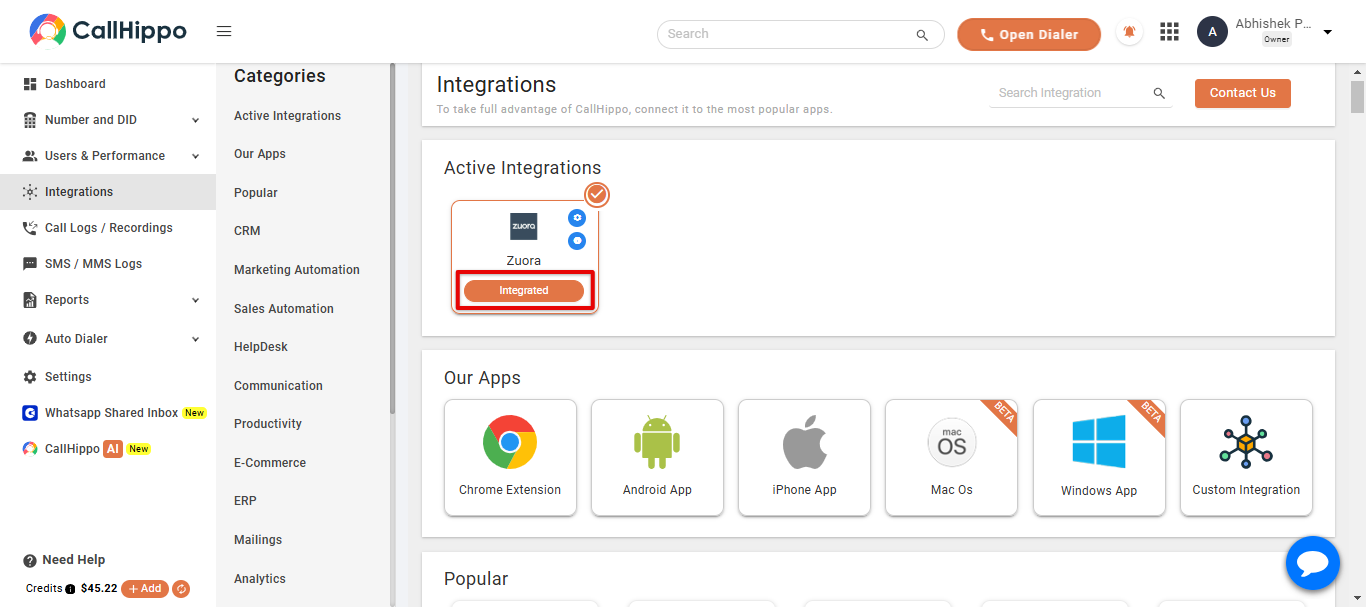
- Finish. Click Next. You are returned to your CallHippo account and the status changes to Integrated — your Zuora account is now connected.
Frequently asked questions
Where do I create the Client Id and Client Secret?
In Zuora, go to Administration → Manage Users → your admin user, then create a new OAuth client in the OAuth Clients section.
Which API URL should I choose?
Select the API URL that matches your Zuora environment (for example, the production or sandbox endpoint). You can review the options in Zuora’s API access documentation.
Need help connecting Zuora? Our team is happy to assist at [email protected].