
Connecting CallHippo with Make (formerly Integromat) lets you build no-code automations that create and update contacts, deals and users, and push call and SMS activity to hundreds of other apps.
Connect CallHippo to Make (Integromat)
- Log in to your CallHippo account.
- From the left sidebar of your dashboard, click Integrations.
- Find Integromat and click Integrate.
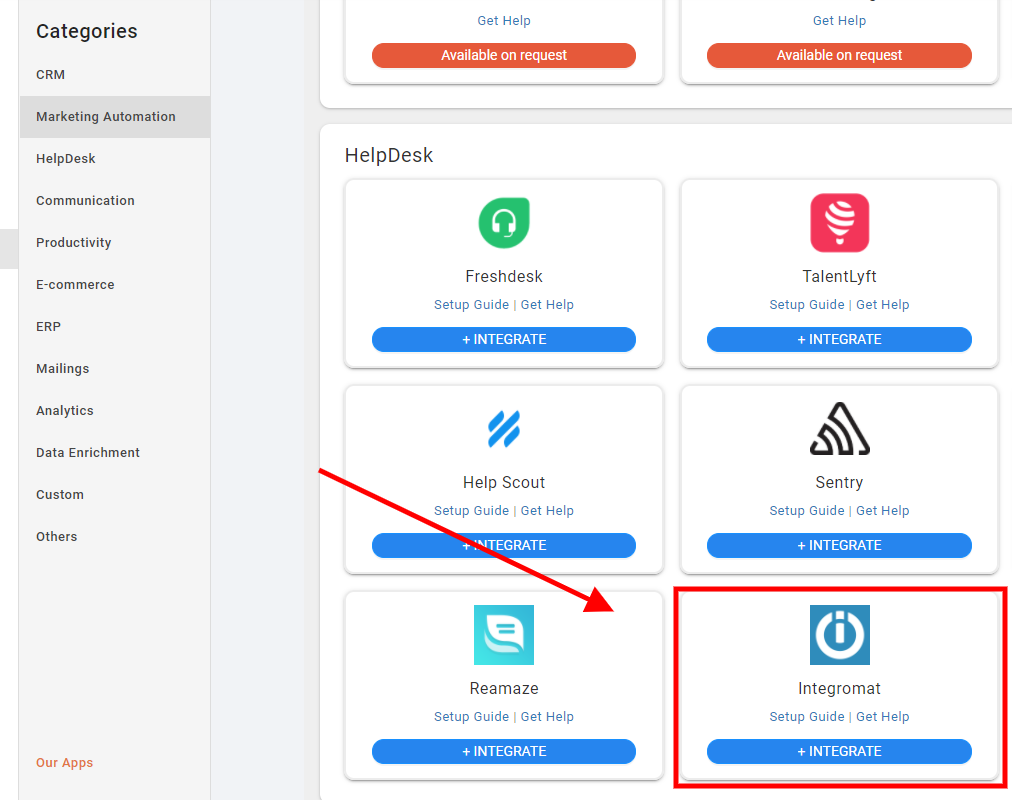
- A popup appears — click Click to continue.
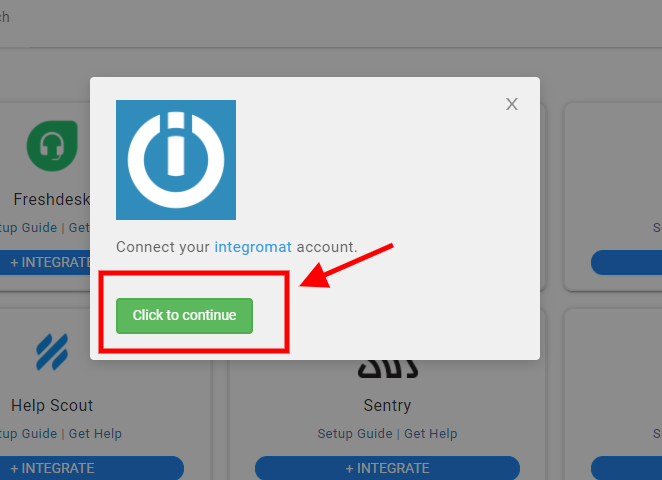
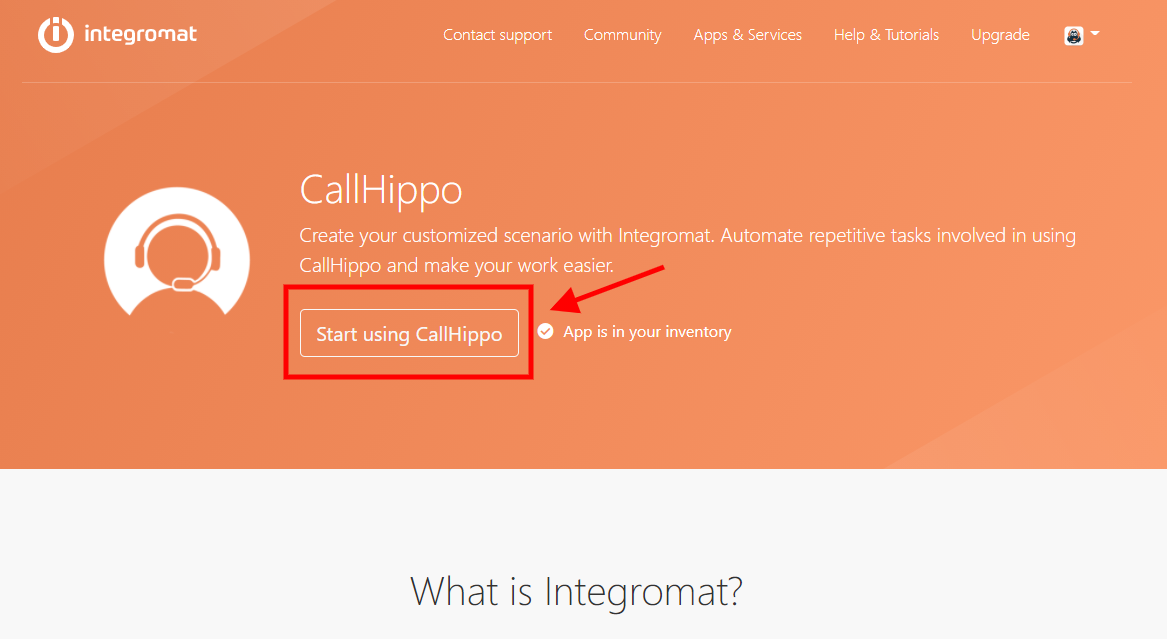
- You are redirected to Make. Click Start using CallHippo to add the CallHippo app to your inventory.
Authenticate and create your first contact
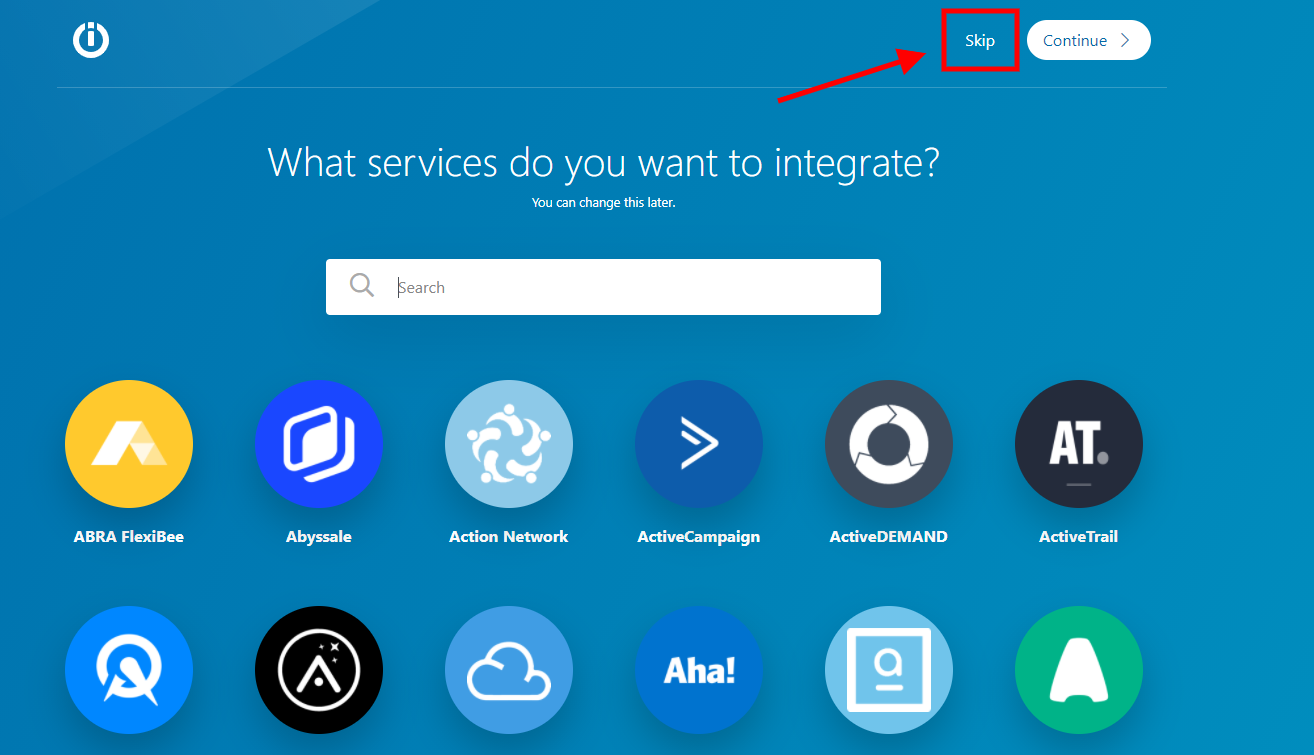
- If you are prompted to choose services, click Skip in the header.
- Open Favorites at the bottom of the page, search for CallHippo and select it.
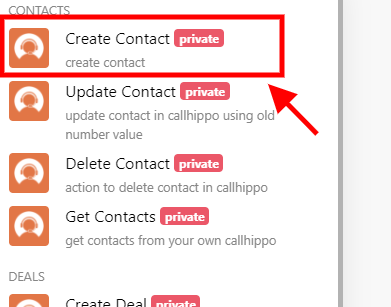
- Choose the Create Contact action from the module list.
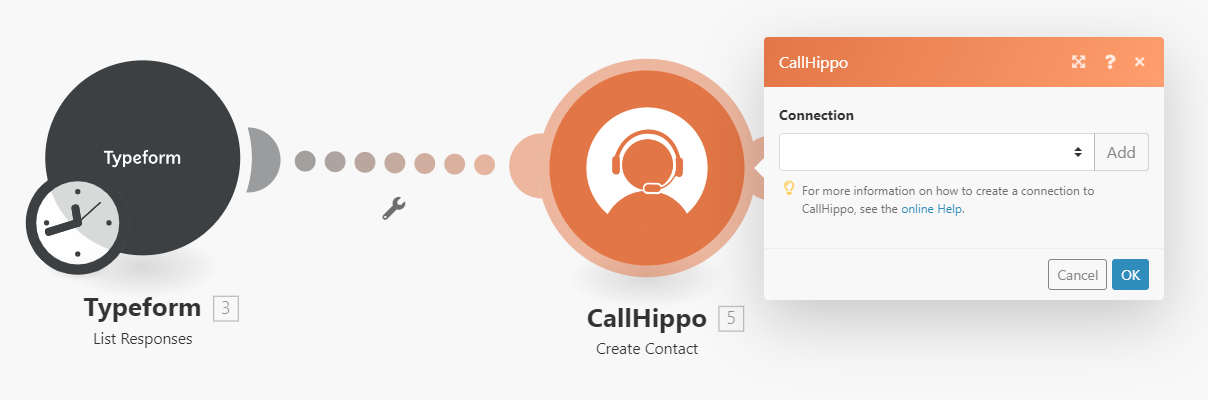
- Click Add next to Connection, then enter your CallHippo email address and password and click Continue.
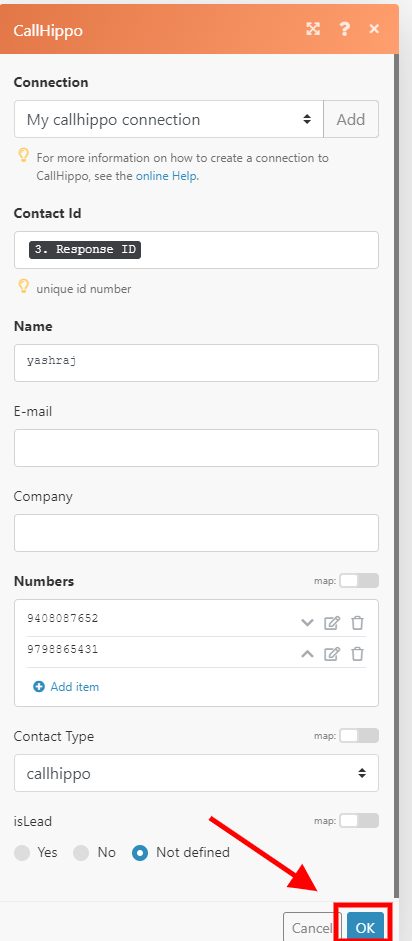
- Enter a unique Contact Id, along with the name and numbers, then click OK. Run the scenario once to create the contact.
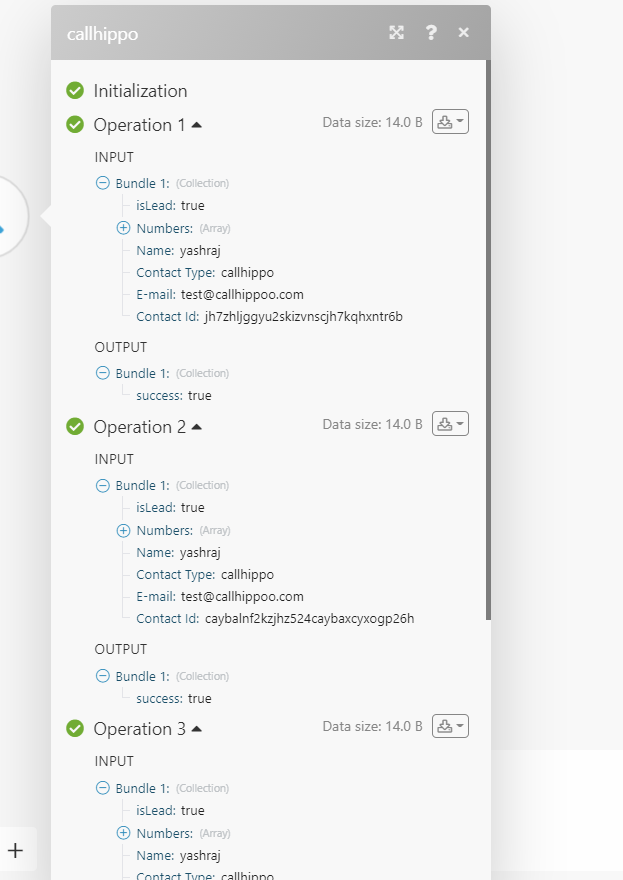
Note: the Contact Id must be unique each time you create a contact.
Update, get and delete contacts
Use the matching CallHippo modules to manage existing contacts.
- Update Contacts: enter the same Contact Id you used at creation, then supply the new name, email, numbers or lead value. The Contact Id stays fixed; all other fields are overwritten.
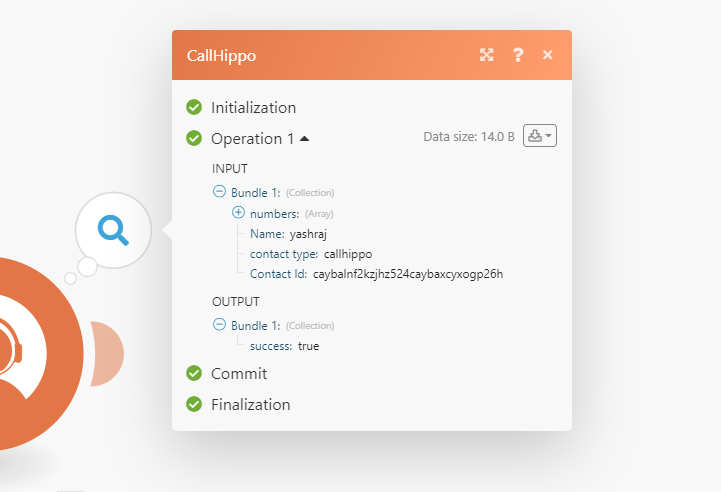
- Delete Contacts: simply provide the Contact Id and click OK.
- Get Contacts: returns your CallHippo contacts as a data bundle you can use in later steps.
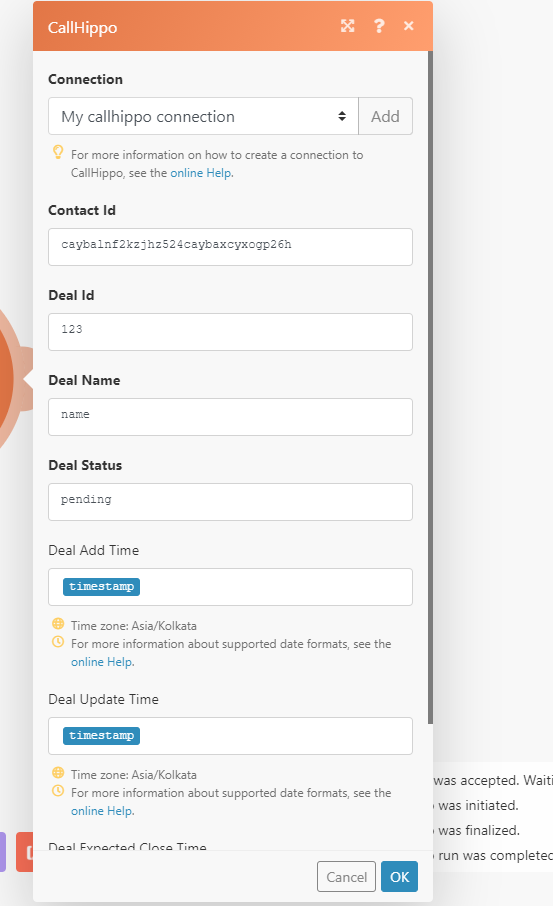
Create, update and delete deals
- Create Deal: enter the Contact Id, Deal Id, Deal Name and Deal Status. Add time, update time and expected close time are optional. Click OK.
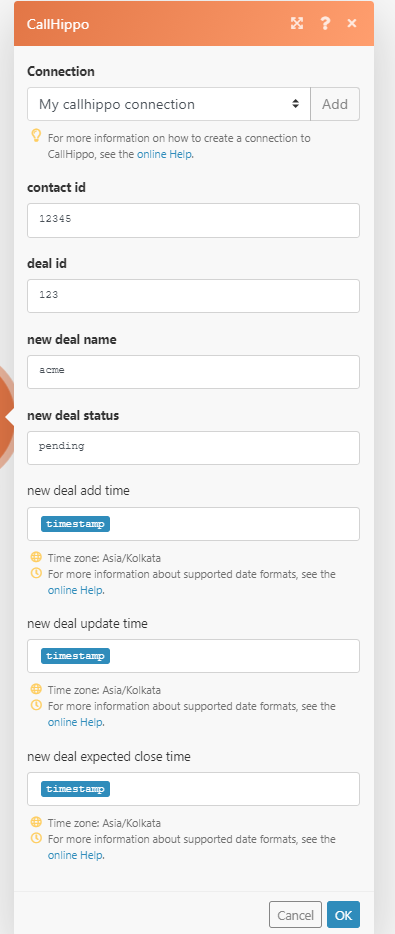
- Update Deal: enter the Contact Id and the Deal Id used at creation, then the new deal name and status. The Contact Number and Deal Id cannot change; all other fields are overwritten.
- Delete Deal: provide the Contact Id and Deal Id, then click OK.
Capture call and SMS activity with webhooks
Call Activity and SMS Activity work the same way — only the output differs. Both require a webhook.
- Add a Call Activity (or SMS Activity) module and click Add to create a webhook.
- Give the webhook a name, select your authenticated connection and click Save.
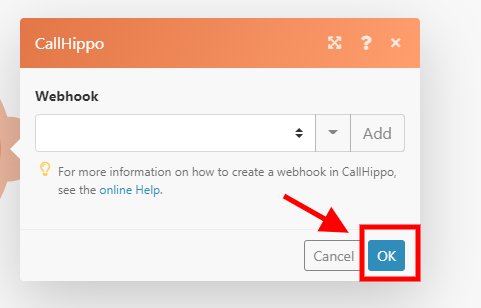
- Make attaches the webhook automatically and shows the generated address. Click OK.
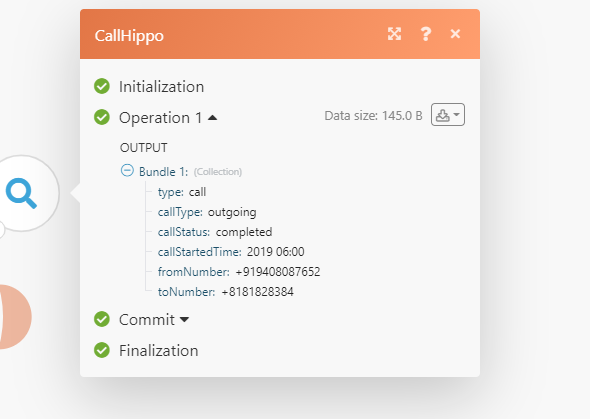
Repeat the same process for SMS activity. Whenever a call or SMS happens, the webhook triggers and delivers the data.
Call activity output:
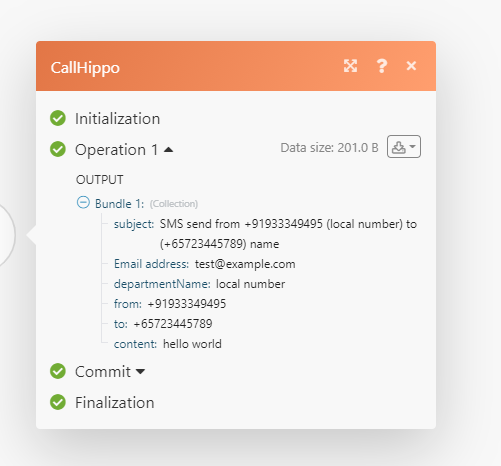
SMS activity output:
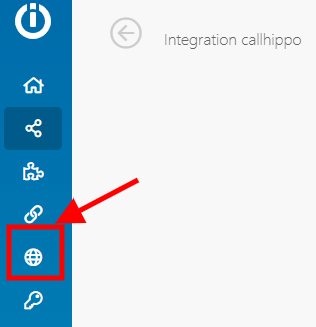
To stop receiving activity, open Webhooks in the left sidebar, find the relevant webhook and click Delete.
Manage users
- Create User: enter a unique Id, then the name, email and integration name, and click OK.
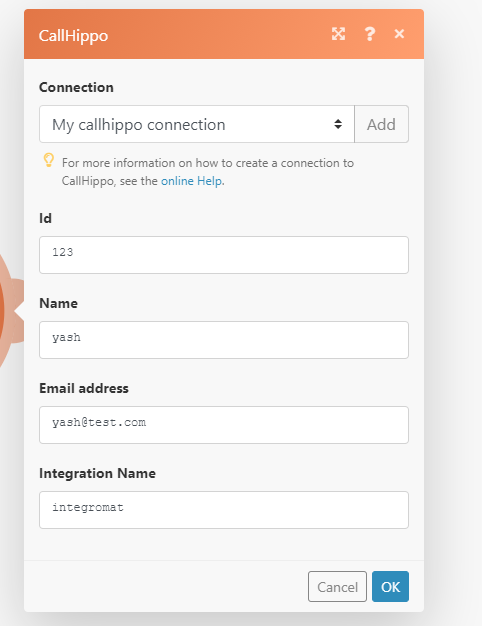
- Update User: enter the Id used at creation, then the new name, email and integration name. The Id stays fixed.
- Delete User: enter the Id and click OK.
Remove the integration
To disconnect Make from CallHippo, follow these steps in order:
- Log in to CallHippo, open Integrations from the left sidebar, select Integromat and click Remove Integration.
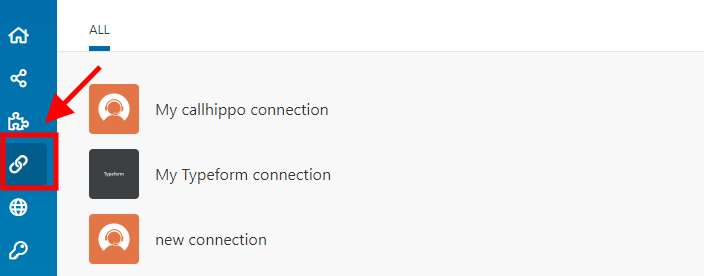
- Go to your Make account and open Connections in the left sidebar.
- Find your CallHippo connection and click Delete.
Frequently asked questions
What happens to other fields when I update a contact or deal?
The identifier stays the same (Contact Id for contacts, Contact Number and Deal Id for deals), but every other field is overwritten with the new values you provide.
How do I stop call or SMS activity from syncing?
Open Webhooks in the Make left sidebar, locate the call or SMS activity webhook and delete it.