
Connecting Google Calendar to CallHippo lets you schedule calls, set reminders, and keep appointments in sync with your calendar. You can also assign the calendar to an AI Voice Agent for automated booking. Follow the steps below to connect it in a few clicks.
Before you begin
- All CallHippo user roles except the QA user can integrate Google Calendar with CallHippo.
- Have the Google account you want to connect ready and signed in.
Connect Google Calendar to CallHippo
- Log in to your CallHippo account.
- From the left sidebar of your dashboard, click Integrations.
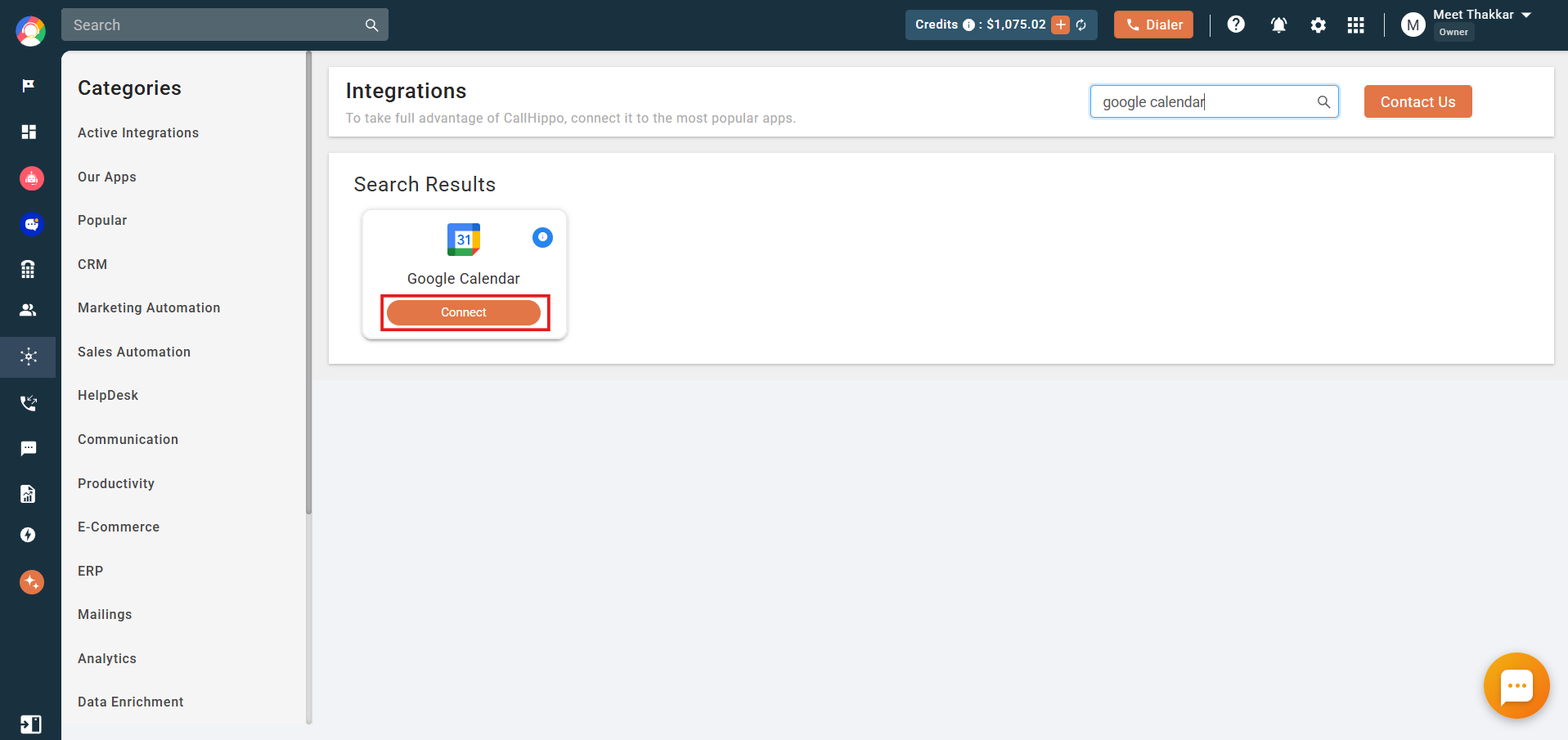
- Search for Google Calendar and click Connect.
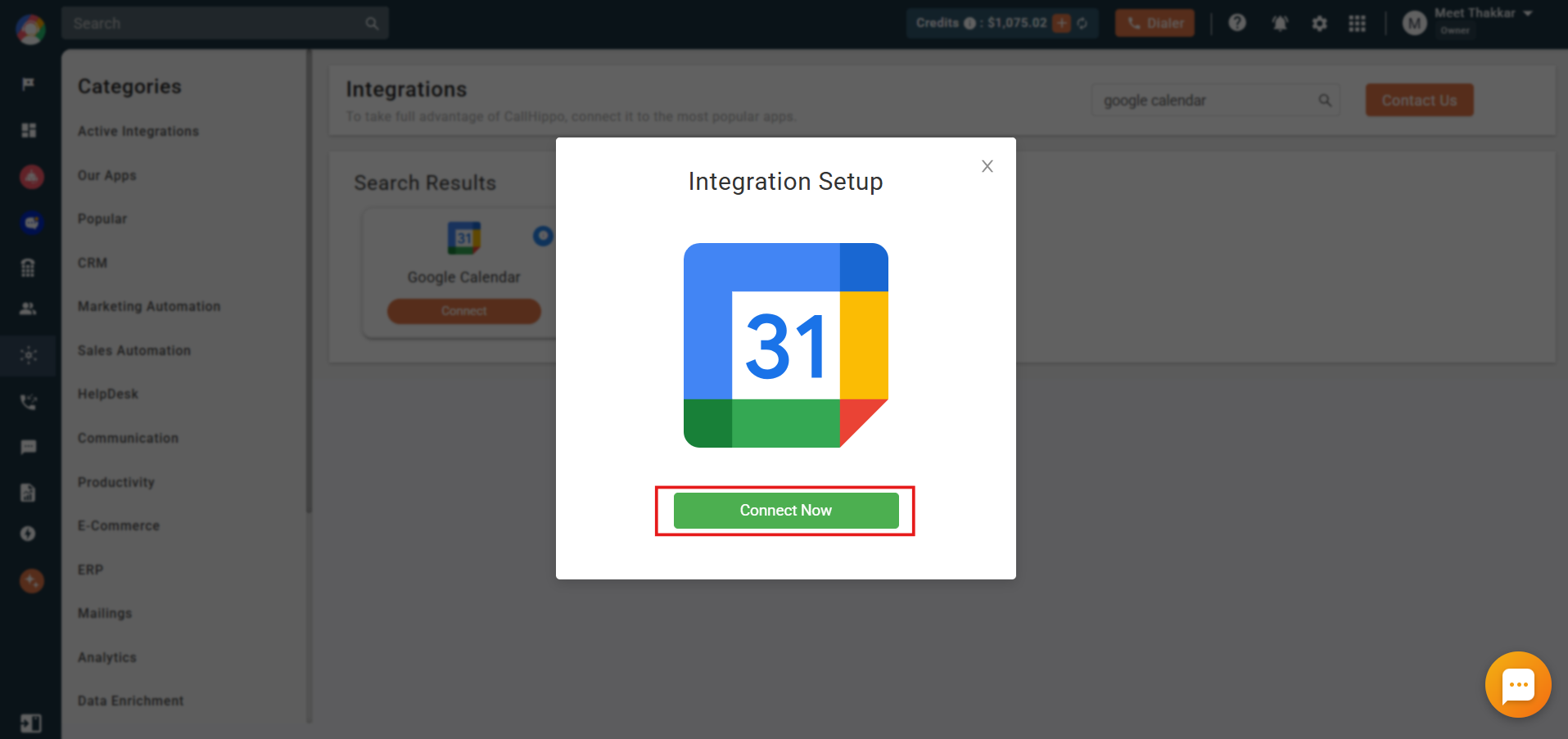
- In the Integration Setup pop-up, click Connect Now to connect your Google Calendar.
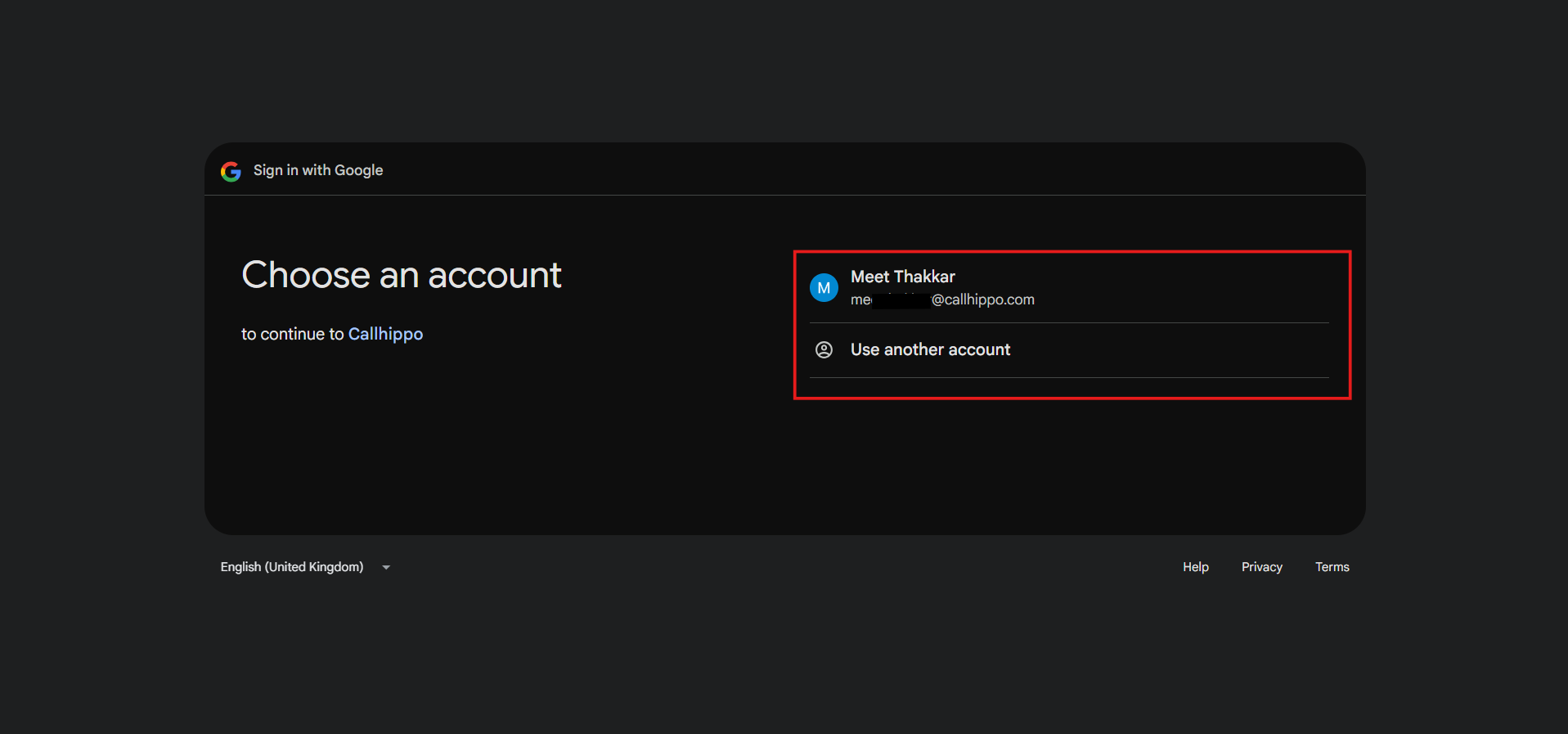
- On the new page that opens, choose the Google account you want to integrate with CallHippo.
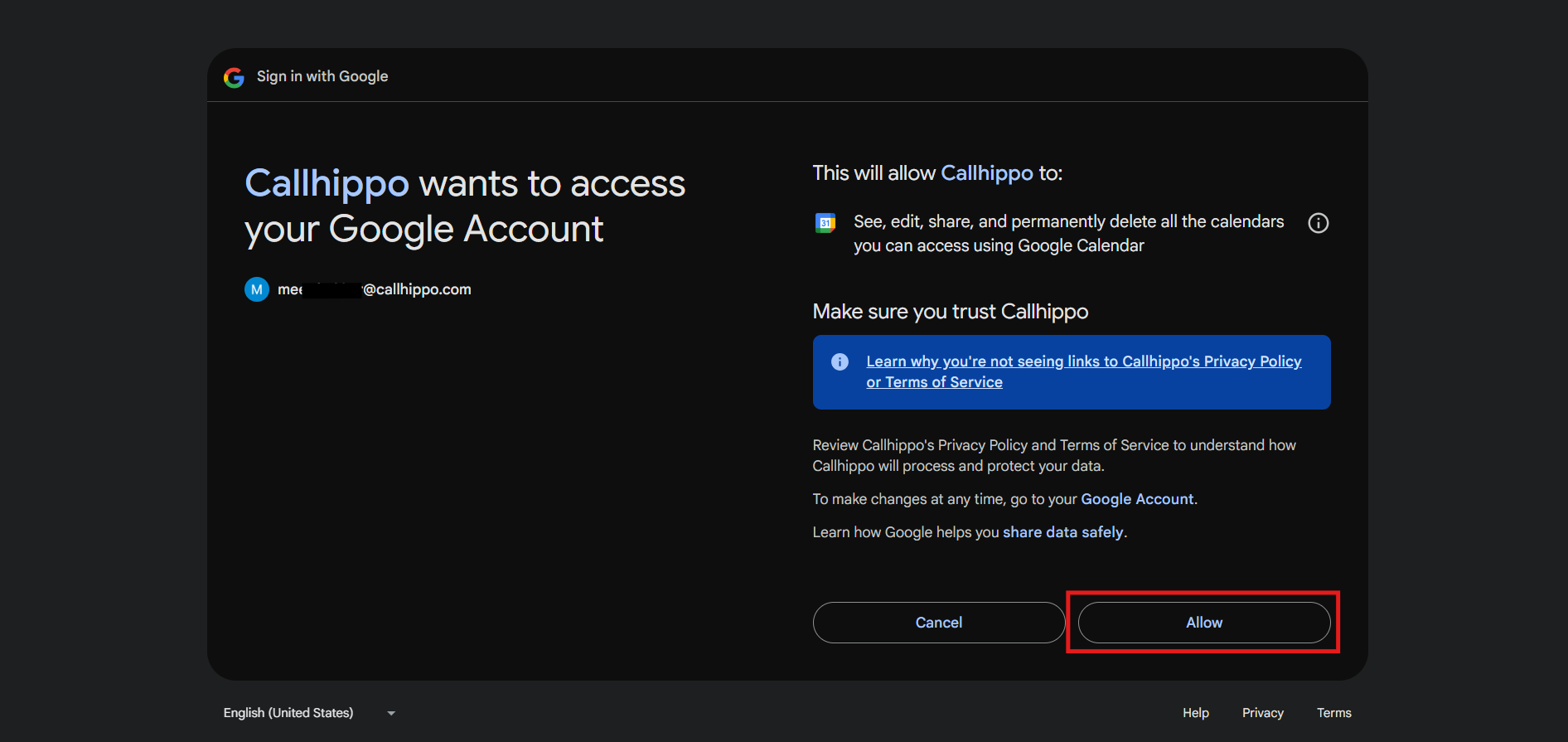
- When prompted to grant permissions, click Allow to continue.
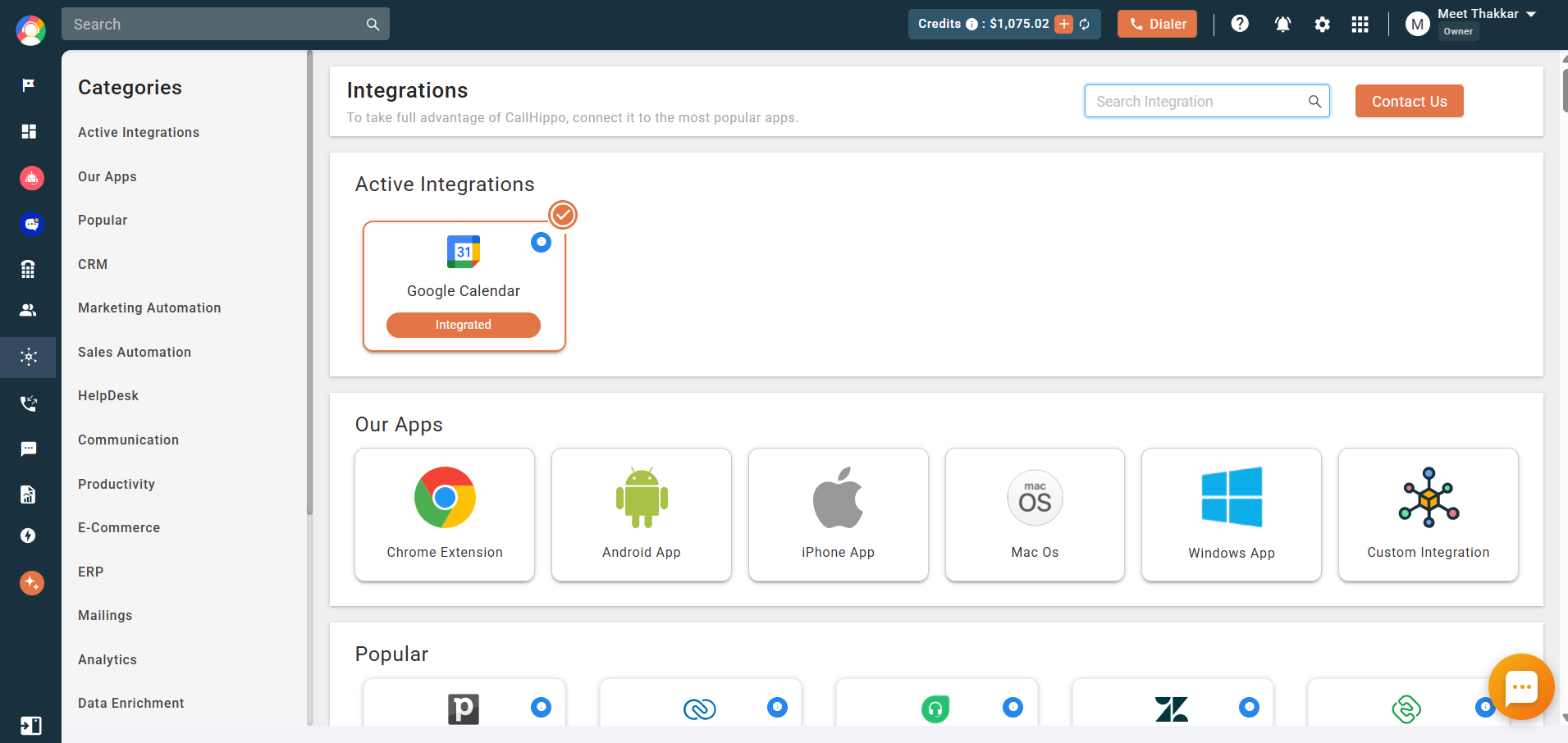
- Once permissions are granted, you are redirected back to the CallHippo Integrations module and your Google Calendar shows as integrated.
What the integration enables
- Schedule calls and set reminders that stay in sync with your Google Calendar.
- Assign Google Calendar to an AI Voice Agent for seamless scheduling and appointment booking through the Booking Assistant section in the AI Voice Agent Settings module.
Troubleshooting
If you run into any issues while integrating Google Calendar, confirm you are signed in with the correct Google account and that your CallHippo role has integration access. If the problem persists, reach out to our support team.
Still need help? Reach us at [email protected].