
Connecting Monday.com with CallHippo lets you sync contacts, log calls and SMS as board updates, and keep your team’s follow-ups moving without leaving your CRM. Follow the steps below to set it up.
Before you begin
- Who can integrate: Any CallHippo user with admin or owner access.
- Permissions needed: Admin rights on both your CallHippo and Monday.com accounts.
- Prerequisite: An active Monday.com account.
- Monday.com contacts sync to the CallHippo dialer when a Click-to-Call action is performed on that contact.
Modules included in the integration
- Contacts
- Leads
Set up on the Monday.com side
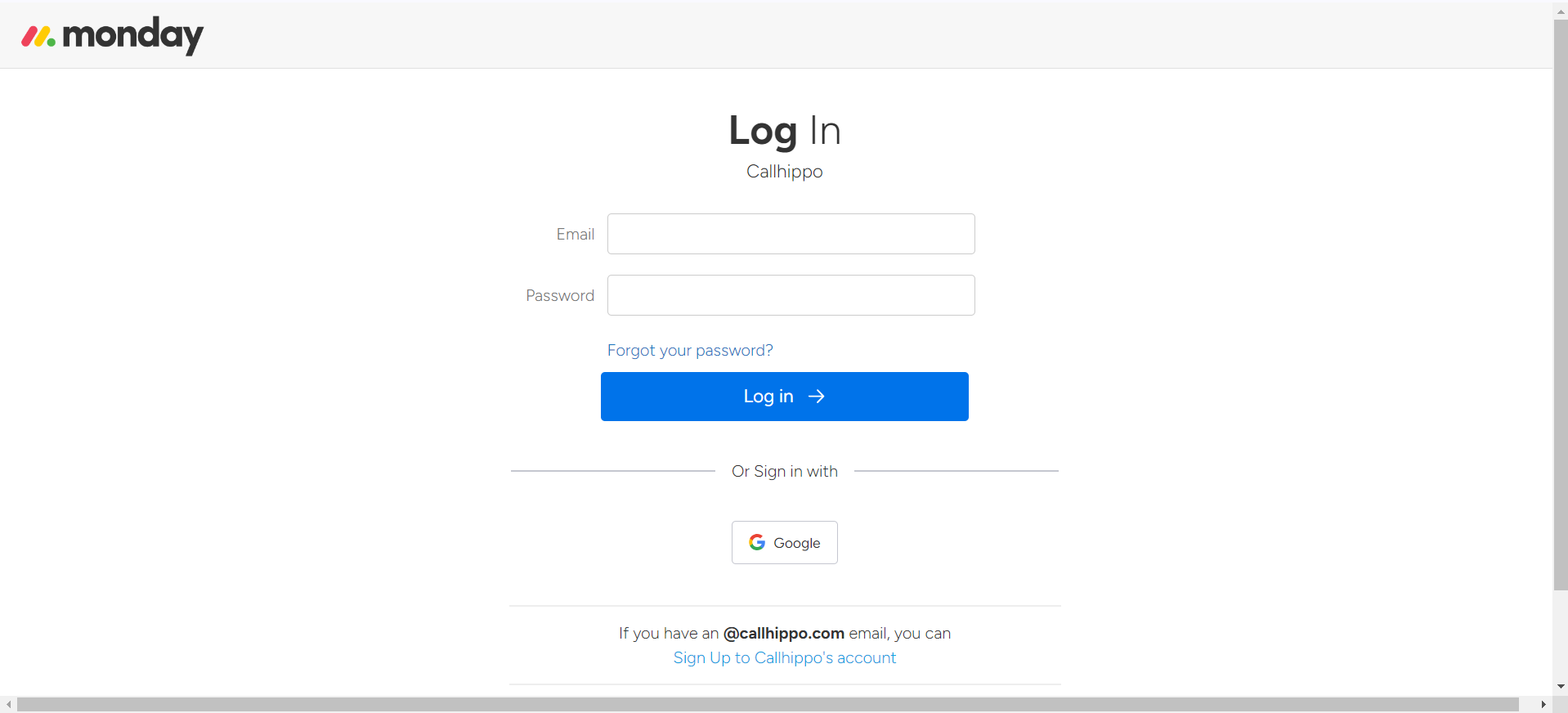
- Log in to your Monday.com account.
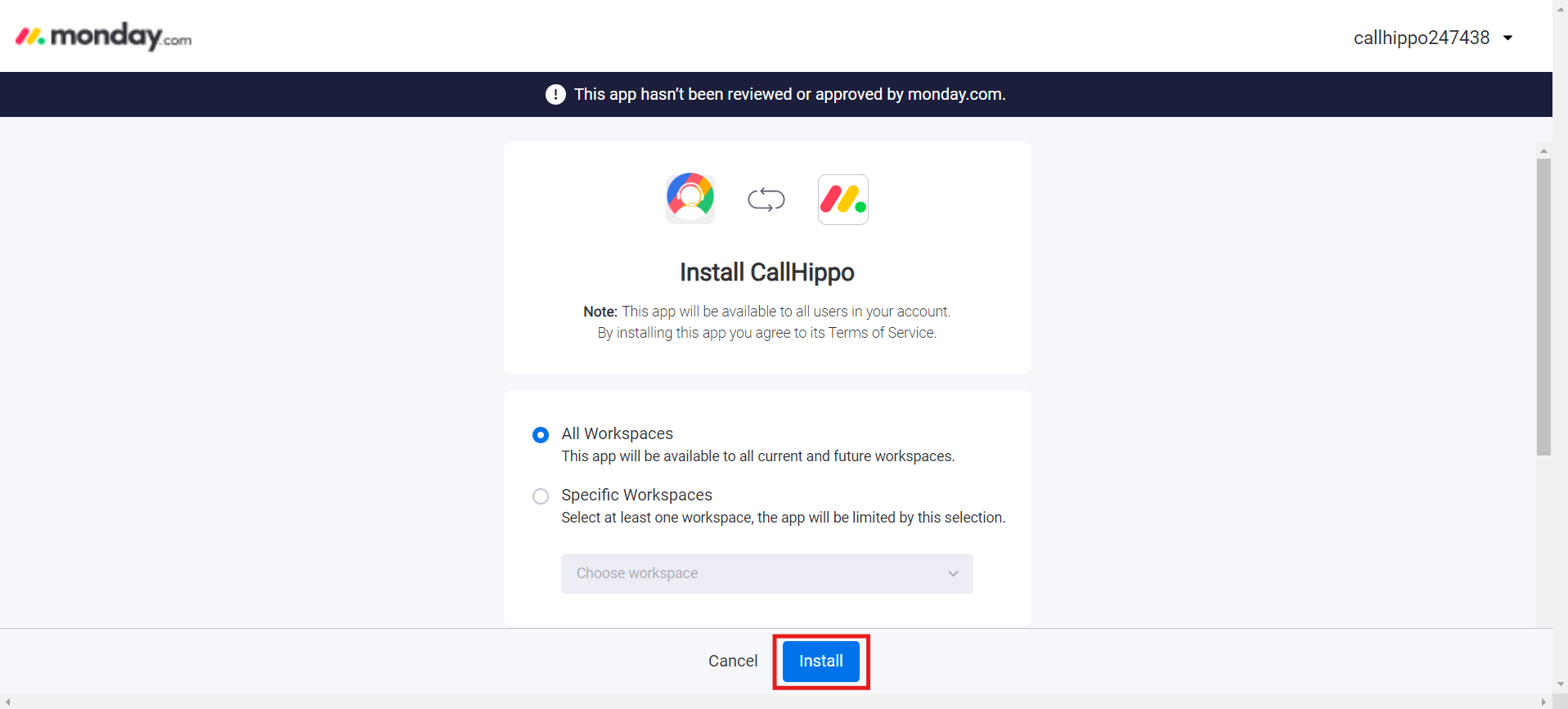
- Install the CallHippo app from this link: Install CallHippo on Monday.com. To limit the app to a specific workspace, choose Specific Workspaces and select the workspace you need; otherwise leave All Workspaces selected and click Install.
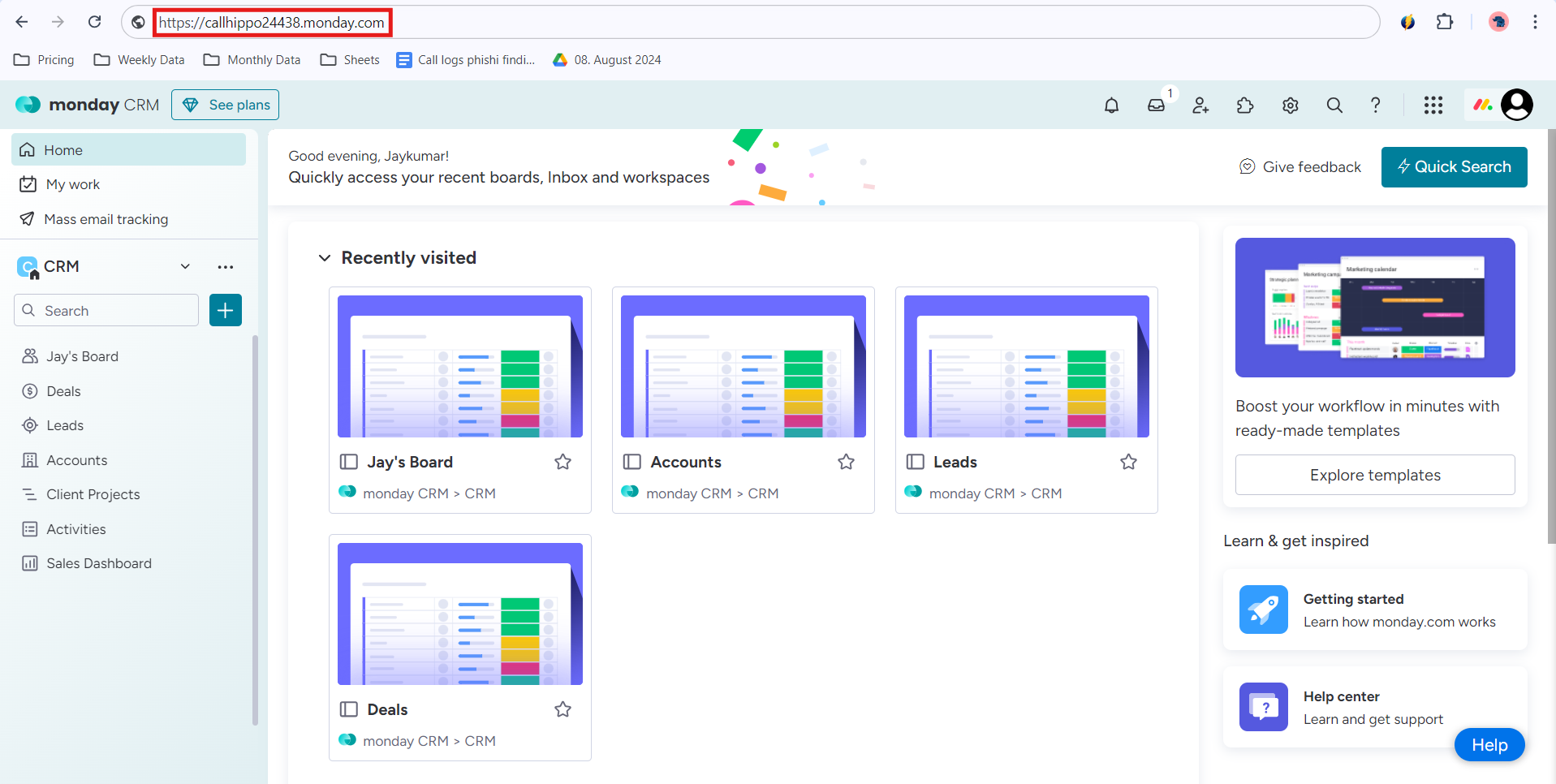
- Note down your Monday.com domain from the browser address bar — you’ll need it in a later step.
Set up on the CallHippo side
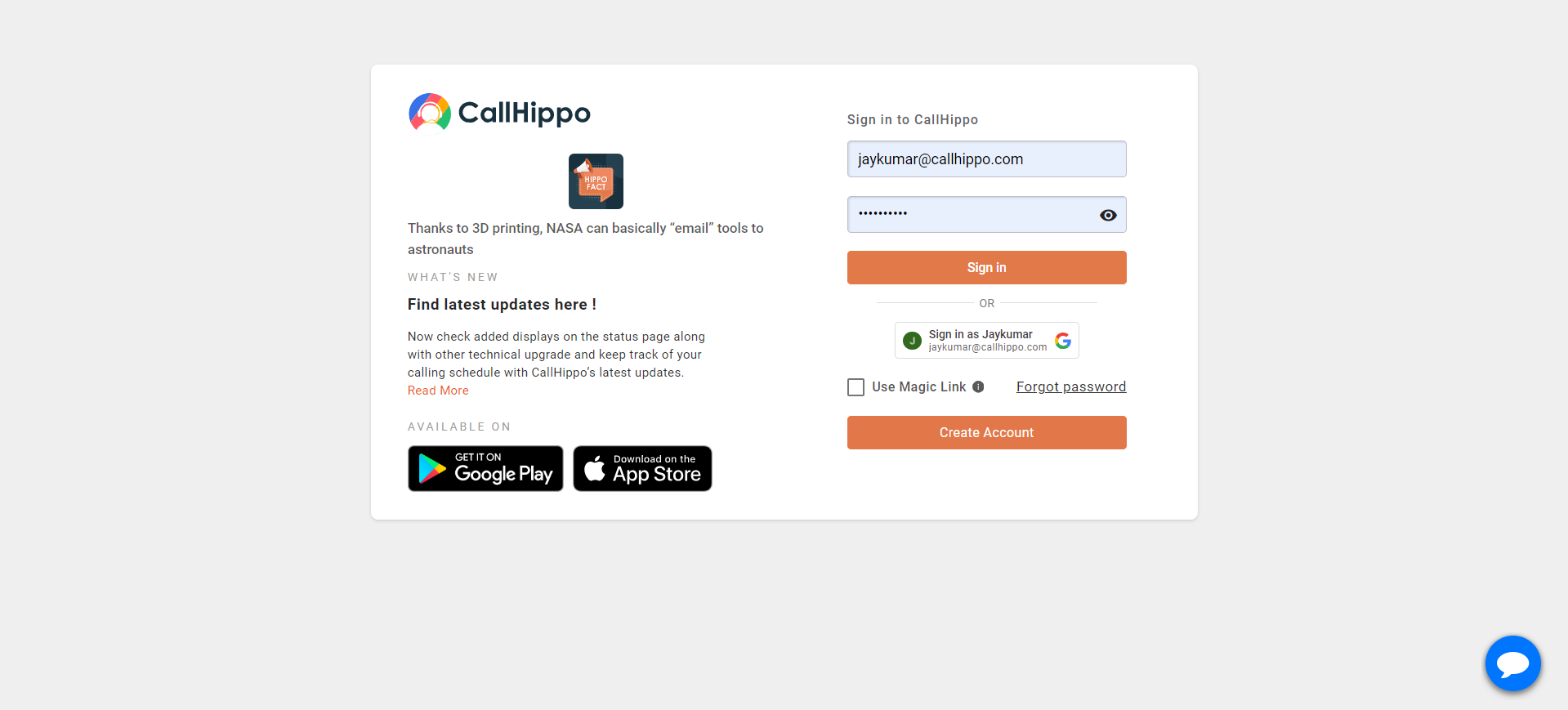
- Log in to your CallHippo account.
- Go to the Integrations section of the CallHippo dashboard.
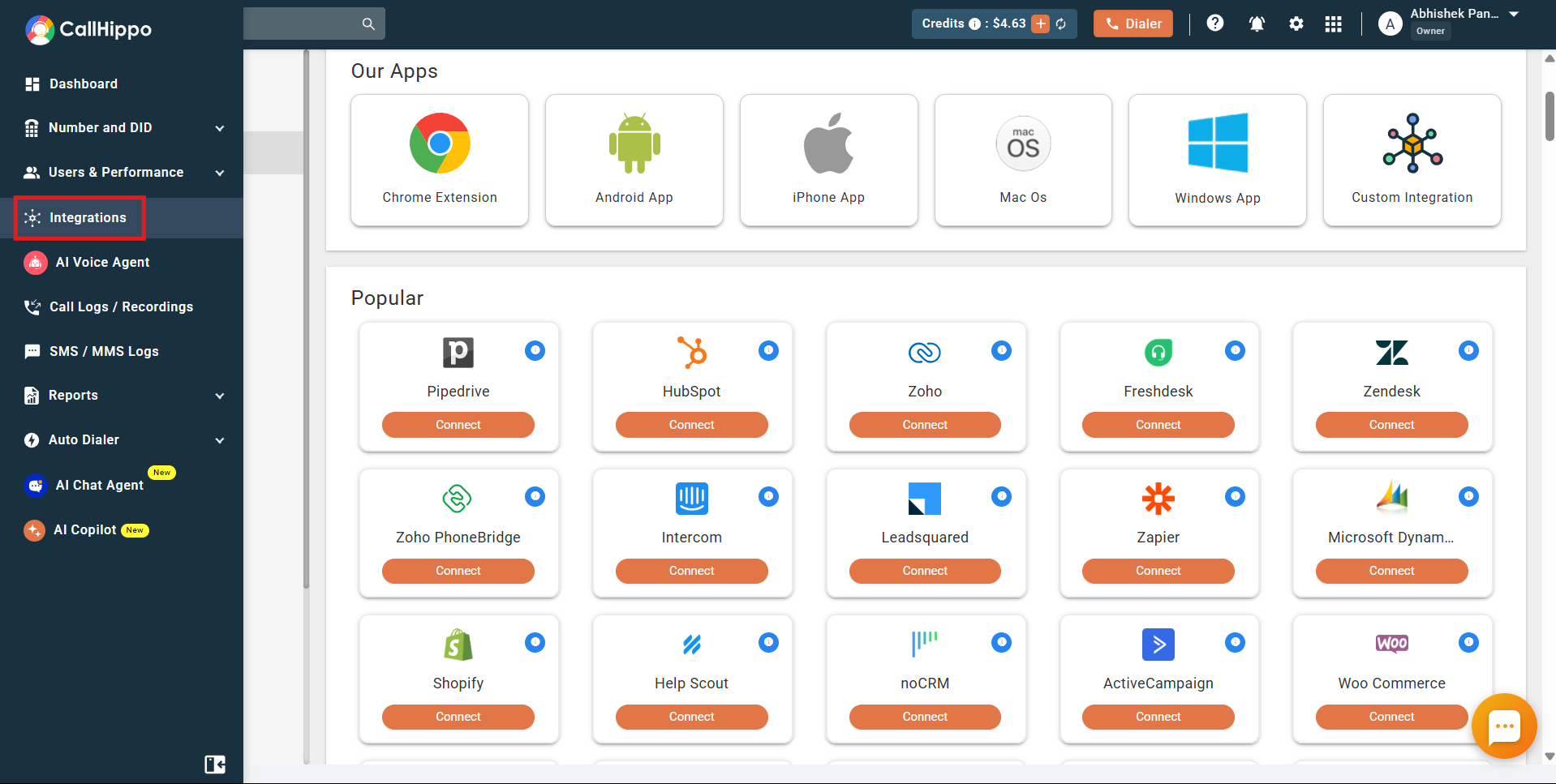
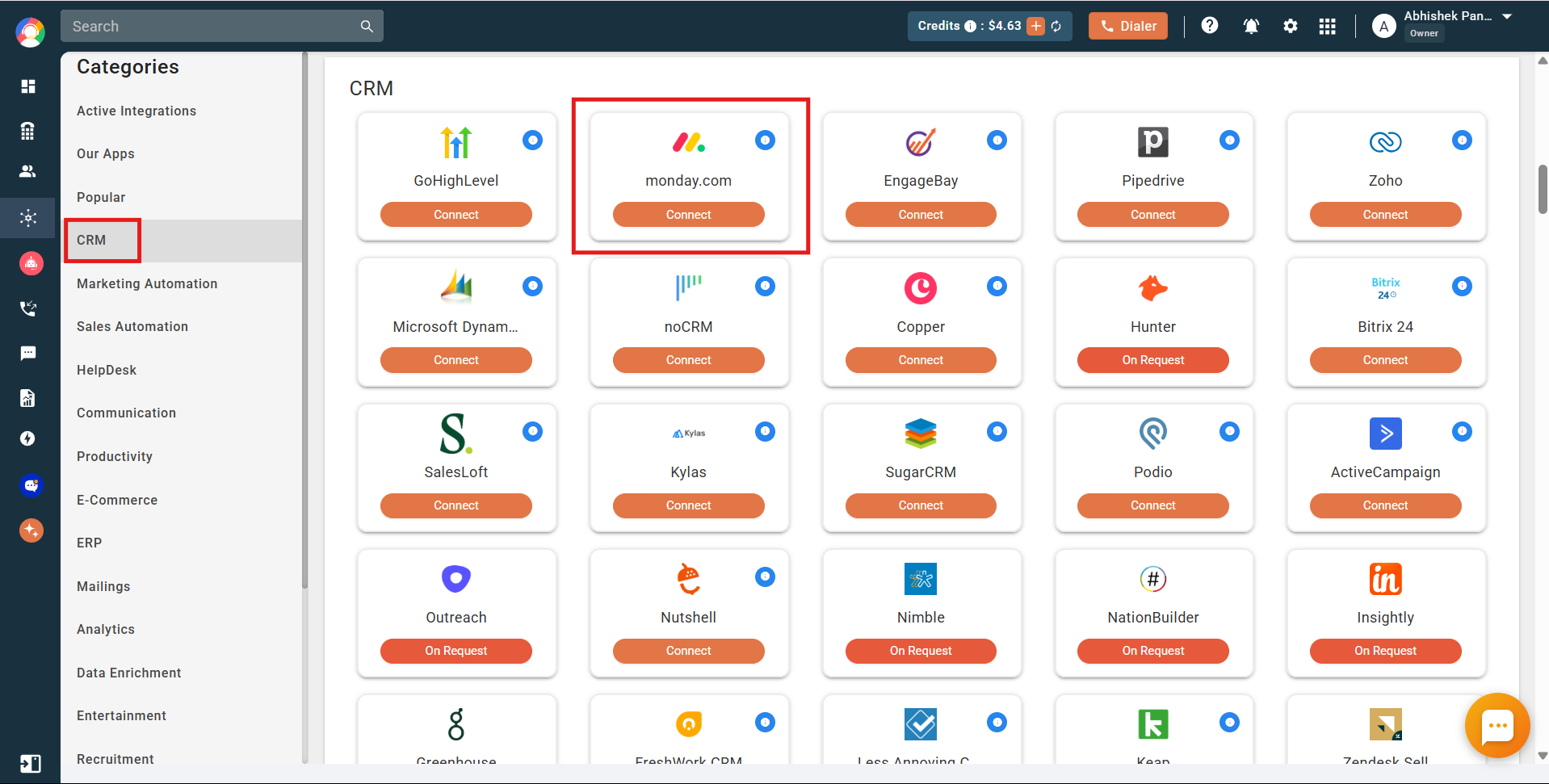
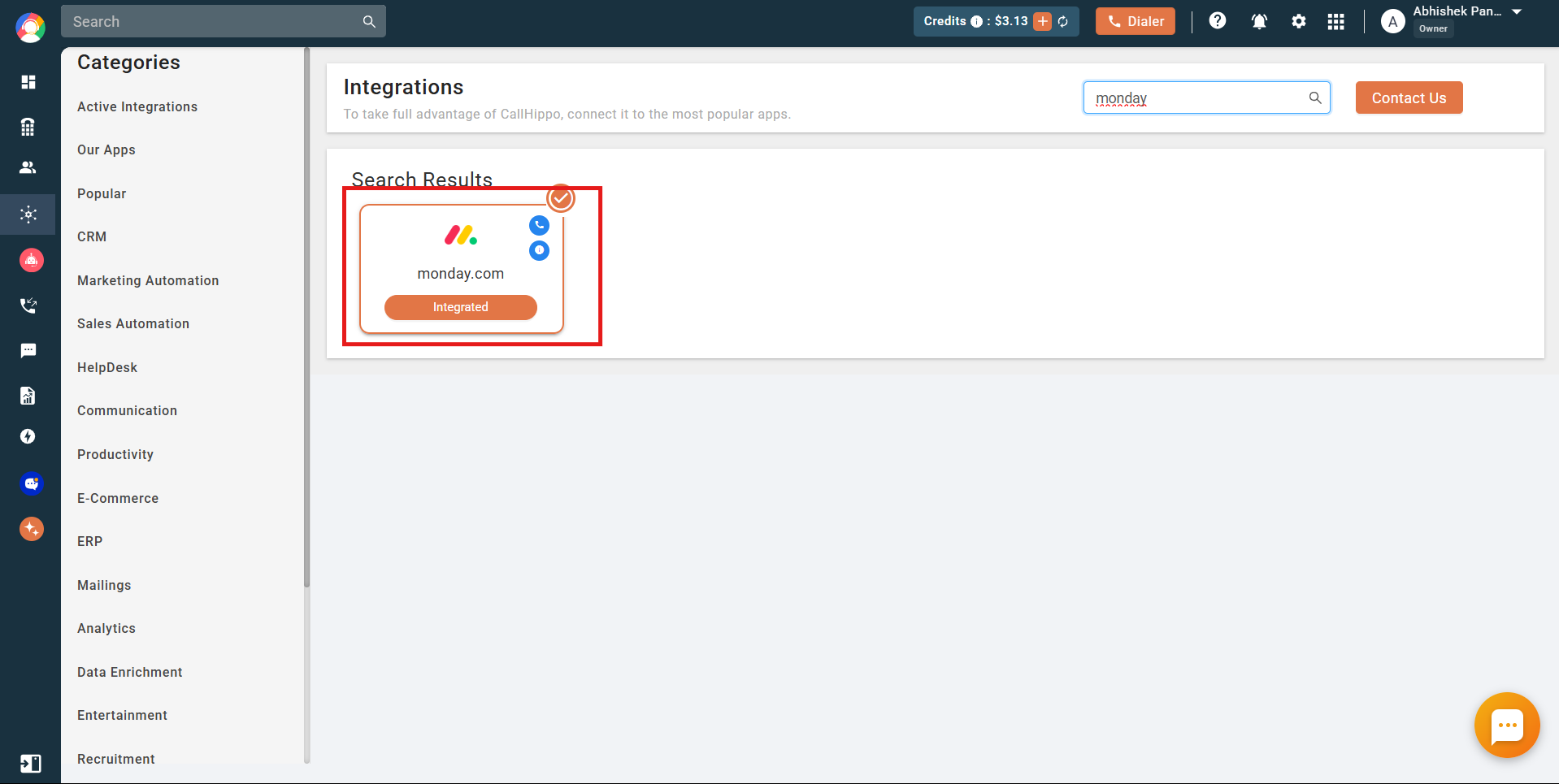
- Find the Monday.com integration and click Connect.
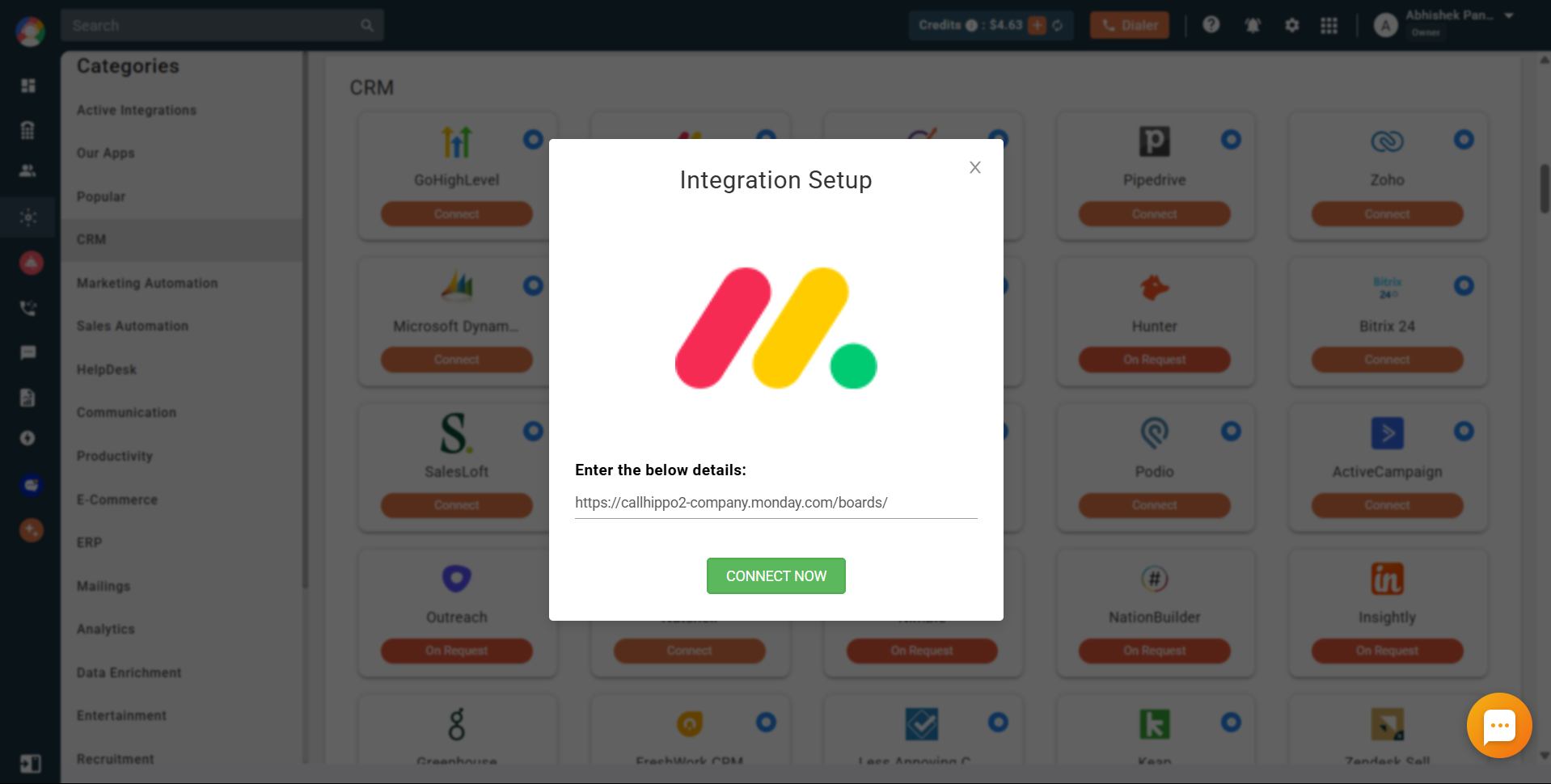
- Enter your Monday.com account domain and click Connect Now to authorize your account.
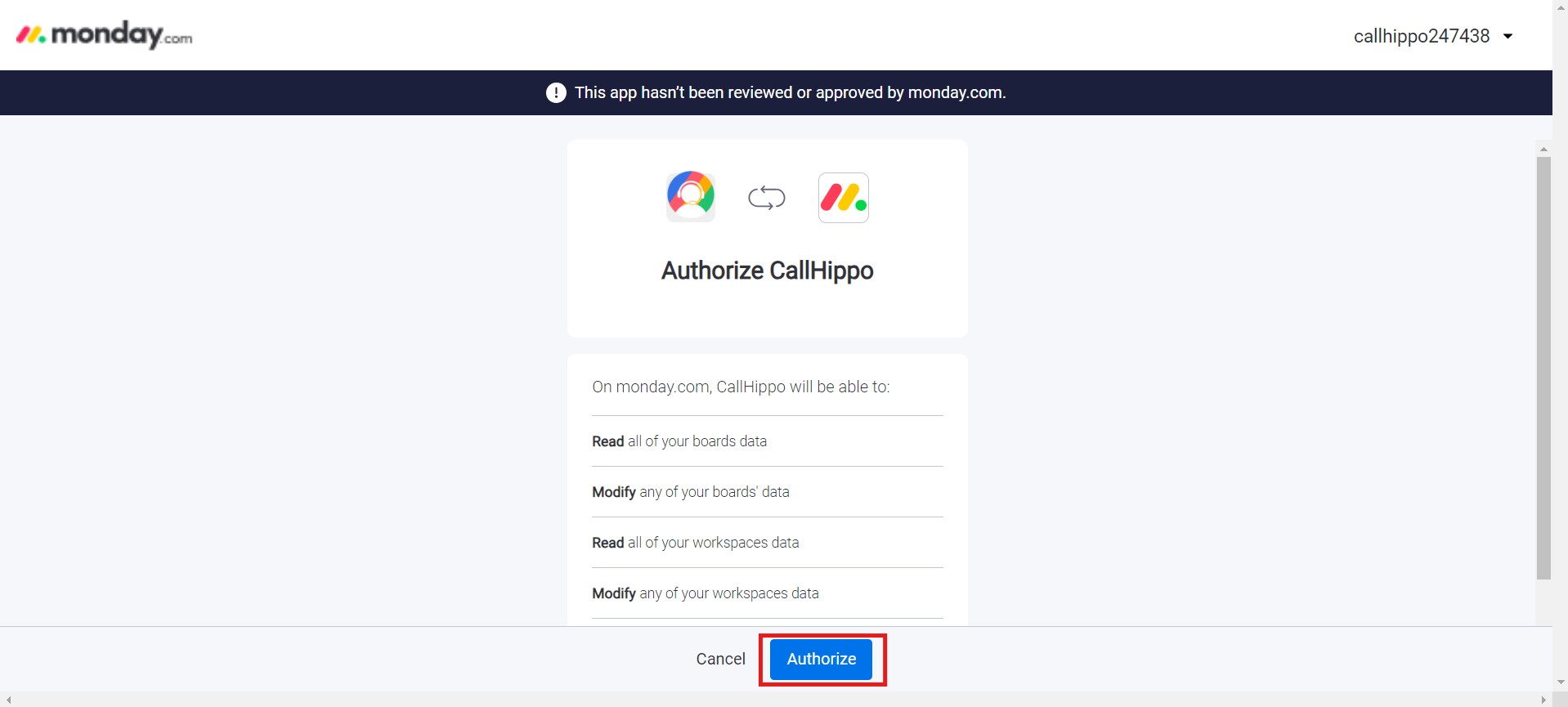
- On the Monday.com authorization screen, review the permissions and click Authorize.
- Once authorized, the integration status will show as Integrated.
What gets synced
Contacts: Contacts with phone or mobile details in Monday.com sync gradually to CallHippo.
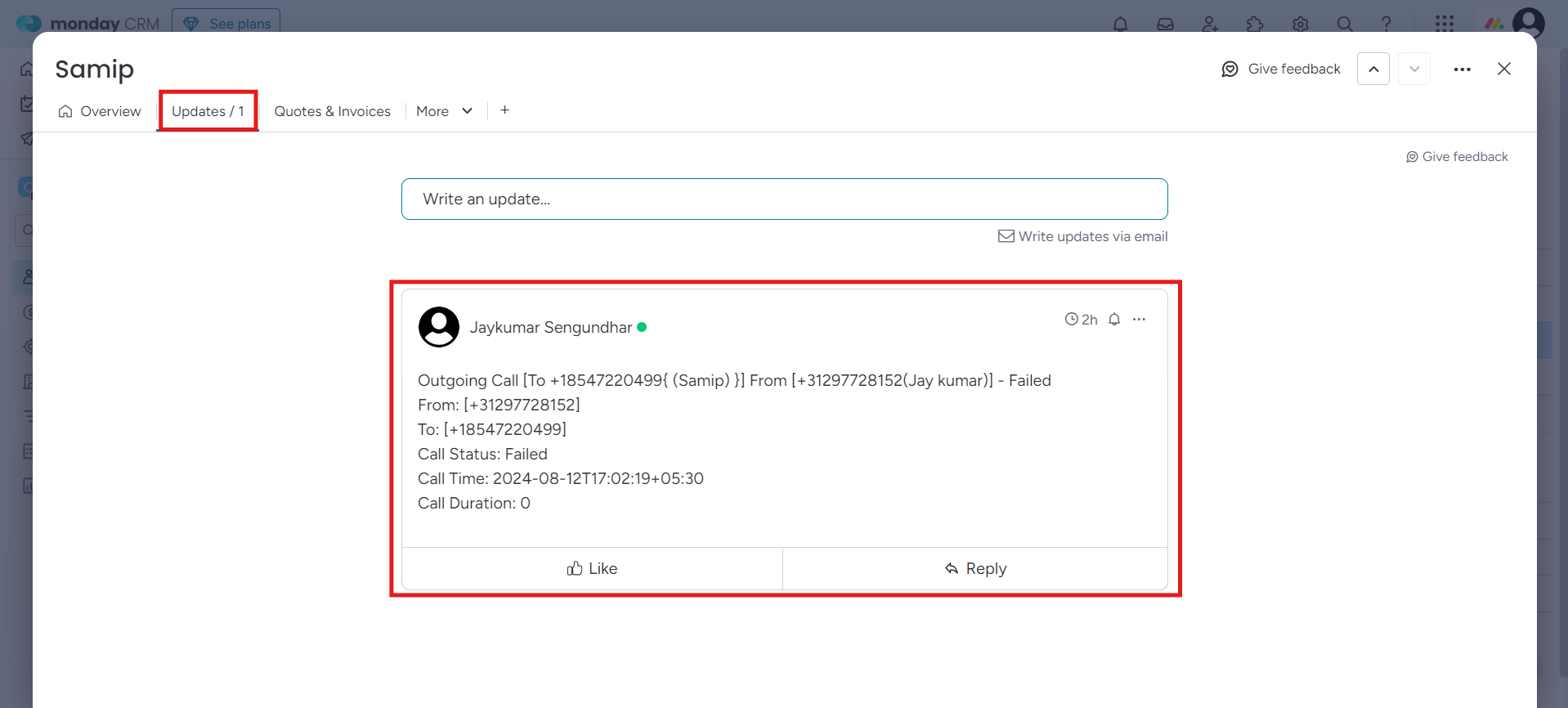
Call activity: Call logs for calls made through the CallHippo dialer are synced as “updates” to the matching item on your Monday.com boards, including details such as:
- Call type (e.g. Outgoing)
- To and From numbers
- Call status (e.g. Completed)
- Call time and duration
- Call notes
- Call recording URL
SMS activity: SMS sent through the CallHippo dialer is synced to the contact’s update section in Monday.com, including sender, recipient, direction, time, and message text.
View call and SMS activity
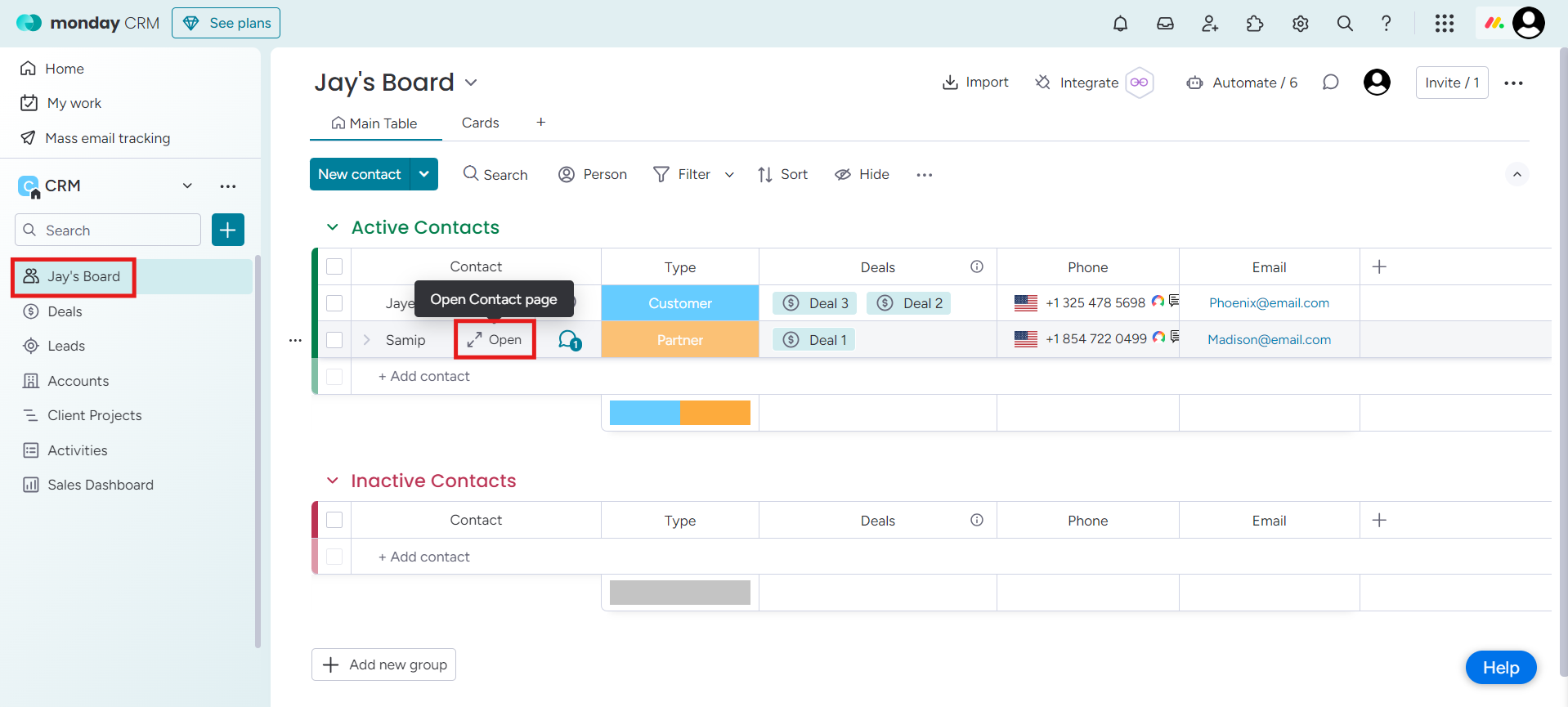
- Select the contact in Monday.com and click Open.
- Go to the Updates section to see the logged call and SMS activity.
Limitations
- Boards created after the integration is set up won’t have contact-sync capability. To enable syncing on new boards, reintegrate Monday.com.
Enable Click to Call
Install the CallHippo Click-to-Call Chrome extension to place outbound calls directly from Monday.com. Get it here: CallHippo Click-to-Call Chrome extension.
Still need help? Reach us at [email protected].