
Connect Attio CRM with CallHippo to automatically log every call and SMS, sync your contacts, and place calls directly from Attio. This guide walks you through the OAuth-based connection and the settings that control what syncs.
Before you begin
- Sign in with a user that has owner access on both your CallHippo and Attio accounts, so you are authorized to connect CallHippo and Attio.
- Make sure API permissions are enabled in Attio. Full access to settings is required to authorize the integration.
- Data syncs almost instantly, but the initial sync of contacts can take a few minutes.
Connect Attio in CallHippo
Attio uses OAuth, so there is no API key to copy. The connect flow redirects you to the Attio portal to log in and grant access.
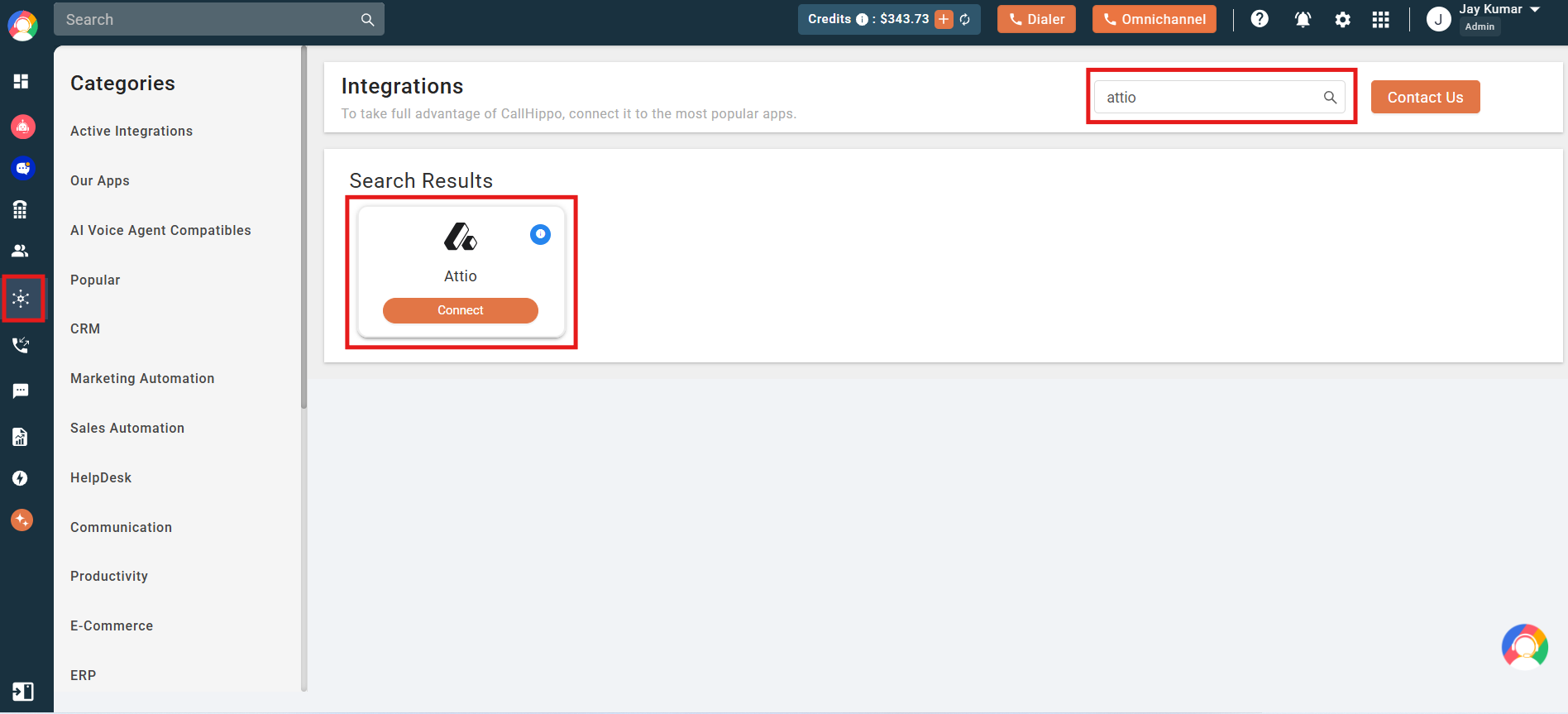
- Open the Integrations page in CallHippo, search for Attio, and click Connect on the Attio card.
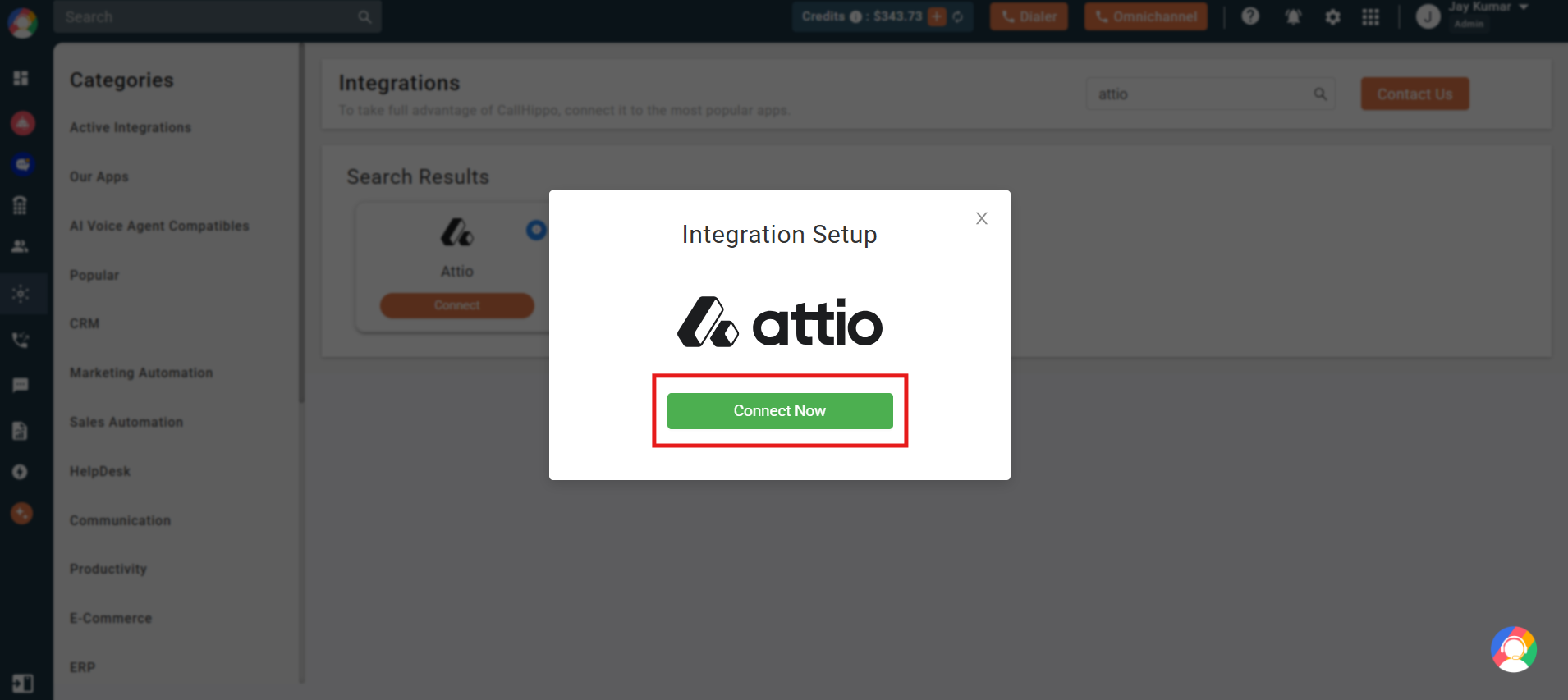
- In the Integration Setup dialog, click Connect Now. You are redirected to the Attio portal.
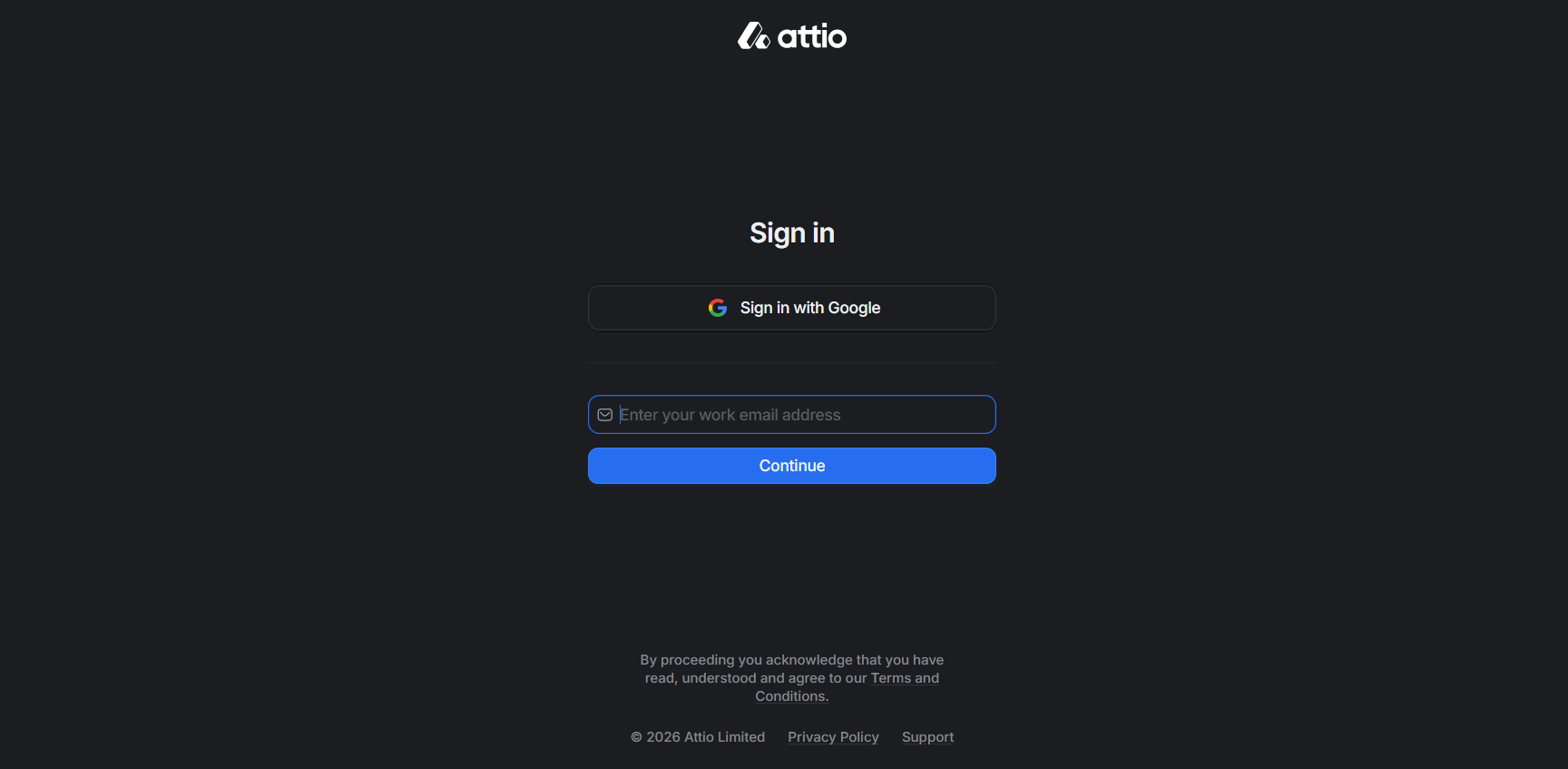
- If you are not already logged in, sign in to Attio with your account email and password (or Sign in with Google).
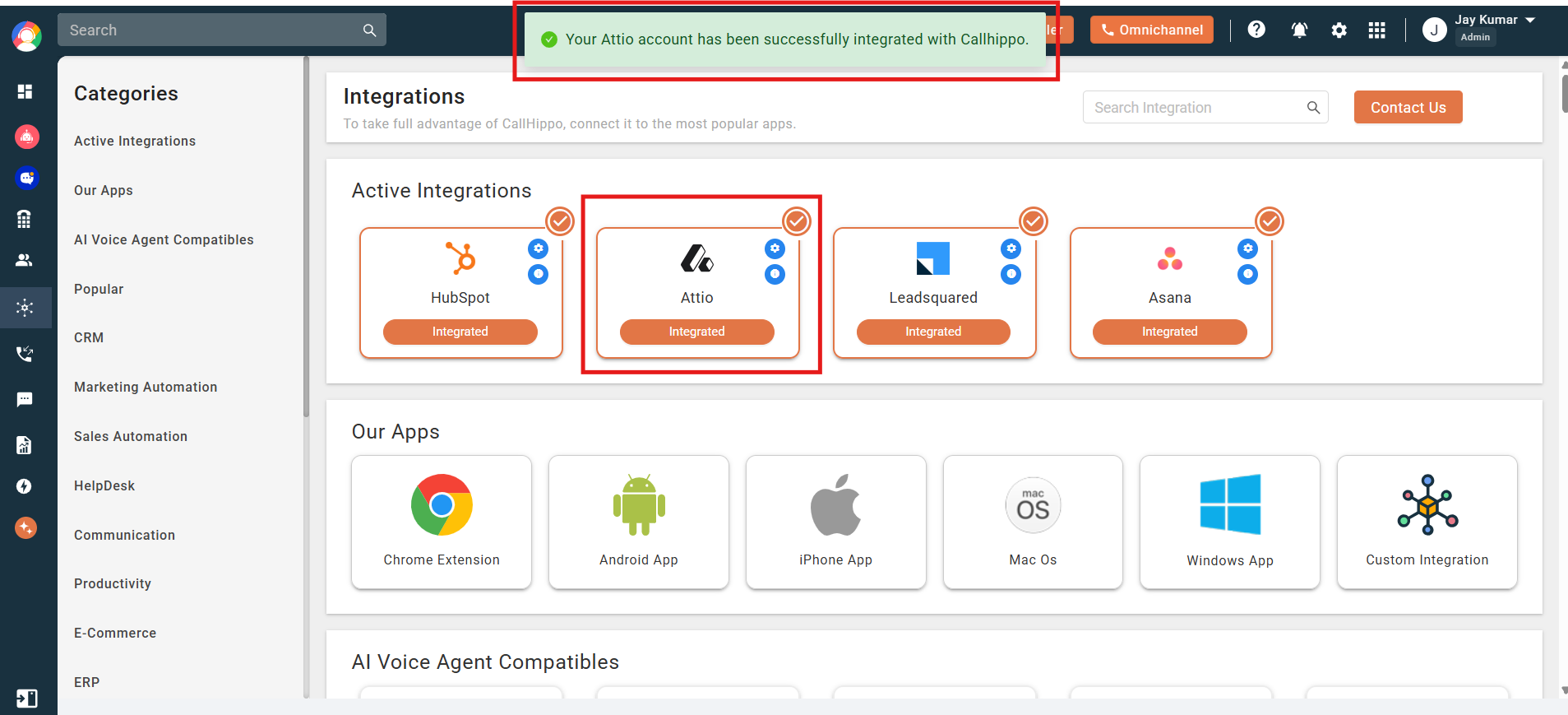
- On the authorization screen, grant access. Once authorization is granted, you are redirected back to CallHippo, where the status shows as Integrated.
Configure the integration
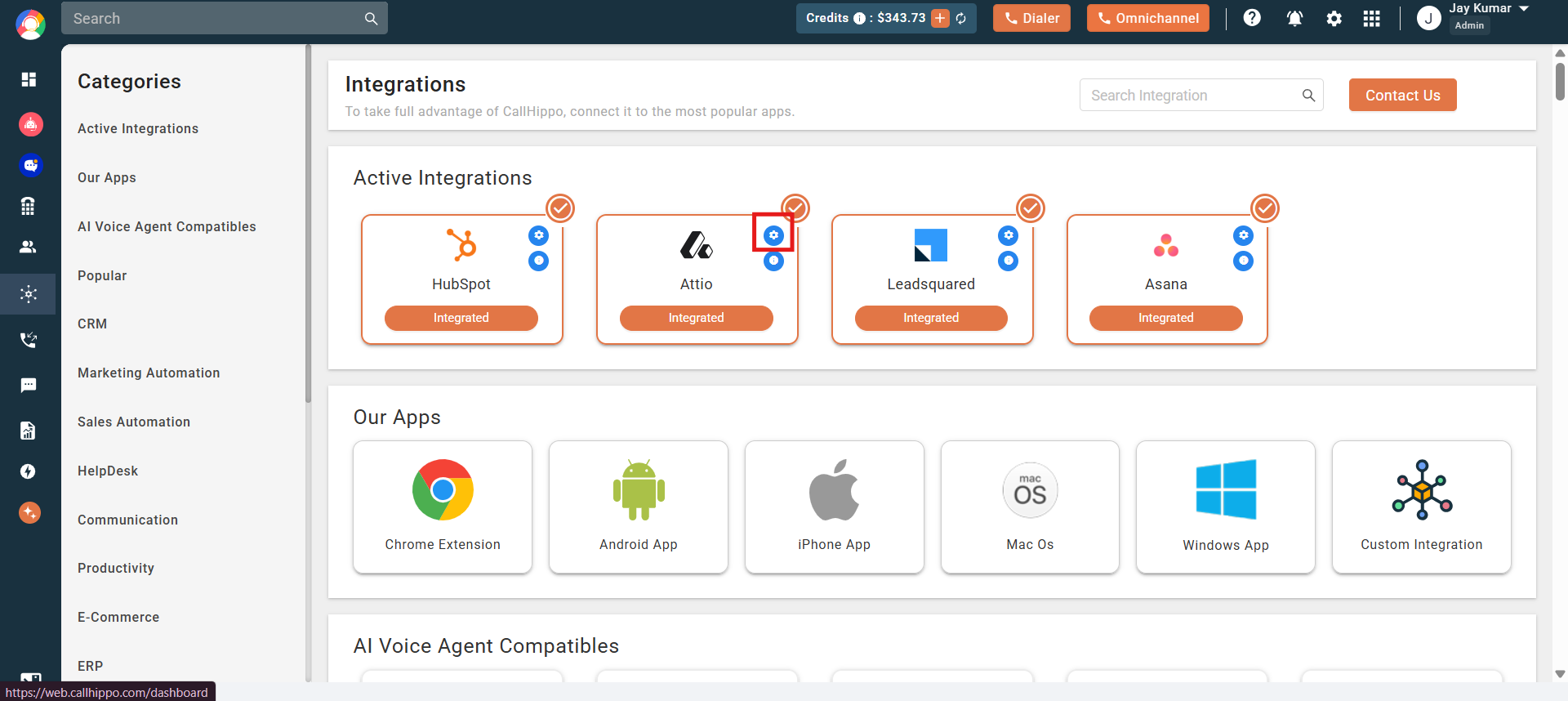
Click the settings (gear) icon on the Attio integration card to open its configuration and choose which numbers push activities into Attio.
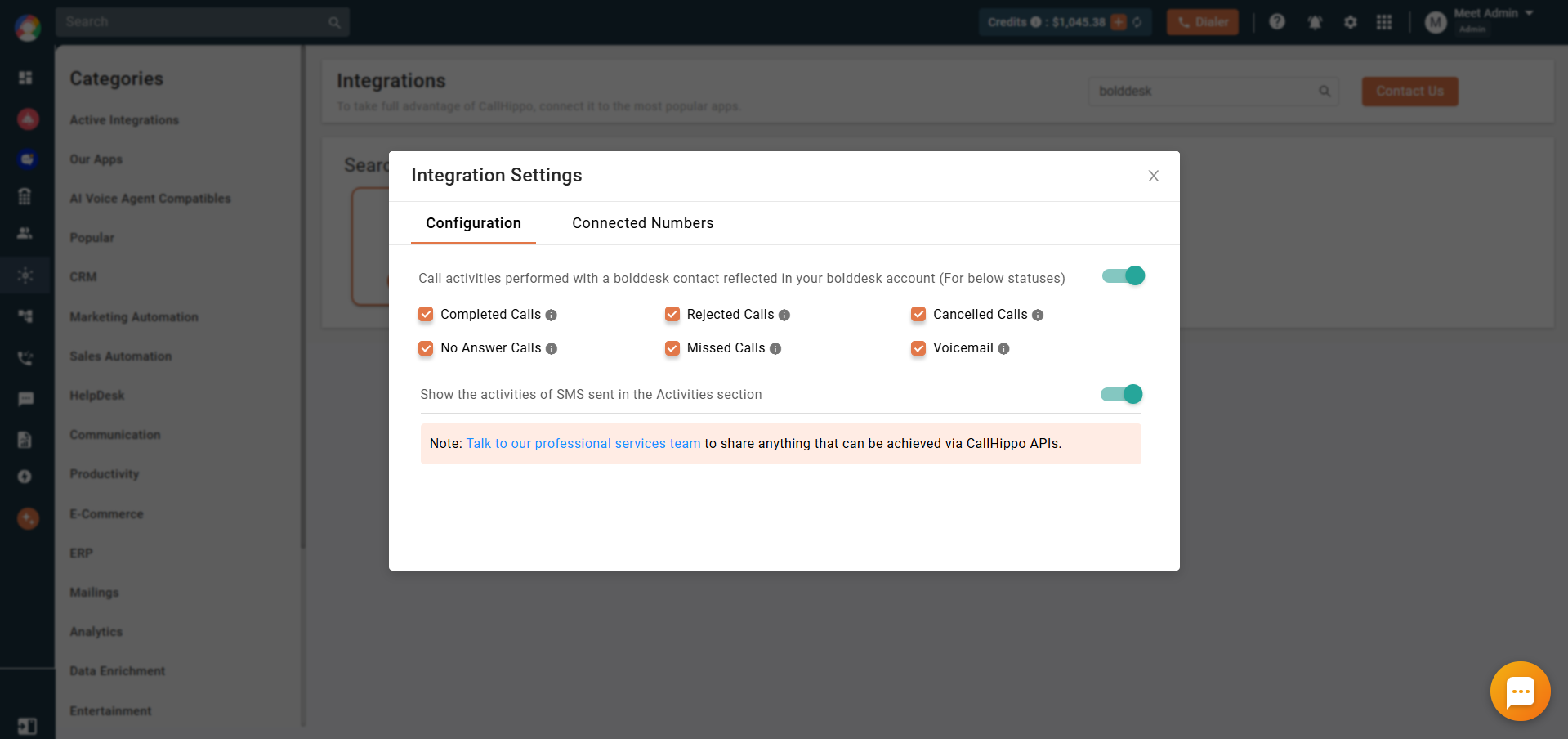
- Activity sync toggle: When enabled, every call activity performed on an Attio contact through CallHippo is reflected in that contact’s Attio activity. Use the checkboxes next to each call status (Completed, Rejected, Cancelled, No Answer, Missed, Voicemail) to choose exactly which activities sync.
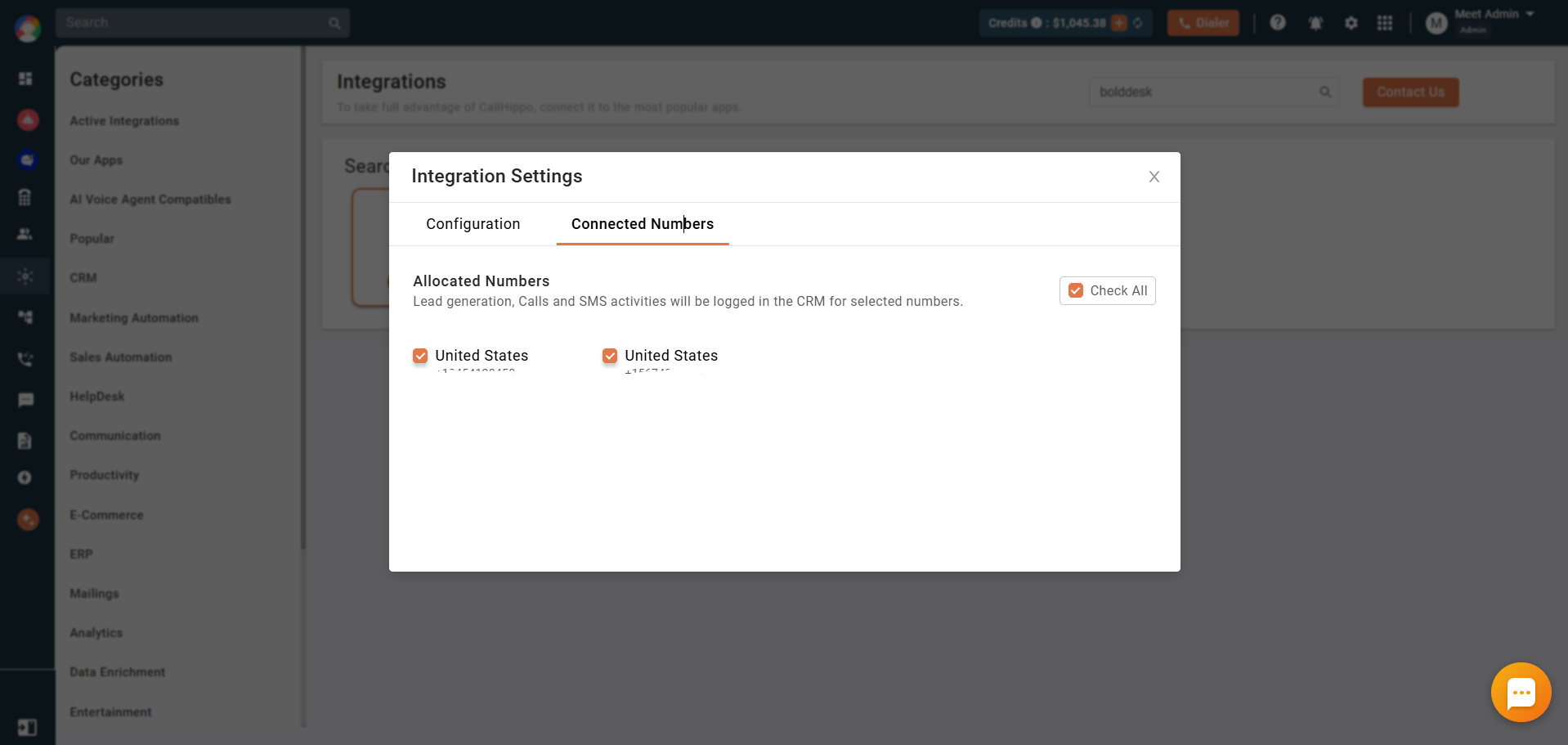
- Connected Numbers: Select or deselect the numbers you want to connect with Attio. Call and SMS activities are logged in Attio only for the selected numbers.
Calling features
- Click to call: Call any prospect directly from Attio using the CallHippo click-to-call feature.
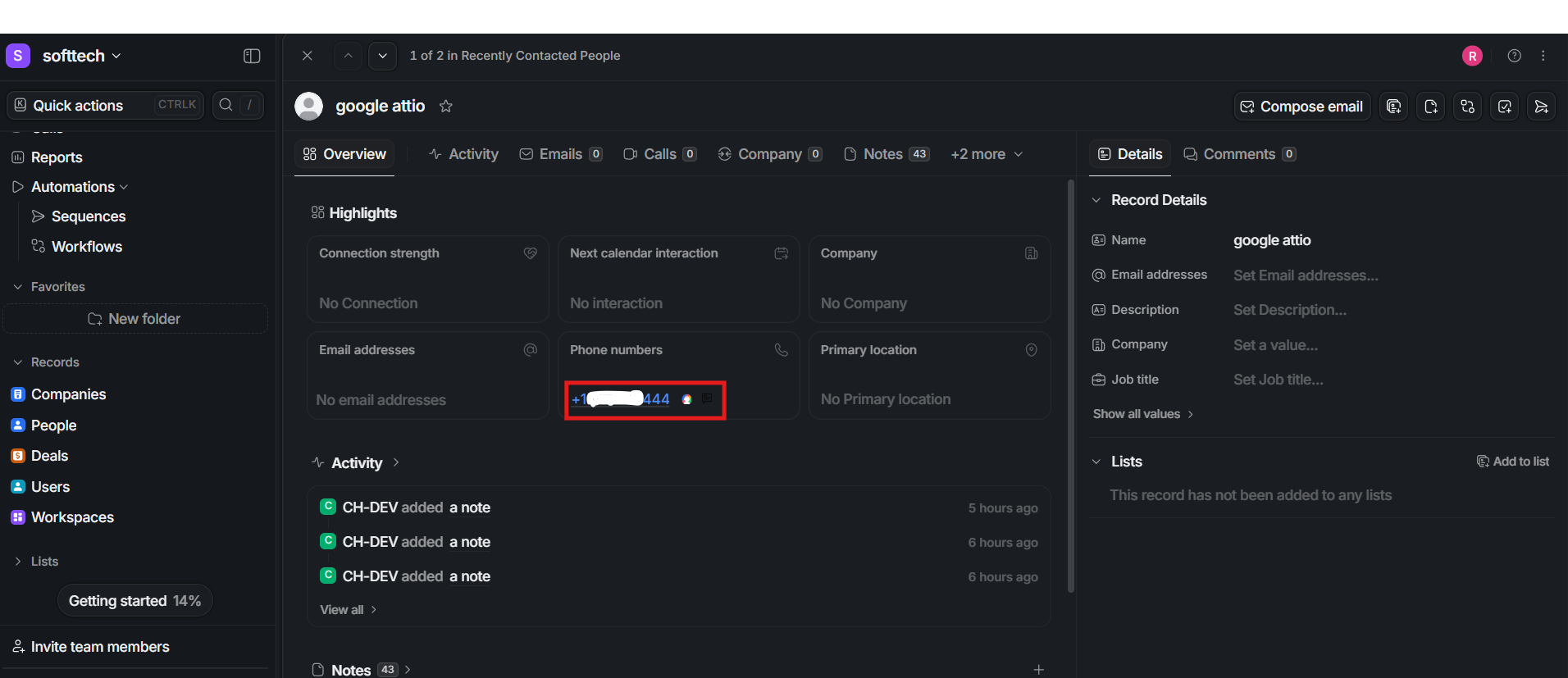
- Chrome extension: Install the CallHippo Virtual Phone System extension from the Chrome Web Store to enable click to call inside Attio.
- Contact sync: New Attio contacts sync to CallHippo the first time you use click to call on them, and appear in the CallHippo dialer’s Contacts tab. Existing Attio contacts sync once dialed through click to call.
What syncs to Attio
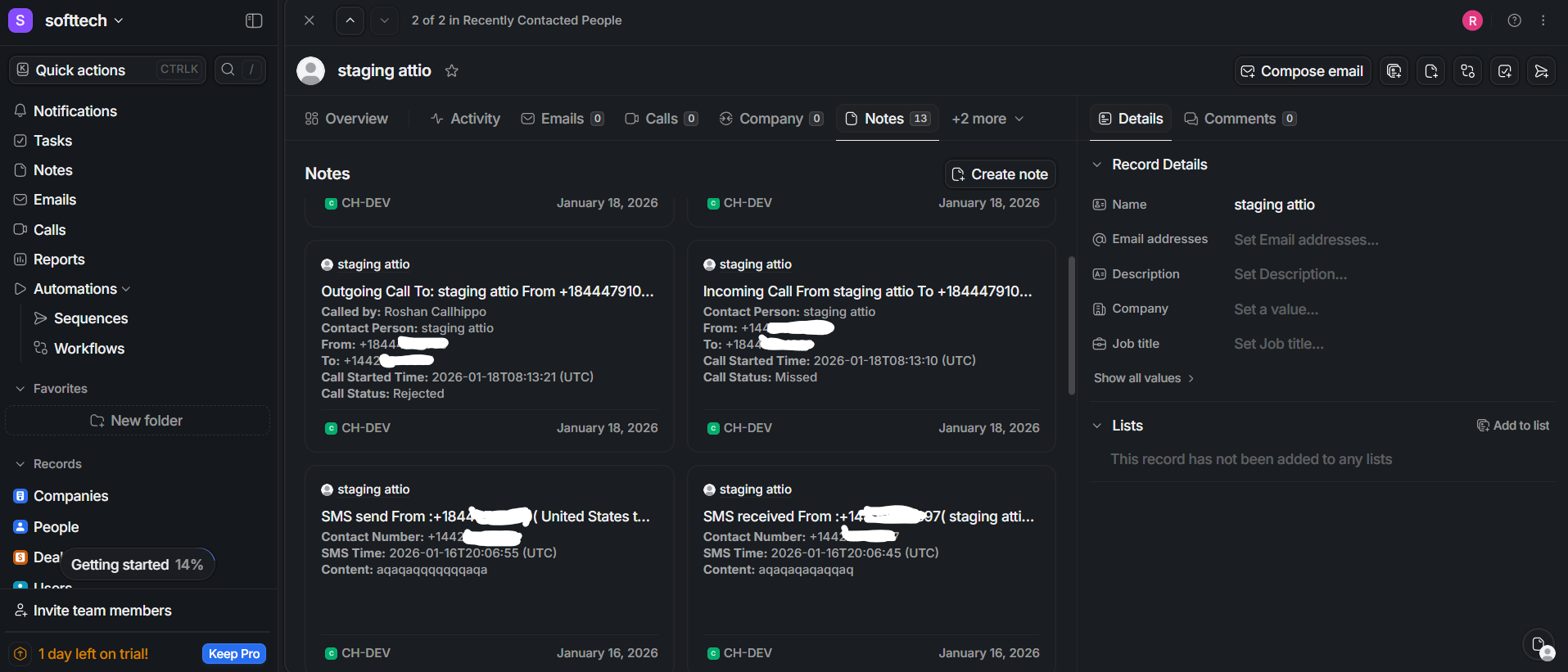
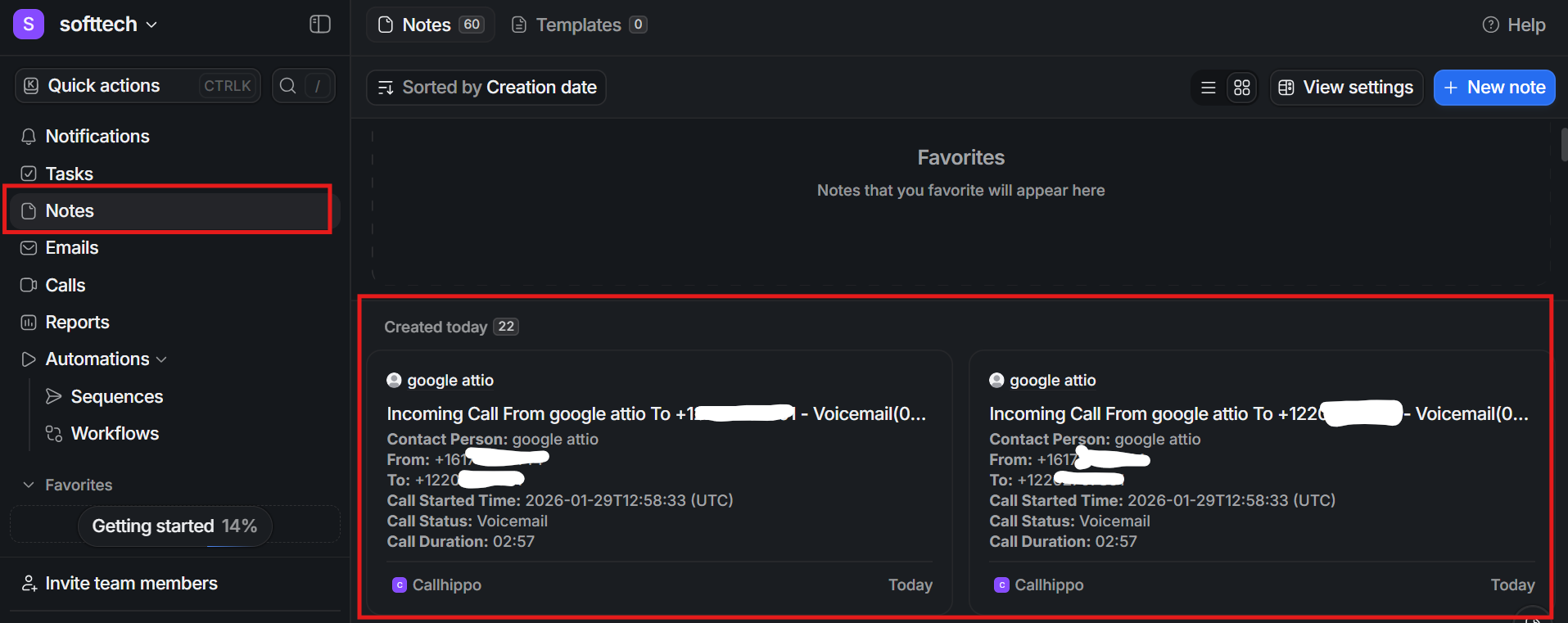
Once connected, CallHippo logs call and SMS activity to the matching Attio People record. Activities appear under People → Activity and Notes, as well as in the Notes module itself.
Call activity fields:
- Called by, From number, and To number
- Call type and call status
- Call duration and call started time
- Recording URL and call notes
- Call tags and call disposition
For AI Voice Agent calls, these additional fields sync: AI voice agent name, AI summary, user sentiment, and call outcome.
SMS activity fields: sent/received time, sent/received by, From number, To number, and SMS content.
After Call Work (ACW): If your plan includes CallHippo’s call tags and disposition service and it is enabled, the activity pushed to Attio includes the tags and disposition added on the ACW screen after the call. Note that this syncs only when the tags and disposition are added on the After Call Work screen. Tags or disposition added later from the call logs or another feed will not sync to Attio.
Still need help? Reach us at [email protected].