
Connecting Help Scout with CallHippo logs your calls and texts as conversations against the right customer, so your support team can handle phone and email in one place. This guide walks you through authorizing the connection and shows what the integration does once it is live.
Before you begin
- An active Help Scout account with permission to authorize third-party apps.
- A CallHippo account where you can manage integrations.
Connect Help Scout in CallHippo
- Log in to your CallHippo account.
- Open Integrations from the left sidebar menu.
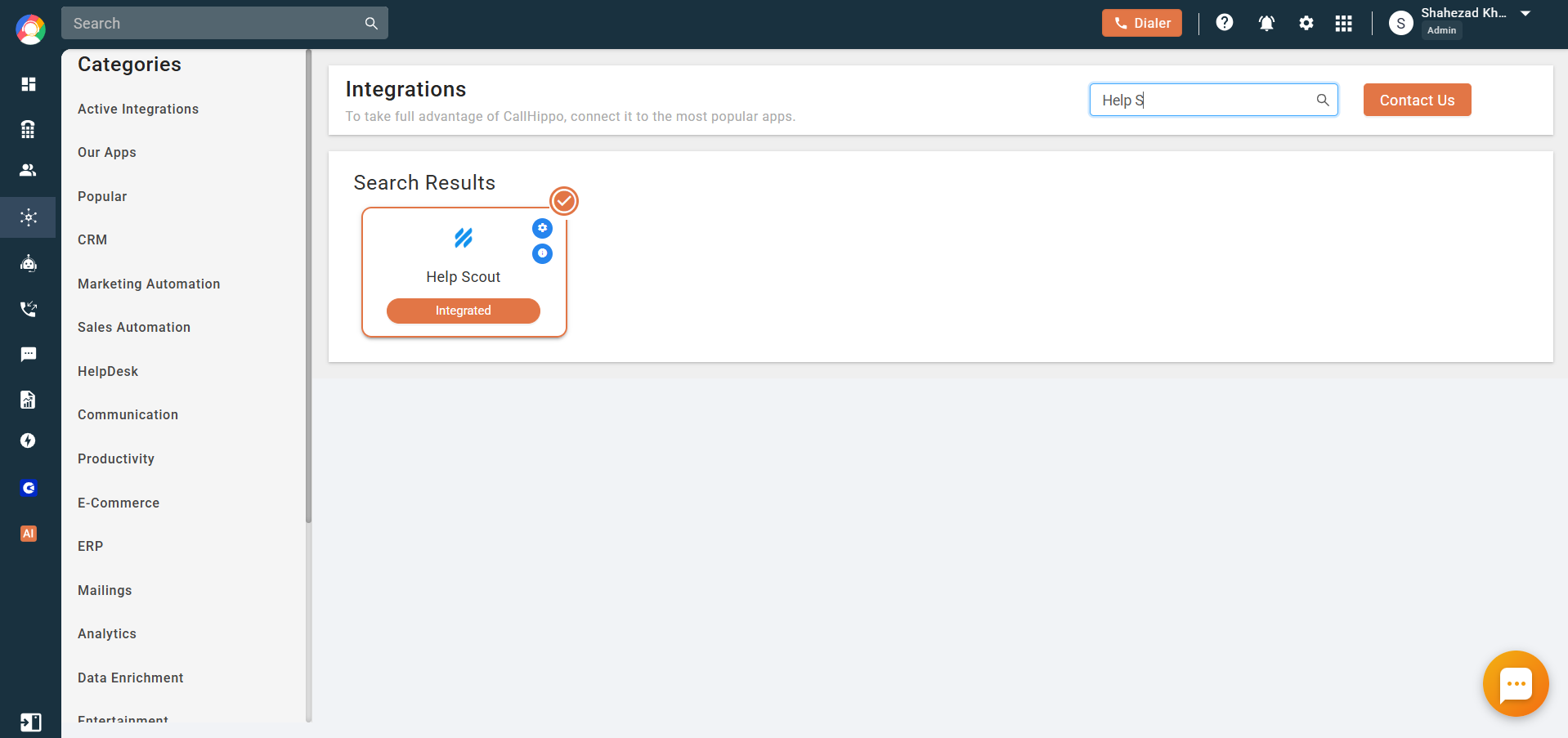
- Find Help Scout and click Connect.
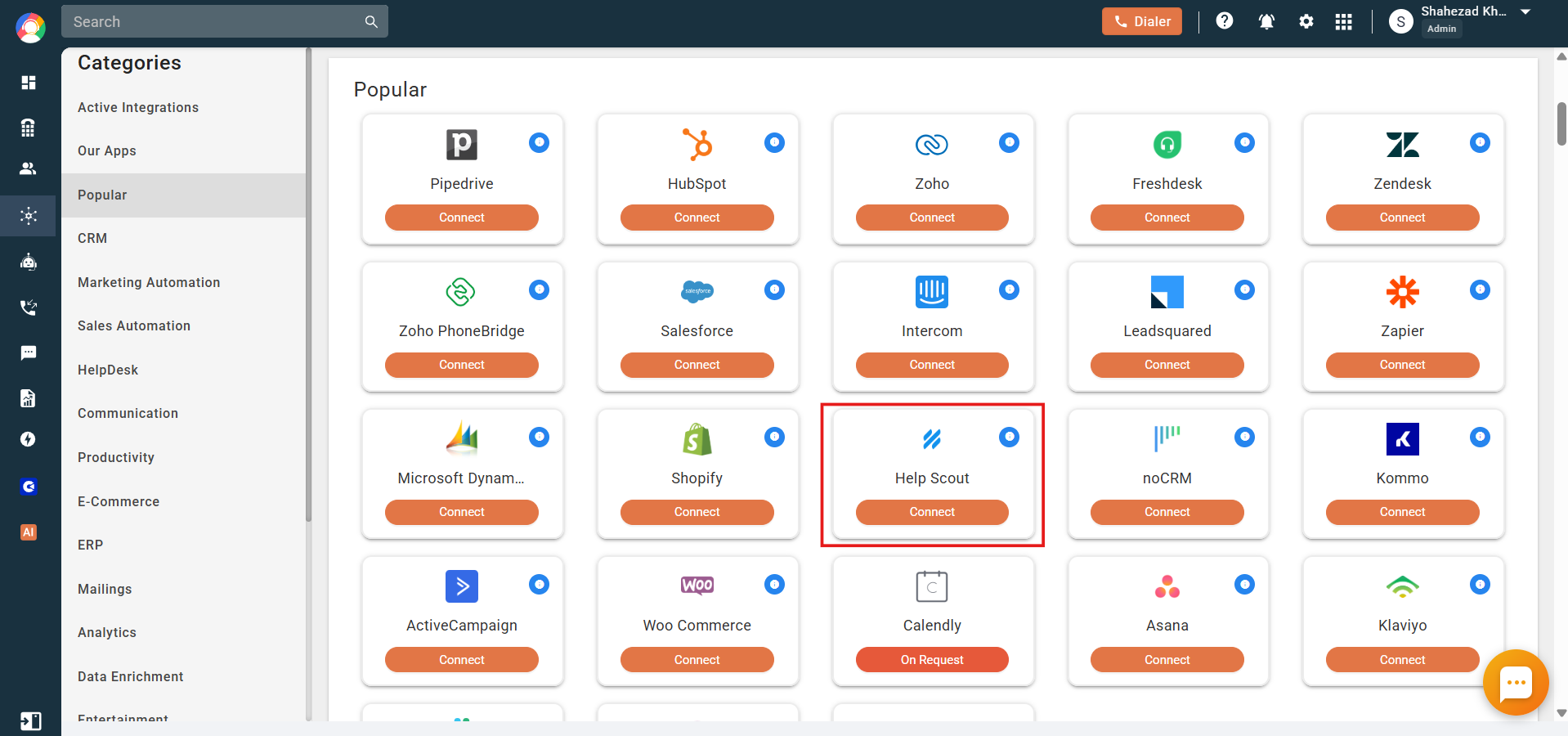
- Click Connect Now to link your Help Scout account.
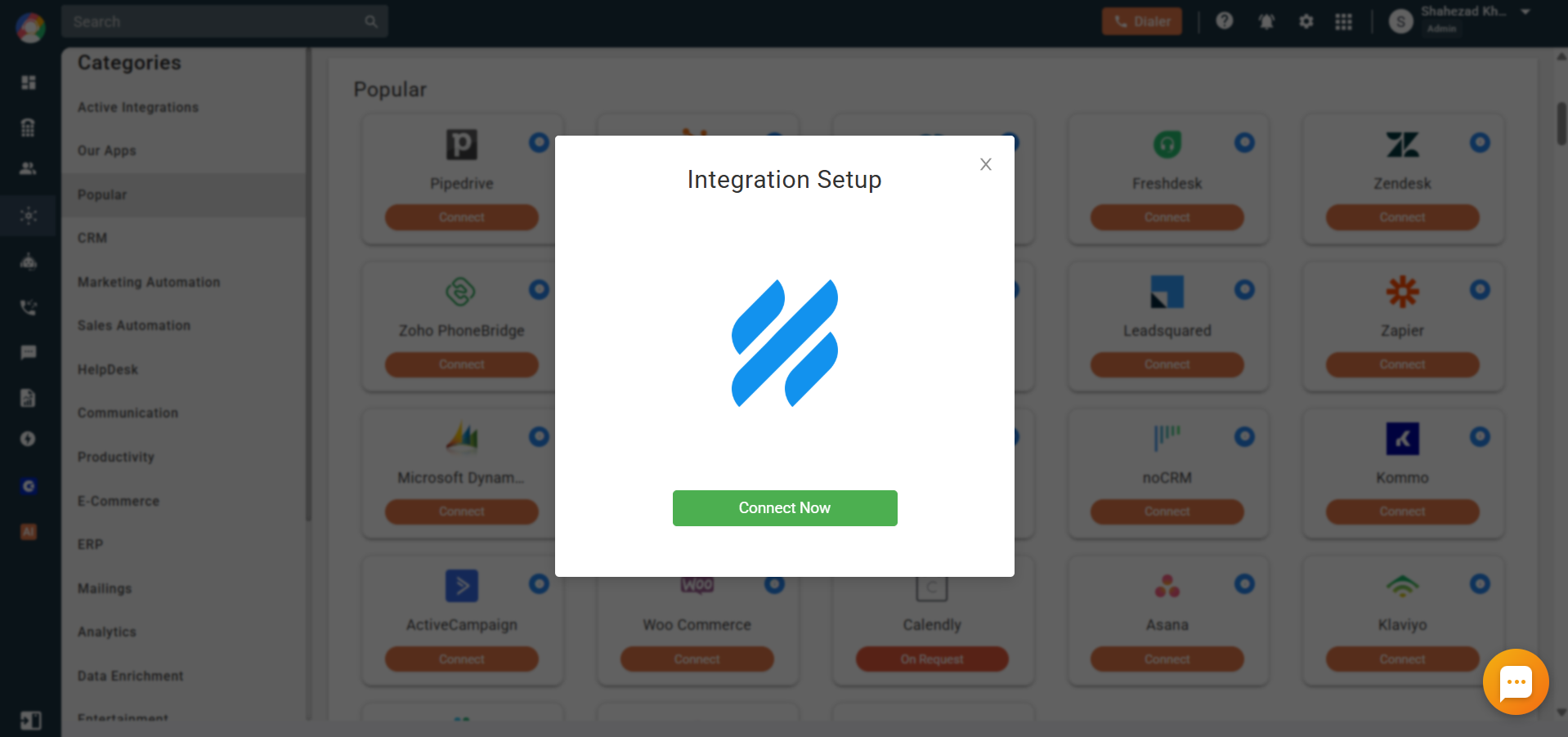
- Enter your Help Scout email and password and click Log In. If you are already logged in, skip to the next step.
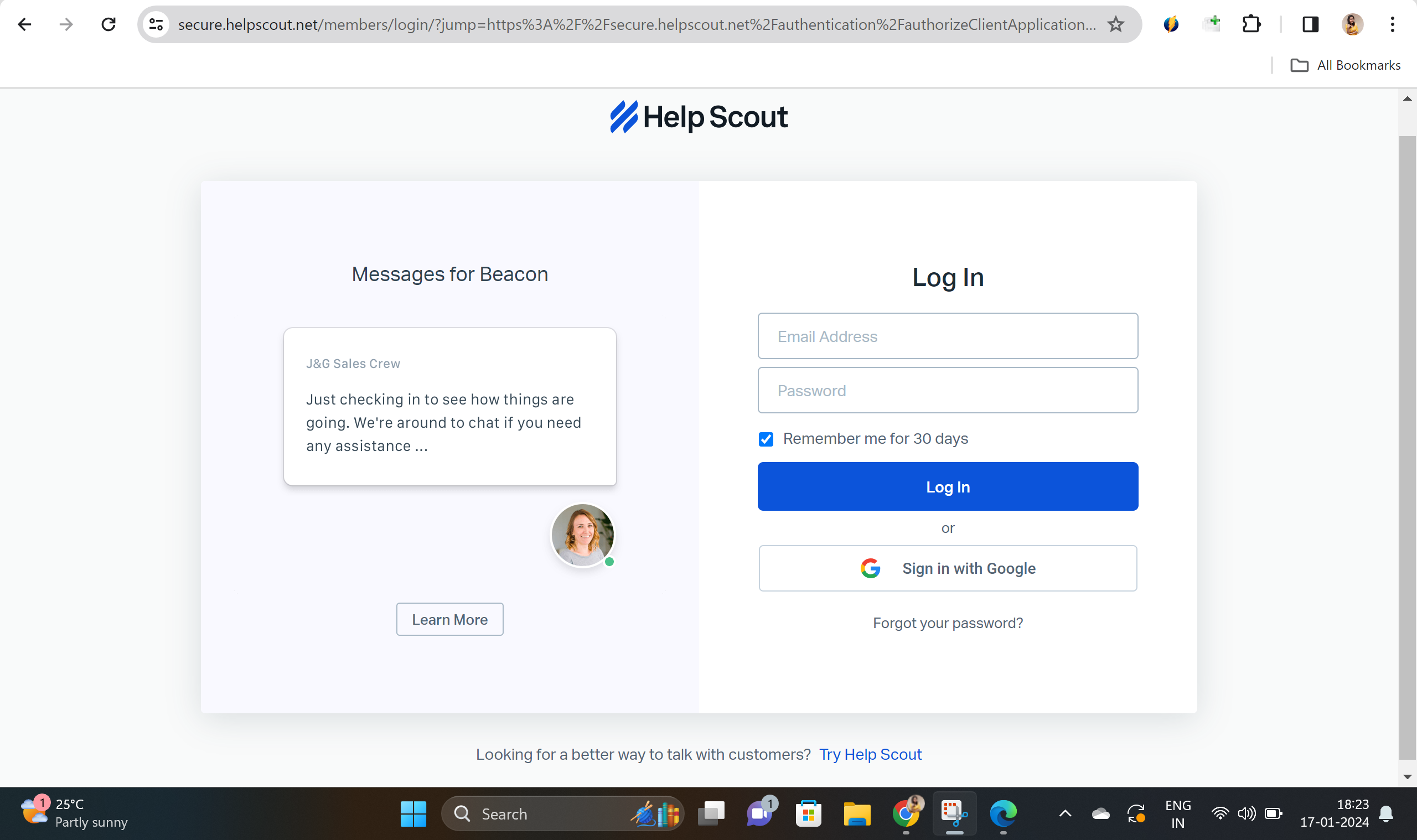
- You are redirected to a page asking you to authorize CallHippo. Click Authorize.
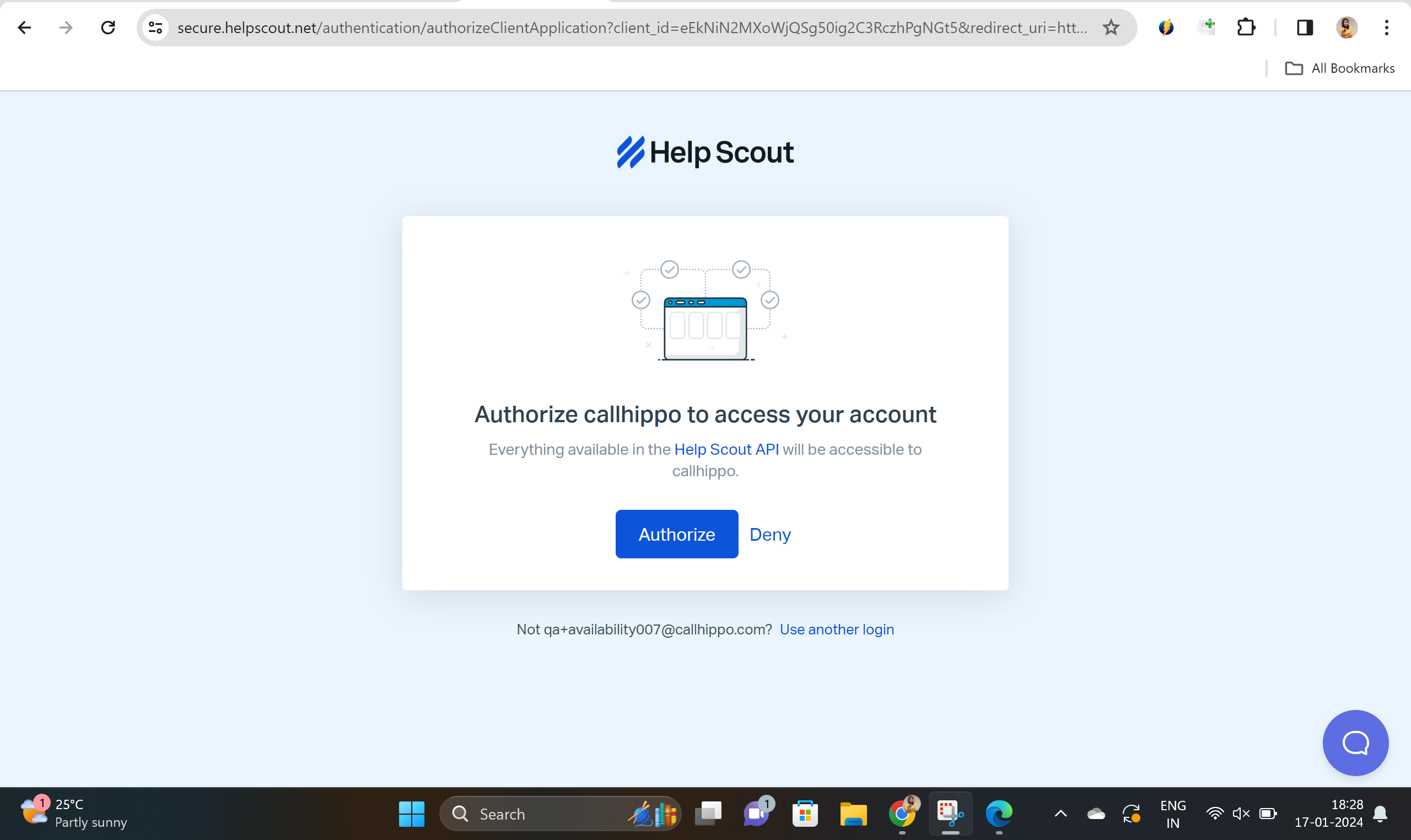
- Your Help Scout account is now connected. You are redirected back to CallHippo and see a message confirming the integration was successful.
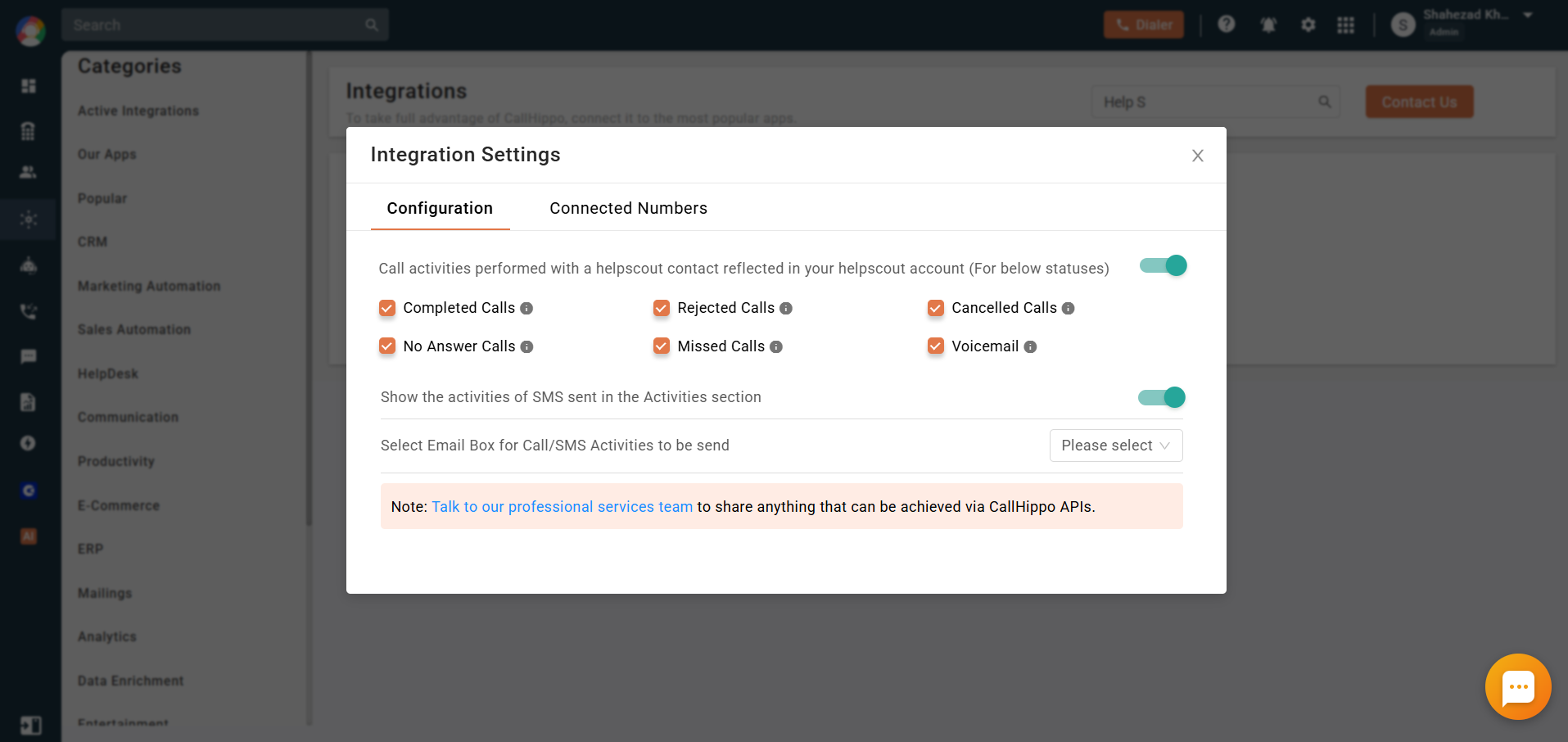
Note that all call and SMS activities are sent to the mailbox you select in the integration settings, so choose the correct email box here.
What the integration does
- Contacts you dial using click-to-call are synced with the CallHippo dialer.
- When you add or update a customer in Help Scout, that contact is added to CallHippo the next time you use click-to-call.
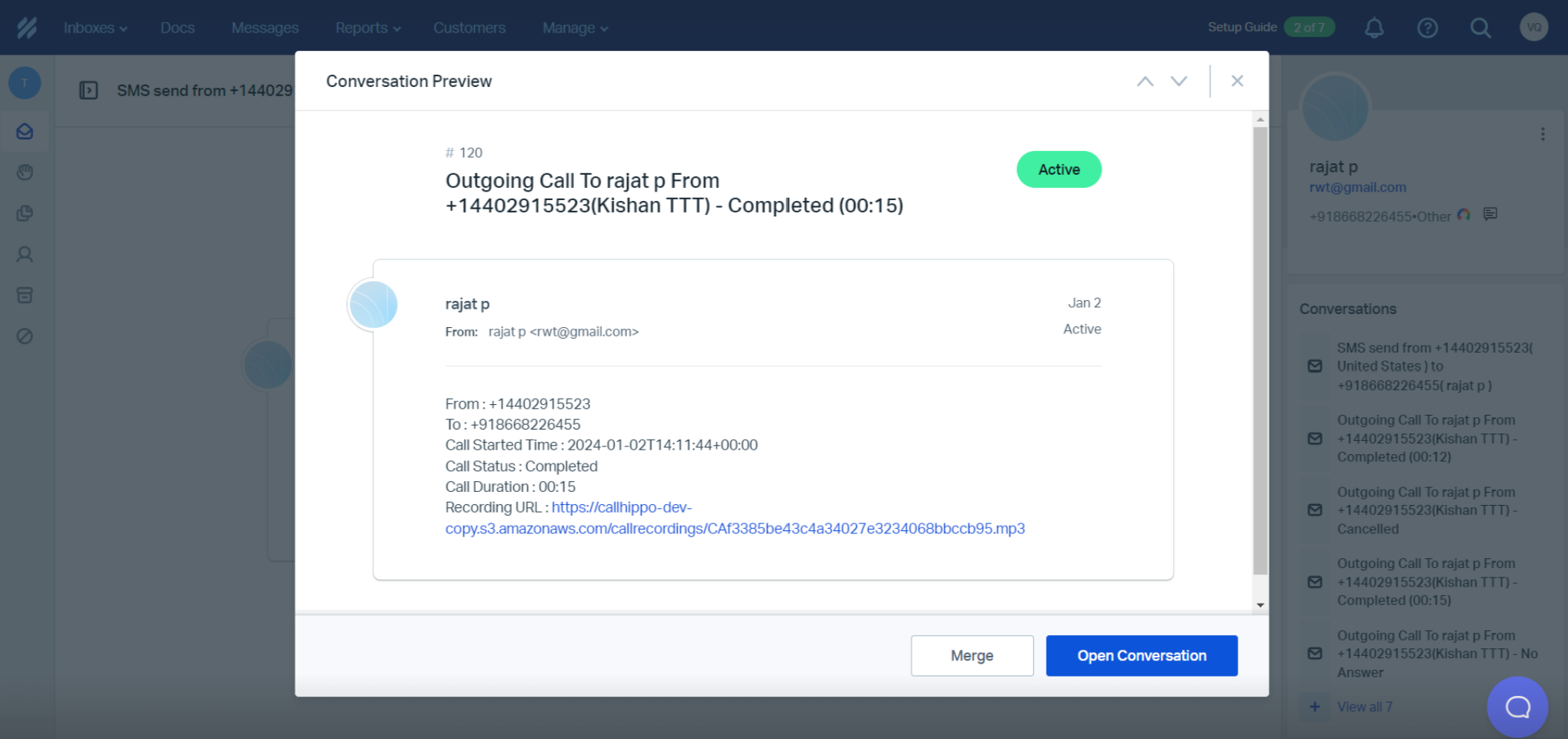
- Every call made to or received from a Help Scout contact is logged as call activity in the CallHippo dialer and reflected in Help Scout.
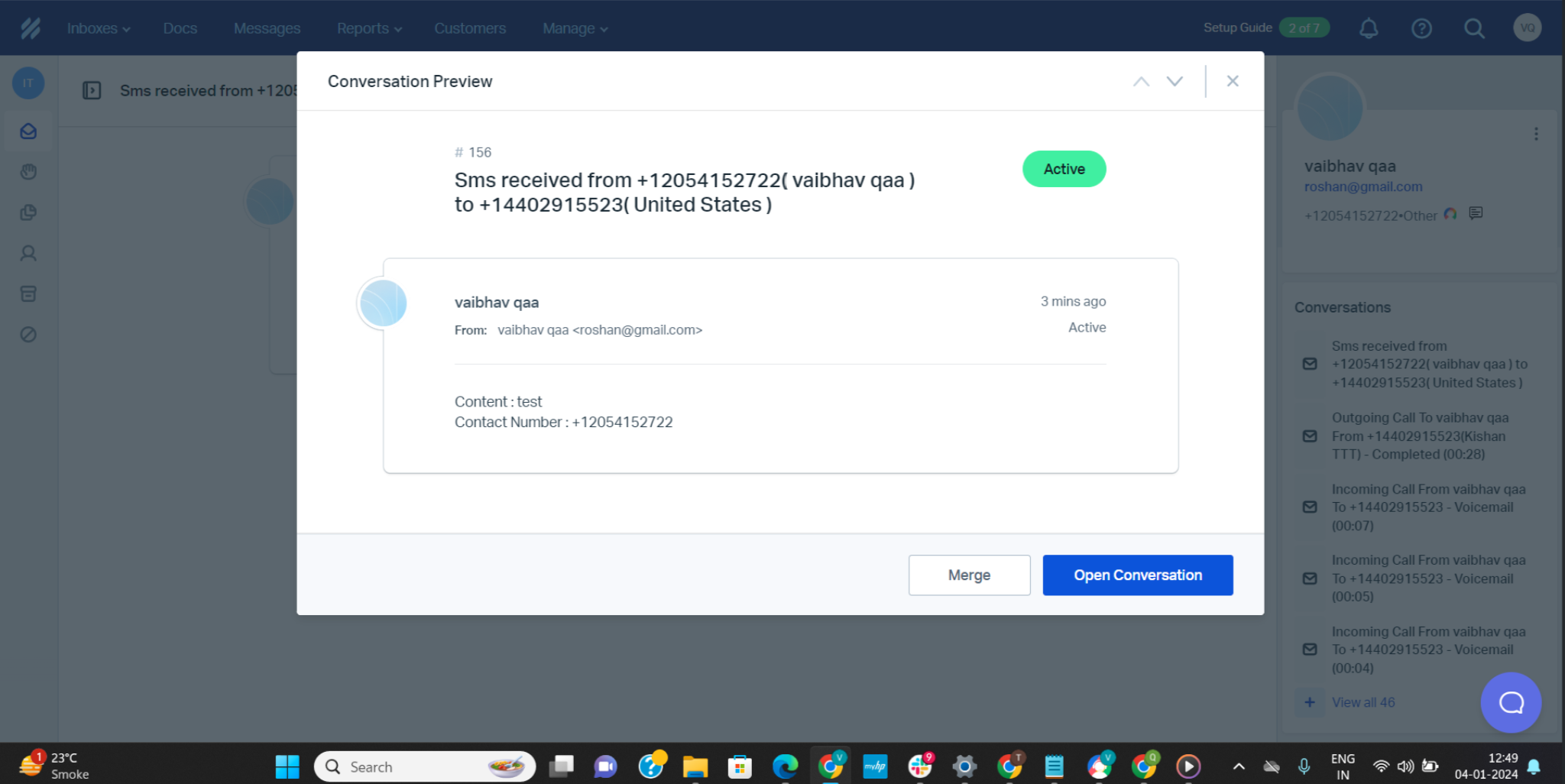
- Every SMS sent to or received from a Help Scout contact is logged as SMS activity.
- With click-to-call enabled, you can call or text a number directly from Help Scout.
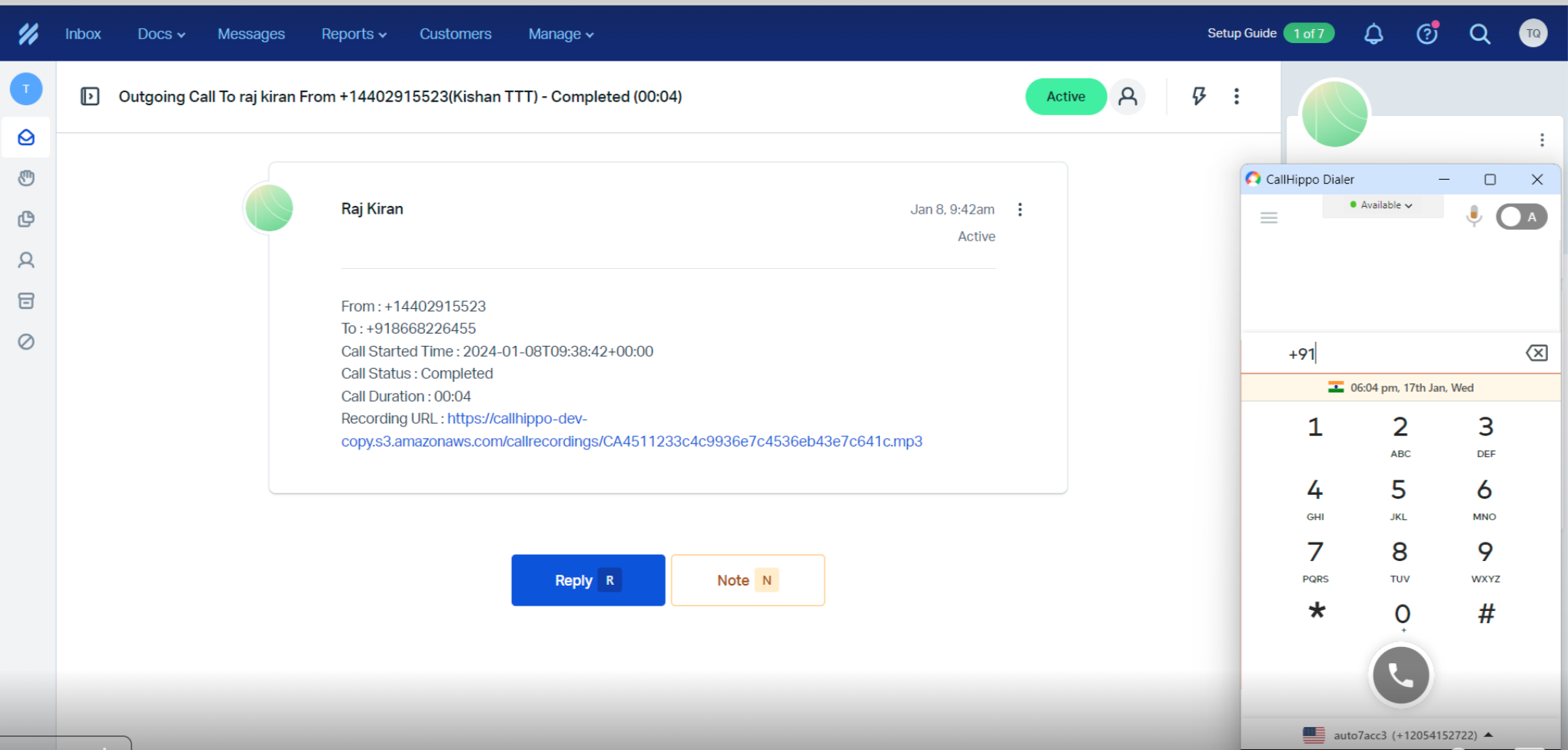
After Call Work activity in Help Scout
If you have a plan with CallHippo’s call tags and disposition service and it is enabled, the activity pushed to Help Scout includes the tags and disposition data you add after the call on the After Call Work (ACW) screen.
Note: This only syncs when tags and disposition are added on the After Call Work screen. If you add them later from the call logs or another feed, they will not sync to Help Scout.
Limitations
- If you delete a customer in Help Scout, the corresponding contact is not deleted in CallHippo. You have to remove it manually.
To use click-to-call, install the CallHippo Click-to-Call Chrome extension from the Chrome Web Store.
Still need help? Reach us at [email protected].