
Integrating BigCommerce with CallHippo syncs your store’s customers into the CallHippo dialer and logs call and SMS activity right on each customer record. This guide covers creating the required BigCommerce API account and connecting it in CallHippo.
Before you begin
- An active BigCommerce store where you can access Advanced Settings.
- A CallHippo account where you can manage integrations.
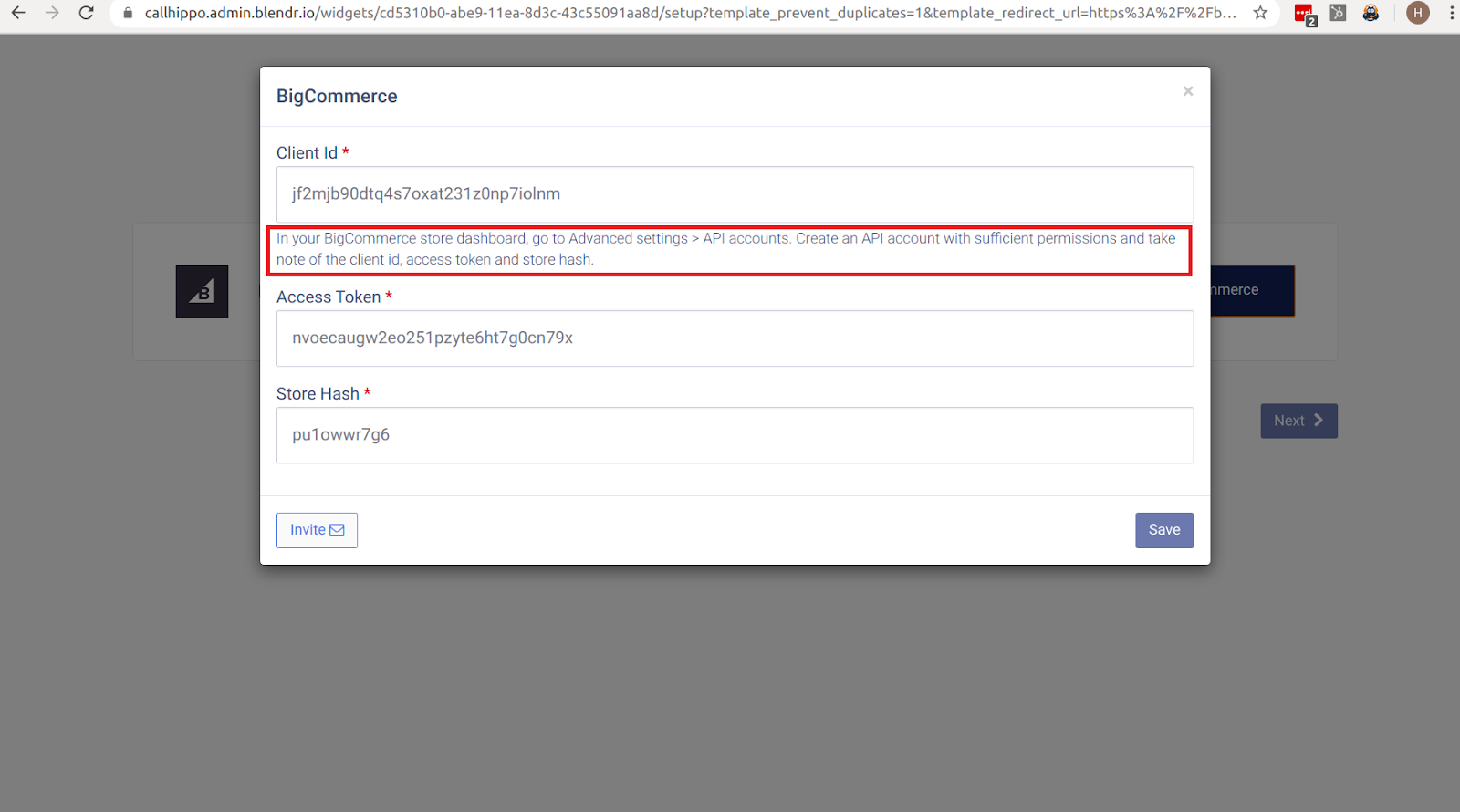
- You will need three values from BigCommerce: the Client ID, Access Token and Store Hash.
Create an API account in BigCommerce
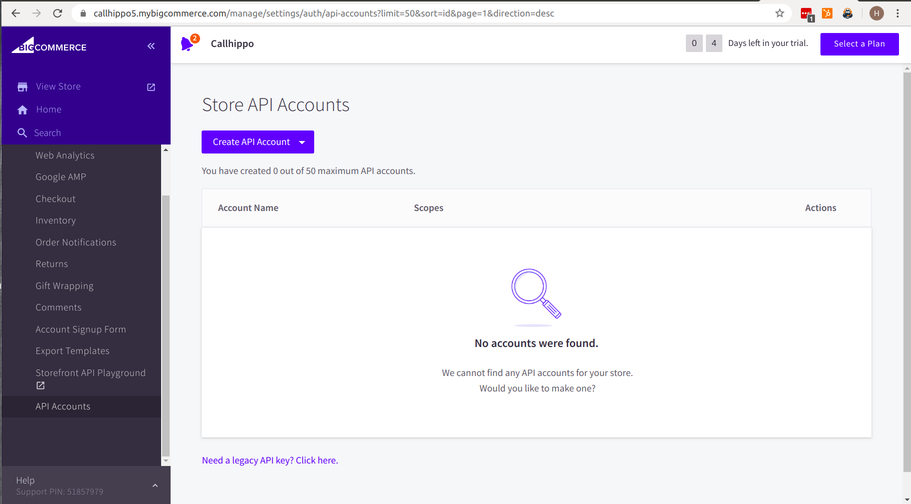
- Log in to your BigCommerce store dashboard and go to Advanced Settings > API Accounts, then click Create API Account.
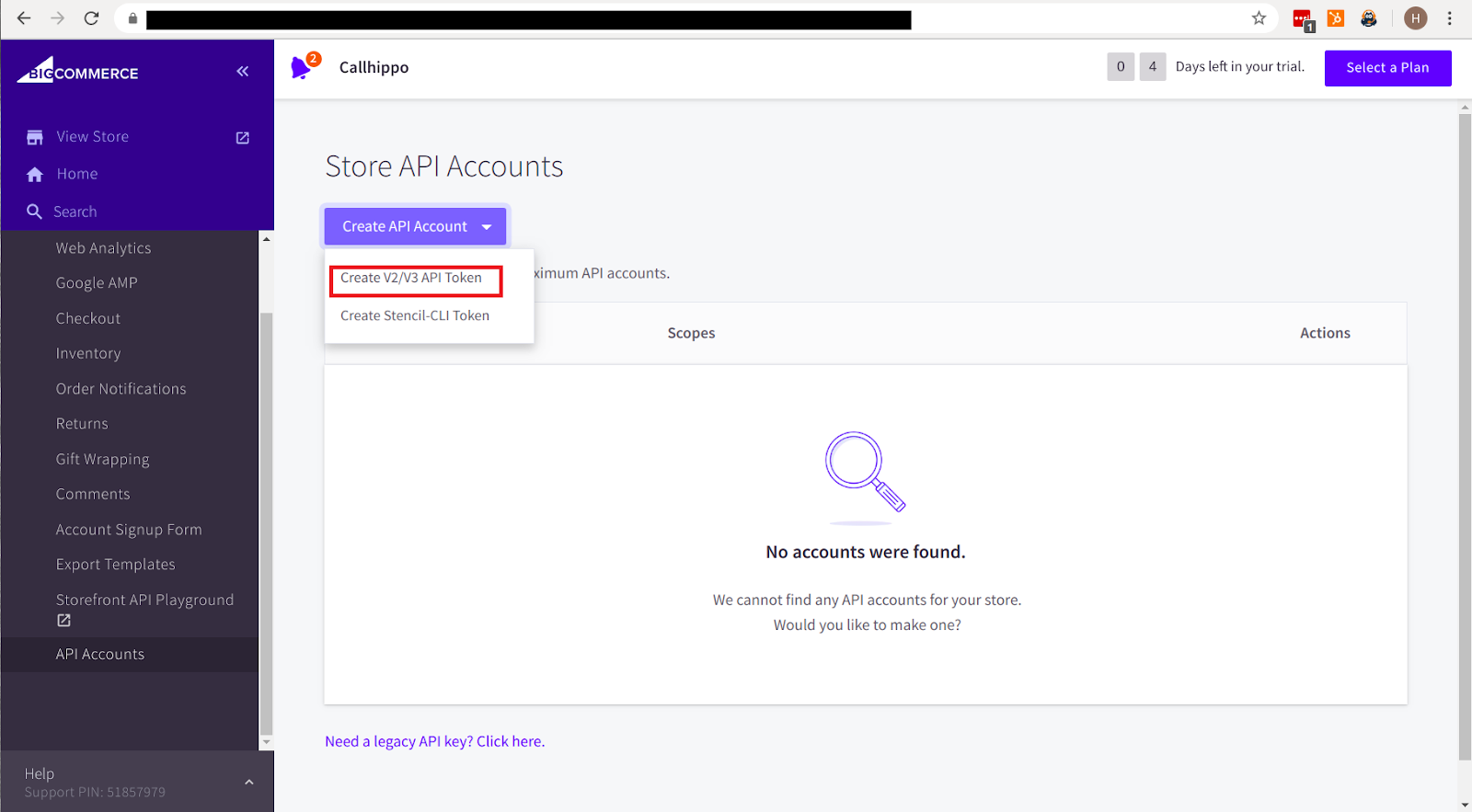
- Choose Create V2/V3 API Token from the options.
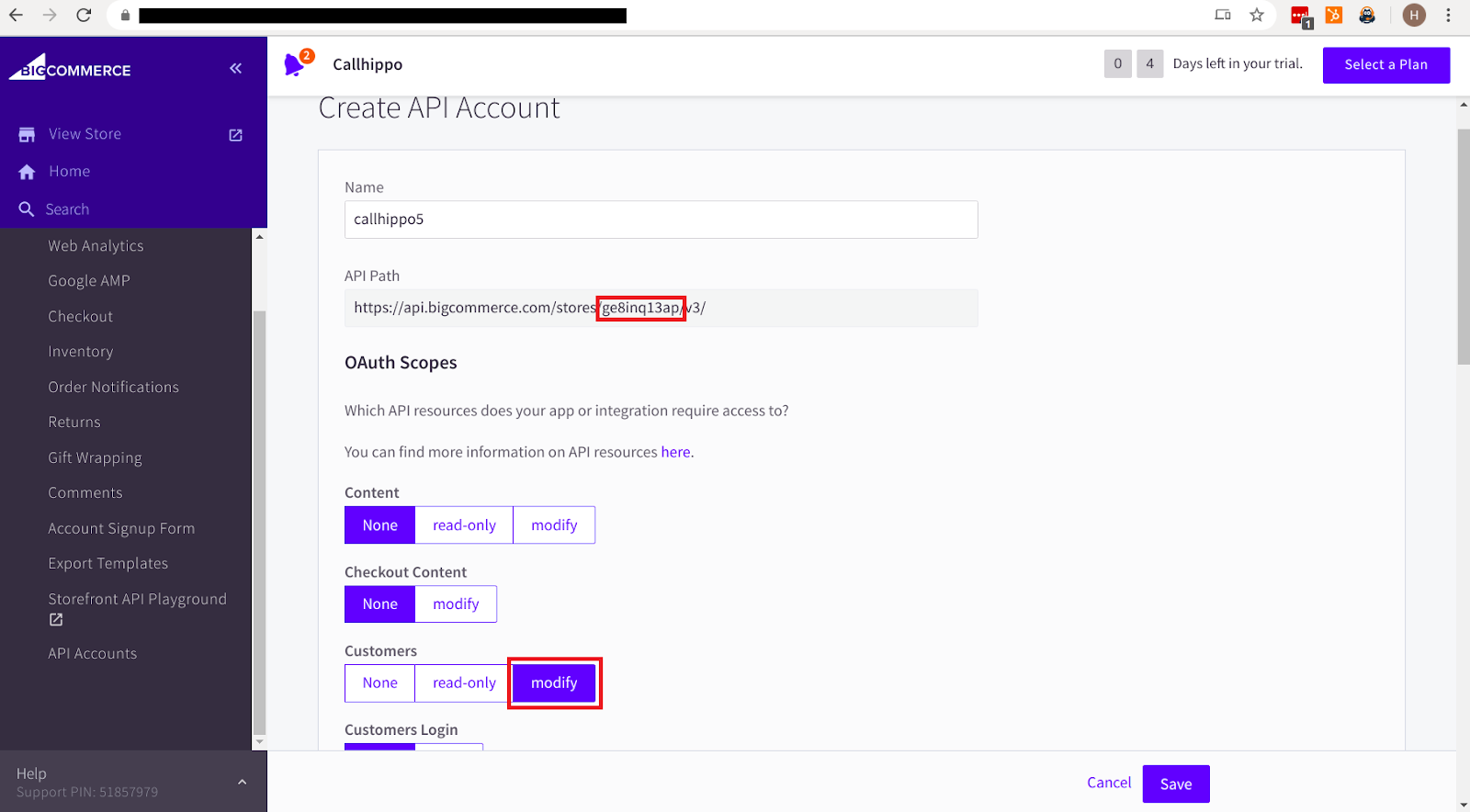
- Enter any name for the API account and copy the Store Hash shown in the API Path. Set the Customers scope to modify, then click Save.
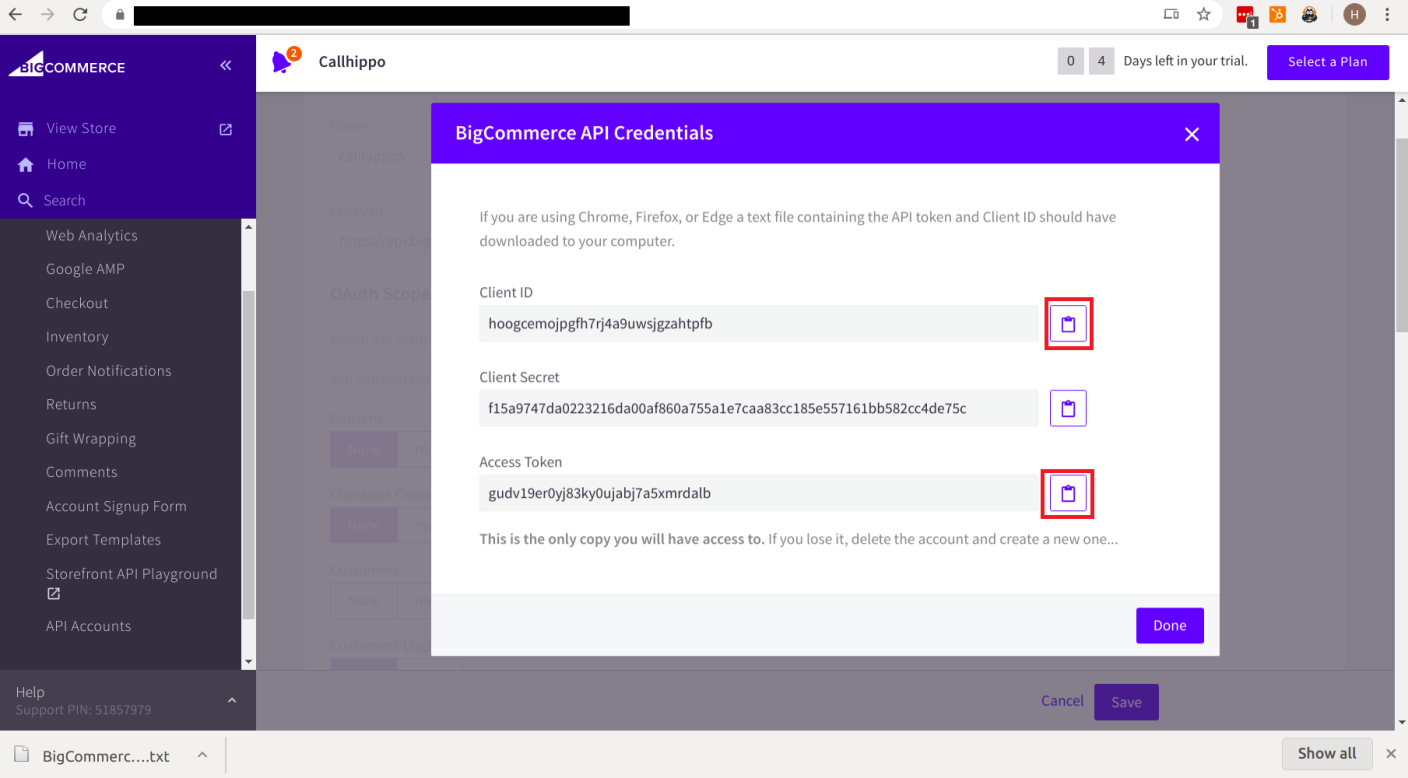
- After saving, BigCommerce shows your API credentials and downloads a text file. Copy the Client ID and Access Token. Keep these safe, as this is the only time they are shown.
Connect BigCommerce in CallHippo
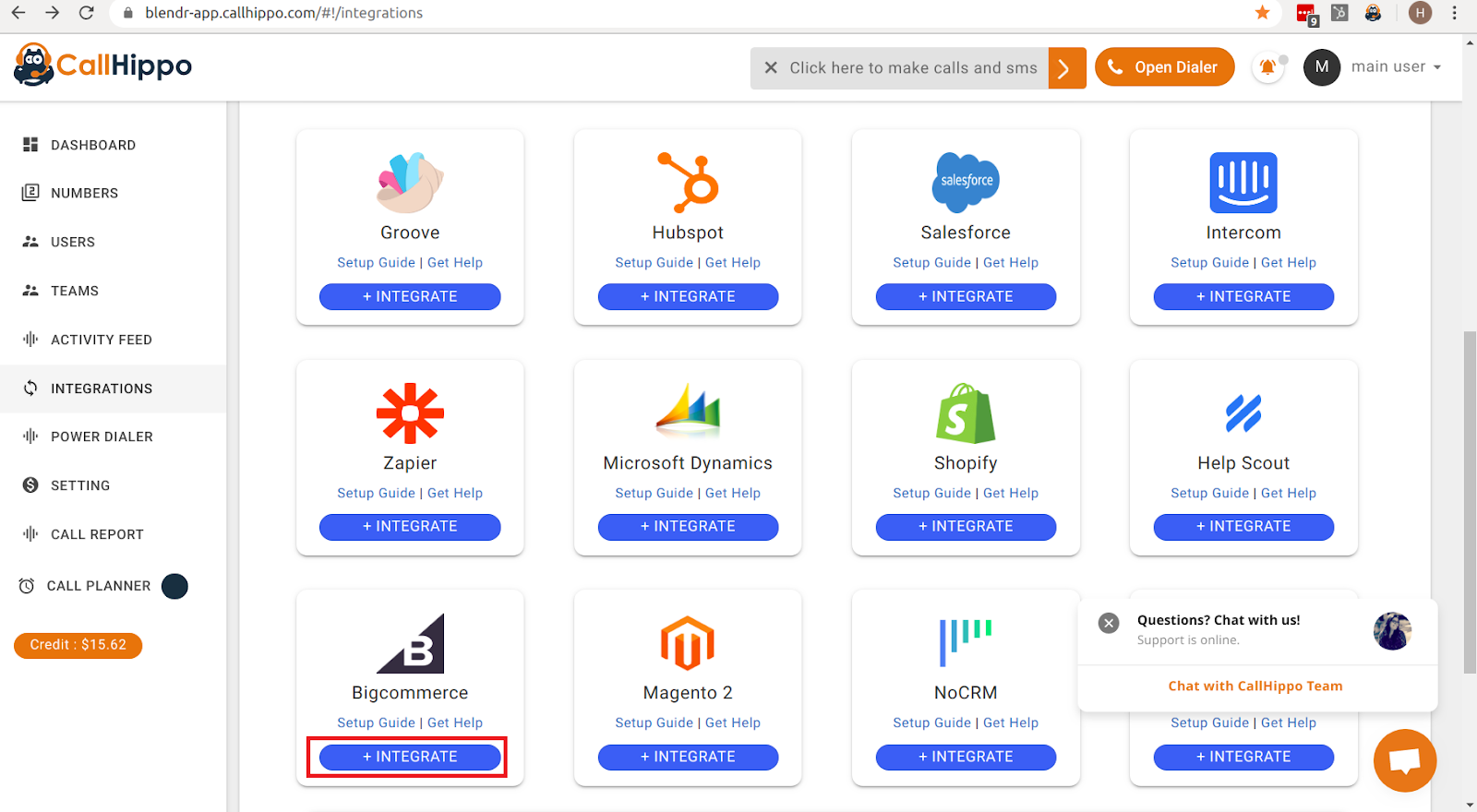
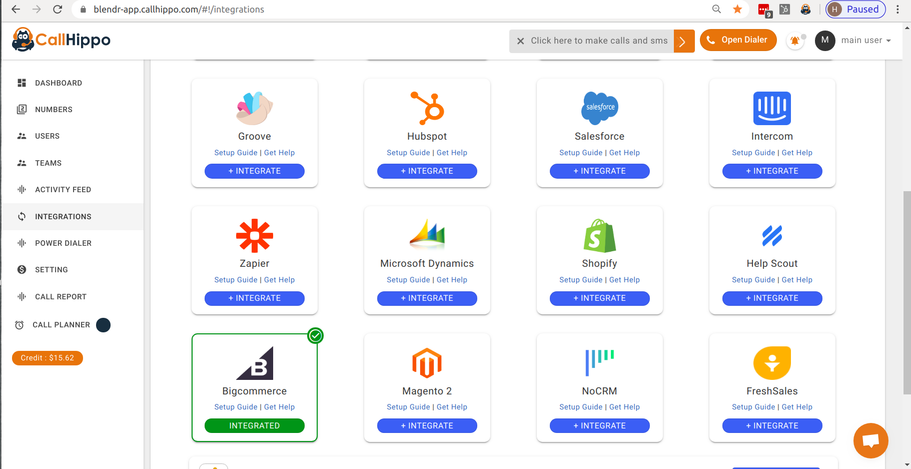
- Log in to your CallHippo account and open Integrations from the left sidebar.
- Select Bigcommerce and click Integrate.
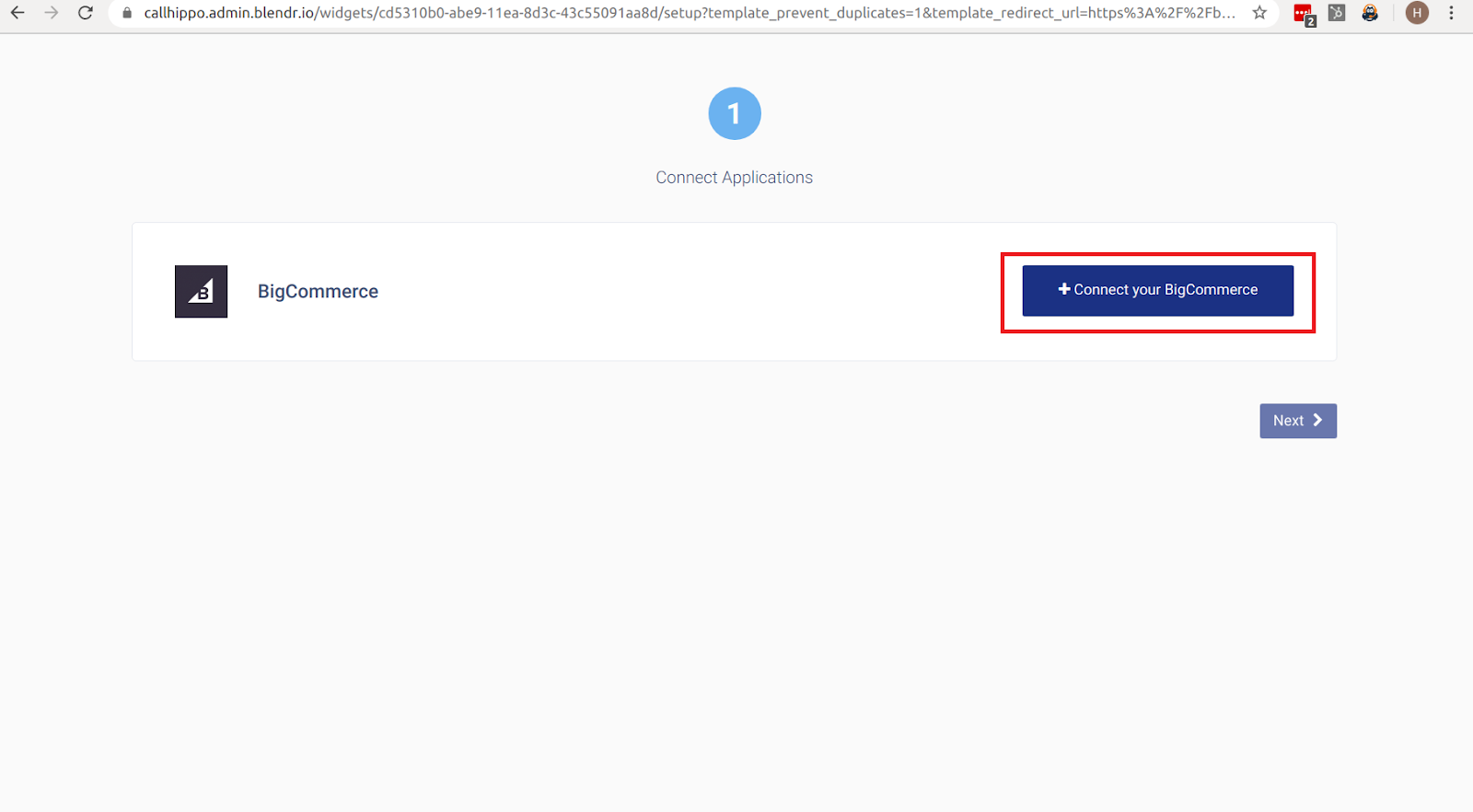
- On the setup page, click Connect your BigCommerce.
- In the popup, enter the Client Id, Access Token and Store Hash you copied earlier, then click Save.
- Once BigCommerce shows as connected, click Next.
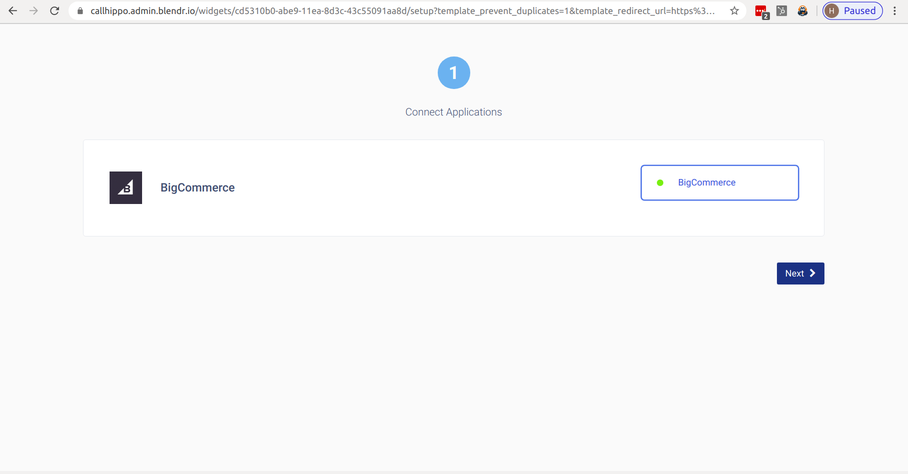
- You will see a message confirming that your account with BigCommerce is integrated successfully.
What the integration does
- All your BigCommerce contacts are synced with the CallHippo dialer.
- When you add or update a contact after integration, it is added to the CallHippo dialer in real time.
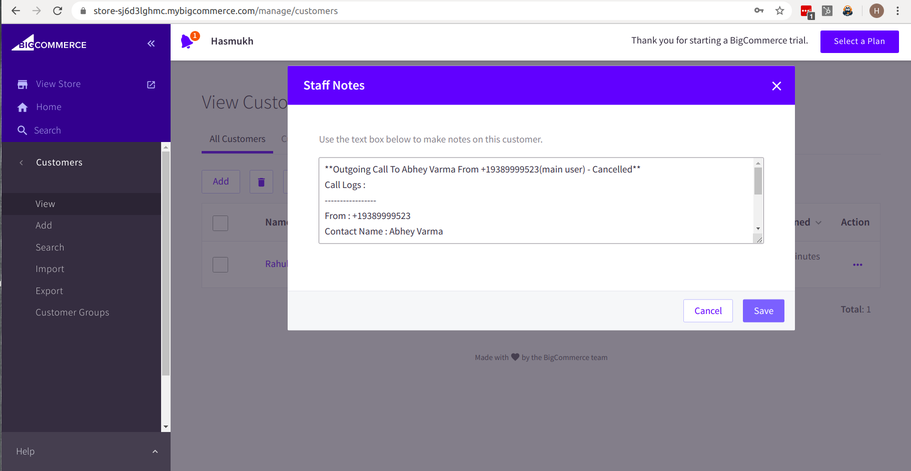
- Every call made to or received from a BigCommerce contact is logged as call activity in the customer’s notes in BigCommerce.
- SMS sent to or received from a BigCommerce contact is logged as SMS activity in the CallHippo dialer.
To use click-to-call, install the CallHippo Click-to-Call Chrome extension from the Chrome Web Store.
Still need help? Reach us at [email protected].