
Knowing your current CallHippo plan and monitoring your available credits is essential for managing your usage, understanding feature access, and ensuring uninterrupted service. This article shows you how to easily check both your subscription plan and the remaining credits in your account.
How to check your current plan
Understanding which CallHippo plan you’re subscribed to helps you keep track of the features available to you and evaluate whether your current plan meets your business needs. Here’s how you can check your active plan.
- Log in to your CallHippo dashboard.
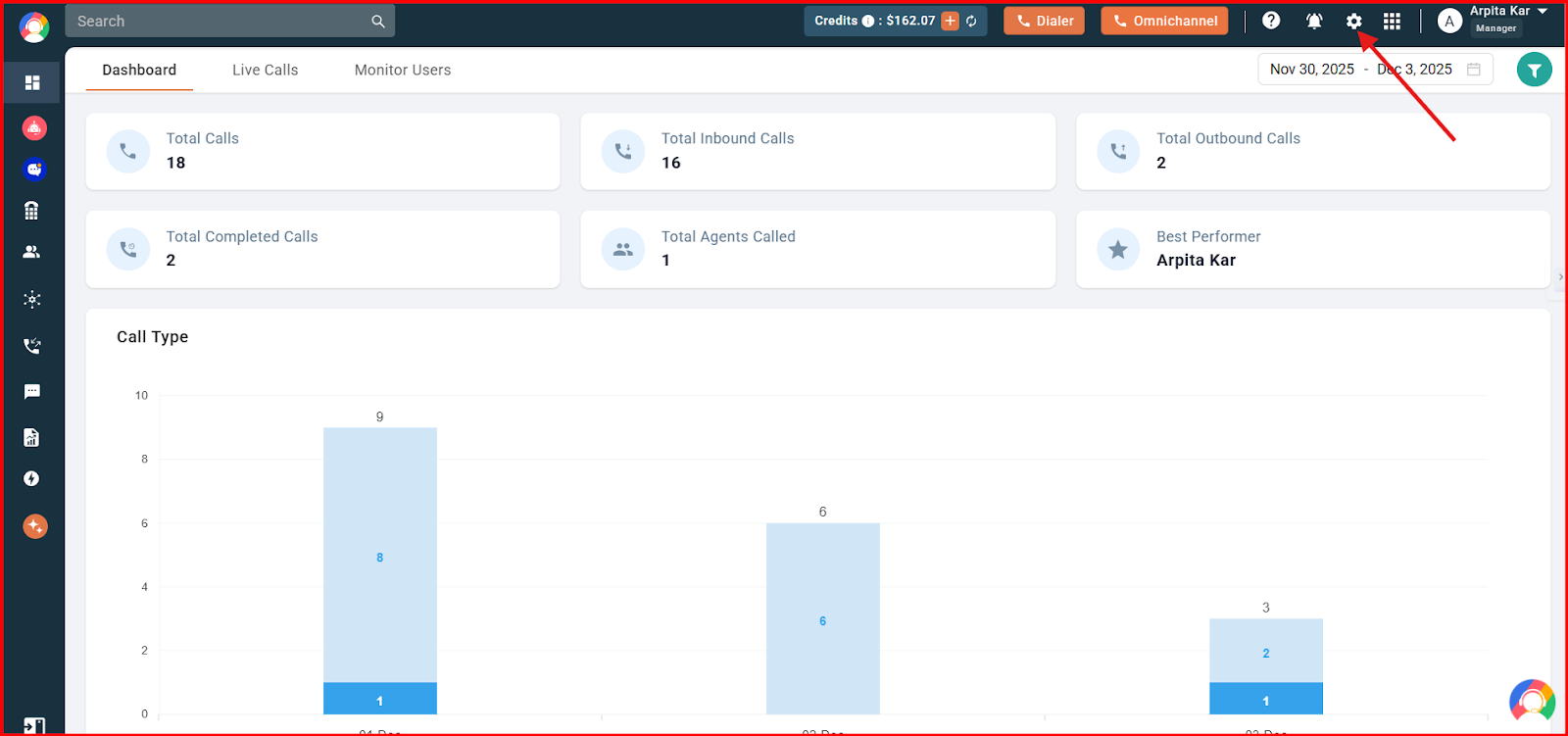
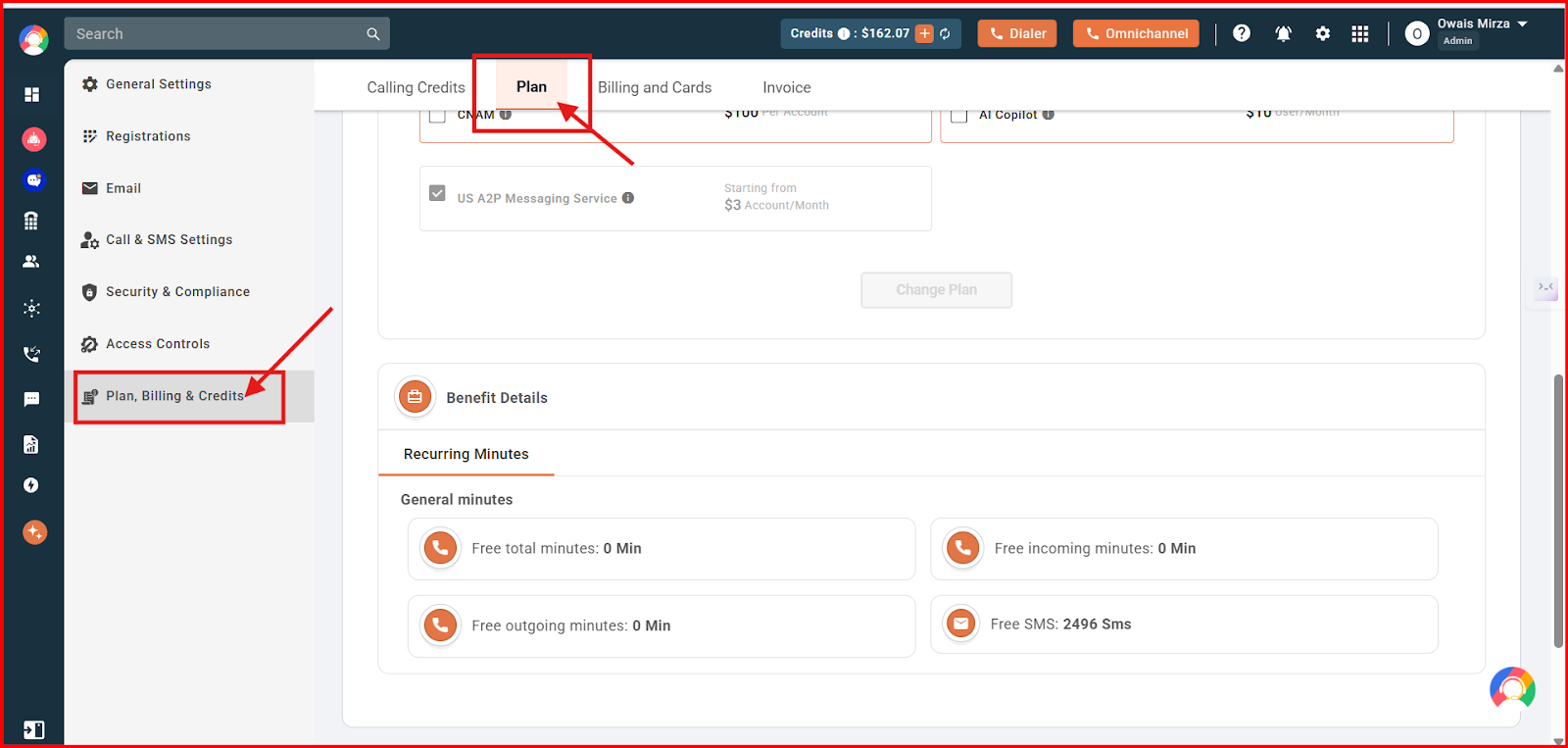
- Navigate to the settings (gear) icon in the top-right corner of the screen and then click on Plan, Billing & Credits.
- In the Plan, Billing & Credits section, click on the Plan tab.
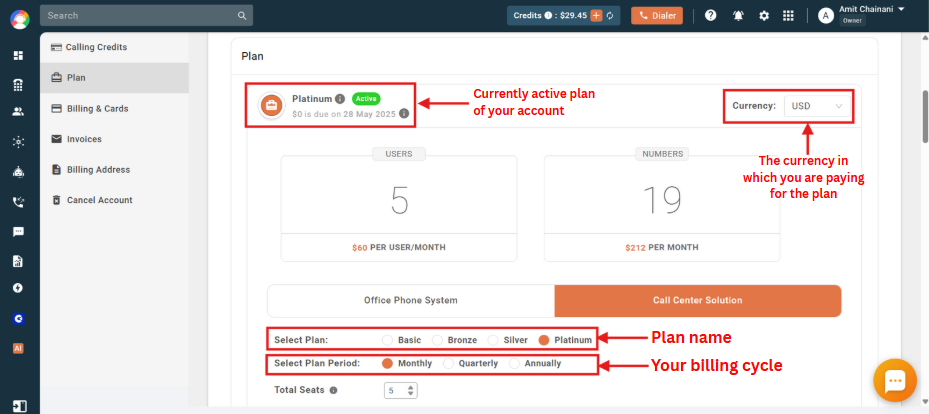
- You will be able to see the details for your active plan on the screen, including the plan name, currency, number of seats, and your billing cycle.
How to check available credits
It’s important to keep an eye on your remaining credits to avoid service disruptions. You can check your available credits from either the dashboard or the dialer.
From the dashboard
- Log in to your CallHippo dashboard.
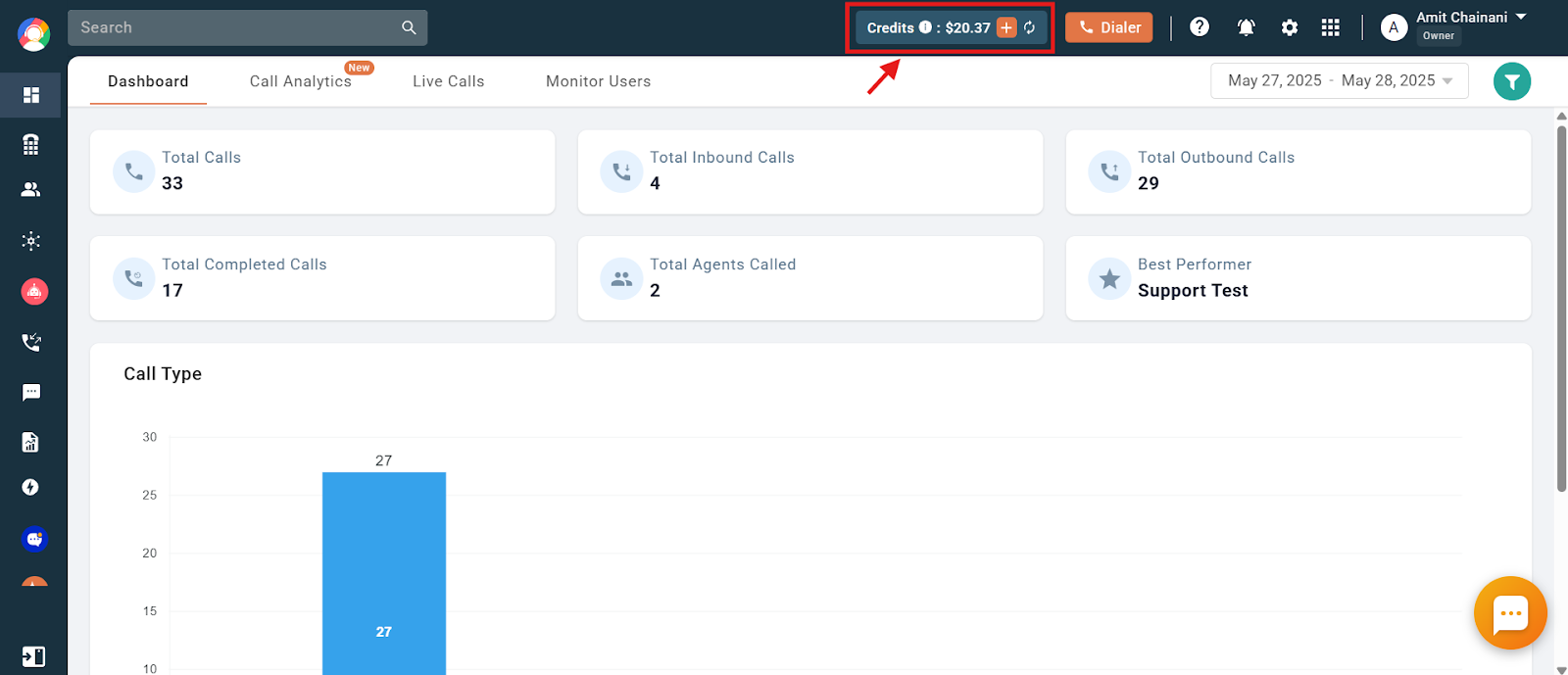
- The available credits will be visible to you at the top of the dashboard screen, beside the Dialer button.
- Alternatively, navigate to the settings (gear) icon in the top-right corner of the screen and then click on Plan, Billing & Credits. Open the Calling Credits tab, where your available credits will be visible.
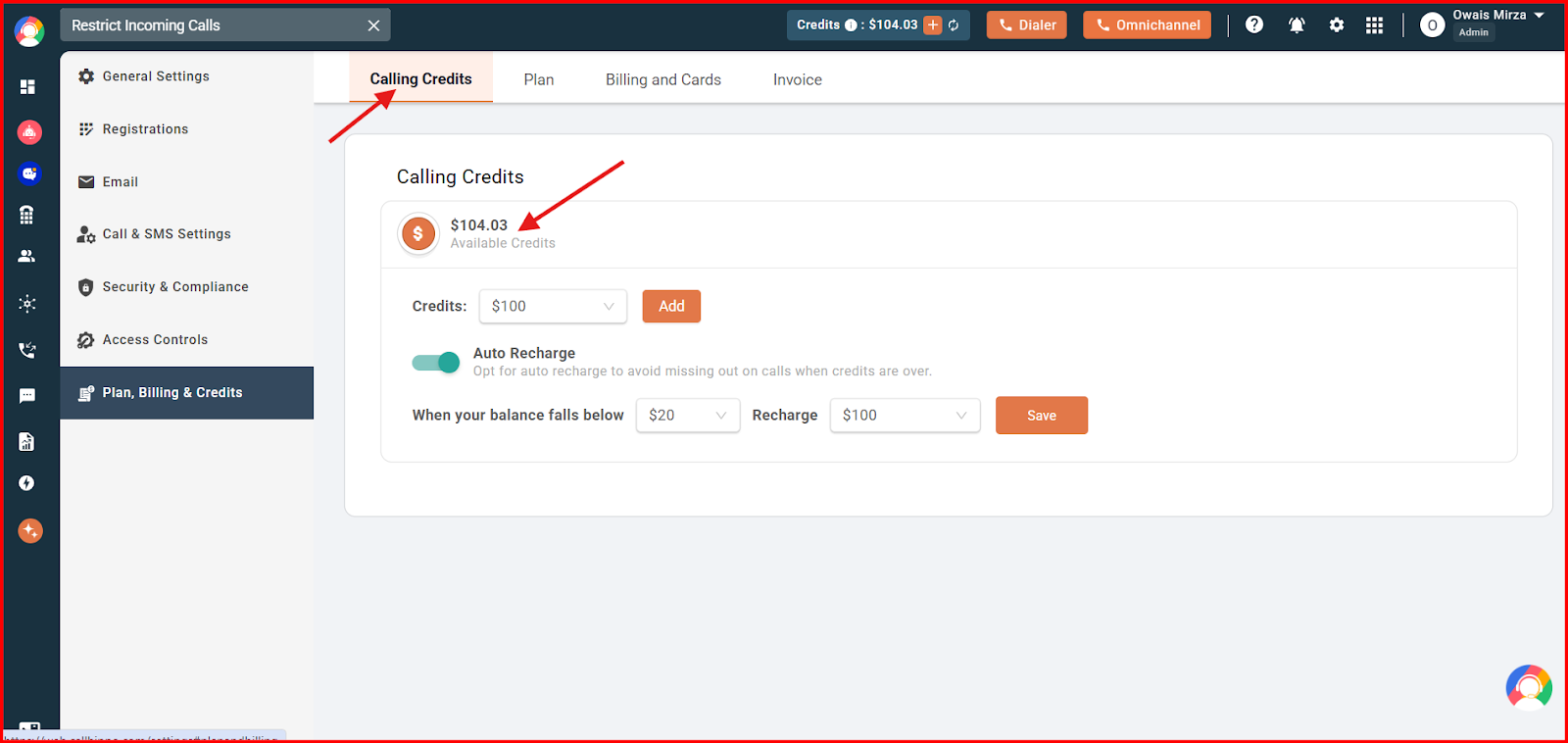
From the dialer
- Log in to your CallHippo Dialer.
- Click on the three horizontal lines on the dialer and select the Menu option.
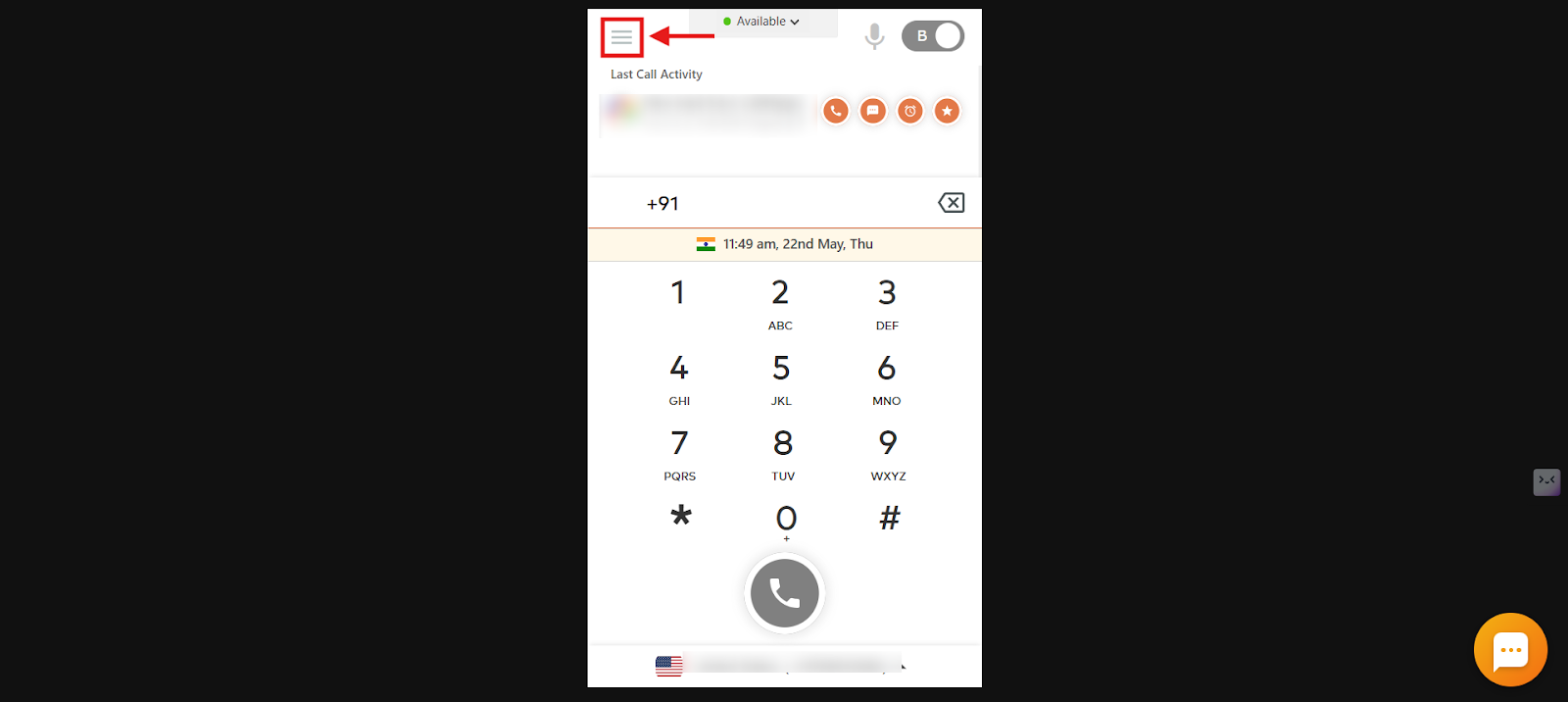
- Click on the Credits option.
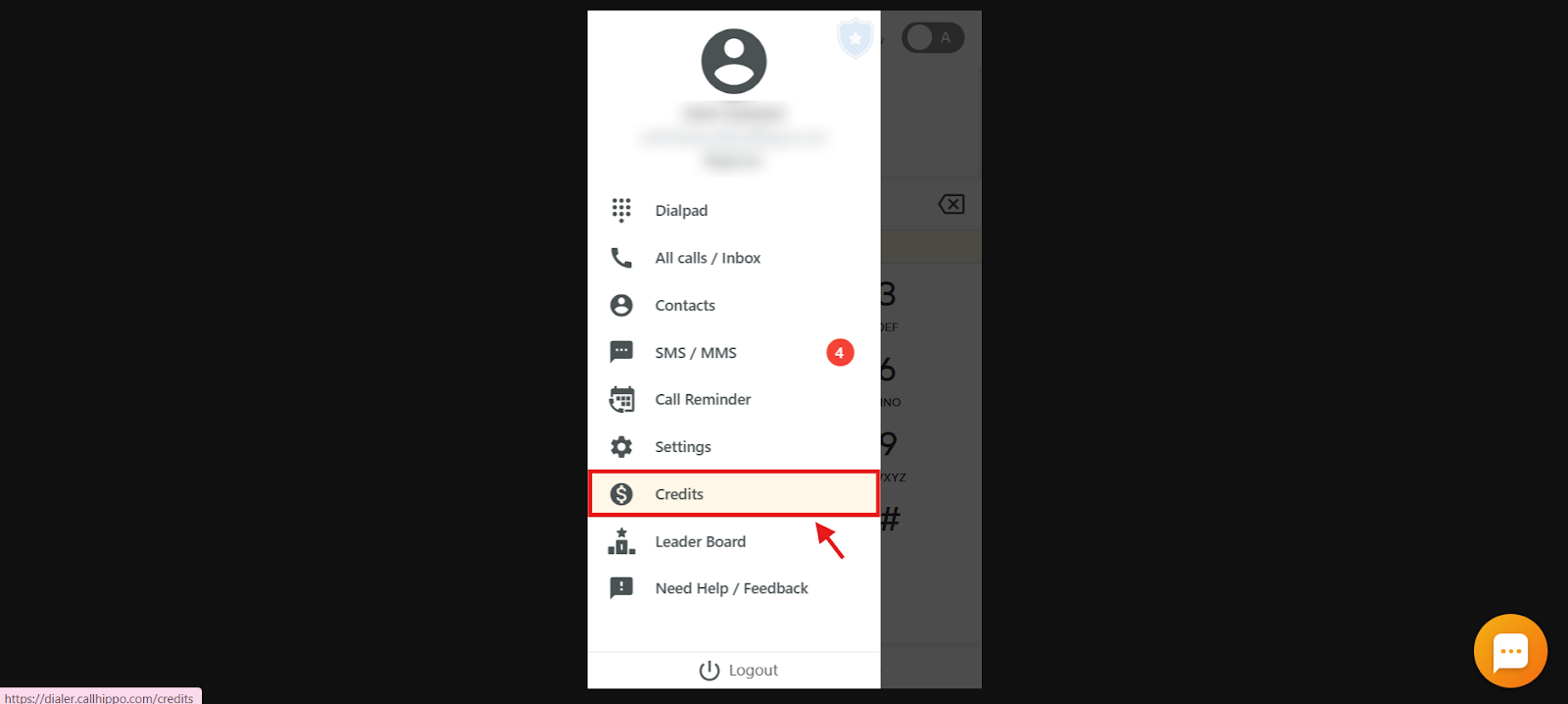
- The available credits will be visible to you.
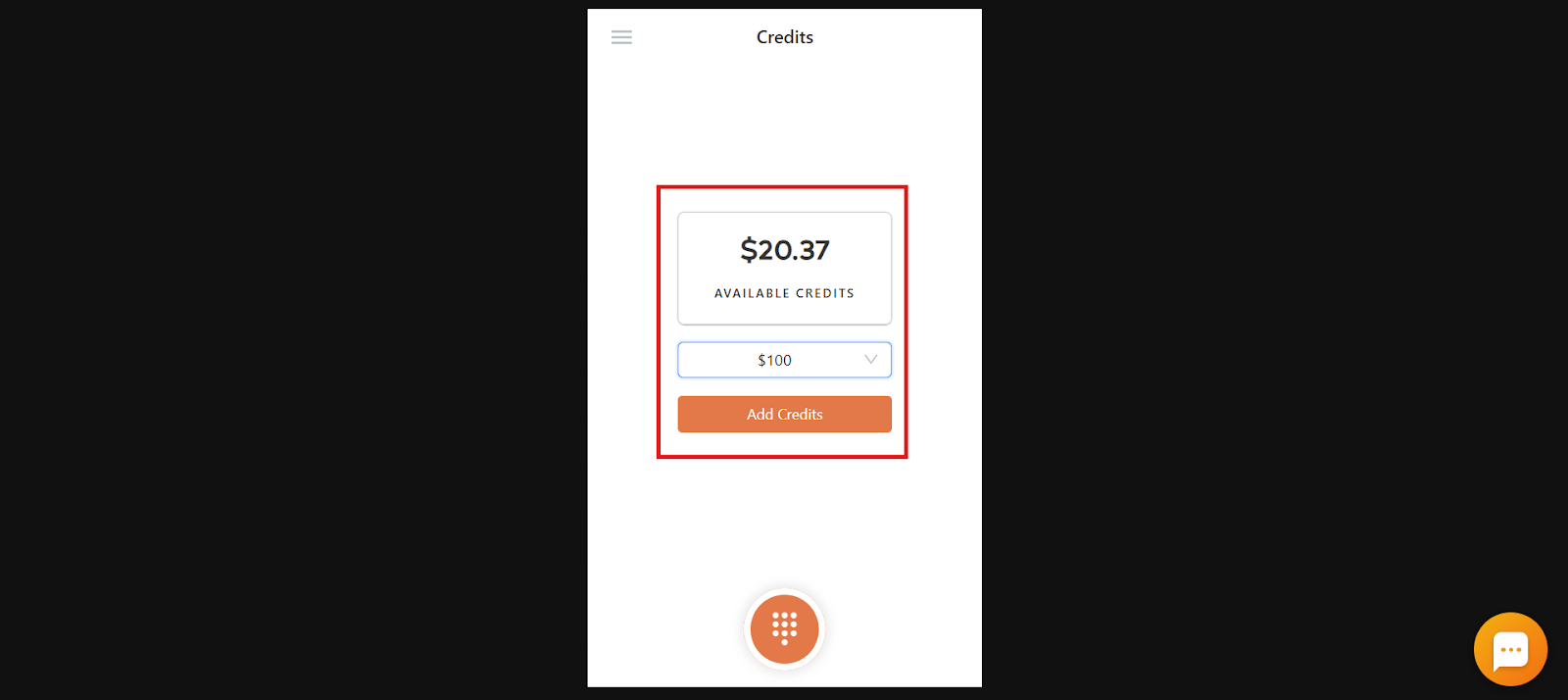
Why am I not able to see the available credits in my account?
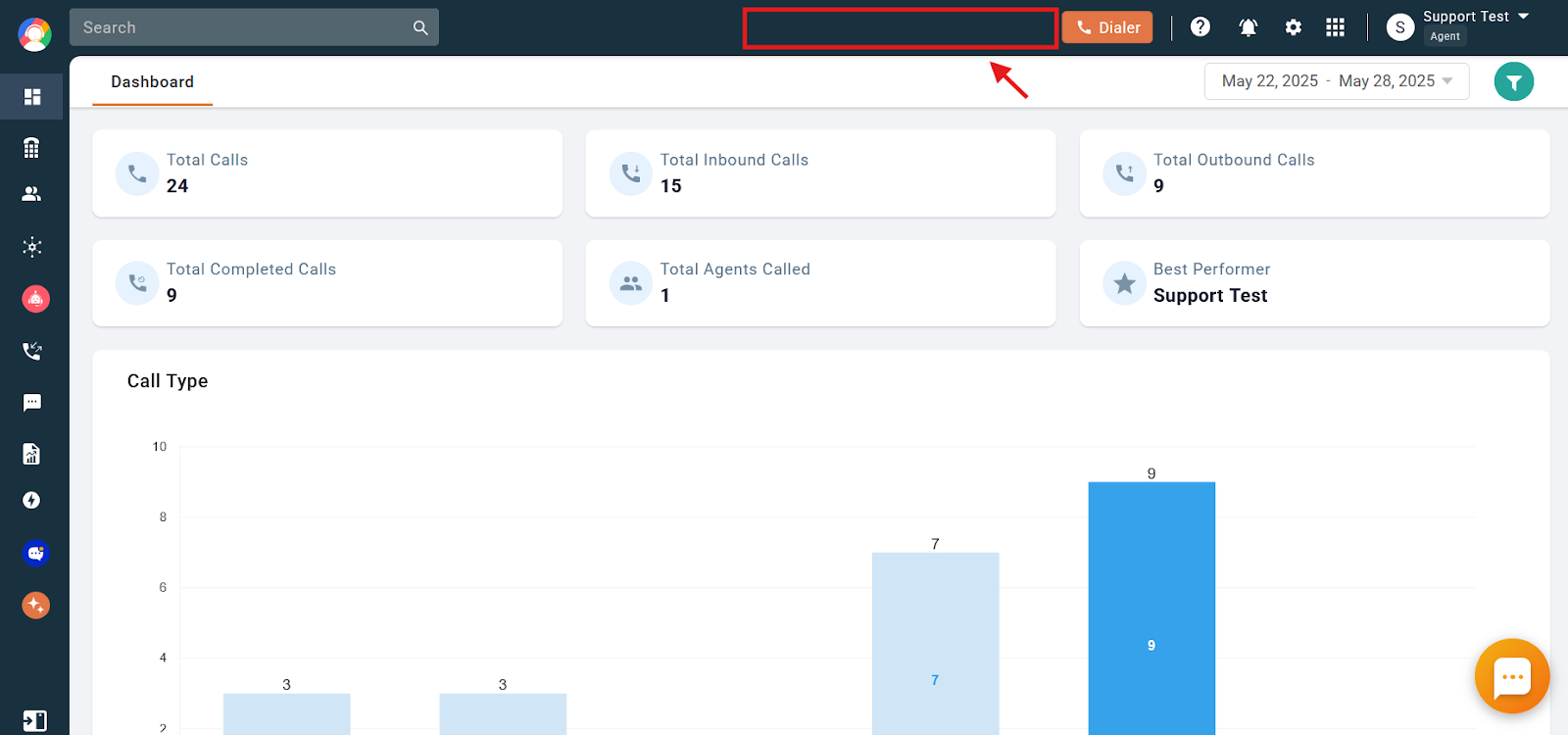
If you’re a sub-user and cannot see the available credits in your account, as shown in the screenshot below, it’s because the account Owner has restricted your access to this information. Please contact the account Owner for assistance.
Frequently asked questions
Q: Where can I see what CallHippo plan I’m currently using?
A: You can view your active plan by logging into your CallHippo dashboard, clicking your profile icon in the top-right corner, selecting “Plan and billing,” and then choosing the “Plan” tab on the left side.
Q: I’m not sure if I’m using the right plan for my business needs. How can I check what features are included in my current plan?
A: First, log in to your CallHippo dashboard and go to the “Plan” section under “Plan and billing” to see your active plan. Then, visit our pricing page to find your plan and view the features and benefits it includes.
Q: I can’t find the “Plan and billing” option in my dashboard. What should I do?
A: If you’re currently on a free trial and haven’t purchased a paid plan yet, the “Plan and billing” option will not be visible. Once you upgrade to a paid plan, this option will appear in your dashboard.
Q: How do I check how many credits I have left in my account?
A: You can see your available credits at the top of the dashboard next to the “Dialer” button. You can also find them under the “Calling Credits” section in the “Plan and Billing” menu.
Q: I logged into the dashboard, but I don’t see any credits listed. Why is that?
A: If you’re a sub-user, the account Owner may have restricted your access to view available credits. In that case, please contact the Owner to request access or get a credit update.
Q: Can I see my credits using the CallHippo Dialer instead of the dashboard?
A: Yes, log in to the Dialer, click the three horizontal lines to open the menu, then select “Credits.” Your remaining balance will be displayed there.
Q: I’m using the dialer app, but can’t find the Credits option in the menu. What should I check?
A: If you’re not an Owner, Admin, or Manager, you won’t see the “Credits” option in the dialer. Access to credit information is restricted based on user roles, so please contact someone with the appropriate role if you need this information.
We hope this helps. If you still have questions, feel free to reach out at [email protected].