
Link your Gorgias helpdesk with CallHippo to turn every call and SMS into a support ticket, sync contacts, and keep all your ecommerce customer conversations in one place. This guide covers connecting the accounts and fine-tuning the integration settings.
Connect Gorgias to CallHippo
- Log in to your CallHippo account.
- In the sidebar, click Integrations.
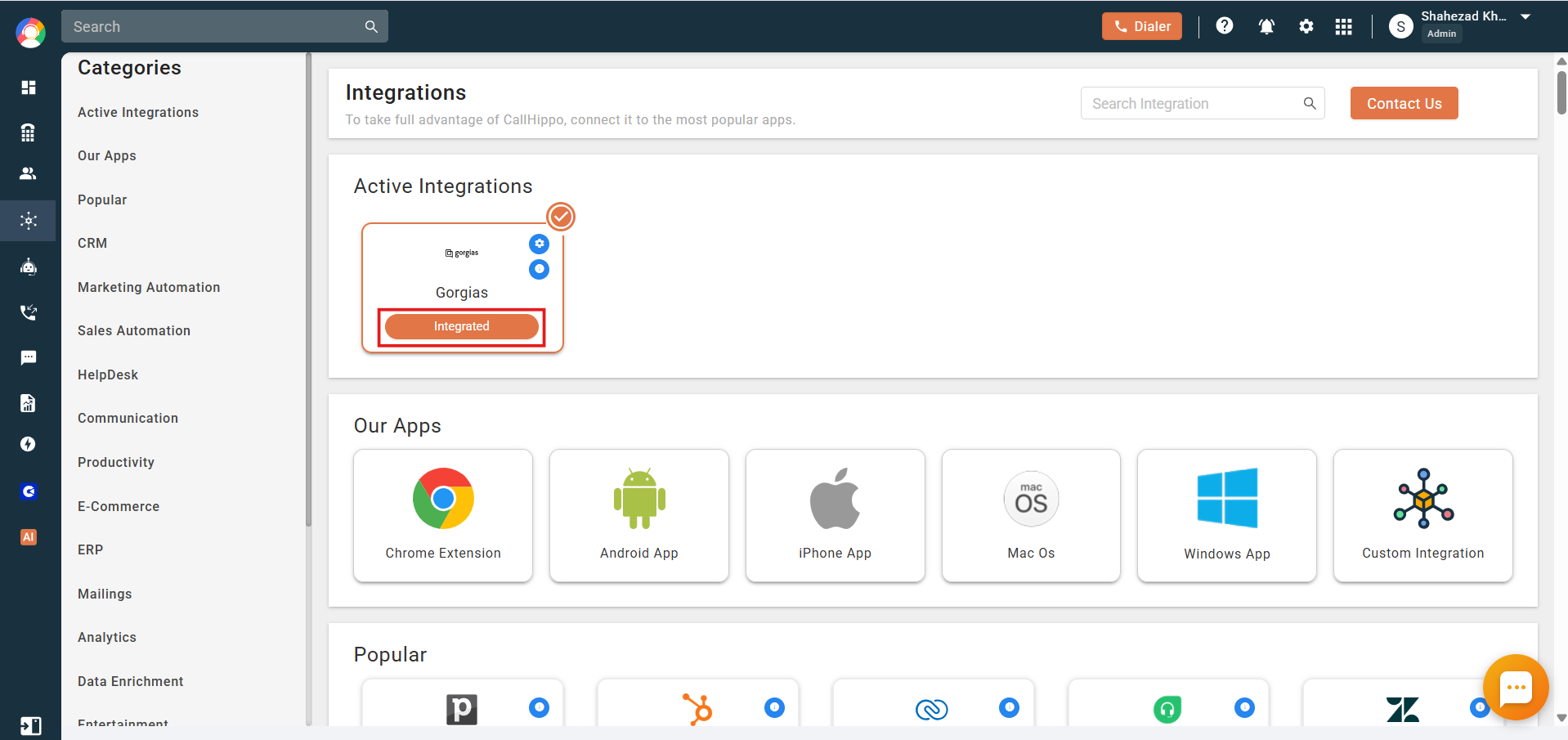
- Find the Gorgias card and click Connect.
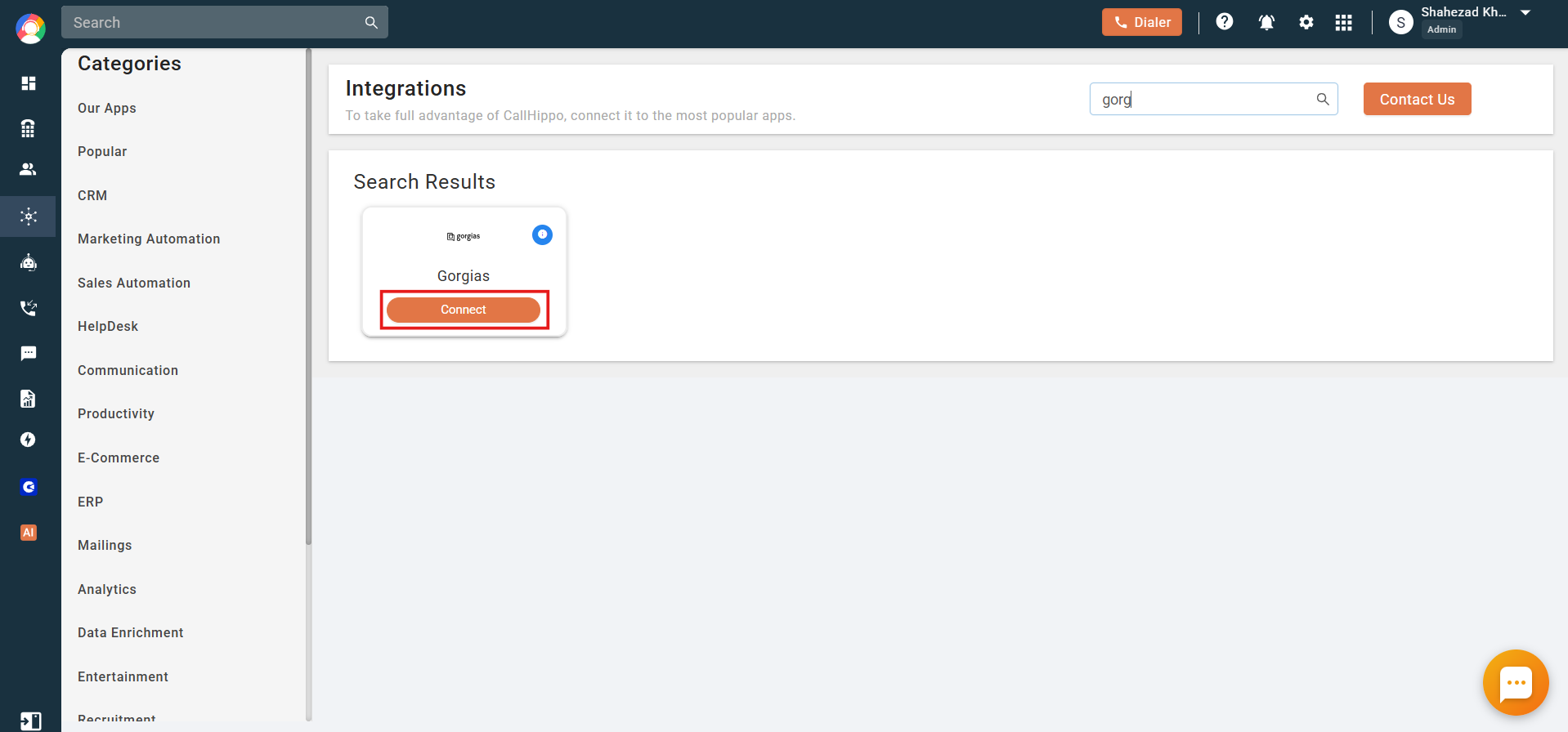
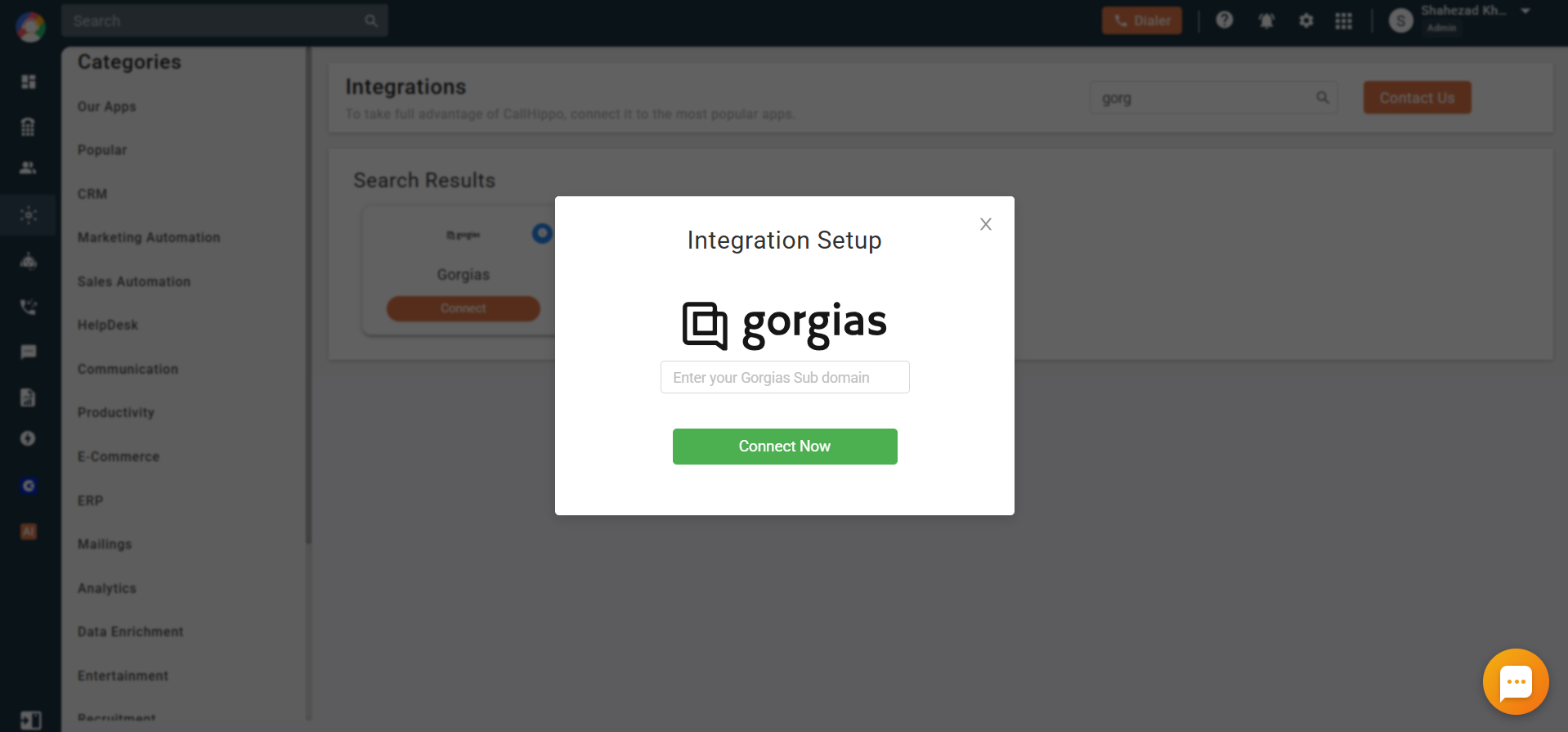
- In the pop-up, enter your Gorgias subdomain and click Connect Now. Your subdomain is the first part of your Gorgias account URL, for example if your URL is
https://callhippo.gorgias.com, then callhippo is your subdomain.
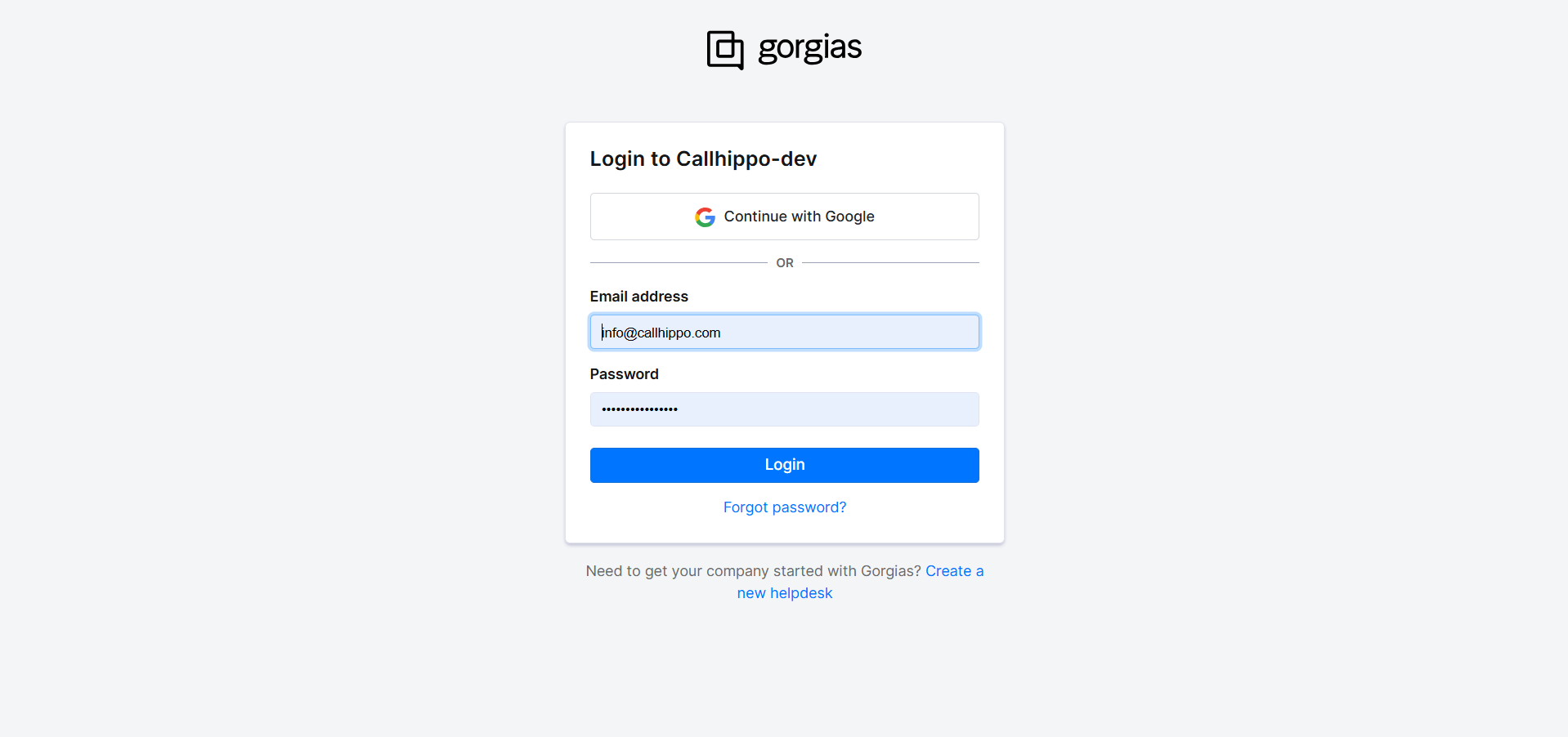
- You are redirected to the Gorgias login page. Sign in (if you are already logged in, this step is skipped).
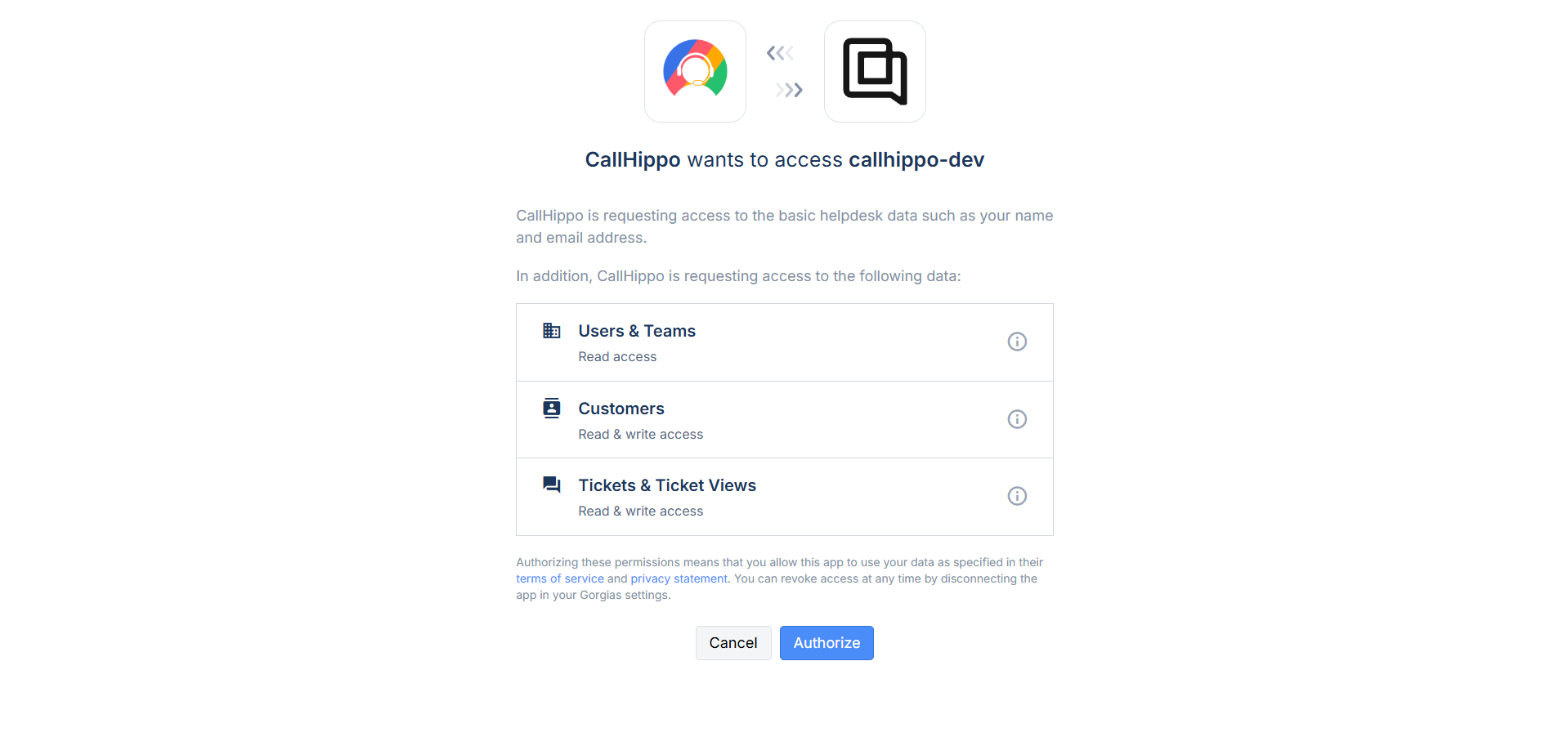
- On the permission page, click Authorize.
- You are returned to CallHippo with a message confirming your Gorgias account will be integrated soon (you’ll also get an email), and the integration status shows Integrated.
Configure the integration
After connecting, CallHippo opens an Integration Settings pop-up where you can customize how the integration behaves.
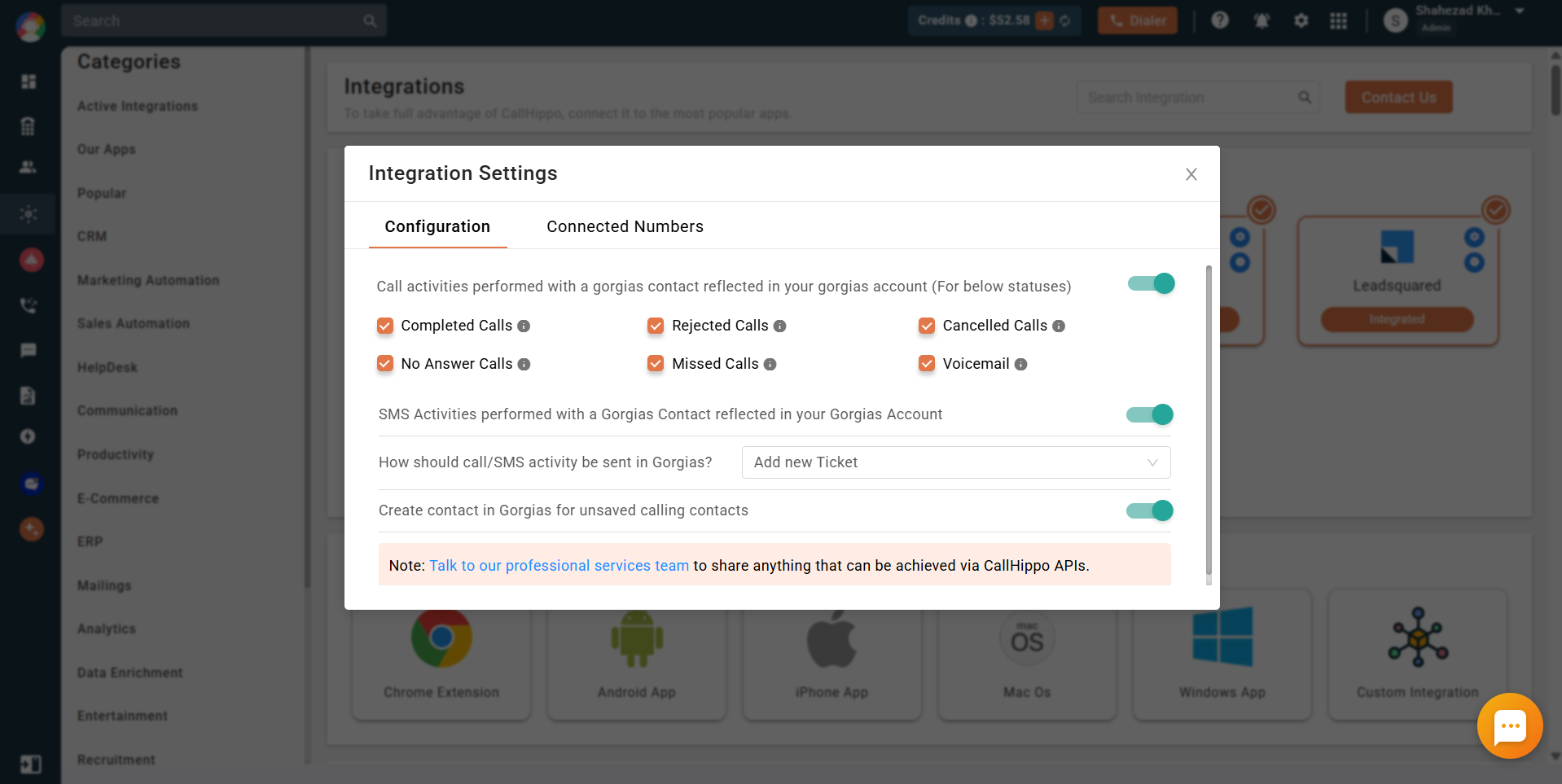
- Call activities performed with a Gorgias contact — when enabled, call activities for the call statuses listed in the pop-up are sent to Gorgias.
- SMS activities performed with a Gorgias contact — when enabled, SMS activity is logged in Gorgias.
- How should call/SMS activity be sent in Gorgias? — choose how activity is recorded:
- Add new ticket — a new ticket is created in Gorgias for each call or SMS activity. This is the default option.
- Append a message to the most recent ticket — the call or SMS log is added to the contact’s most recent ticket; if there is no ticket associated with the contact, CallHippo creates a new one.
- Create contact in Gorgias for unsaved calling contacts — incoming and outgoing calls to unsaved numbers create a new Gorgias contact named “CallHippo Contact”, and the call log is sent to that contact.
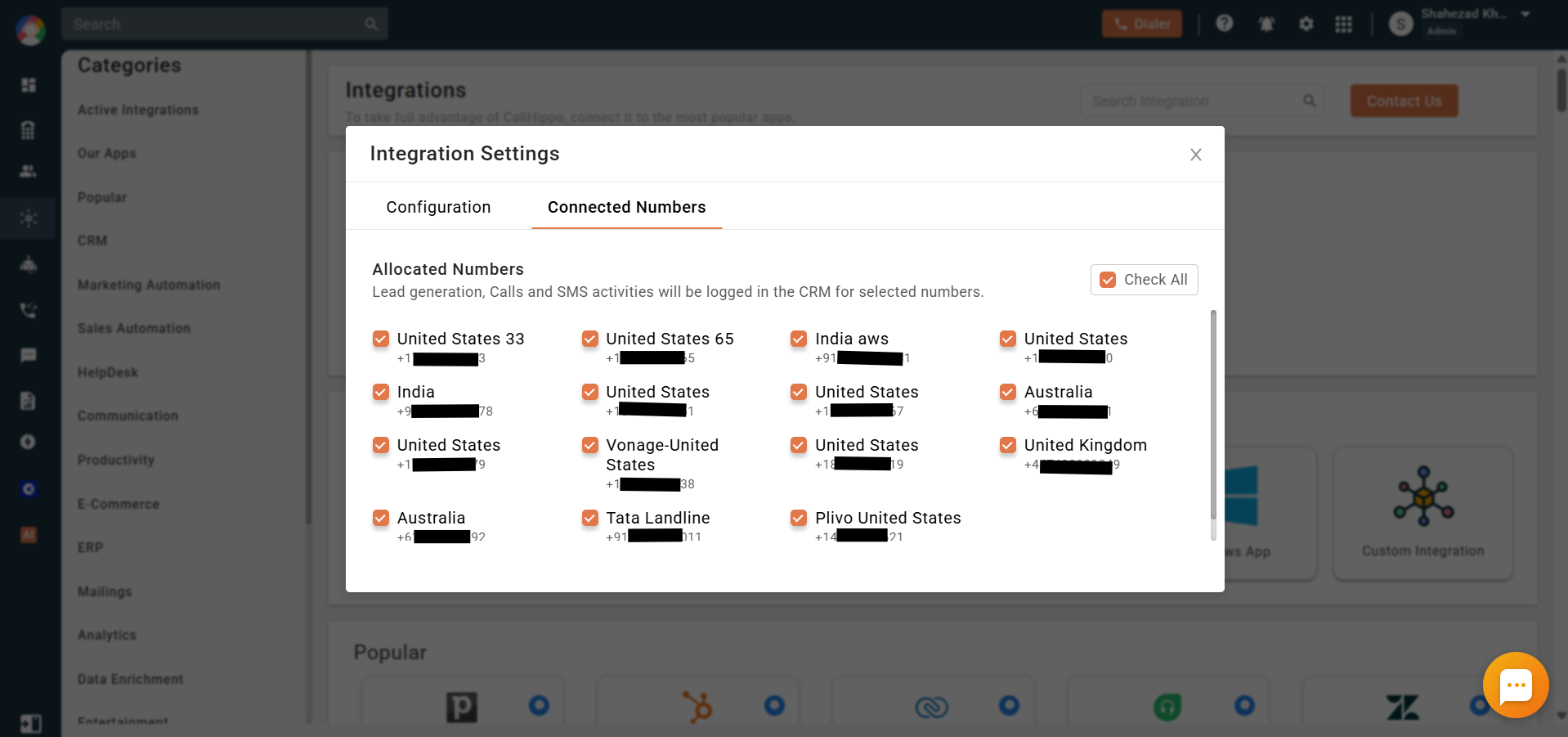
Under Connected Numbers, select which of your numbers should have their call and SMS activity logged in Gorgias.
After Call Work data in Gorgias
If your plan includes CallHippo’s call tags and disposition service and it is enabled, the activity pushed to Gorgias also includes the tags and disposition you add on the After Call Work (ACW) screen.
Note: Tags and disposition sync only when added on the After Call Work screen. If you add them later from the call logs or another feed, they will not sync to Gorgias.
What the Gorgias integration does
- Your existing and new contacts (end users with a phone number) are synced with CallHippo when a Click to Call action is performed on that contact.
- If a dialed number is not found in Gorgias, a new contact is created with that number.
- When a call is made from the CallHippo dialer, a ticket is created in Gorgias with the call log activity.
- When an SMS is sent from the CallHippo dialer, a ticket is created in Gorgias with the SMS log activity.
- You can install the CallHippo Click to Call Chrome extension to call directly from your Gorgias ticket detail page.
Still need help? Reach us at [email protected].