
Connecting CallHippo to Amazon S3 lets you automatically store your call recordings and data in your own secure cloud storage. This guide walks you through the entire setup, from connecting the integration in CallHippo to creating an S3 bucket and generating the AWS credentials you need.
Connect Amazon S3 in CallHippo
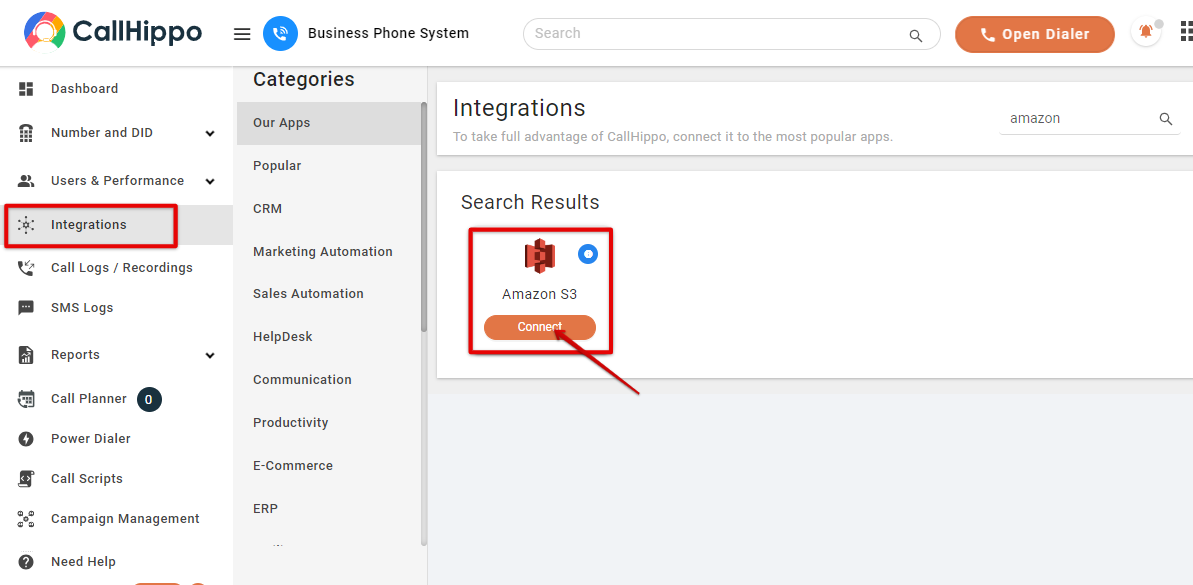
- Log in to CallHippo and open the Integrations section from the left menu. Search for Amazon S3 and click Connect.
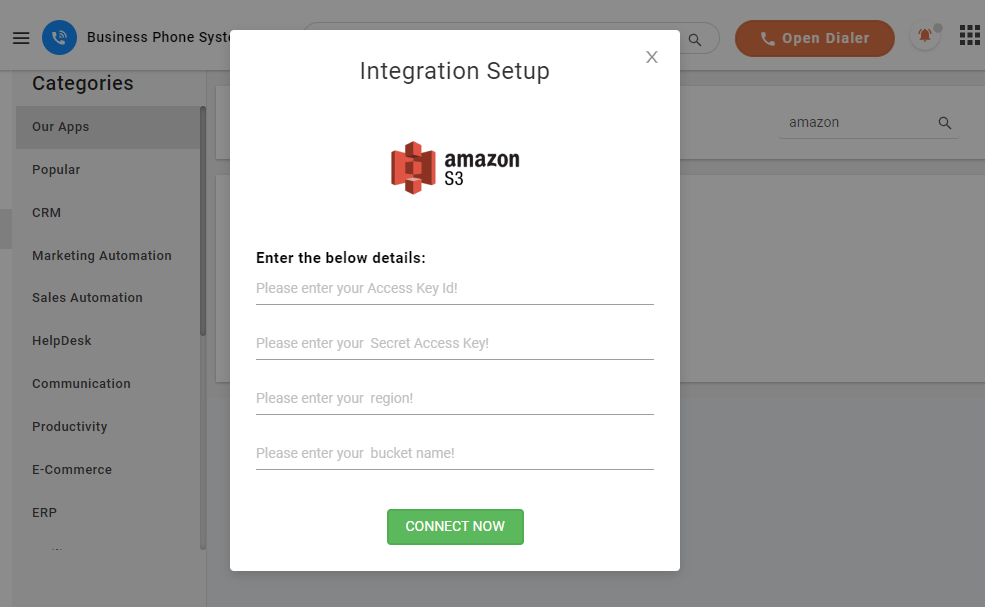
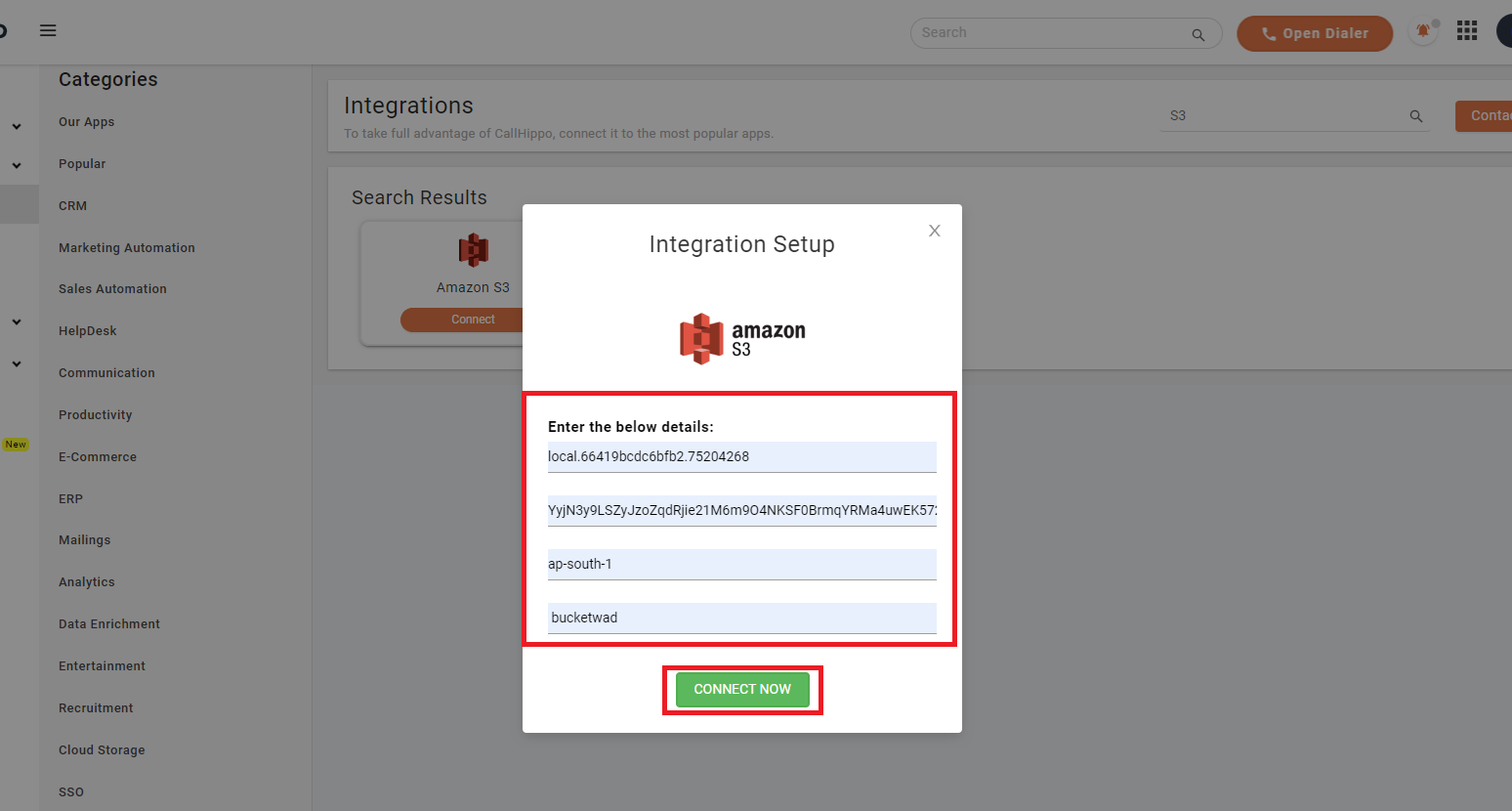
- In the Integration Setup pop-up, you will be asked for your Access Key ID, Secret Access Key, Region, and Bucket name. Keep this window open, then gather these details from AWS using the steps below before clicking CONNECT NOW.
How to create an S3 bucket
If you do not already have a bucket to store your recordings, create one in the AWS console.
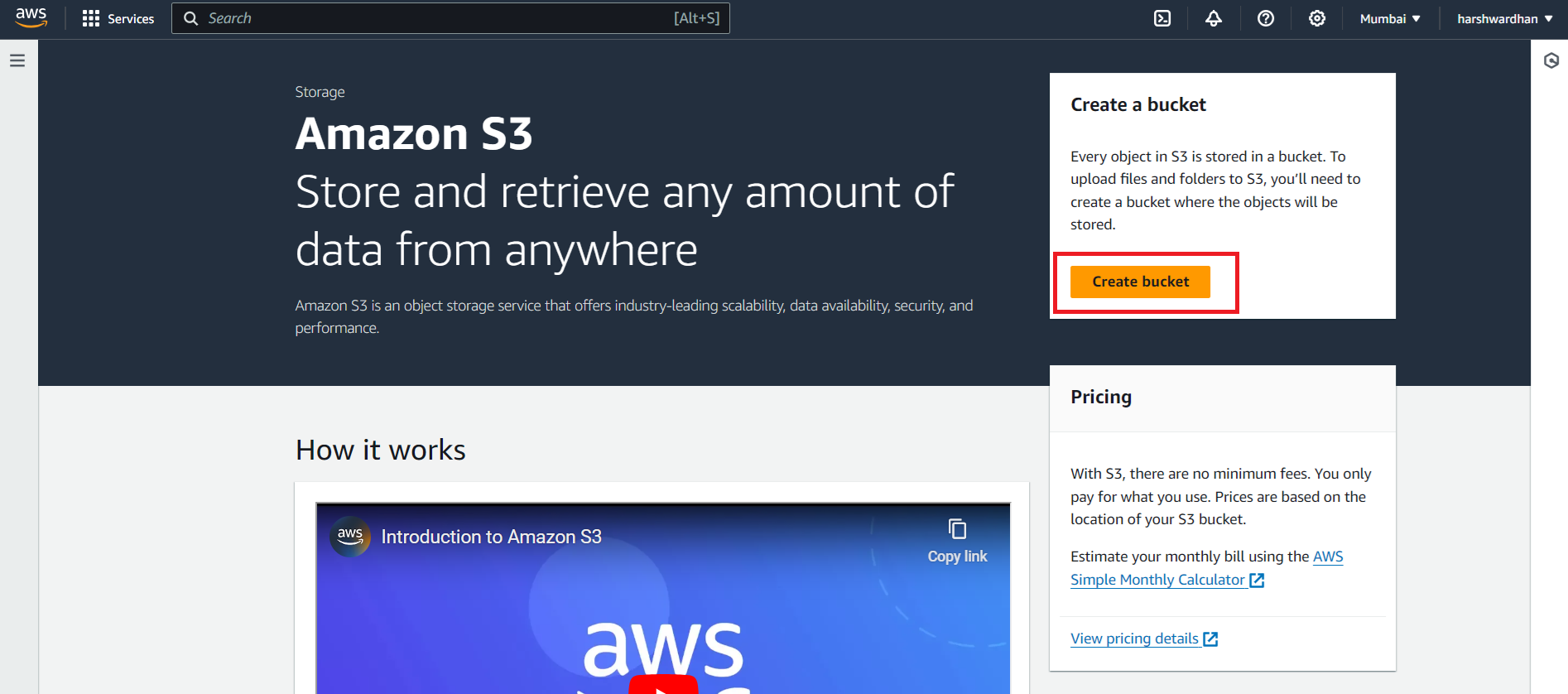
- In Amazon S3, click Create bucket.
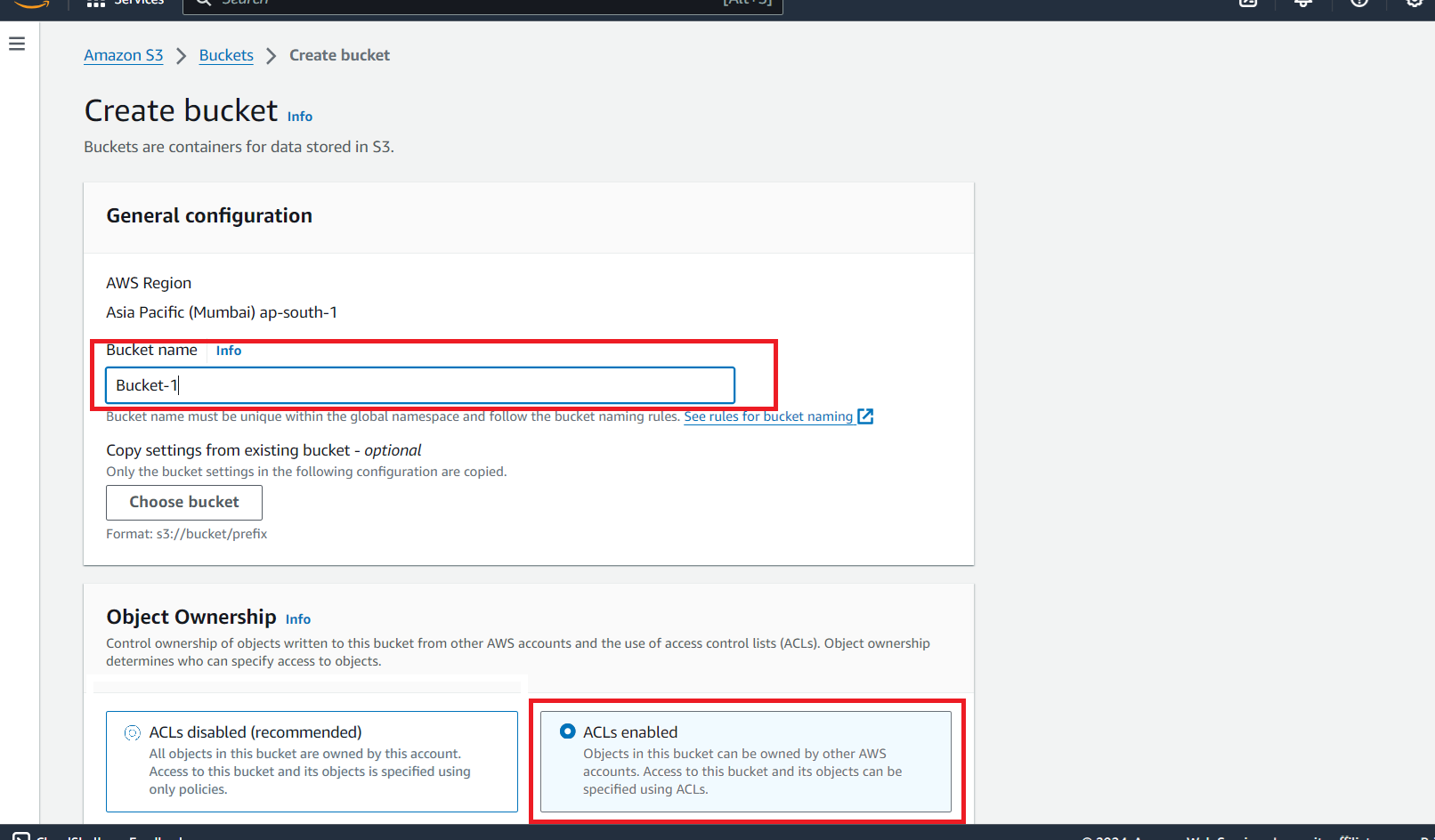
- Give the bucket a name and set Object Ownership to ACLs enabled.
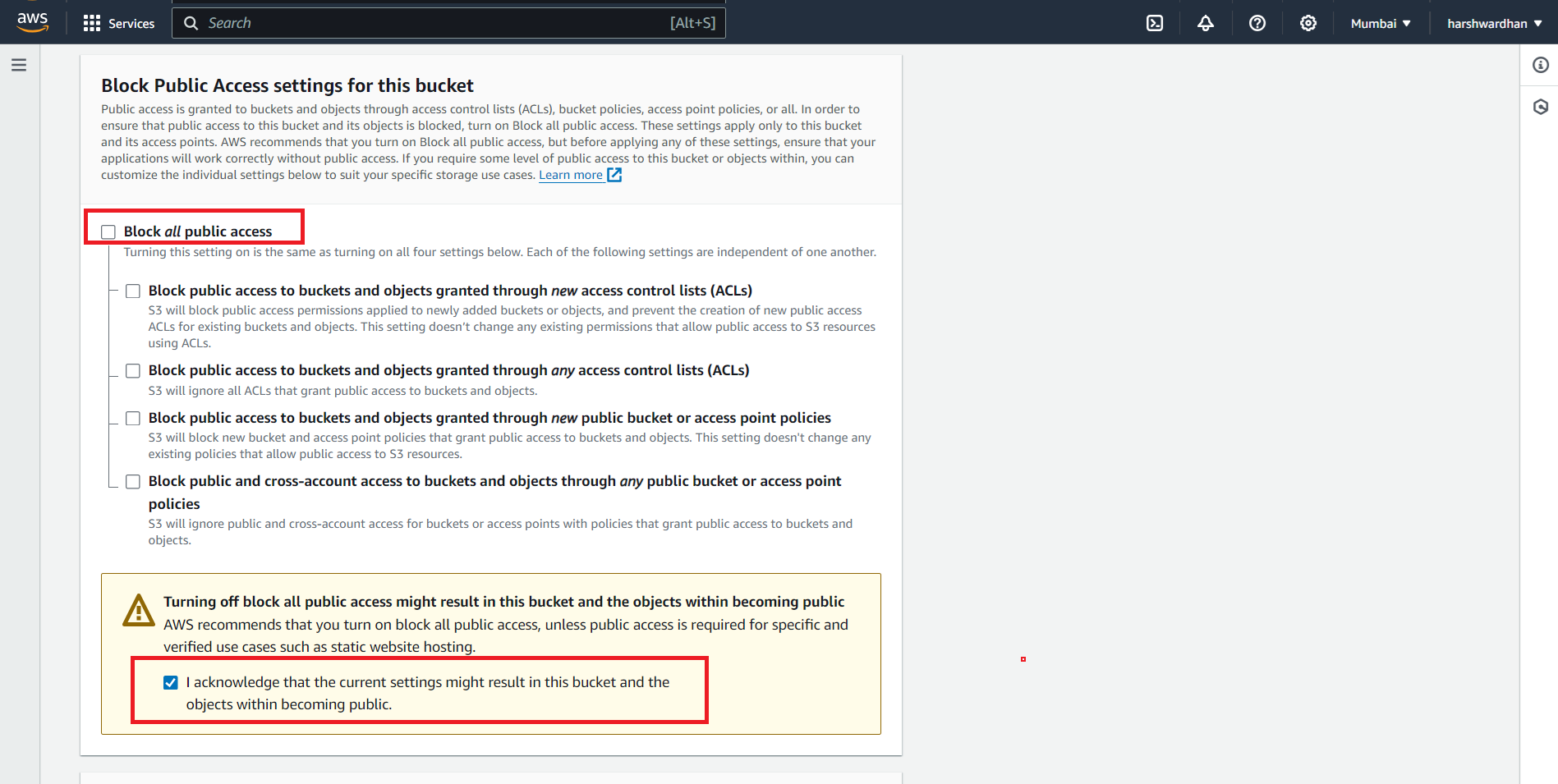
- Under Block Public Access settings, uncheck Block all public access and tick the acknowledgement box.
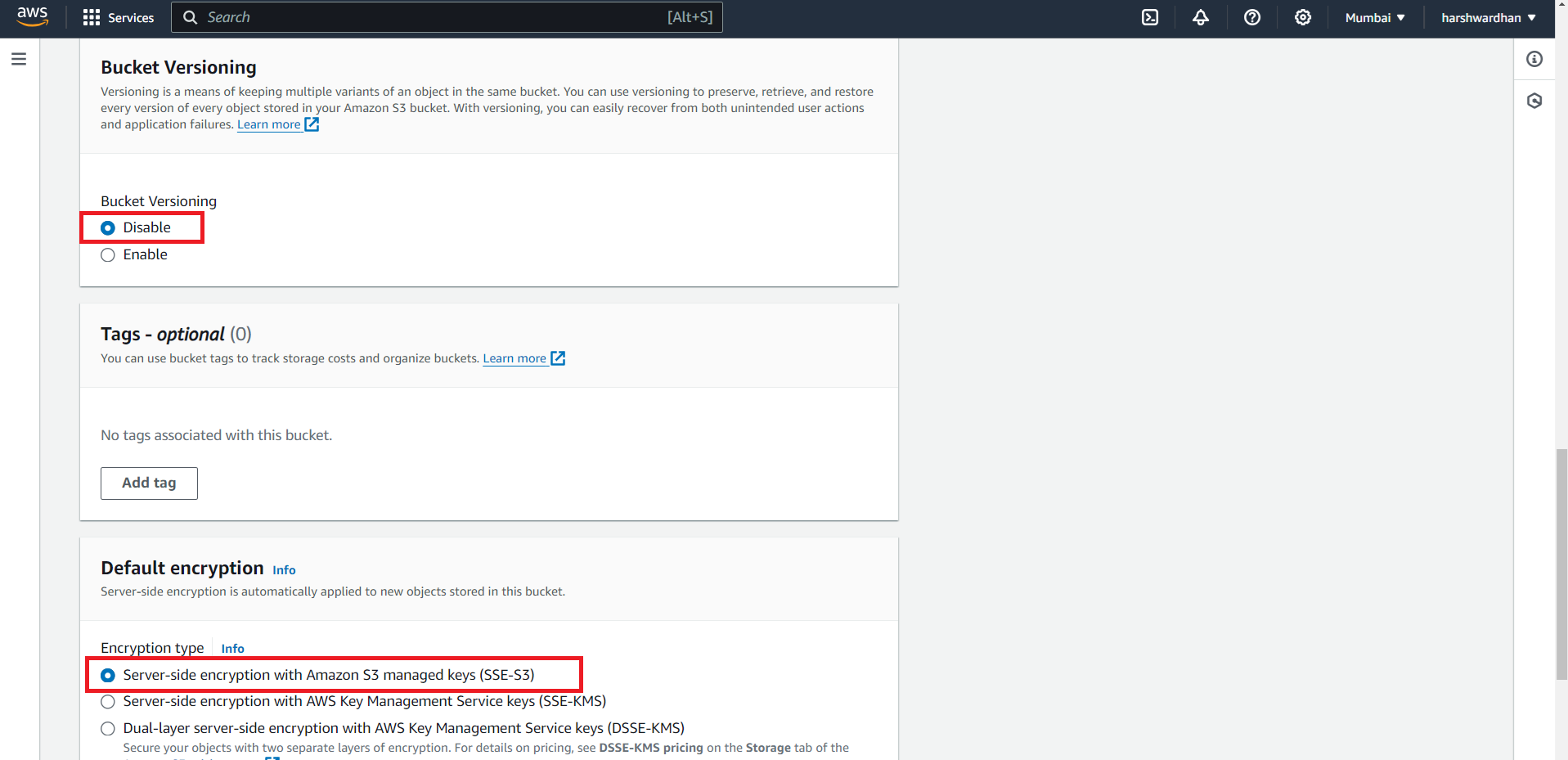
- Leave Bucket Versioning and Default encryption at their default values.
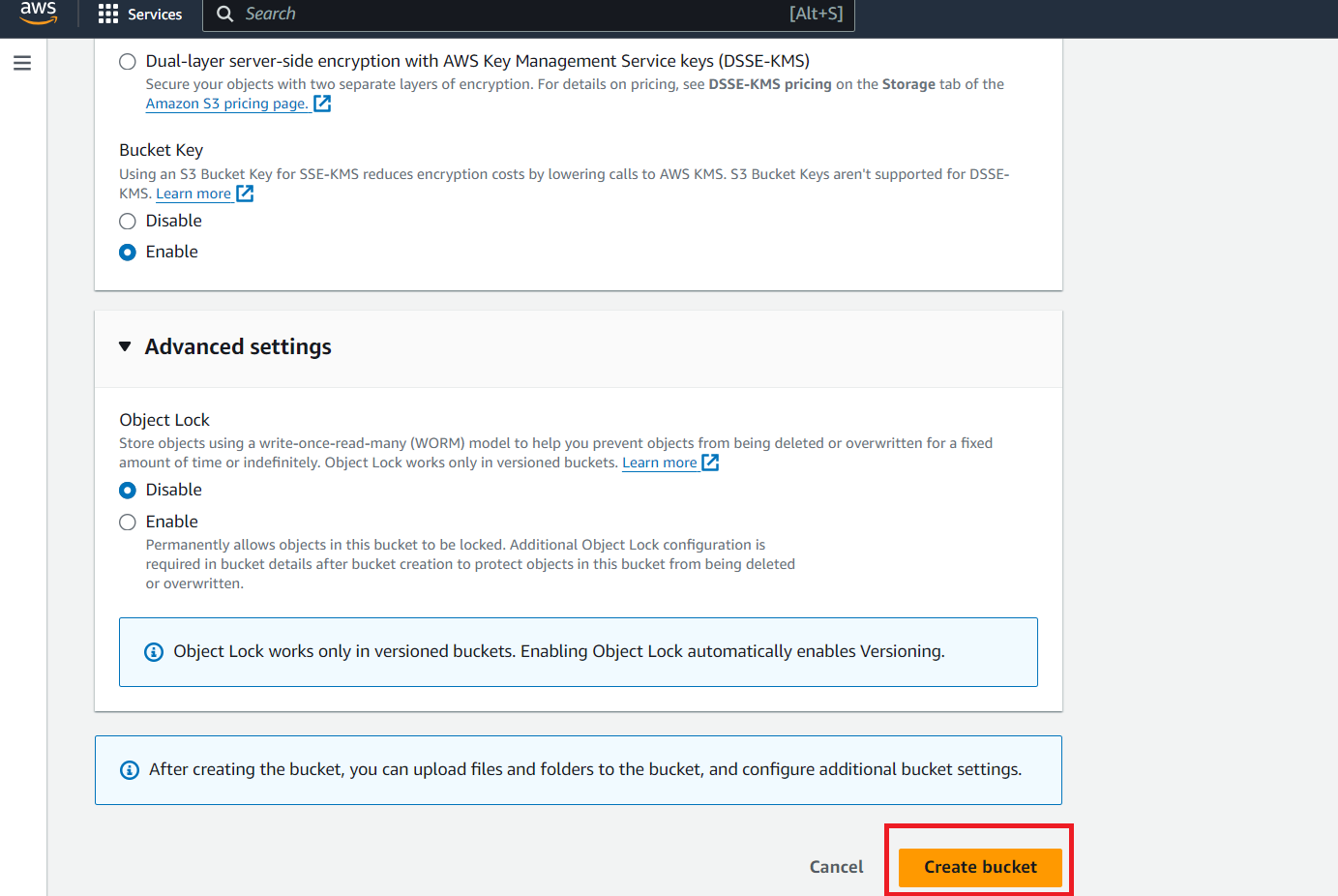
- Leave the Bucket Key and any advanced settings at their defaults, then click Create bucket.
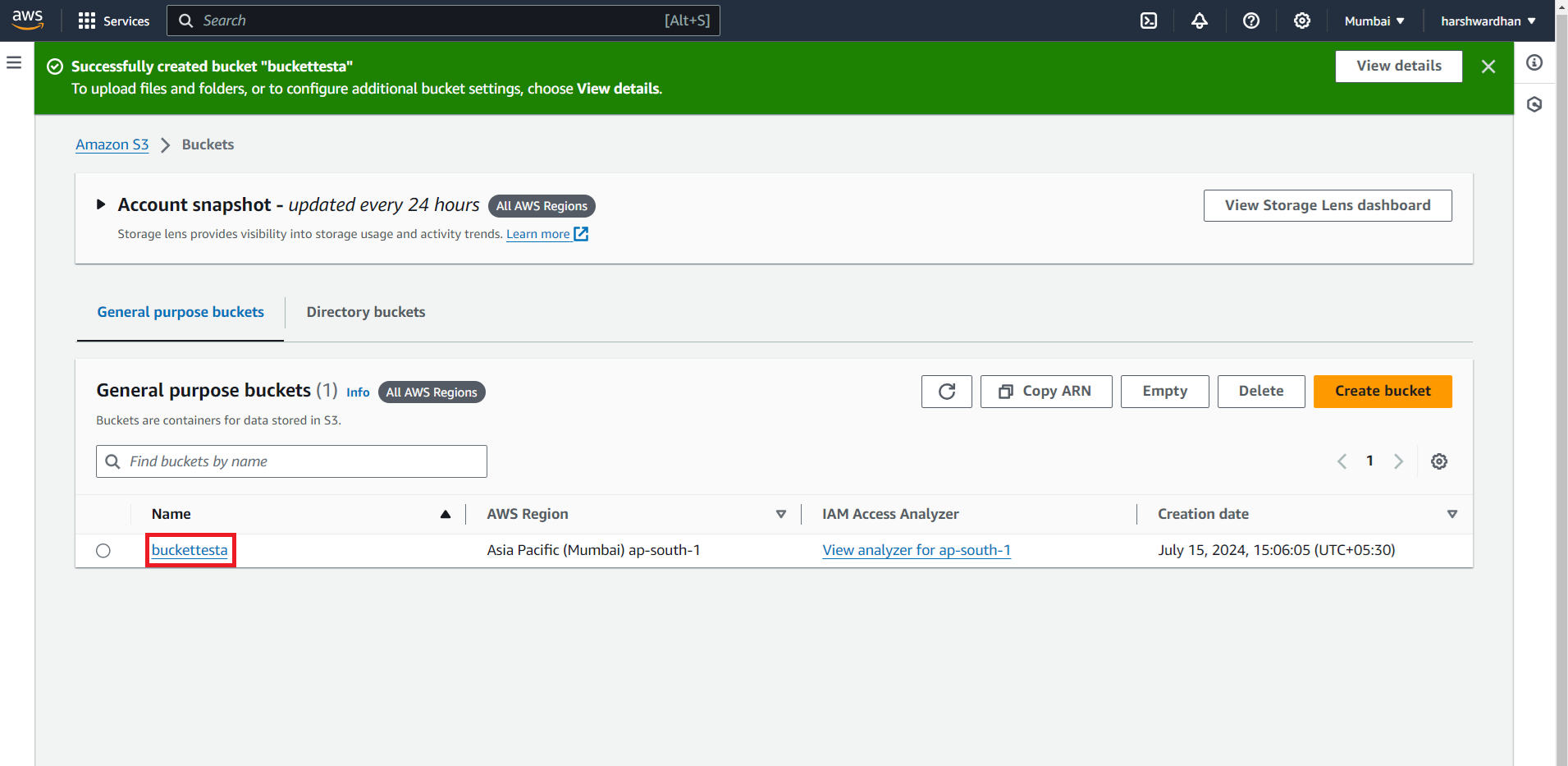
- Your new bucket now appears in the bucket list. Note down its name, as you will paste it into the CallHippo setup pop-up.
Get your AWS access keys and region
Next, generate the access key and secret access key, and note the region of your bucket.
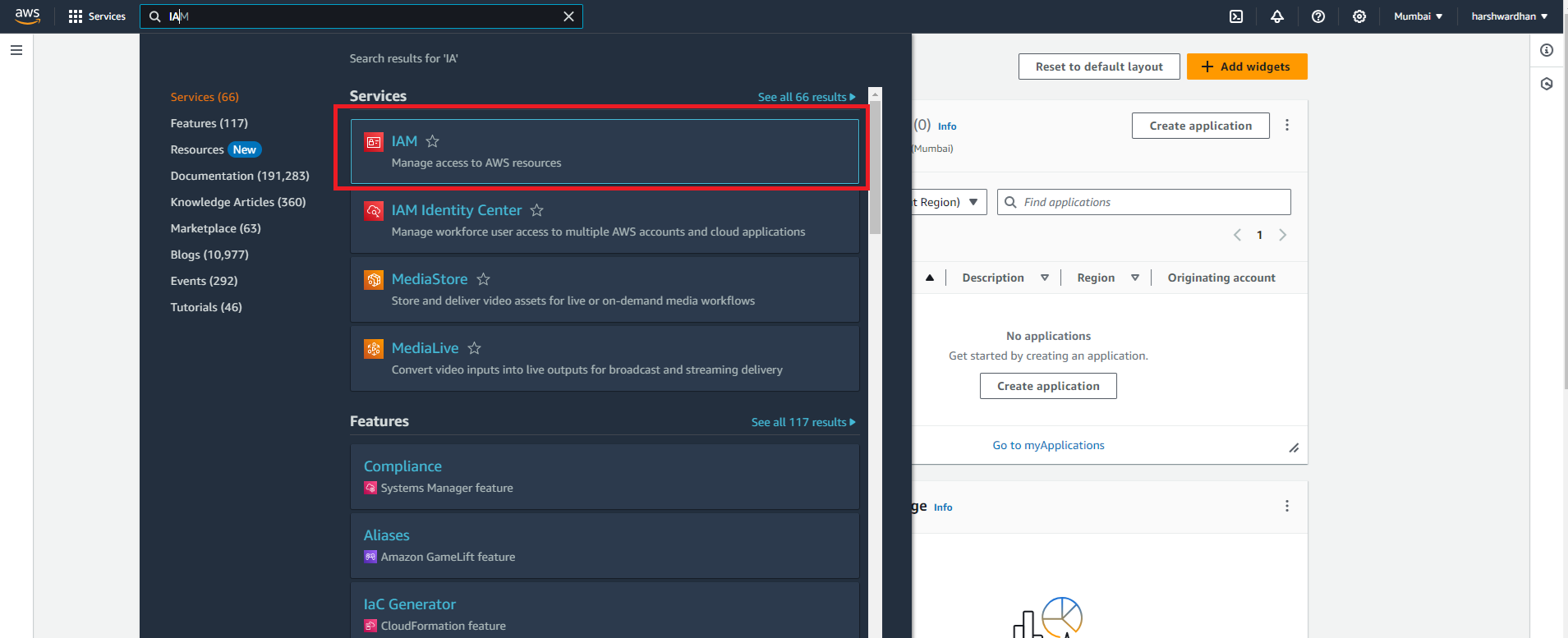
- In the AWS console, search for IAM and open the service.
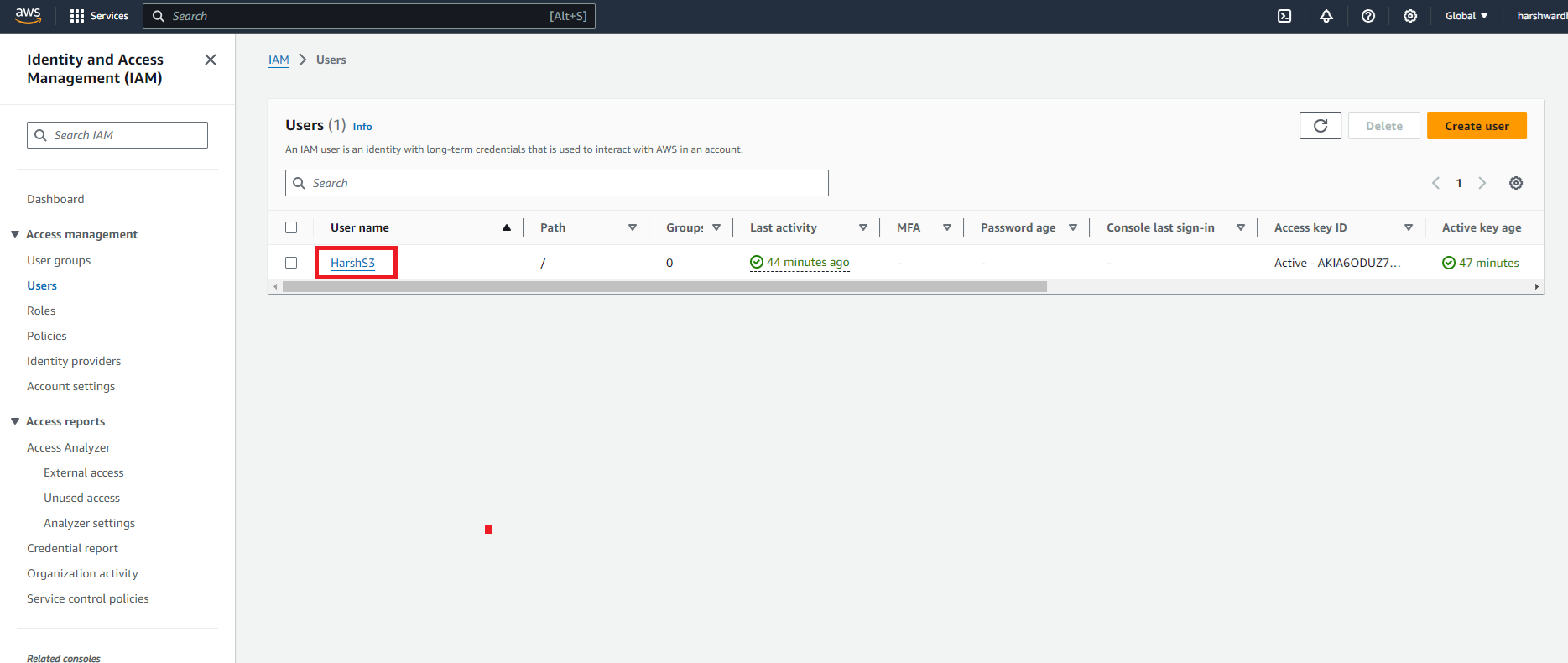
- Go to Users and open the user you want to use for the integration.
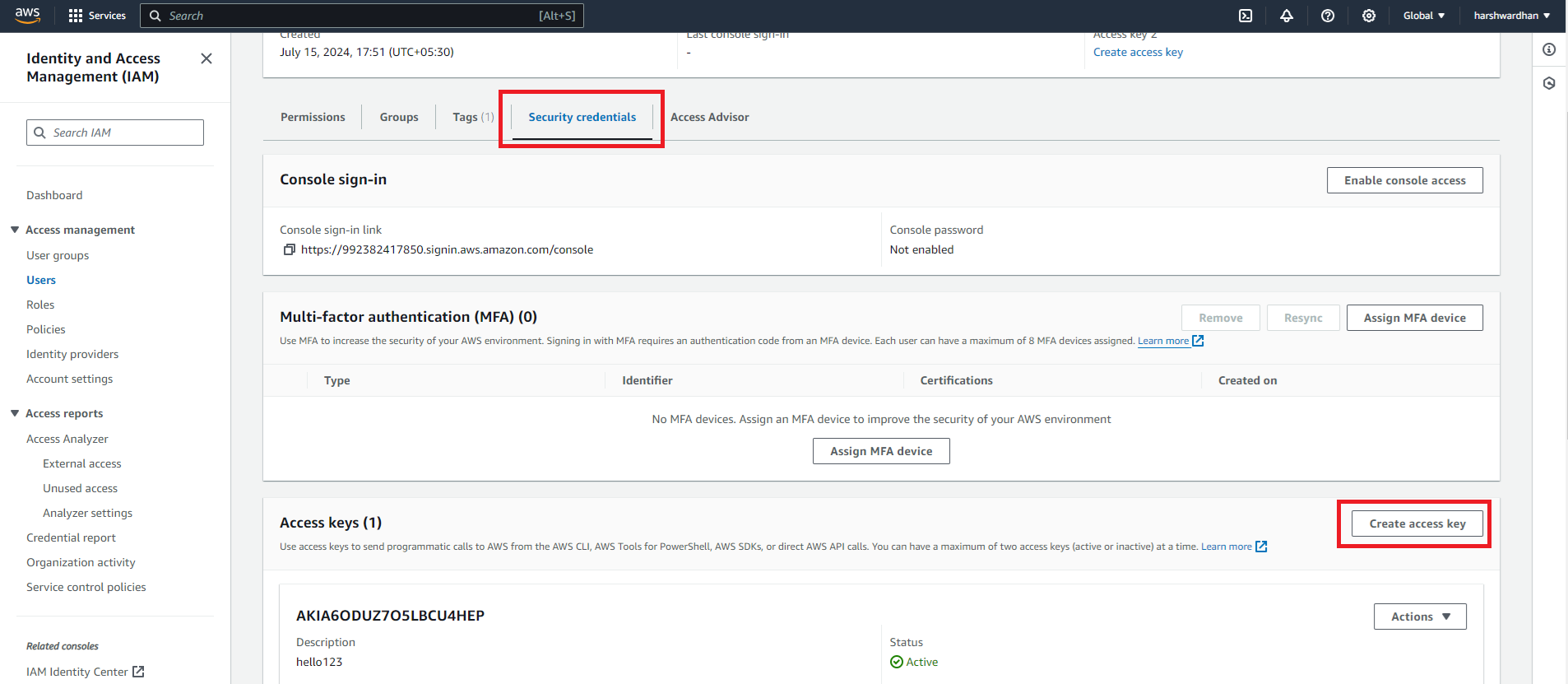
- Open the Security credentials tab, scroll to Access keys, and click Create access key. Create a new access key each time you set up the integration.
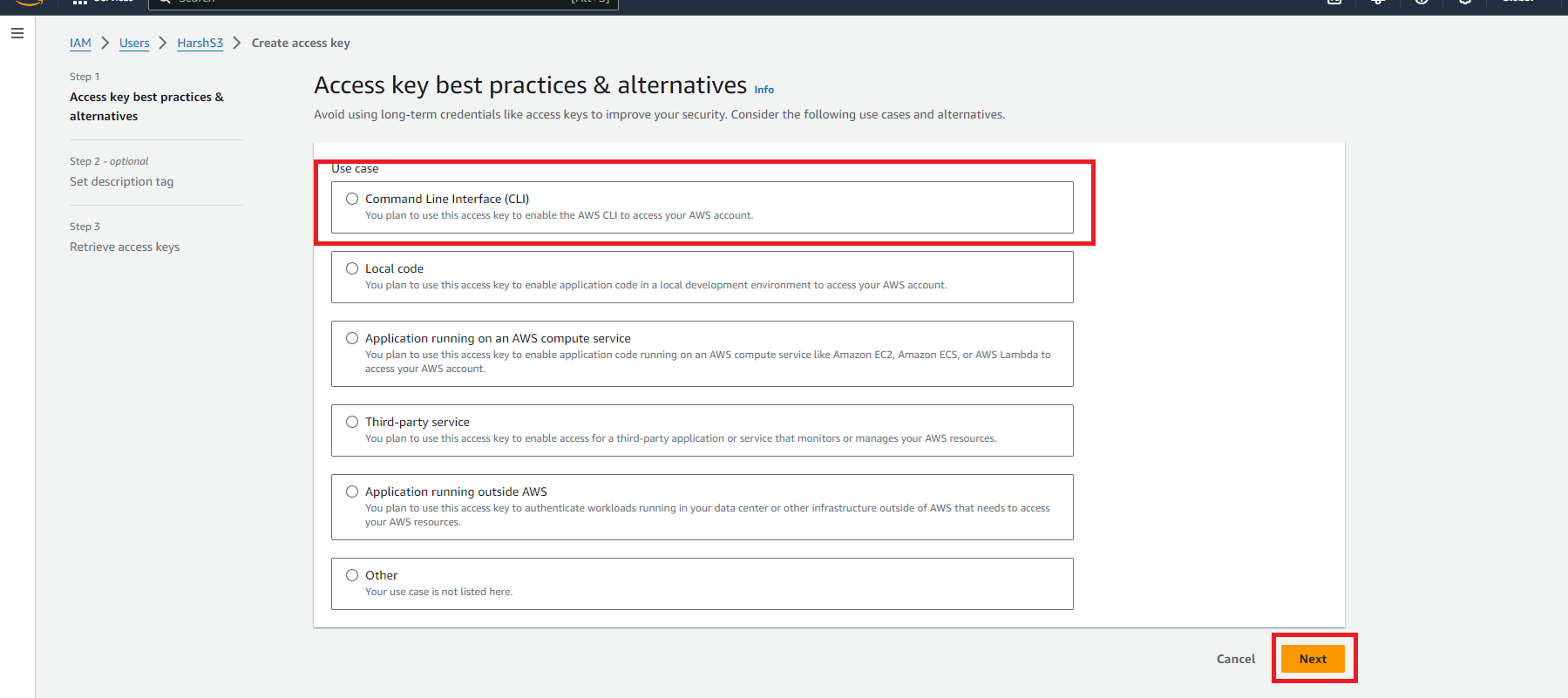
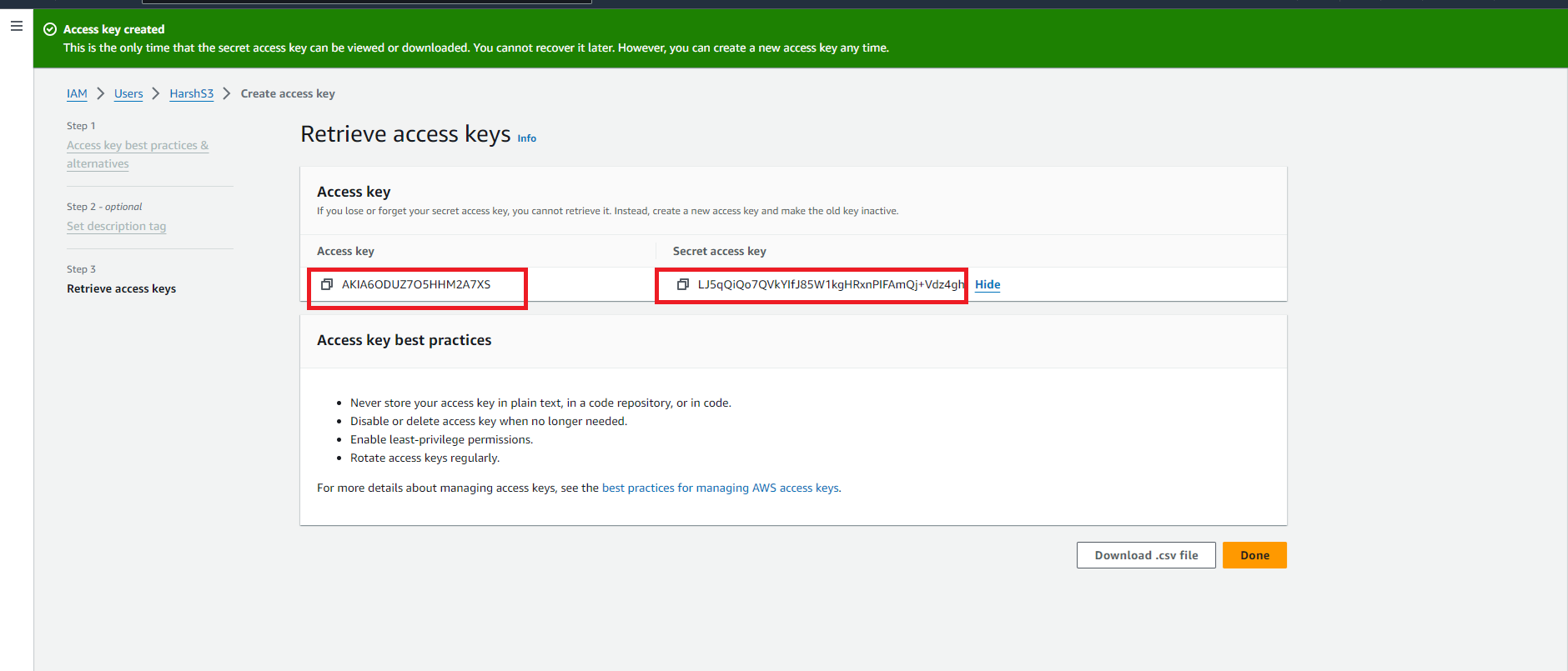
- Choose Command Line Interface (CLI) as the use case, click Next, optionally add a description tag, then click Create access key.
- Copy both the Access key and the Secret access key. This is the only time the secret key is shown, so save it now.
- Go back to your S3 bucket and copy the region from the browser URL.
Note: Use the region of the bucket, not the region of the user. They can differ, and using the wrong one will cause the connection to fail.
- Return to the CallHippo Integration Setup pop-up, paste in your Access Key ID, Secret Access Key, Region, and Bucket name, then click CONNECT NOW.
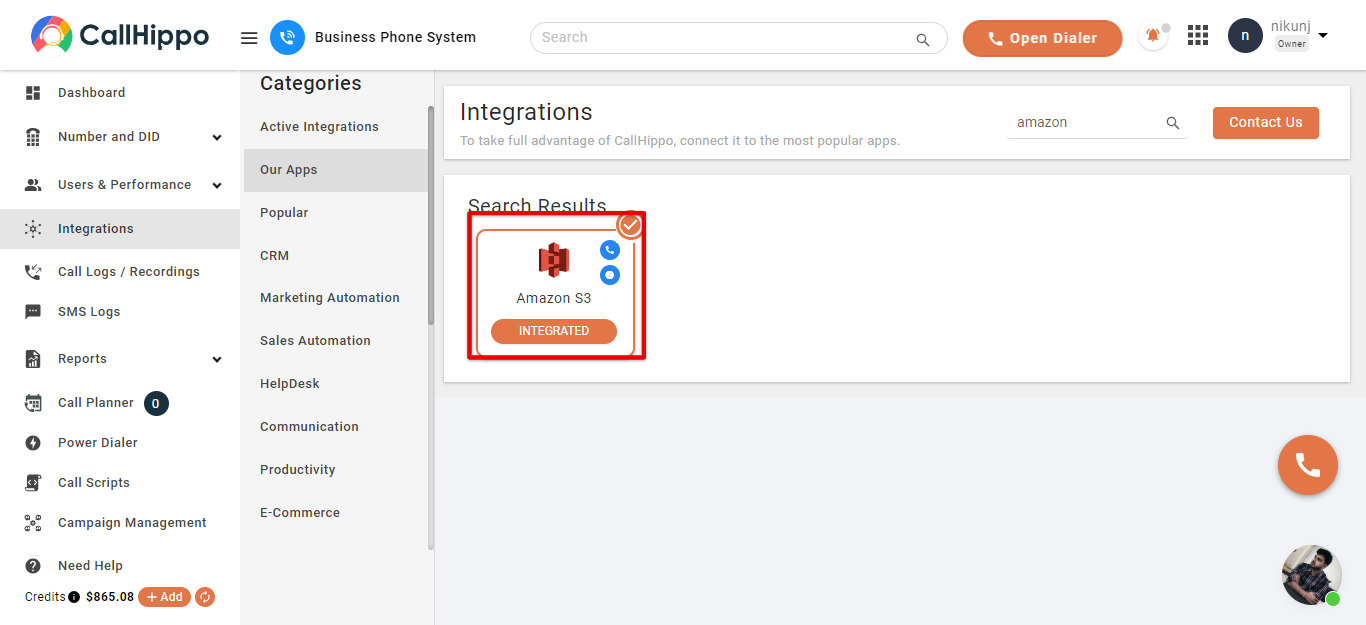
- On success, Amazon S3 appears as Integrated under My Integrations.
Verify your recordings sync
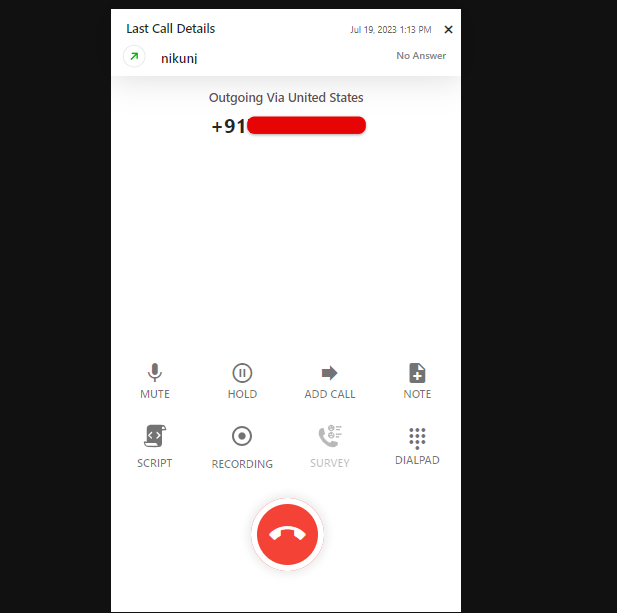
- Make a call through the CallHippo dialer so that a recording is generated.
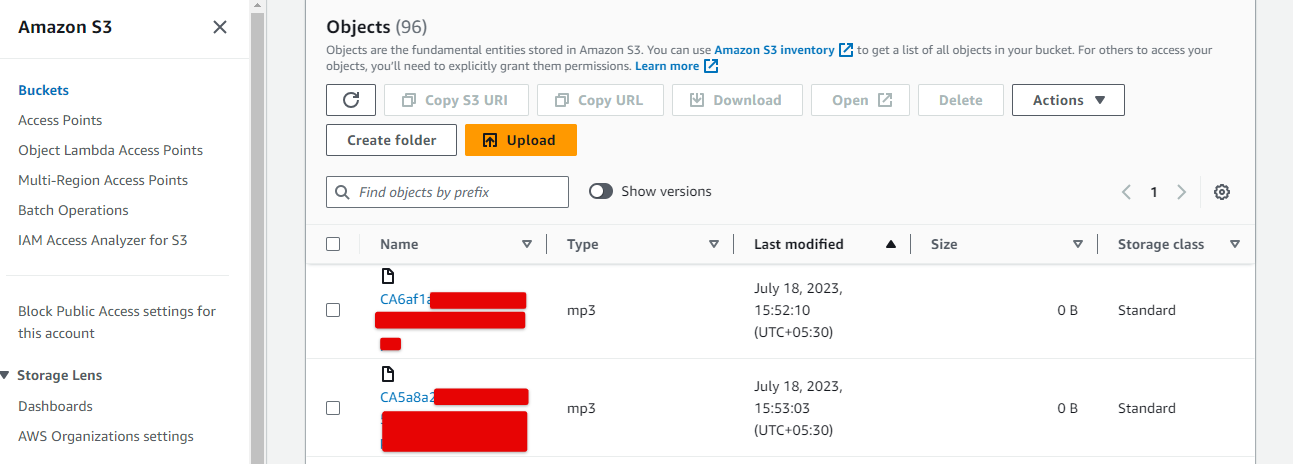
- After the call ends, open your Amazon S3 bucket. Your call recordings will appear there as objects.
Still need help? Reach us at [email protected].