
Connecting CallHippo with Pipedrive lets you make calls straight from your leads, deals and contacts, and logs every call and SMS back onto the matching Pipedrive record. This guide covers activating the integration, configuring what syncs, enabling click-to-call, and adding custom activity labels.
Before you begin
- An active Pipedrive account with admin access to authorize apps.
- A CallHippo account where you can manage integrations.
- The CallHippo Click-to-Call Chrome extension (needed for click-to-call, covered below).
Activate the Pipedrive integration
- Log in to your CallHippo account.
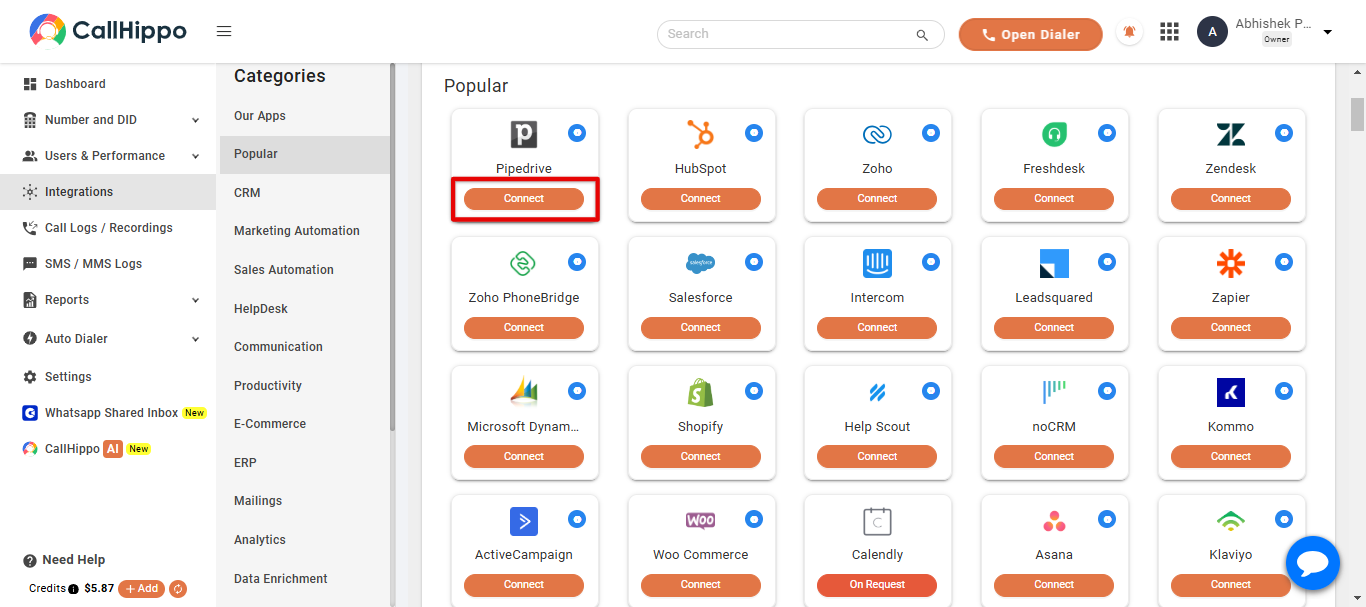
- Go to the Integrations section of your dashboard and click Connect on the Pipedrive integration.
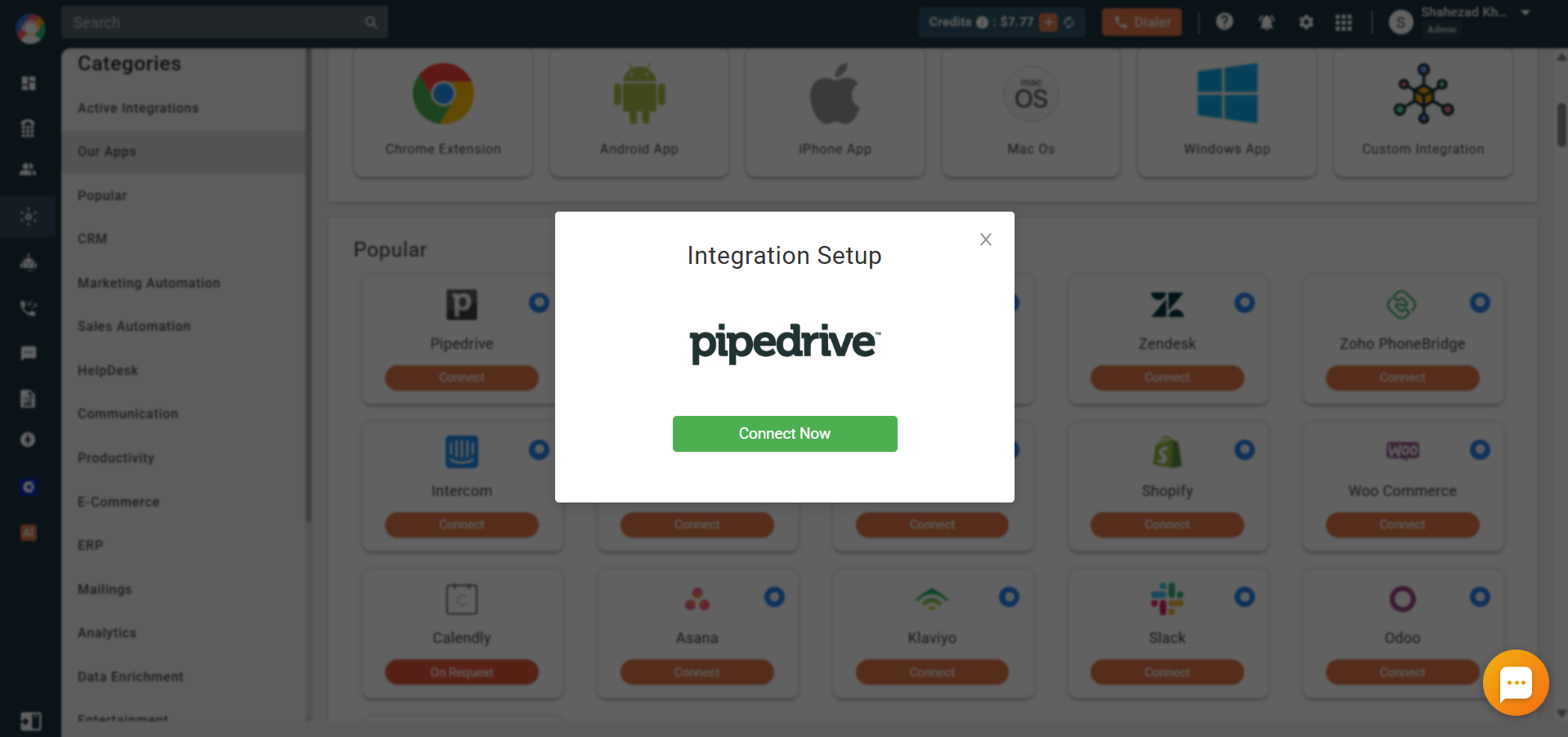
- Click Connect Now. You are taken to the Pipedrive login page.
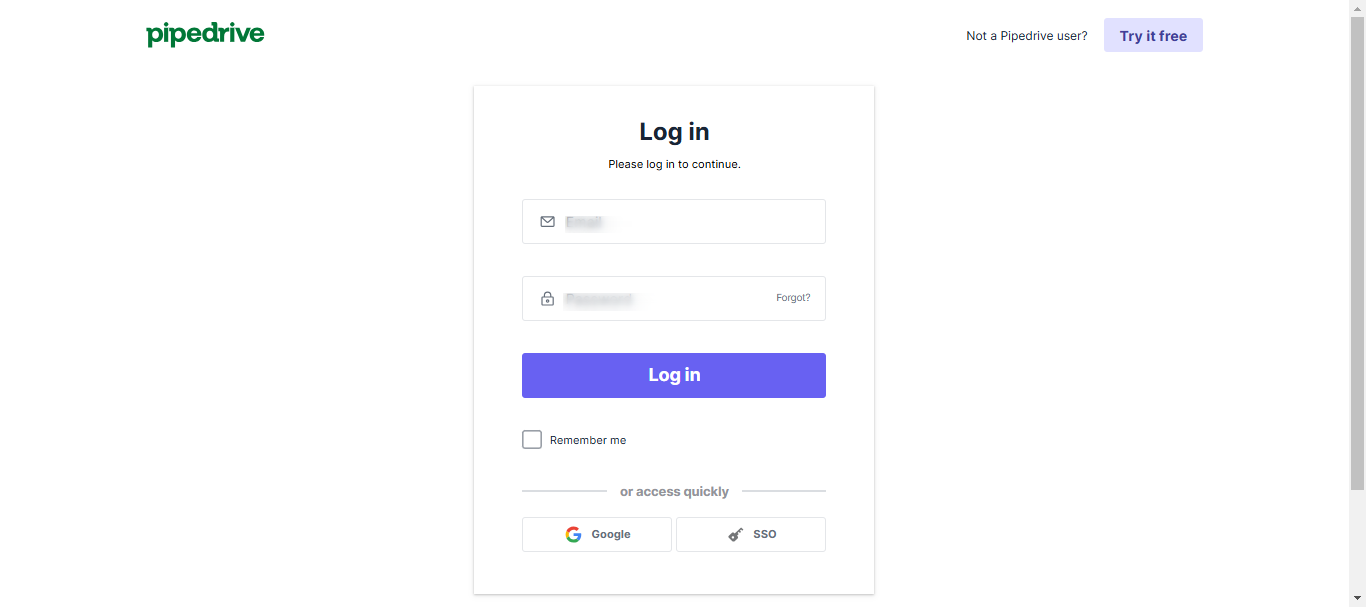
- Log in with your Pipedrive credentials.
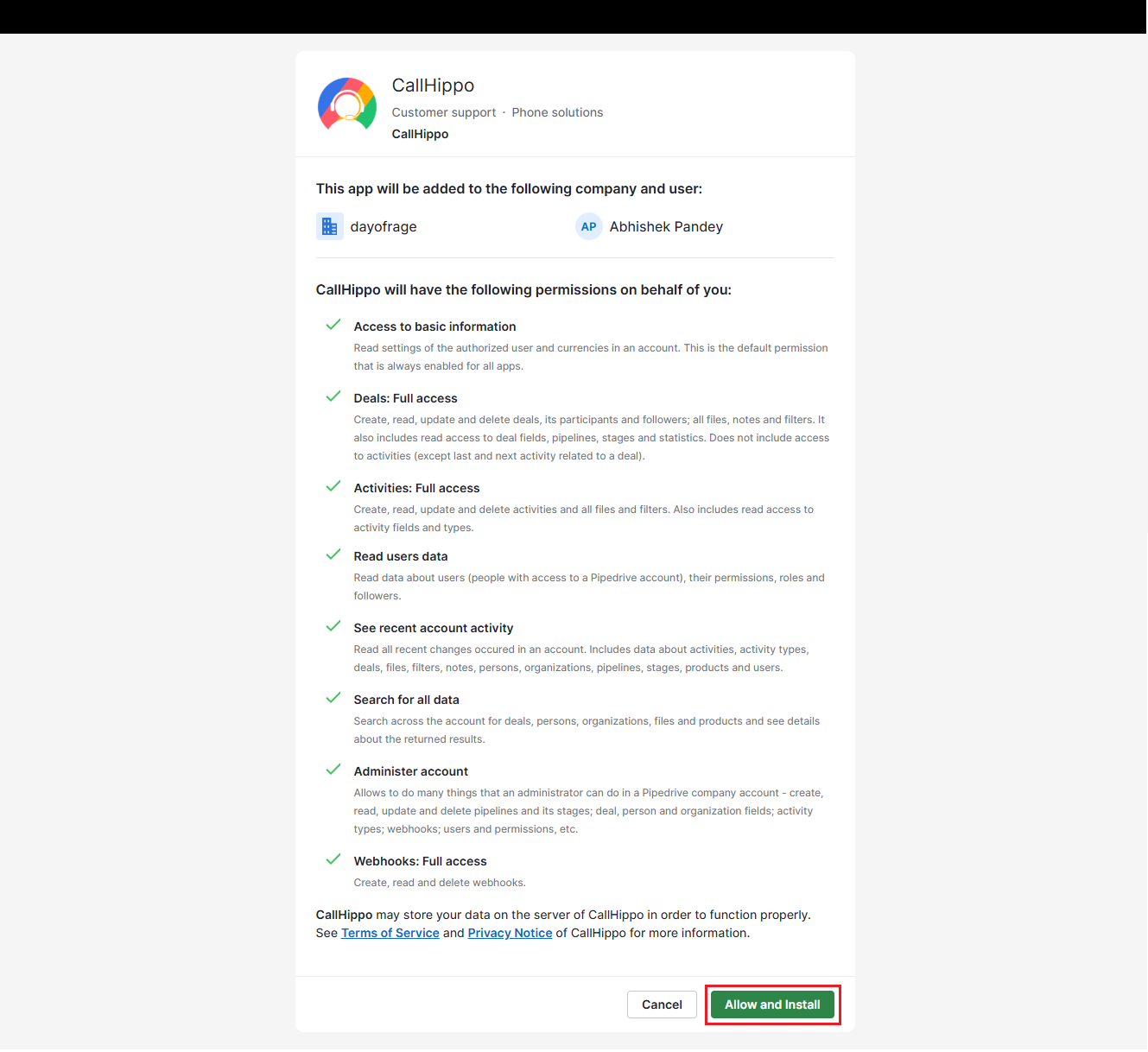
- On the permissions page, click Allow and Install to grant the access needed for the integration.
You are redirected back to CallHippo and the integration status changes to Integrated. Your account is now connected to Pipedrive.
Configure the integration settings
After connecting, CallHippo opens an Integration Settings popup where you can customize how Pipedrive works with CallHippo.
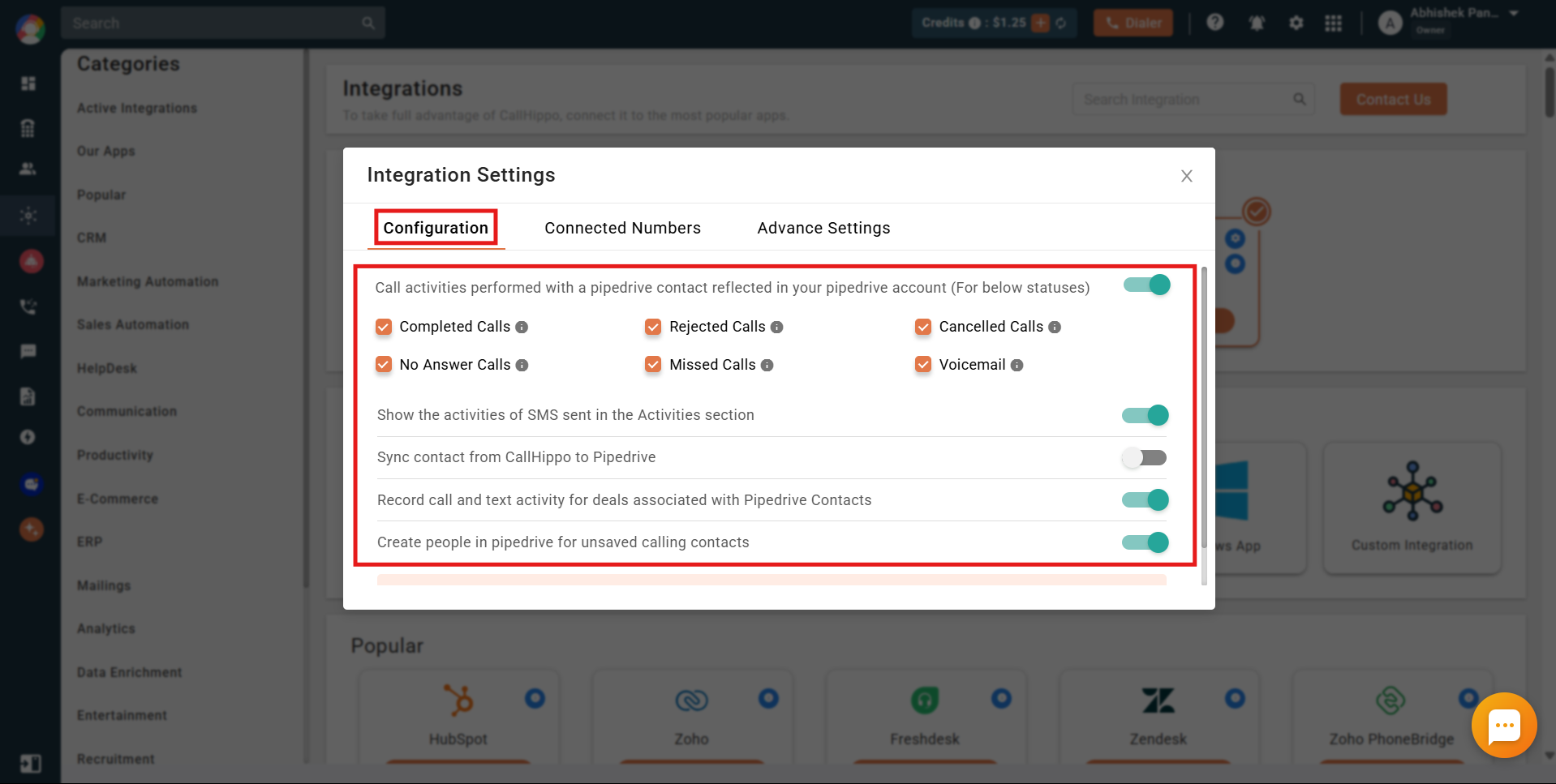
On the Configuration tab you can control the following:
- Call activities reflected in Pipedrive – when enabled, all call activity on a Pipedrive contact is logged in Pipedrive. Use the checkboxes to choose which call statuses (Completed, Rejected, Cancelled, No Answer, Missed, Voicemail) are synced.
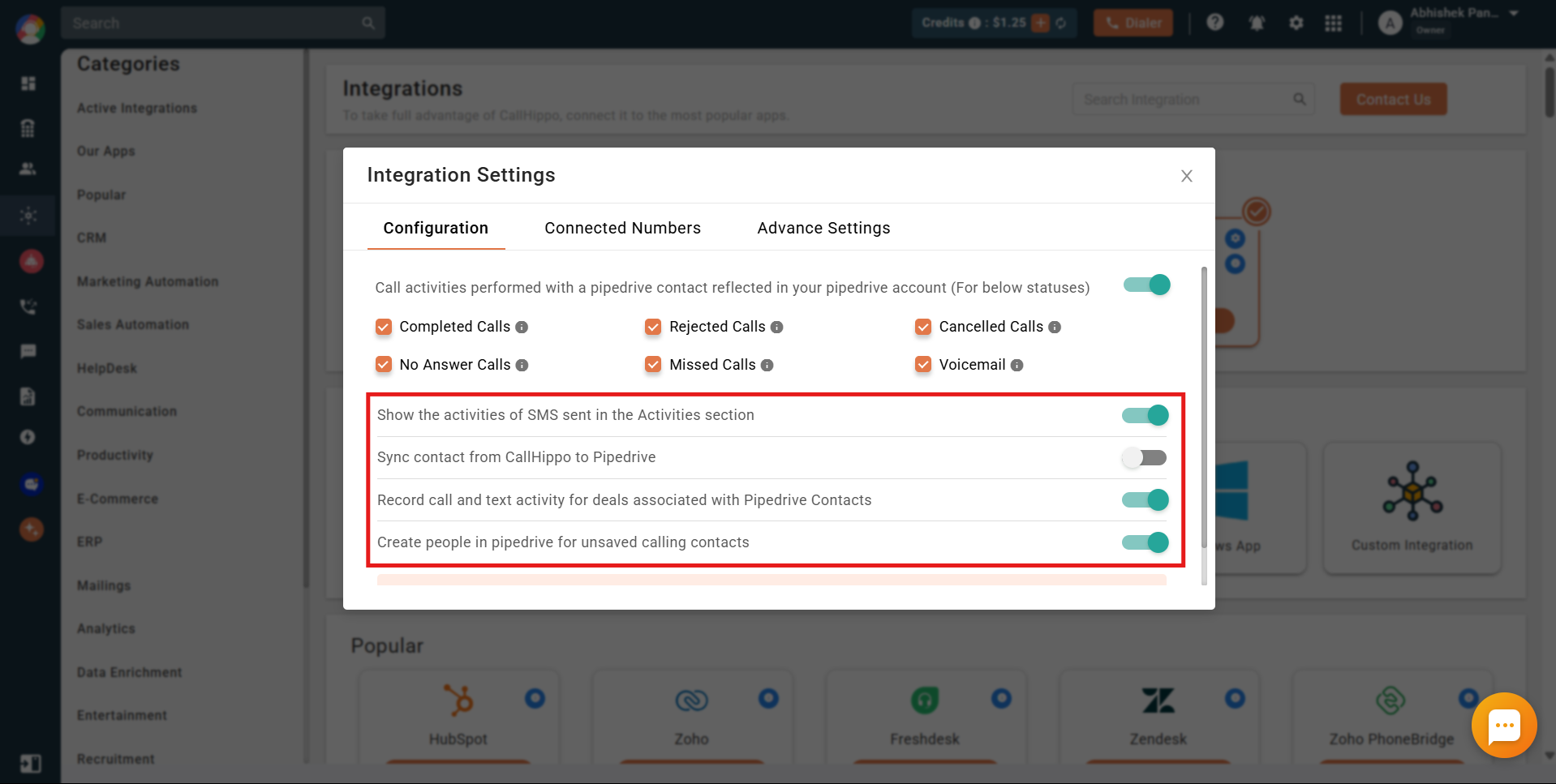
- Show SMS activities – logs all SMS activity in the Pipedrive Activities section.
- Sync contact from CallHippo to Pipedrive – contacts you add or update in CallHippo are also added or updated in Pipedrive.
- Record call and text activity for deals – call and SMS activity for deals associated with Pipedrive contacts is synced to the respective deals.
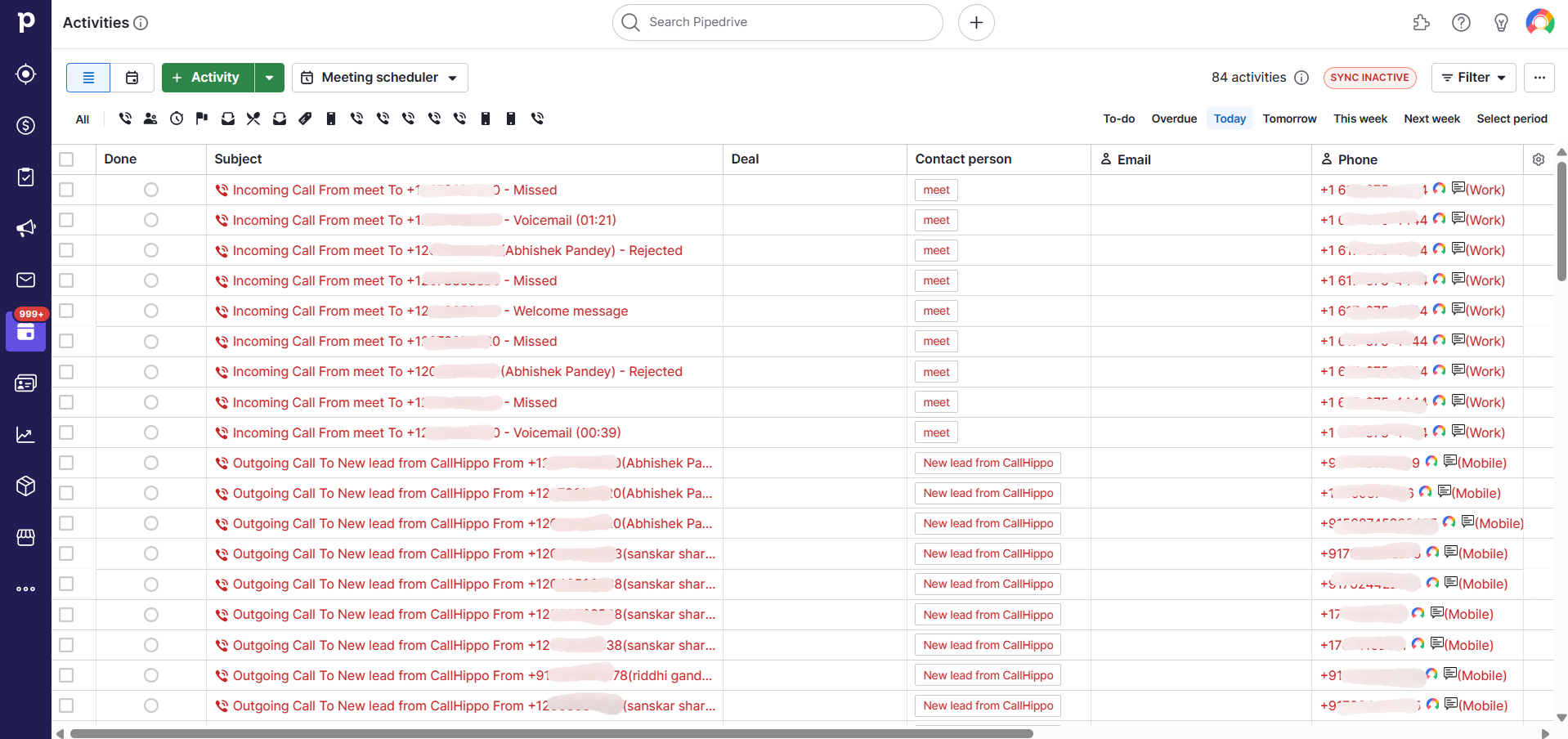
- Create people in Pipedrive for unsaved contacts – calls to or from unsaved numbers create a new Pipedrive contact named “New Lead from CallHippo” with the call log attached.
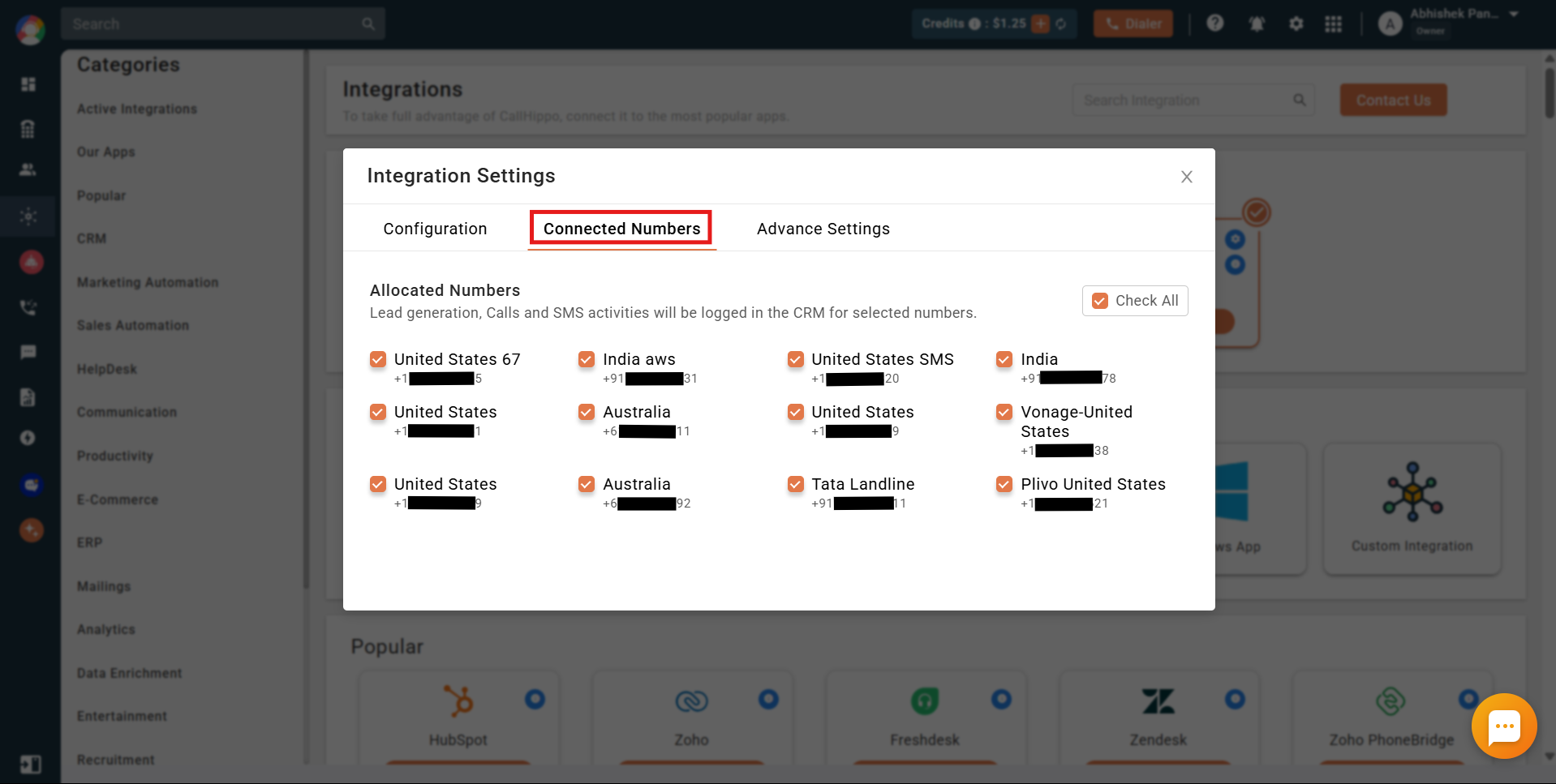
On the Connected Numbers tab, select which numbers should log their call and SMS activity in Pipedrive.
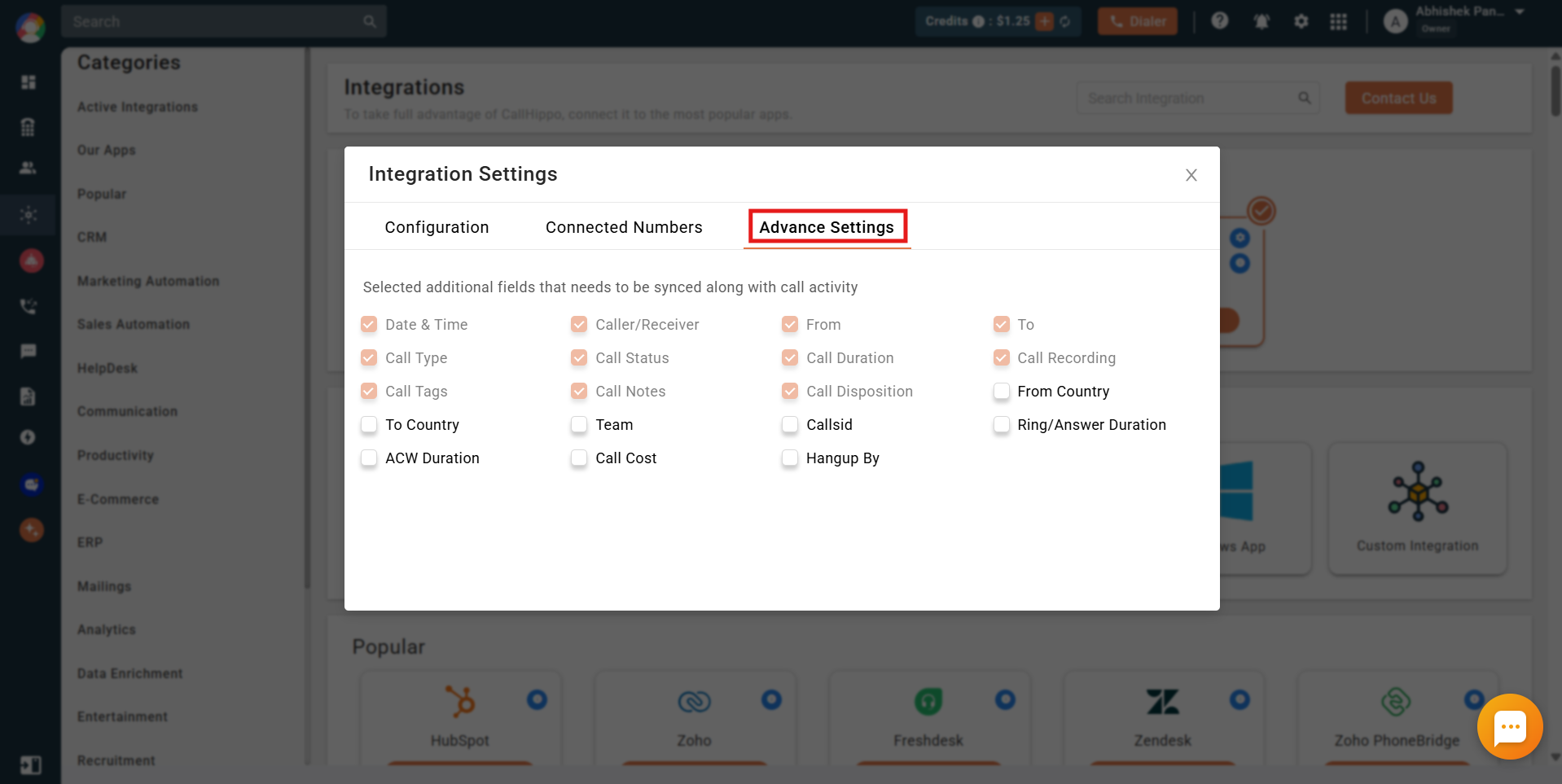
On the Advance Settings tab, choose the additional fields you want synced along with each call activity.
After Call Work activity in Pipedrive
If you have a plan with CallHippo’s call tags and disposition service and it is enabled, the activity pushed to Pipedrive includes the tags and disposition data you add after the call on the After Call Work (ACW) screen.
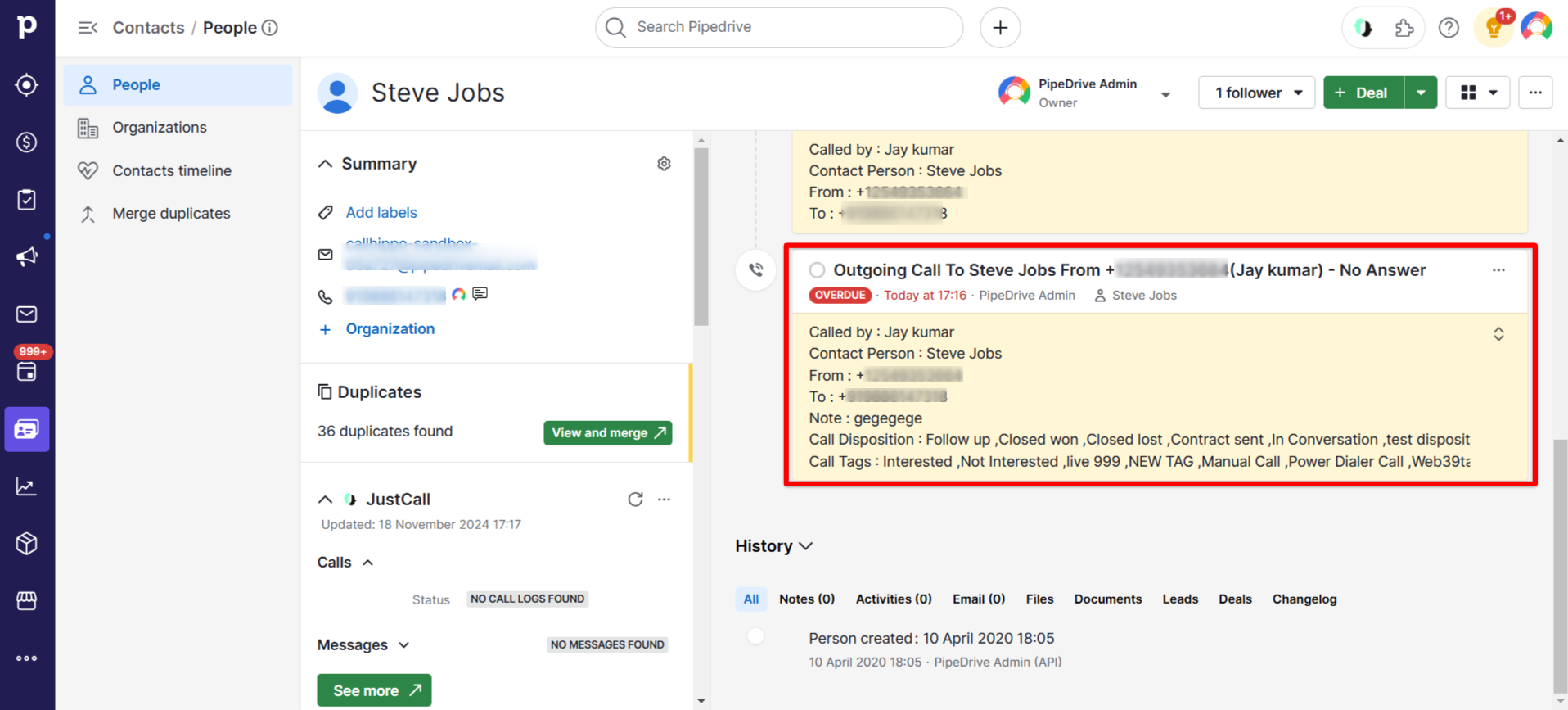
Note: This only syncs when the tags and disposition are added on the After Call Work screen. If they are added later from the call logs or another feed, they will not sync to Pipedrive.
Enable click-to-call
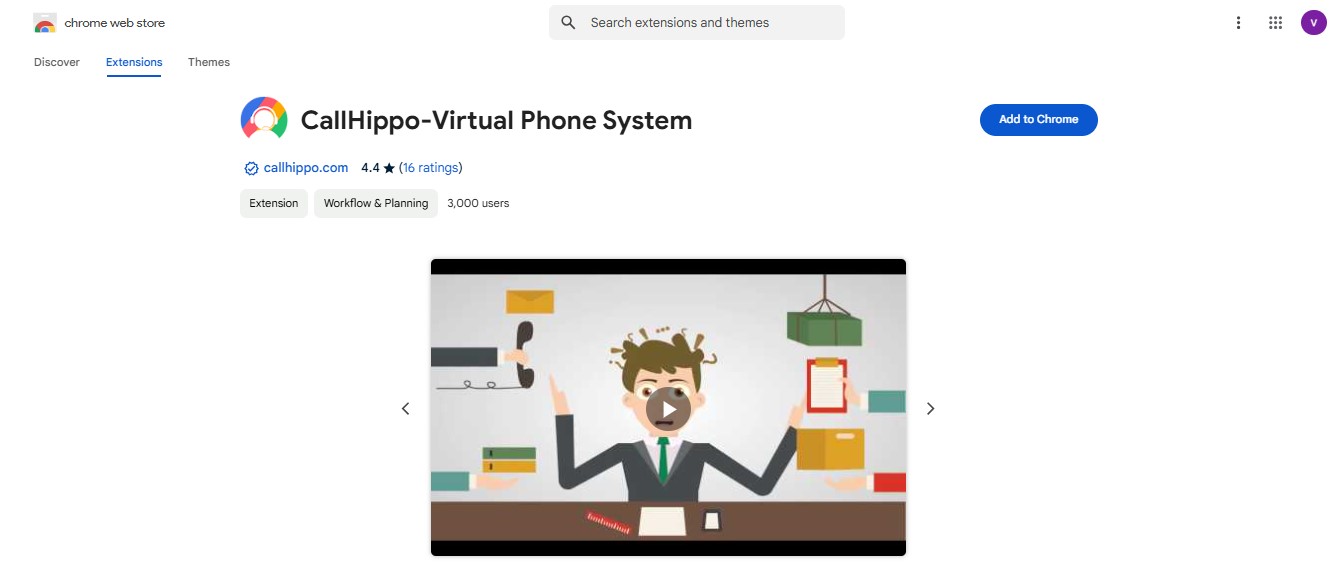
To call directly from Pipedrive, first install the CallHippo Click-to-Call Chrome extension from the Chrome Web Store.
Then set your default calling app in Pipedrive:
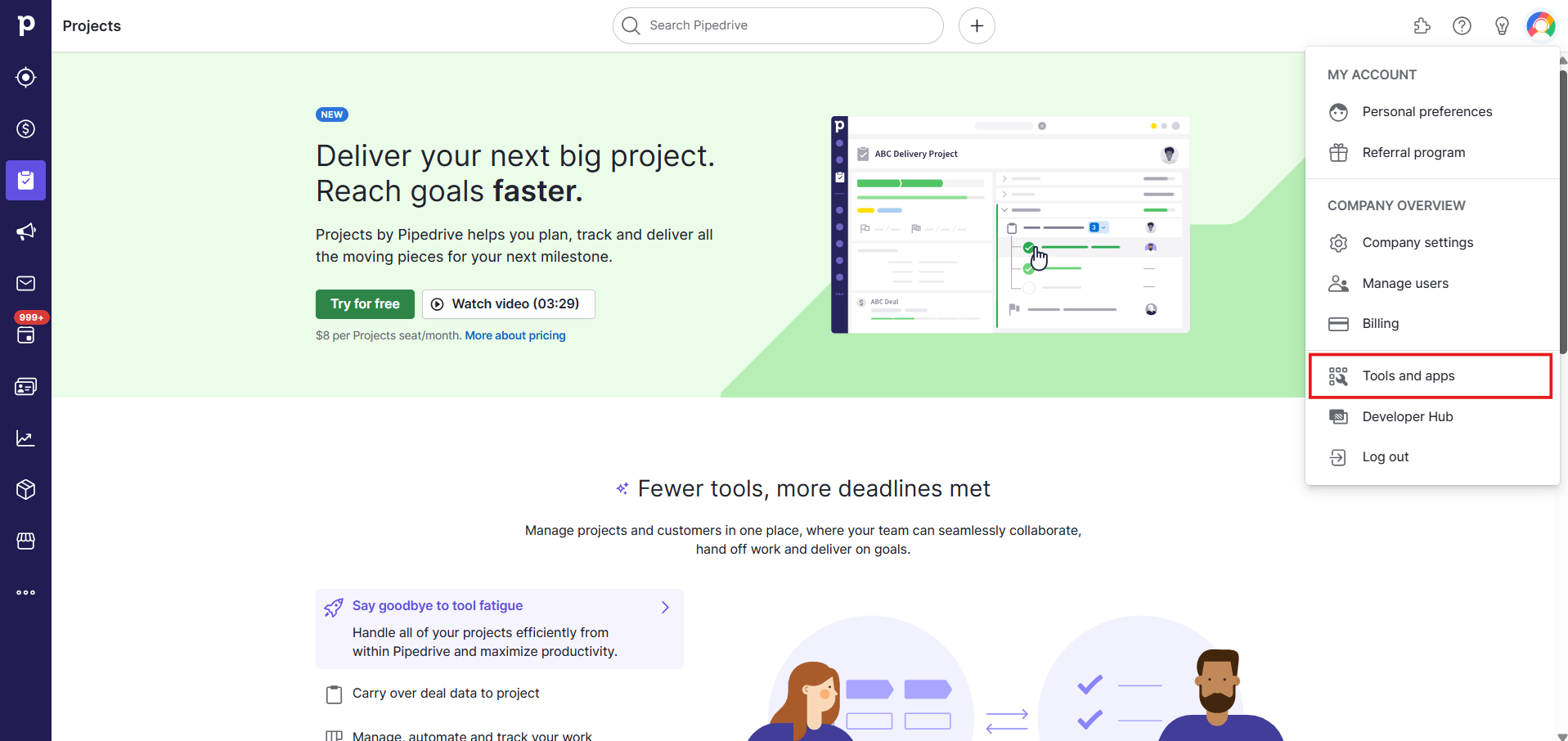
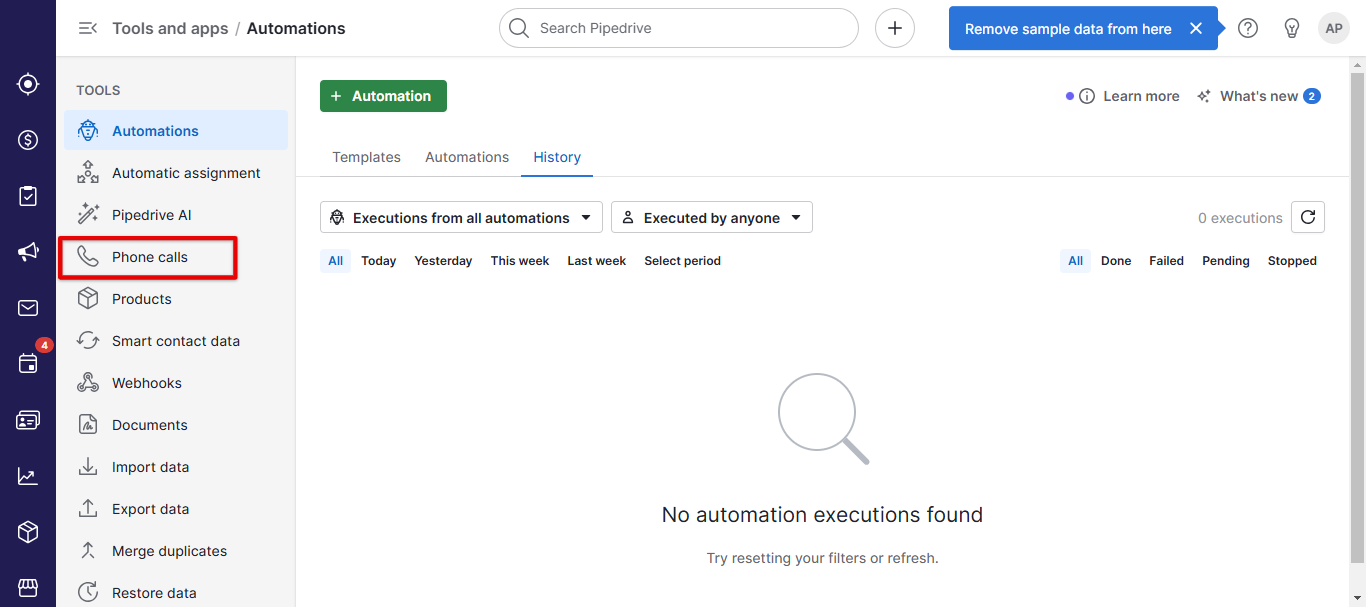
- Go to your profile and click Tools and apps from the drop-down menu.
- Click Phone calls.
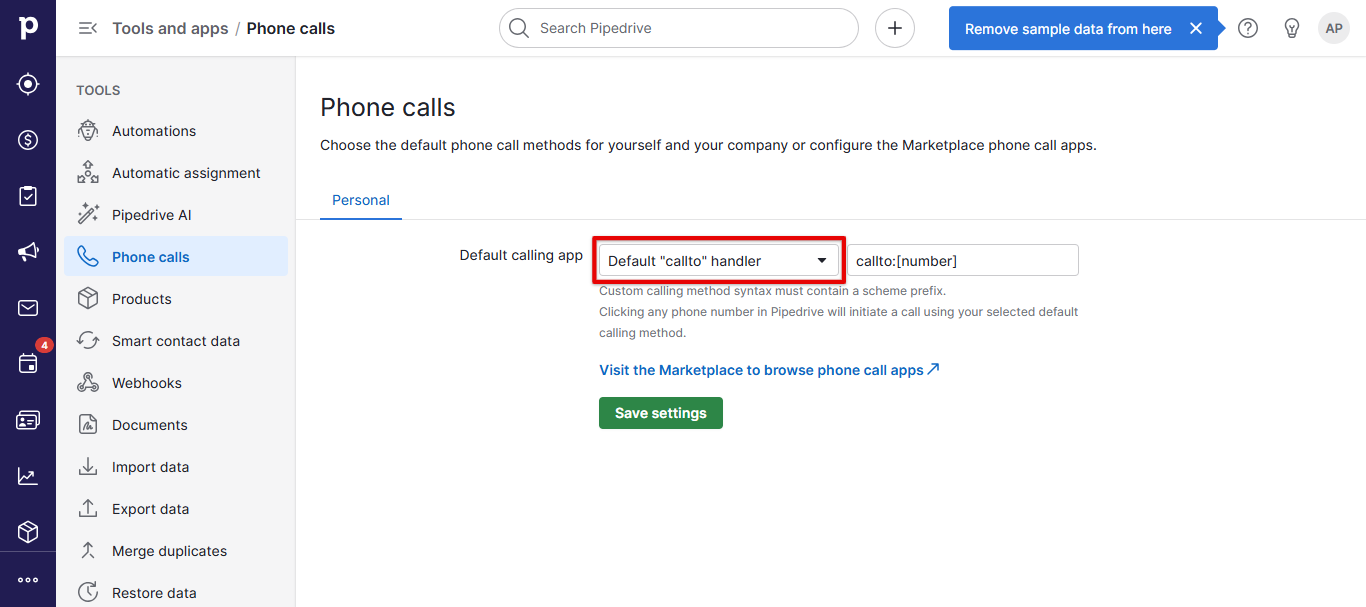
- Set the Default calling app to Default “callto” handler.
- Click Save settings.
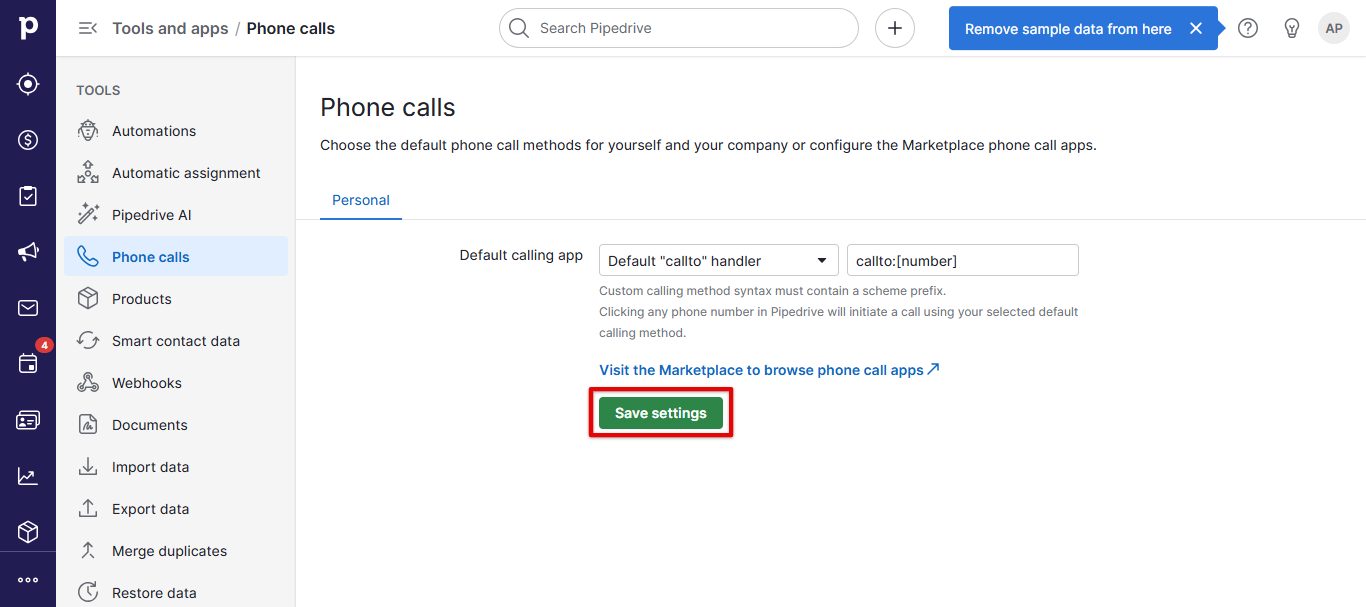
You can now click to call directly from Pipedrive leads, deals and contacts.
Leads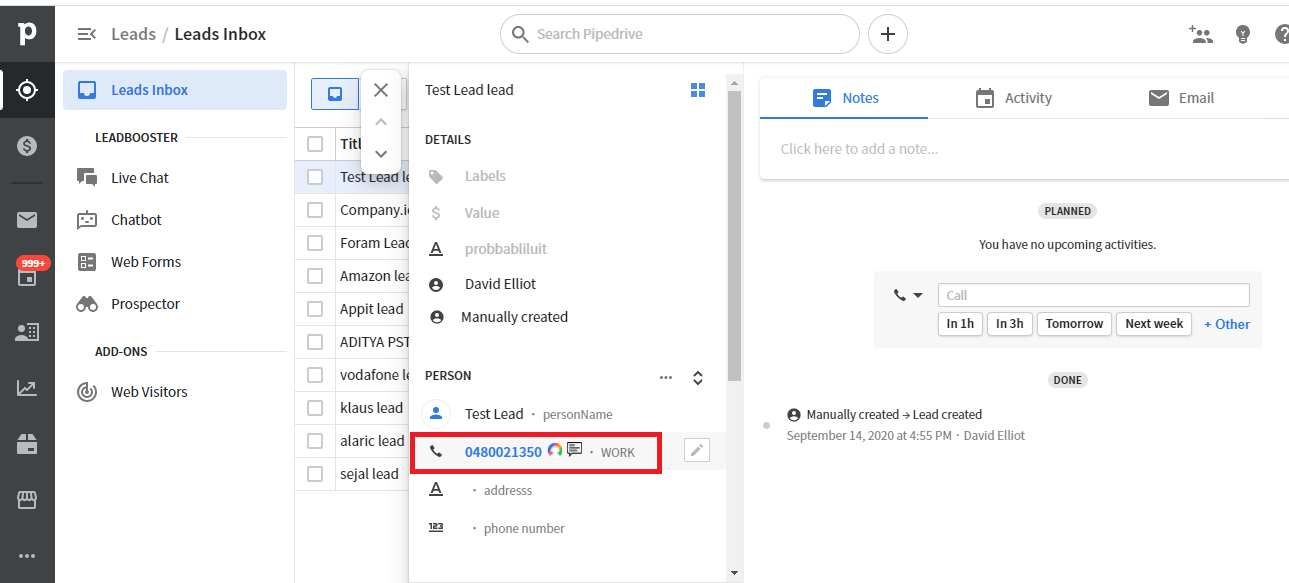
Deals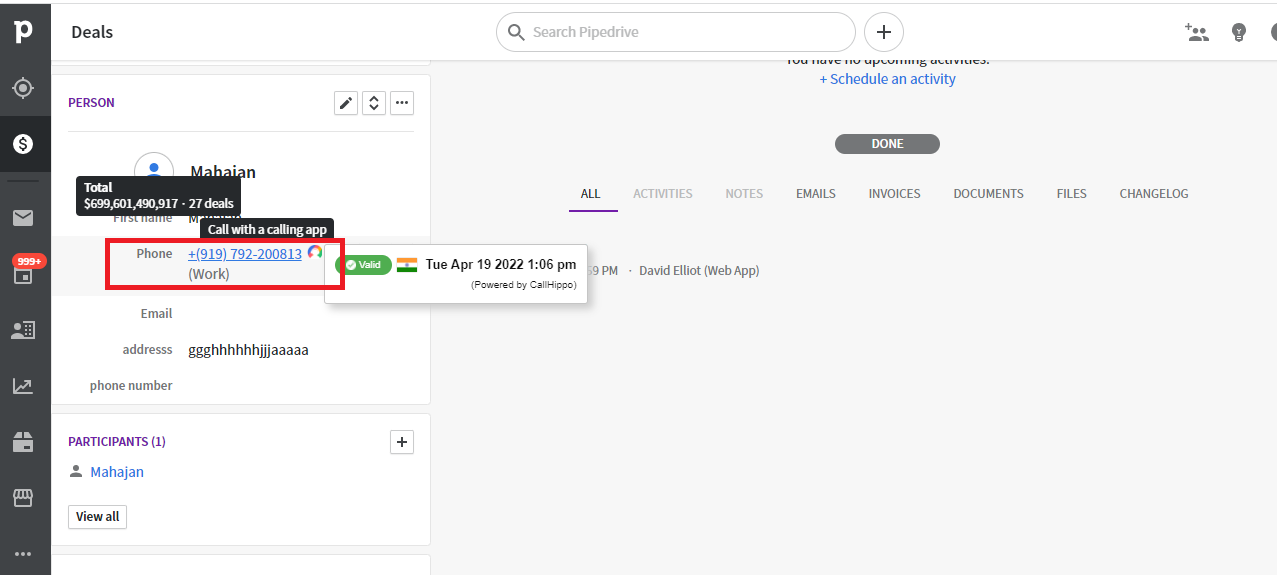
Contacts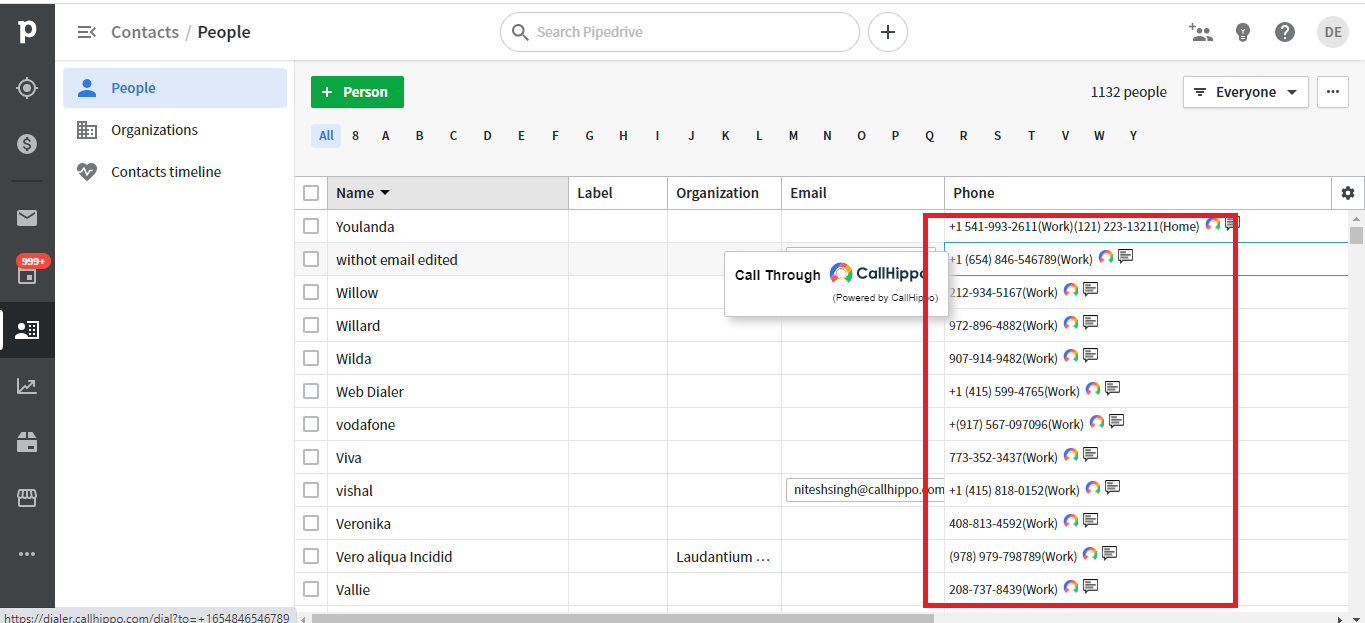
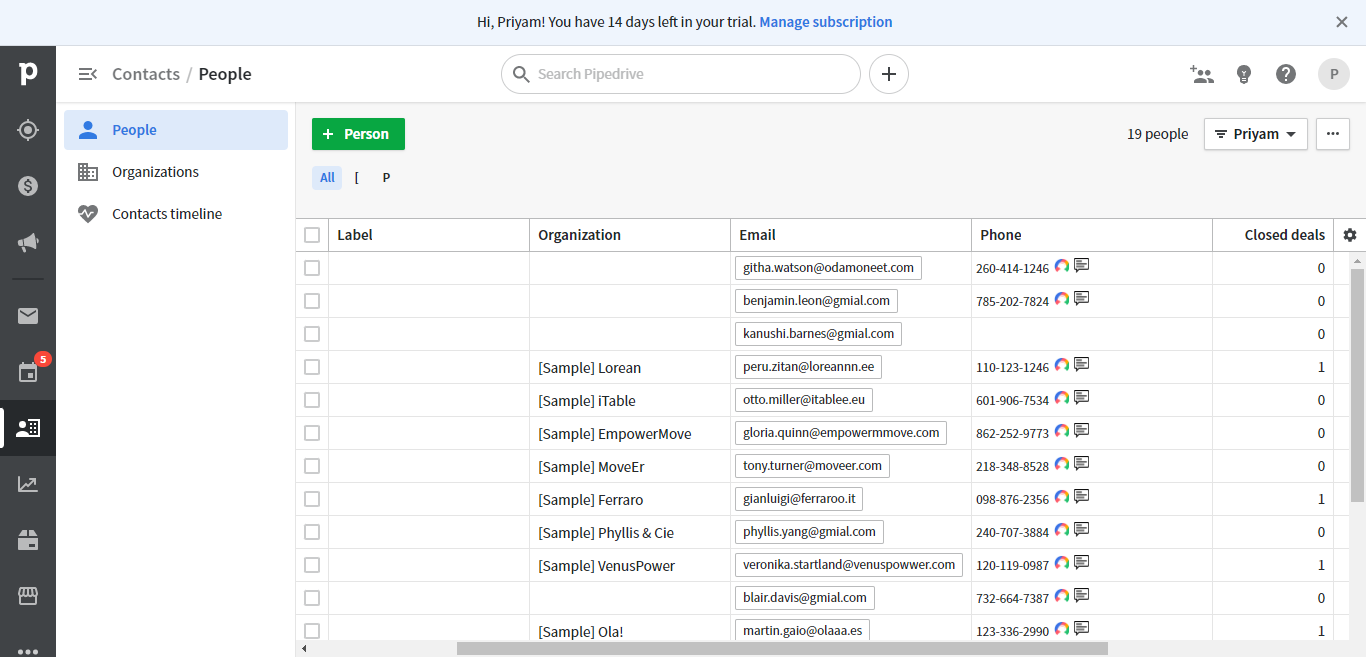
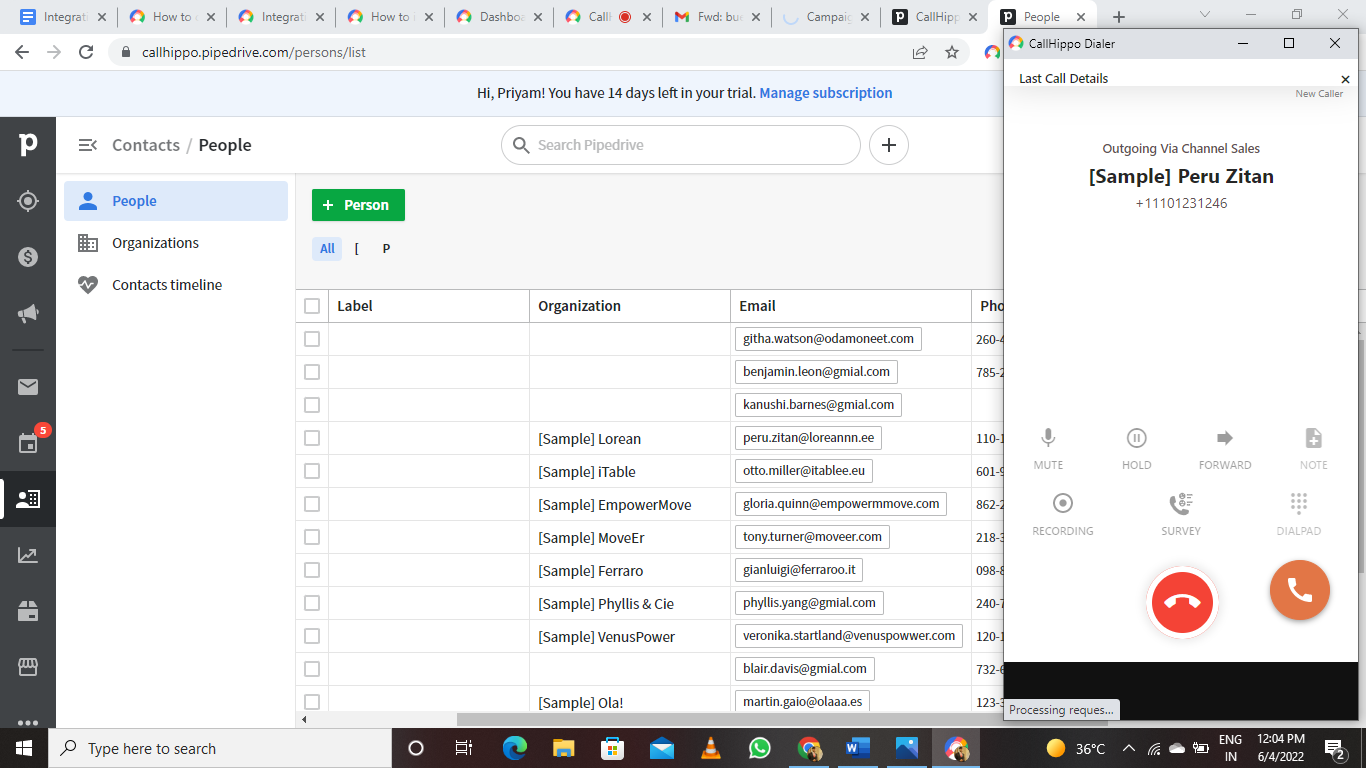
Once the extension is installed, a call icon appears next to every number. Click it to place the call through the CallHippo dialer.
Add custom activity labels
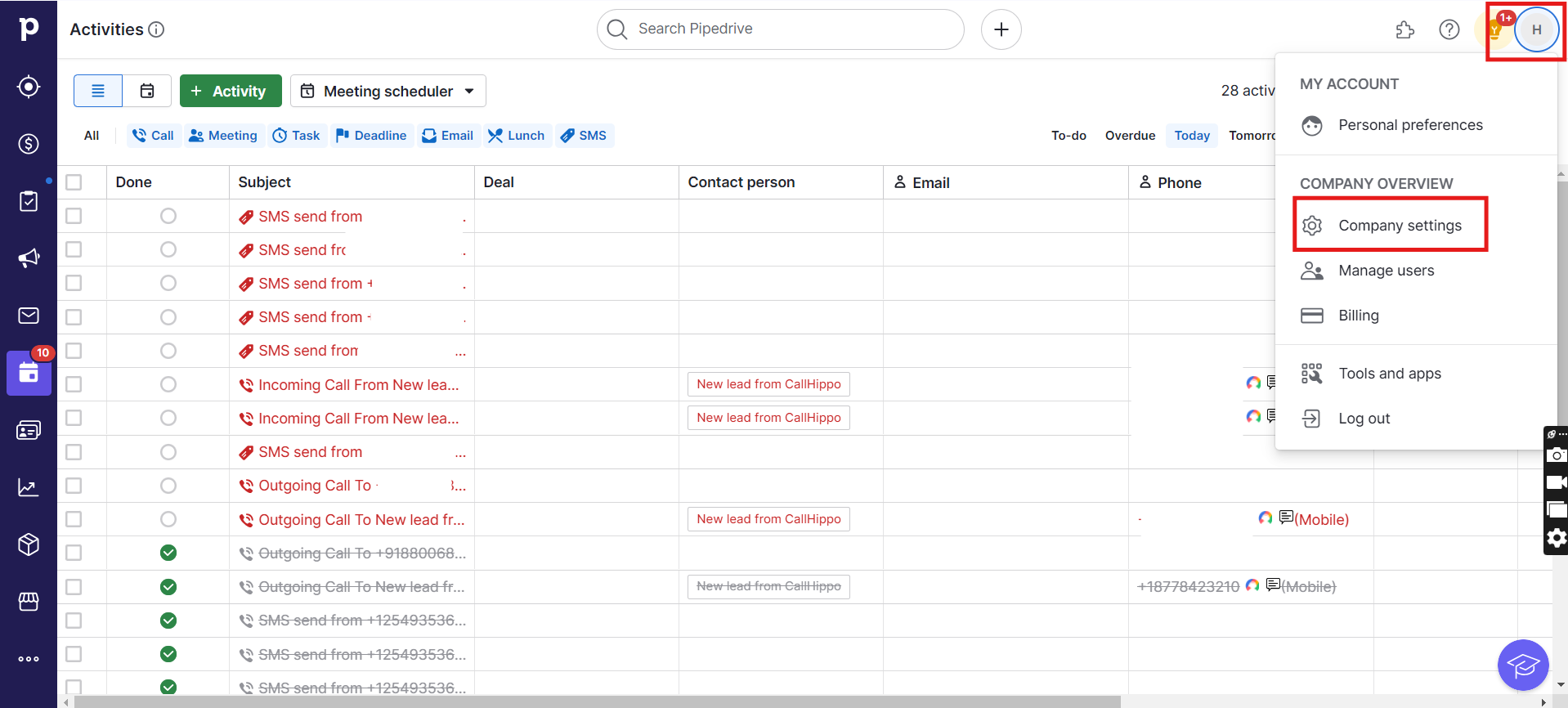
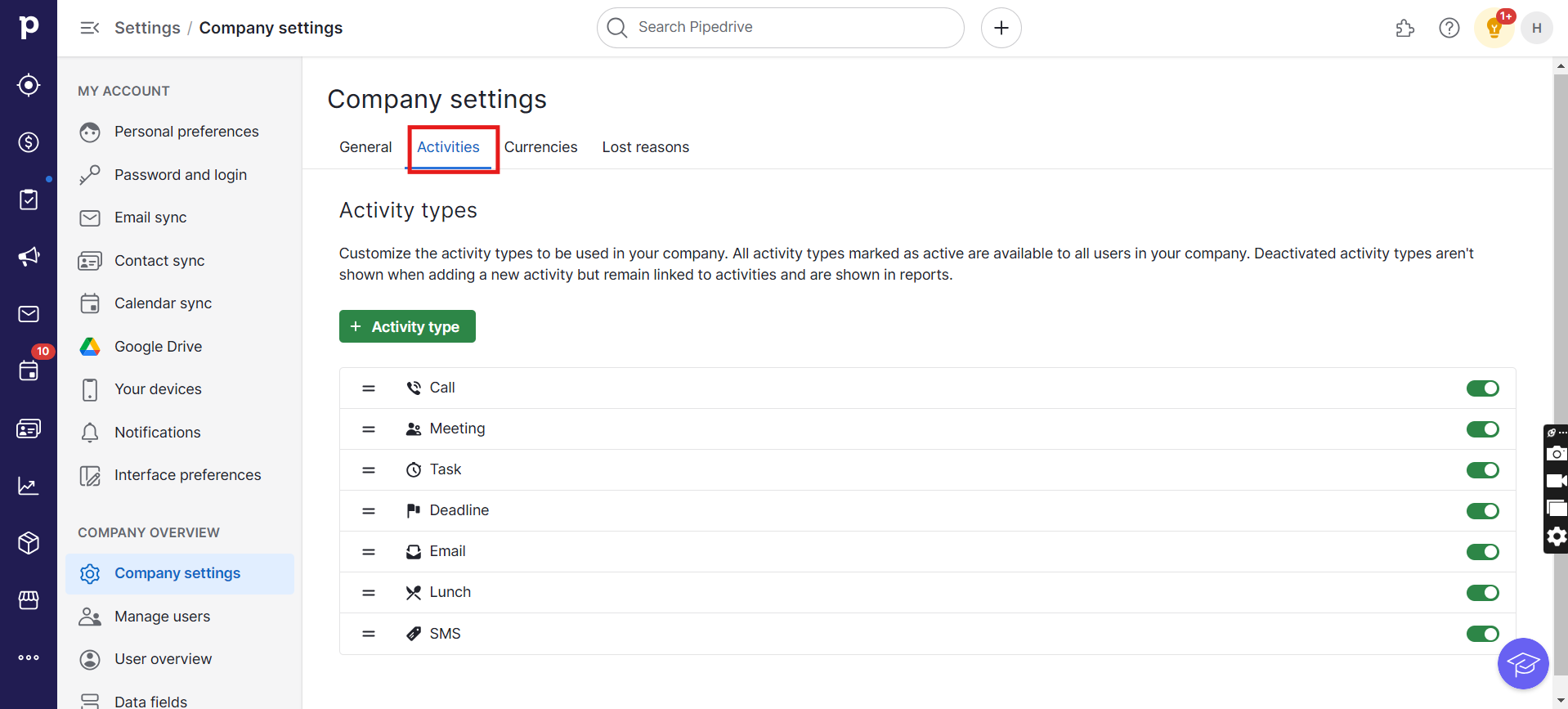
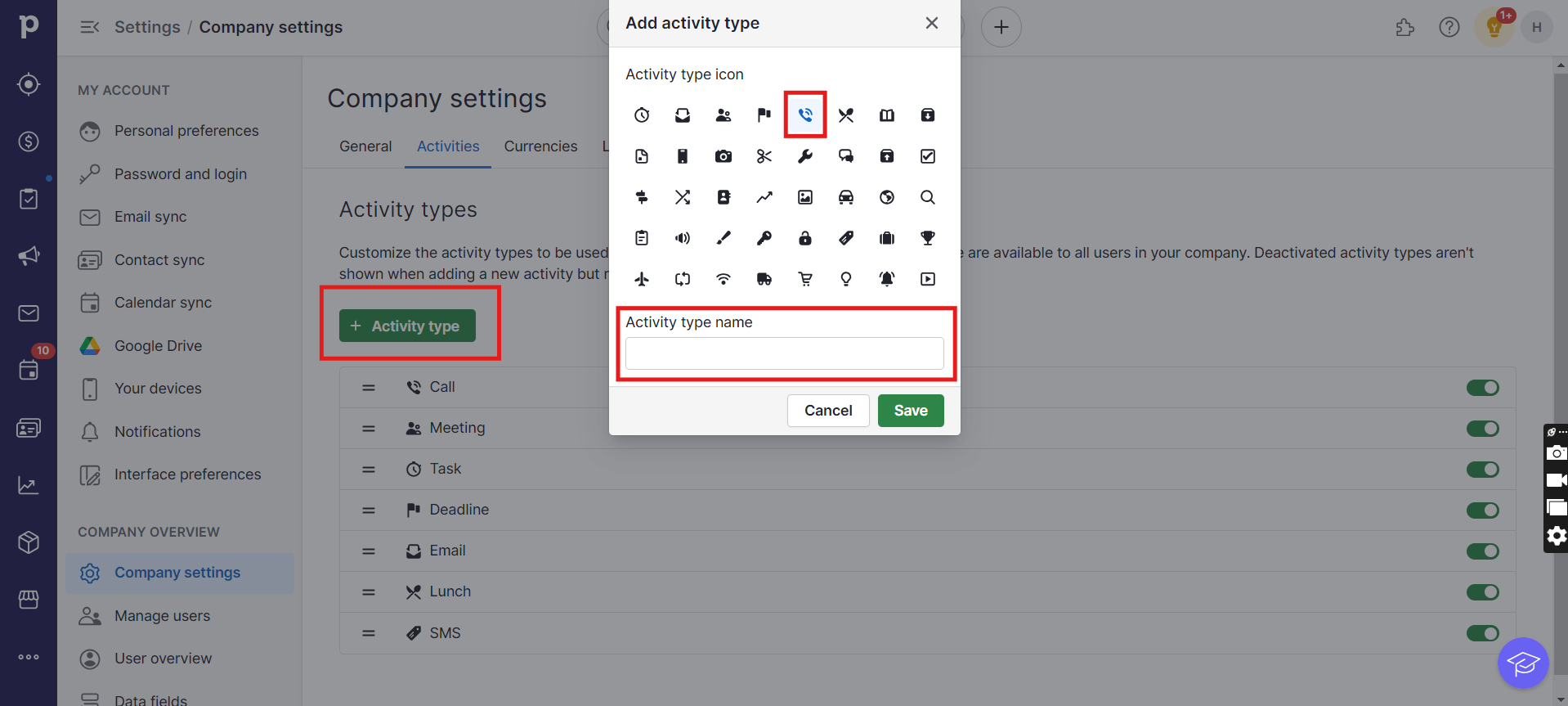
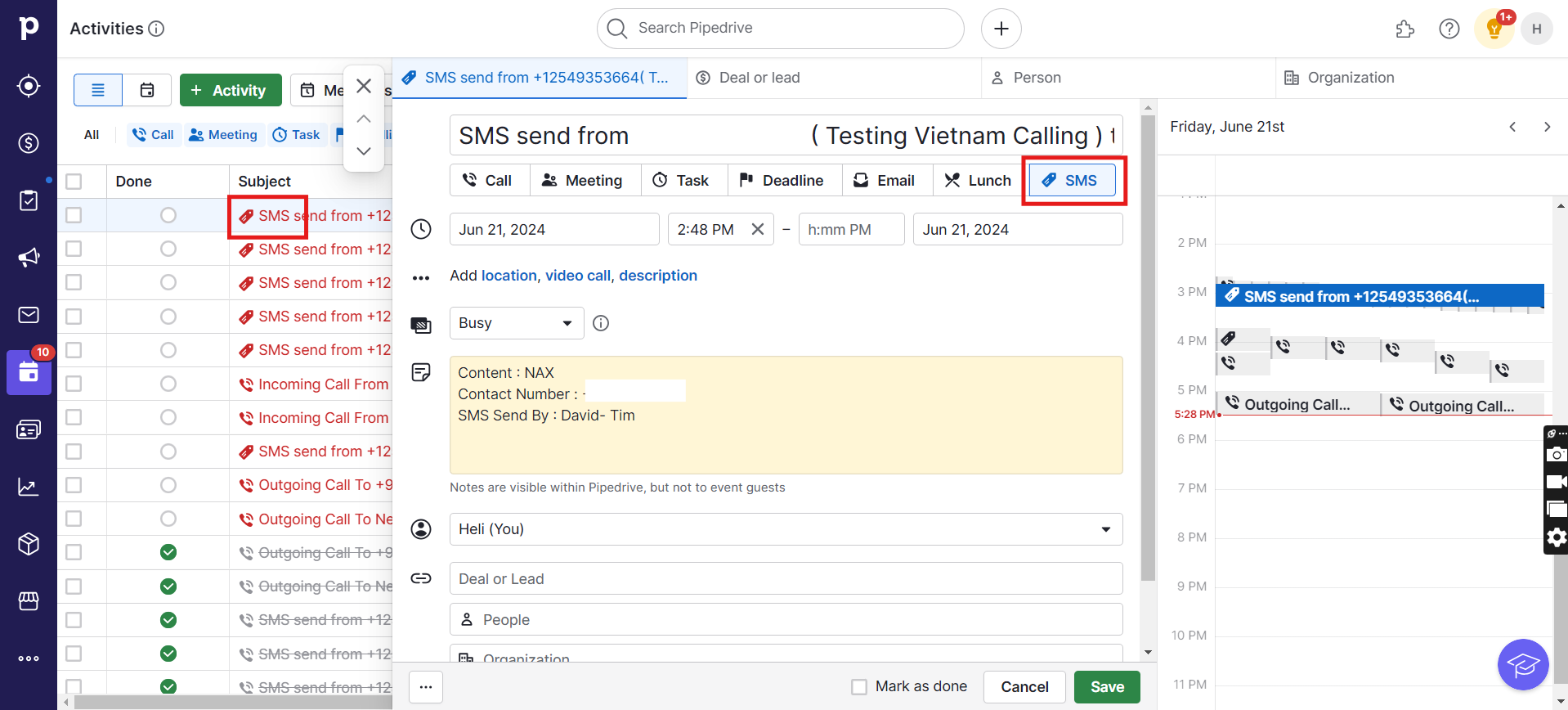
You can create custom labels with icons so your CallHippo activities are easy to identify in the Pipedrive activities list.
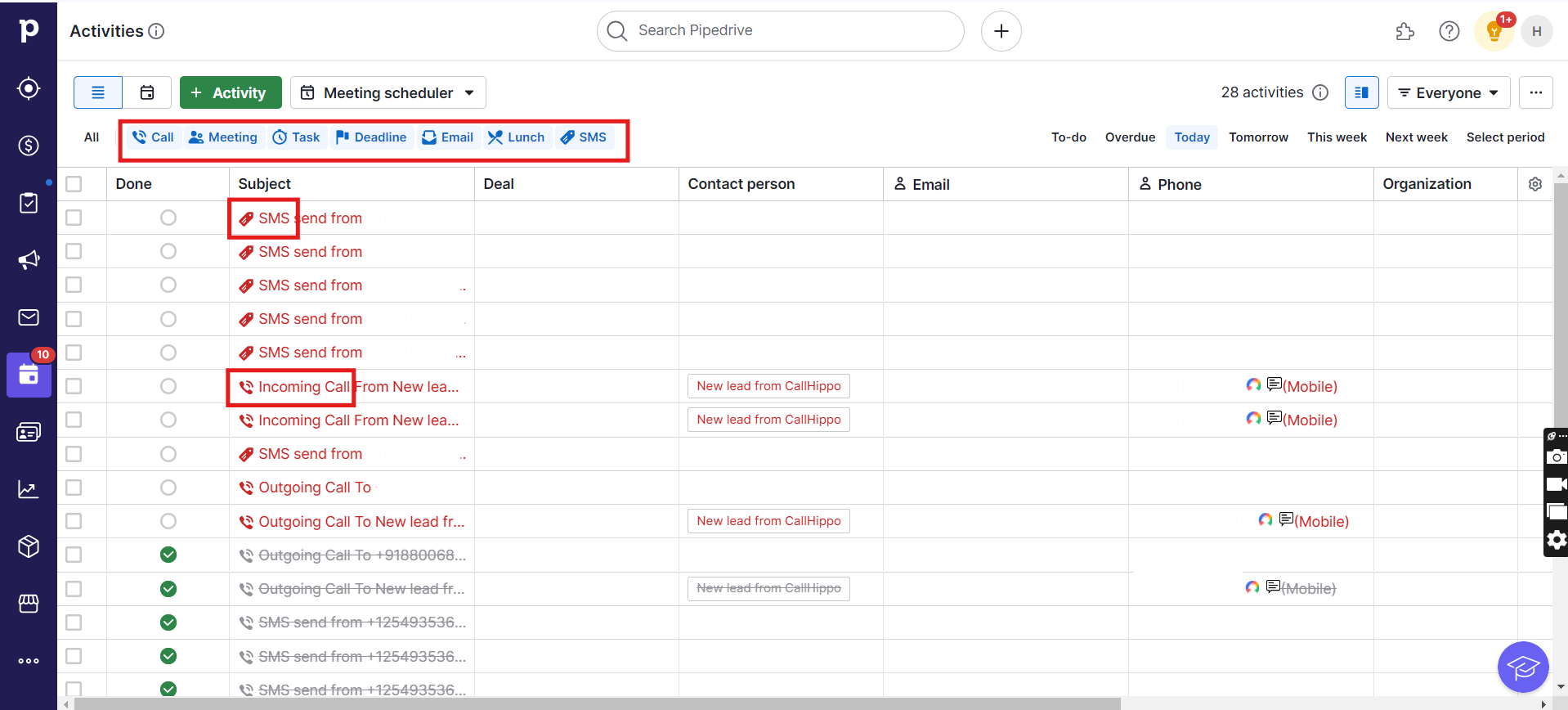
- Go to Company settings under your profile.
- Open the Activities tab.
- Click Activity type, choose a suitable icon and enter the activity name, then save.
- The new activity type (label) now appears in the list, and related activities are attached to it automatically. You can confirm this in the activities module.
What the integration does
- All existing contacts with at least one phone number are synced with CallHippo when click-to-call takes place.
- When you add or update a contact in CallHippo, it is also added or updated in Pipedrive.
- When you add or update a contact in Pipedrive, it syncs to CallHippo the next time you use click-to-call.
- New deals associated with a contact are synchronized with CallHippo on click-to-call.
- Calls made to a Pipedrive contact are logged on that contact’s detail page, and on the deal detail page if a deal exists.
- SMS sent to a Pipedrive contact is logged on that contact’s detail page.
FAQ
Does the admin email need to match between CallHippo and Pipedrive?
No. Even if the admin email in Pipedrive is different from the one in CallHippo, all contact information still syncs with the CallHippo account.
If an agent calls using a number registered with Pipedrive, whose name appears in the logs?
If the call is made from a CallHippo number registered with Pipedrive, the log appears with the admin name. If a user calls through Pipedrive directly, the log shows that user’s name.
If a user already exists in Pipedrive with the same email, is syncing required?
No. When CallHippo users grant integration rights to their sub-user with the same email, no extra syncing is required.
If a user’s name or email changes in Pipedrive, does it update in CallHippo, and vice versa?
Yes. Changes to a user’s name or email sync in both directions.
If a user is removed from Pipedrive, is their data removed from CallHippo?
No. Data is not removed from CallHippo when a user is removed from Pipedrive.
When does updated Pipedrive contact information reflect in CallHippo?
Make sure your account is integrated first. The updated information reflects in CallHippo when you perform a click-to-call on that contact in Pipedrive.
If the Pipedrive integration is removed, what happens to the synced contacts?
All Pipedrive contacts are deleted from CallHippo when the Pipedrive integration is removed.
Which Pipedrive plans are supported?
All versions and plans of Pipedrive are supported for the integration.
When are Pipedrive contacts not added to CallHippo?
Contacts are not added if your CallHippo account is not connected to Pipedrive, or if a contact is created in Pipedrive without performing a click-to-call on it.
Are incoming calls visible in the deal?
Yes, incoming calls are visible in the deal.
If a contact has two deals, where do the calls appear?
Outgoing calls made from a specific deal appear only in the Activities section of that deal. However, all outgoing and incoming calls to a contact appear in Pipedrive’s Activities section, which also shows whether the call was made from a deal.
If a contact has multiple numbers in Pipedrive, are all of them added to CallHippo?
Yes, the contact is added with all its phone numbers in CallHippo.
Still need help? Reach us at [email protected].