
If your CallHippo Web Dialer is not loading properly or is showing outdated information, a hard reload usually fixes it. A hard reload forces Chrome to fetch the latest version of the page and clear its temporary cache, without touching your account or settings.
When should you try a hard reload?
A hard reload is a quick first step that resolves many common dialer problems. Try it when you notice any of the following:
- A blank dialer or dashboard
- An “OOPS” error message
- Numbers not showing in the dialer
- Settings changes not being reflected
- The dialer not loading fully
- Incoming calls not coming through
- No ring sound, or the dialer not responding on outgoing calls
How to hard reload in Chrome
Use the keyboard shortcut for your operating system.
On Windows
- Open the CallHippo Web Dialer.
- Press Ctrl + Shift + R.
On Mac
- Open the CallHippo Web Dialer.
- Press Command (⌘) + Shift + R.
Alternative method (Windows and Mac)
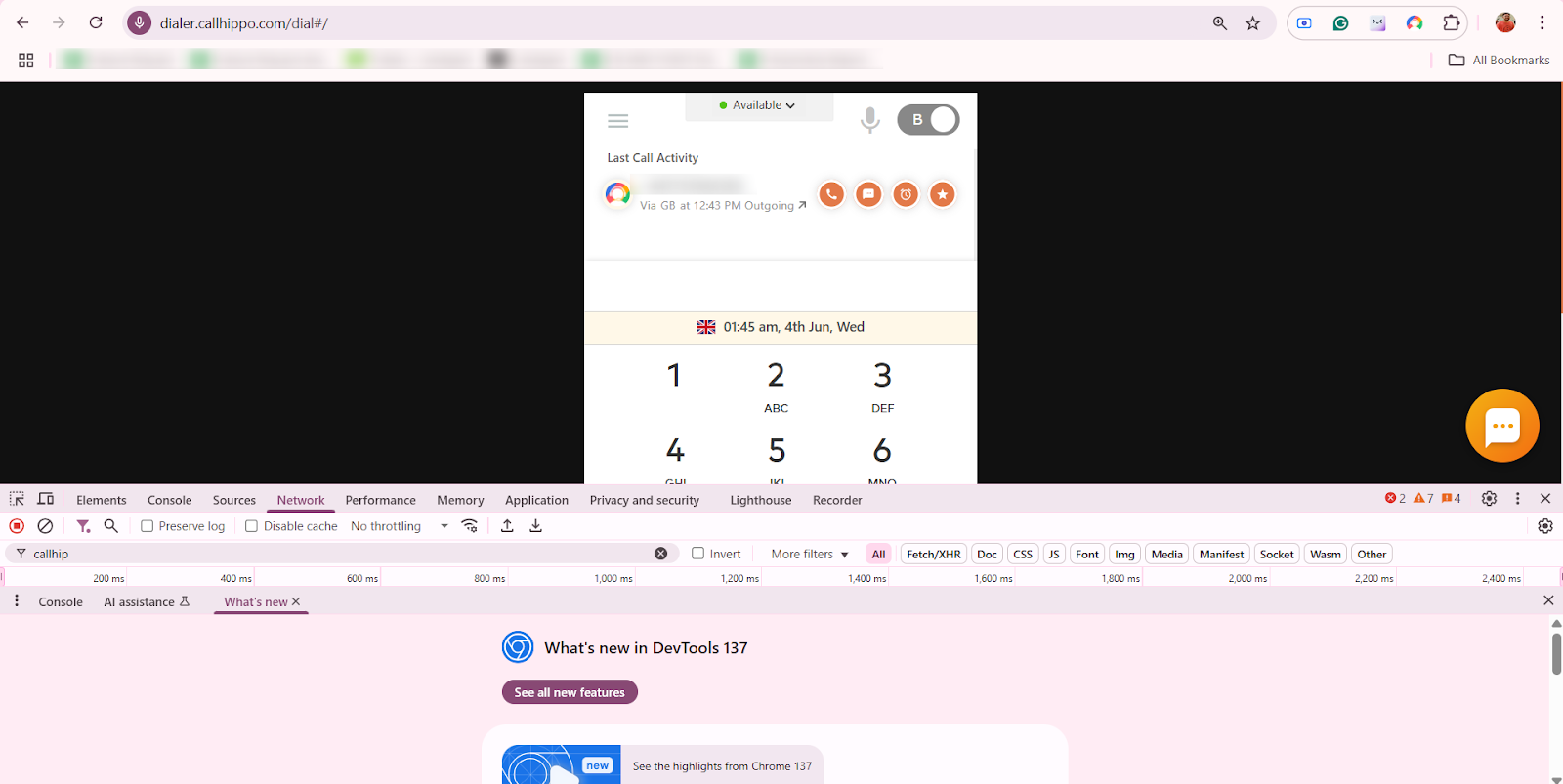
If the shortcut does not help, use Chrome’s Developer Tools to fully empty the cache:
- Press F12 (or Cmd + Option + I on Mac) to open Developer Tools.
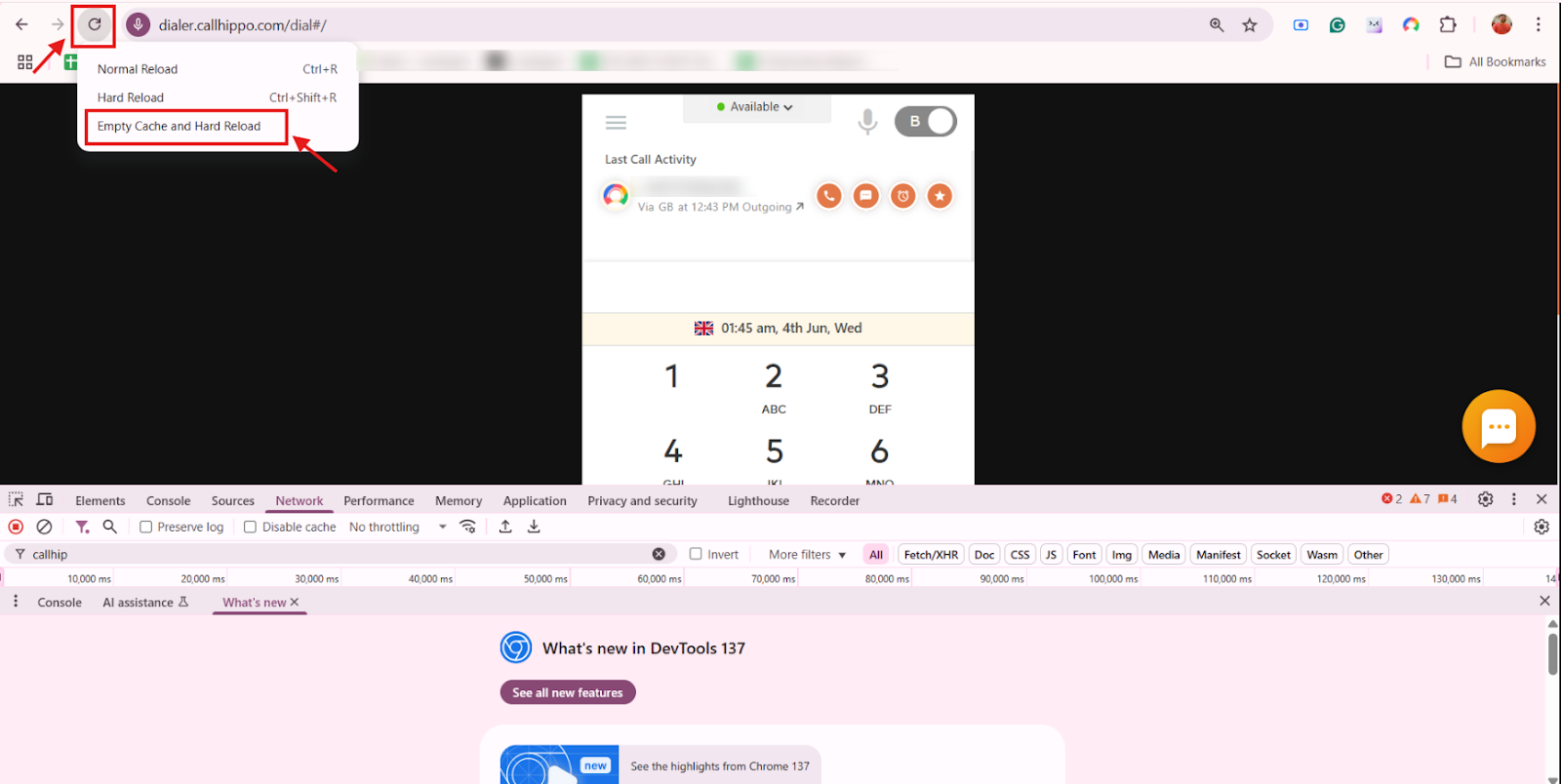
- Right-click the browser’s Reload button.
- Select Empty Cache and Hard Reload.
Still facing issues?
If the problem continues after a hard reload, try these next steps:
- Clear your full browser cache.
- Update Google Chrome to the latest version.
FAQ
What does a hard reload do?
It refreshes the page and loads the latest version by clearing a temporary cache. No account data is lost.
Will this affect my CallHippo settings?
No. Your account and settings remain safe.
My dialer shows a blank screen or “OOPS” error. Will this help?
Yes. A hard reload usually fixes loading and display issues.
My numbers or recent changes are not visible. Why?
Cached data may be causing this. A hard reload refreshes everything.
What if the issue continues?
Clear your full browser cache or contact our support team.
Still need help? Reach us at [email protected].