
To make sure you never miss a call or alert while using CallHippo in your browser, you need to allow notification permissions in Google Chrome. Follow the steps below for Windows or macOS.
Allow notifications on Windows
Enable notifications for CallHippo in Chrome on Windows:
- Open Google Chrome and go to the CallHippo web dialer (or any page where you use CallHippo).
- Click the lock icon in the address bar, next to the CallHippo URL.
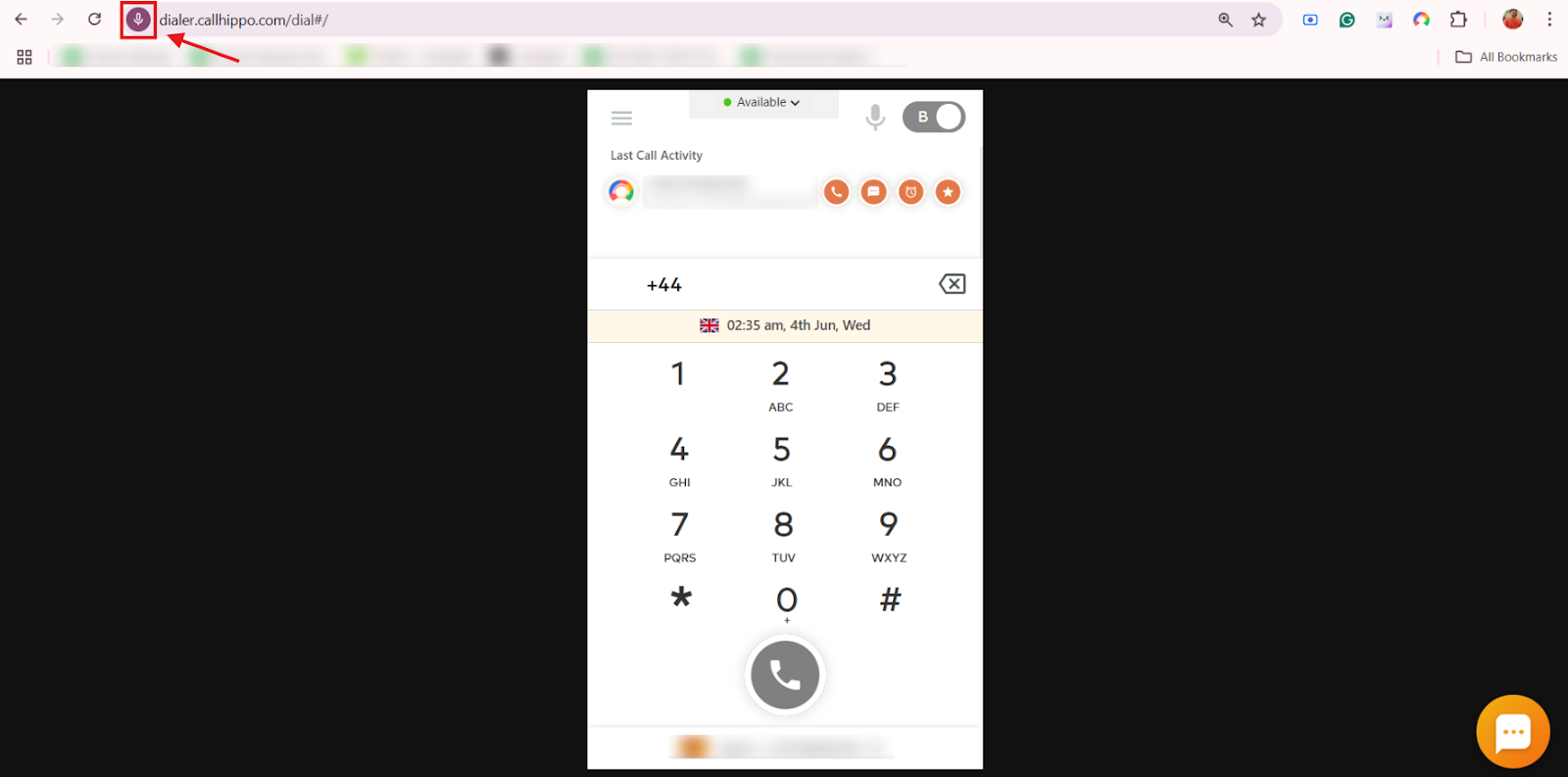
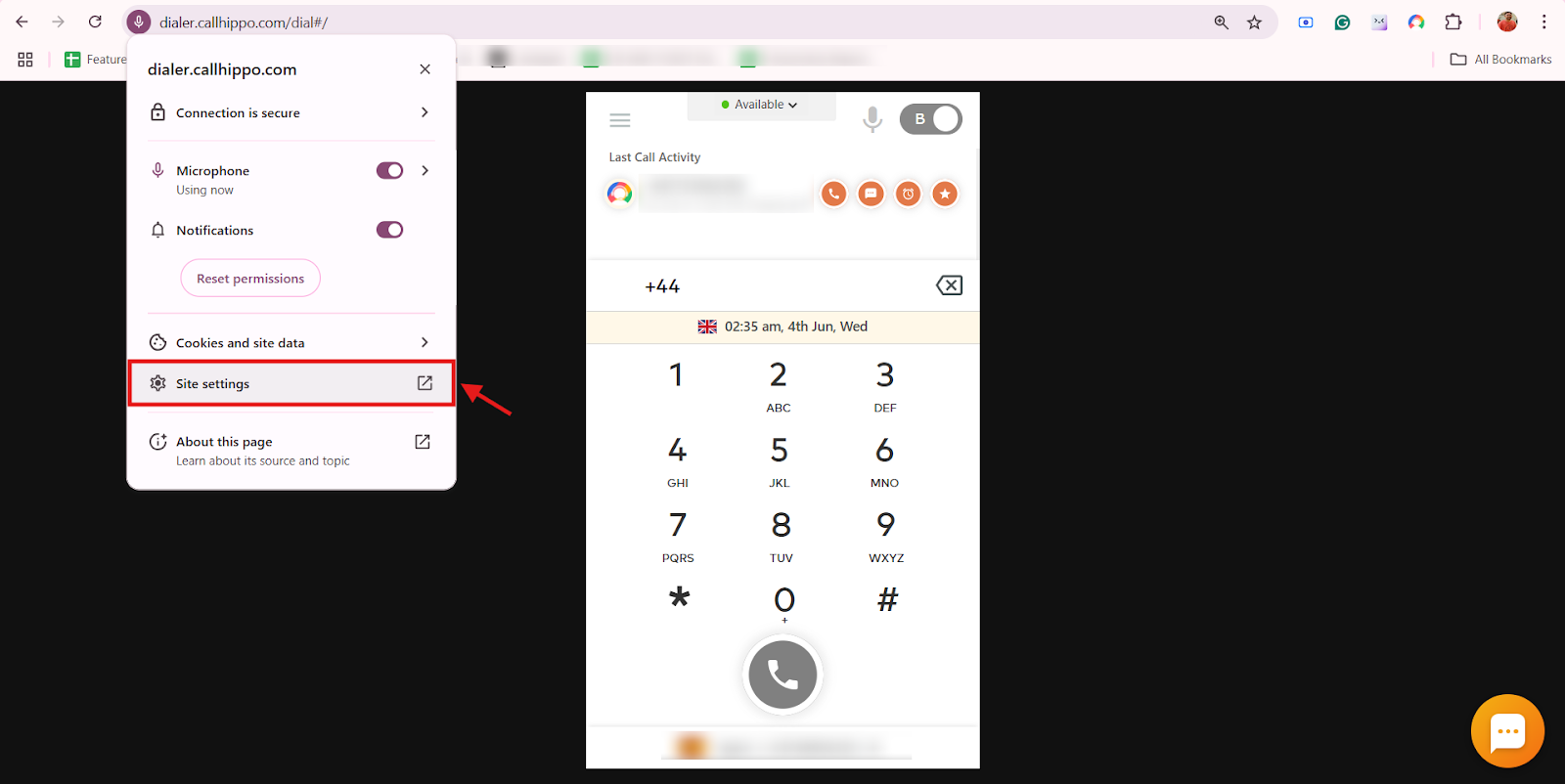
- From the dropdown menu, click Site settings.
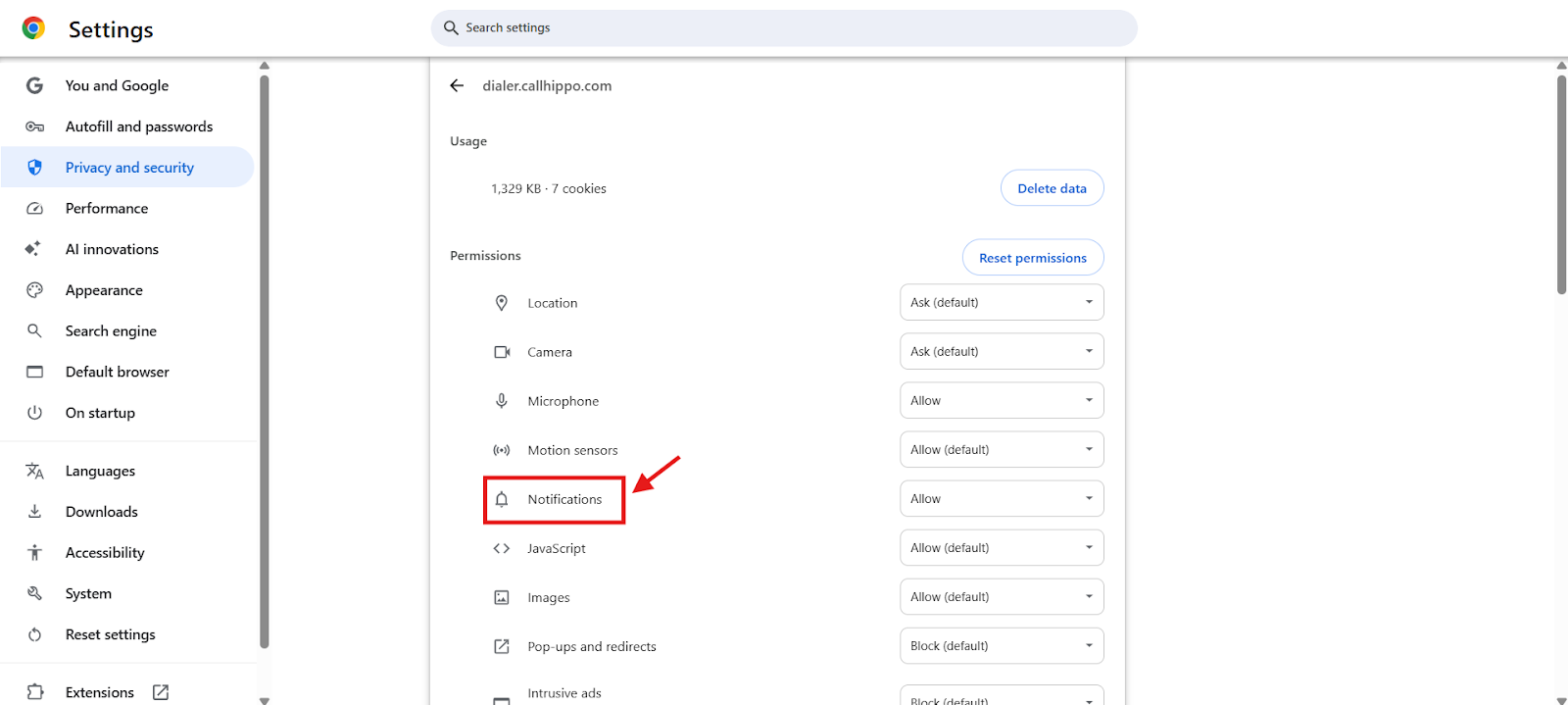
- A new tab opens with the permission settings for CallHippo. Find the Notifications option.
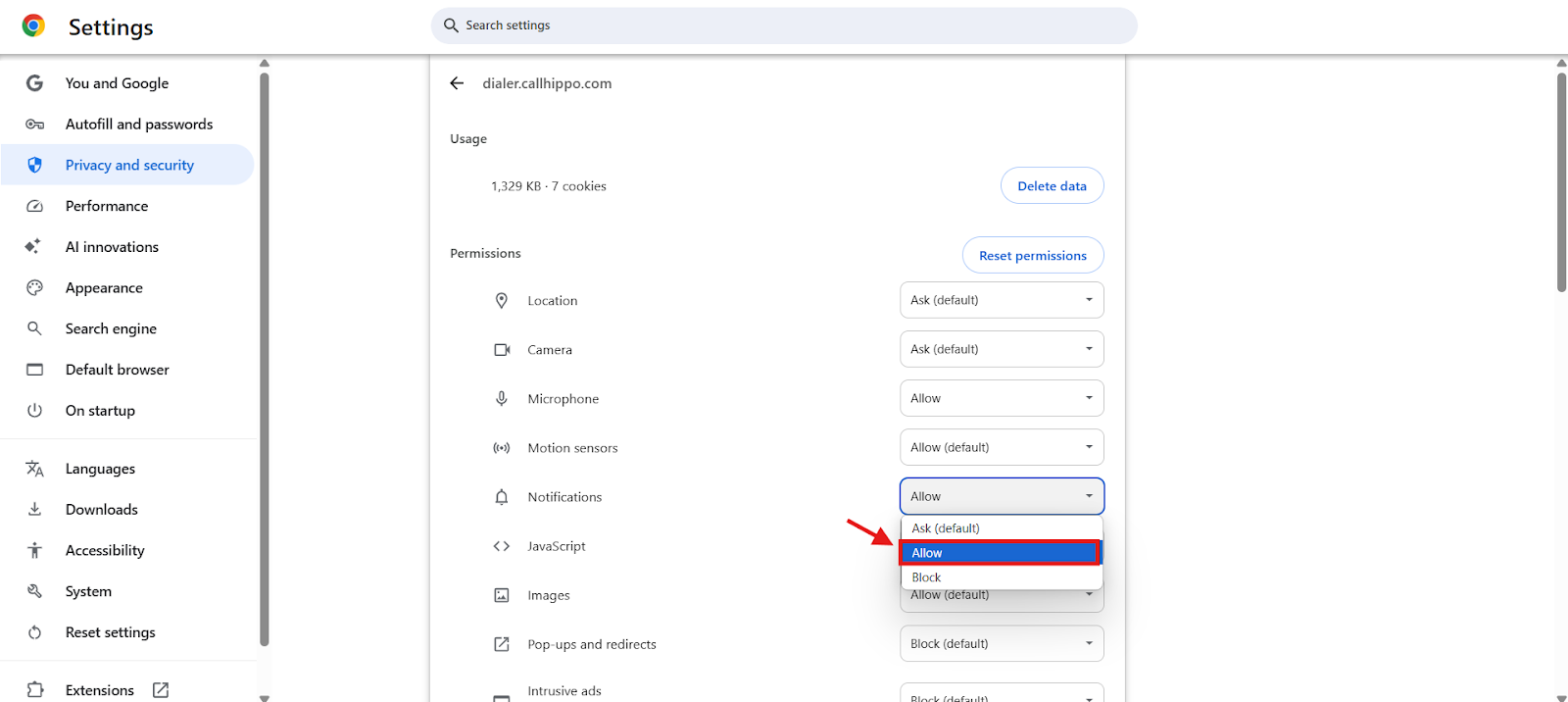
- Click the dropdown next to Notifications and select Allow.
- Close the settings tab and refresh the CallHippo page.
That’s it. Notifications will now appear whenever there is an incoming call or alert.
Allow notifications on macOS
The process on Mac is the same as on Windows, with only minor layout differences:
- Open Google Chrome and go to CallHippo’s dialer.
- Click the lock icon in the address bar next to the URL.
- Select Site settings from the dropdown.
- In the new tab that opens, find Notifications.
- Choose Allow from the dropdown.
- Return to the dialer tab and refresh the page.
Chrome on your Mac will now display notifications for incoming calls and CallHippo activity.
If notifications are blocked
If you previously blocked notifications and do not see the option to change it:
- Go to Chrome Settings > Privacy and security > Site Settings > Notifications.
- Find CallHippo under the Not allowed section and click the trash icon to remove it.
- Revisit the CallHippo dialer. It will ask you to allow notifications again, so click Allow.
If you still do not receive notifications, make sure browser notifications are enabled at the system level and that your system’s Do Not Disturb mode is turned off.
FAQ
I am not getting incoming call notifications on CallHippo. Why?
Most likely your browser has not been allowed to show notifications. Enable notifications for CallHippo in your Chrome settings to start receiving them.
I clicked “Block” by mistake. What should I do?
Open Chrome settings, go to Privacy and security > Site settings > Notifications, find CallHippo under the blocked list, and remove it. Then reopen CallHippo and allow notifications when asked.
I do not see any lock icon near the address bar.
Make sure you are on the correct CallHippo dialer page, then refresh the page so the icon appears.
Do I have to allow notifications every time I log in?
No. Once you allow it, Chrome remembers your choice. You only need to do it again if you clear your browser settings or permissions.
I have allowed notifications but still do not get them. Why?
Make sure system notifications are enabled, Do Not Disturb mode is off, and you are logged in and on the CallHippo dialer.
Still need help? Reach us at [email protected].