
Chrome stores data from the sites you visit in cookies and cache to help pages load faster. Clearing this data from time to time ensures you’re seeing the most up-to-date version of a site and can fix loading, login, and performance issues with CallHippo.
Steps to clear cookies, cache, and history in Chrome
- Open your Chrome browser.
- Click the three dots in the top-right corner of the browser.
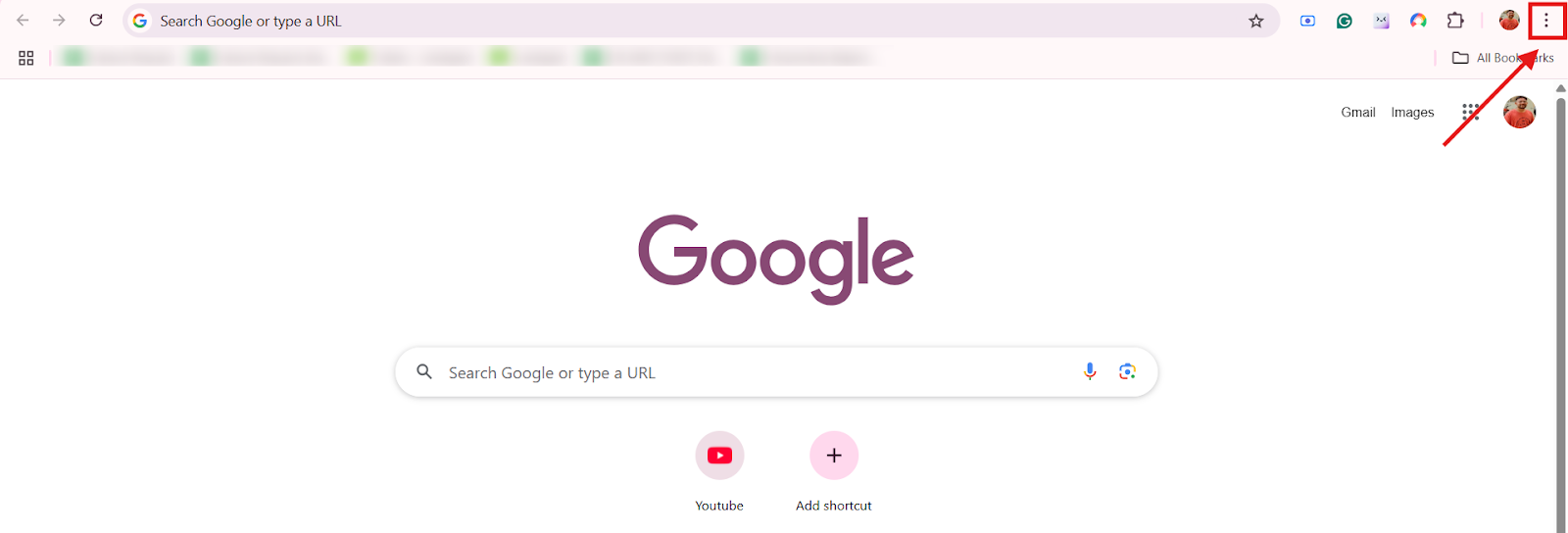
- Click Delete browsing data.
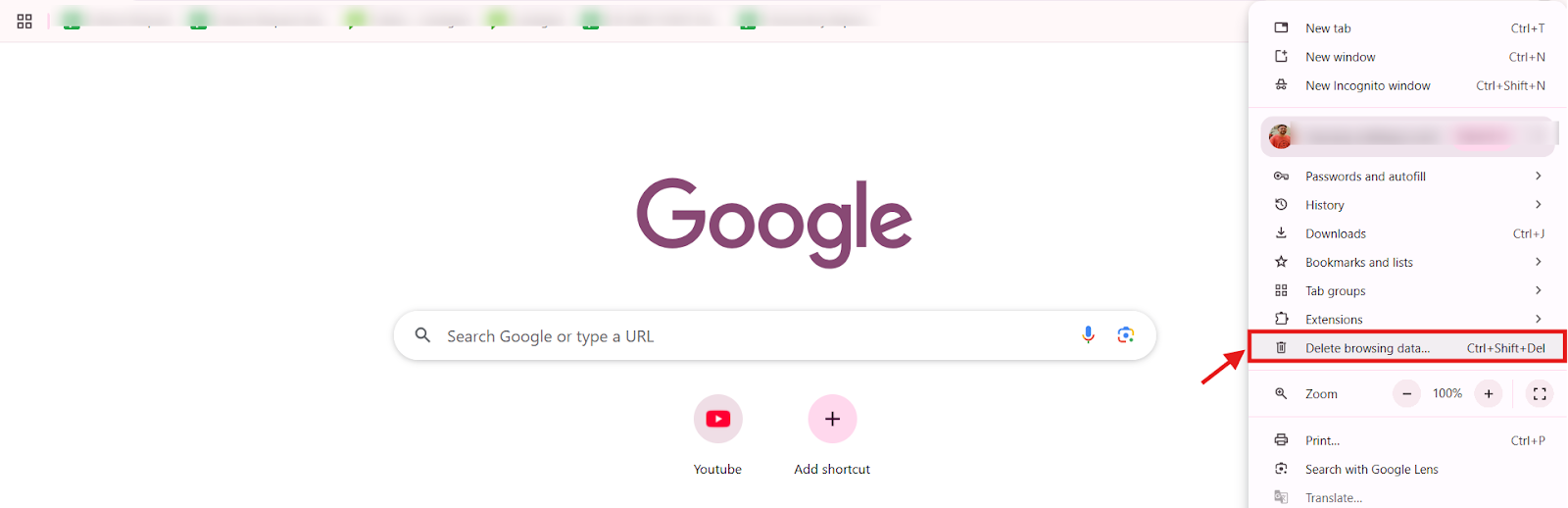
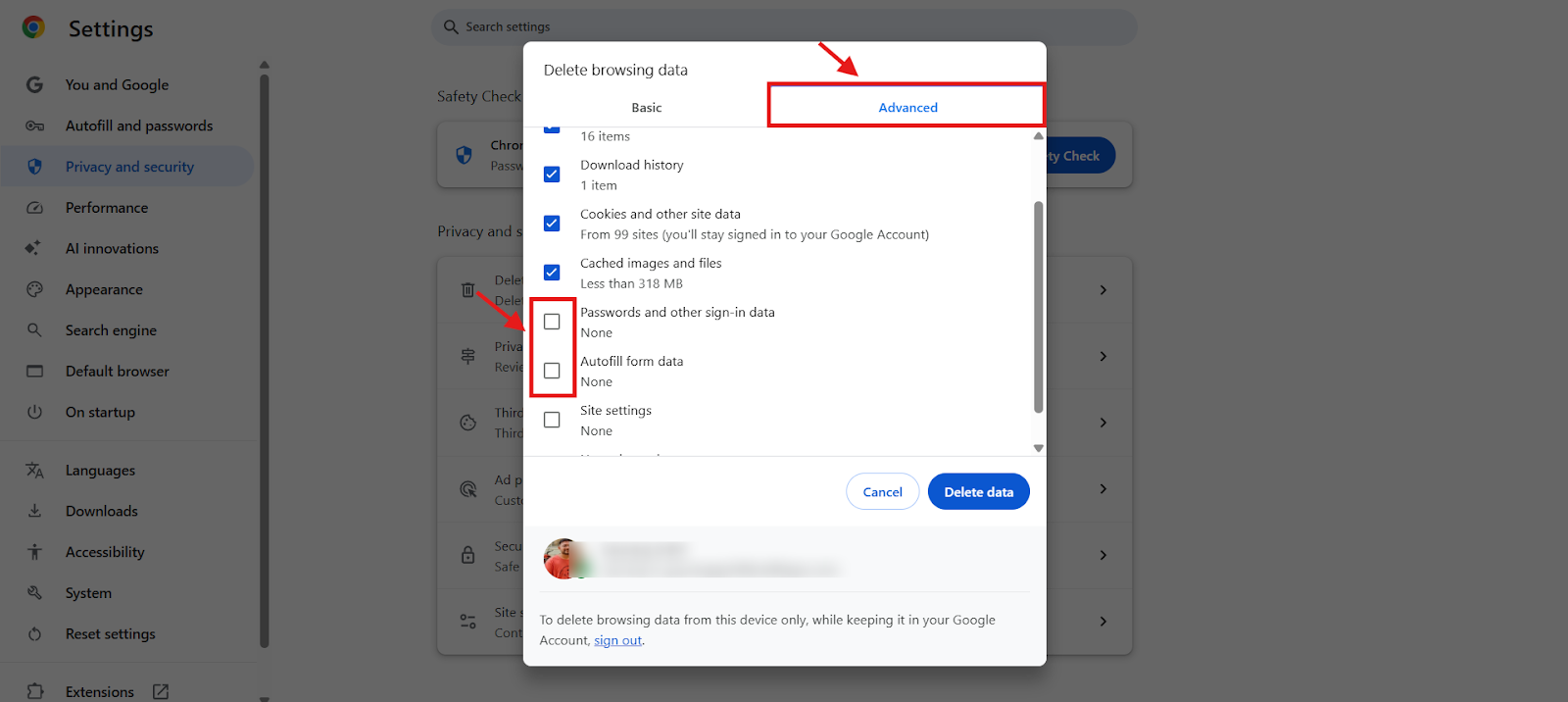
- Select these three options:
- Browsing history
- Cookies and other site data
- Cached images and files
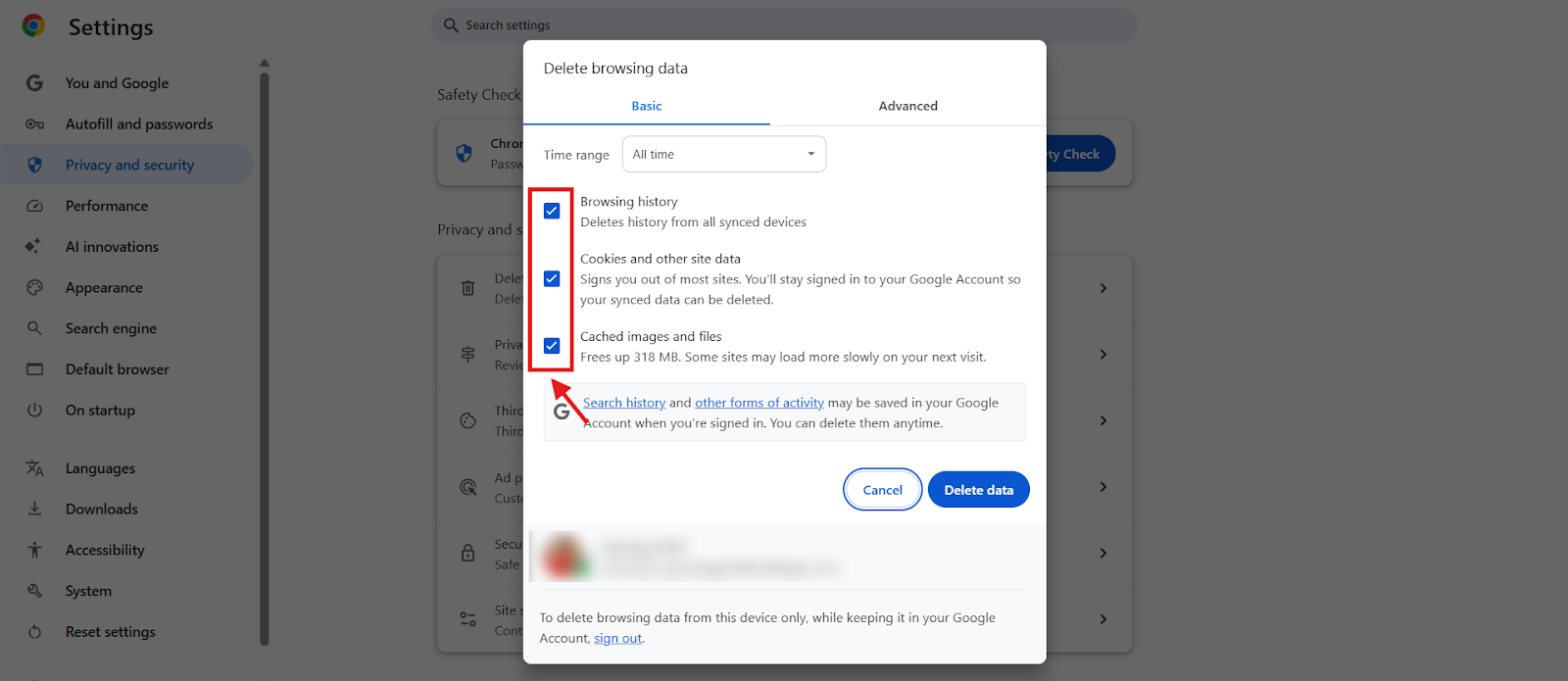
- Set the time range to All time.
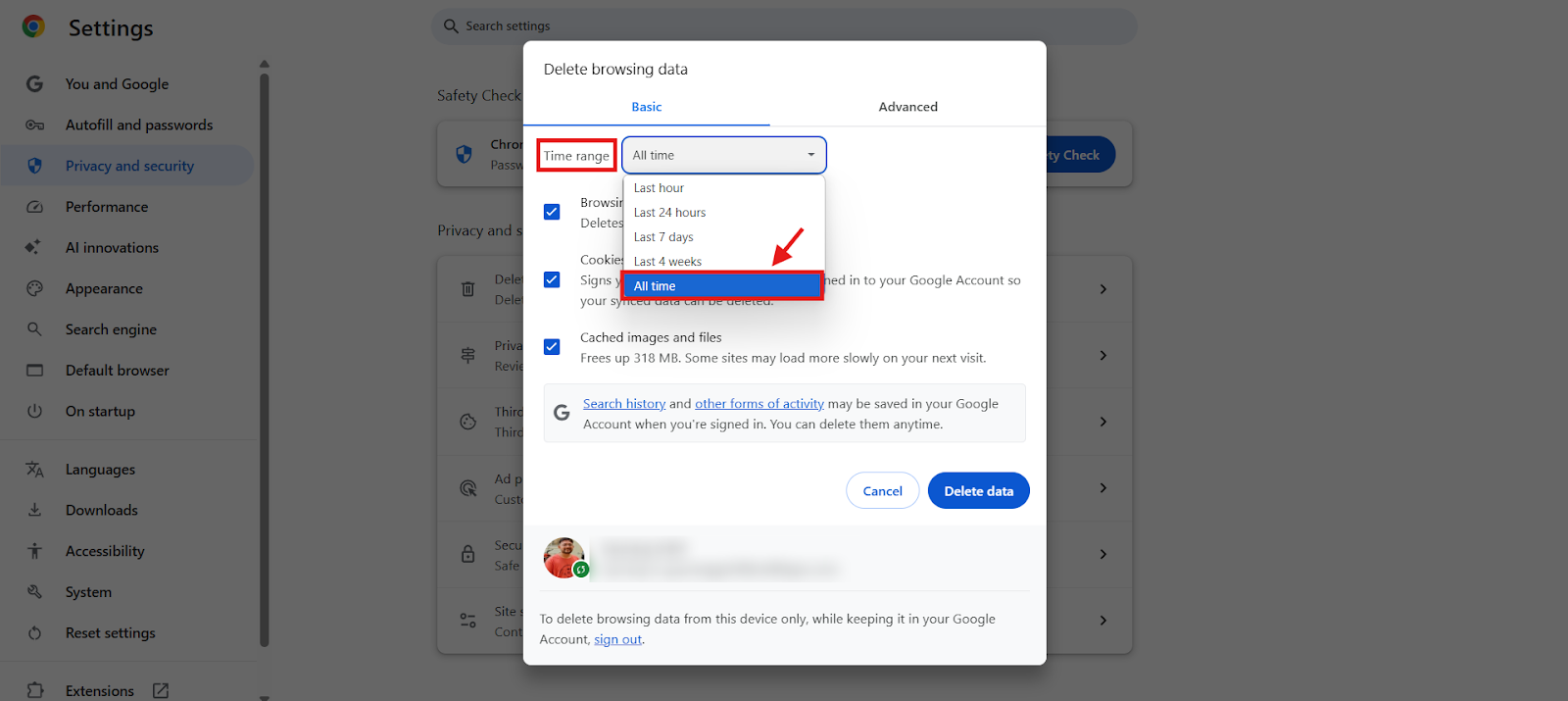
- Click Advanced and make sure Passwords and Autofill form data are not selected. This preserves your saved data, which could otherwise be lost.
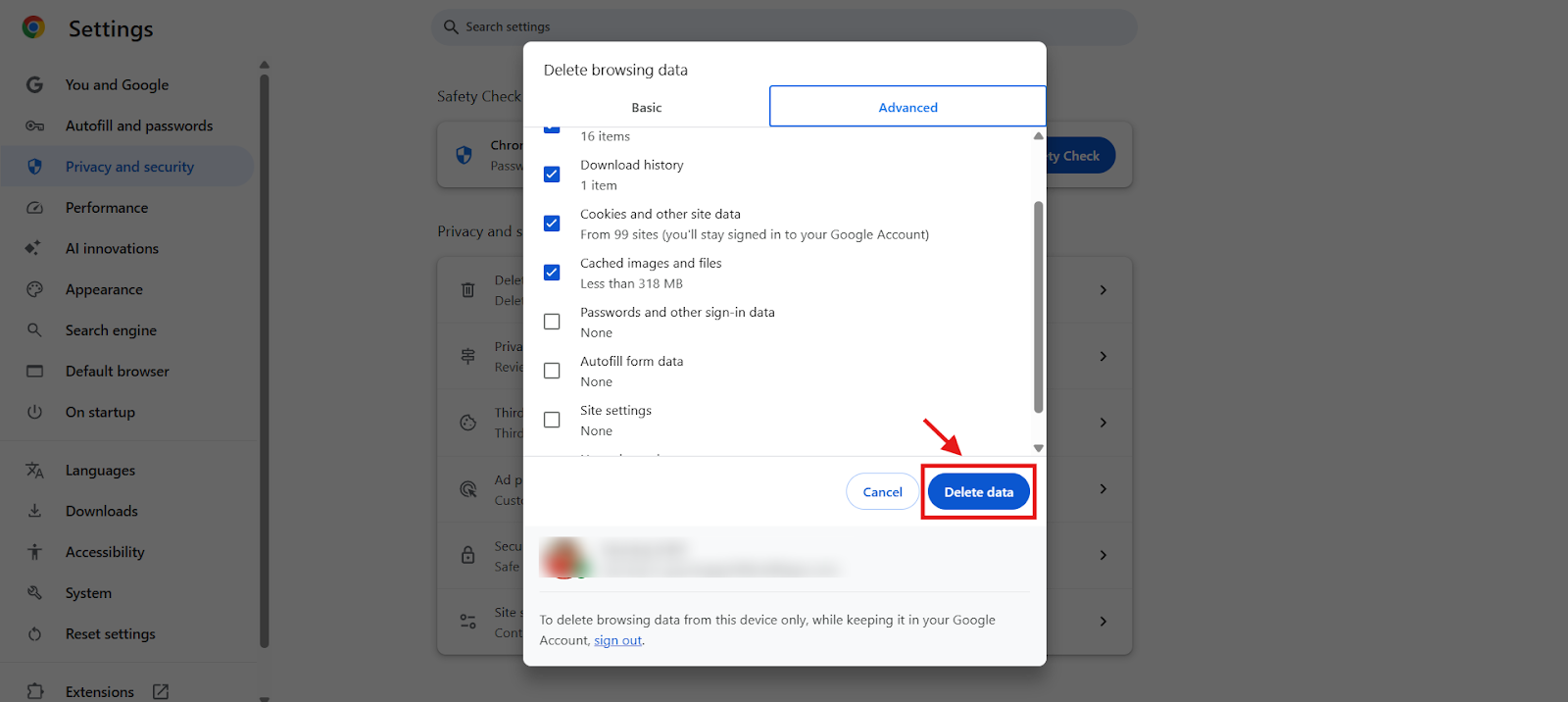
- Click Delete data.
- Close the window and restart Chrome. You’ll be automatically logged out of your CallHippo account.
- Log back in to your CallHippo account.
When clearing your cache helps
Clearing Chrome’s cookies and cache resolves a range of common CallHippo problems:
- Login and loading issues: If CallHippo fails to load or logs you out unexpectedly, clearing cache and cookies removes outdated session data for a clean login.
- Call connectivity problems: If calls drop, lag, or won’t connect, removing old cache files helps real-time data flow properly.
- Dialer speed and performance: If the dialer runs slowly, clearing browsing data frees up memory so the system runs faster.
- UI glitches and unresponsive buttons: If buttons like “Call” or “End Call” don’t respond, cached scripts may be to blame. Clearing the cache forces Chrome to reload fresh UI elements.
- Extension conflicts: If ad blockers or security add-ons interfere with CallHippo, clearing the cache helps the dialer run without conflicting scripts.
- Inaccurate call logs and analytics: If call history or analytics don’t update correctly, cache clearing refreshes the logs for accurate tracking.
Frequently asked questions
Why do I need to clear my cookies and cache in Chrome?
It removes outdated files and session data that can cause loading issues or prevent you from seeing the most recent version of a site like CallHippo.
Will clearing my browser cache log me out of CallHippo?
Yes. Clearing cookies logs you out of your CallHippo account, so you’ll need to log in again after restarting your browser.
Why aren’t my CallHippo calls connecting?
Cached browser data can interfere with real-time call processes. Clearing it helps improve connectivity and reduce delays.
Will I lose my passwords if I clear cookies, cache, and history for all time?
Not if you make sure “Passwords and other sign-in data” is unchecked under the Advanced tab before clearing. That preserves your saved passwords.
Still need help? Reach us at [email protected].