
The Access Module is a centralized control panel in CallHippo that lets the account Owner decide which devices, modules, and features every user can access. This guide explains what it does, where to find it, and how each section works.
What is the Access Module?
The Access Module is available exclusively to the Owner of the account. It empowers the Owner to define which features, modules, and devices users can access across the entire platform.
Settings configured here apply account-wide and take precedence over any individual user’s role-based permissions. No other user — whether Admin, Manager, or Agent — can change or override these settings for themselves. Whatever the Owner sets is enforced uniformly across the account.
This makes the Access Module especially valuable for enhancing security, enforcing company policies, and ensuring operational consistency across teams.
Where to find the Access Module
- Log in to your CallHippo dashboard.
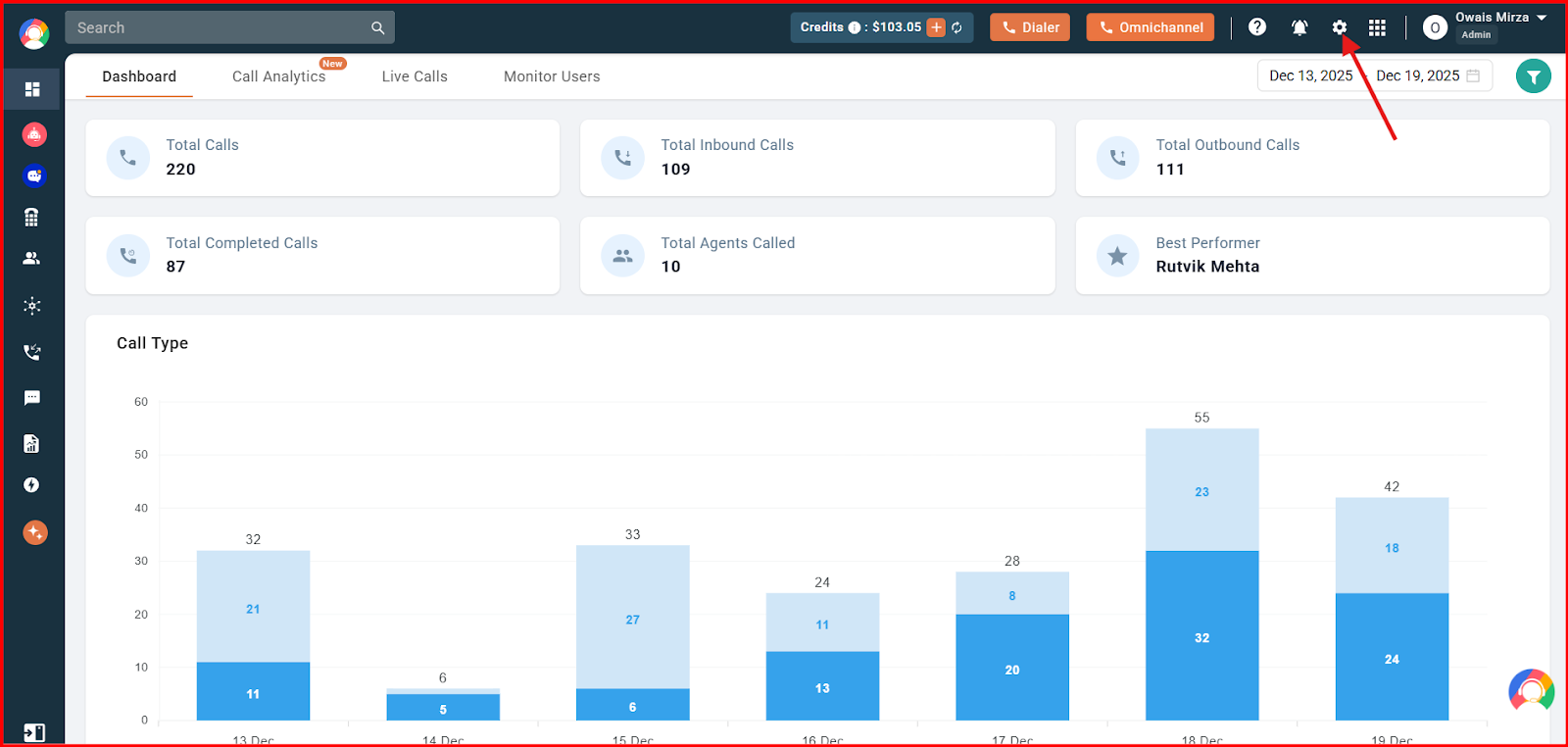
- Click the Settings gear icon at the top of the dashboard.
- Click Access Controls, then select the Access Module tab at the top.
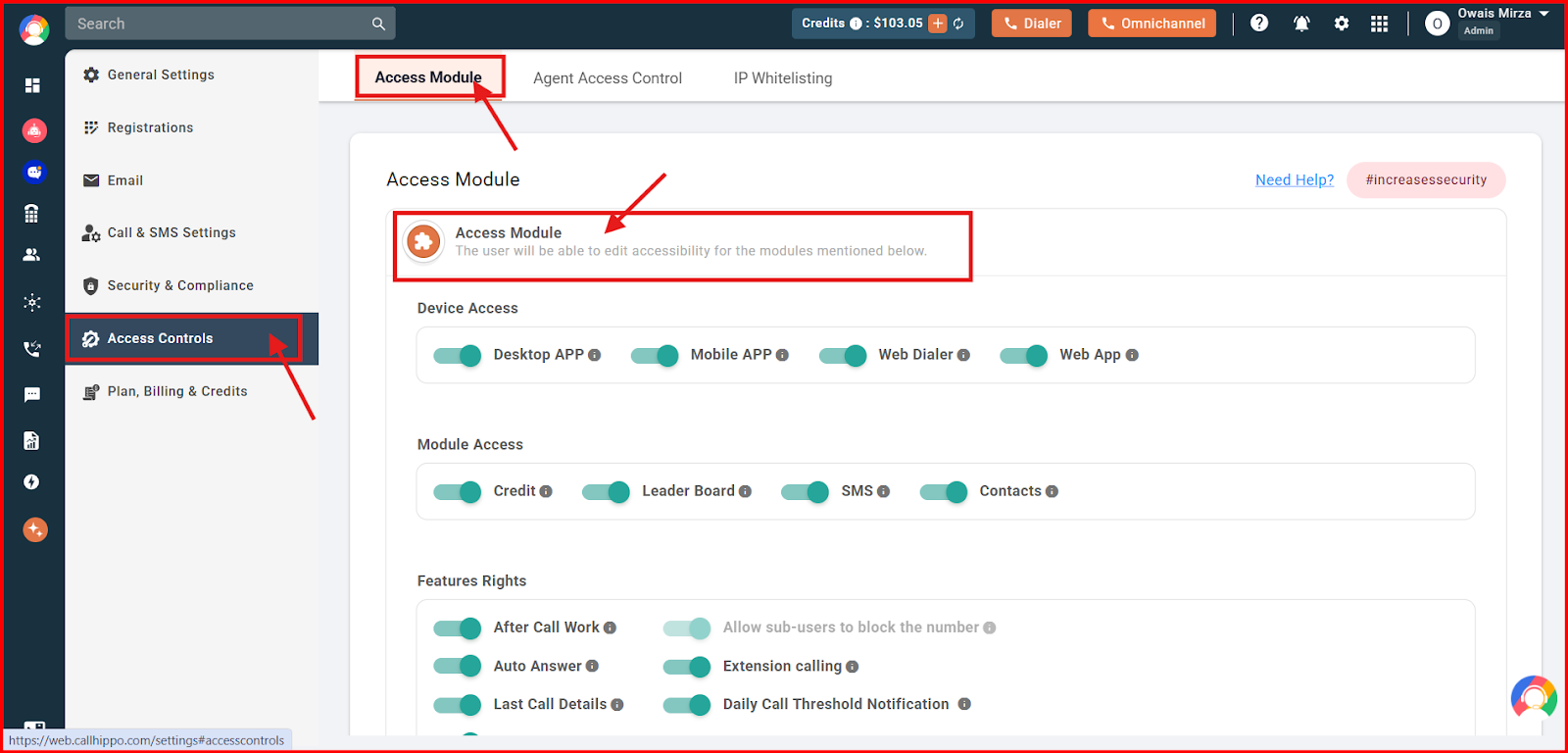
The three sections of the Access Module
1. Device Access
Controls which platforms users are allowed to use to access CallHippo. Available options:
- Desktop App
- Mobile App
- Web Dialer
- Web App (the CallHippo dashboard)
Disabling any of these completely blocks all users from that platform, and no user can re-enable access for themselves.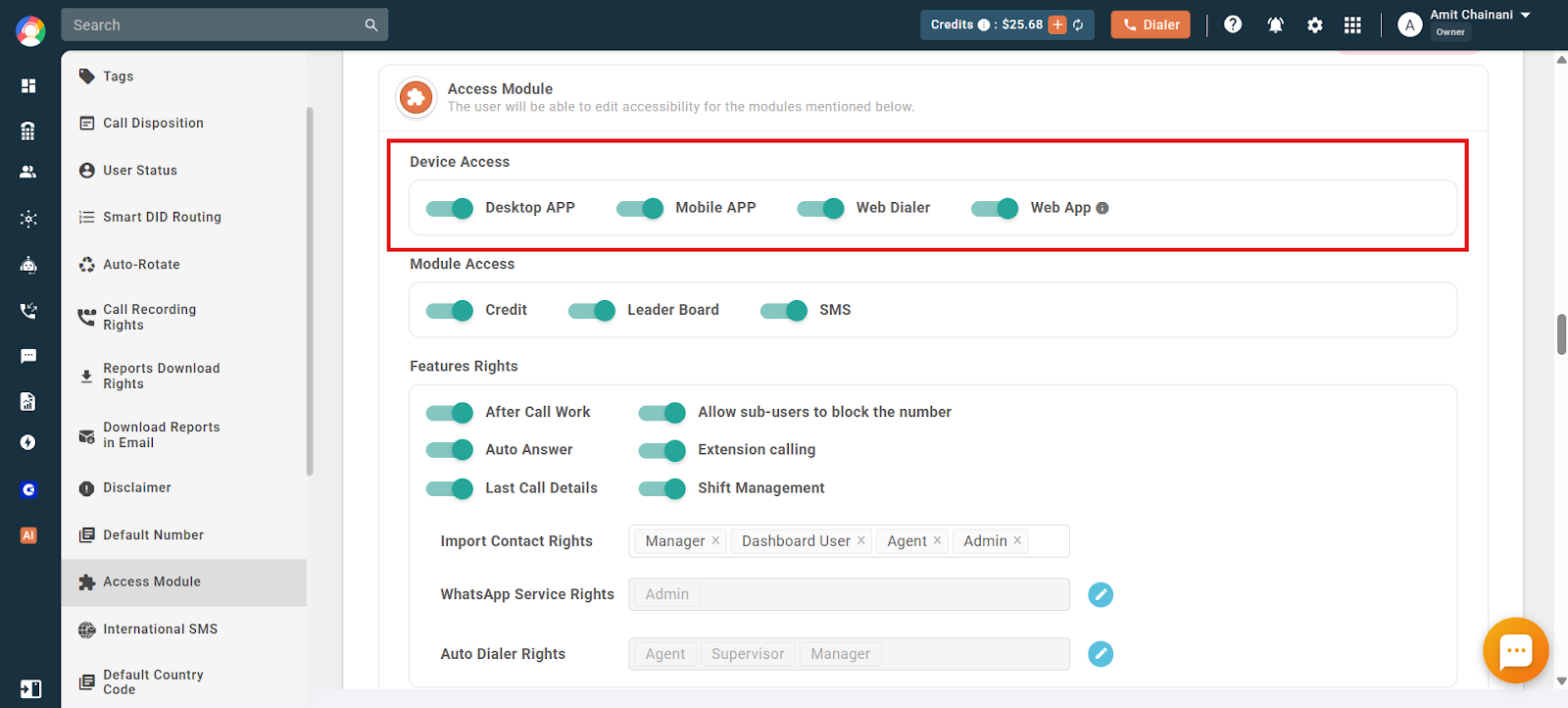
2. Module Access
Determines whether users can access core CallHippo modules. Available options:
- Credit — view and manage calling credits
- Leaderboard — access internal performance rankings
- SMS — send and receive text messages
These permissions are controlled solely by the Owner. If a module is disabled here, no user — including Admins and Managers — can access it.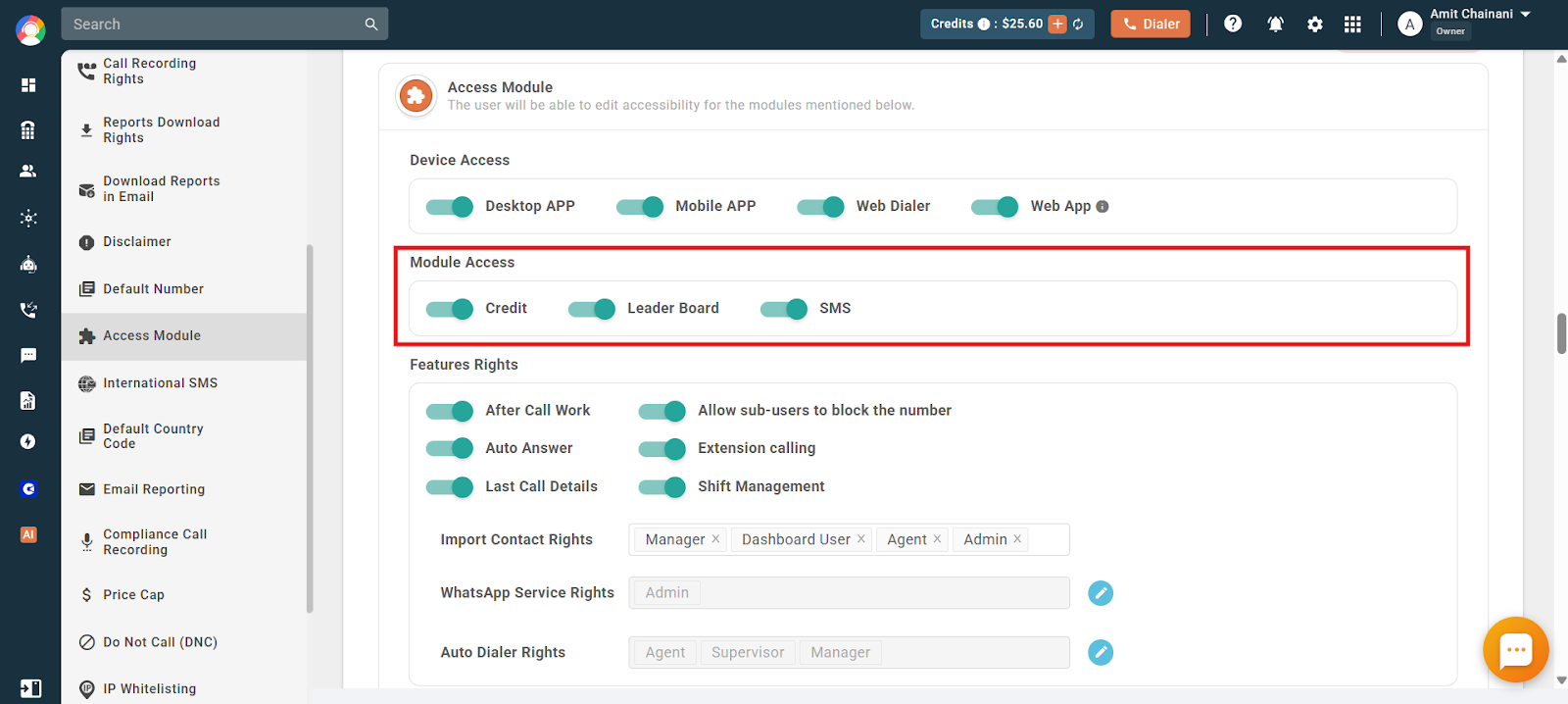
3. Feature Rights
Defines access to specific call-handling features and tools. Available options:
- After Call Work — post-call actions like tagging and notes
- Auto Answer — automatically answers incoming calls
- Last Call Details — view recent call history
- Allow Sub-users to Block the Number — lets non-admins block numbers
- Extension Calling — enables internal extension-based calls
- Shift Management — controls access to shift-based availability settings
- Import Contact Rights — specify which user roles can import contacts
- Auto Dialer Rights — specify which user roles can use the auto dialer
Note: the “WhatsApp Service Rights” option is deprecated and has no impact on user access. Again, only the Owner can grant or restrict these rights, and other users cannot modify them even for their own account.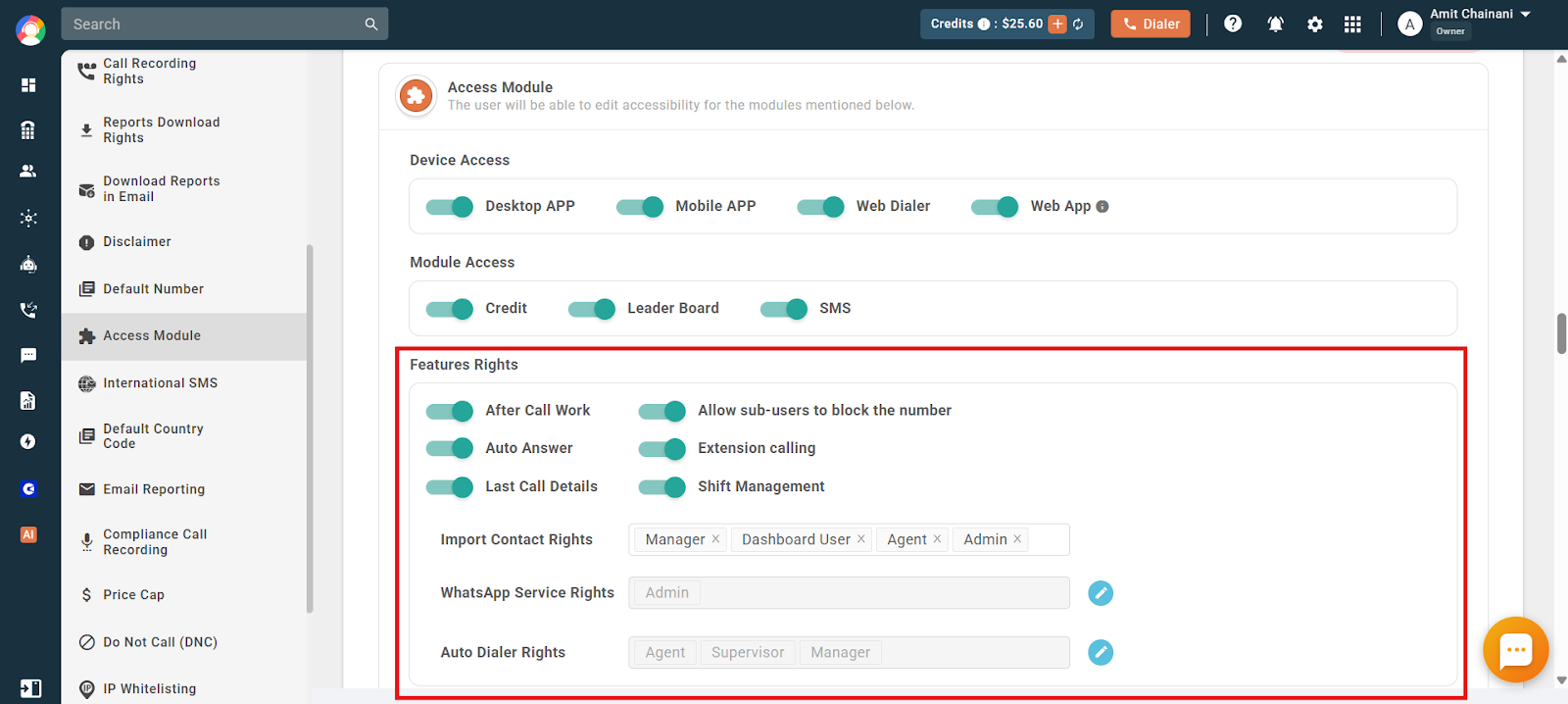
How the Access Module works
- Settings apply globally to the entire account.
- Only the Owner has permission to make changes.
- If a device, module, or feature is disabled, it is inaccessible to all users regardless of role.
- If a feature is enabled, access is still limited to the roles specified (for example, only Managers or Supervisors can use the Auto Dialer if defined that way).
- Sub-users cannot customize or bypass these restrictions — they only see or use what the Owner has permitted.
This ensures the Owner has final and exclusive authority over platform accessibility, while Admins and Managers operate within the boundaries defined by these settings.
Use case example
A company wants to tighten platform access for better data security. The Owner:
- Disables Mobile App access to enforce usage only on secure office desktops.
- Disables Credit access so agents can’t view the balance.
- Grants Auto Dialer access only to Managers and Supervisors.
The result: agents use only the tools necessary for their role, sensitive modules are protected, and no one can alter access rights except the Owner.
Frequently asked questions
If you are the Owner of the CallHippo account:
If I disable a feature, can Admins or Managers re-enable it for themselves?
No. Only you, as the Owner, can change Access Module settings. Any restriction you set applies account-wide and cannot be overridden by other roles.
I want to limit CallHippo access to just the Web App. How do I do that?
In the Device Access section, disable the Desktop App, Mobile App, and Web Dialer. This restricts users to the Web App only.
How can I ensure only certain roles can import contacts?
Use the Import Contact Rights setting under Feature Rights to specify which roles are allowed to import contacts. All others are restricted.
What happens if I disable the Credit module for everyone?
No users — including Admins — can view or manage calling credits. Only you retain full visibility.
Can users bypass the restrictions I set?
No. Once set, restrictions are enforced across the entire account and cannot be bypassed or edited by any other role.
Can I change the Access Module settings anytime?
Yes. Changes take effect immediately and apply to all users per your defined access rules.
If I re-enable a module or feature, will users regain access automatically?
Yes. Once you enable it and assign it to the appropriate roles, those users immediately regain access without refreshing permissions.
Can I restrict access by device (for example, disable the Mobile App)?
Yes. Under Settings > Access Module > Device Access, you can disable the Mobile App or any other platform.
I only want agents to use the dialer, not the full dashboard. How?
In Device Access, disable the Web App option and keep Web Dialer enabled. This lets agents use only the dialer without access to the full dashboard.
If you are a sub-user of the CallHippo account:
Why can I no longer see Calling Credits that were previously visible?
The Owner may have disabled the Credit module for all users through the Access Module. This is a global setting and can only be changed by the Owner.
Why can’t I access the Mobile App even though I installed it correctly?
The Owner has likely restricted Mobile App access through the Access Module. Please reach out to your admin for clarification.
My teammate can use Shift Management but I can’t. Is something wrong with my account?
Your access may be limited by role-based restrictions in the Access Module. The Owner hasn’t enabled Shift Management for your role — please speak with your admin.
I can’t log in due to a “no permission” error. What’s causing this?
The Owner has likely disabled Web App access for your role. Access is blocked at the account level — please contact your admin or Owner to confirm your permissions.
Last Call Details are no longer visible. What happened?
This feature has been disabled for your role by the Owner in the Access Module. Please reach out to your admin for access.
Still need help? Reach us at [email protected].