
To keep Speed to Dial working correctly, you need to create a set of webhooks in Zoho CRM that notify CallHippo whenever a contact or lead is added or updated. This guide walks you through creating all four webhooks, one at a time.
Before you begin
- You need admin access to your Zoho CRM account to create workflow rules and webhooks.
- Make sure the Contact ID or Lead ID is included as a parameter in every webhook.
- Each notify URL contains your CallHippo owner ID (shown below as
5eabbffc91eeda5ed9833d68). Replace it with your own owner ID. To find it, go to Users in CallHippo, select the user whose type is Owner, and copy the last segment of the URL.
You will create four webhooks in total: Add Contact, Update Contact, Add Lead, and Update Lead.
Set up webhooks in Zoho CRM
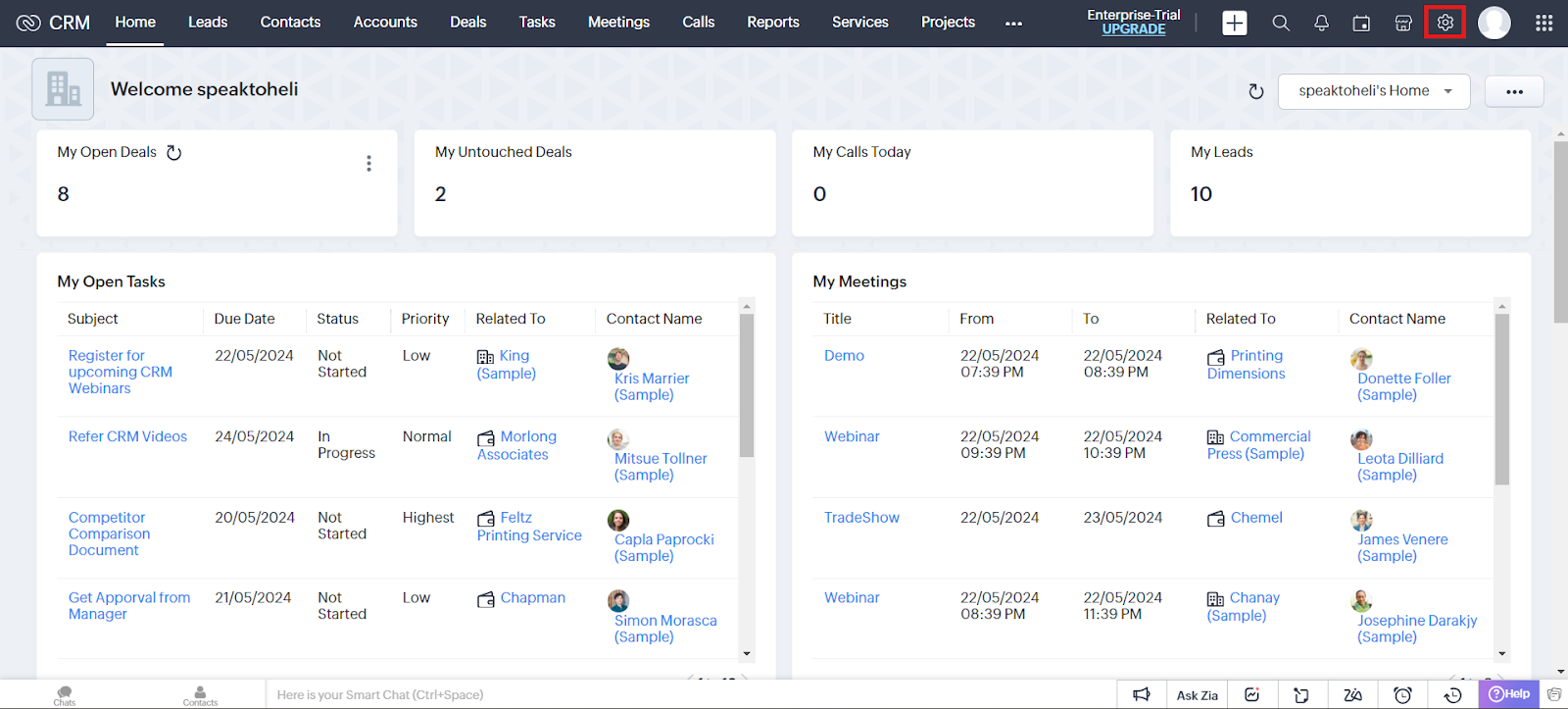
- Log in to your Zoho CRM account and click the Settings icon in the top-right corner.
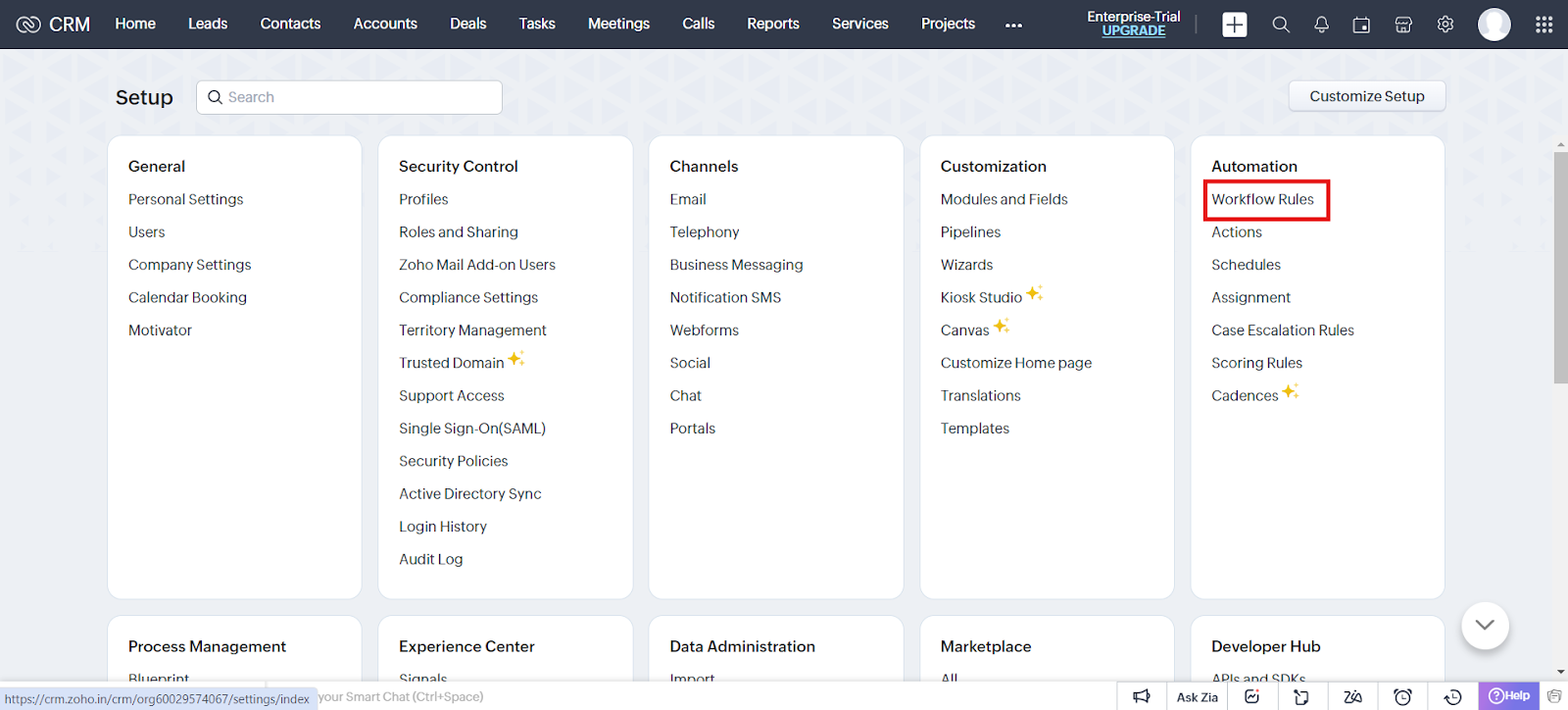
- Go to Automation > Workflow Rules.
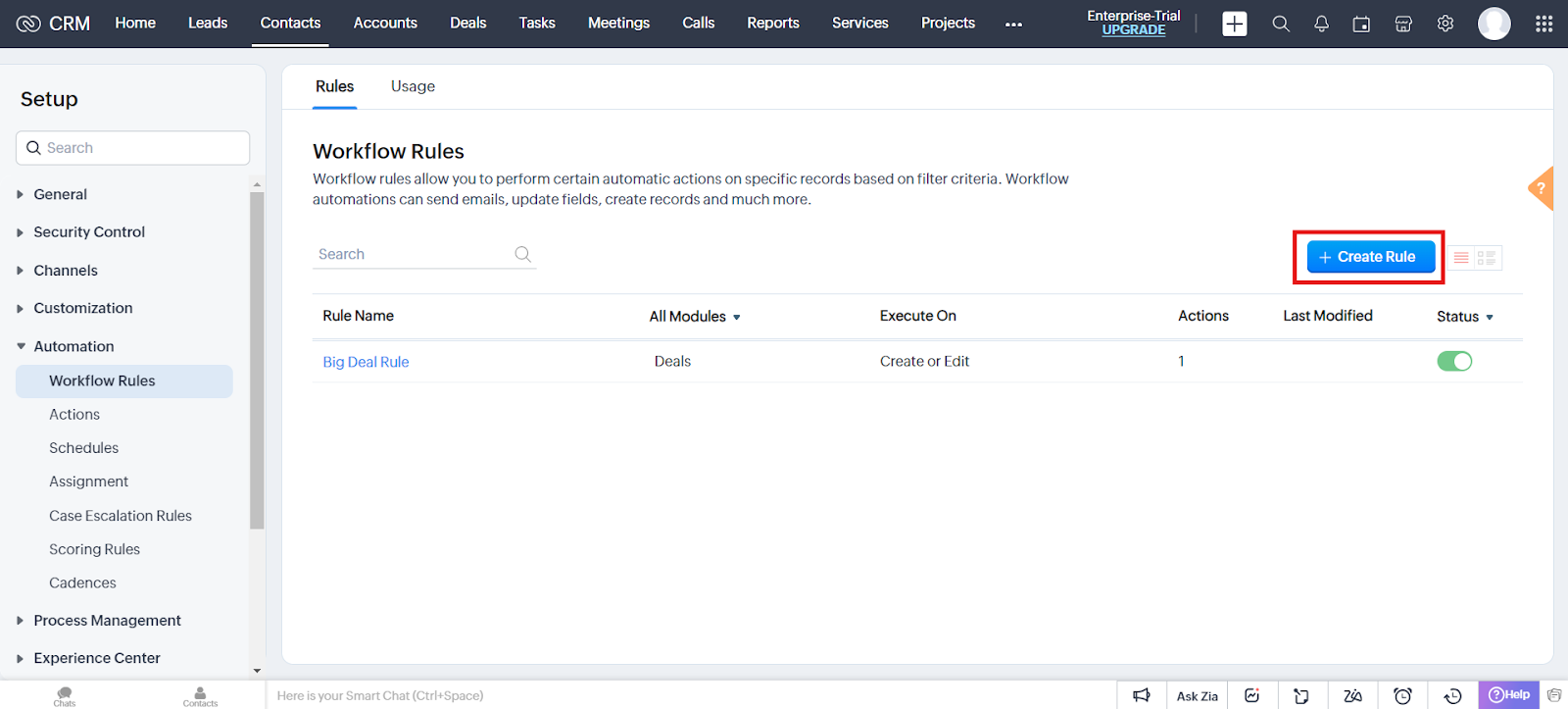
- On the Workflow Rules page, click the Create Rule button.
Note: Make sure the Contact/Lead ID is passed in the webhook for every case.
1. Add Contact webhook
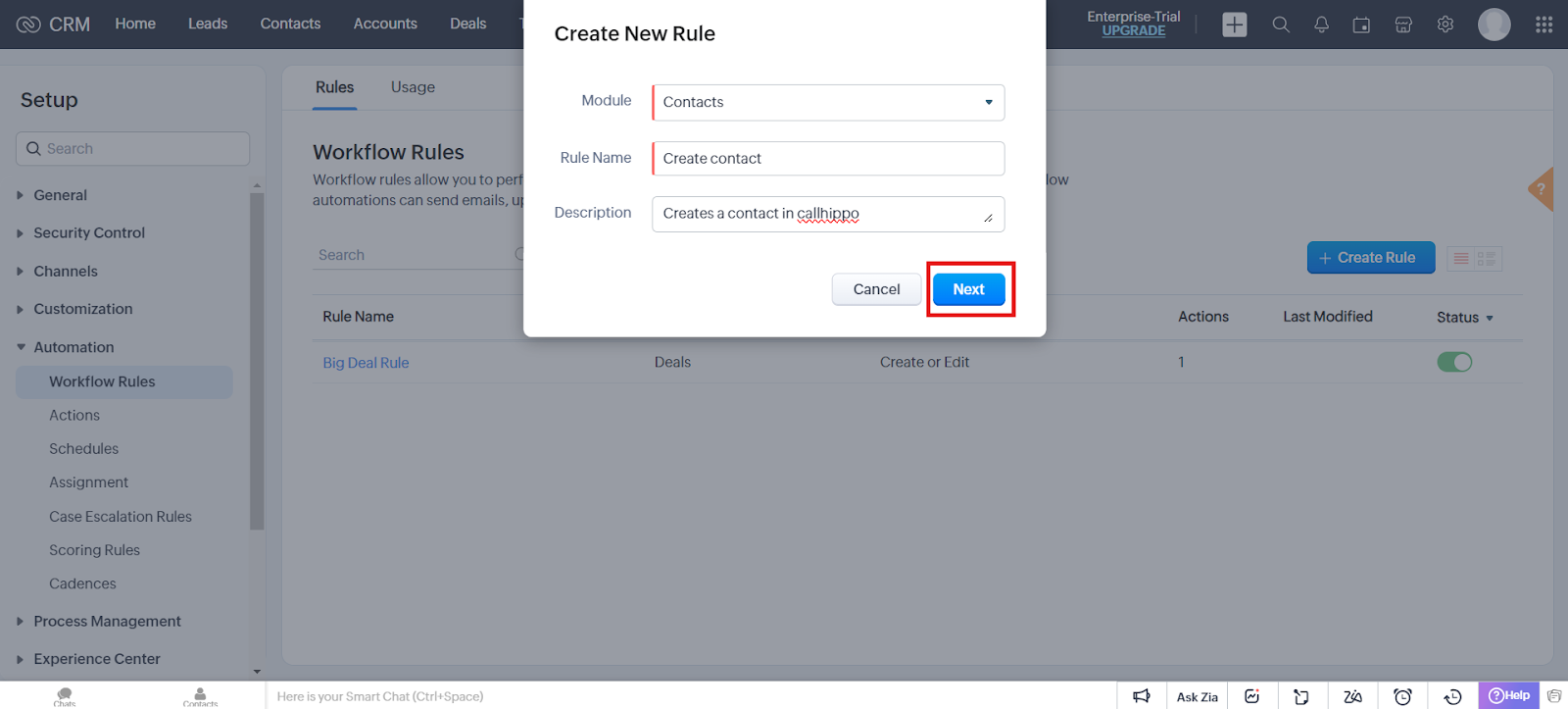
- In the Create New Rule pop-up, set the Module to Contacts, name the rule (for example, “Create contact”), add a description, and click Next.
- Under When, choose Record action and Create. For the condition, select All Contacts. Then under Instant Actions, choose Webhook.
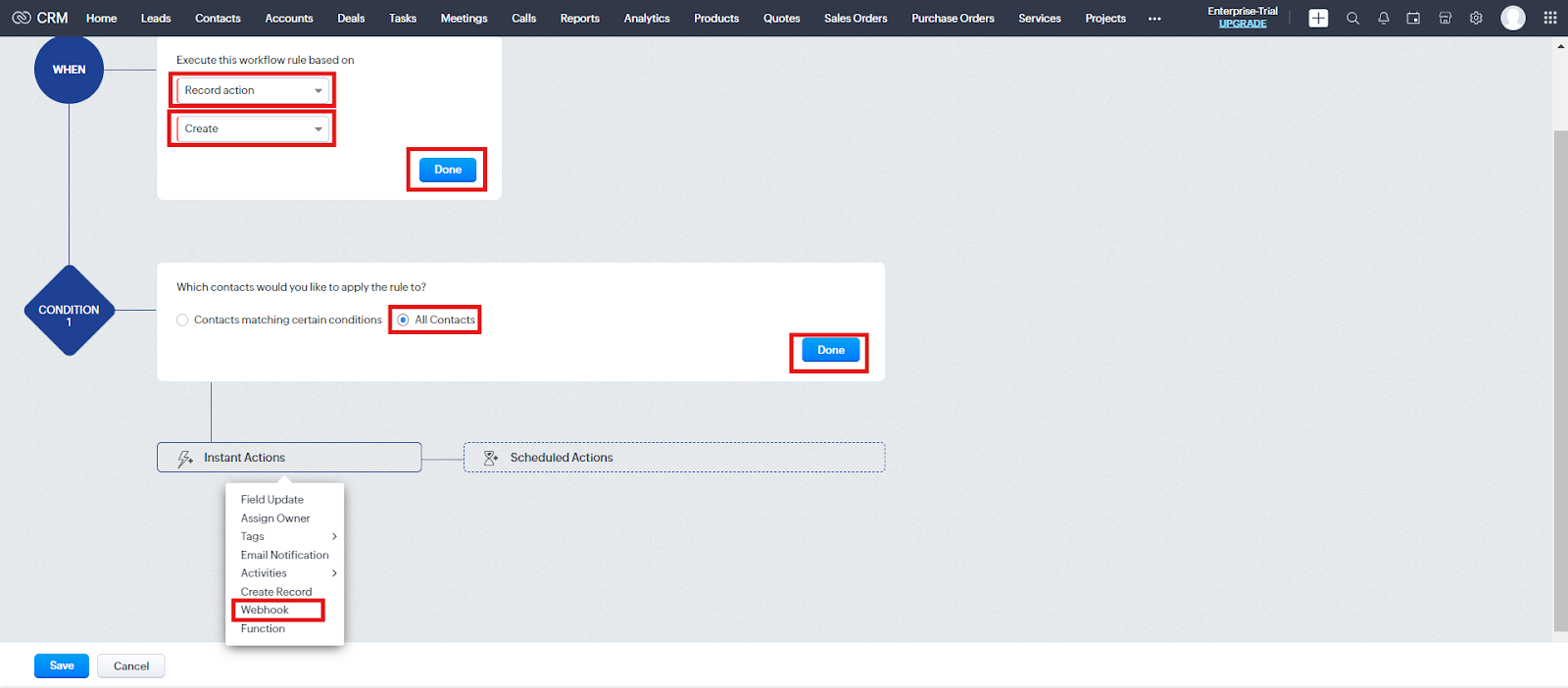
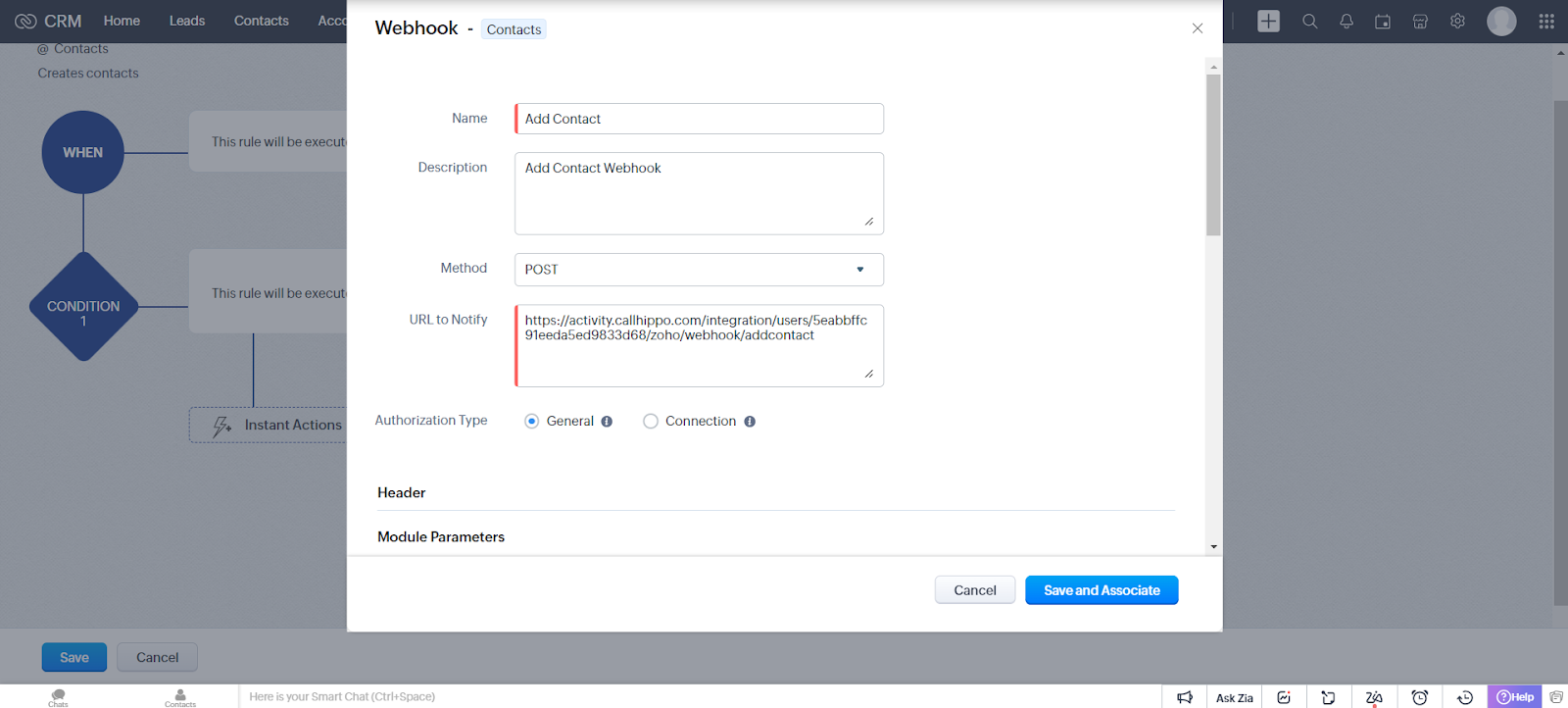
- Click New Webhook and fill in the webhook form:
- Name: Add Contact
- Description: Add Contact Webhook
- Method: POST
- URL to Notify:
https://activity.callhippo.com/integration/users/5eabbffc91eeda5ed9833d68/zoho/webhook/addcontact - Authorization Type: General
- In the Body section, set Type to Form-Data and add the following module parameters:
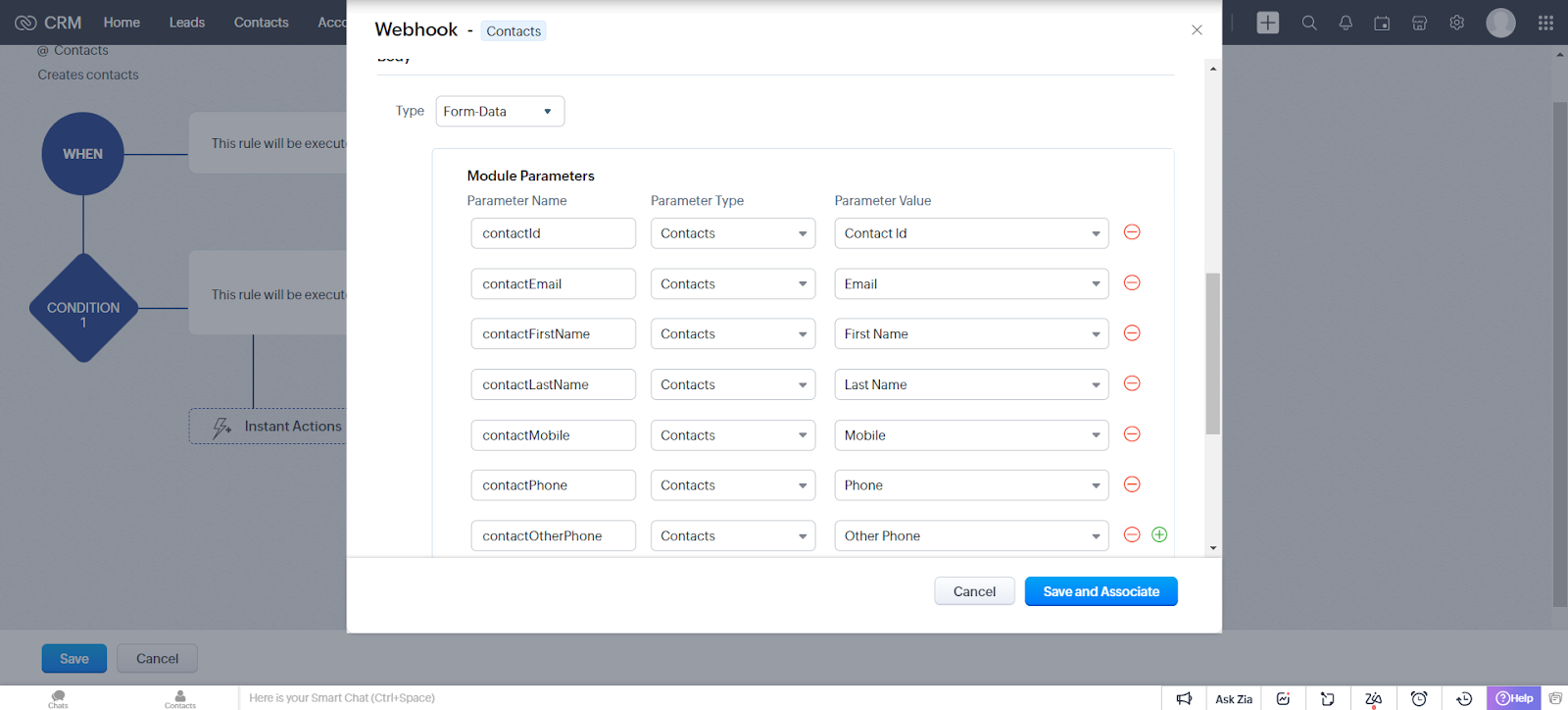
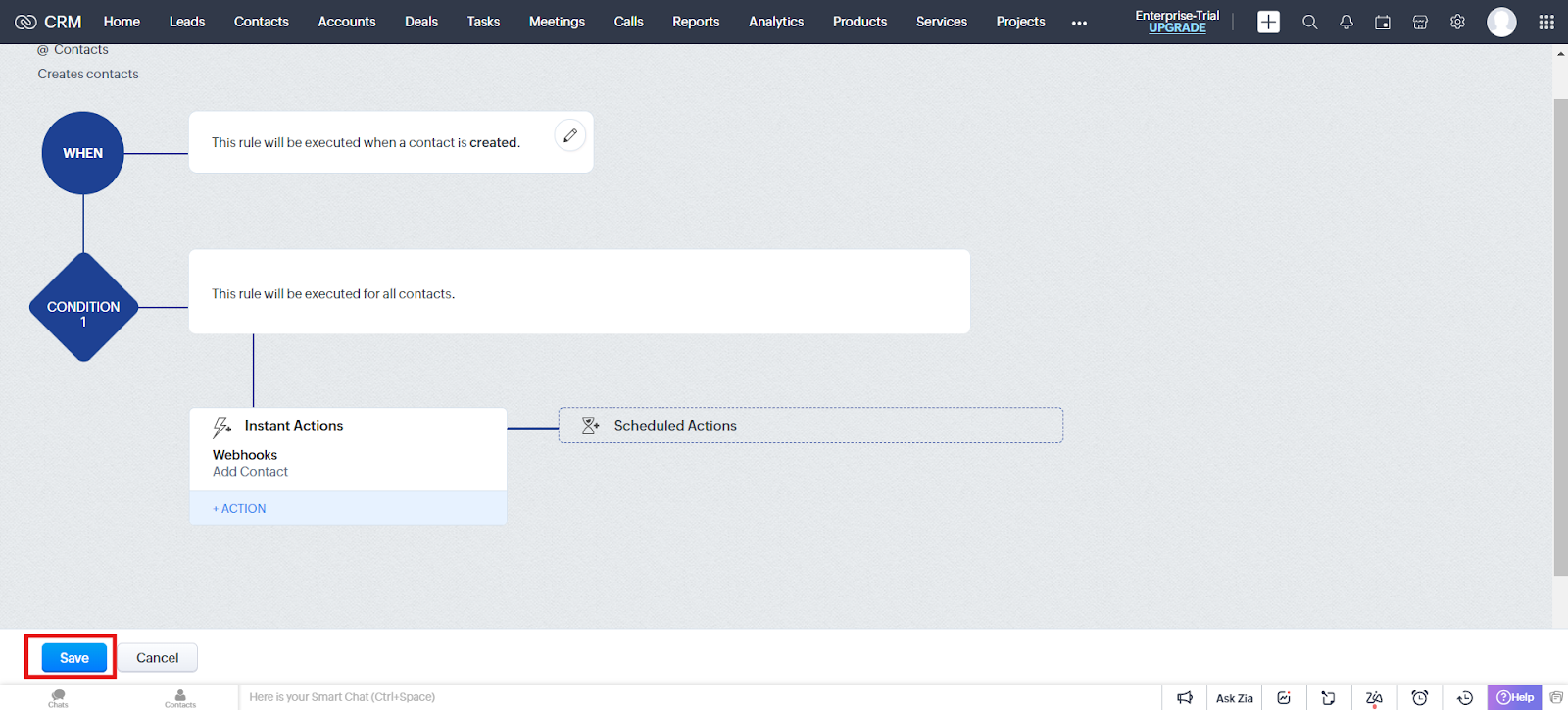
Parameter Name Parameter Type Parameter Value contactId Contacts Contact Id contactEmail Contacts Email contactFirstName Contacts First Name contactLastName Contacts Last Name contactMobile Contacts Mobile contactPhone Contacts Phone contactOtherPhone Contacts Other Phone - Click Save and Associate. You are redirected to the Workflow Rule page, where you click Save again to finish.
2. Update Contact webhook
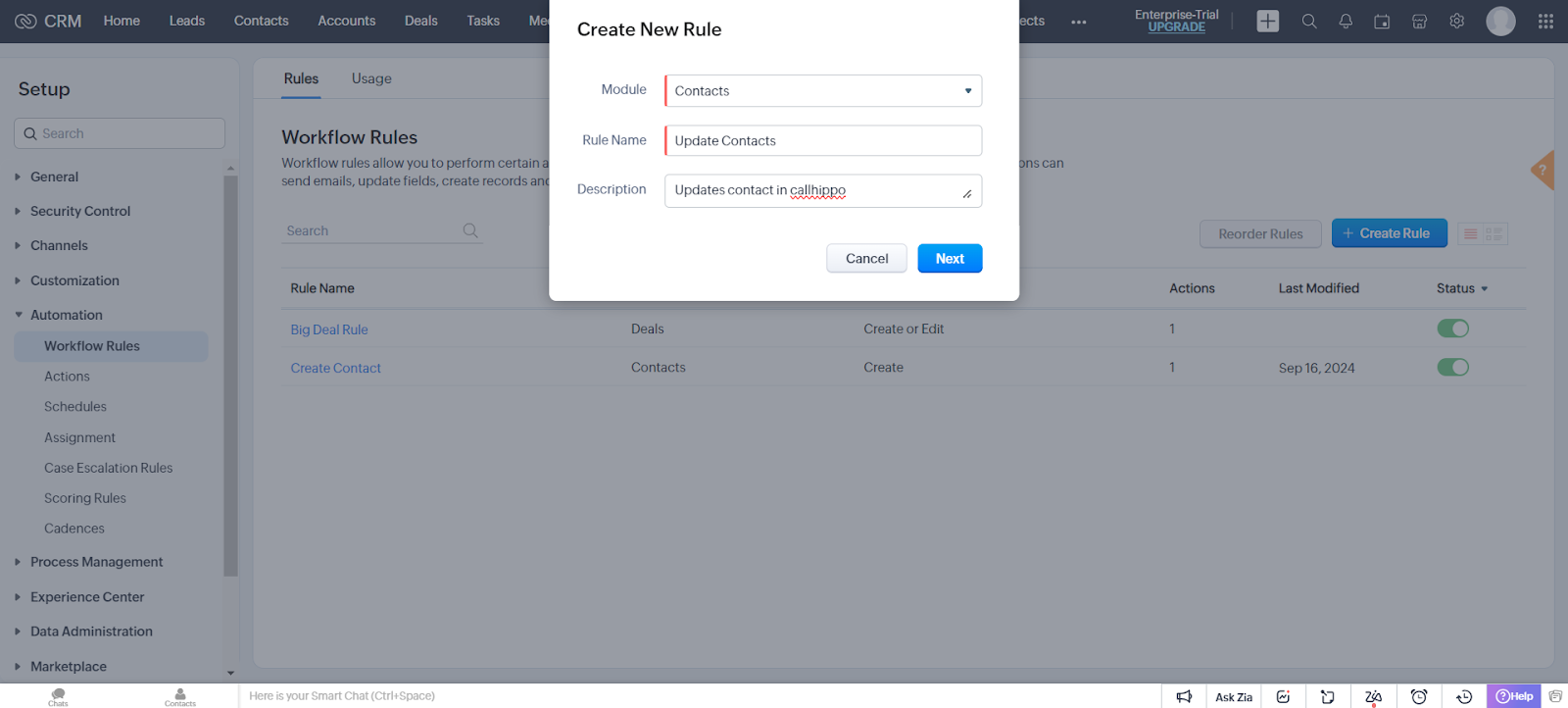
- Create a new rule with the Module set to Contacts, name it “Update Contacts”, and click Next.
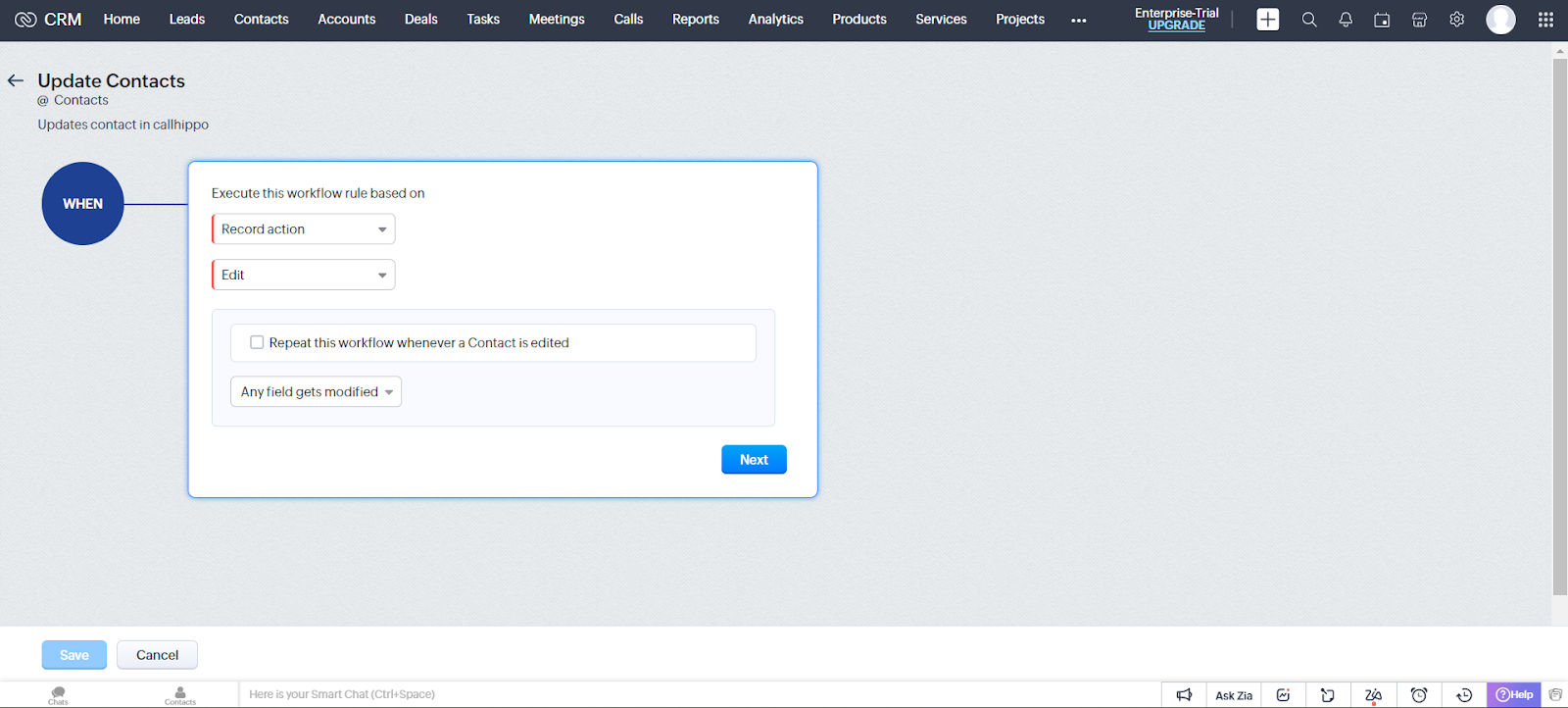
- Under When, choose Record action and Edit.
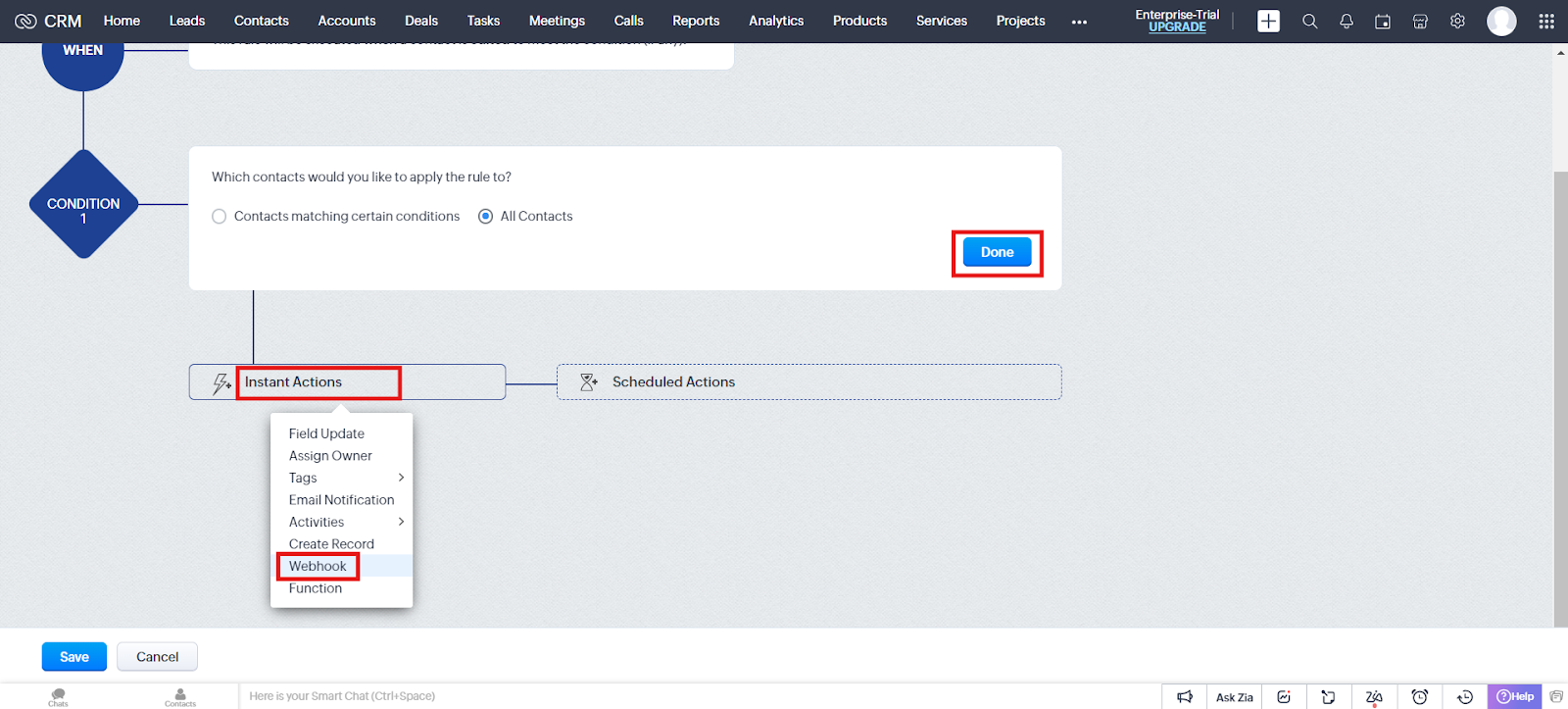
- Set the condition to All Contacts, then under Instant Actions choose Webhook.
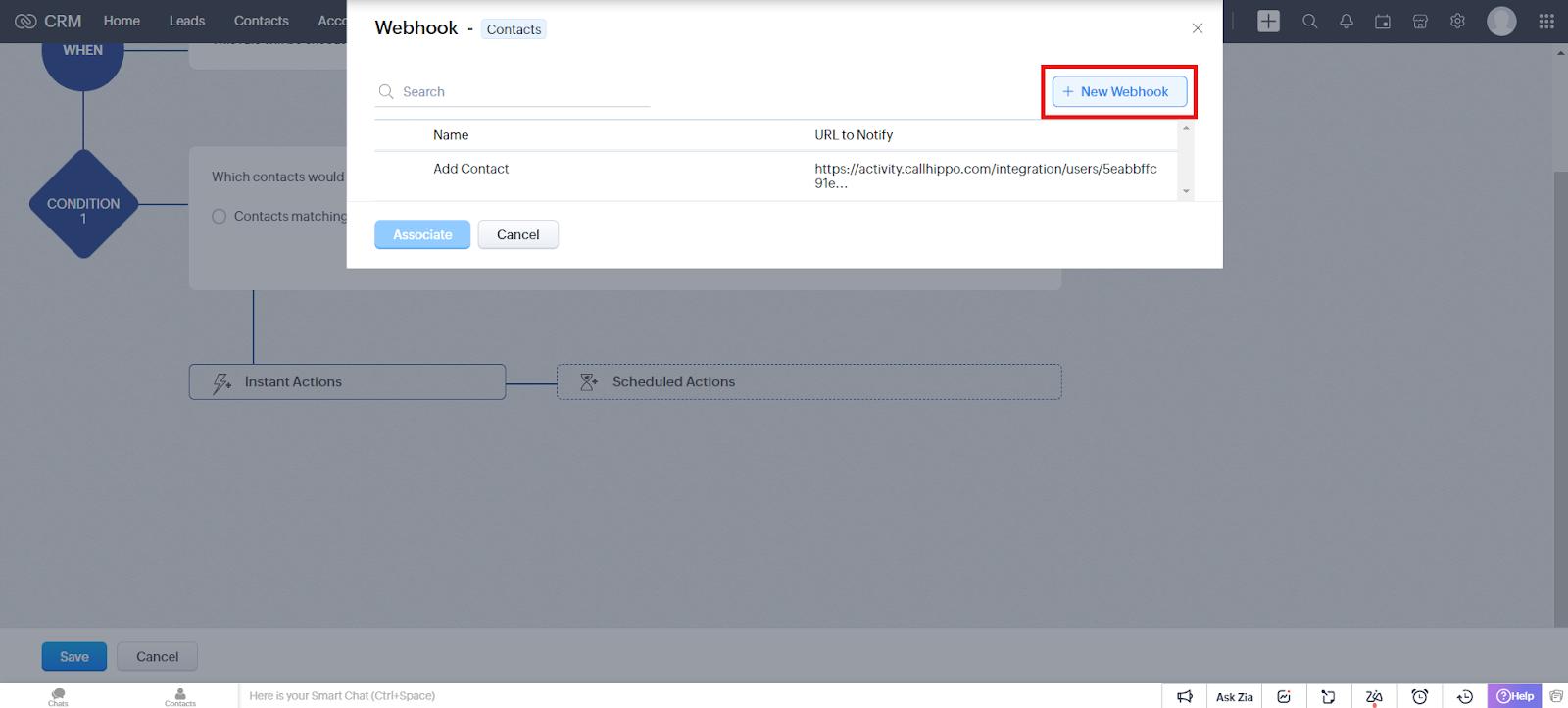
- Click New Webhook to create a new one.
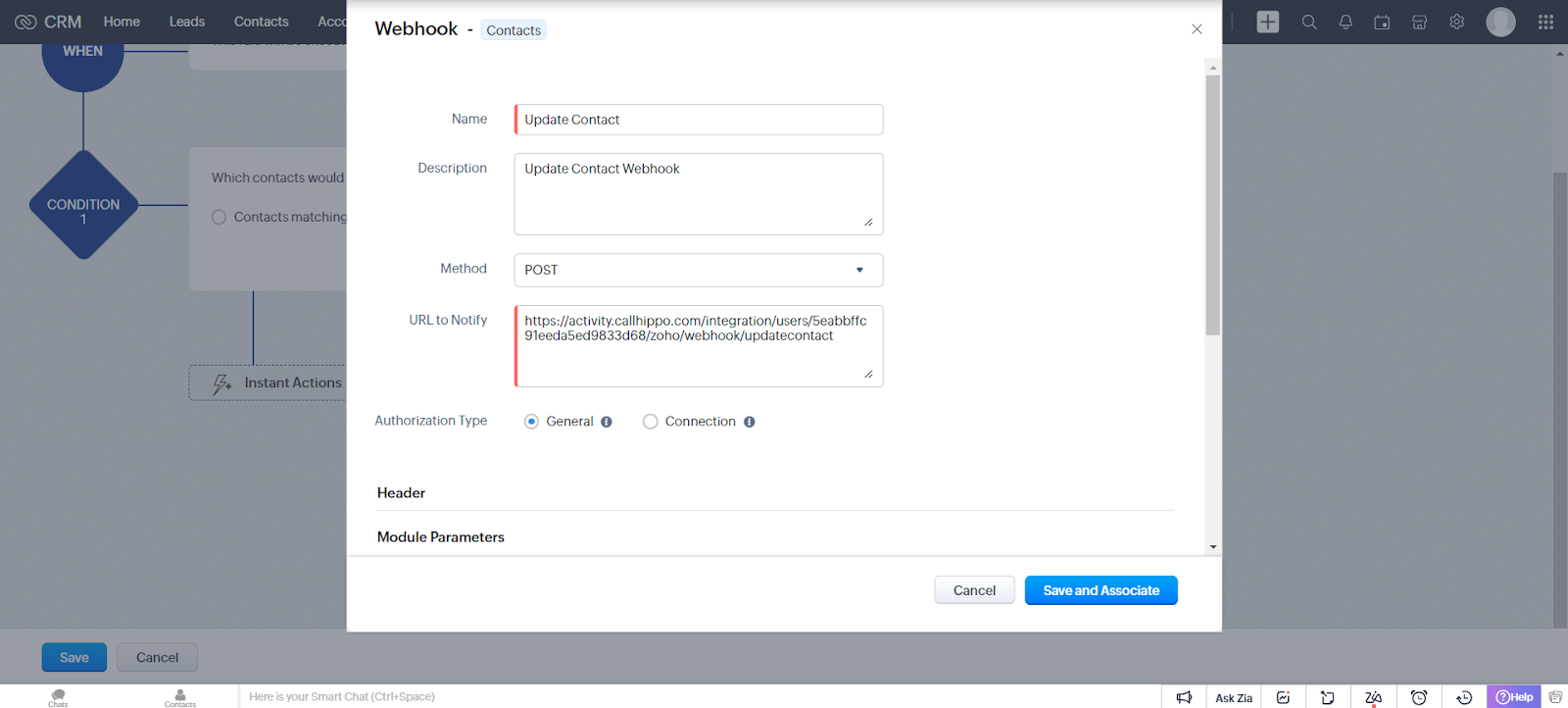
- Fill in the webhook form:
- Name: Update Contact
- Description: Update Contact Webhook
- Method: POST
- URL to Notify:
https://activity.callhippo.com/integration/users/5eabbffc91eeda5ed9833d68/zoho/webhook/updatecontact - Authorization Type: General
- In the Body section, set Type to Form-Data and add the same contact module parameters used for Add Contact.
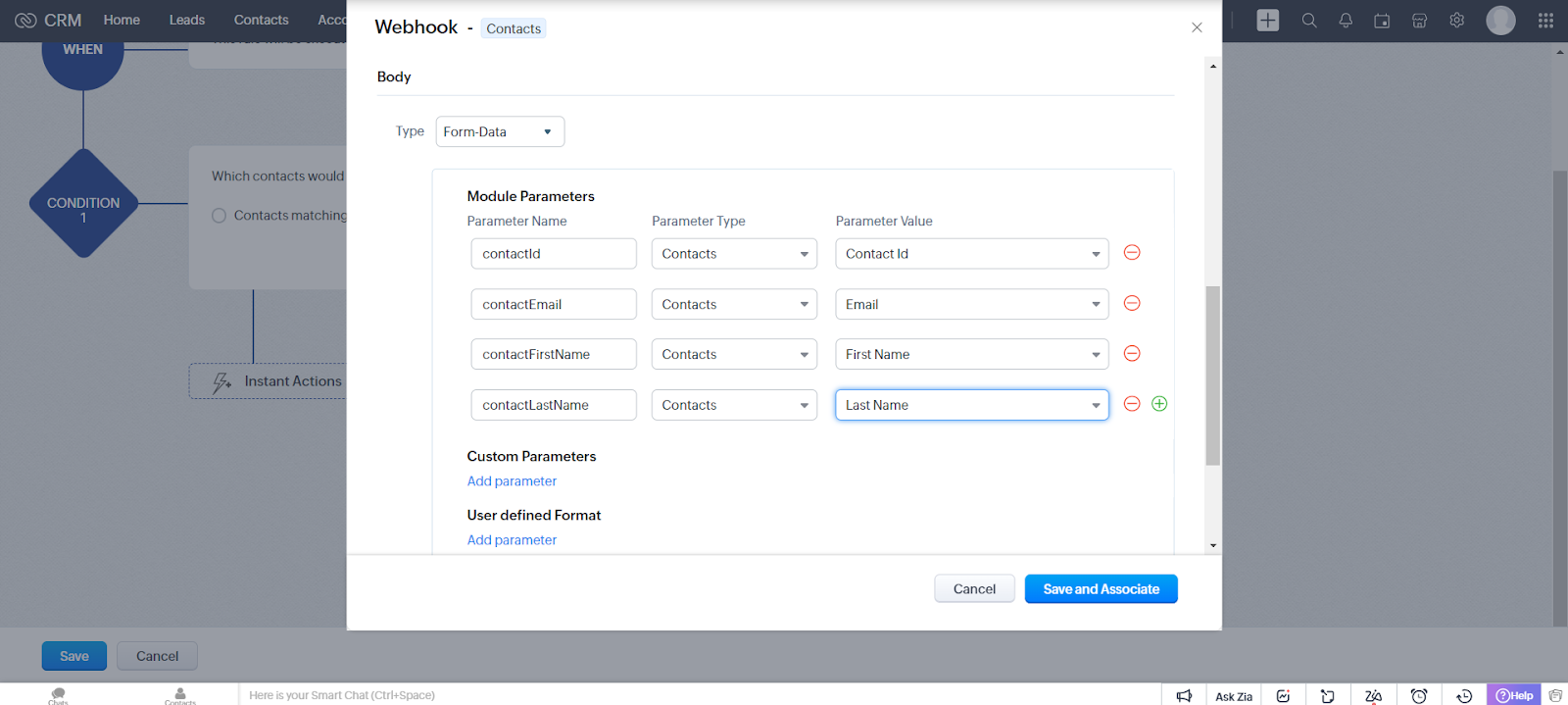
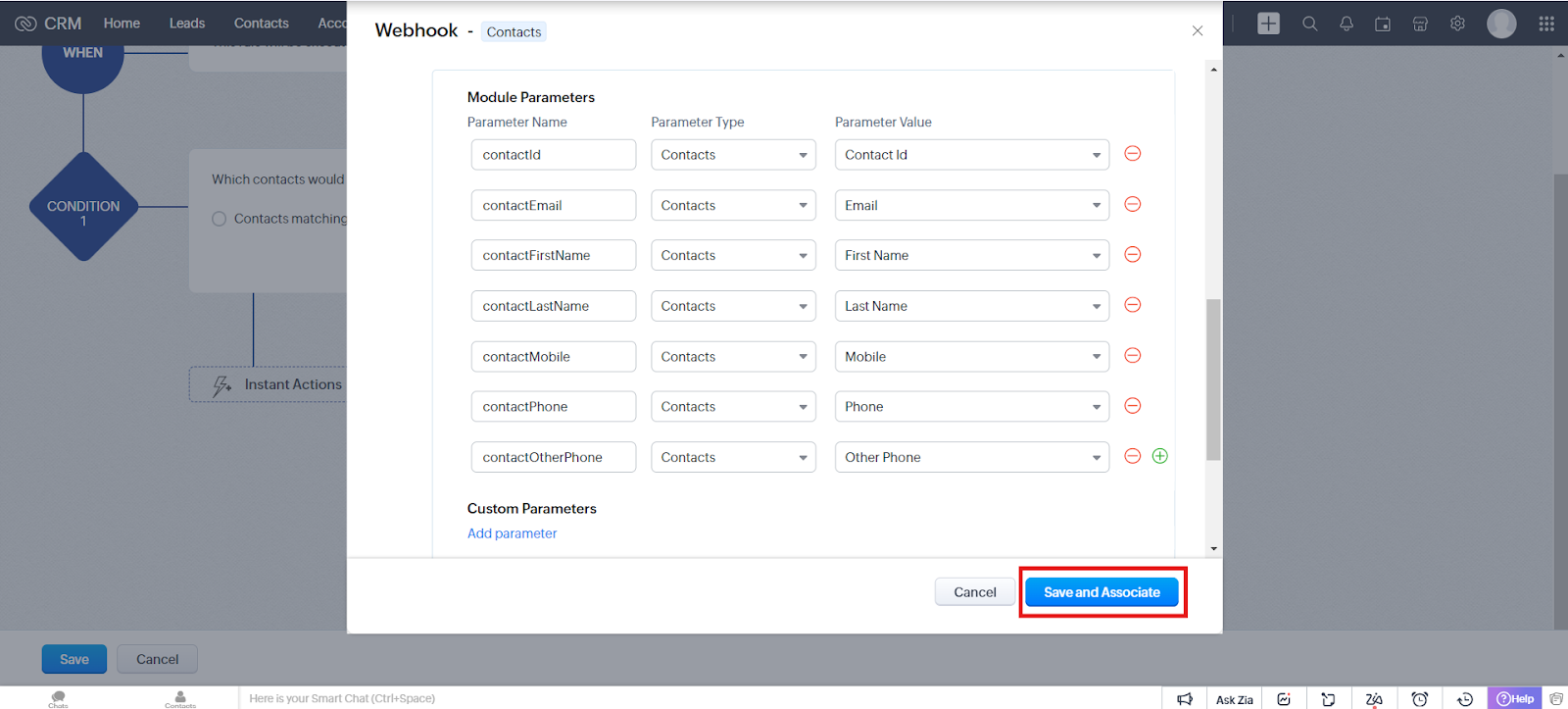
Parameter Name Parameter Type Parameter Value contactId Contacts Contact Id contactEmail Contacts Email contactFirstName Contacts First Name contactLastName Contacts Last Name contactMobile Contacts Mobile contactPhone Contacts Phone contactOtherPhone Contacts Other Phone - Click Save and Associate.
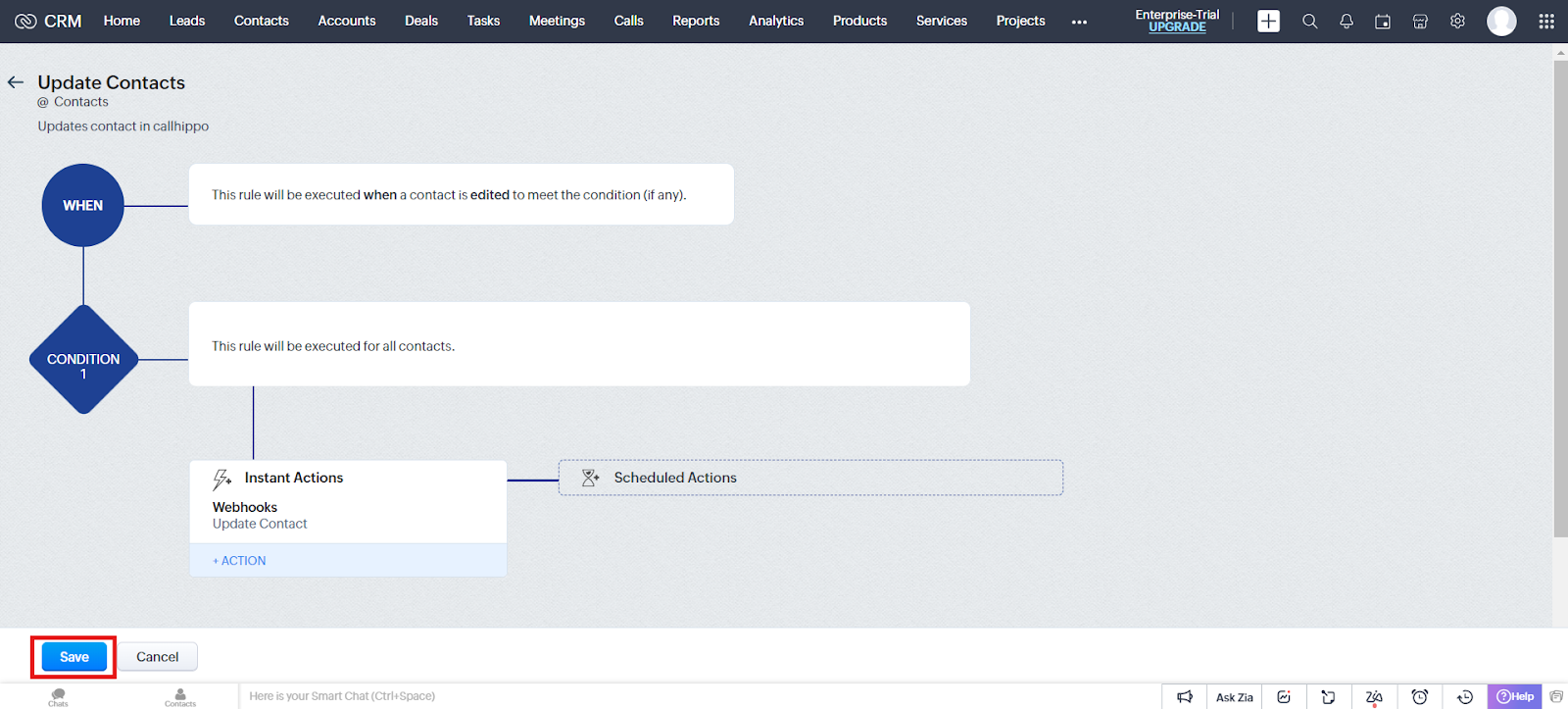
- Back on the Workflow Rule page, click Save to complete the setup.
3. Add Lead webhook
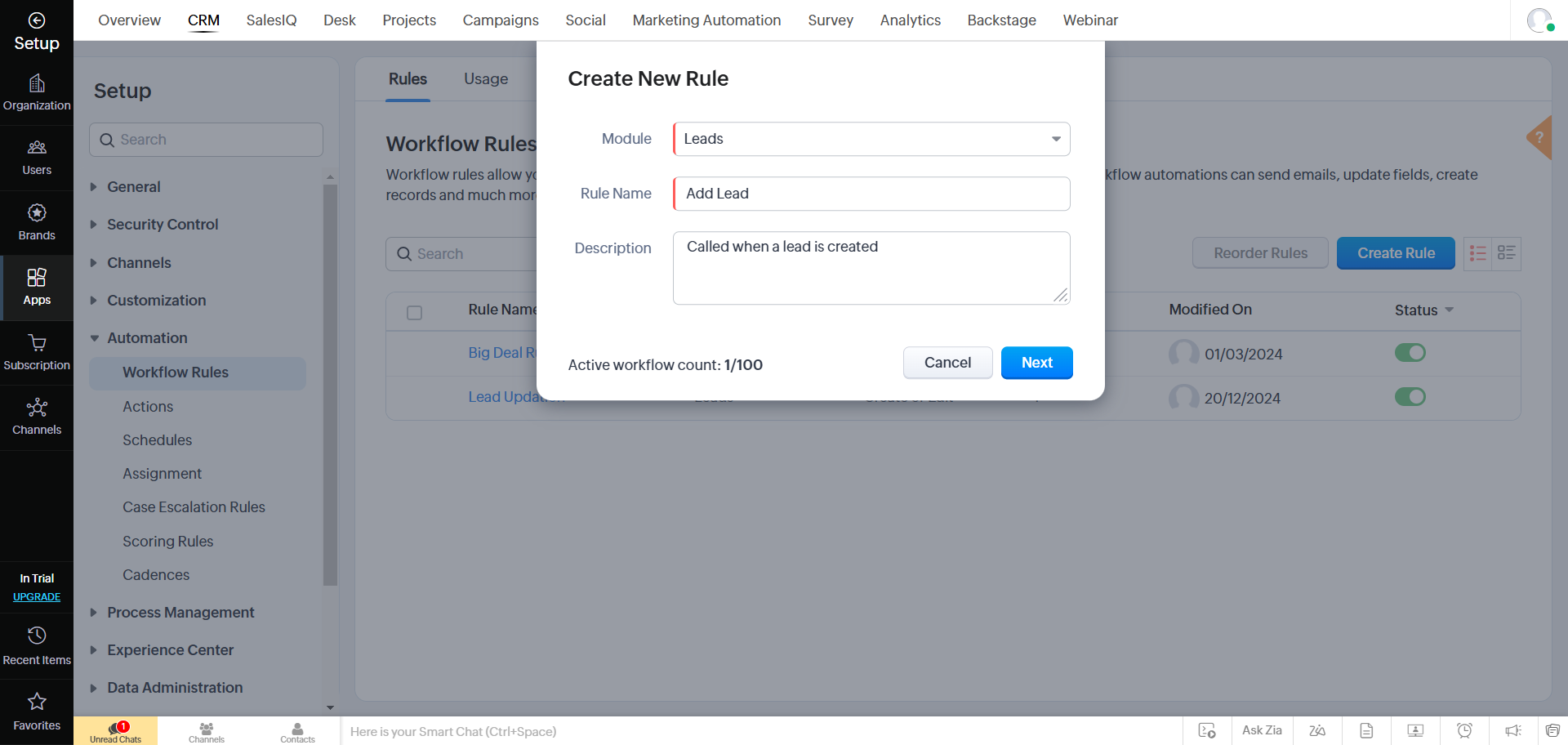
- In the Create New Rule pop-up, fill in the details and click Next:
- Module: Leads
- Rule Name: Add Lead
- Description: Called when a lead is created.
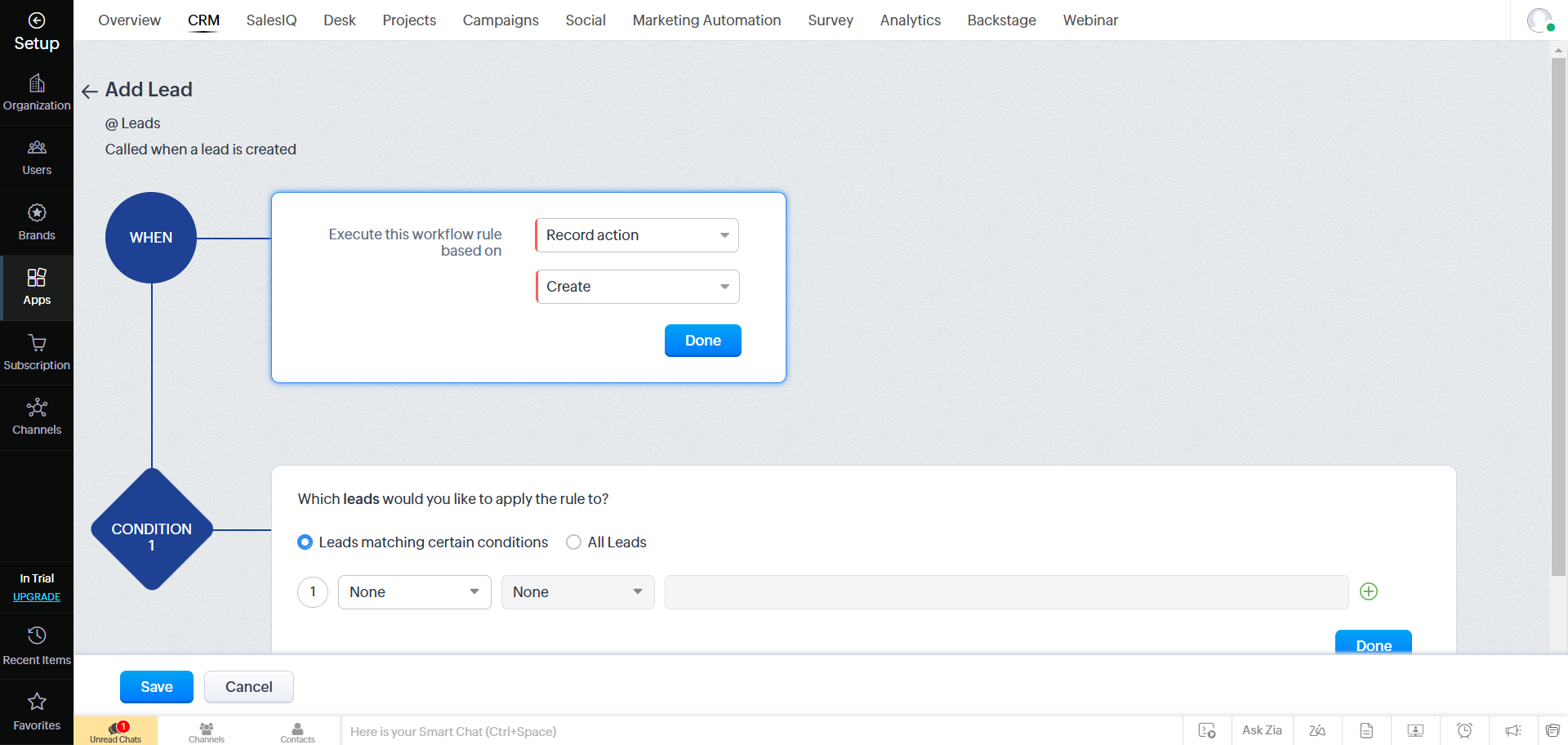
- Under When, select Record action, choose the Create action, and click Next.
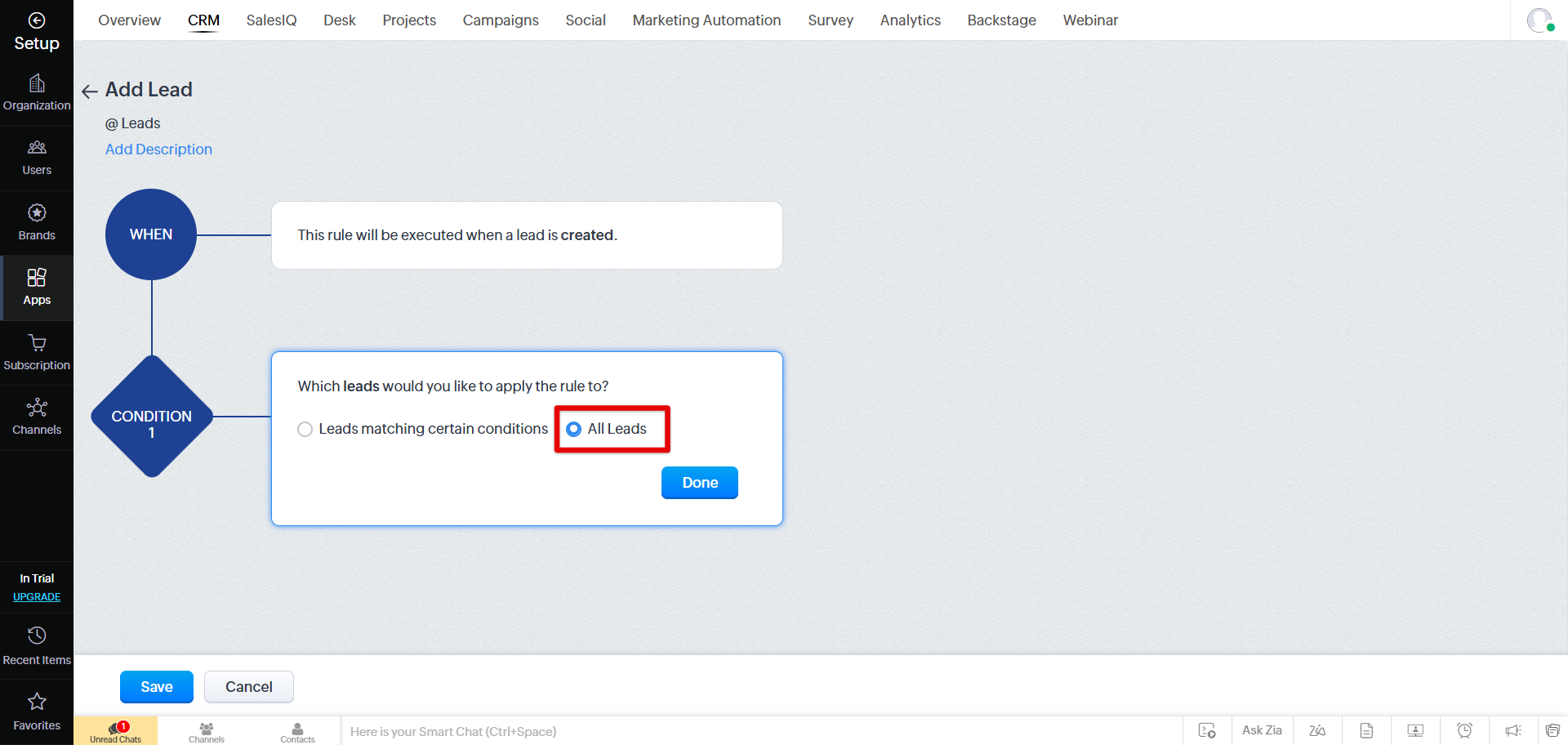
- In the Condition 1 section, select All Leads and click Next.
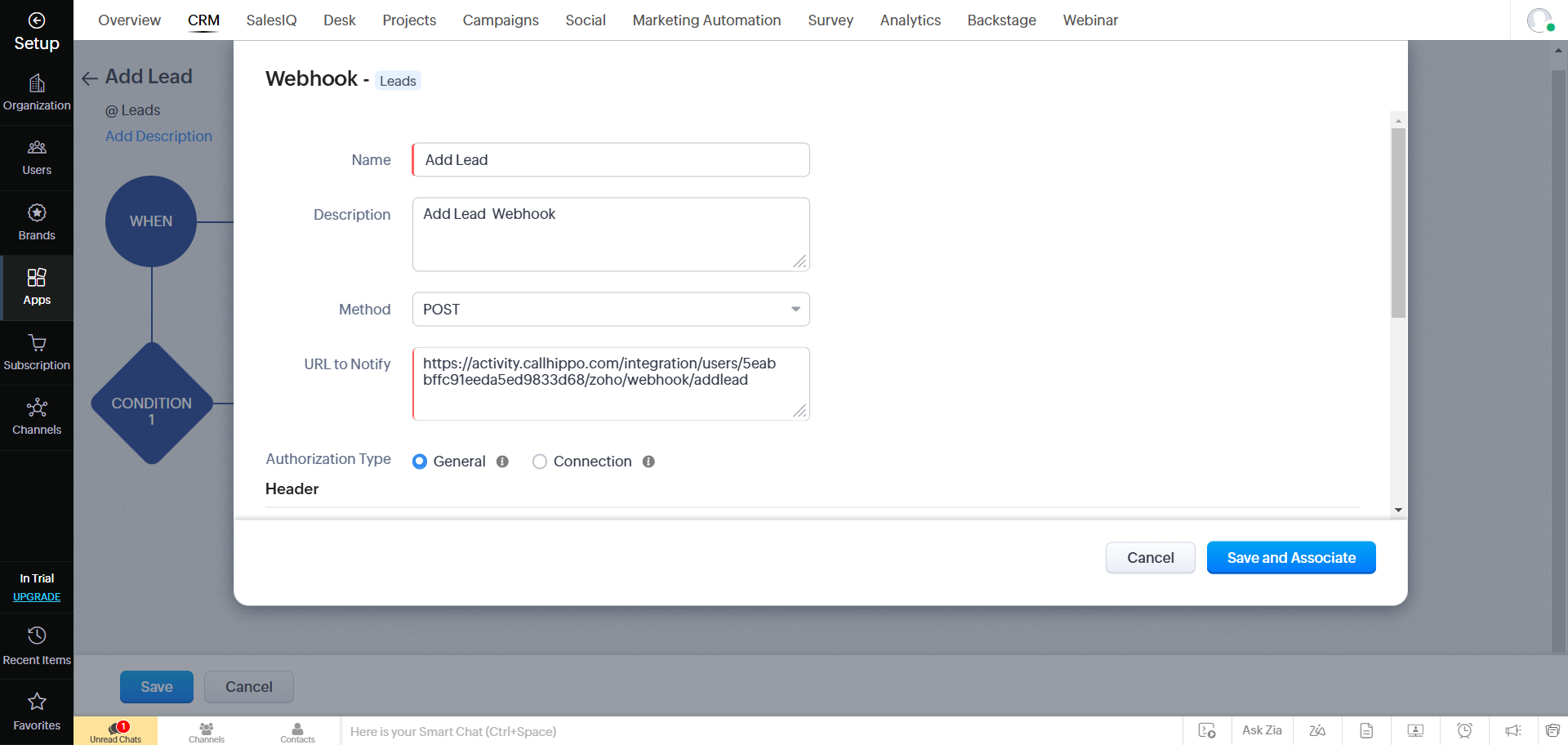
- In the Instant Action dropdown, select Webhooks, then click New Webhook and provide the details:
- Name: Add Lead
- Description: Add Lead Webhook
- Method: POST
- URL to Notify:
https://activity.callhippo.com/integration/users/5eabbffc91eeda5ed9833d68/zoho/webhook/addlead - Authorization Type: General
- In the Body section, set Type to Form-Data and add the following lead module parameters:
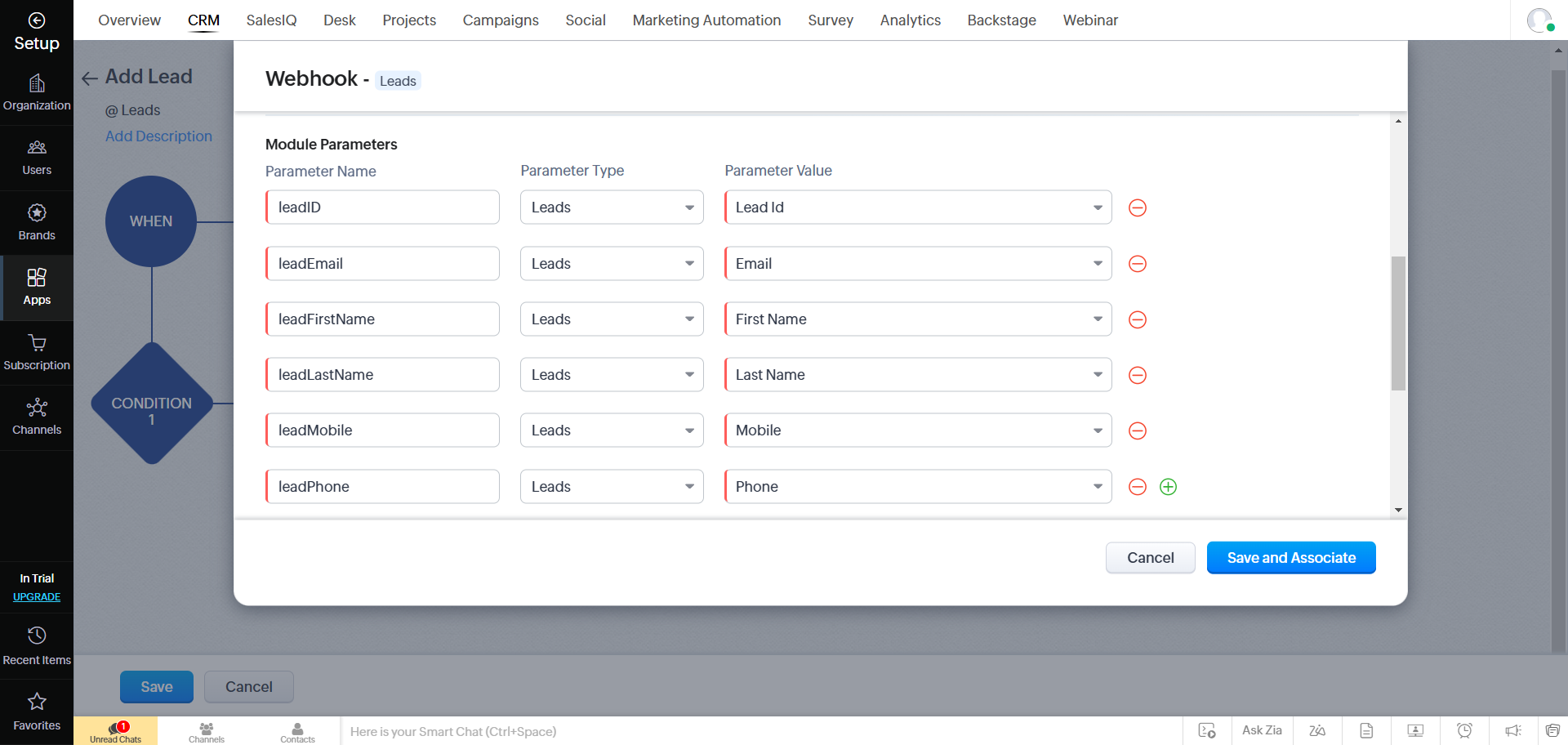
Parameter Name Parameter Type Parameter Value leadId Leads Lead Id leadEmail Leads Email leadFirstName Leads First Name leadLastName Leads Last Name leadMobile Leads Mobile leadPhone Leads Phone leadOtherPhone Leads Custom Phone field - Click Save and Associate to complete the setup.
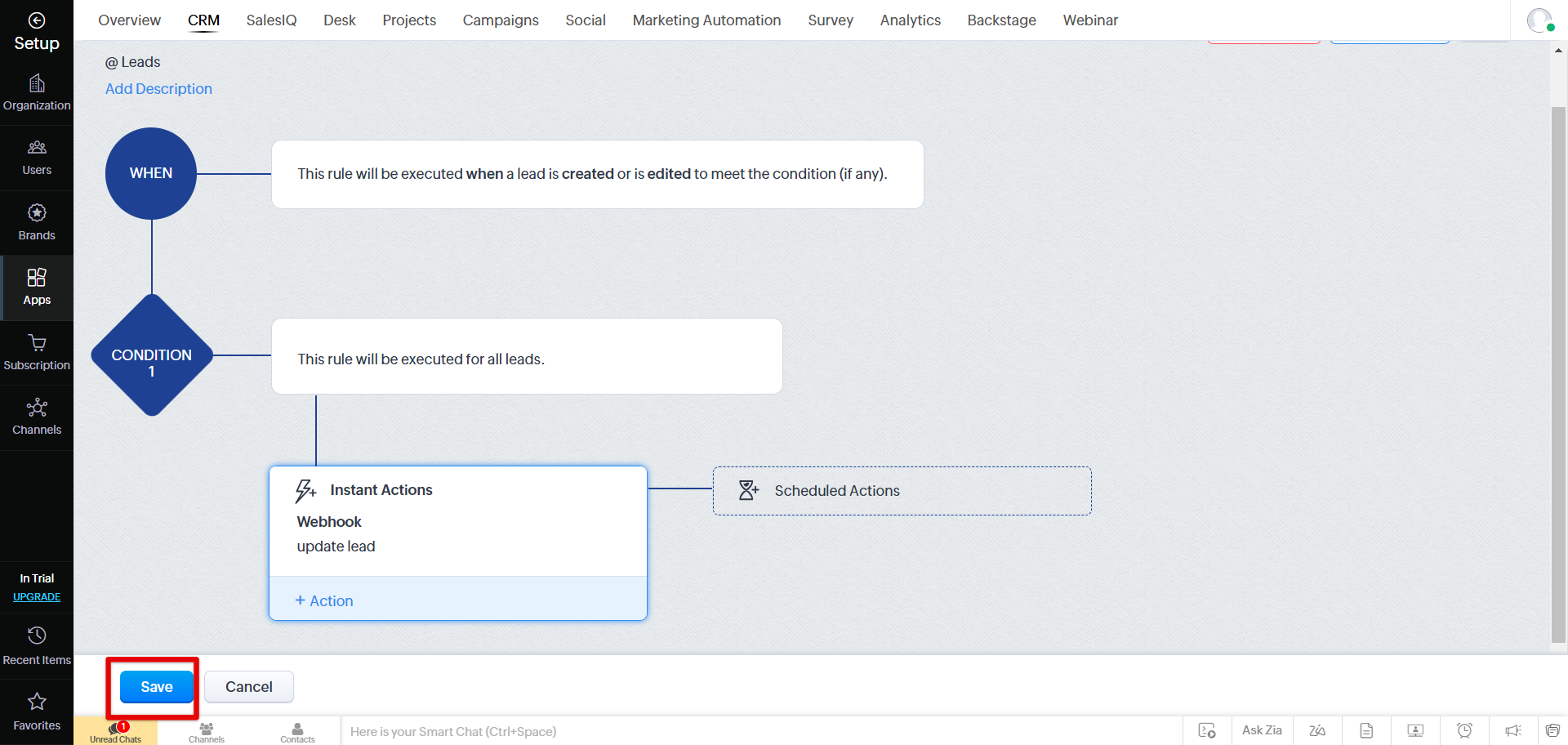
Note: The custom phone field syncs for newly updated leads once the integration is enabled. To sync the custom phone field for existing leads, contact the CallHippo support team.
4. Update Lead webhook
The Update Lead webhook follows the same pattern as Add Lead, with two differences: the trigger action and the notify URL.
- Create a new rule with the following details and click Next:
- Module: Leads
- Rule Name: Update Lead
- Description: Called when a lead is updated.
- Under When, select Record action, choose the Edit action, and click Next.
- In the Condition 1 section, select All Leads and click Next.
- In the Instant Action dropdown, select Webhooks, click New Webhook, and provide the details:
- Name: Update Lead
- Description: Update Lead Webhook
- Method: POST
- URL to Notify:
https://activity.callhippo.com/integration/users/5eabbffc91eeda5ed9833d68/zoho/webhook/updatelead - Authorization Type: General
- In the Body section, set Type to Form-Data and add the same lead module parameters used for Add Lead (leadId, leadEmail, leadFirstName, leadLastName, leadMobile, leadPhone, leadOtherPhone).
- Click Save and Associate to complete the setup.
Still need help? Reach us at [email protected].