
Managing multiple phone numbers across teams, regions, or campaigns can get complex. CallHippo’s Number Naming feature helps you stay organized by letting you assign clear, custom labels to each virtual number in your account.
Instead of remembering phone numbers, you can name them based on their purpose—such as “Support – US”, “Sales – Q2 Campaign”, or “Marketing – EU.” This makes it easier for your team to identify numbers quickly, manage calls efficiently, and avoid confusion, especially when handling high call volumes or multiple regions.
Important: Number names are for internal reference only. They do not affect the caller ID shown to recipients during outgoing calls.
In this guide, we’ll show you how to name your numbers and use this feature to keep your communication structured and efficient.
Steps to name a CallHippo number
- Log in to your CallHippo dashboard.
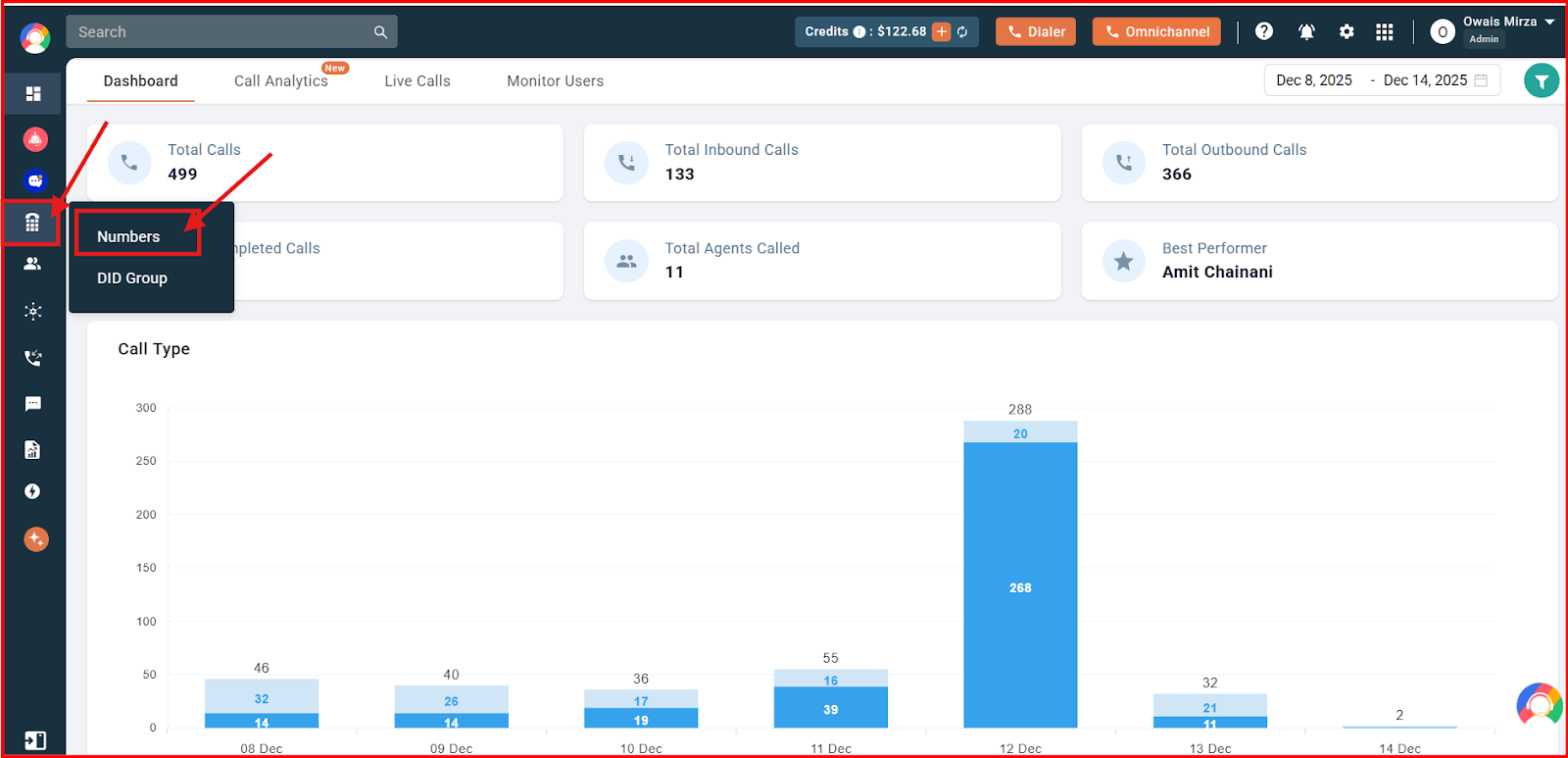
- Navigate to the Number and DID section and click on the Numbers option.
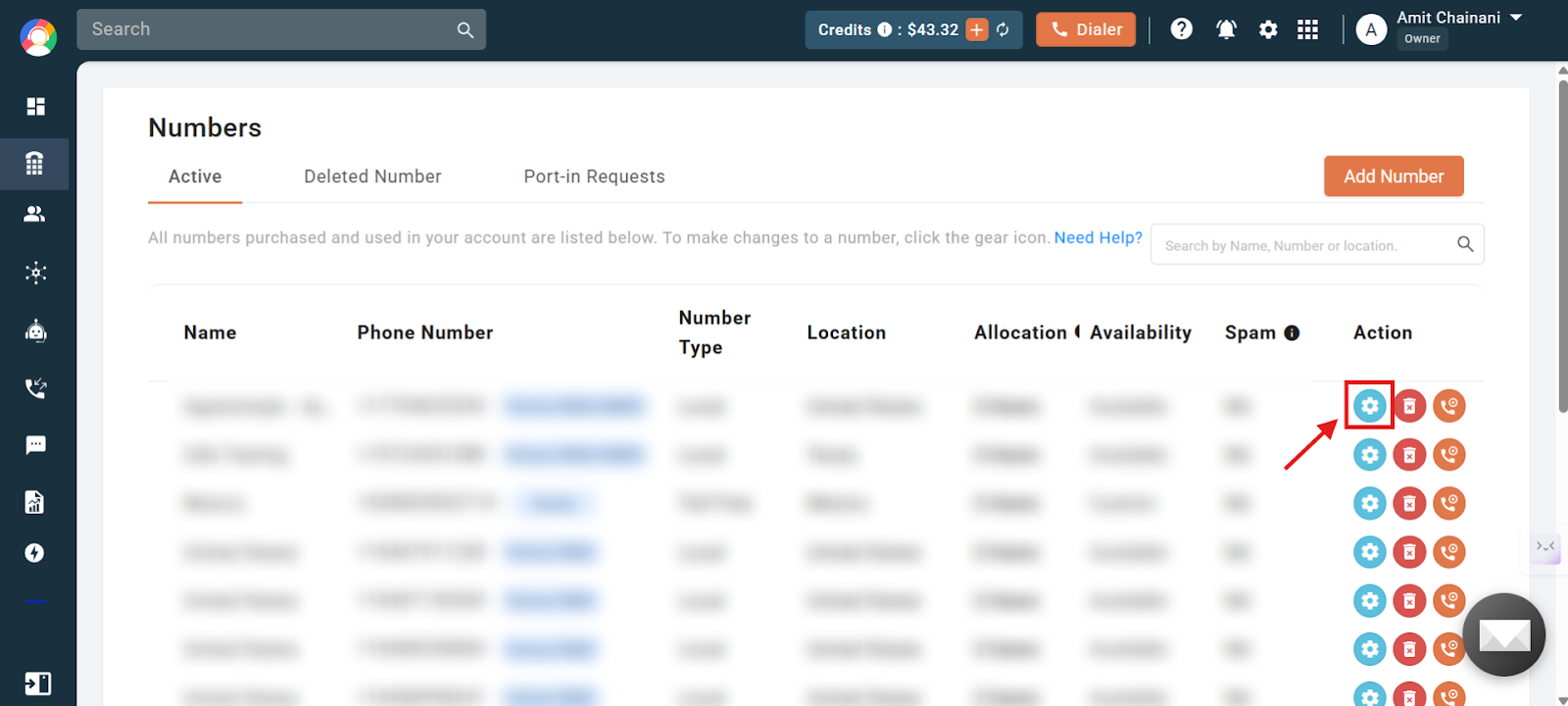
- Click on the settings icon of the number that you want to name.
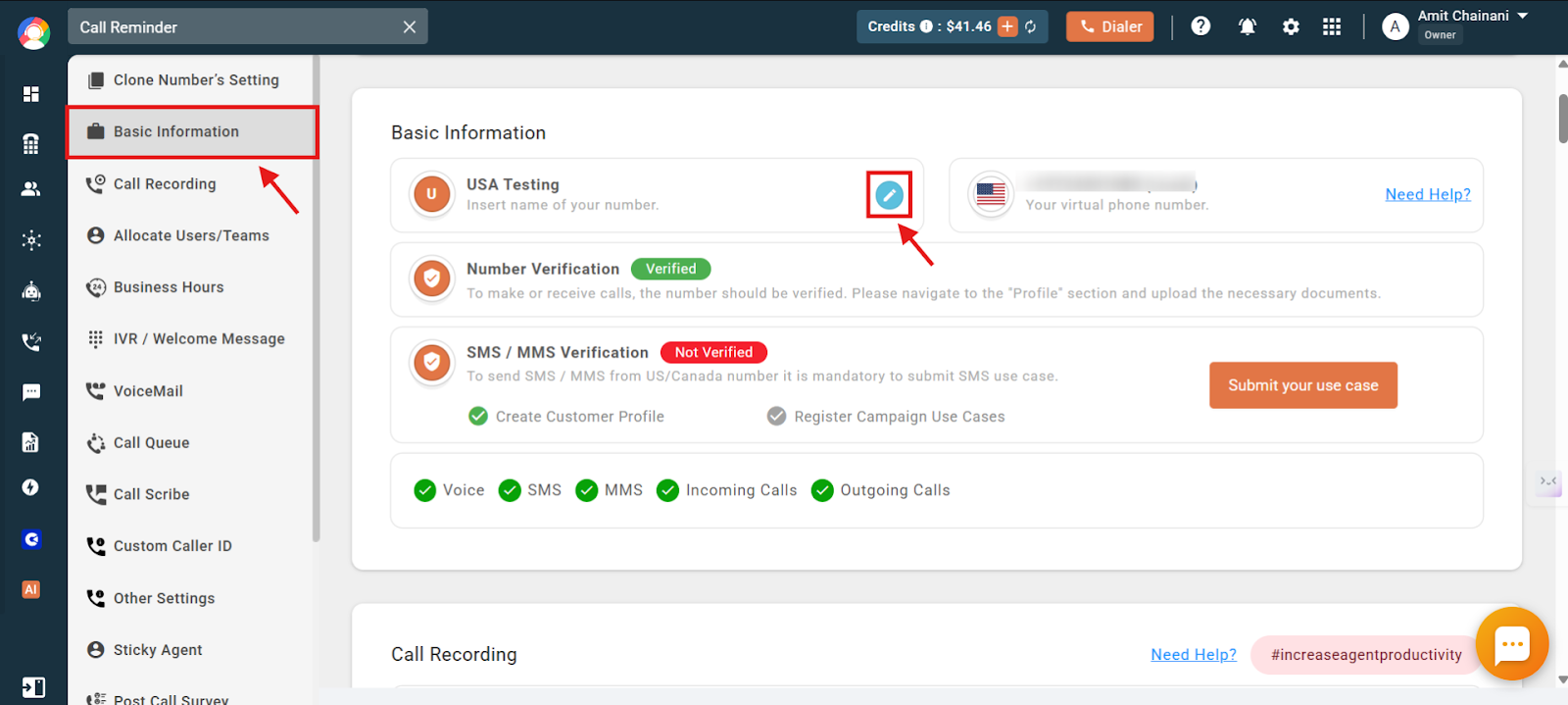
- Go to the Basic Information section, and click on the blue colored Edit icon.
- Enter the name of the number and then click on the blue colored icon to save the changes.
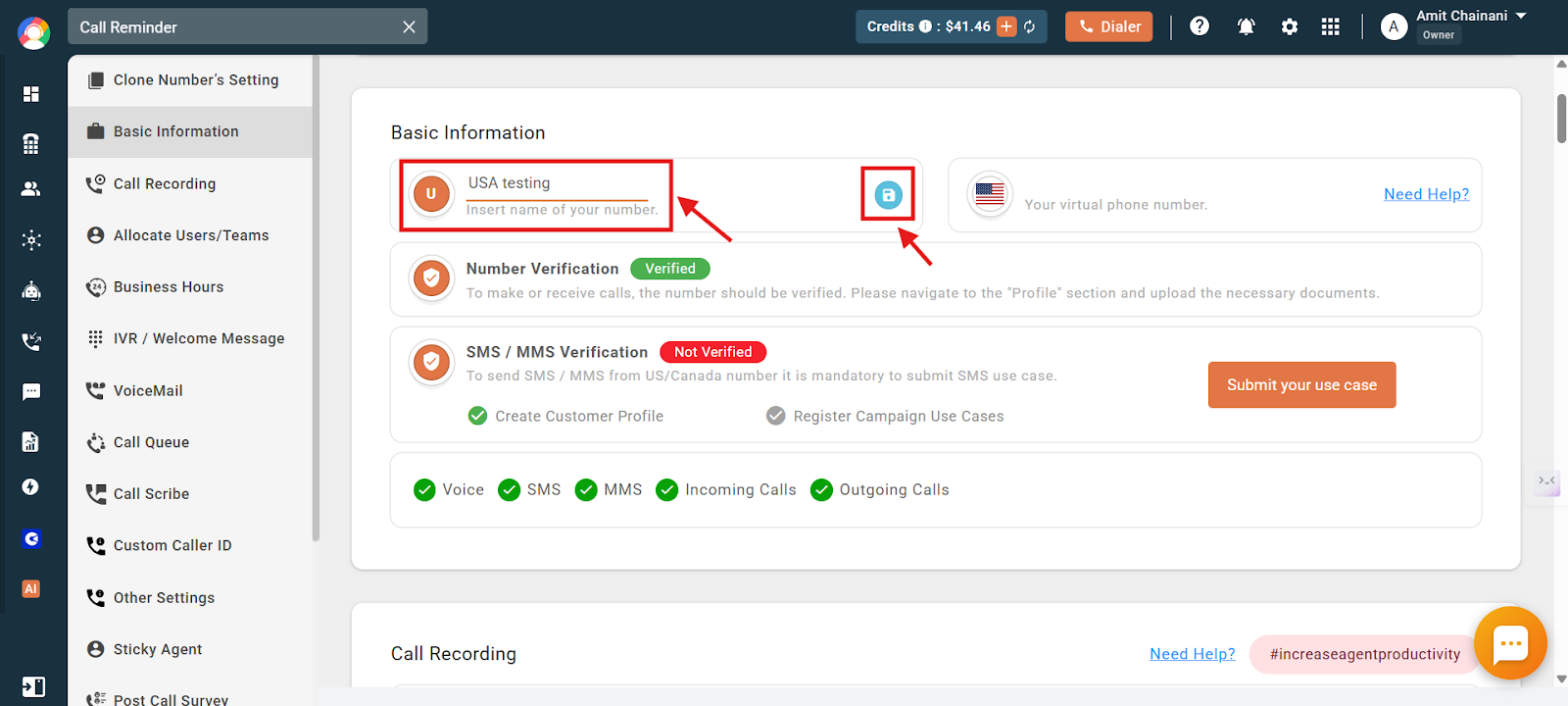
Your number has now been named.
Where the number name appears
Displaying the name of the number in these key areas ensures better identification and enhances clarity during call handling and number selection.
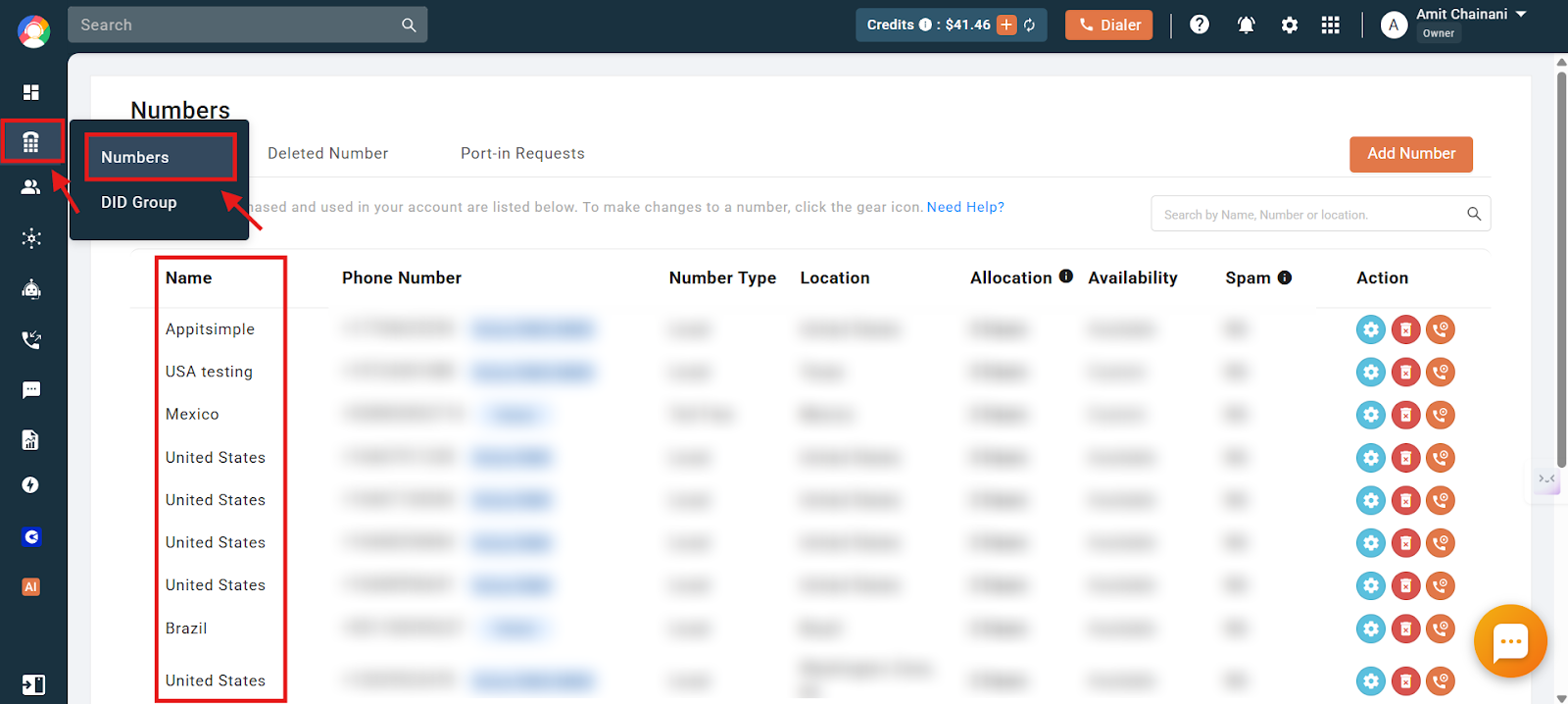
- In the number section of your CallHippo dashboard.
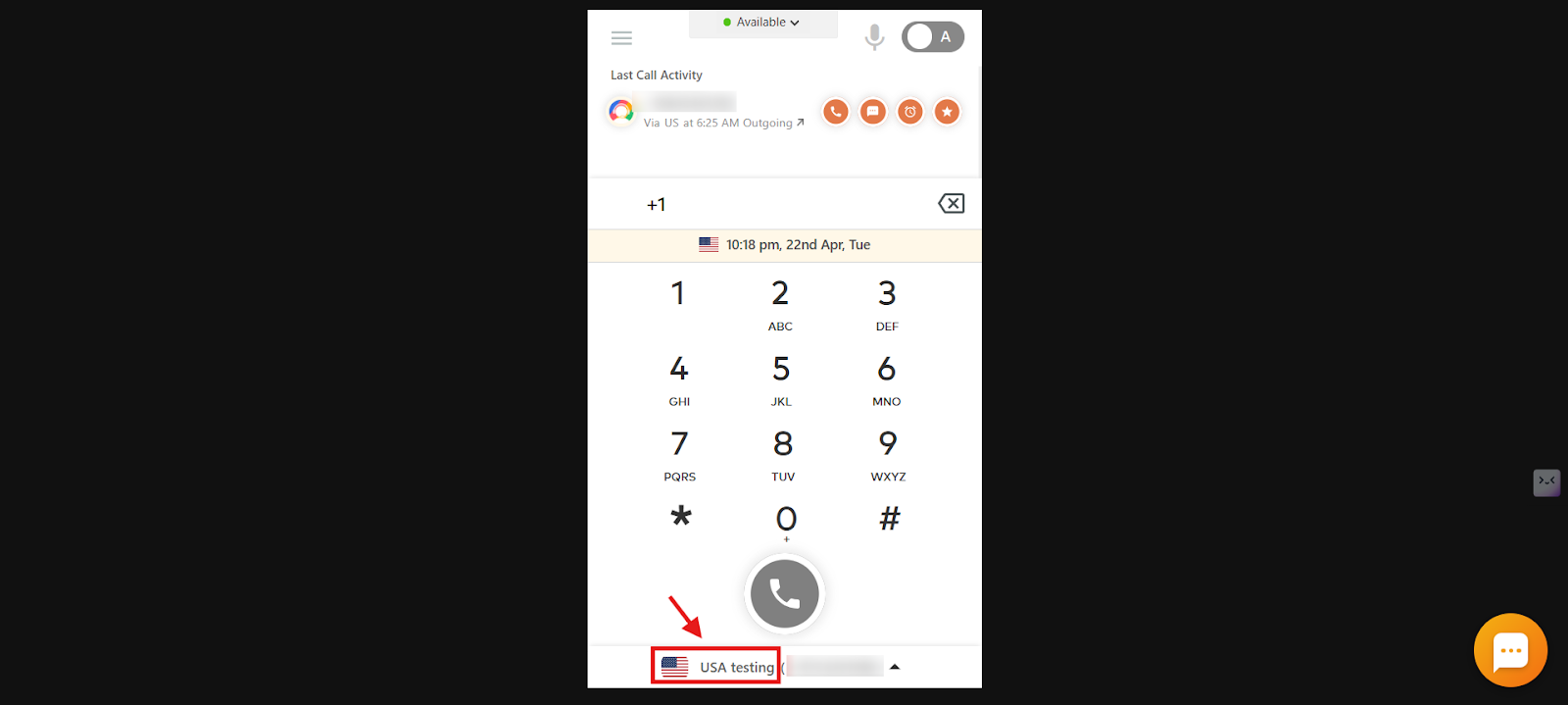
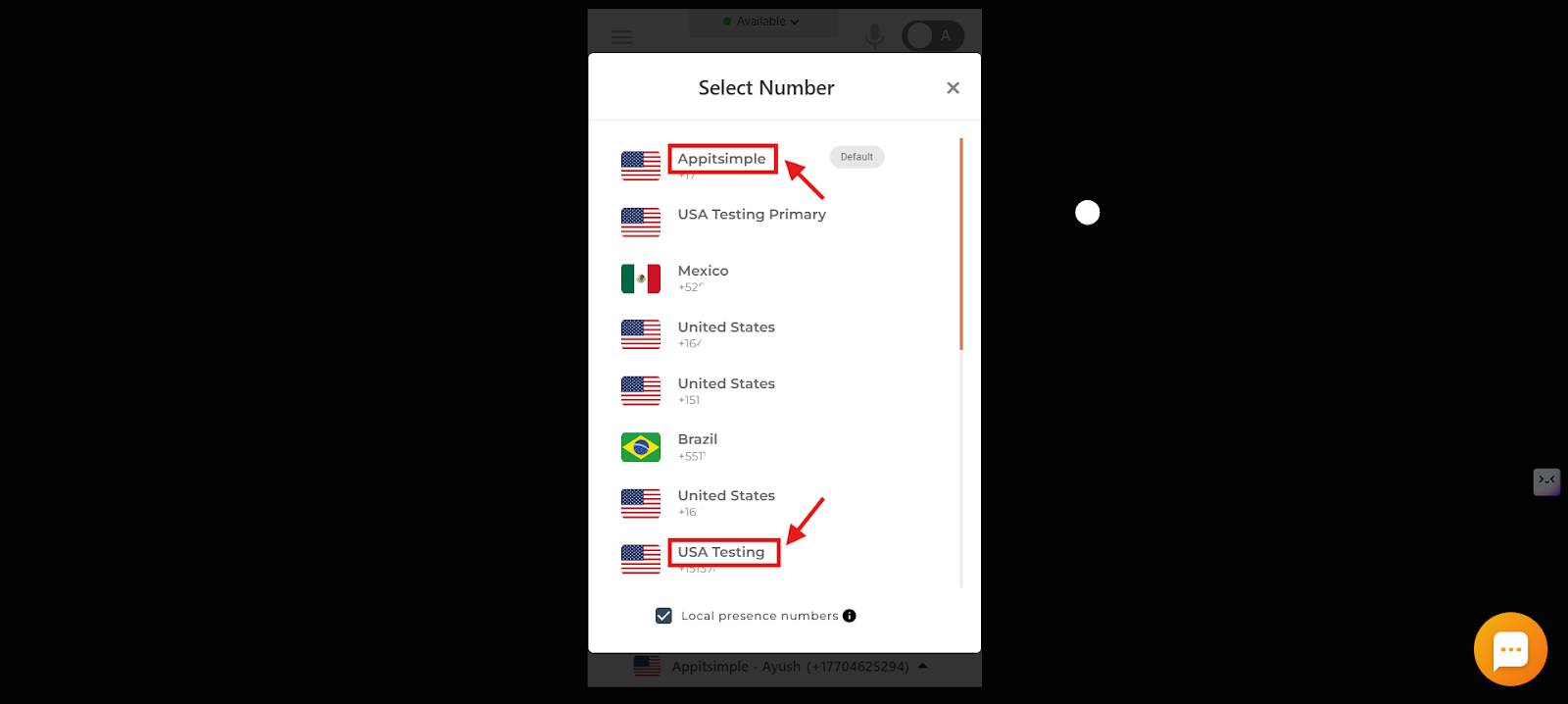
- In the allocated numbers section in the dialer, so that you can select the number by checking the name for better clarity.
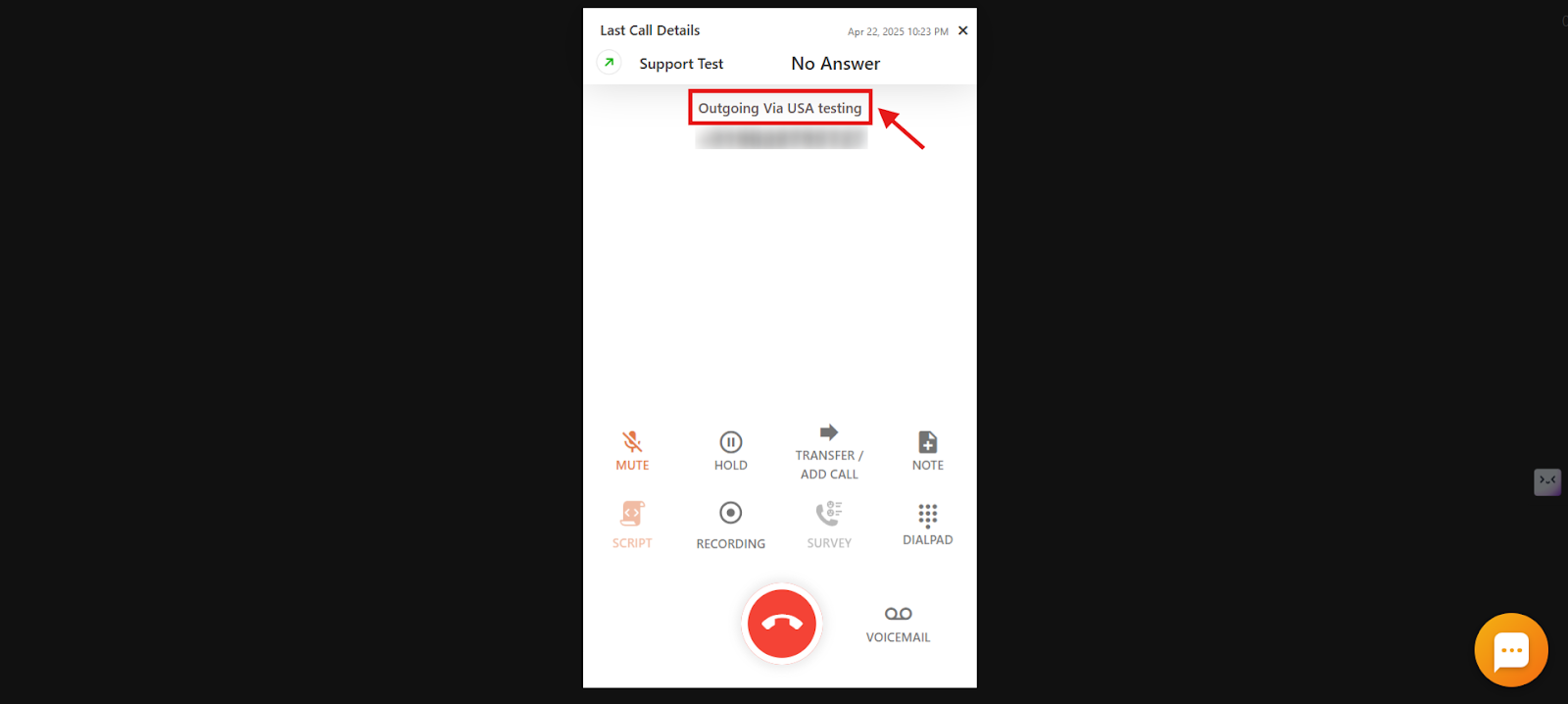
- On the dialer screen during an ongoing outgoing call.
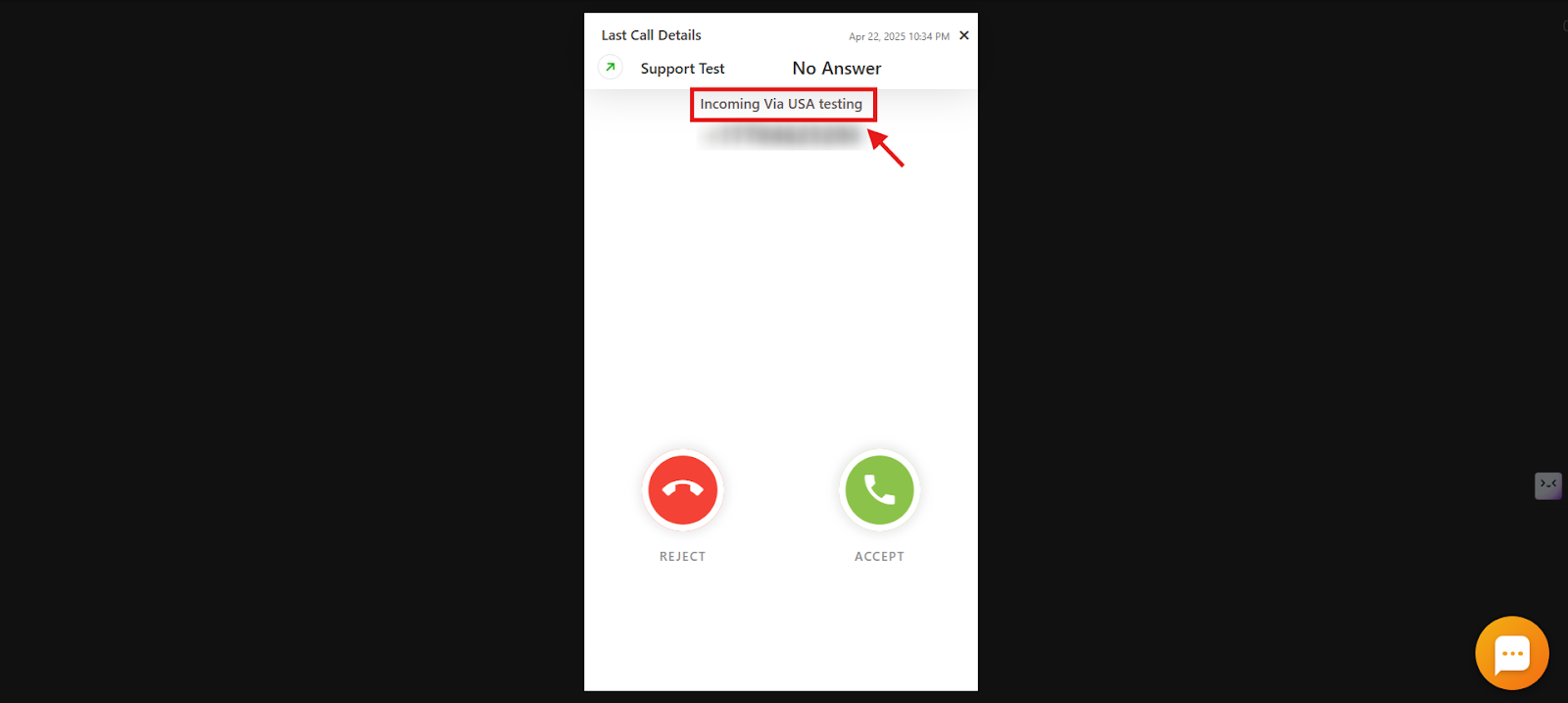
- During an incoming call on the dialer screen.
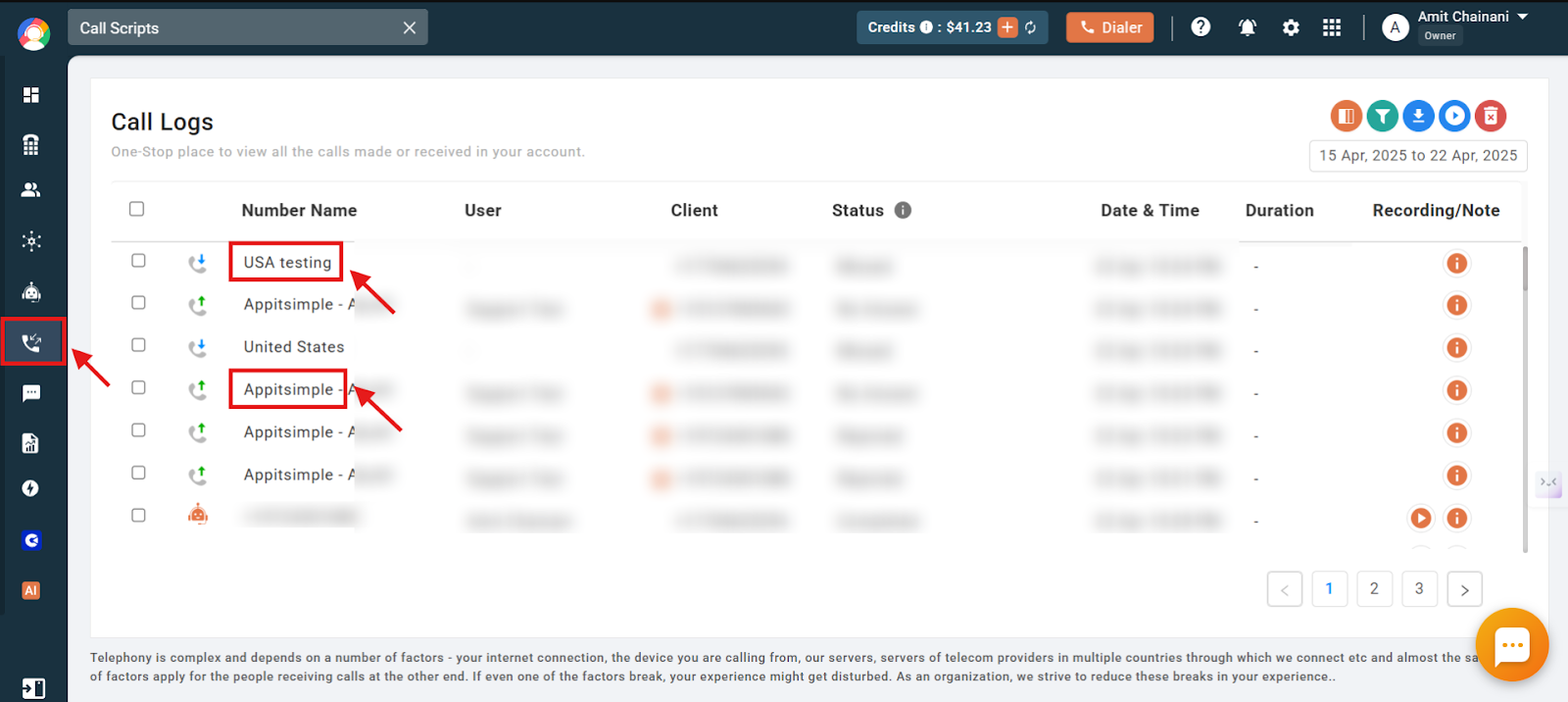
- In the Call Log and Recordings section of the CallHippo dashboard.
Frequently asked questions
Q: What does “naming a number” mean in CallHippo?
A: Number naming is a feature that lets you assign custom, descriptive labels to each virtual phone number in your CallHippo account for easier identification and organization.
Q: Why should I name the numbers in my CallHippo account?
A: Naming helps your team easily recognize each number’s purpose, improves coordination, and reduces confusion when managing multiple numbers across departments or regions.
Q: Can I use number names to identify team responsibilities?
A: Yes, you can label numbers by department or campaign, like “Support – US” or “Sales – Q2 Campaign,” for quick reference.
Q: Will the name I assign to a number be visible to people I call?
A: No, the name is only for internal reference and won’t appear on the recipient’s caller ID.
Q: How can naming numbers help during high call volumes?
A: It helps agents quickly select and use the right number, minimizing errors and improving efficiency during busy call times.
Q: Does naming a number impact billing or pricing?
A: No, naming a number is purely an organizational feature and has no effect on your billing.
Q: Can multiple users see the number names?
A: Yes, anyone with access to the CallHippo account can view the named numbers.
We hope this helps. If you still have questions, feel free to reach out at [email protected].