
Admins can control whether a sub-user sees only their own calls or all activity for the numbers allocated to them, using the Activity Feed module rights.
Only the admin account can grant module rights to sub-users. If you want a sub-user to view the activity feed based on their allocated numbers, follow the steps below.
Steps to Configure the Sub-User Activity Feed
- Log in to your CallHippo dashboard from an admin account.
- Go to the Users section from the left navigation.
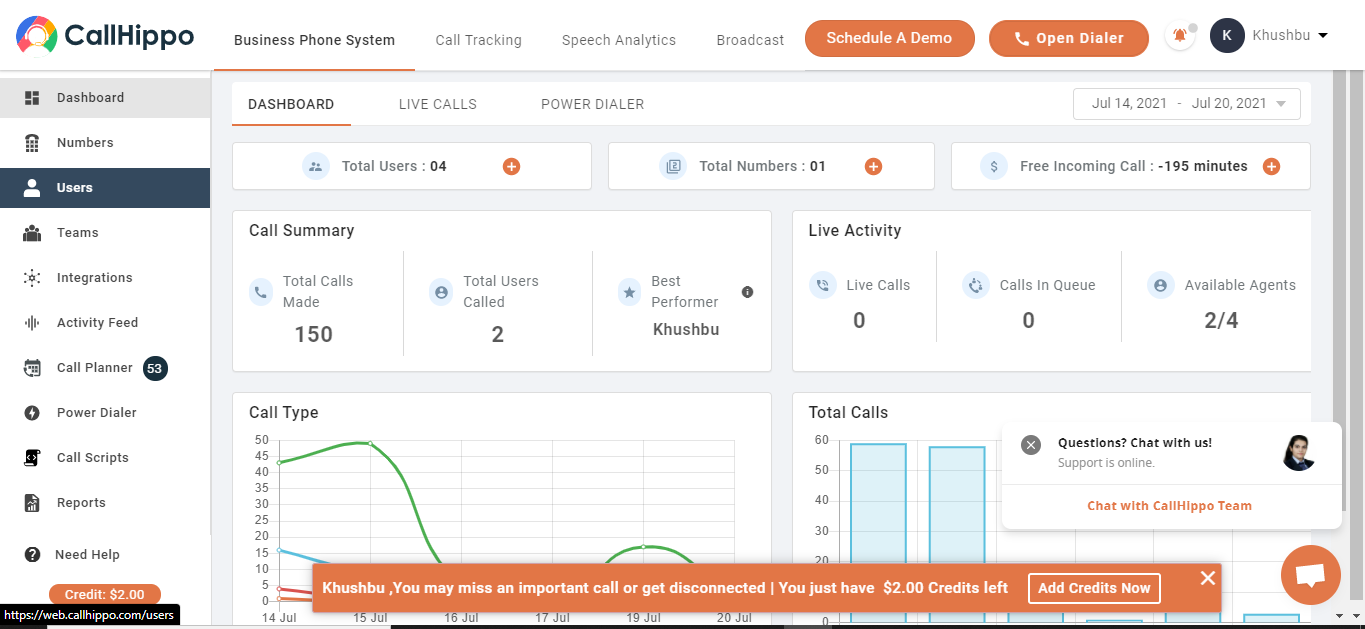
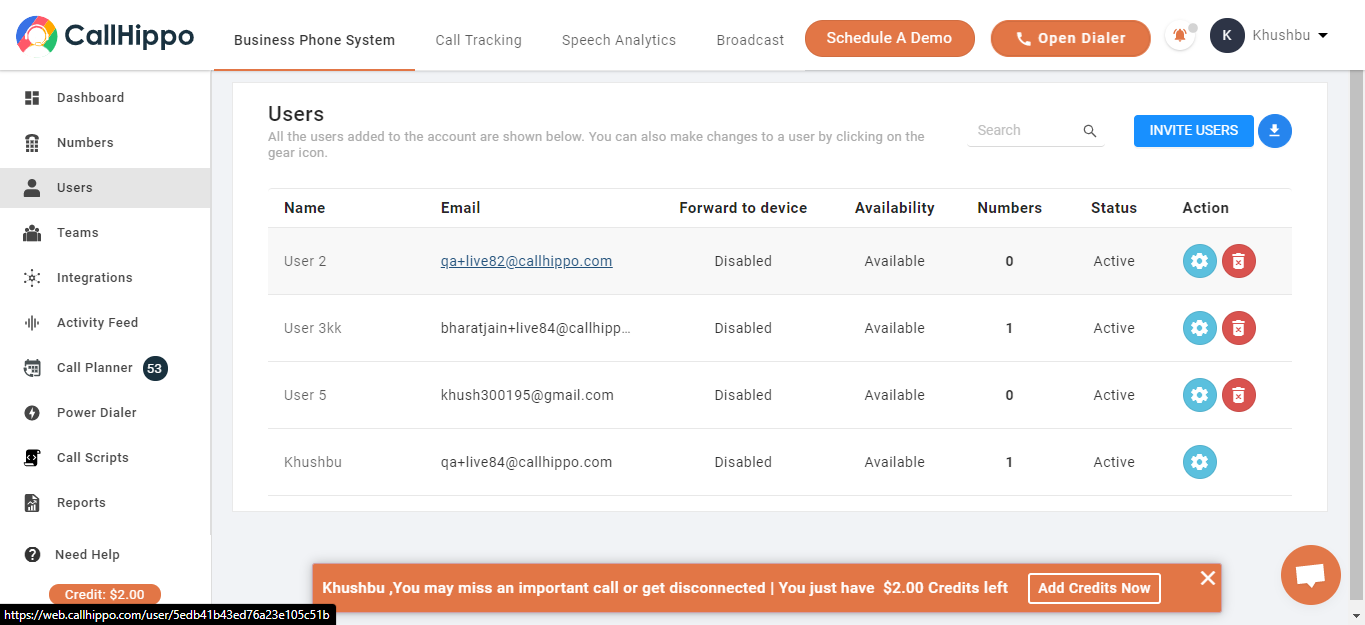
- Select a sub-user by clicking the gear icon next to the user you want to give activity feed rights to.
- Open Module Rights and update the rules for numbers, users, and teams (or the team activity module) as per your preferences.
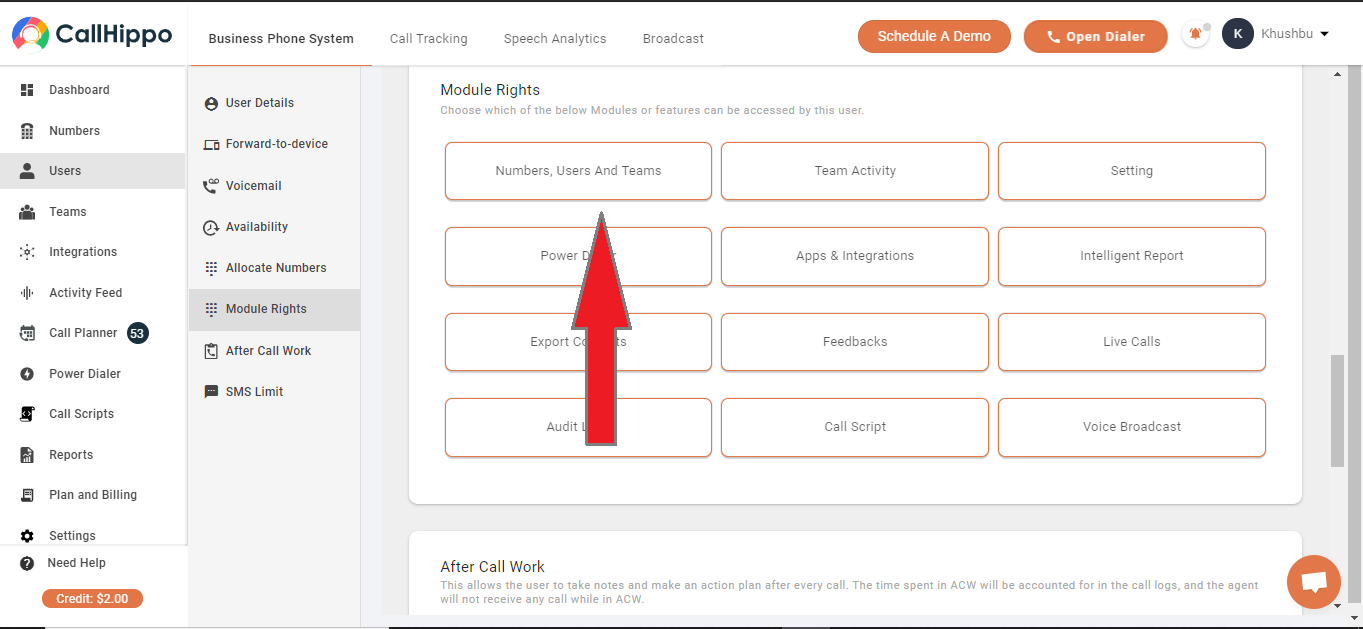
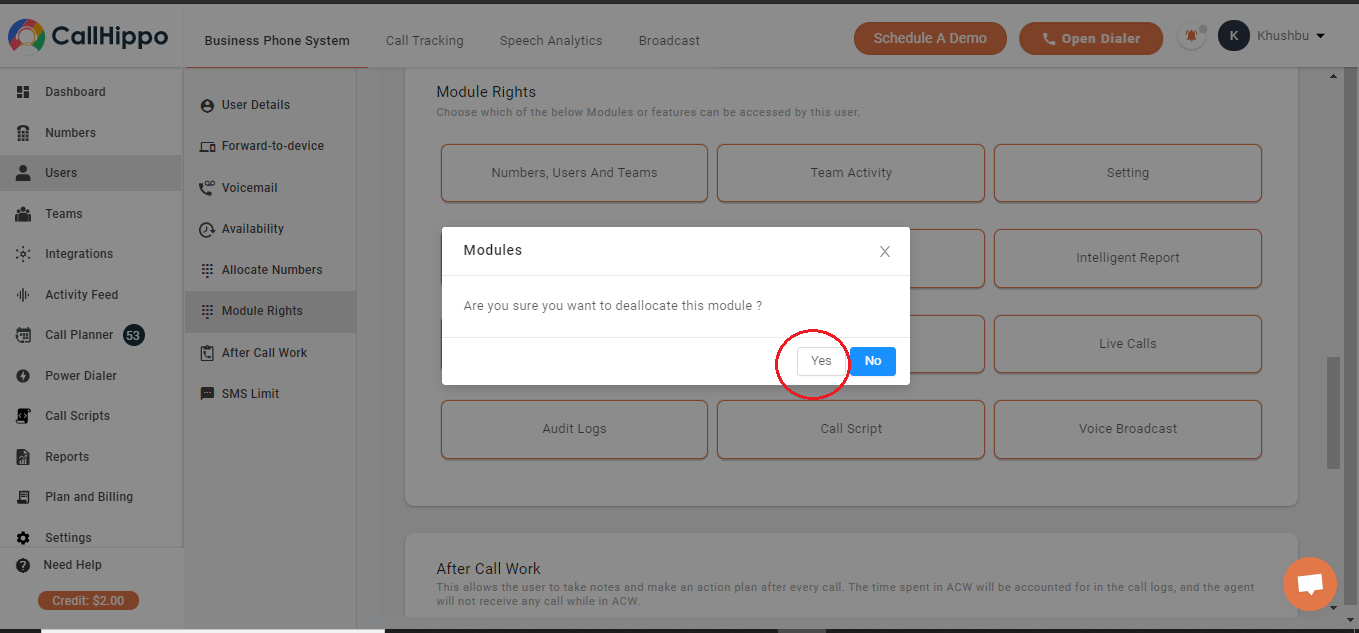
- Set the Activity Feed toggle as needed and save.
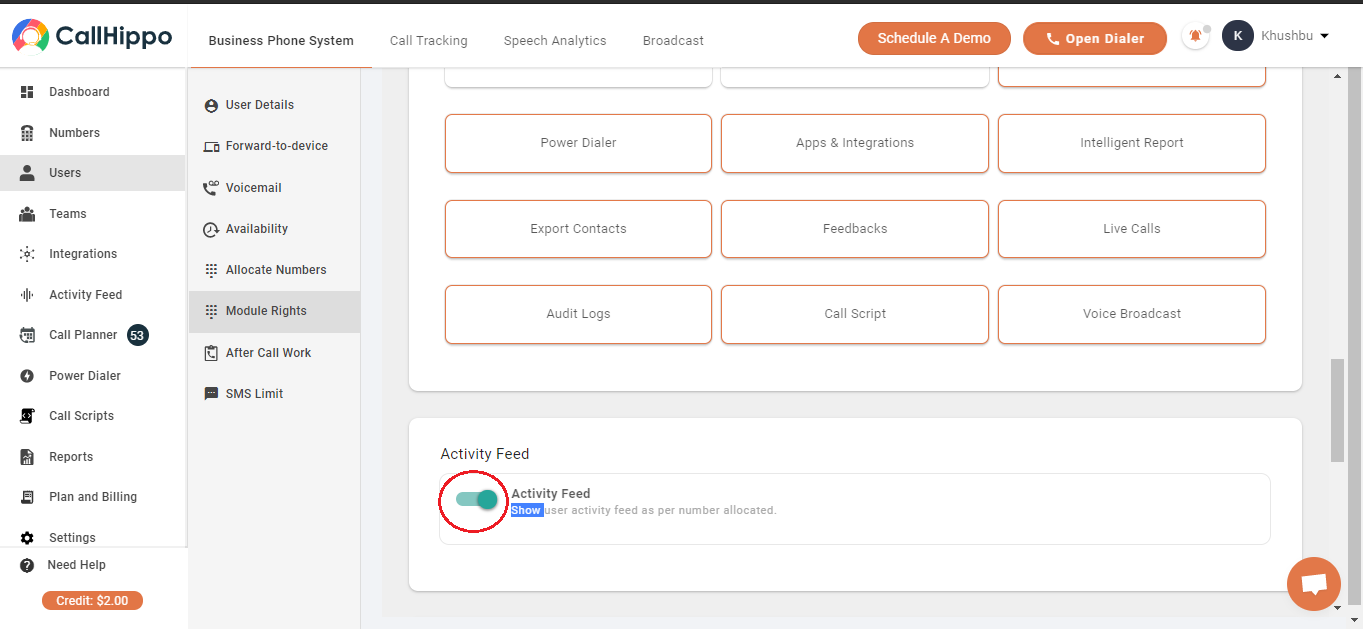
How the Activity Feed Toggle Behaves
- Activity Feed On: The user can see only their own calls in the activity feed.
- Activity Feed Off: The user can see all logs of the numbers that are assigned to them.
Need a hand setting up module rights? Reach our team at [email protected].