
The Monitor Users section in CallHippo gives supervisors real-time visibility into who is available, on a call, idle, on break, or offline, along with detailed session data for every agent.
From a single screen you can see how many agents are working, review login and logout times, track session durations, and even force a user out of an inactive dialer session. It is one of the most useful tools for managing team availability and shift compliance.
Purpose of the Monitor Users Tab
The Monitor Users tab is designed to help you:
- Track current status of all users, whether they are online, offline, on break, or in a personal session.
- Monitor agent availability to ensure adequate staffing during working hours.
- View session data, including session start time and total duration.
- Analyze login and logout patterns for shift compliance and time management.
- Identify active and inactive users to assess daily workforce performance.
When to Use It
This section is especially helpful in a few common situations:
- During peak call hours, to confirm enough agents are online and ready to take calls.
- At the start or end of shifts, to check whether users are logging in and out at expected times.
- For routine supervision of agent activity throughout the day.
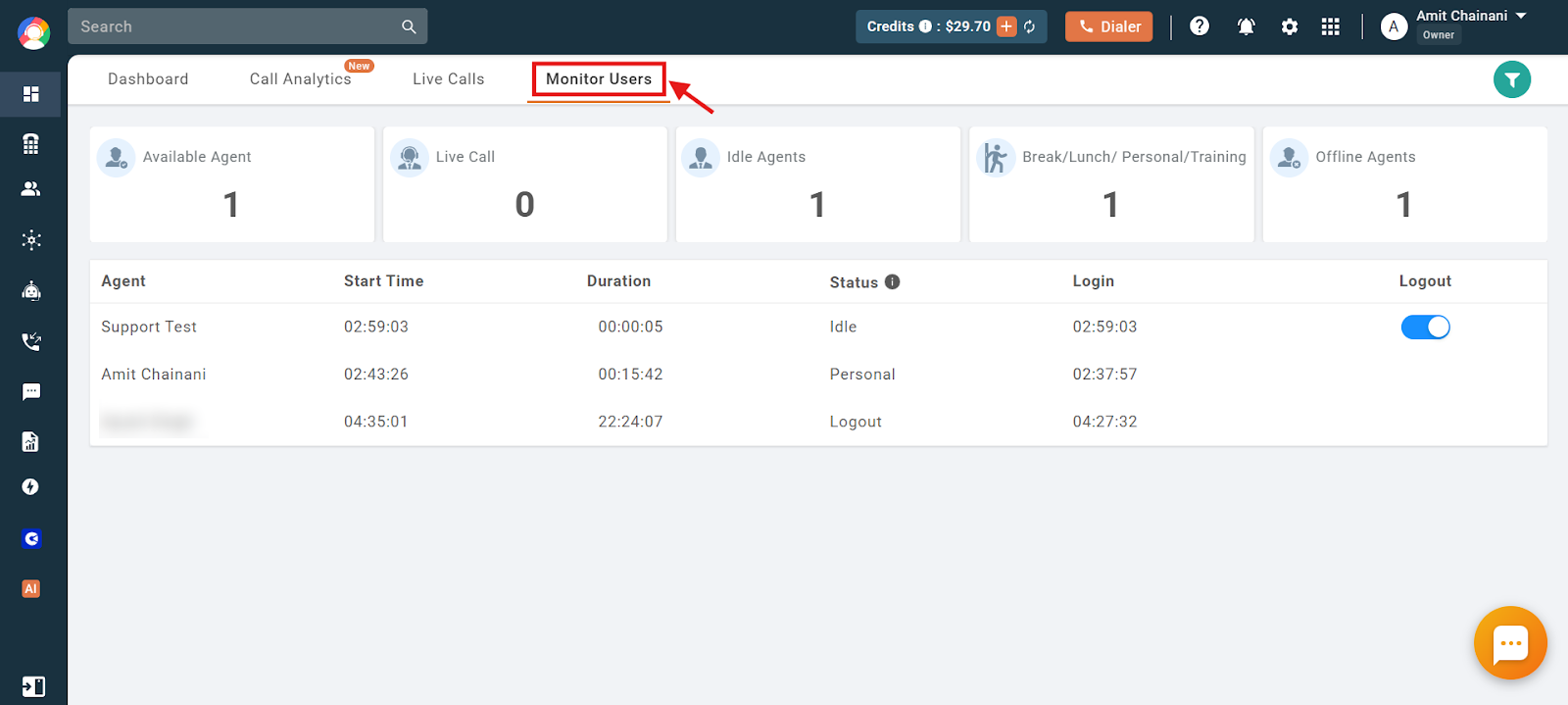
To open it, log in to your CallHippo dashboard and click the Monitor Users option on the homepage.
Information Available in the Monitor Users Section
Agent Status Summary: a visual count of agents in each of the following categories:
- Available Agent
- Live Call
- Idle Agents
- Break / Lunch / Personal / Training
- Offline Agents
User Activity Table: a list of users with these details:
- Agent Name
- Start Time — when the current or last session began
- Duration — total time spent in the current session
- Status — current activity status (e.g. Personal, Logout)
- Login Time — when the user last logged in
- Logout Time — when the user last logged out
Force Logout Users from the Dialer
The Force Logout option lets Owners, Admins, and Managers remotely log users out of their dialer sessions (not from their dashboard). It is a quick way to make sure inactive agents are properly logged out.
Key points to remember:
- This feature only logs users out of the CallHippo web dialer and desktop application.
- It does not apply to users logged in via the CallHippo mobile app (Android or iOS).
How to force logout a user:
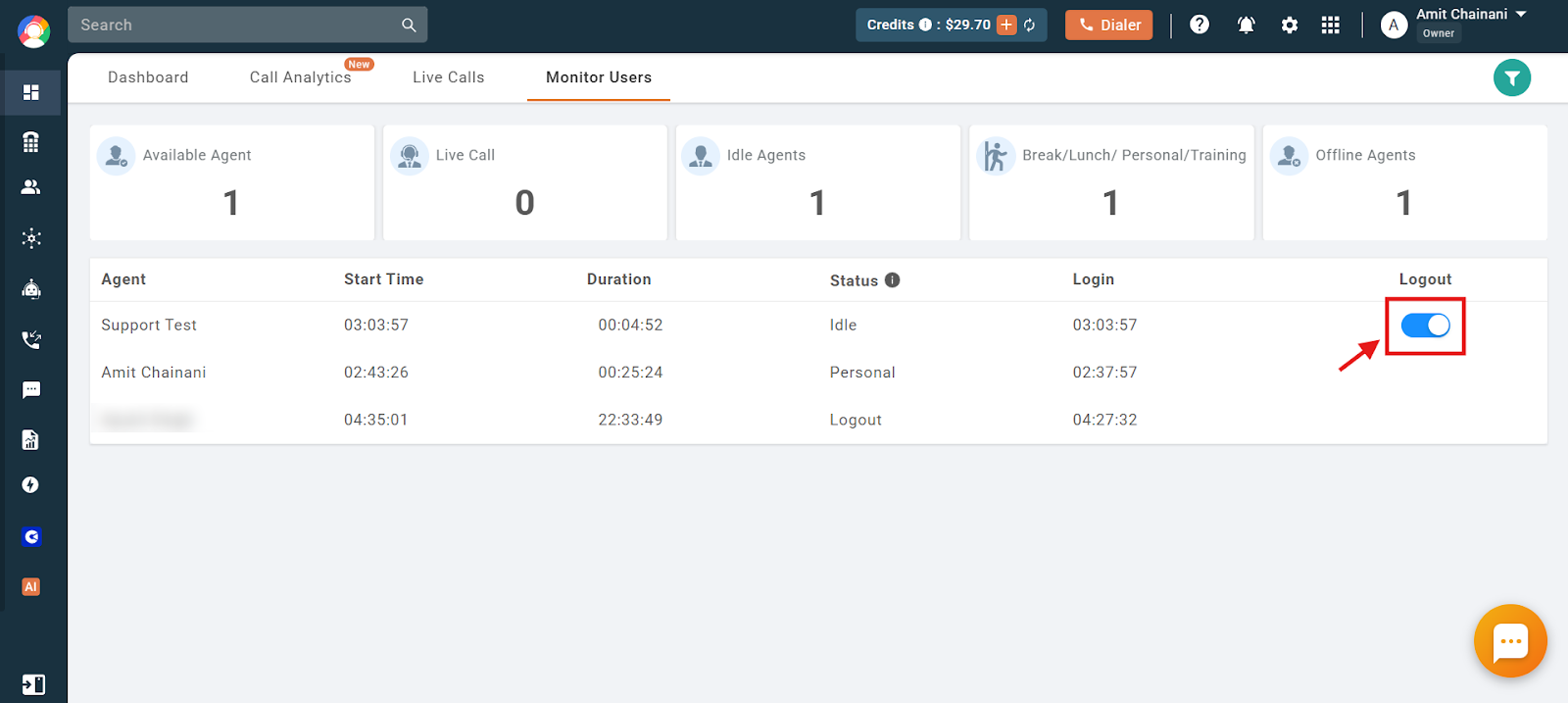
- Go to the Monitor Users tab and click the toggle under the Logout section for that user.
- Click Yes to confirm the change.
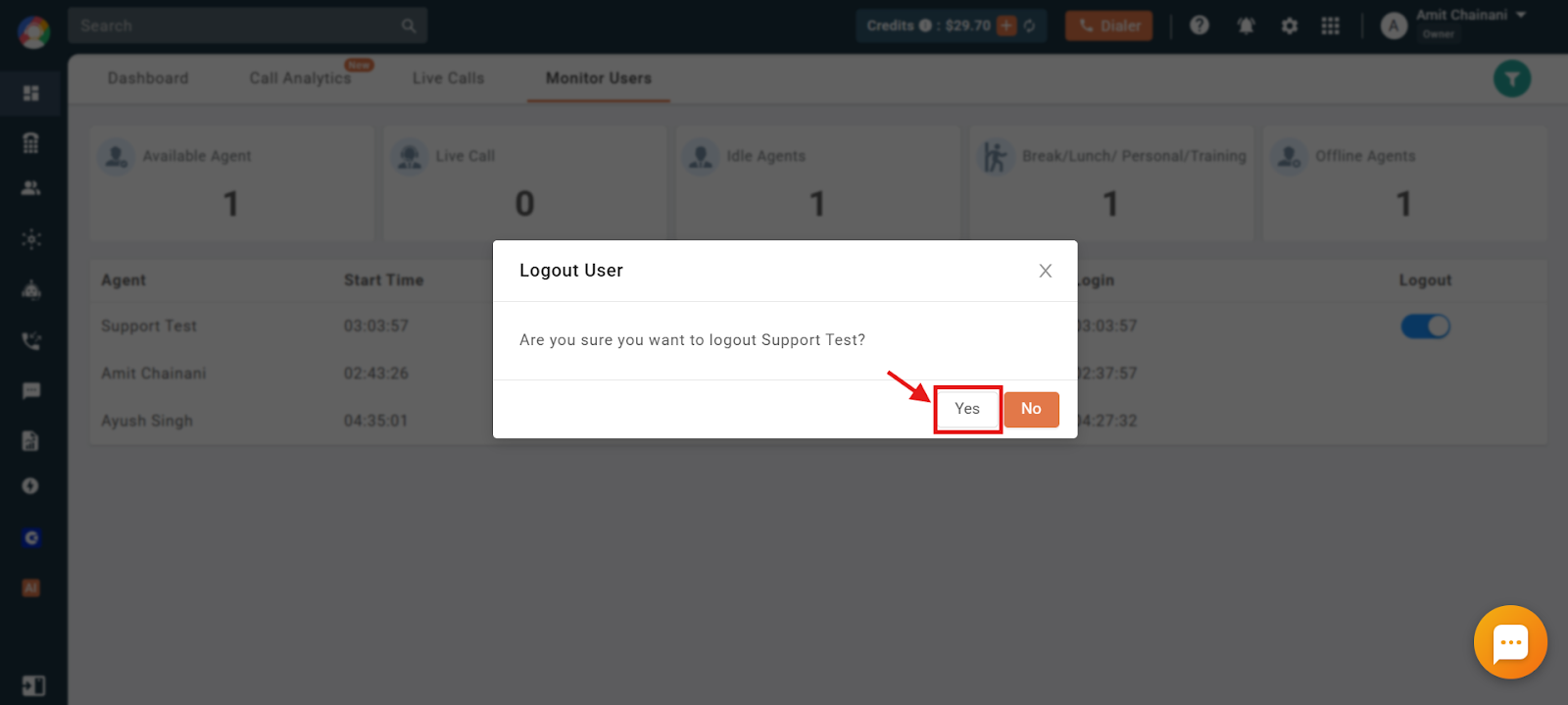
Once confirmed, the selected user is immediately logged out of the dialer session. This does not delete the user account or affect an ongoing dashboard session if the user is also logged into the main portal.
Important: You can only force logout a user who is in an idle state. If the user is on an active call at the time of force logout, the call will be disconnected immediately. If the user is on an active call, on the After Call Work (ACW) screen, or receiving a call (ringing), the dashboard shows their status as Live Call.
Frequently Asked Questions
How does the Monitor Users tab help with team supervision?
It lets supervisors track user availability, monitor session activity, and review login and logout patterns to ensure shift compliance and effective workforce management.
Where can I access the Monitor Users feature in CallHippo?
After logging into your CallHippo dashboard, open the Monitor Users section directly from the homepage by clicking the Monitor Users option.
What information is shown in the User Activity Table?
Each agent’s name, current status, session start time, session duration, last login time, and last logout time.
Who can use the Force Logout feature, and what does it do?
Owners, Admins, and Managers can use Force Logout to remotely log users out of their web dialer or desktop app sessions. It helps ensure inactive agents are logged out when needed.
Can I force logout a user from the CallHippo mobile app?
No. Force Logout does not apply to users logged in through the CallHippo mobile app on Android or iOS. It only works for web dialer and desktop sessions.
When can a user be force logged out from the dialer?
Only when they are in an idle state. If they are on a live call or on the After Call Work screen, the system shows them as “Live Call” and logging them out will disconnect the call immediately.
Can I see who is offline and online right now?
Yes. The Agent Status Summary shows the number of users currently online (Available, Idle, On Call, etc.) and offline, and the User Activity Table shows each individual user’s status.