
Need to update a team name in your CallHippo account? Renaming a team is quick and does not affect its members, call routing, or any existing settings.
Before You Begin
- No impact on settings: Changing a team name does not alter allocation, calling order, backup team, ringing time, or any other configuration.
- Owner and admin access: You need the right permissions to edit a team.
Steps to Rename a Team
- Log in to your CallHippo dashboard.
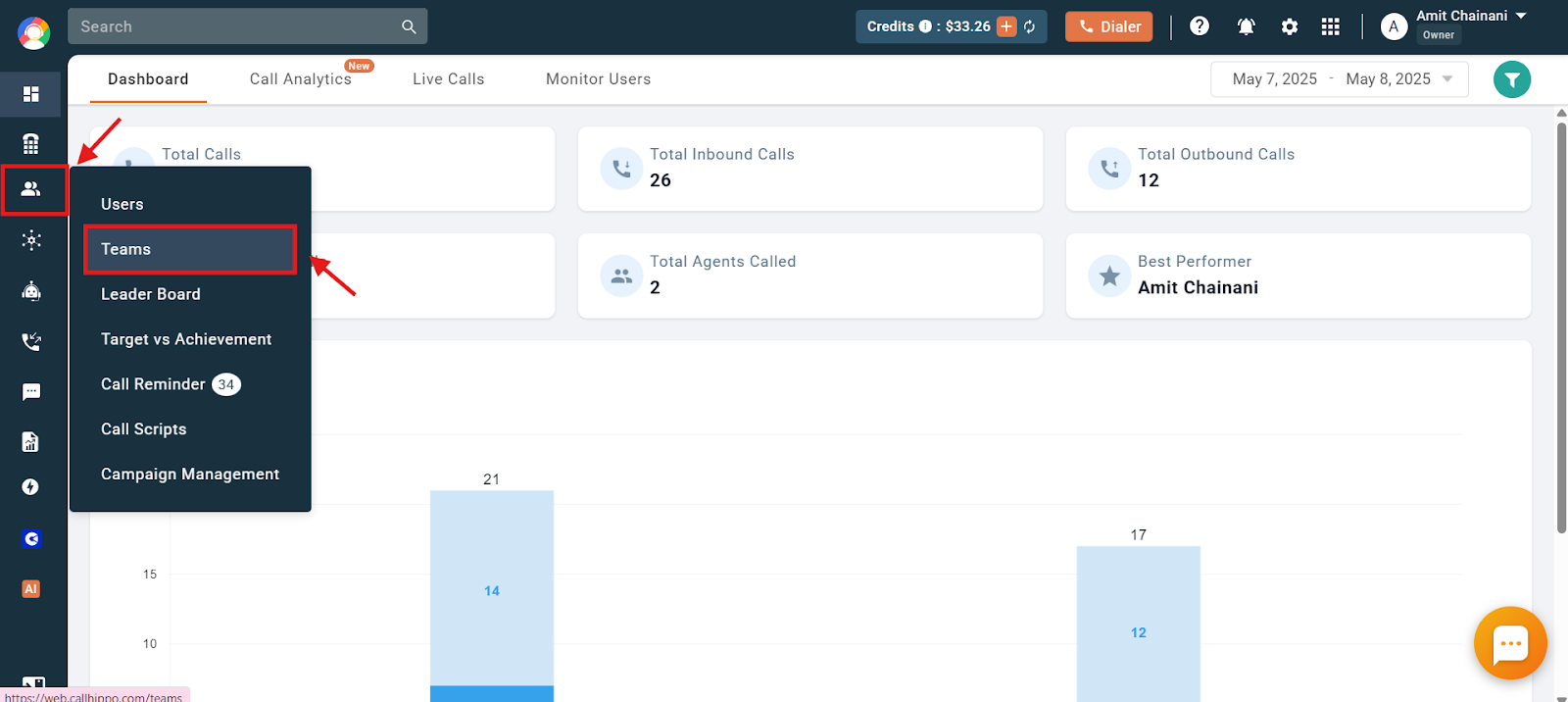
- Open Teams: Navigate to the Users and Performance section on the left and click Teams.
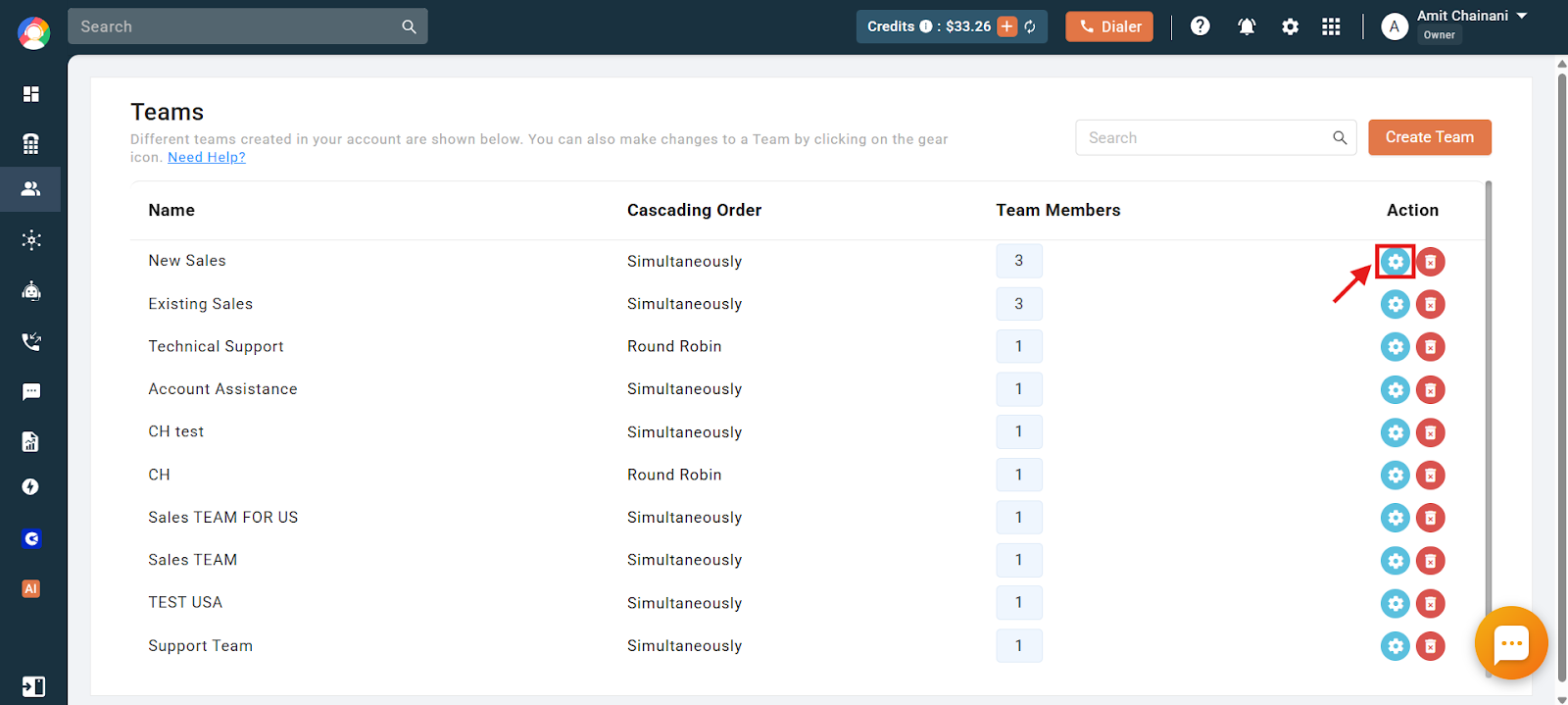
- Open team settings: Click the settings (gear) icon of the team you want to rename.
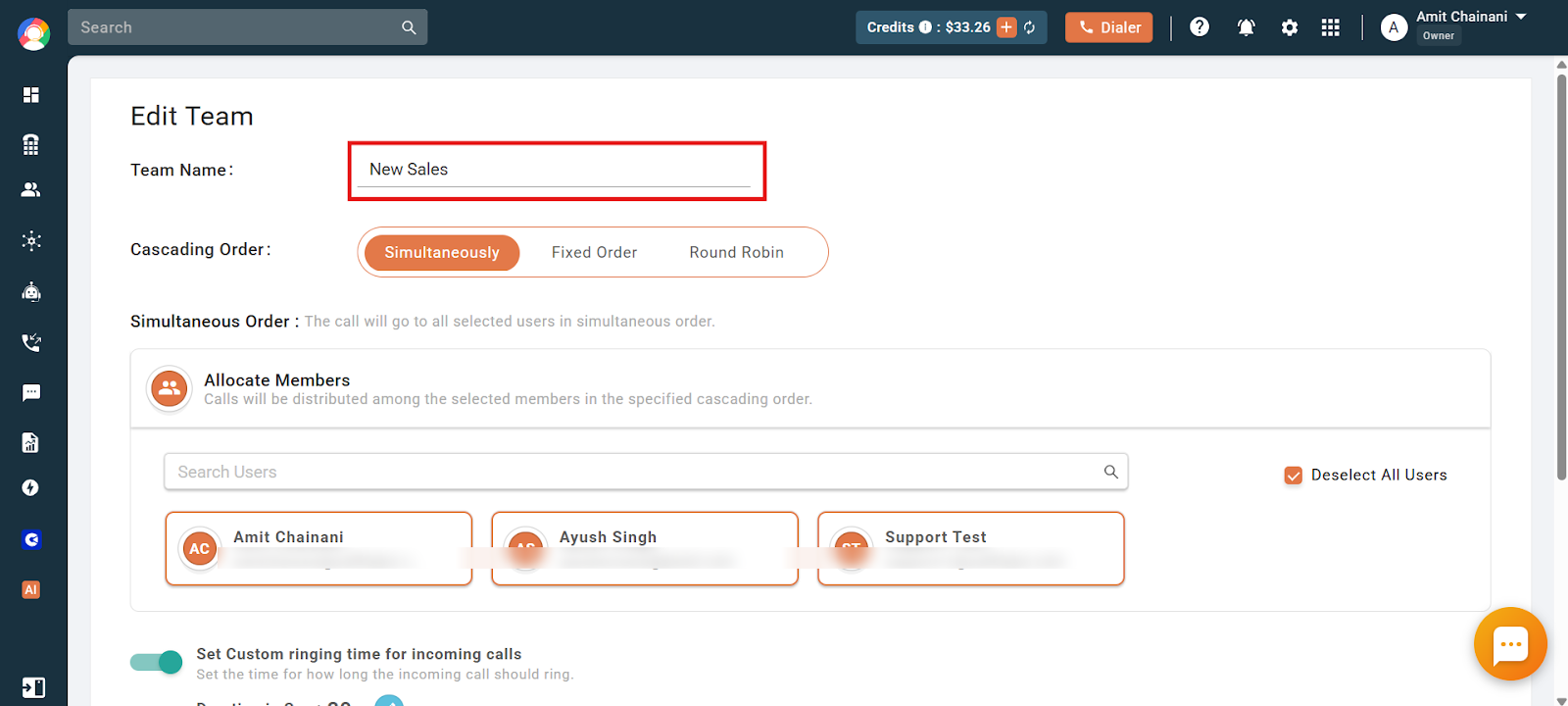
- Edit the name: In the Edit Team screen, update the Team Name field to any name you prefer.
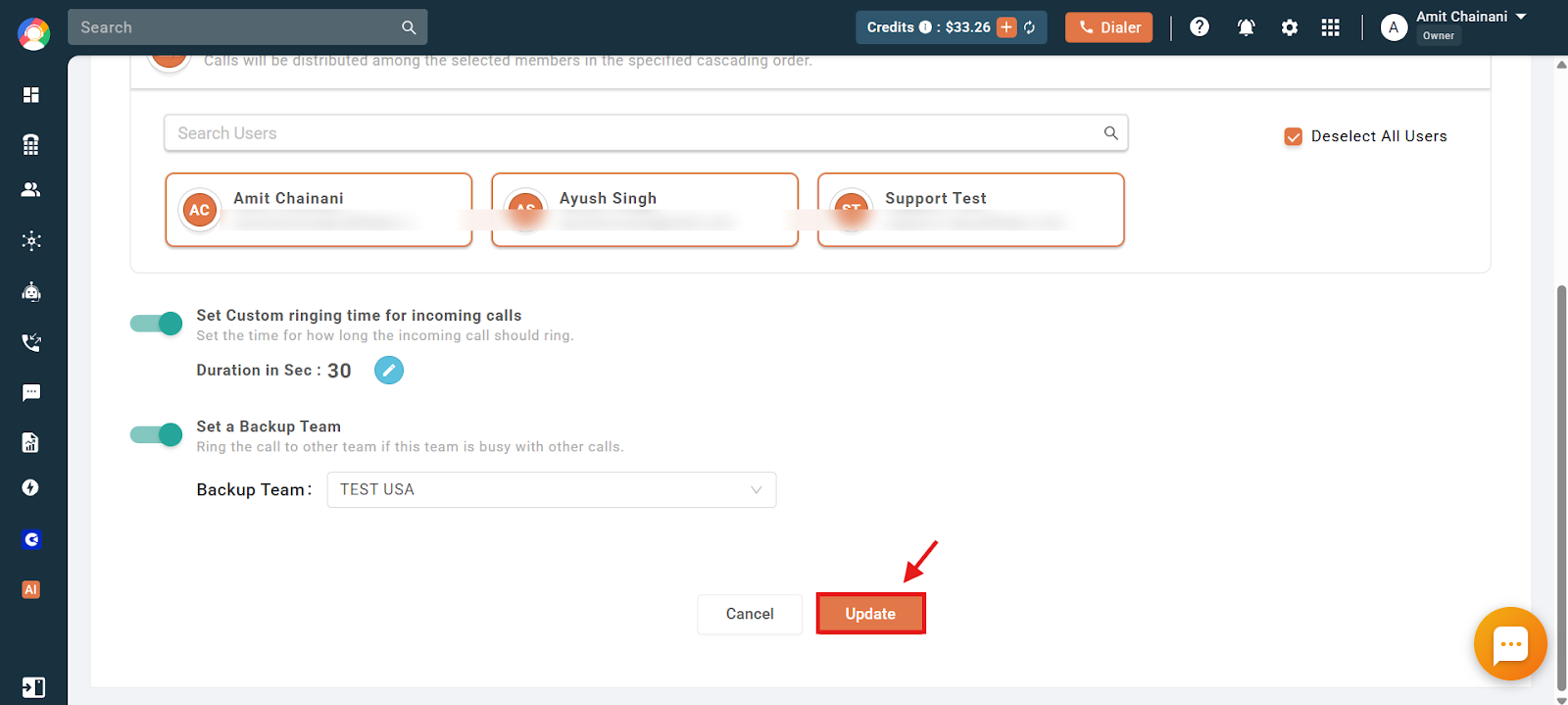
- Save: Click Update. The team name is changed instantly.
Frequently Asked Questions
Will changing the team name affect settings such as allocation, calling order, or call logs?
No. Renaming a team has no effect on these settings at all.
Will call logs from before the name change show the new name in reports?
No. Call logs already generated keep the old team name. Only new call logs created after the change will reflect the new name.
Still have questions about renaming teams? Reach out to us at [email protected] and we will be happy to help.