
Your CallHippo profile holds the personal and company details tied to your account. You can update these details at any time from your account settings. This guide walks you through changing your profile information and updating your registered email address.
Profile settings include the following details:
- First Name
- Last Name
- User Email
- Phone Number
- Company Name
Update your profile details
Follow these steps to change any of the information stored in your profile.
- Log in to your CallHippo dashboard.
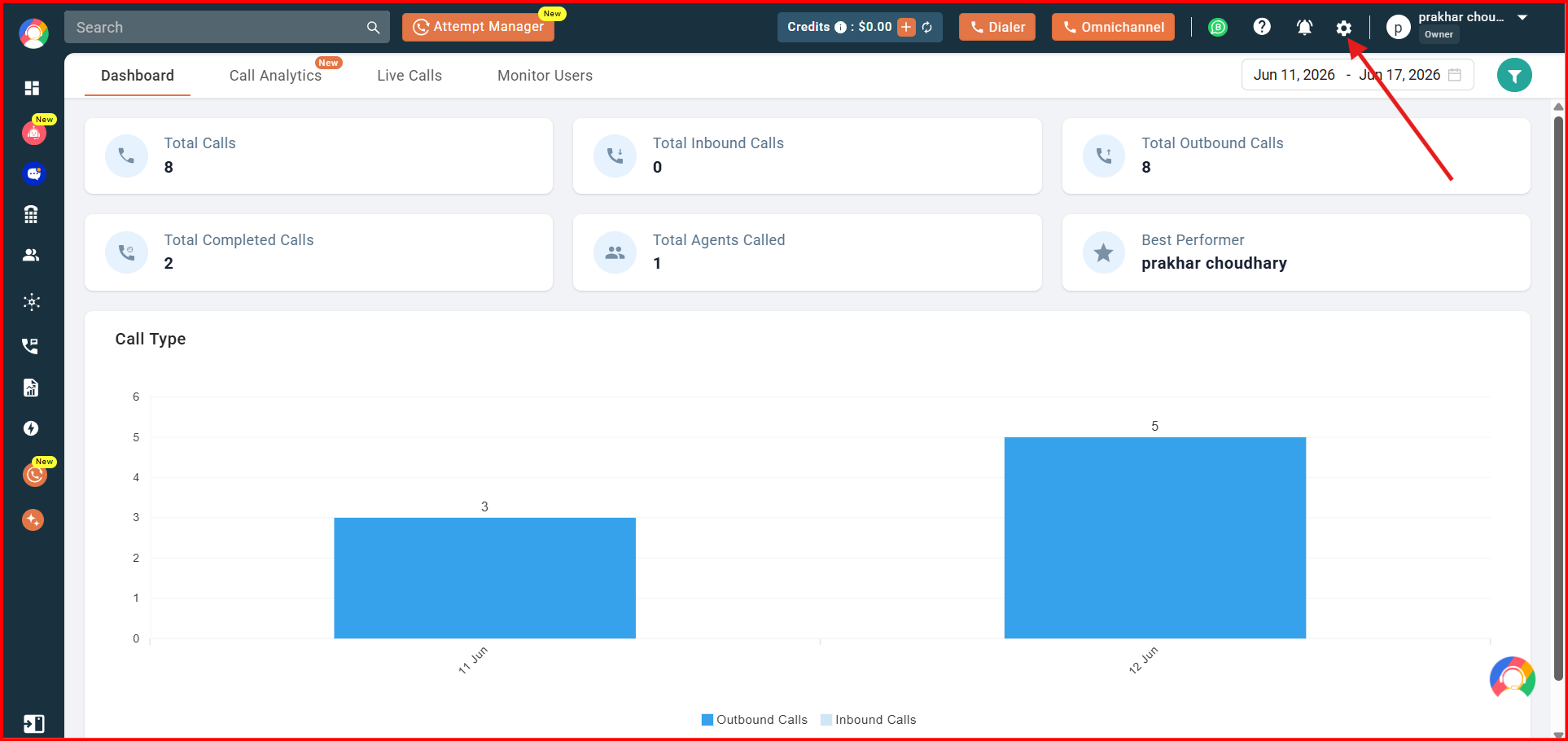
- Click the Settings (gear) icon in the top-right corner of the screen, then go to Profile.
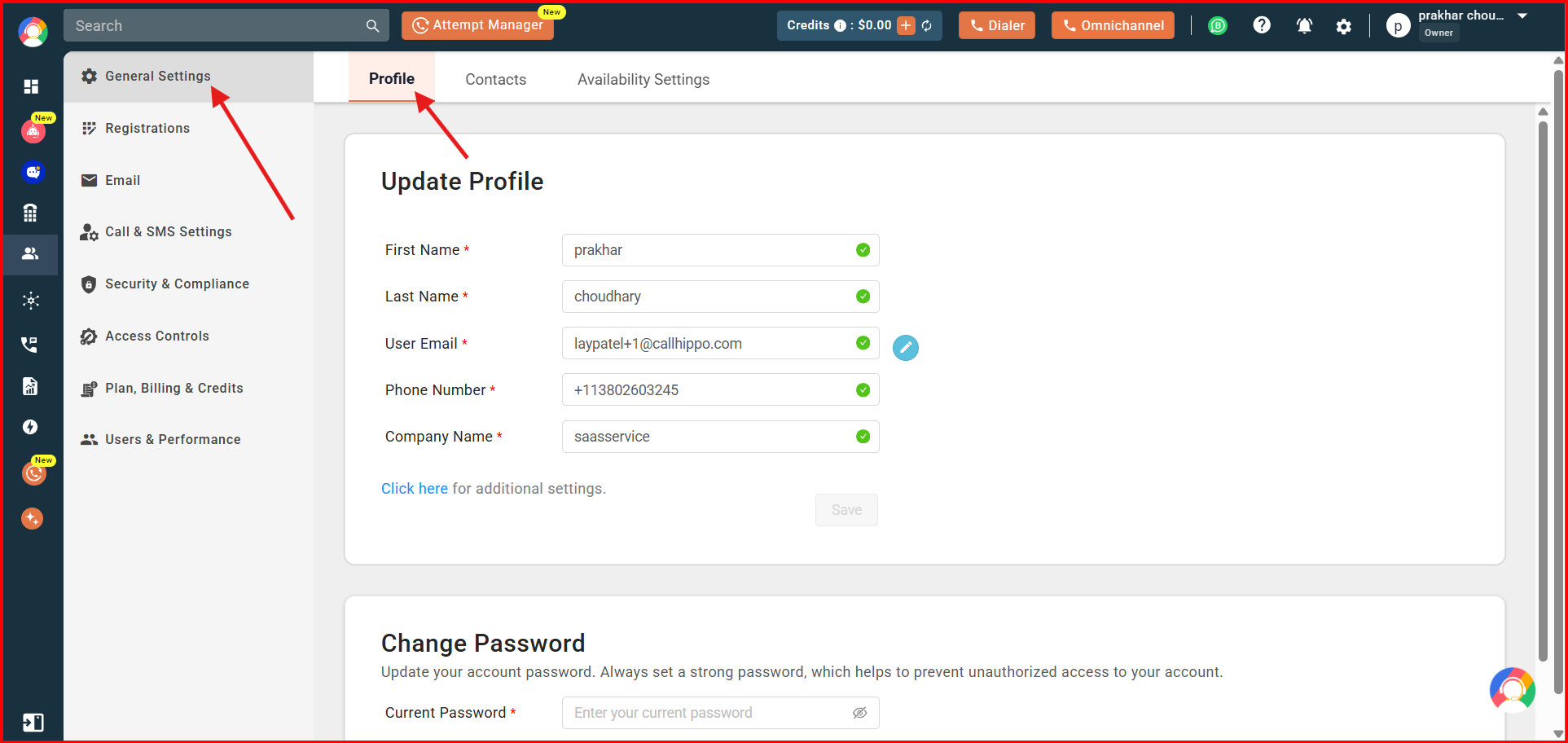
- To change any detail — such as your name, phone number, or company name — click that particular field, edit it, and press Enter to confirm the change.
Once done, you will see a confirmation message letting you know your changes have been saved.
Change your registered email address
To update the email address registered with your CallHippo account:
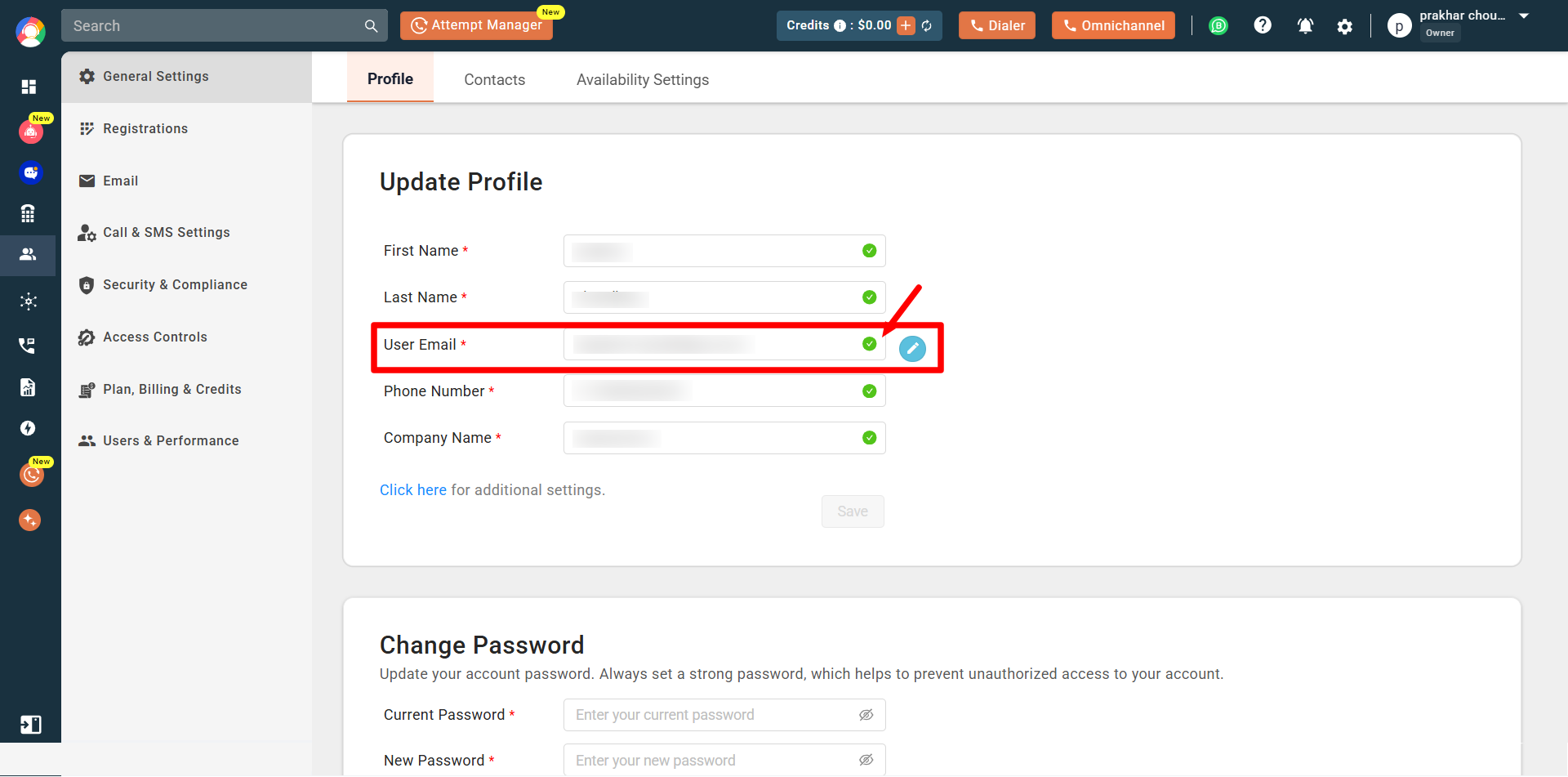
- Enter the new email address in the User Email field.
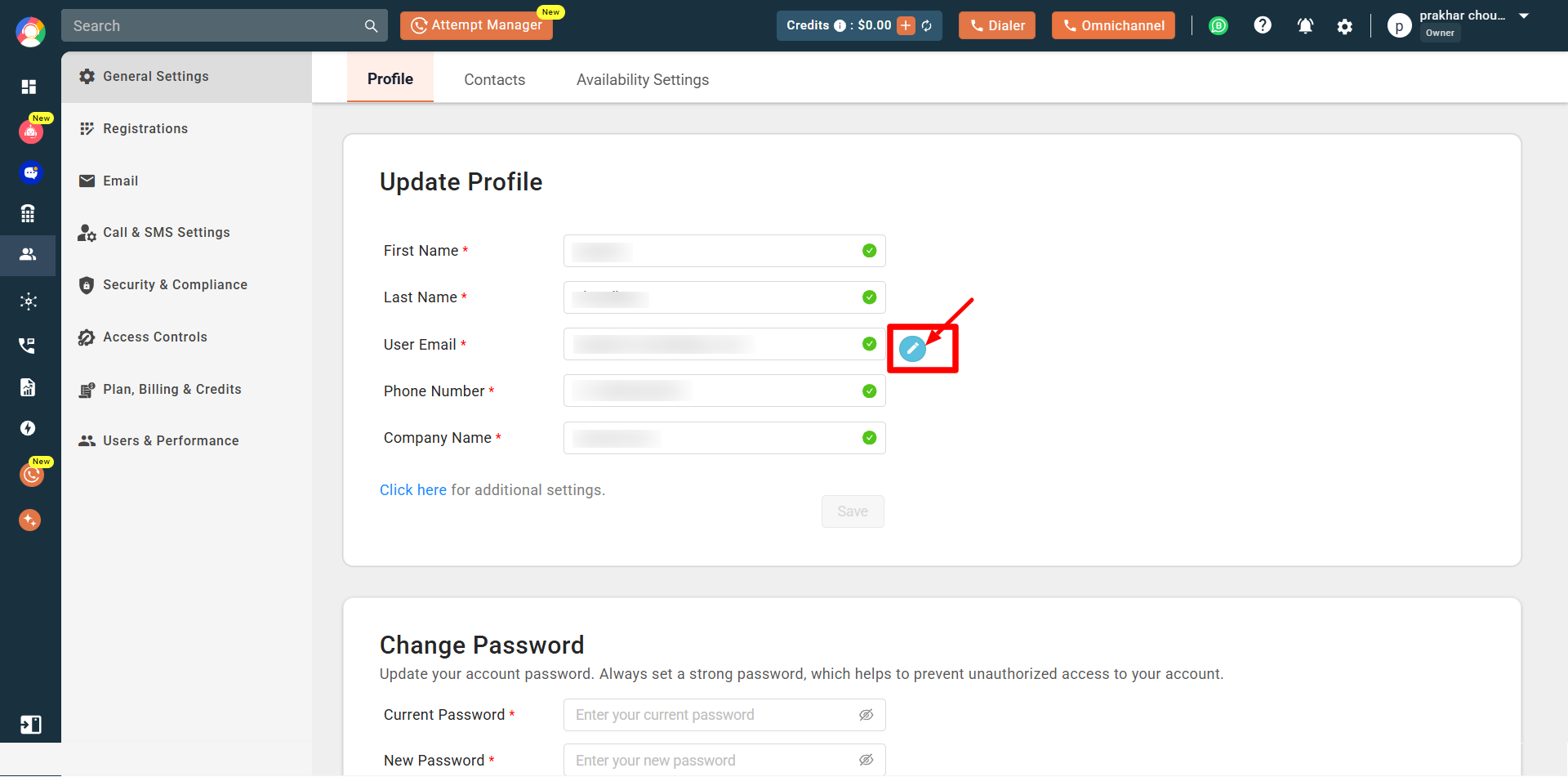
- Click the blue pencil icon to confirm the change.
- You will receive a verification email in the inbox of the new email address you entered.
- Click the link in that email to verify the new email address.
- Log in using your new credentials.
Your CallHippo registered email address has now been changed, and you will see a confirmation message about the changes being saved.
Frequently asked questions
Q: How can I change the email address registered with my CallHippo account?
A: In your profile, enter the new email address in the User Email field and click the blue pencil icon to confirm. You will then receive a verification email at the new address, which you must verify by clicking the link inside it.
Q: What happens if I don’t verify my new email address after changing it?
A: Without verifying the new email address through the verification link sent to you, the email change will not be completed, and you might still need to use your old email address to log in.
Q: Can I change my company name in my profile settings?
A: Yes. The company name can be updated by clicking on the company name field in your profile, editing it, and pressing Enter to save the update.
Q: Will I be able to use my new email address immediately after changing it?
A: You can only start using your new email address for login after you have verified it by clicking the link sent to your new email inbox.
Q: I have just changed my email address, but the change is not reflecting. What should I do?
A: You might not have clicked on the activation/verification link sent to your new email address. Please check your inbox (and spam folder) for the verification email and click the link to complete the change.
Q: Will changing any profile details affect my CallHippo service?
A: No. Updating your profile details such as name, phone number, or company name will not affect your CallHippo service in any way.
We hope this helps. If you still have questions, feel free to reach out at [email protected].