
The User Status Report gives owners and admins a complete picture of how each user spends their time in CallHippo, from login hours and on-call time to breaks, lunch, meetings, and any custom statuses.
A “user status” is simply the reason a user is logged out or unavailable. The report rolls those statuses up across your whole team, making it a valuable tool for measuring productivity and making data-driven decisions.
Types of User Statuses
Alongside the built-in statuses, owners and admins can create custom ones under Settings. Common statuses include:
- Break
- Lunch
- Personal
- Training
- Meeting, and any custom status you add.
What the Report Shows
You can pull data for any number of users at once. For each user, the report displays:
- User – Name of the user.
- Status – All statuses or reasons for unavailability (Break, Lunch, Meeting, Training, custom, etc.).
- Login Hours – Total time the user was logged into CallHippo.
- On-Call Time – Total time the user spent on calls.
- Idle Time – Time the user neither placed nor received a call.
- Break, Lunch, Meeting, and more – Total time spent under each status.
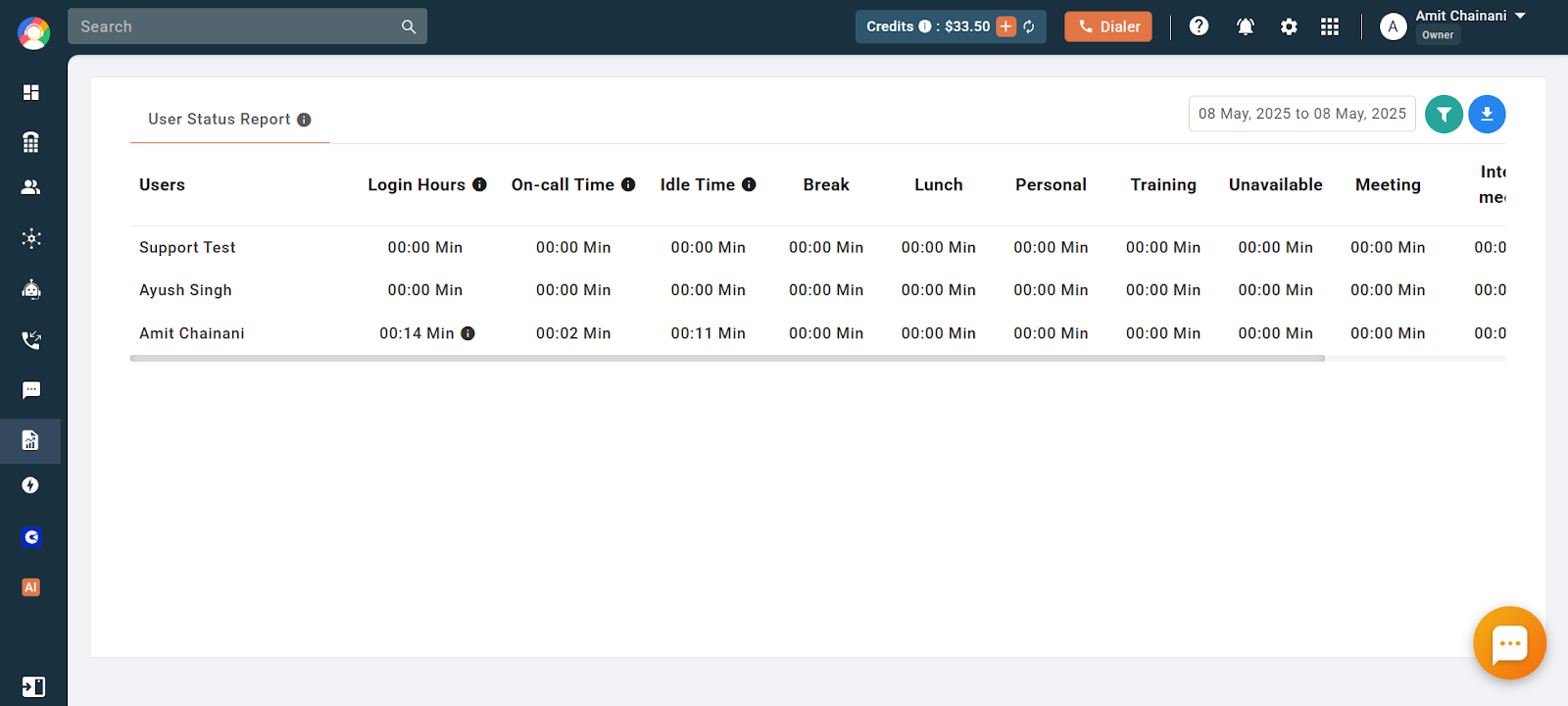
The report also includes every status added by the owner or admin under Settings, so you can analyze activity levels, such as how long users were active, inactive, or idle, over a chosen week or month.
Filters and Download
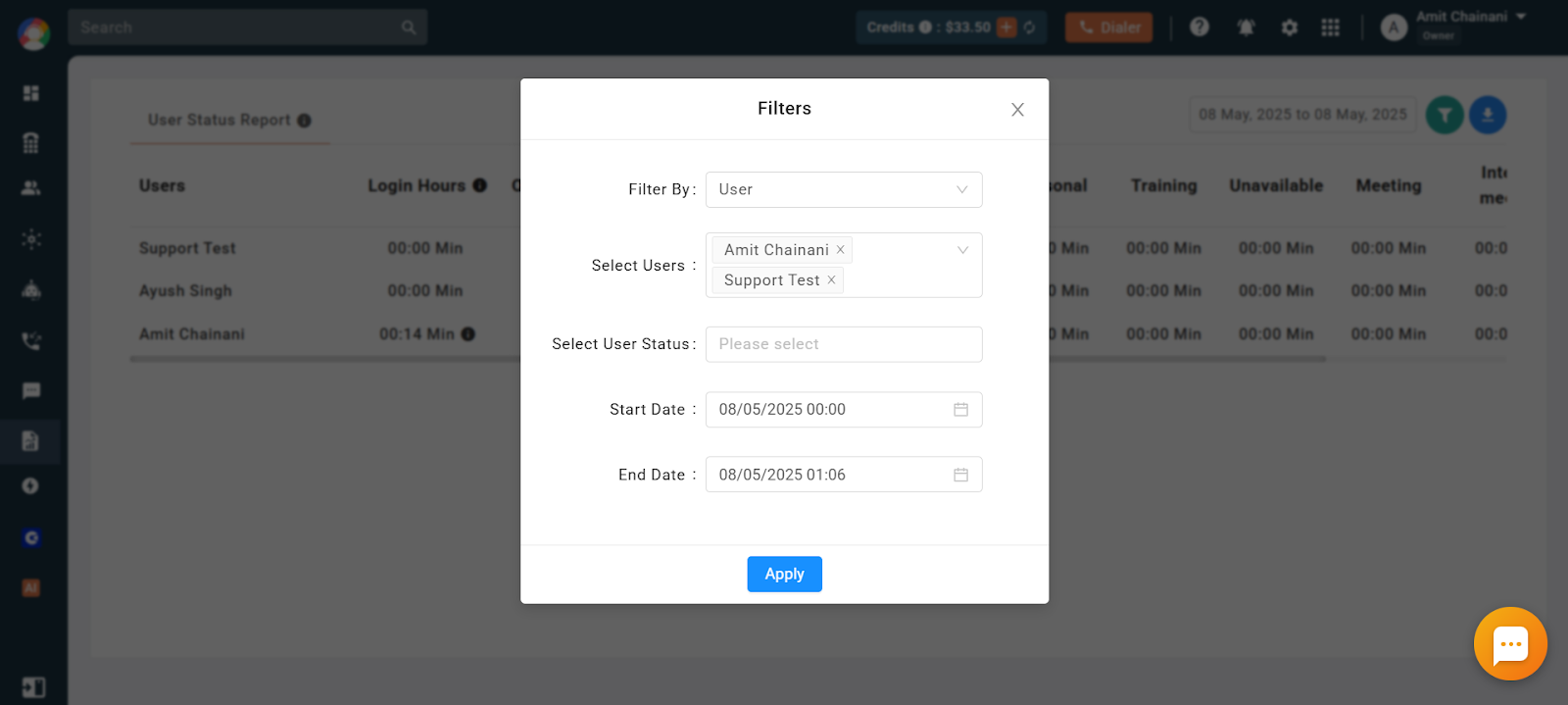
Use the filters to generate the report exactly the way you need it:
- Filter By – User or Team.
- Select Users – Pick multiple users or specific teams.
- Select User Status – Choose the statuses to include.
- Start and End Date – Set the duration for the report.
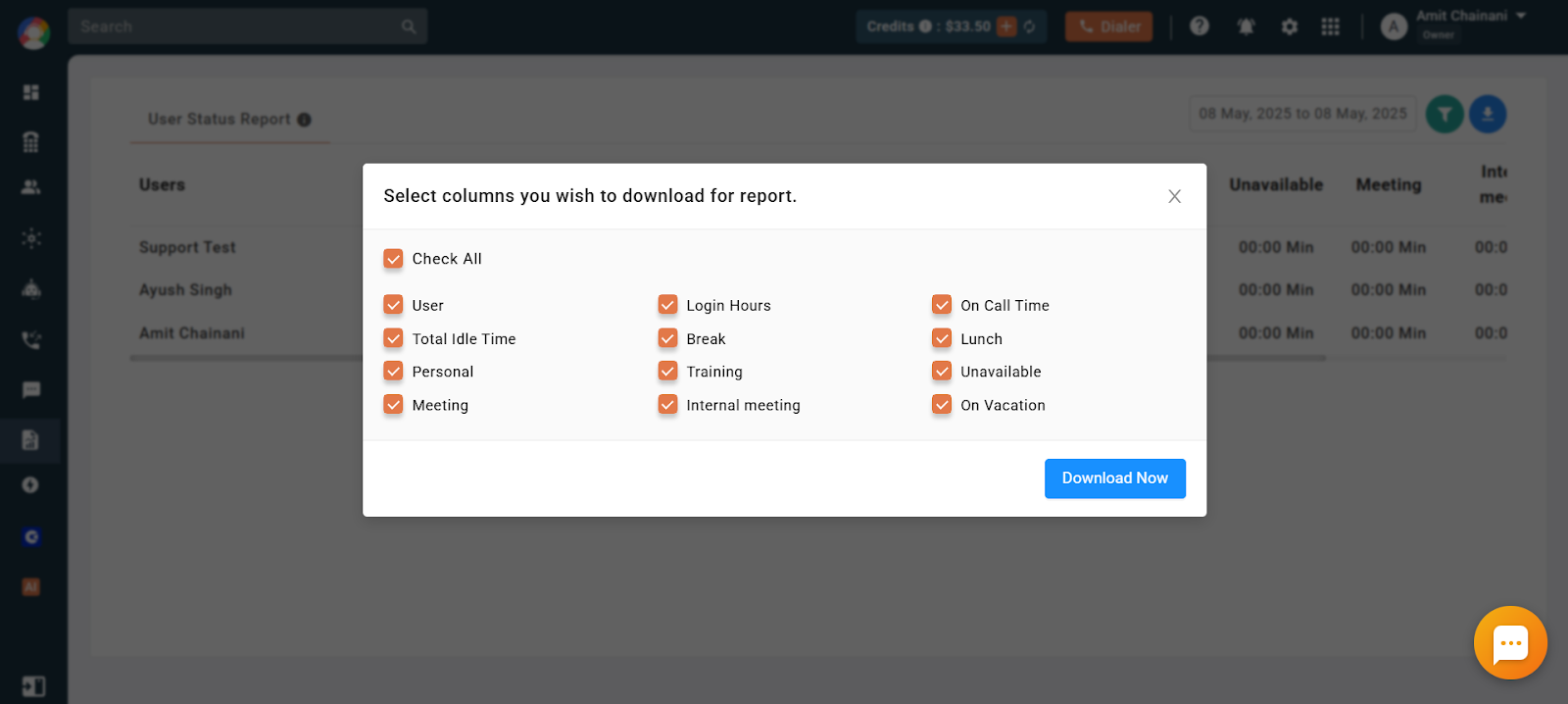
To export, click the Download button, choose the columns you want, and the report downloads in Excel format.
Frequently Asked Questions
What does the User Status Report track, and why would I need it?
It tracks how users spend their time in CallHippo, whether on calls, idle, on break, at lunch, or in a meeting. It is useful for analyzing productivity and spotting patterns in availability or downtime.
I’m only seeing status info for a few users. Why aren’t all my team members showing up?
Make sure you have selected the correct users or teams in the filters. Users who were not selected or who were inactive during the date range may not appear.
Why is someone’s Login Hours showing zero even though they were working?
They may not have been logged into the CallHippo dialer during that time frame. Double-check the date range and confirm the user was on the platform.
One of my agents has very high Idle Time. What does that mean?
High Idle Time means the user was logged in but not making or receiving calls. It may be worth checking for technical issues or unreported breaks.
How do I add a new status like “Field Visit” to be tracked?
Only the Owner or Admin can add statuses. Go to Settings, open “User Status,” and create your custom status. It will then appear in future reports.
Why does the report say someone is on “Lunch” for several hours?
The user likely selected the “Lunch” status and forgot to switch back. Remind users to update their status as soon as they return.
Can I view this report for a team instead of individual users?
Yes. Use the filter options to select a specific team.
Does the User Status Report take time to update?
No. It updates in real time based on users’ current statuses.
When I click the filter option, it shows plans to upgrade. Why?
Your current plan does not include the User Status Report feature. Check the CallHippo pricing page for feature availability.