
User Status shows whether a team member is available on the dialer, using labels like On Lunch, In a Meeting, or Out of Office to keep your team’s availability clear.
What Is User Status?
User Status indicates whether a user is available or unavailable on the dialer, and why. It improves team communication by displaying availability at a glance, which leads to more efficient workflow management.
Set Your Status on the Dialer
- Log in to your CallHippo dialer.
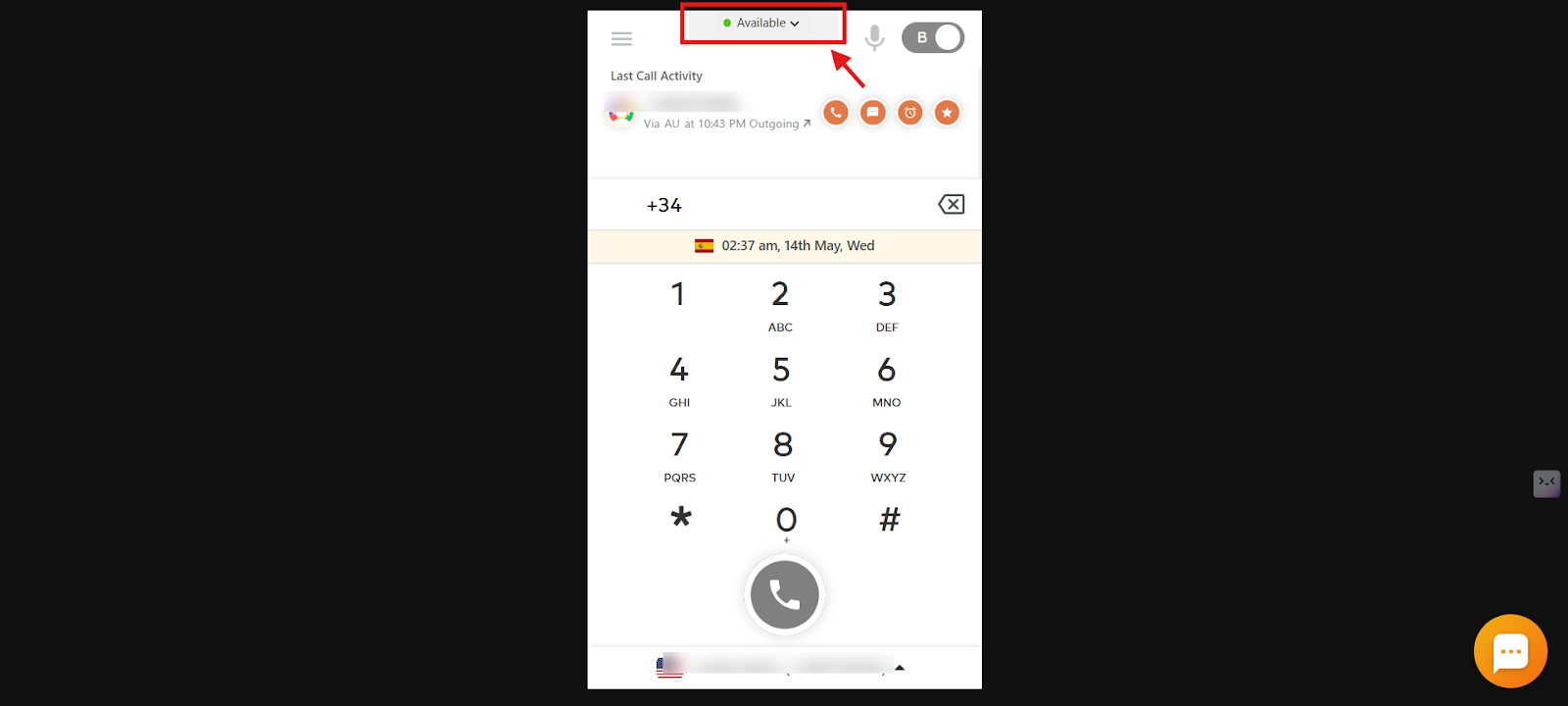
- Open the status control: Hover over the Available option at the top of the dialer.
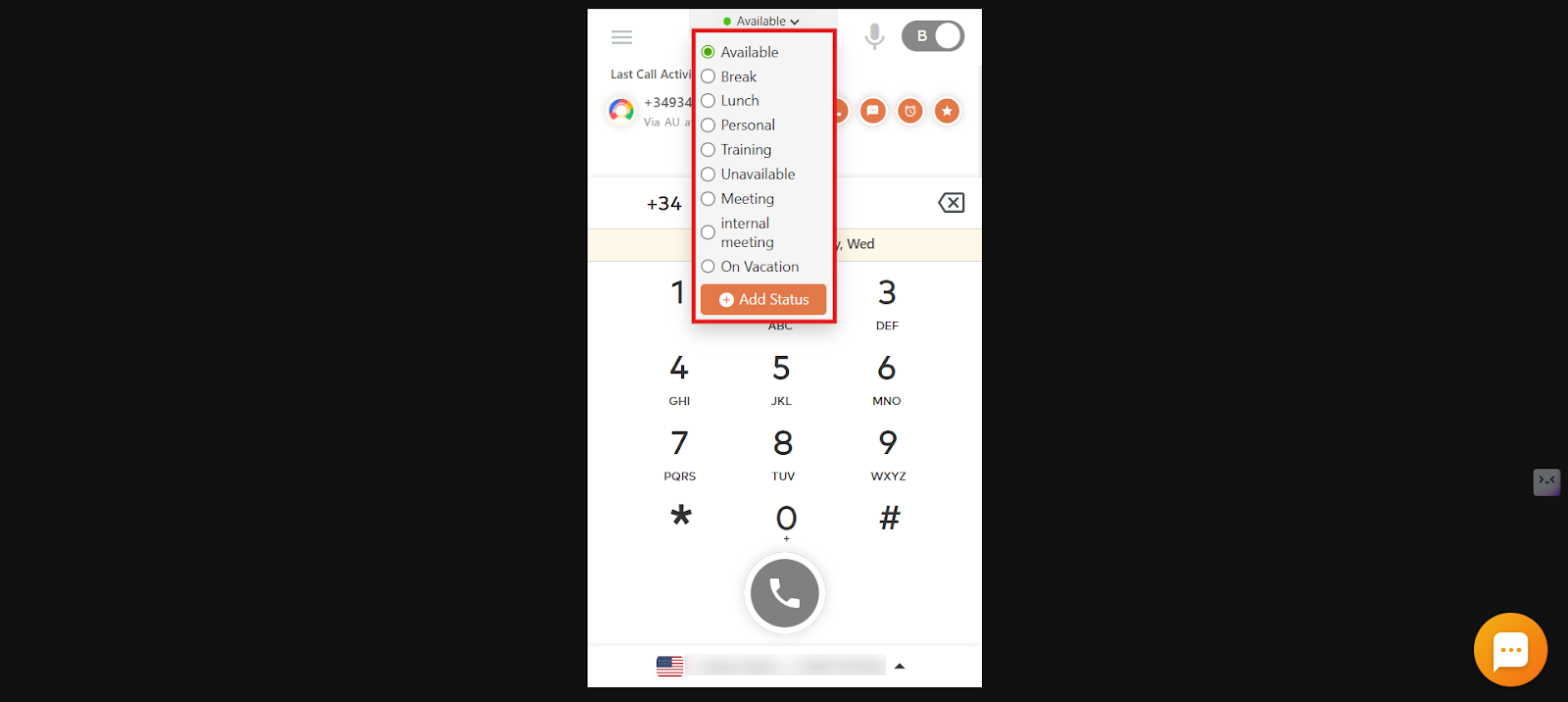
- Choose a status: A list of available status options appears. Click the one that fits your current situation.
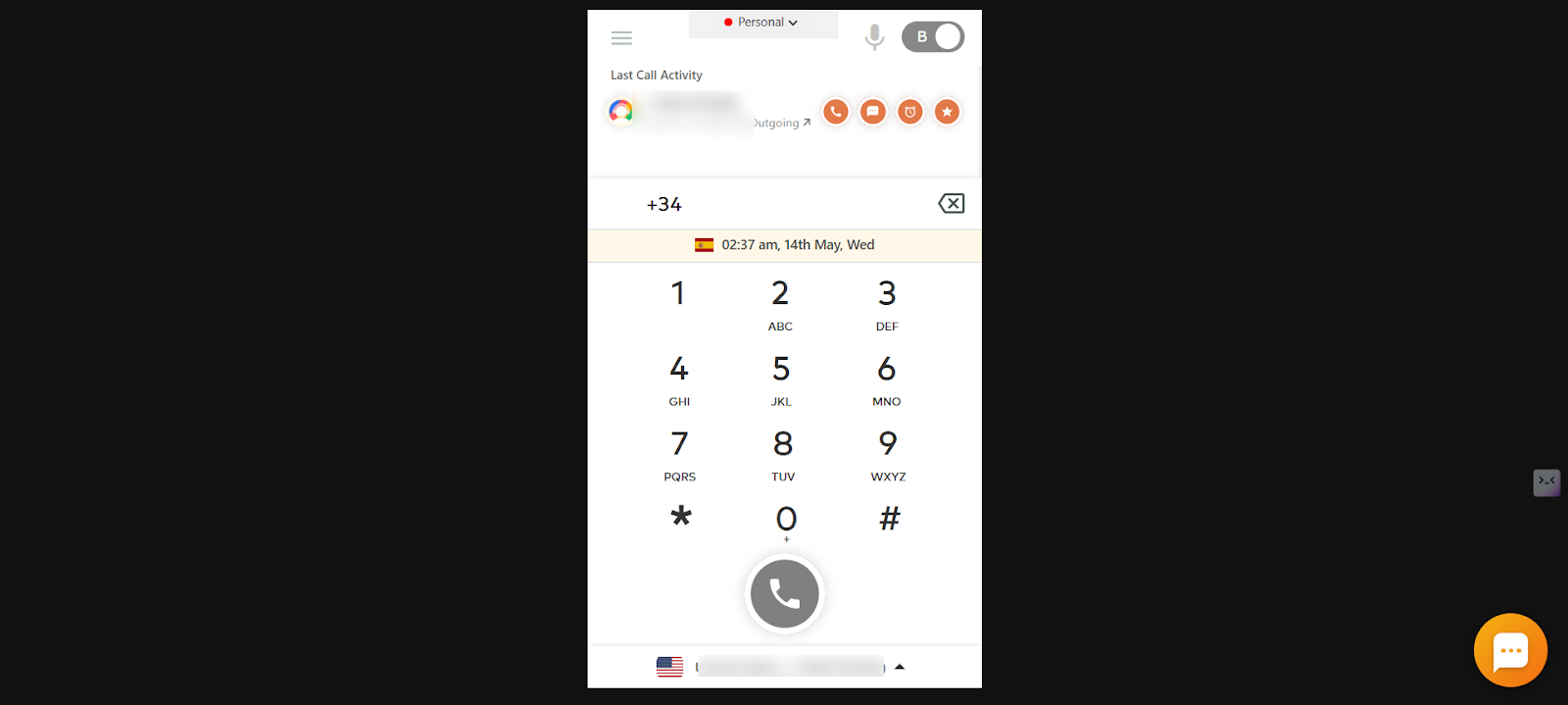
- Confirm: Your active status is displayed at the top of the dialer.
Important:
- Your status is not visible during an ongoing call.
- You can make and receive calls only when your status is set to Available.
Why User Status Matters
- Improved communication: Teammates can see availability without asking.
- Better collaboration: Avoids unnecessary disruptions and keeps coordination smooth.
- Enhanced productivity: Reduces missed calls and delayed responses with clear indicators.
- Customizability: Teams can create custom statuses to fit their own workflows.
Common Use Cases
- Sales and support teams: Mark availability as On Call, Break, or Meeting for proper call routing.
- Remote work: Use statuses like Working Remotely or Out of Office for better coordination.
- Shift-based teams: Indicate status changes across time zones.
- Custom needs: Personalize statuses for workflows like Training Session or Conference Call.
Add, Edit, or Remove a User Status
- Log in to your CallHippo account at web.callhippo.com.
- Open Settings: Click the Settings (gear) icon at the top of the dashboard.
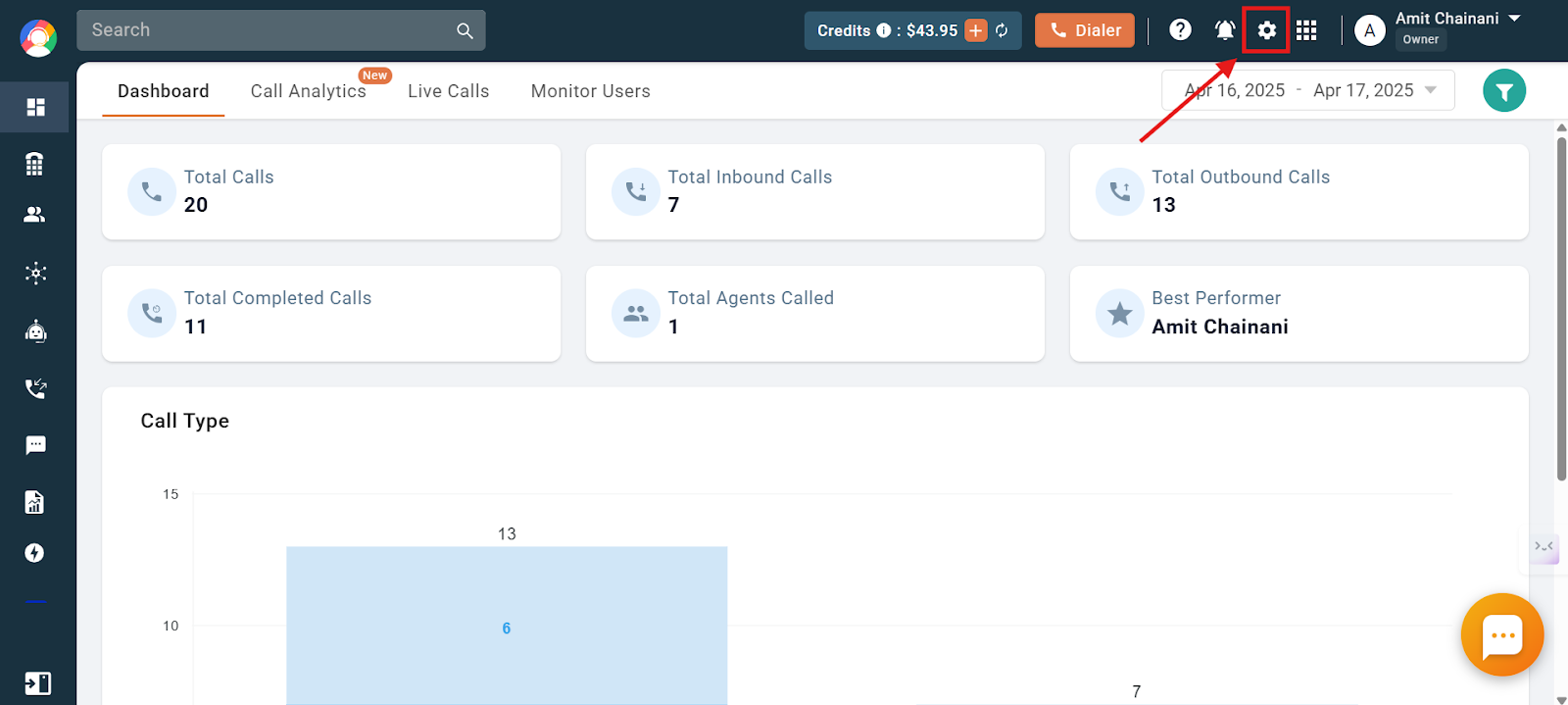
- Go to User Status: Select User Status from the Settings menu to view and manage statuses.
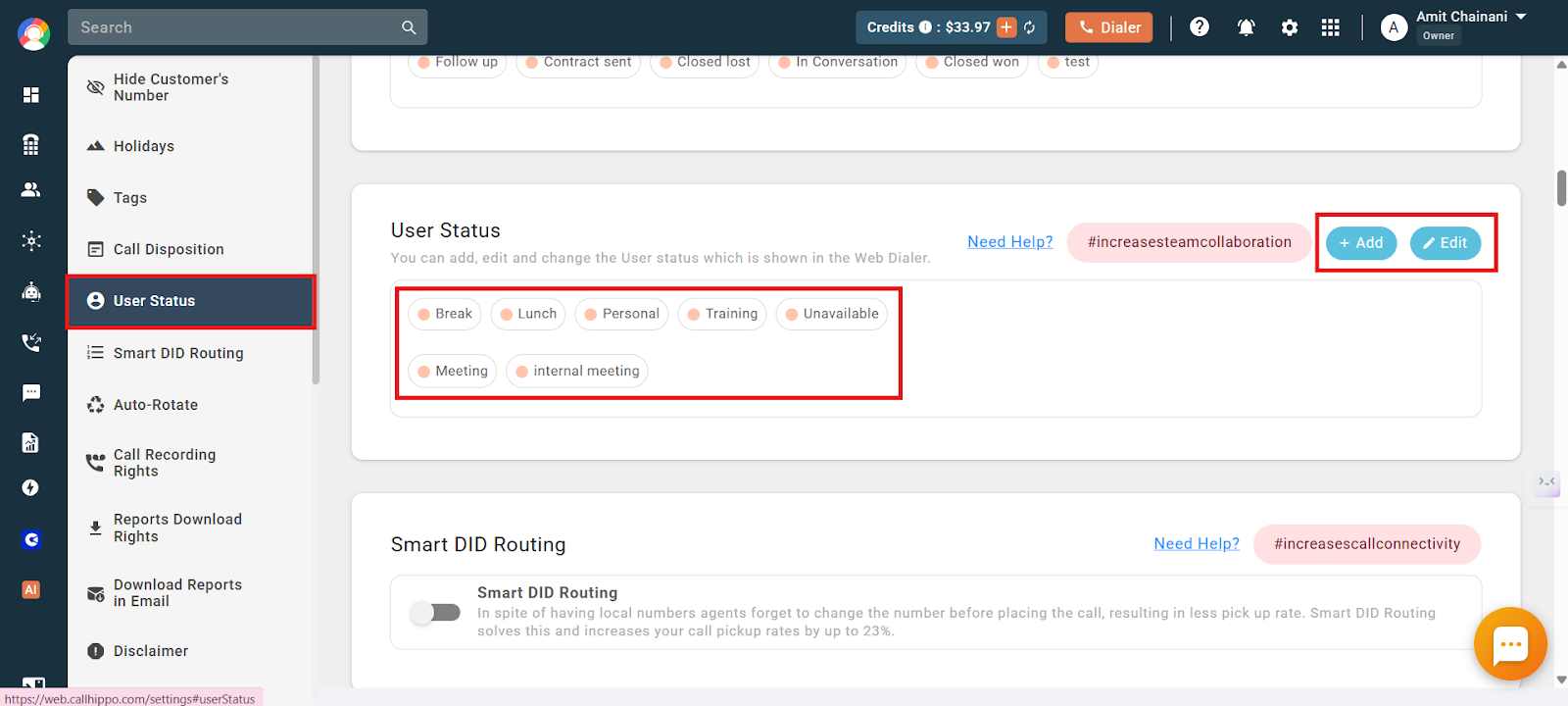
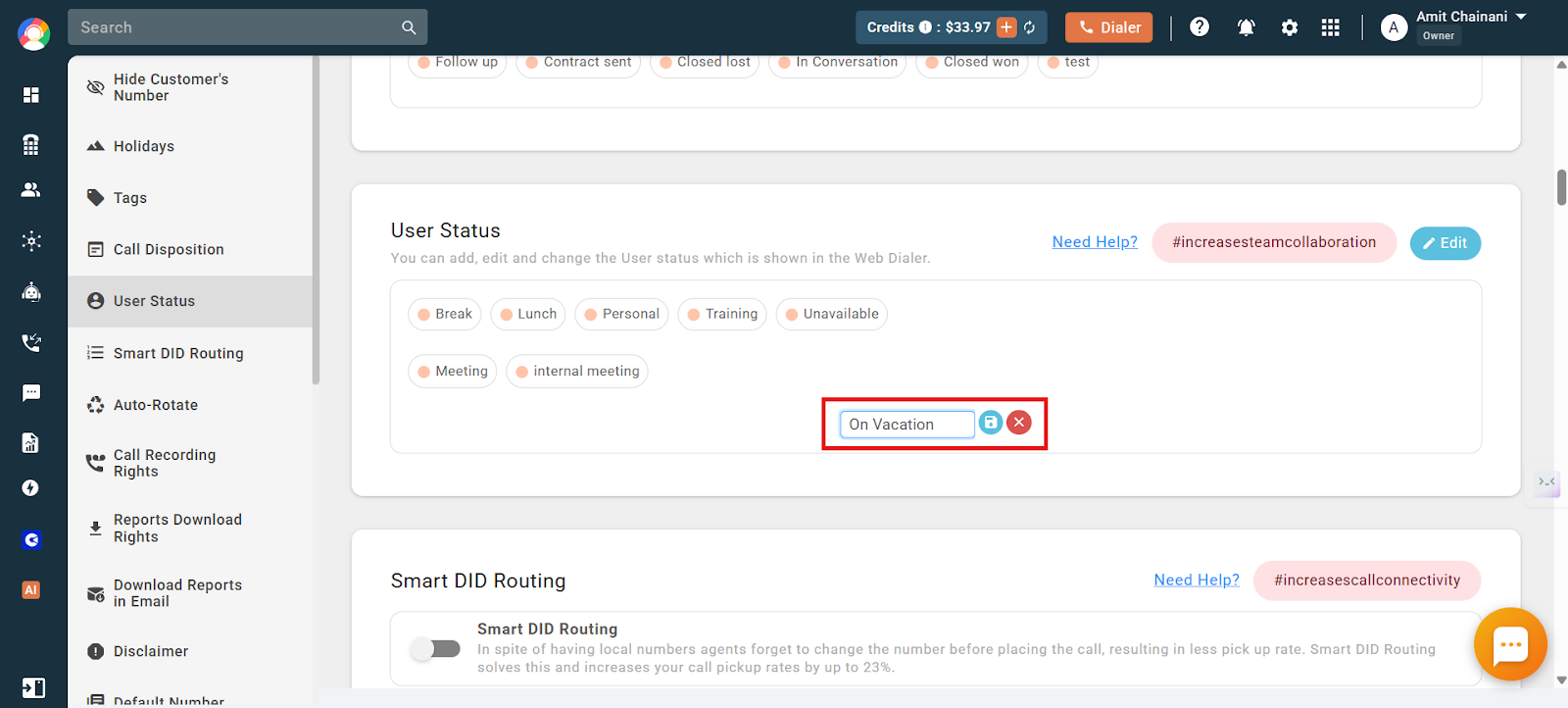
- Add a status: Click Add, enter the status name (for example, On Vacation or Training), and save it.
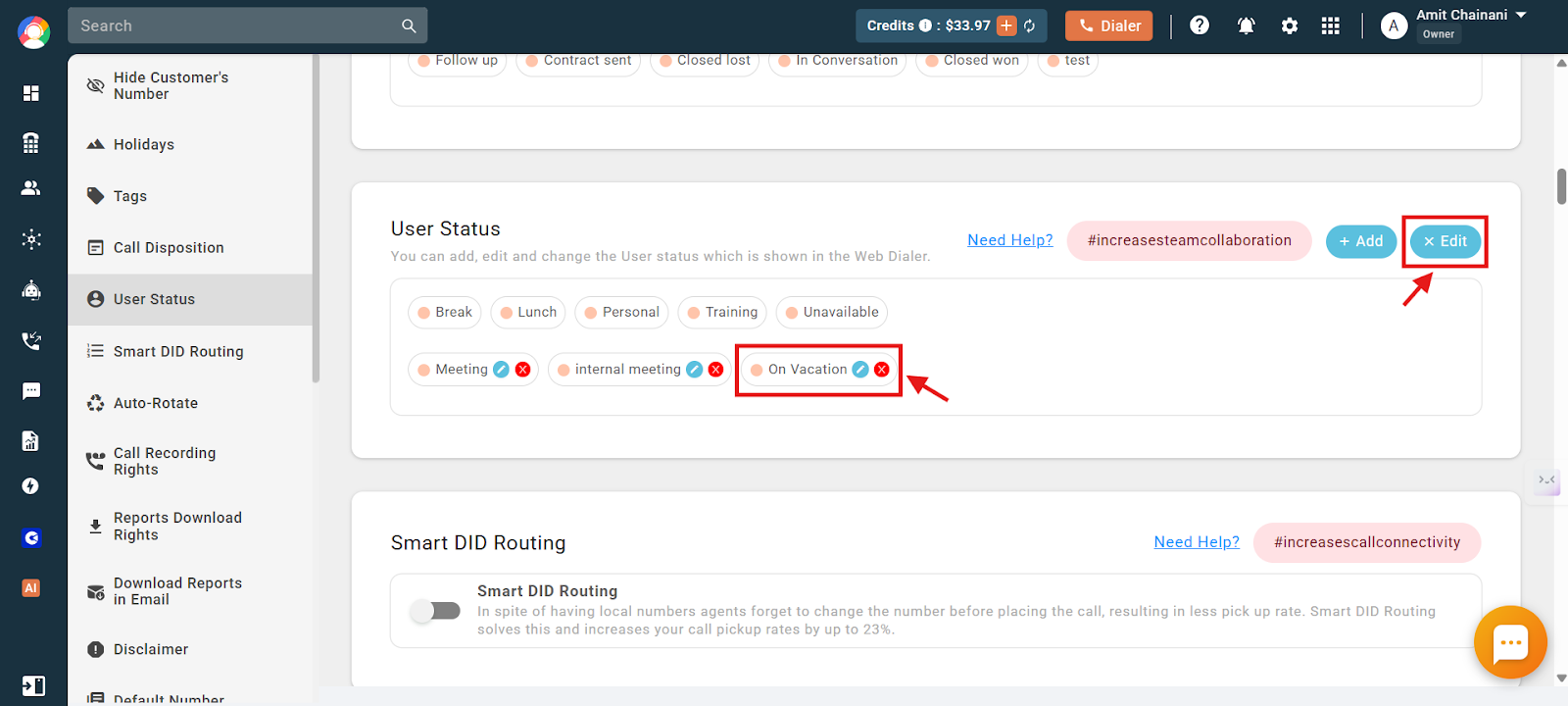
- Edit or delete: Click Edit to reveal the edit and delete icons on each status, then rename or remove as needed.
Troubleshooting
- Unable to save a new status: Confirm you have admin permissions to create or edit statuses, then refresh the page and try again.
- Status not updating in user profiles: Check that the status was saved under Settings > User Status, and ask the user to refresh or log out and back in.
- Deleted status still appears: Clear the cache and refresh. If the status is tied to an active session, restart the application.
Frequently Asked Questions
Can I make outgoing calls if my status is set to Unavailable?
No. Your status must be set to Available to make outgoing calls.
Can an Owner, Admin, or Manager change someone else’s status?
No. Only the user can change their own status. Owners, Admins, and Managers can view a user’s status from the dashboard but cannot update it for them.
Do I need to change my status manually every time I take a break?
Yes. Users must update their own status so availability stays accurate in real time.
What happens if someone forgets to change their status?
The system keeps showing their last status, which can lead to misrouted calls or miscommunication. Remind users to update it regularly.
Can I track how long someone has been in a certain status?
Not currently. CallHippo shows status visibility but does not track the time duration for each status.