
The Outgoing Call Report gives you a country-wise summary of the calls your team makes each day, so you can analyze outbound activity across regions and users at a glance.
It breaks down call outcomes by country in a clean table you can review on the dashboard or export for deeper analysis.
When and Why to Use It
Use the Outgoing Call Report to monitor your team’s call activity, measure outcomes, and understand how calls are distributed by country. It is helpful for:
- Reviewing outbound volume and overall performance.
- Spotting trends in results, such as completed versus failed calls.
- Filtering by specific users, countries, or time periods for detailed analysis.
What the Report Shows
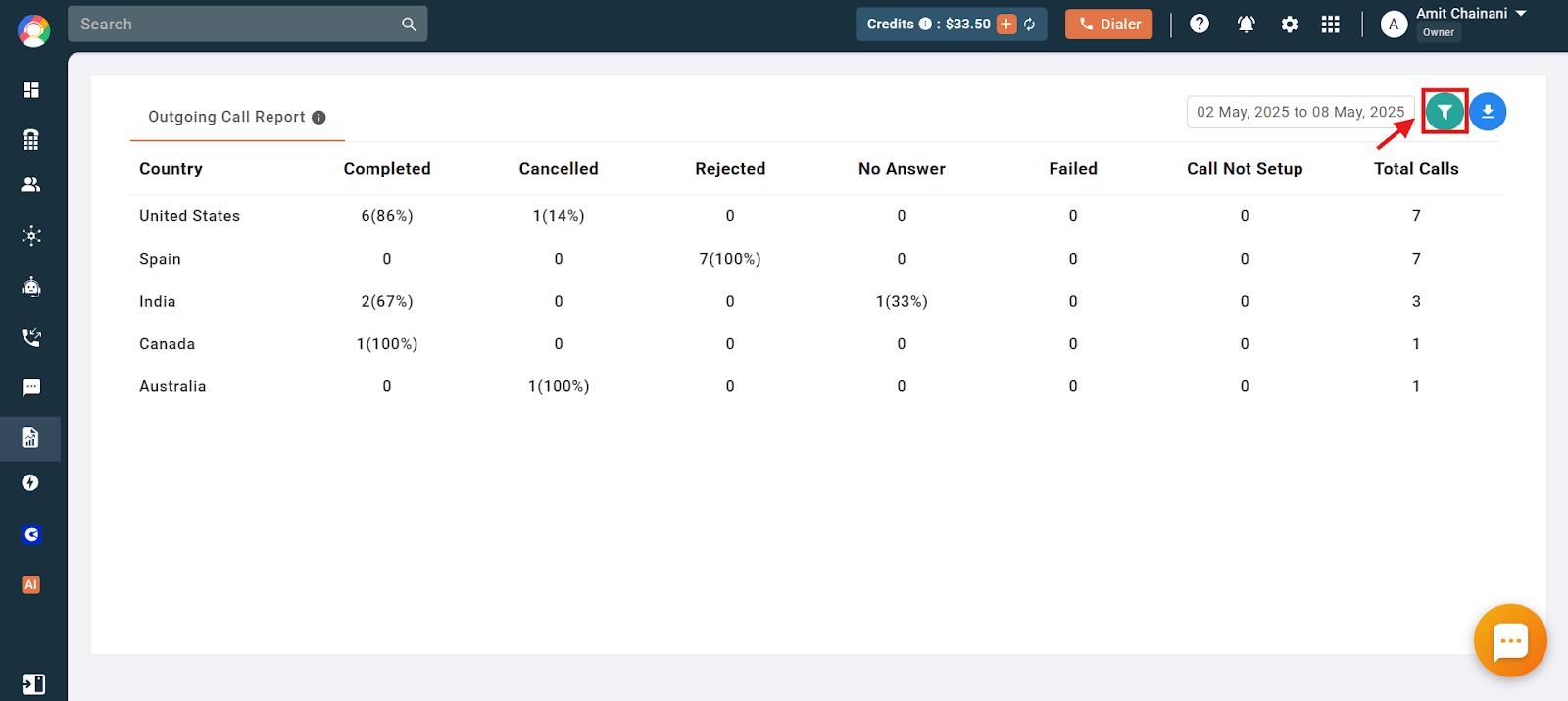
For each country where calls were placed, the report displays:
- Country – Countries where outgoing calls were made.
- Completed – Calls that connected successfully.
- Canceled Calls – Calls that were canceled.
- Rejected Calls – Calls that were rejected.
- No Answer – Unanswered Power Dialer calls.
- Failed – Calls that did not connect due to an issue on the receiver’s end.
- Call Not Set Up – Calls that failed to connect for various reasons (see the info icon in the dashboard).
- Total Calls – Total calls made by the user in each country.
How to Check the Outgoing Call Report
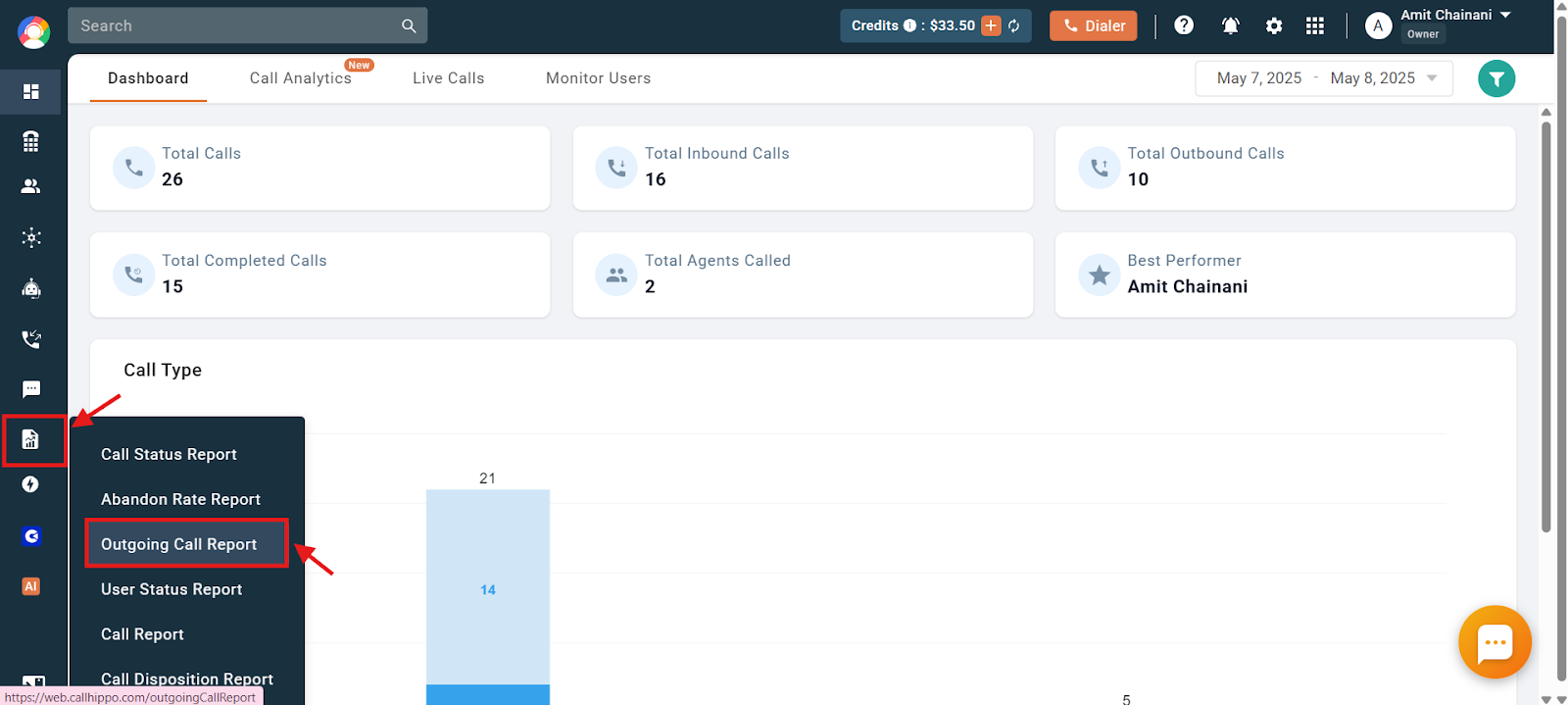
- Log in to your CallHippo dashboard.
- Open the Reports section and click Outgoing Call Report.
Filters and Export Options
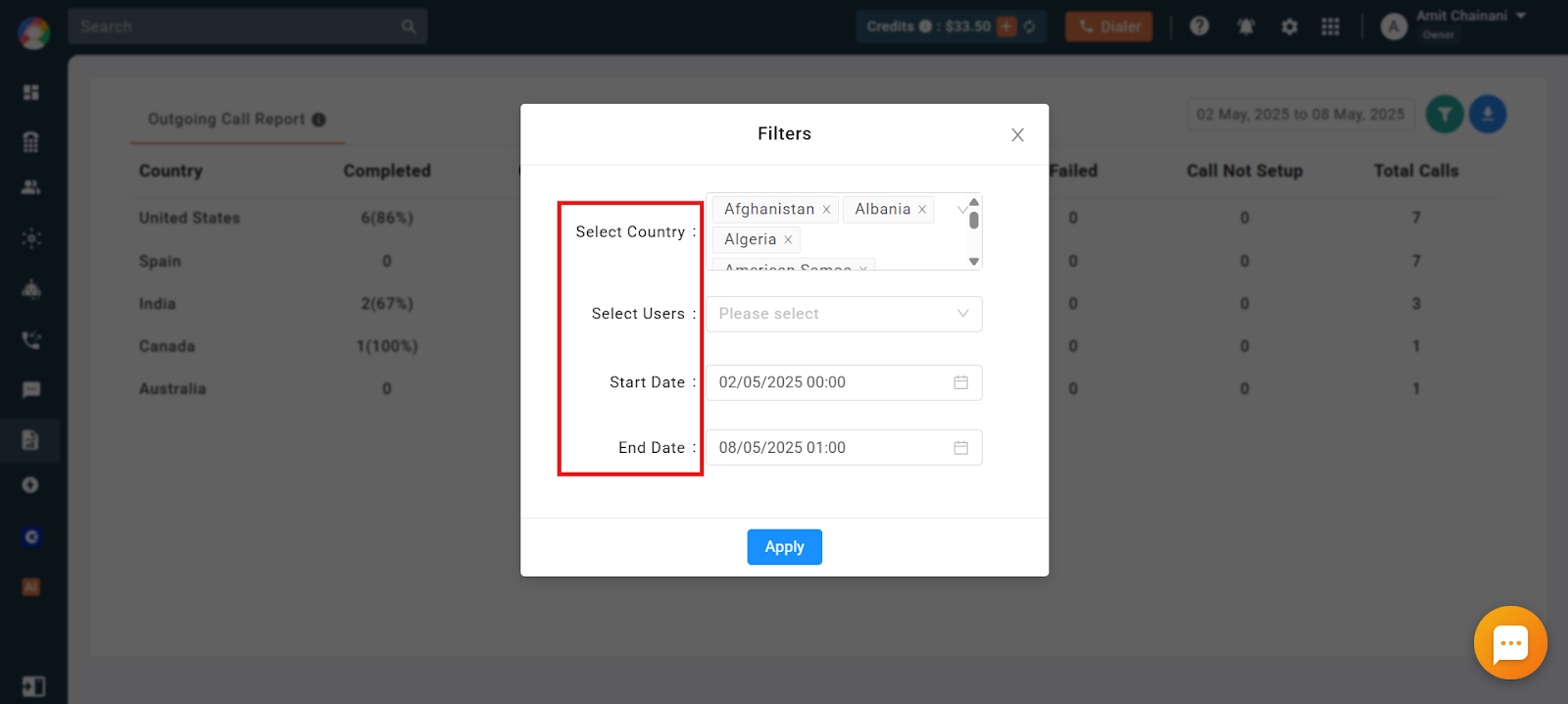
Refine the report using these filters:
- Select Country – Choose one or more countries where outgoing calls were made.
- Select User – Choose one or more users to view their outbound activity.
- Select Date Range – Filter data by a date range.
A few things to keep in mind:
- The maximum selectable date range is 30 days.
- You can view reports from the last 3 months directly on the dashboard.
- For data older than 3 months, the report is sent to your registered email address.
- You can also download the report in Excel format with custom fields for offline analysis.
Frequently Asked Questions
What does the Outgoing Call Report help me analyze?
It summarizes outbound call activity by country, helping you track connected, canceled, failed, and unanswered calls.
Can I view data for a specific user or country?
Yes. Use the filters to select specific users or countries and narrow down the report.
What does “Call Not Set Up” mean?
It refers to calls that did not connect for various reasons, as indicated by the info icon on the dashboard.
How far back can I generate the report?
Reports can be generated for up to 3 months in the past, with a maximum date range of 30 days.
Can I export the report for offline use?
Yes. The report can be downloaded in Excel format, with custom fields if needed.