
A call disposition describes the outcome of a call, and the Call Disposition Report shows how often each disposition was used by your agents over a chosen period.
The report lists the dispositions applied during a specific time frame, with a count for each user that indicates how frequently a particular disposition was selected. It is a quick way to see how your team is classifying and closing out calls.
When and Why to Use It
Use the Call Disposition Report to:
- Monitor how agents classify call outcomes.
- Evaluate agent performance based on call results.
- Identify trends and patterns in customer interactions.
What the Report Shows
The report includes these data points:
- Agent Name – The user who handled the call.
- Disposition – The outcome label the agent assigned to the call.
- Count – How many times a disposition was selected during the period.
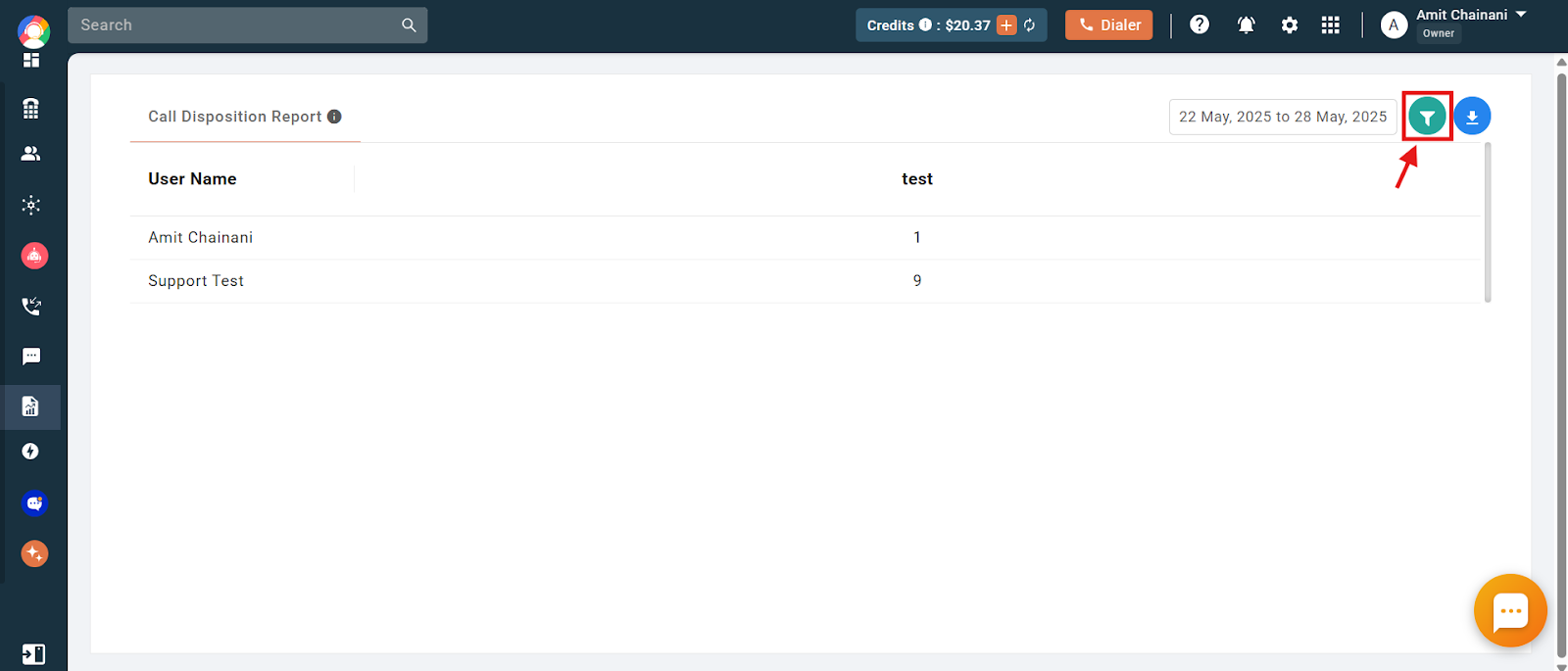
Note: If a disposition was not used in the selected date range, it will not appear. Extend the range to see more data.
How to Check the Call Disposition Report
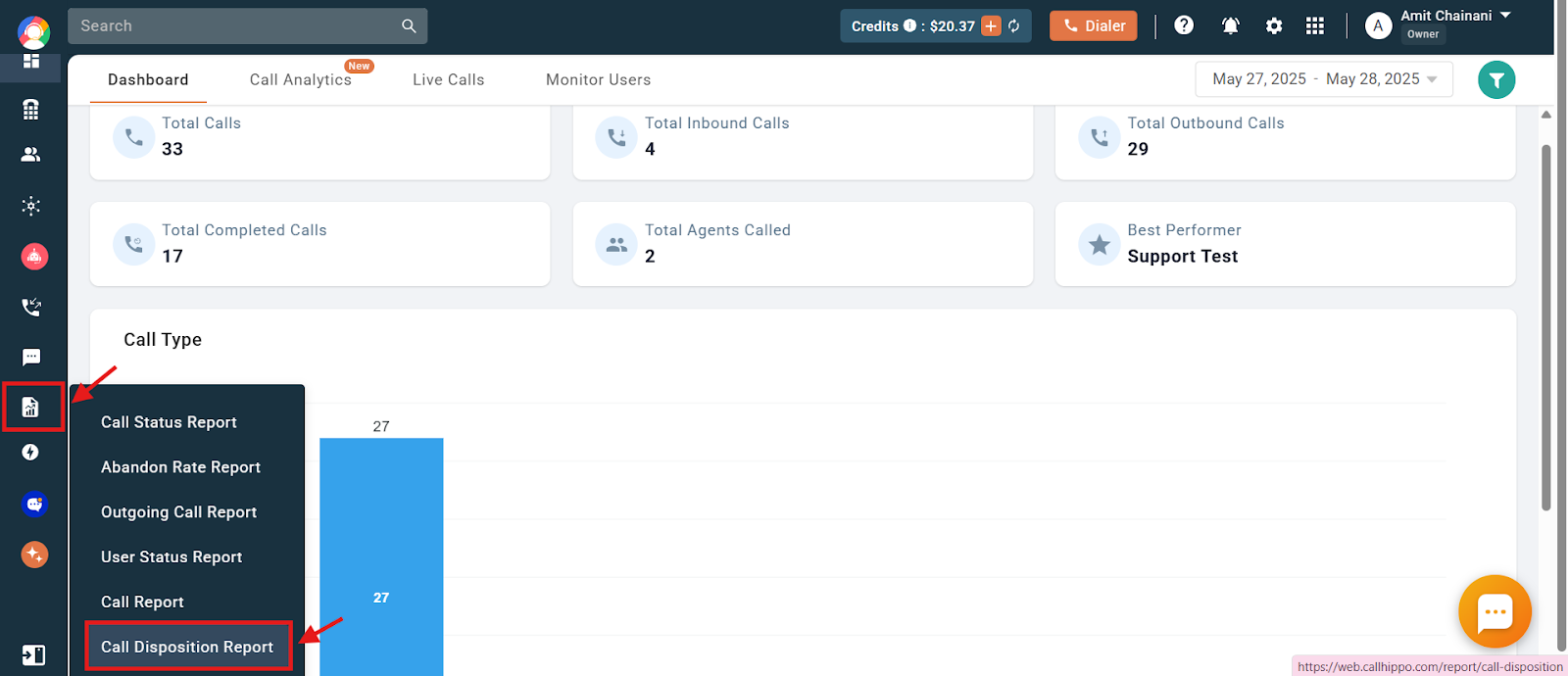
- Log in to your CallHippo dashboard.
- Open the Reports section and click Call Disposition Report.
Using the Filters
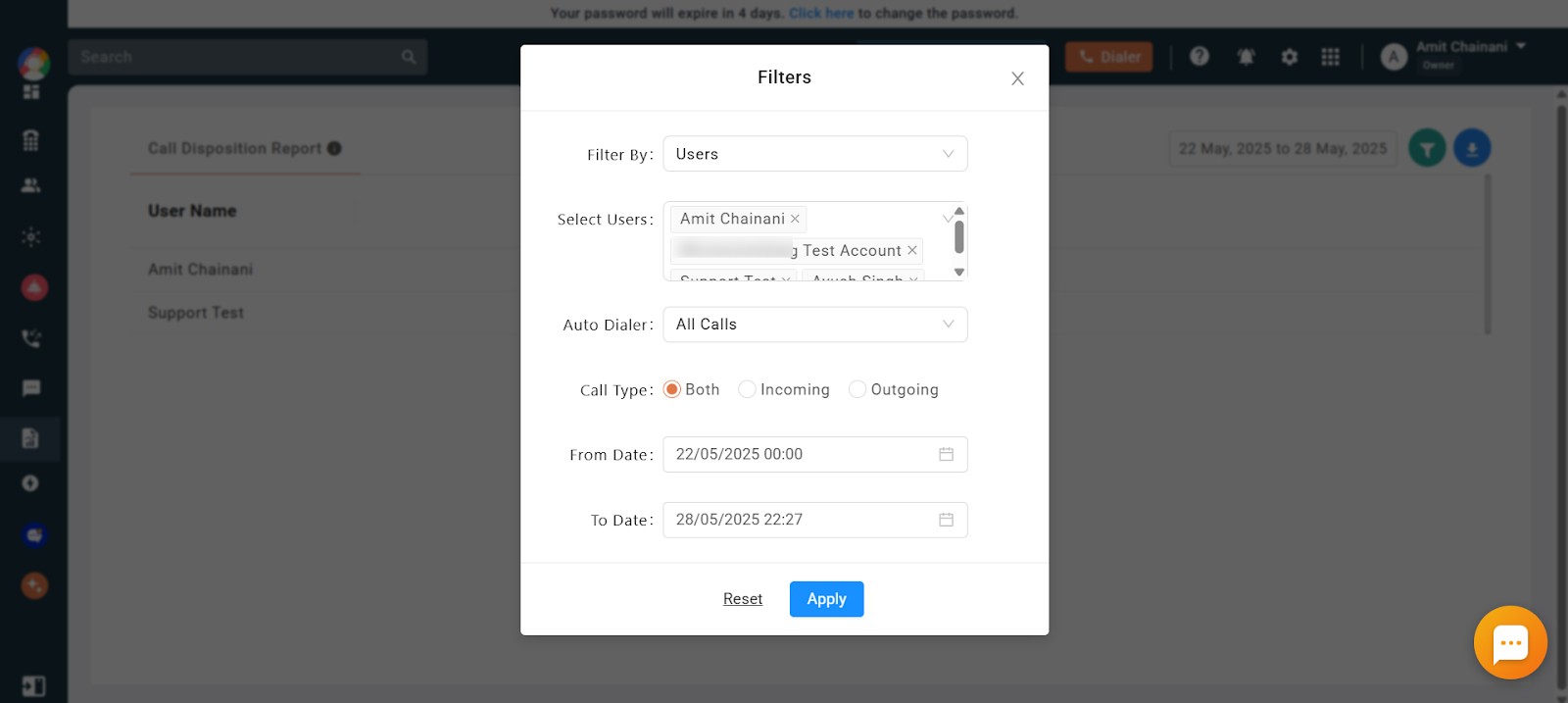
Click the Filter icon at the top right to refine the report:
- Filter By – Choose to filter by Users.
- Select Users – Pick one or more agents whose disposition data you want to view.
- Auto Dialer – Include All Calls, or limit to Auto Dialer or manual dialing.
- Call Type – View Both, Incoming, or Outgoing calls.
- From Date / To Date – Set the date range, up to a maximum of 30 days.
Once your filters are set, click Apply to generate the filtered report.
Export Options
After applying your filters:
- Click the Download icon at the top right of the report.
- Select the columns you wish to include.
- Export the report in CSV format for offline use or further analysis.
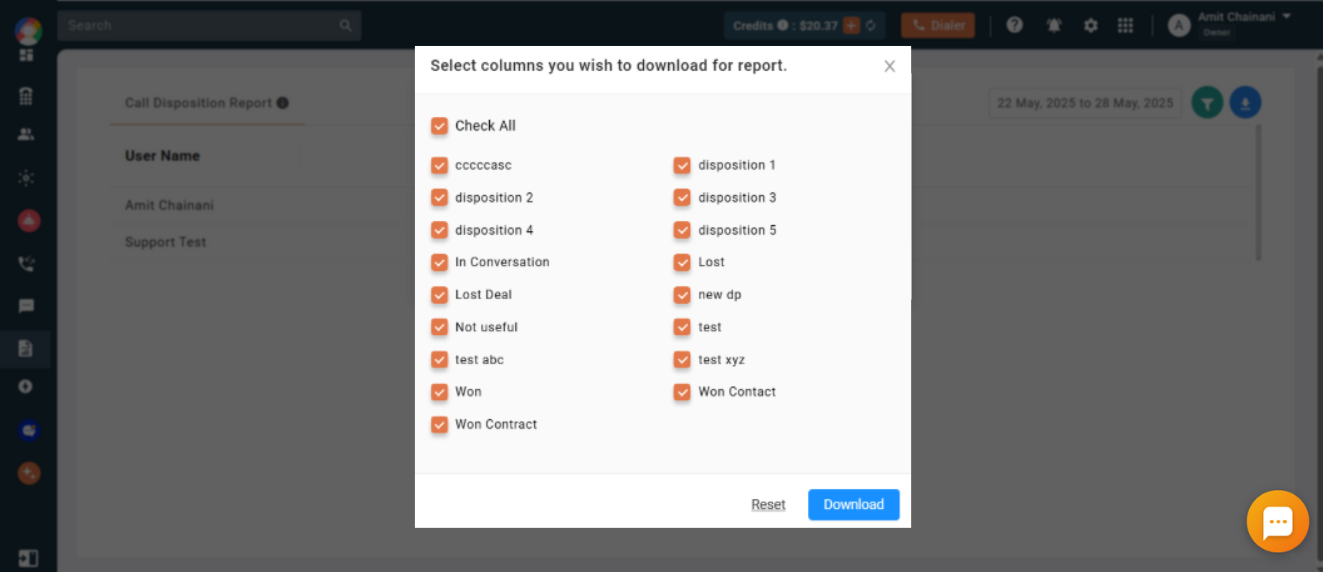
Note: Reports for the last 3 months are available directly on the dashboard. For data older than 3 months, it is sent to your registered email address.
Frequently Asked Questions
What is a call disposition?
It is a label or outcome category an agent assigns to a call after it ends, reflecting the result of the conversation.
Can I view dispositions for a specific agent?
Yes. Use the “Select Users” filter to see disposition data for specific agents.
Why is a disposition missing from the report?
Dispositions only appear if they were used within the selected date range. Try extending the range to see more.
Can I export the report for offline analysis?
Yes. The report can be downloaded in CSV format.
How can the Call Disposition Report benefit my business?
It shows how agents handle calls and which outcomes are most common. Analyzing this data helps you identify training needs, refine call-handling strategies, optimize follow-ups, and keep call categorization consistent across the team.